Export KaneAI Test Run Data
A KaneAI run output file records the data used during execution. It contains one row for each test instance, including the parameter values supplied to that instance and the variables it captured. You can add the final instance status as a separate column. Secrets are excluded. An instance can still have a status row when it uses no parameters or variables.
Set a project default
- In Test Manager, open your project and select Settings > Test Run Output.
- Turn on Generate a run output file.
- Choose CSV or XLSX under Format, then save the settings.

These defaults apply to new test runs. Existing runs keep their own settings. You can review and change the output options for each run before starting it.
Configure an individual run
- Open a saved KaneAI test run and select Run on HyperExecute > Run Instances Now.
- In the Run with HyperExecute drawer, open Advanced Configurations > Test Configuration.
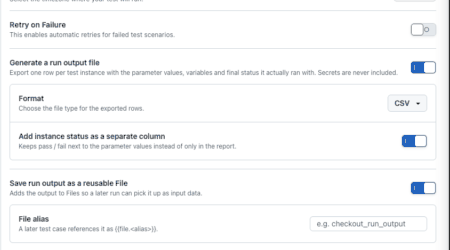
- Turn on Generate a run output file and choose the Format.
- Optionally, turn on Add instance status as a separate column to include each instance's final pass or fail result.
- Optionally, turn on Save run output as a reusable File and enter a unique File alias. A later test can reference that File as
{{file.<alias>}}. - Start the run. KaneAI generates the output after the run completes.

To make the output available as a File for a later test, enable the reusable File option and supply its alias before starting the run.
For KaneAI V4 runs, these output controls are available with Classic Report. They are not currently available with Evidence Report.
Download a completed run output
After the run finishes, open its Test Instances page and click Download run output in the upper-right corner. The run summary shows the output format, the number of rows, and whether the instance status column was included.

If you enabled Save run output as a reusable File, the same summary also shows its alias and generated filename, with a separate Download button. The File is replaced on each execution of that run.
Reuse the output
If you saved the output as a File, you can reference it in a later test step as {{file.<alias>}}. You can also import a run output file into a Dataset when you need its values as rows for a later run. A scheduled run can replace the File it owns on subsequent executions; a different schedule must use another alias.
The file is generated from completed test instances. KaneAI does not support writing to the output CSV or XLSX from an individual test step.
See Using Datasets for input rows and Upload and Download Files for File aliases.


 Chat with Us