Sequential Test Runs
Sequential test runs let you execute dependent test cases in a specific order. Unlike parallel execution, where test cases run independently and concurrently, sequential execution ensures each test case completes before the next one begins. This is useful when test cases share state or depend on the outcome of a previous test, for example, a login test that must run before an account settings test.
Prerequisites
- Access to Test Manager with an existing project
- KaneAI-generated test cases with successful code generation
- Credentials for TestMu AI platform
Create a Sequential Test Run
Step 1: Enable Sequential Execution
Create a test run and add your test cases following the standard test run setup. After adding the test cases, enable the Execute instances sequentially toggle.
Once enabled, you can arrange the test cases in the order you want them to execute. The test cases listed will be executed in this sequence for each configuration assigned.
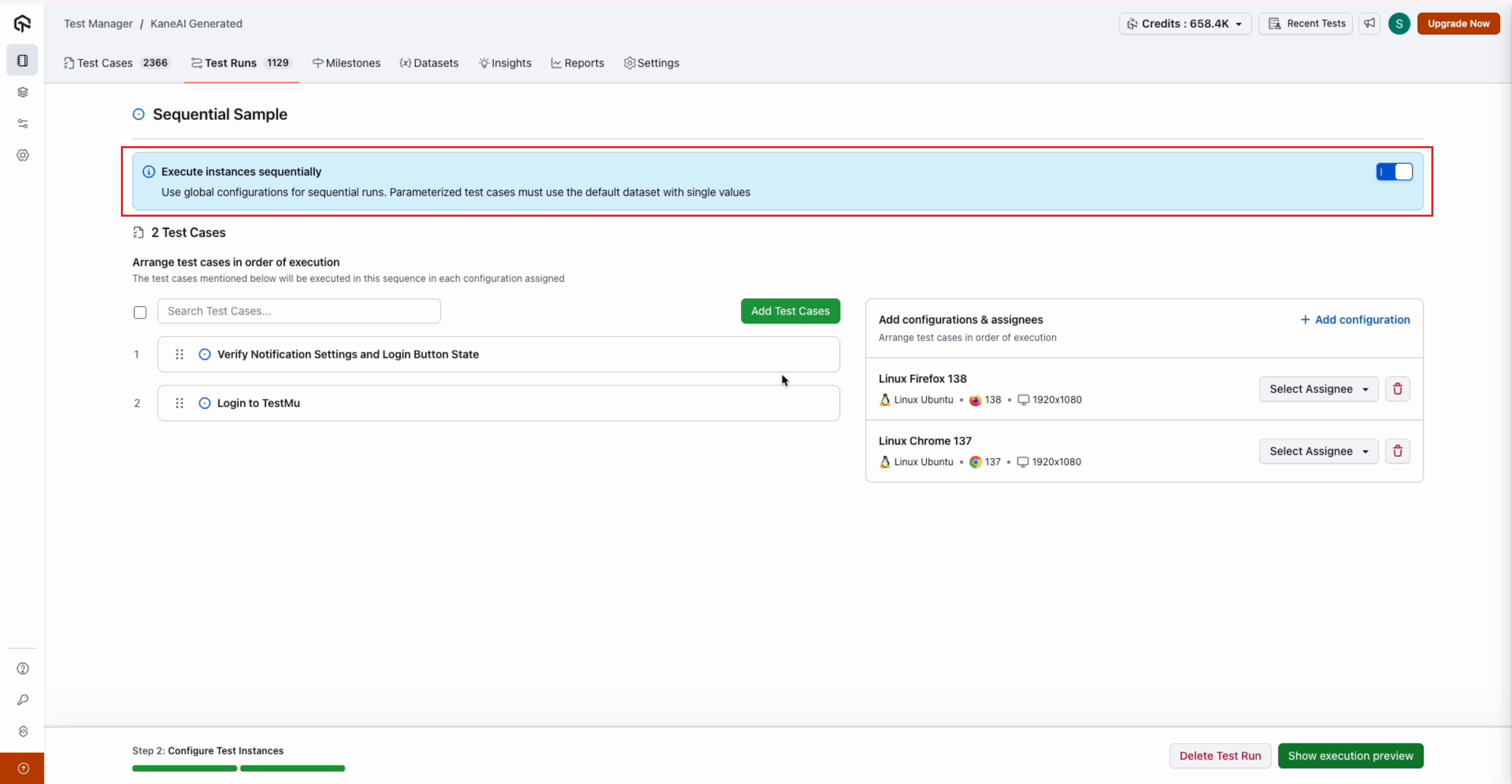
Parameterized test cases must use the default dataset with single values when running sequentially.
Step 2: Configure for a Single Platform
For a single-platform sequential run (e.g., desktop web only), you can select multiple configurations at a global level. For example, you can run the same sequence on both Linux with Chrome 137 and Linux with Firefox. A separate sequential run is created for each configuration.
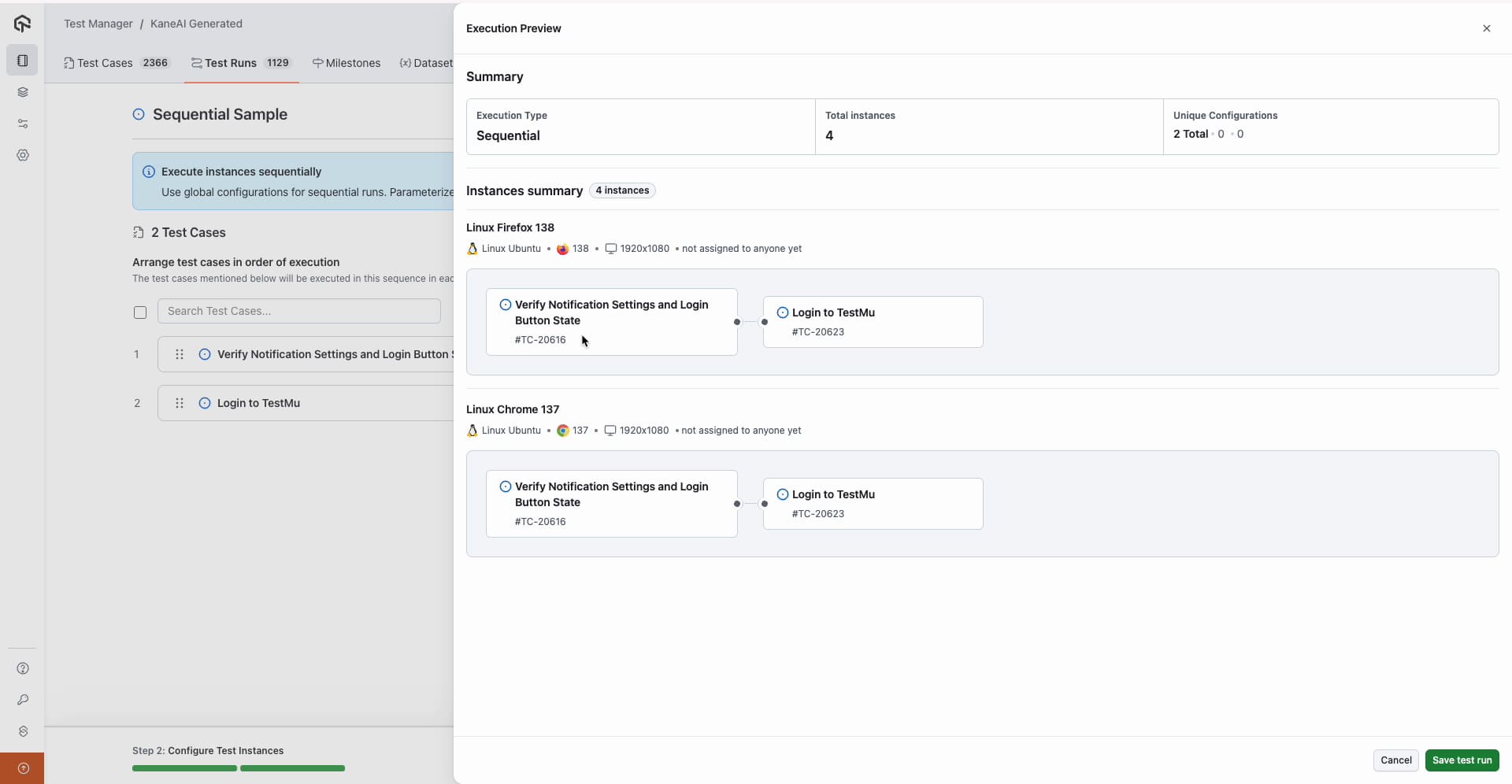
Step 3: Preview and Save
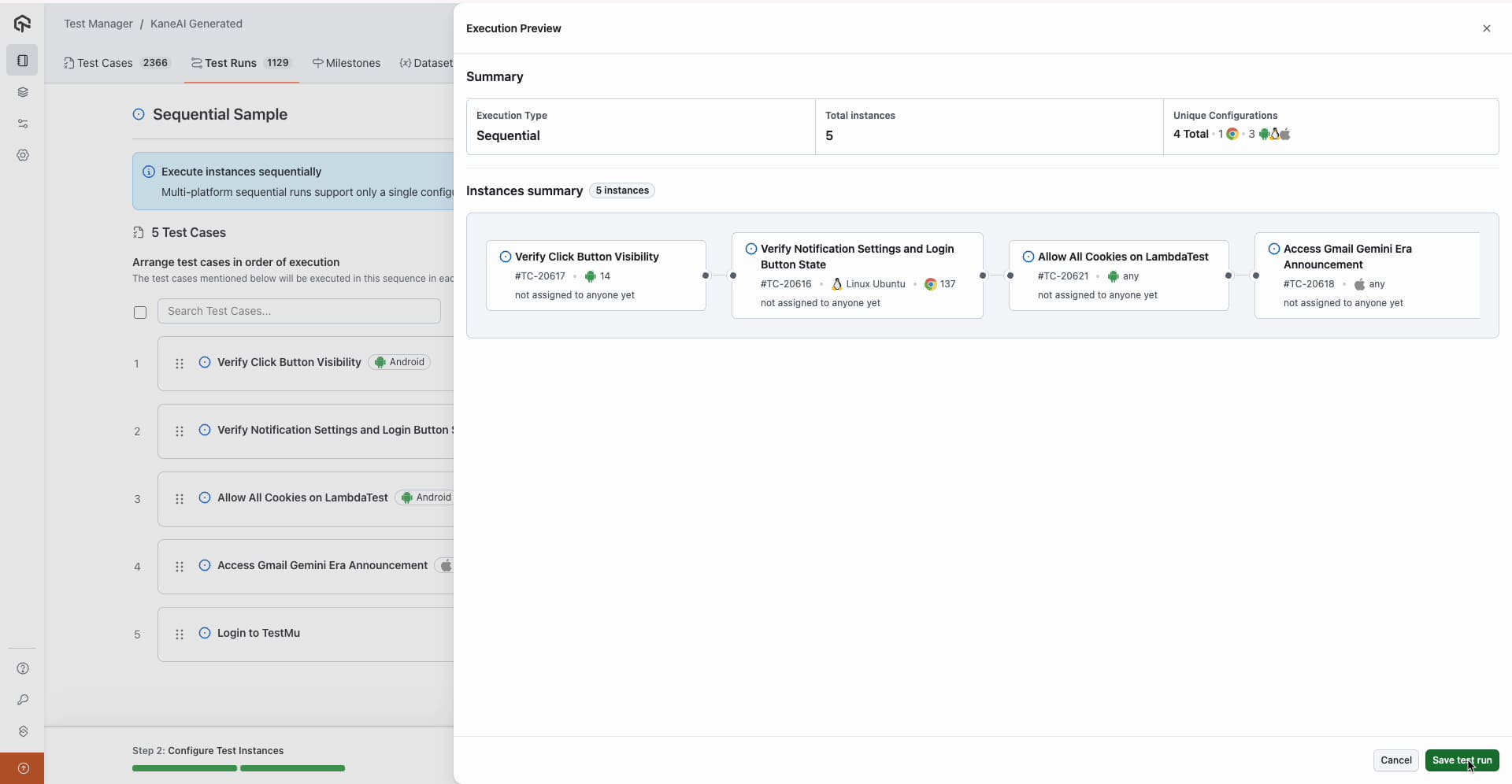
Click Show execution preview to review the test sequence before executing. The preview displays the exact order in which test cases will run for each configuration. Once verified, click Save test run and proceed to execution.
Multi-Platform Sequential Runs
You can also configure sequential runs that span multiple platforms, for example, running a web test followed by a mobile app test. When multiple platforms are combined (desktop web, mobile browser, mobile app), the global configuration option is replaced with per-test-case configuration.
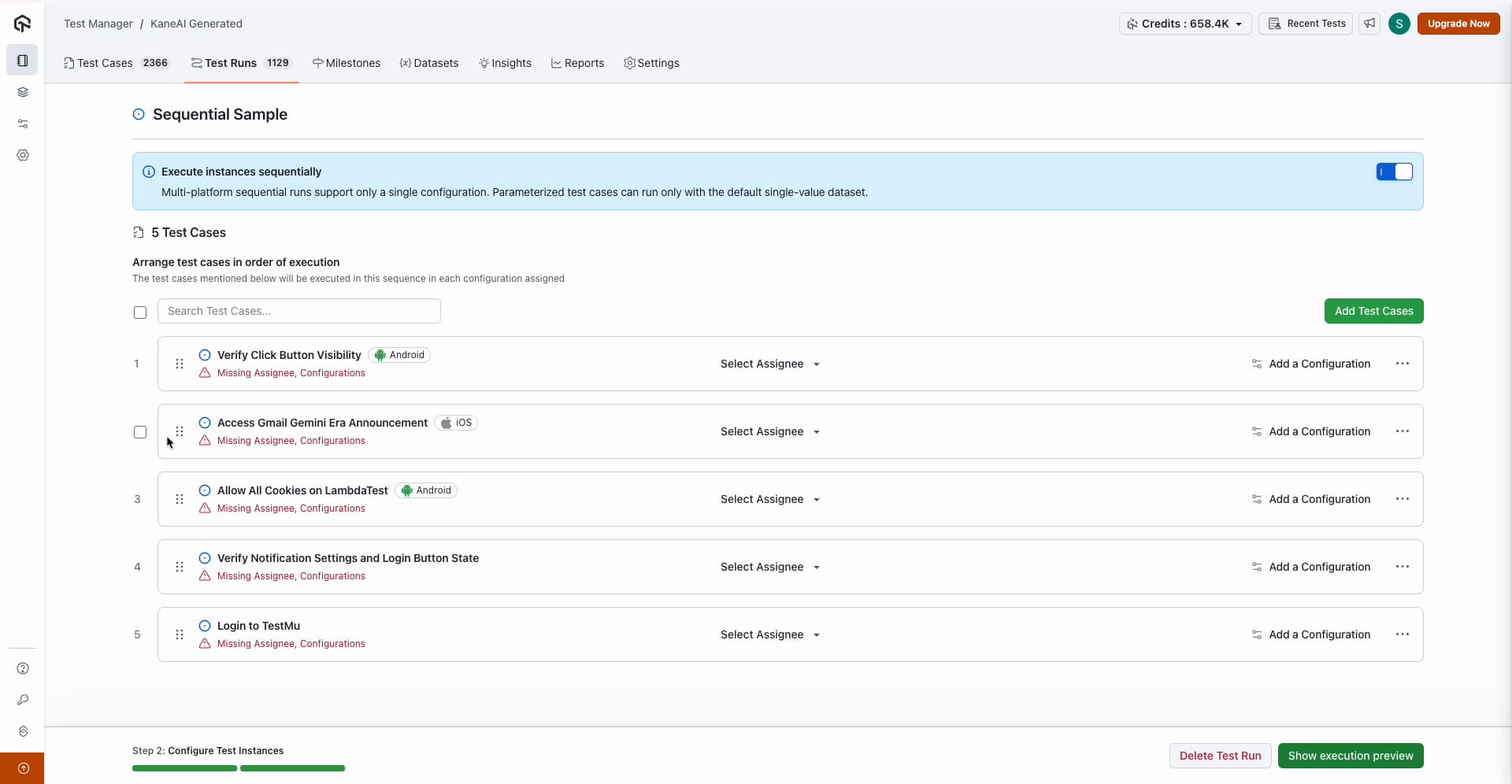
Step 1: Select Configurations Per Test Case
Assign the appropriate configuration to each test case individually. Choose configurations that match the platform each test case was authored on.
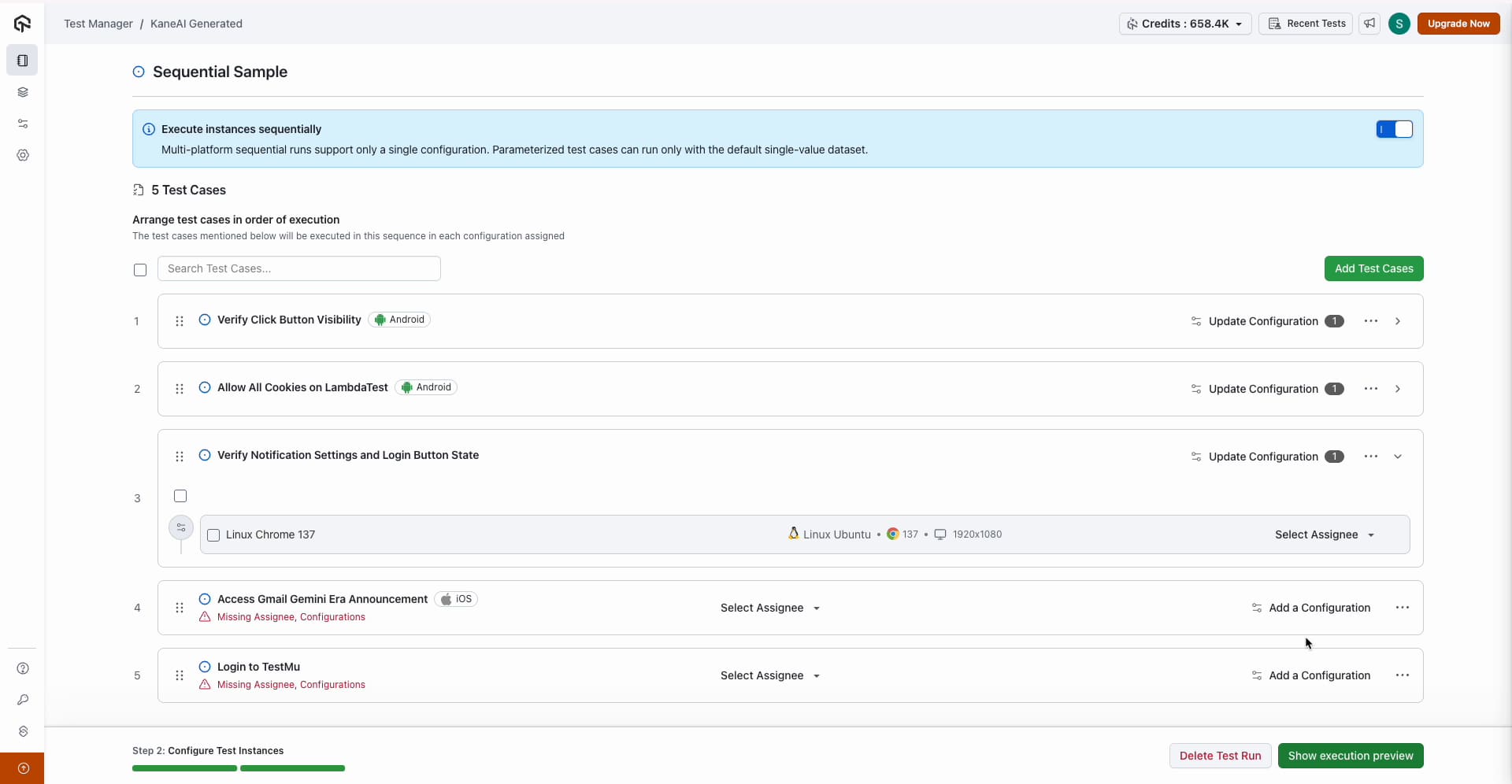
Step 2: Arrange Execution Order and Preview
Set the execution order based on your test dependencies. Use the execution preview to verify the sequence, for example, a web login test running first, followed by an iOS app verification test.
Step 3: Execute the Sequential Run
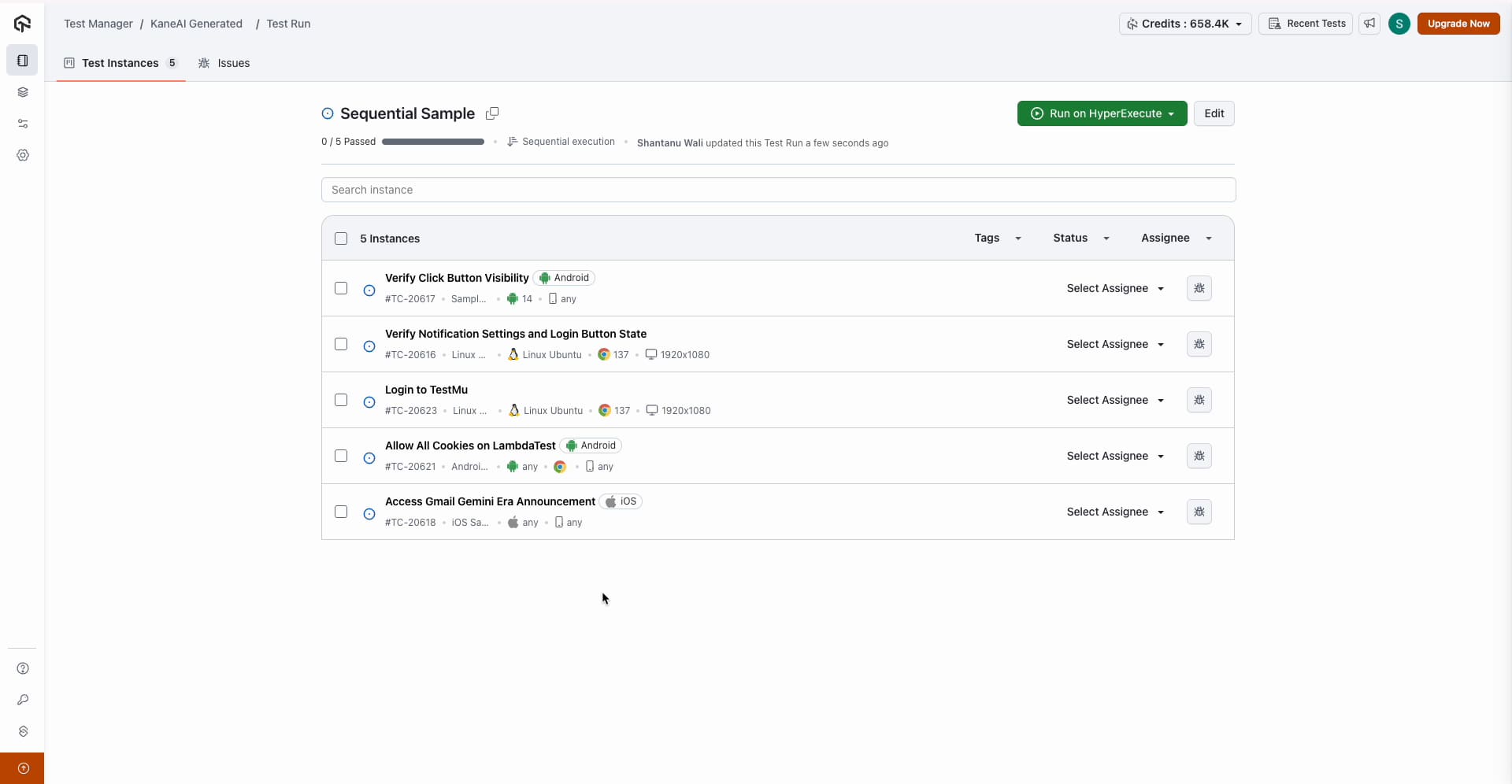
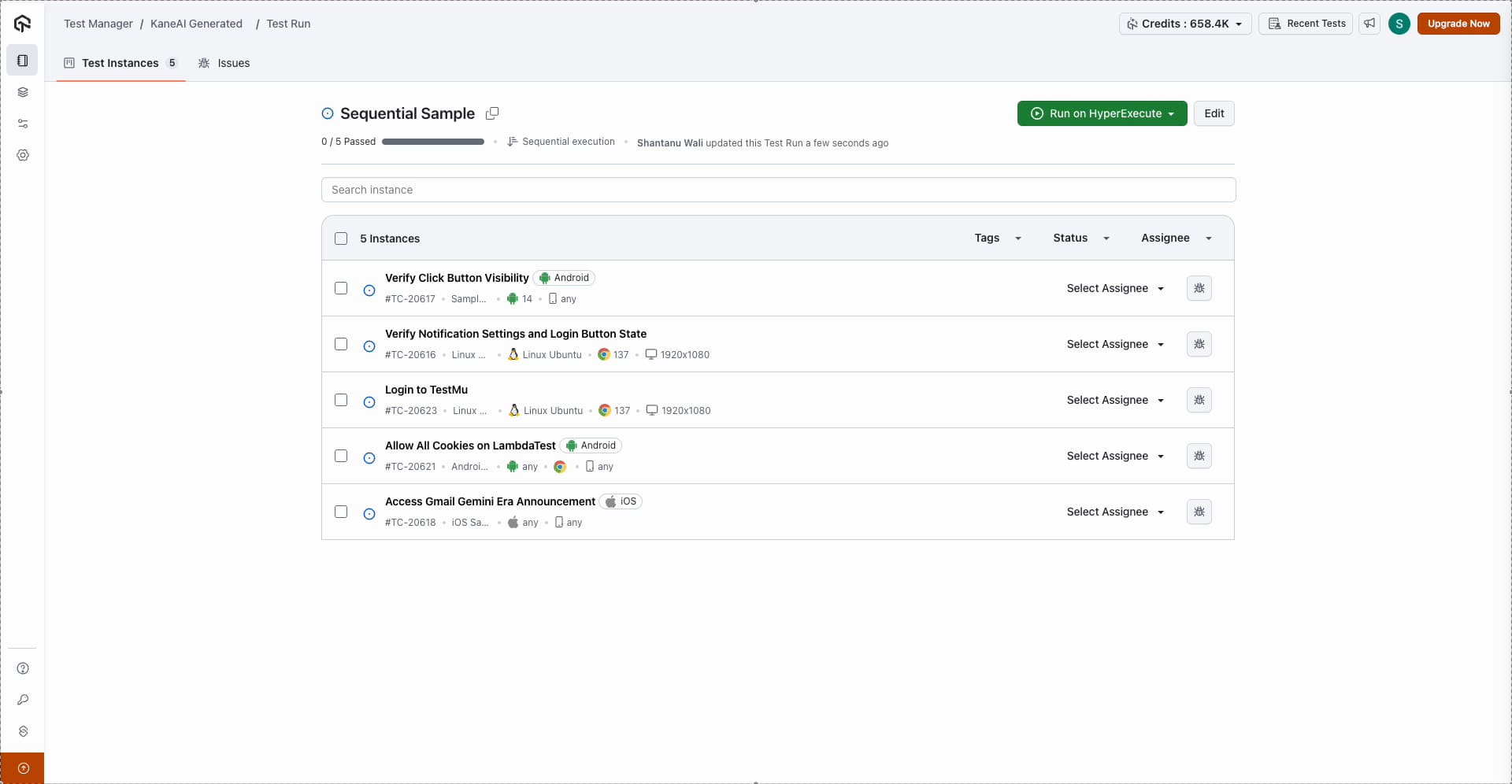
Save and execute the test run. The test instances will run one after another in the defined order.
Key Differences: Single vs. Multi-Platform
| Aspect | Single-Platform Run | Multi-Platform Run |
|---|---|---|
| Configurations | Multiple global configurations allowed (one sequential run per config) | Single configuration per test case only |
| Global config | Supported | Not supported: group configuration is removed when multiple platforms are added |
| Concurrency | One per configuration sequence | Limited to one across the entire run |
Limitations
- Multi-platform runs support only a single configuration per test case. When you add platforms such as mobile browser or mobile app alongside desktop web, the global (group) configuration option is removed.
- Concurrency is limited to one for multi-platform sequential runs. Tests always run one after another since they depend on execution order.
- Execution order must be configured carefully. The sequence directly impacts dependent test behavior. Verify the order in the execution preview before saving.
Troubleshooting
| Issue | Solution |
|---|---|
| Group configuration option disappears after adding new platforms | This is expected for multi-platform sequential runs. Only single-configuration-per-test-case is supported in this mode. |
| Tests not running in the expected order | Re-check the configured sequence in the execution preview and ensure the test run was saved after making ordering changes. |
| Concurrency appears higher than expected | Confirm the run is configured as sequential (toggle enabled) and not mixed with parallel configurations. |
| Unexpected behavior with platform configurations | Ensure only configurations that match each test case's platform are selected. |
Related Guides
- Execute Test Runs on HyperExecute: Standard test run creation and execution
- Scheduled Test Runs: Automate test run scheduling
- Test Run Configurations: Manage browser and device configurations
 Chat with Us