Filtering Your Selenium Tests
You can filter your tests on TestMu AI using the various filters available on the automation dashboard. On each of the tabs available on the automation dashboard (Timeline, Automation Logs, and Analytics), a filter toolbar helps you filter your tests based on selected values. This document explains the filter toolbar of each tab and how you can filter your tests.
Filtering Tests on Timeline
Use the filter toolbar on the Timeline tab to narrow down tests by date, user, build, and status.
When you visit the Timeline on your automation dashboard, you can see a Filter icon that allows you to use different filters.
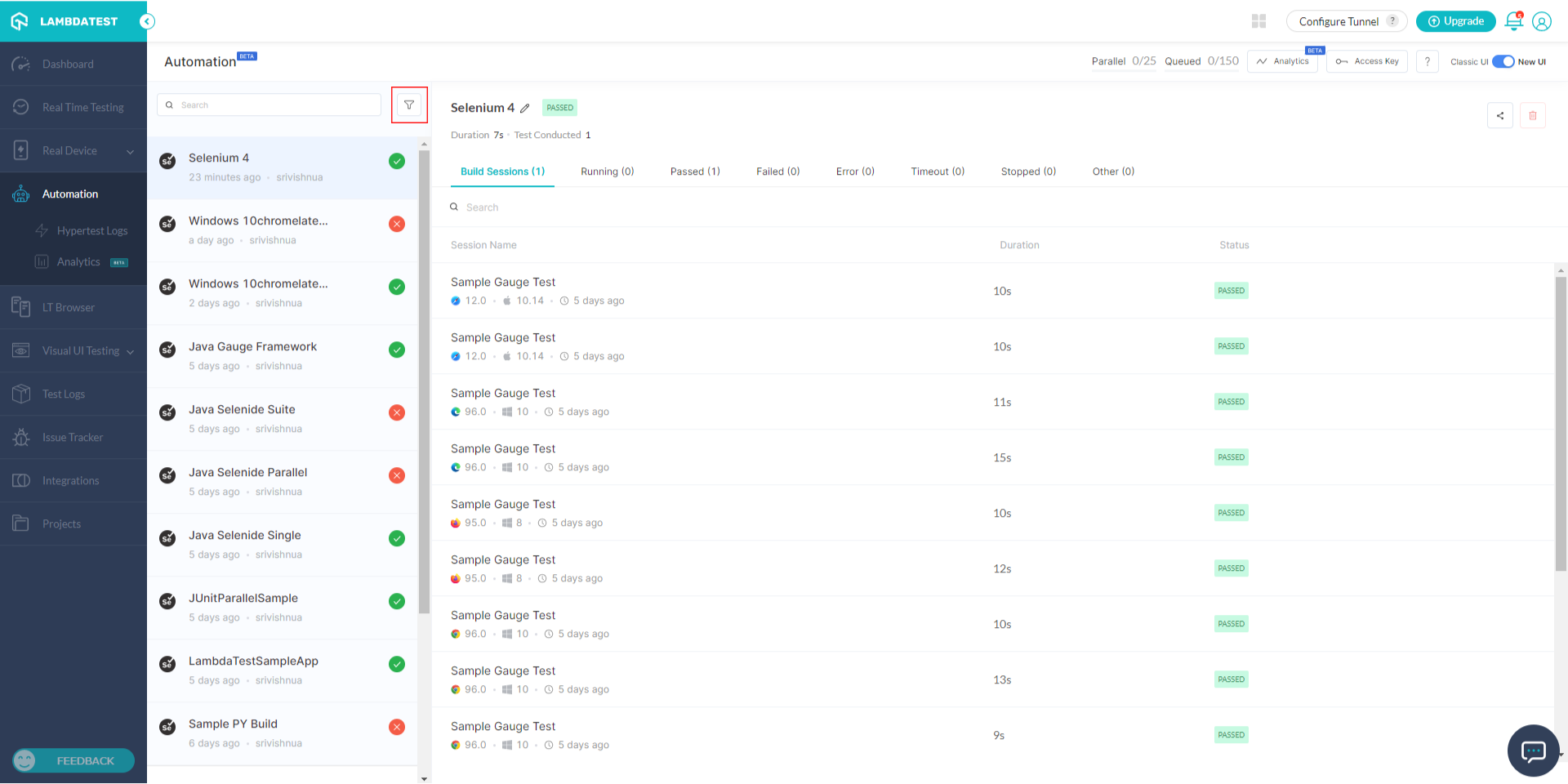
Understanding the Filter Toolbar
Now let us see each component of this filter toolbar one by one.
1. Date
This option filters automation tests on your timeline based on a range of dates. Select a start date and an end date to filter tests that ran in this period. By default, it shows the range from the beginning until the current date.
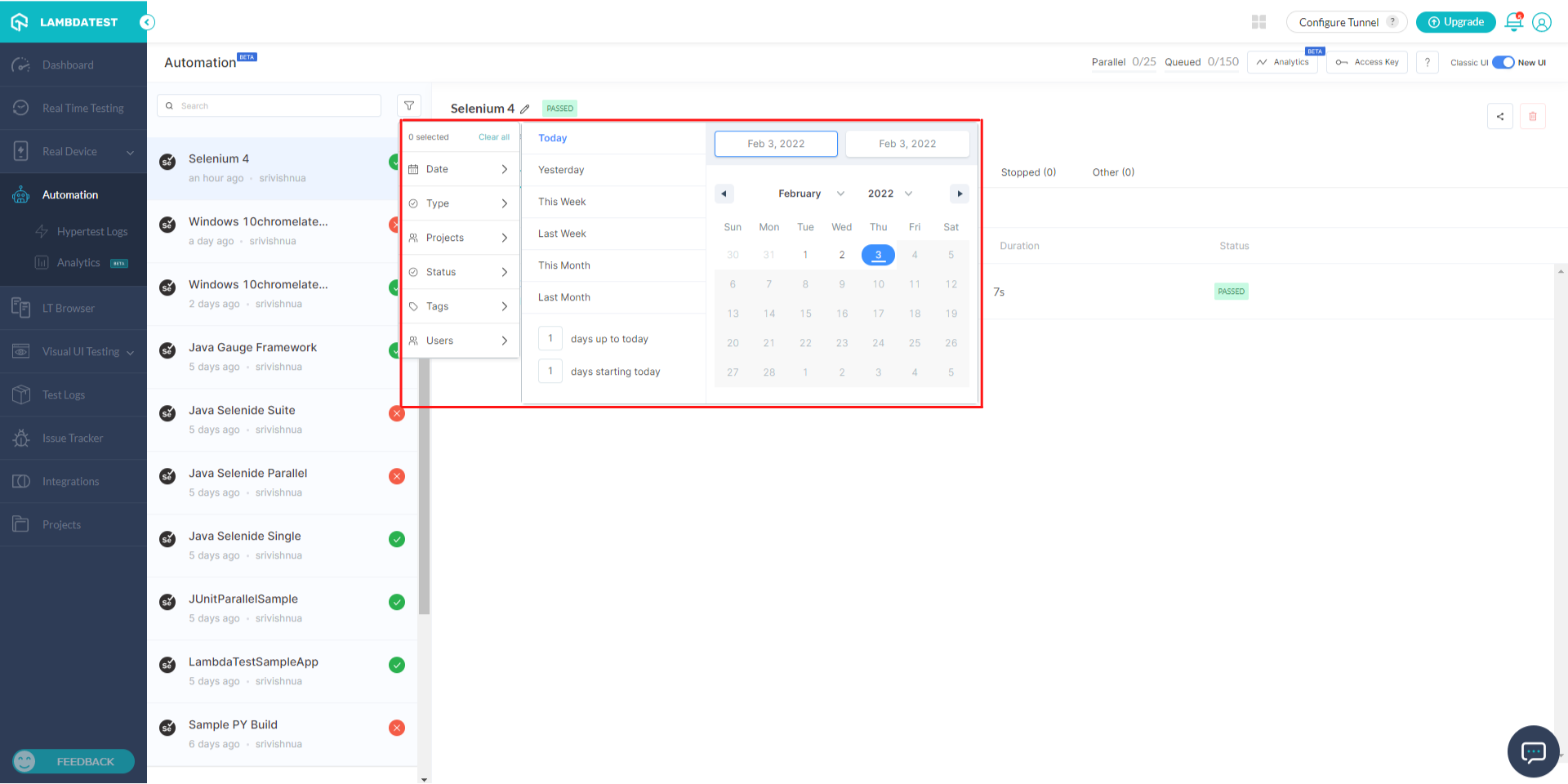
To filter tests based on custom dates, first select the starting date from the calendar window, then select the ending date. You can see a selected range after you click on the starting date.
For example, to view tests that ran between 1st Feb - 3rd Feb, click on 1st Feb first and then on 3rd Feb.
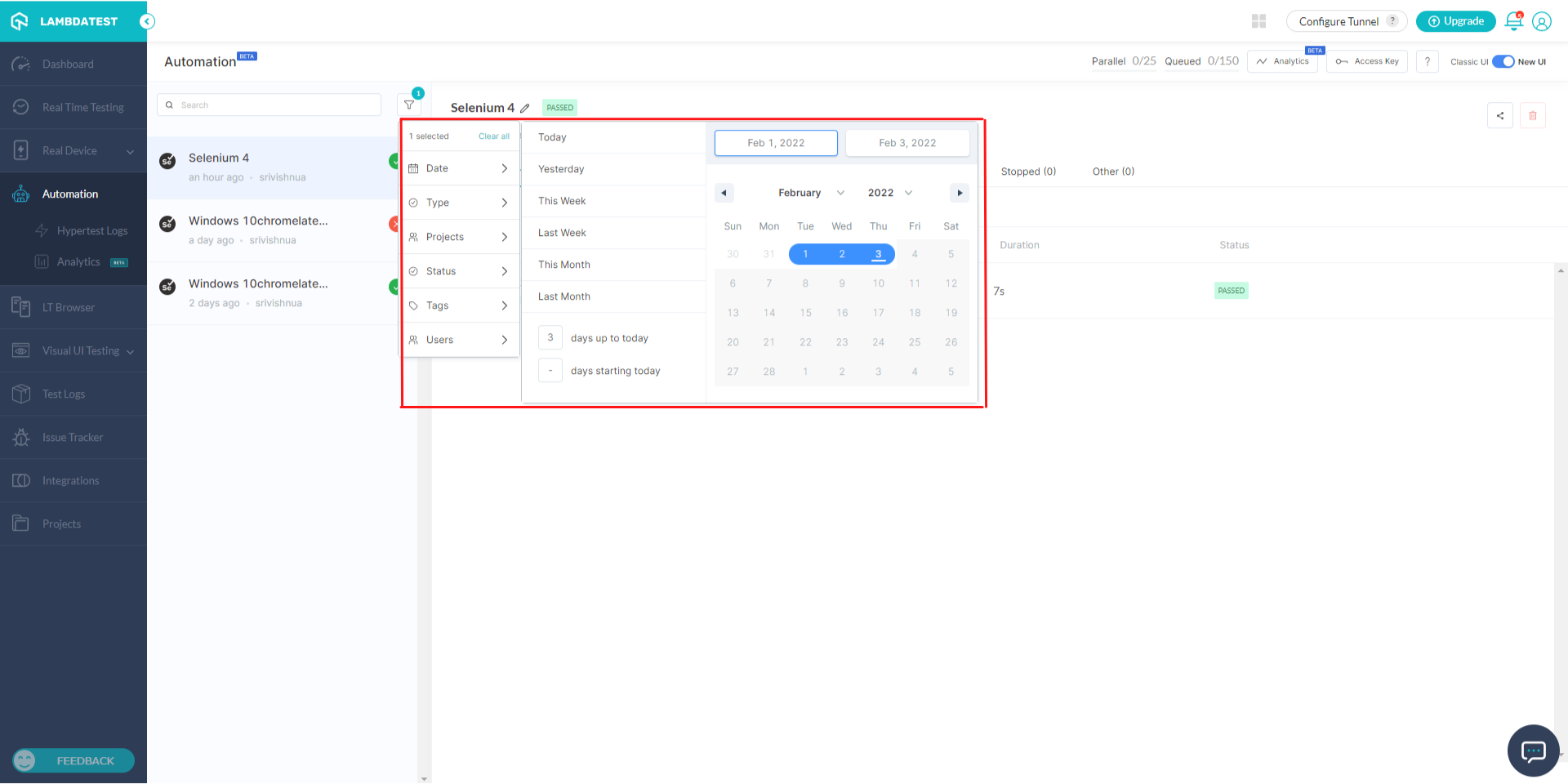
Once the ending date is selected, the tests are automatically sorted based on the selected custom dates.
2. Users
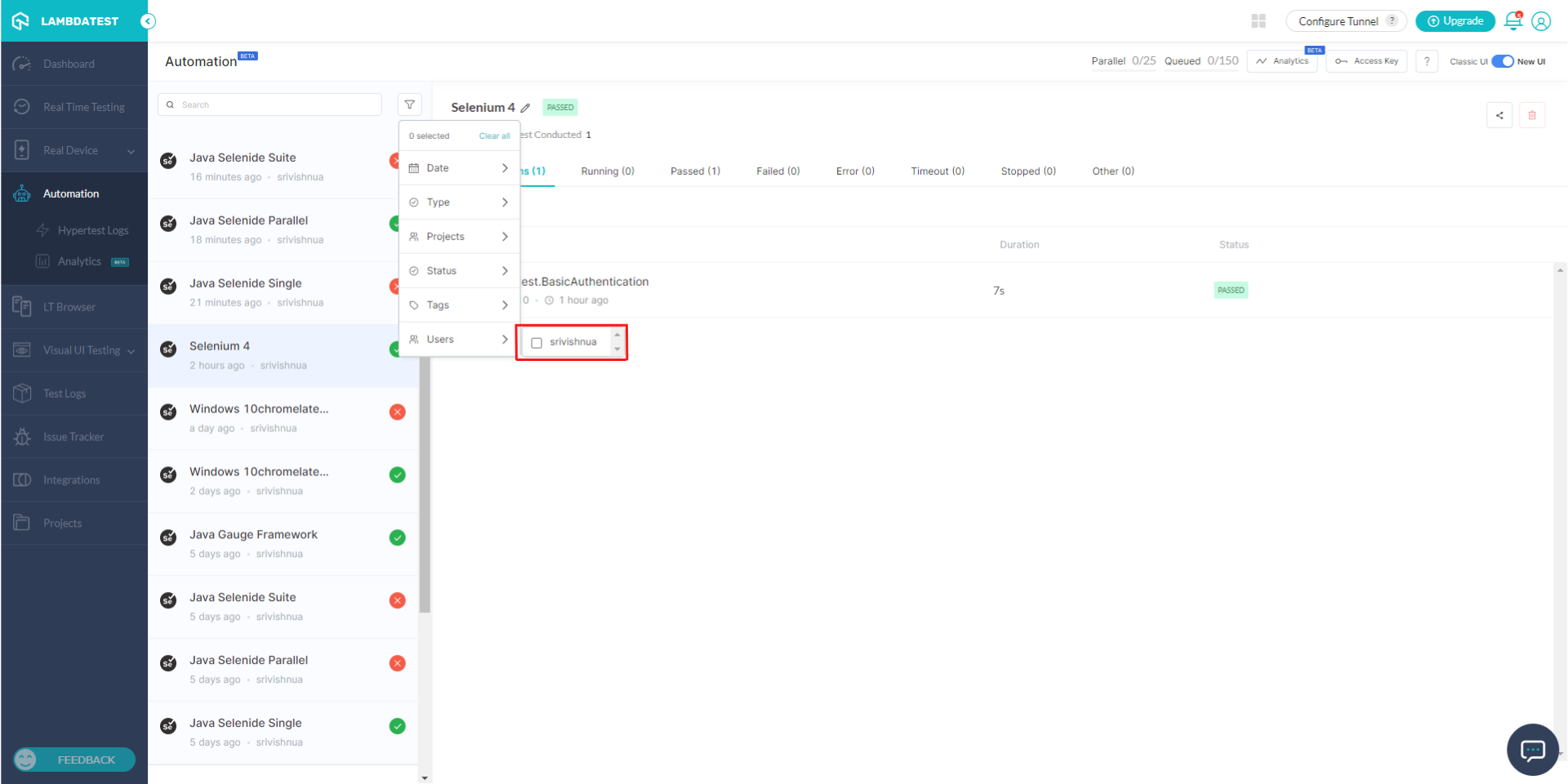
You might have multiple team members added to your TestMu AI account. To filter tests by the member who ran them, use this option in the filter toolbar. Click on the Users option to see a list of members added to your account. Select the members whose tests you want to filter, and the tests filter automatically. You can select multiple members.
3. Build
Use this feature to see selected builds on your Timeline. Click on this option to see a list of all builds that have run. Select one or more as needed.
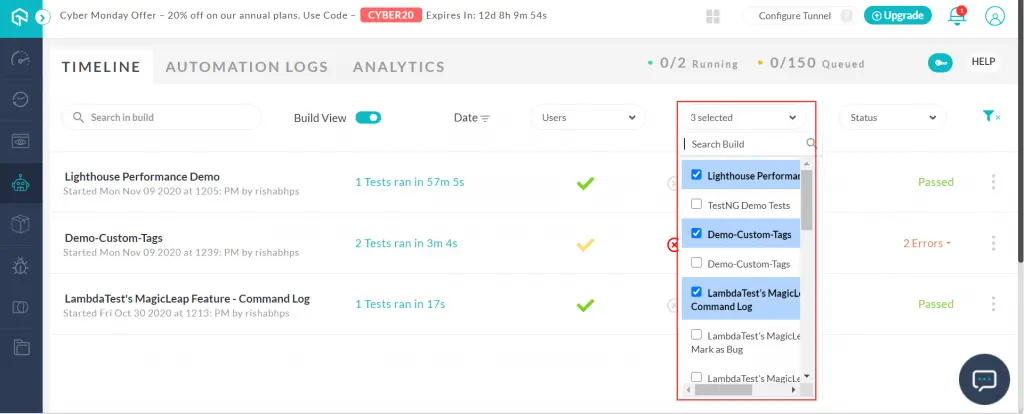
4. Status
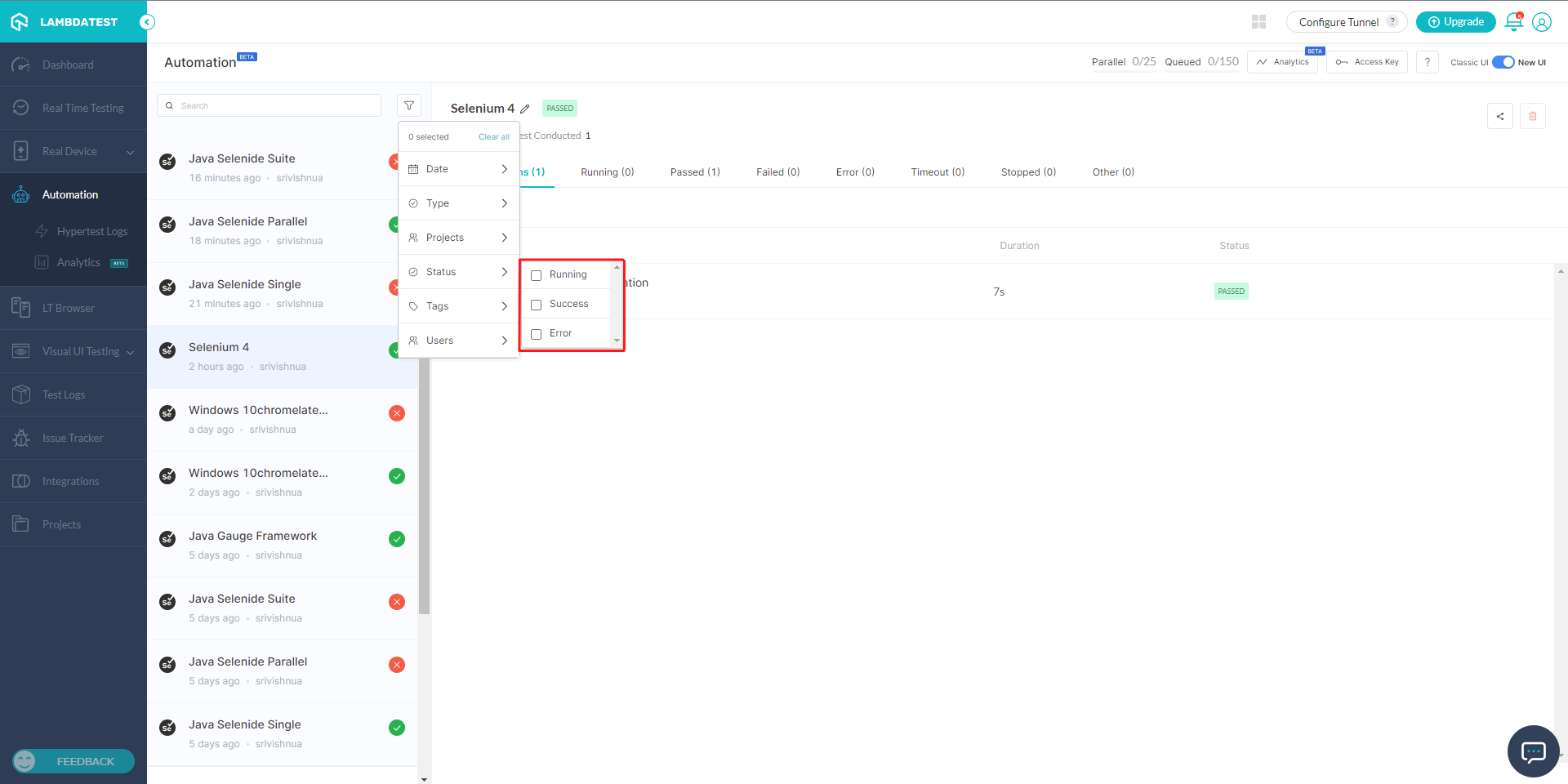
This option on the filter toolbar helps you filter automation tests based on the current status of the test:
- Running
- Queued
- Idle Timeout
- Queue Timeout
- Completed
- Passed
- Failed
- Error
- Stopped
- Cancelled
- Lambda Error
- Allocating VM
Click on this option to see a list of all the above statuses. Select one or more to filter tests that have these statuses.
5. Clear Filters
Use this option to clear all applied filters. Clicking this option returns the Timeline to the default state with all filters removed.
Filtering Tests on Automation Logs
Use the filter toolbar on the Automation Logs tab to filter by build, date, users, status, and tags.
When you visit the Automation Logs on your automation dashboard, you also see a filter toolbar.
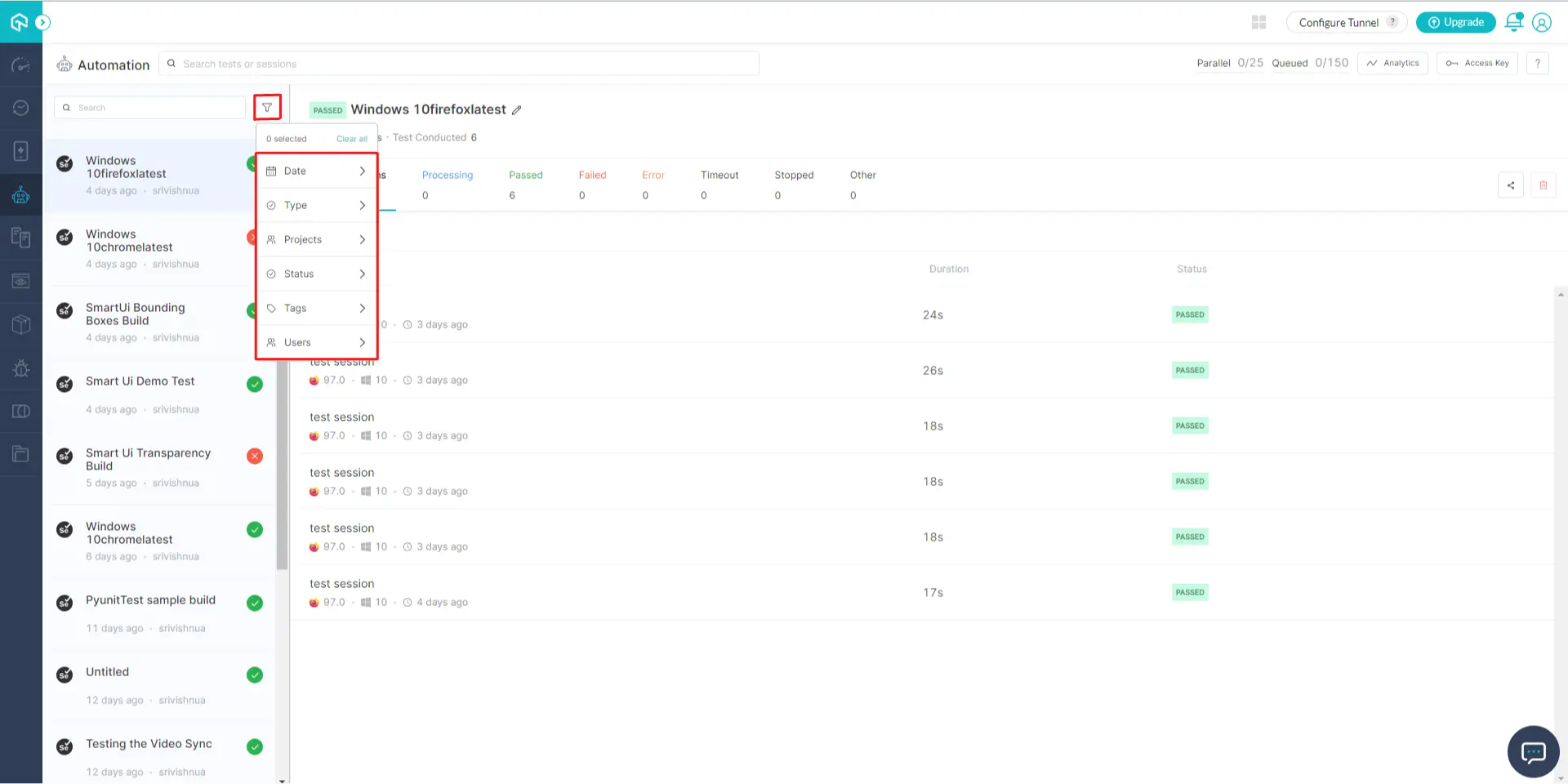
The components of this toolbar are:
- Build
- Date
- Users
- Status
- Tags
- Clear Filters
The Build, Date, Users, Status, and Clear Filters components behave the same as in the Timeline. Let us look at the Tags component in detail.
Filter Tests Using Tags
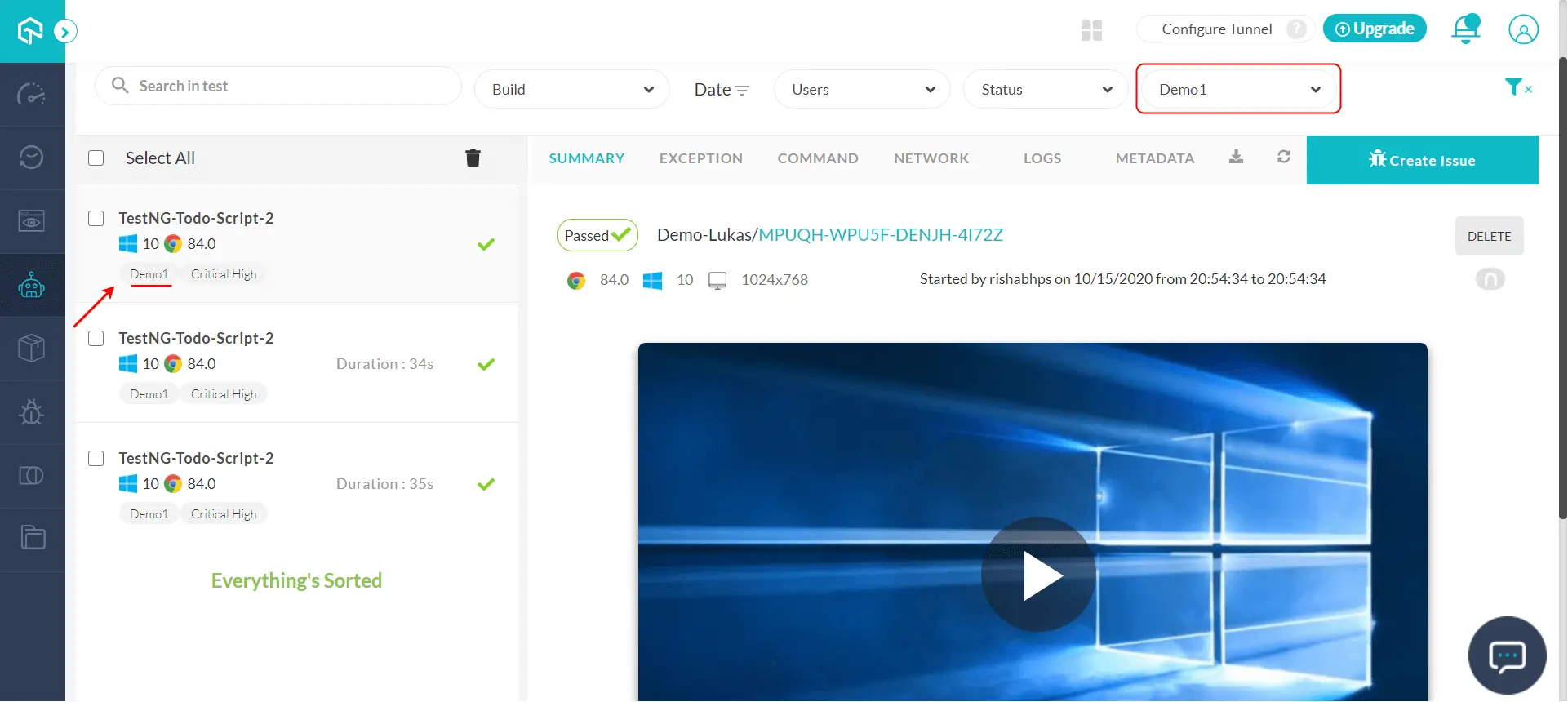
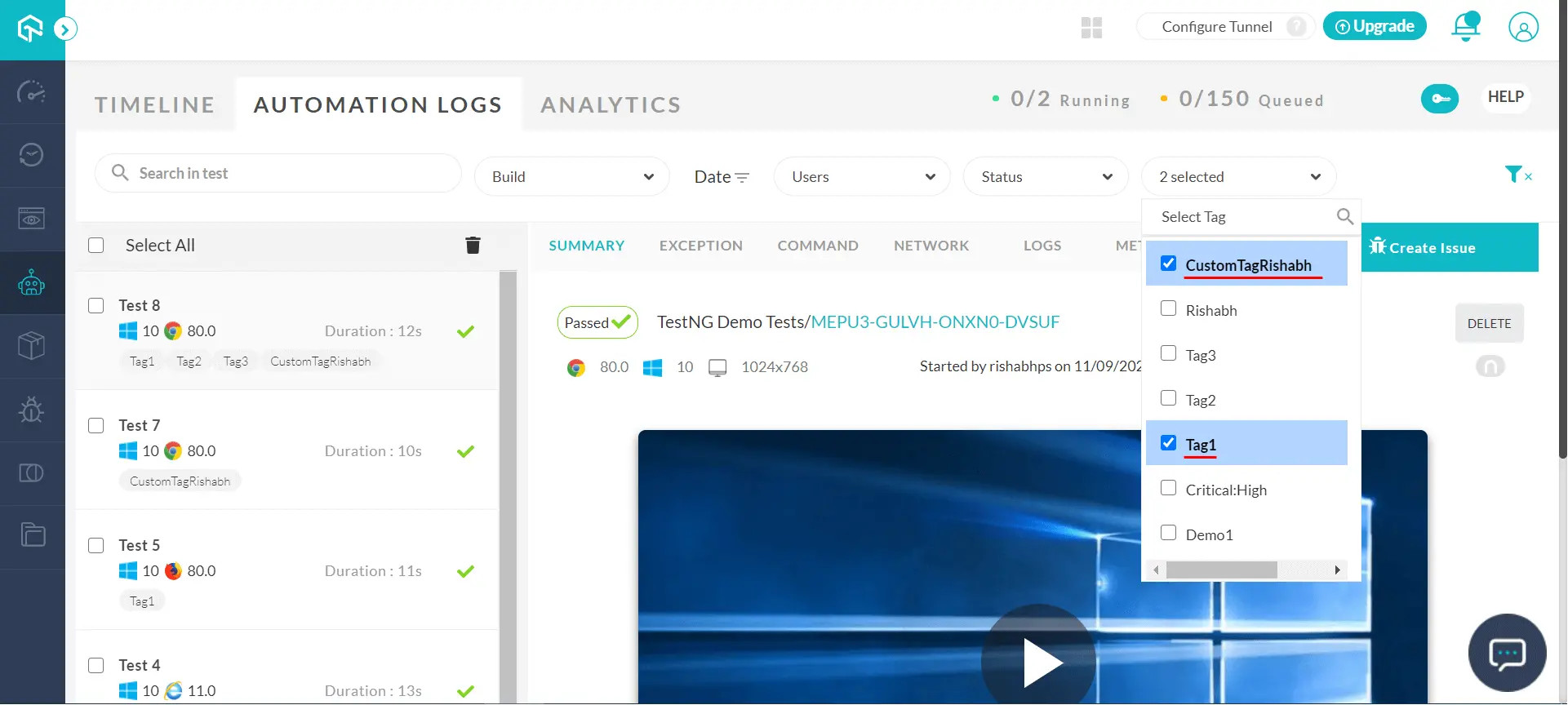
You can filter your Selenium tests on TestMu AI using custom tags. Click on the Tags option to select the tag by which you want to filter tests. You must have used the custom tags feature earlier to use this filter.
Here is an example showing tests filtered using the Demo1 custom tag:
You can also filter tests based on multiple tags. Select multiple custom tags at once from the filter toolbar:
Filtering Tests on Analytics
Use the filter toolbar on the Analytics tab to filter by tags, users, environment, and date range.
When you visit the Analytics on your automation dashboard, you also see a filter toolbar.
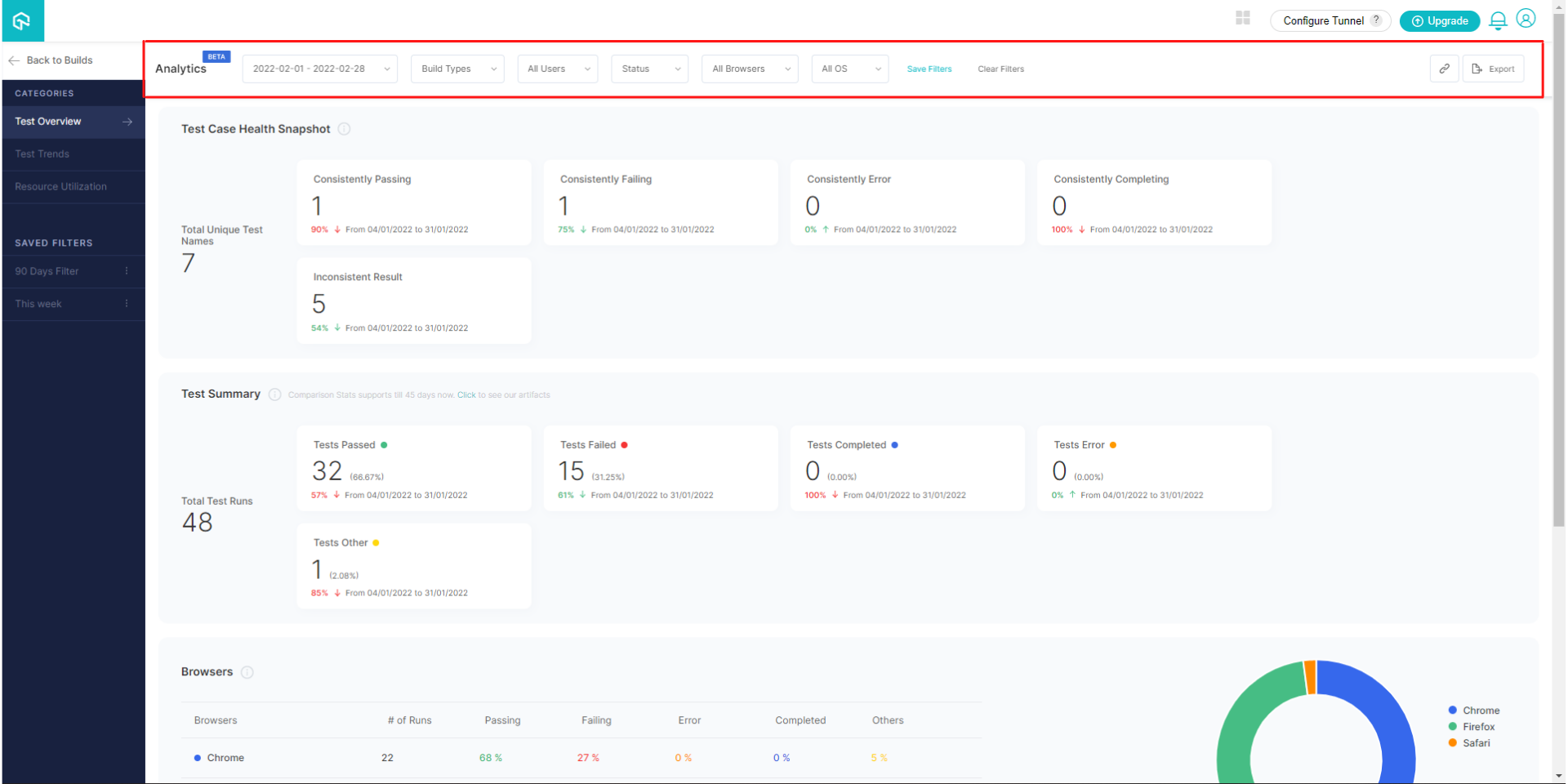
The components of this toolbar are:
- Tags
- Users
- Environment
- Date
- Analytics Tab Timeline
- Clear Filters
The Tags, Users, Date, and Clear Filters behave the same as above. Let us look at the Environment and Analytics Tab Timeline components in detail.
Filter Tests Using Environment
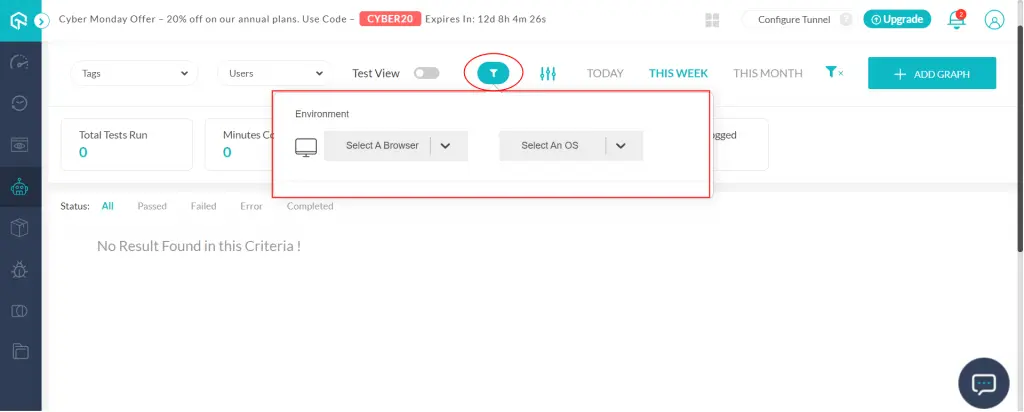
The Environment filter filters tests based on the browser and/or operating system used in the test. Refer to our list of browsers to understand the options available in this filter.
Filter Tests Using Analytics Tab Timeline
The Analytics Tab Timeline option helps you quickly filter tests based on preset time periods:
- TODAY
- THIS WEEK
- THIS MONTH
Select any of these, and the tests that ran in that period get filtered out.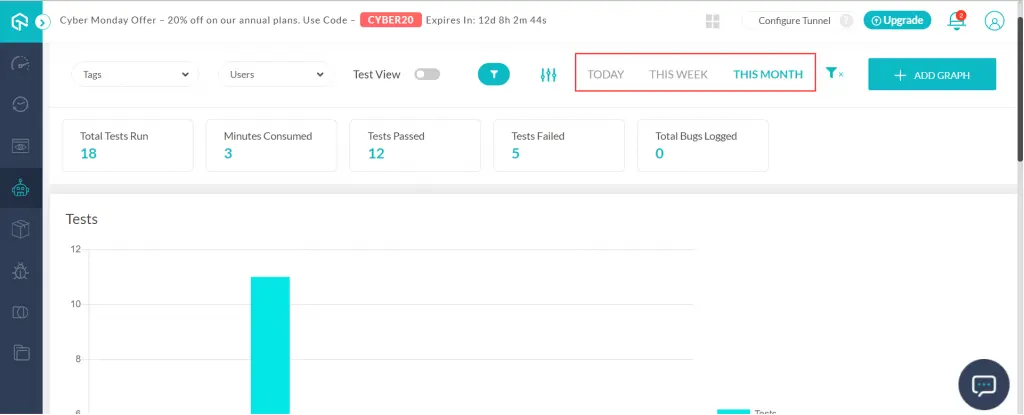
By default, the THIS WEEK filter is selected. You can use the Date filter instead to filter tests in a custom date period. If you select the Date filter, this filter is automatically removed.
You can now filter your tests using the filter toolbar on your automation dashboard. If you have any questions, share them with us through our 24/7 chat support or by mailing us at [email protected].

 Chat with Us
 Ask the Community