View Lighthouse Performance Metrics Using Online Selenium Grid
TestMu AI integrates Lighthouse to view performance metrics (Lighthouse Audits) on its cloud-based Selenium Grid. You can view the scores of:
- Performance,
- Accessibility,
- Best Practices,
- SEO
- Progressive Web App
metrics with TestMu AI. TestMu AI also allows you to perform cross-browser testing on 5000+ real devices and 10,000+ browser/device combinations.
Note: TestMu AI currently supports Lighthouse on Chrome browsers for all Windows OS, macOS BigSur, macOS Mojave, and macOS Catalina.
Prerequisites
Complete these steps before generating Lighthouse reports.
- Create a TestMu AI account.
- Get your TestMu AI Username and Access Key from the Automation Dashboard or your TestMu AI Profile.
How to Include Lighthouse Performance Metrics in Selenium Automation
Add the performance capability to your desired capabilities to enable Lighthouse metrics.
You can add Lighthouse performance metrics for the website you want to test using the Desired Capabilities. Use the Performance feature of the Desired Capabilities Generator.
For example, if you are using TestNG for Selenium Automation on TestMu AI, include the Lighthouse performance feature with the below code snippet:
Set the performance capability to true inside LT:Options:
ChromeOptions browserOptions = new ChromeOptions();
browserOptions.setBrowserVersion("latest");

HashMap<String, Object> ltOptions = new HashMap<String, Object>();
ltOptions.put("platformName", "Windows 10");
ltOptions.put("build", "Lighthouse Performance Demo");
ltOptions.put("name", "Lighthouse Test");
ltOptions.put("w3c", true);
// Enable Lighthouse performance metrics
ltOptions.put("performance", true);

browserOptions.setCapability("LT:Options", ltOptions);
Lighthouse performance metrics must be enabled for your account. If the Performance tab stays empty after your test runs (even though the test passes), confirm the feature is available on your plan.
How to View Lighthouse Performance Metrics on TestMu AI
Access the Lighthouse performance report from the Automation Dashboard after running your tests.
Once you have run your Selenium automation tests on TestMu AI, you can view the Lighthouse performance metrics on the website under test.
Note: The test duration should be at least 30 seconds to generate the Lighthouse Performance Report.
Follow the below steps to view the Lighthouse performance metrics on TestMu AI:
1. Go to the Automation Dashboard, open your build, and select the test in which you enabled the performance capability. Open the Performance tab and choose LightHouse Report from the View URLs dropdown. You will see the five Lighthouse category scores for the page under test — Performance, Accessibility, Best Practices, SEO, and PWA. For this demo we ran a TestNG script (from this sample repository) against https://www.testmuai.com/selenium-playground/:
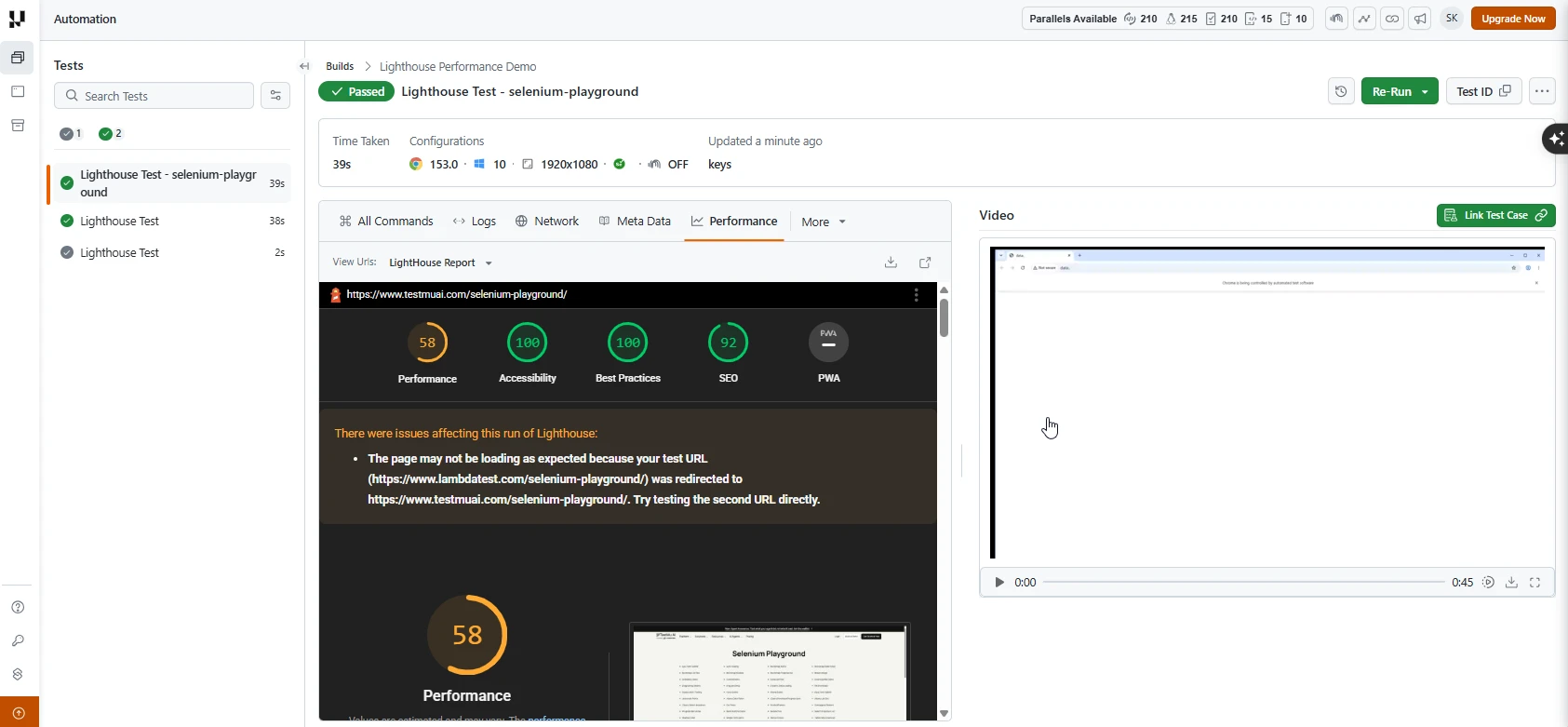
If your test URL redirects (for example, www.lambdatest.com → www.testmuai.com), Lighthouse shows a warning and audits the final URL. Point your test at the final URL directly for the cleanest report.
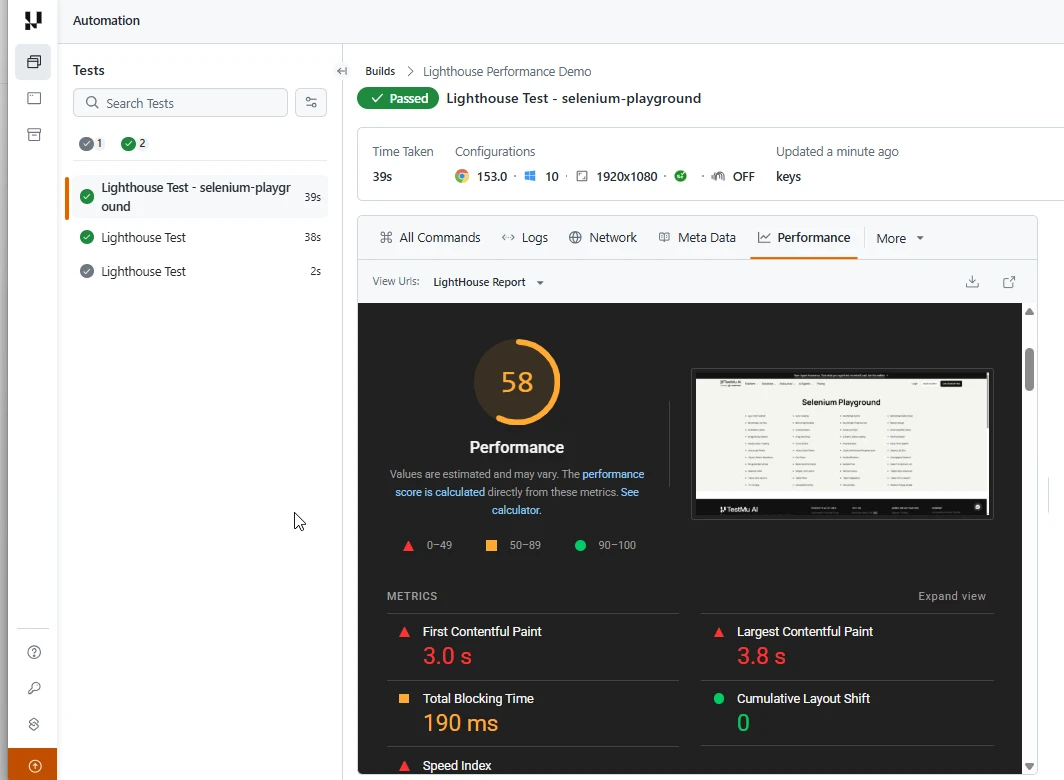
2. Scroll down the report to view the Performance section and its Core Web Vitals metrics — First Contentful Paint, Largest Contentful Paint, Total Blocking Time, Cumulative Layout Shift, and Speed Index:
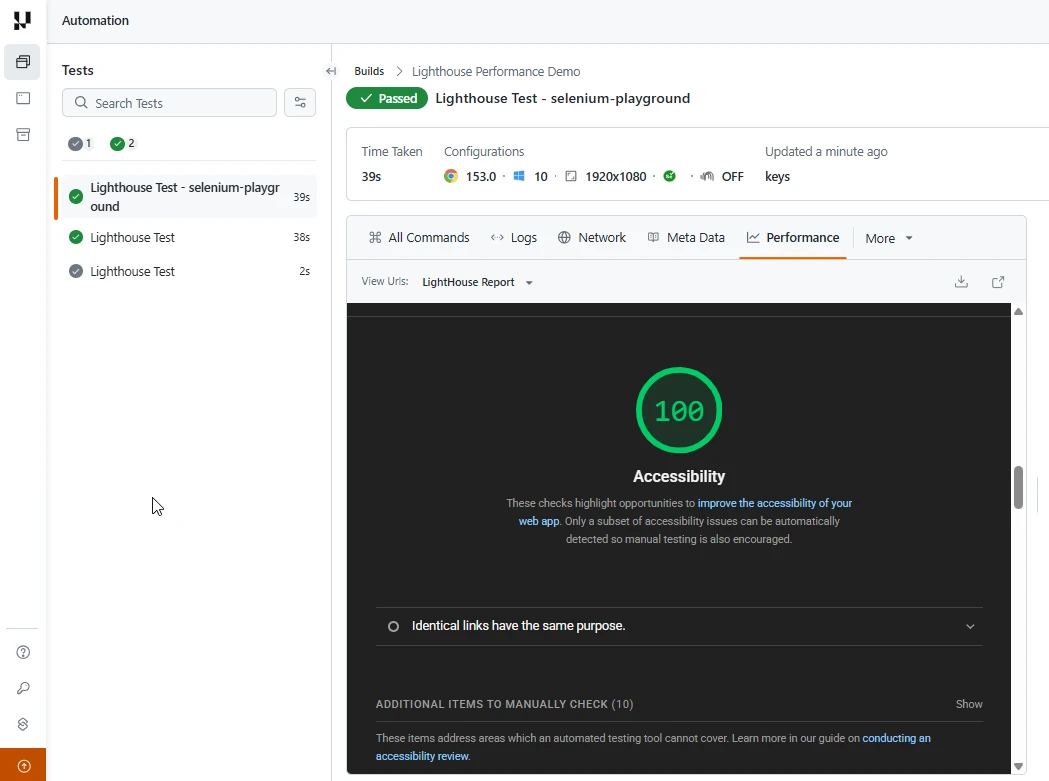
3. Continue scrolling to the Accessibility section to view its score and the audited checks:
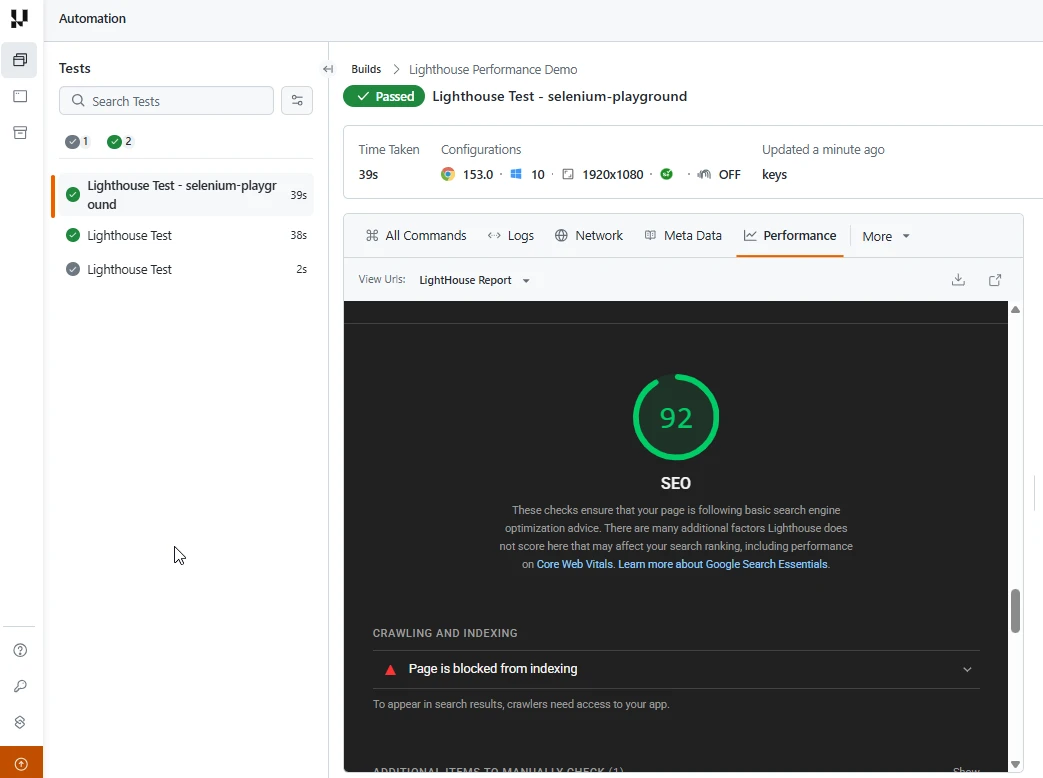
4. Scroll further to the SEO section to view its score along with the crawling and indexing checks:
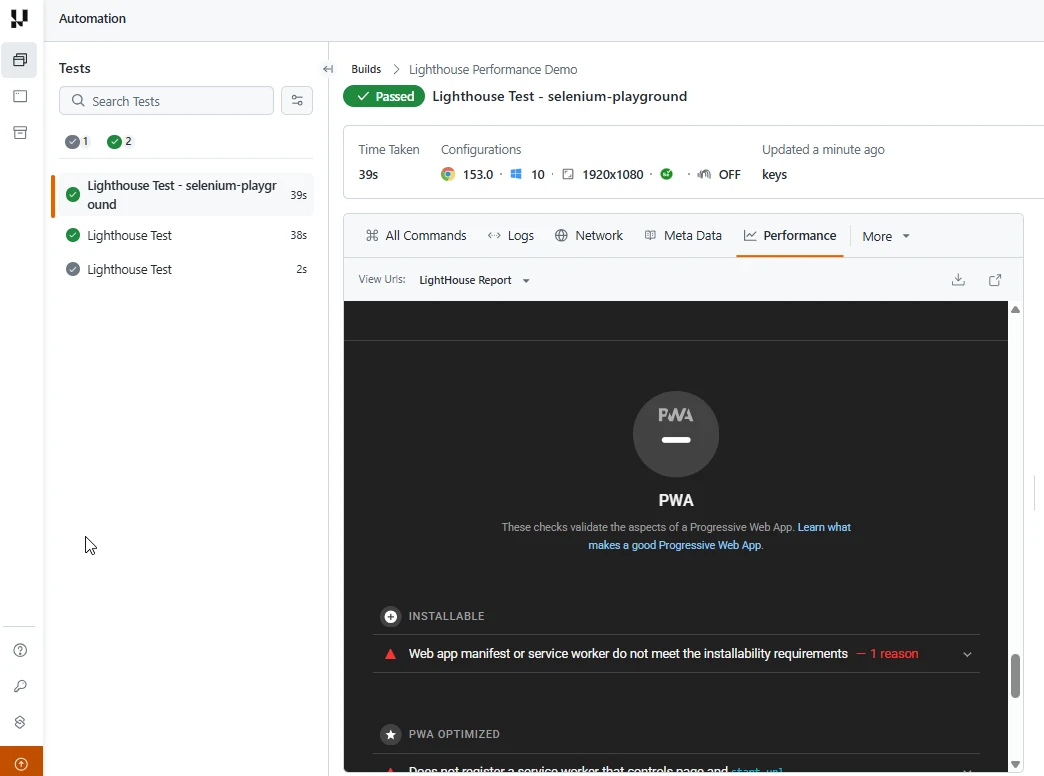
5. Keep scrolling to the PWA (Progressive Web App) section to view its installability and PWA-optimized checks:
Scroll through the report to view the detailed audits, individual factor scores, passed audits, diagnostics, and improvement opportunities for each category. Reports can also be downloaded from the Performance tab.
That's it folks! That's all about the Lighthouse Performance Metrics with TestMu AI. You can read more about the Lighthouse Audits and Performance Metrics from web.devpage. If you have any doubt or questions, feel free to contact our experts at 24/7 chat support or mail us at support@testmuai.com. Happy testing! :)


 Chat with Us