Authoring Session States, Cursor, and Running Steps in KaneAI
Overview
An authoring session is the live workspace where you build a test in KaneAI. A device or browser runs your application on one side, and a step list records what the test does on the other side. You add steps by typing instructions in natural language, by running slash commands, or by interacting with the application directly.
At any moment the session is in exactly one of four states — Setting up, Authoring Steps, Paused, or Running. A separate Error flag can sit on top of Paused when the agent could not execute a step. Two further concepts govern how you build and verify a test: the cursor, which marks where the next step will land, and the four run actions, which let you execute the whole test, a range of steps, or a single step.
This model is the same across Desktop Web, Mobile Web, and Mobile App authoring, and applies to both Classic and the New Experience.
Available on request. Please reach out to Support to enable it. These features are partially rolled out and will soon be generally available for all users.
Session States
Setting up
The device or browser is being brought up and your application is being installed or loaded. This happens when you start a session and again after you use Reset Session. It is transient — nothing is interactive while it lasts, and the session moves on automatically once the environment is ready.
If you selected a variable environment before starting the session, the session is locked to it from this point. Every {{environment.X}} variable resolves from that environment until the session ends. See Select an Environment for an Authoring Session.
Authoring Steps
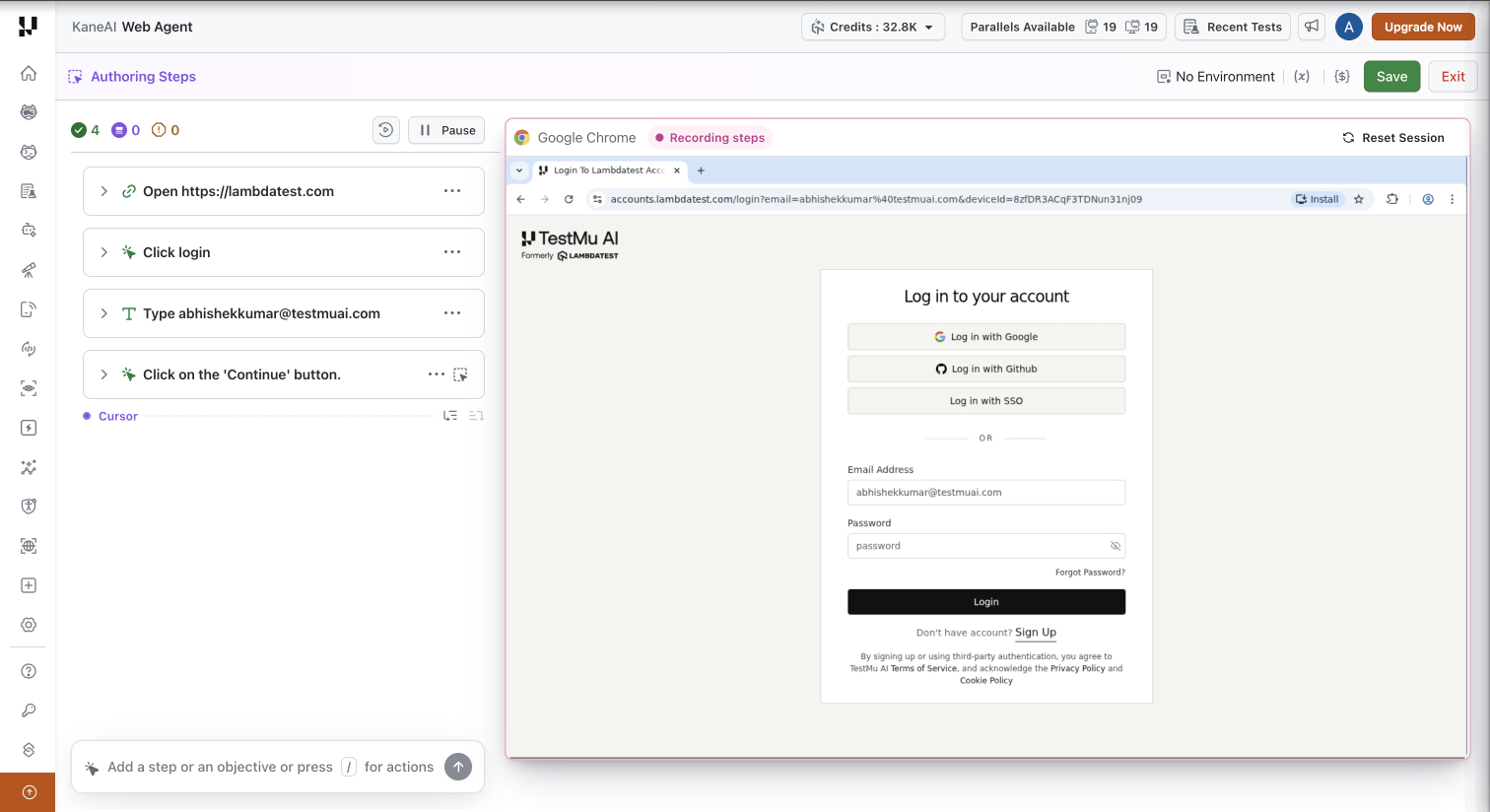
The state you build tests in. Anything you do on the application is captured and converted into a test step, and you can also type instructions or use slash commands. New steps are inserted at the cursor and execute as they are added. The application view shows a Recording steps indicator while capture is active.
In Authoring Steps the cursor is pinned to the bottom of the step list and cannot be moved, so new steps always append to the end. What you cannot do in Authoring Steps is edit, duplicate, or delete steps, or move the cursor — those are reserved for Paused, so that the step list does not change underneath a session that is actively capturing.
Paused
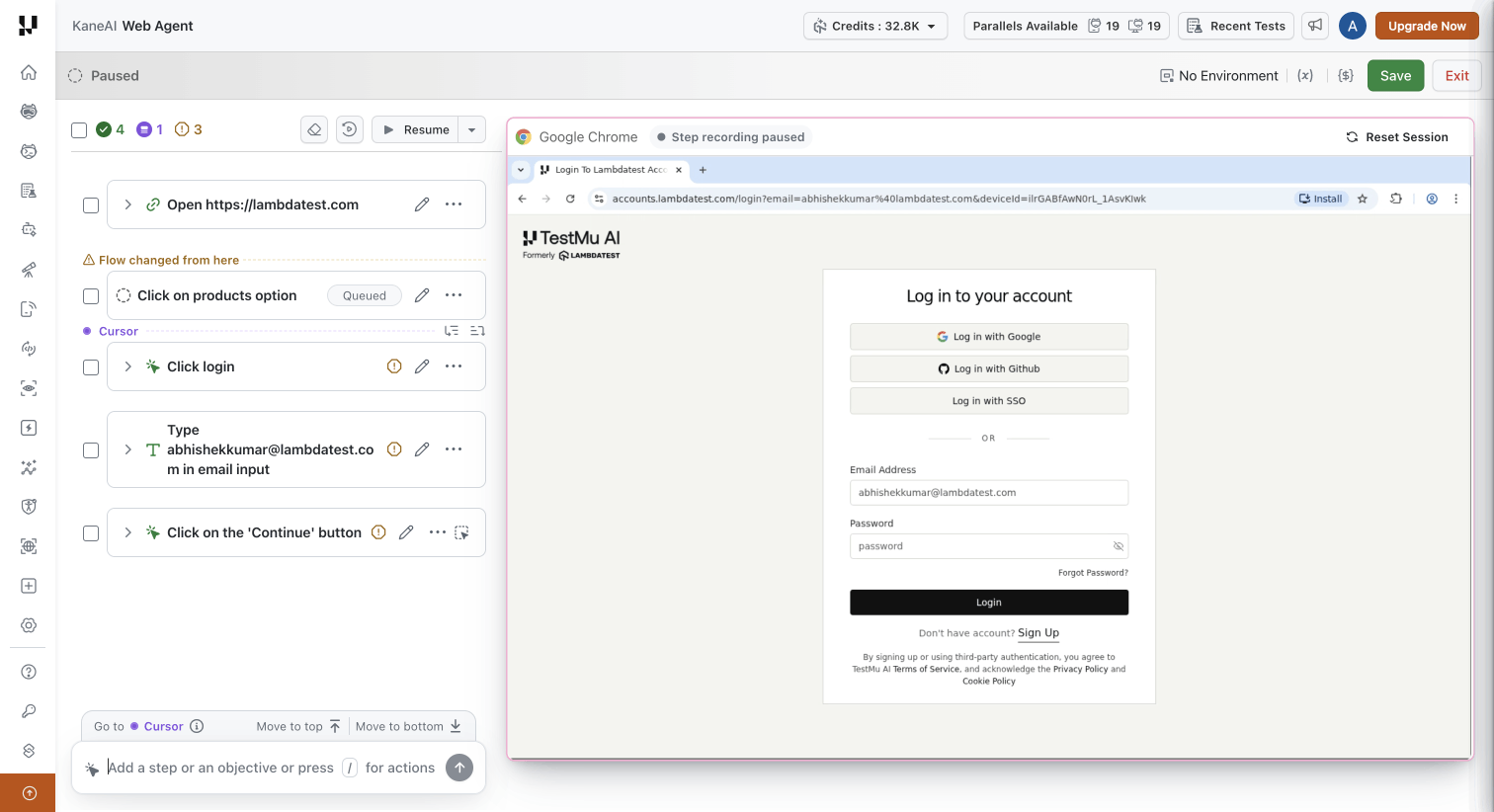
Click Pause above the step list to move from Authoring Steps to Paused. You can still interact with the application, but nothing you do on it is captured as a step — useful when you need to log in, dismiss a dialog, or navigate somewhere without those actions ending up in the test. The application view confirms this with a Step recording paused indicator.
Paused is also where you restructure a test. On top of everything Authoring Steps allows, you can edit, duplicate, and delete steps, and select several steps at once to group or remove them. You can still type instructions and run slash commands, and they still land at the cursor.
Running
The agent is executing one or more steps, entered through any of the four run actions. While a run is in progress the application view shows an Interaction off indicator and your clicks on it are ignored, and the step list is read-only. When the run finishes the session returns to Paused — or to Paused with the Error flag if a step could not be executed.
One exception: a run you start from Authoring Steps returns to Authoring Steps, so capture stays on.
What each state allows
| Capability | Setting up | Authoring Steps | Paused | Running |
|---|---|---|---|---|
| Interact with the application | No | Yes | Yes | No |
| Interactions captured as steps | No | Yes | No | No |
| Add steps in natural language or slash commands | No | Yes | Yes | No |
| Place the cursor | No | No — pinned to the bottom | Yes | No |
| Run, Run Till Here, Run From Here, Run This Step | No | Yes | Yes | No |
| Edit a step | No | No | Yes | No |
| Duplicate or delete a step | No | No | Yes | No |
| Select multiple steps | No | No | Yes | No |
| Save | No | Yes | Yes | No |
| Reset Session | No | Yes | Yes | No |
The Error Flag
What sets the flag
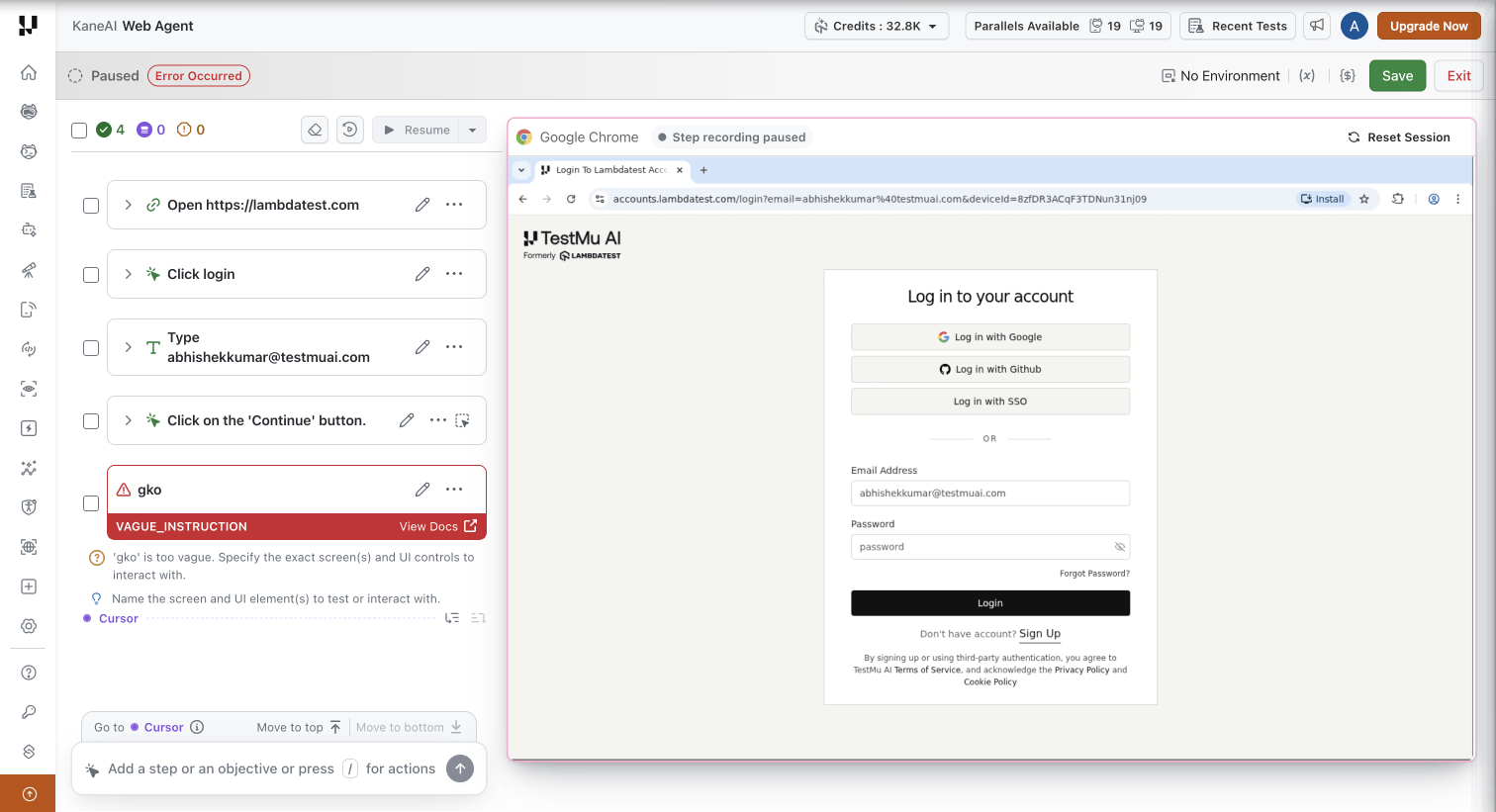
The Error flag is set when the agent could not execute a step on your application at all — for example the element was not found, the page did not load, or the agent could not interact with the target. The session moves to Paused and the state banner shows an Error Occurred indicator alongside the Paused label.
What the flag changes
An errored session behaves like Paused in almost every respect. You can still edit, duplicate, and delete any step, and you can still run steps up to and including the errored one. Four things change:
| Constraint | Effect |
|---|---|
| Resume | Unavailable, with the reason shown: Fix the errored step before resuming. Authoring Steps cannot be entered while a step is errored. |
| Run actions after the errored step | Unavailable. The controls are inactive and show the same explanation. |
| Cursor placement after the errored step | Snaps to immediately before the errored step. |
| Steps added after the errored step | Can be added and edited, but do not run until the flag clears. |
Steps after the errored one depend on application state the errored step was supposed to create. Running them in isolation would either fail for the same upstream reason or pass against state that was never set up, so KaneAI blocks them rather than producing a misleading result.
Clearing the flag
The flag clears only once no errored step remains. Each errored step must be either re-run successfully, edited, or deleted. If more than one step has errored, running or passing a step above an errored one does not clear the flag — downstream steps stay blocked and Resume stays unavailable until every errored step is resolved. Once the flag clears, the session continues as a normal Paused session and Resume becomes available again.
Errors vs assertion failures
These are different things and only one of them sets the Error flag.
| What happened | Result | |
|---|---|---|
| Error | The agent could not execute the step on the application. | Session goes to Paused with the Error flag. |
| Assertion failure | The step ran, but its check returned false. | The step's configured failure condition applies. The Error flag is not set. |
See Failure Conditions for how to choose what an assertion failure should do.
The Cursor
What the cursor is
The cursor is a row in the step list that marks where the next authored step will land. Every way of adding a step — typing an instruction, running a slash command, or interacting with the application while in Authoring Steps — inserts at the cursor.
Before the cursor existed, a new step could only be appended relative to a fixed position. The cursor lets you put a step exactly where it belongs, including between two steps in the middle of a finished test.
Placing the cursor
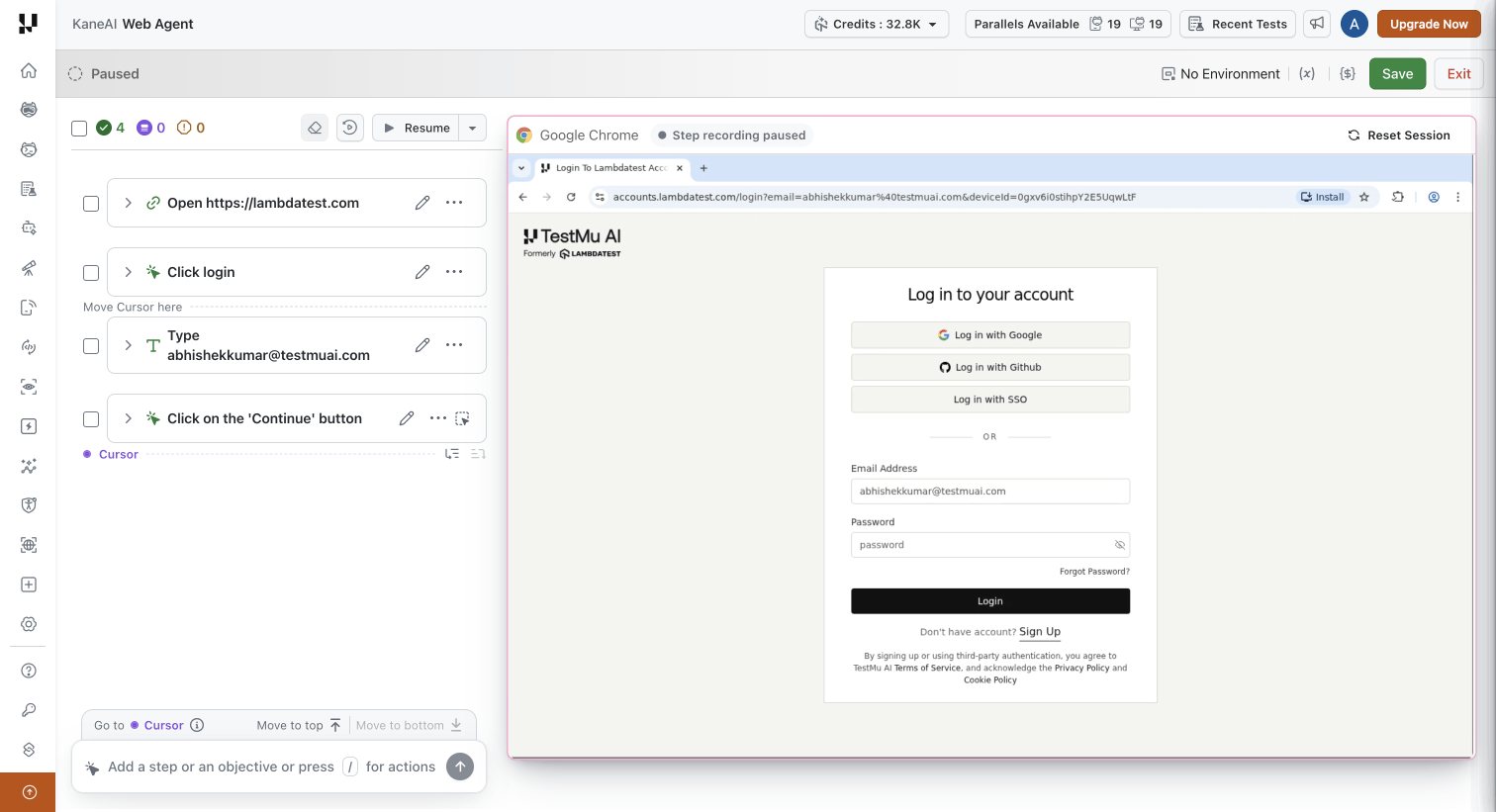
The cursor can only be moved while the session is Paused. In Authoring Steps it is pinned to the bottom of the step list, so captured and typed steps append to the end; to place a step anywhere else, pause first.
While Paused you can:
- Hover between two steps and click the Move Cursor here control that appears.
- Click the empty area below the last step to move the cursor to the end.
- Use the Move to top and Move to bottom links in the hint bar below the step list. Each is unavailable when the cursor is already there.
- Right-click a step and choose Place cursor before or Place cursor after.
- Click a step to select it, which also moves the cursor.
The same hint bar has a Go to Cursor link, which scrolls the step list back to the cursor when it has moved out of view. This only changes what you are looking at — it does not move the cursor.
While the session is Running the cursor is read-only — it shows the step the agent is executing, insert controls are not offered, and it cannot be moved.
On Resume, the session returns to Authoring Steps and the cursor jumps back to the bottom-most step, wherever you had placed it while Paused.
How insertion works
A new step lands at the cursor, and the cursor then advances past it. This means typing several instructions one after another produces the steps in the order you typed them.
For example, in a five-step test with the cursor between step 3 and step 4:
- You type
click profileand press Enter. It becomes the new step 4, and the original step 4 becomes step 5. The cursor advances to sit just after the new step. - You type
click logoutand press Enter. It becomes step 5, and the cursor advances again.
The final order is step 3 → click profile → click logout → original step 4 → original step 5, matching the order you typed.
If you want several steps at the same anchor point instead, move the cursor back to that point before each insertion.
Inserting above steps that have already run marks them as out of sync — see Flow changes and out-of-sync steps.
Cursor in conditional blocks
Inside an If / Else-If / Else block, the cursor can be placed at any step boundary:
| Cursor position | Allowed | The inserted step lands |
|---|---|---|
| Between two steps inside a branch | Yes | Inside that branch, at that point |
| Immediately after a branch header | Yes | As the first step of that branch, including empty branches |
| Immediately before the next branch header or End if | Yes | As the last step of that branch |
| Before the If header | Yes | Outside the block, above it |
| After End if | Yes | Outside the block, below it |
| On a condition row | No | The cursor snaps to the nearest valid position |
Adding a step inside a branch and running it are governed by different rules — see Blocks run as a unit.
Cursor in While loops
The loop body follows the same pattern:
| Cursor position | Allowed | The inserted step lands |
|---|---|---|
| Between two steps inside the loop body | Yes | In the body, at that point — it runs on every iteration |
| Immediately after the While header | Yes | As the first step of the body |
| Immediately before End while | Yes | As the last step of the body |
| Before the While header | Yes | Outside the loop, above it |
| After End while | Yes | Outside the loop, below it |
| On the condition row | No | The cursor snaps to the nearest valid position |
Cursor in modules
A module is a labelled group of ordinary steps, not a single unit. Its steps are individually addressable, so the cursor moves freely inside a module and each step behaves exactly as it would at the top level.
| Cursor position | Allowed | The inserted step lands |
|---|---|---|
| Immediately before the module | Yes | Above the module, outside it |
| Immediately after the module | Yes | Below the module, outside it |
| Between the module's internal steps | Yes | Inside the module, at that point |
Adding or editing steps inside a module updates the module and creates a new module version, following normal module versioning. A module cannot contain another module.
Cursor and generative instructions
Before it has run for the first time, a generative instruction is a single unit. The cursor can sit immediately before or immediately after it, but never inside it. After its first run the instruction expands in place into the steps it produced, and from then on the cursor can be placed between those steps like any others.
Placements that are blocked
- Inserting a new If/Else or While block while the cursor is inside a branch or a loop body is refused with an explanation — nesting is not supported.
- The cursor cannot land between two consecutive system marker rows, and no insert control is offered there.
- Any placement that becomes invalid snaps to the nearest valid position.
Running Steps During Authoring
Four actions cover every way of executing steps in a session. All four are available in both Authoring Steps and Paused.
Run
Runs the whole test from step 1. Invoking it always opens a confirmation with two choices:
- Reset Session and Run — reinstalls the application and environment, then runs from step 1 against a fresh application.
- Run Directly — runs from step 1 against the current application state, with no reinstall.
The confirmation appears every time and cannot be suppressed. The other three actions do not show it.
Run Till Here
Runs from the cursor down to the step you chose, then stops. If the cursor is already at or below that step the range is empty, nothing runs, and you are prompted to move the cursor above the target.
Run From Here
Runs from the step you chose down to the cursor, then stops. If the cursor is above that step the range is empty, nothing runs, and you are prompted to move the cursor below the step.
Run This Step
Runs a single step. On pass the cursor advances past it; on failure the cursor pins to it.
Two ways to trigger Run Till Here and Run From Here
The same two actions behave differently depending on where you trigger them from:
| Triggered from | Run Till Here | Run From Here |
|---|---|---|
| A step | Runs from the cursor to that step — a range bounded at both ends | Runs from that step to the cursor — a range bounded at both ends |
| The cursor row | Runs from the top of the test down to the cursor | Runs from the cursor down to the end of the test |
Both refuse with an explanation when the resulting range contains no runnable steps.
All four run actions stay available in Authoring Steps, but because the cursor is pinned to the bottom there, the useful ranges narrow to two: Run From Here on a step runs that step down to the end of the test, and Run Till Here on the cursor row runs the whole test. The other two combinations resolve to an empty range and are refused, since no step sits below the cursor. Pause first if you need a range bounded somewhere other than the end.
Where the run controls live
| Surface | What it offers |
|---|---|
| Cursor row | Run Till Here and Run From Here, in their one-sided form |
| Per-step control | Run This Step |
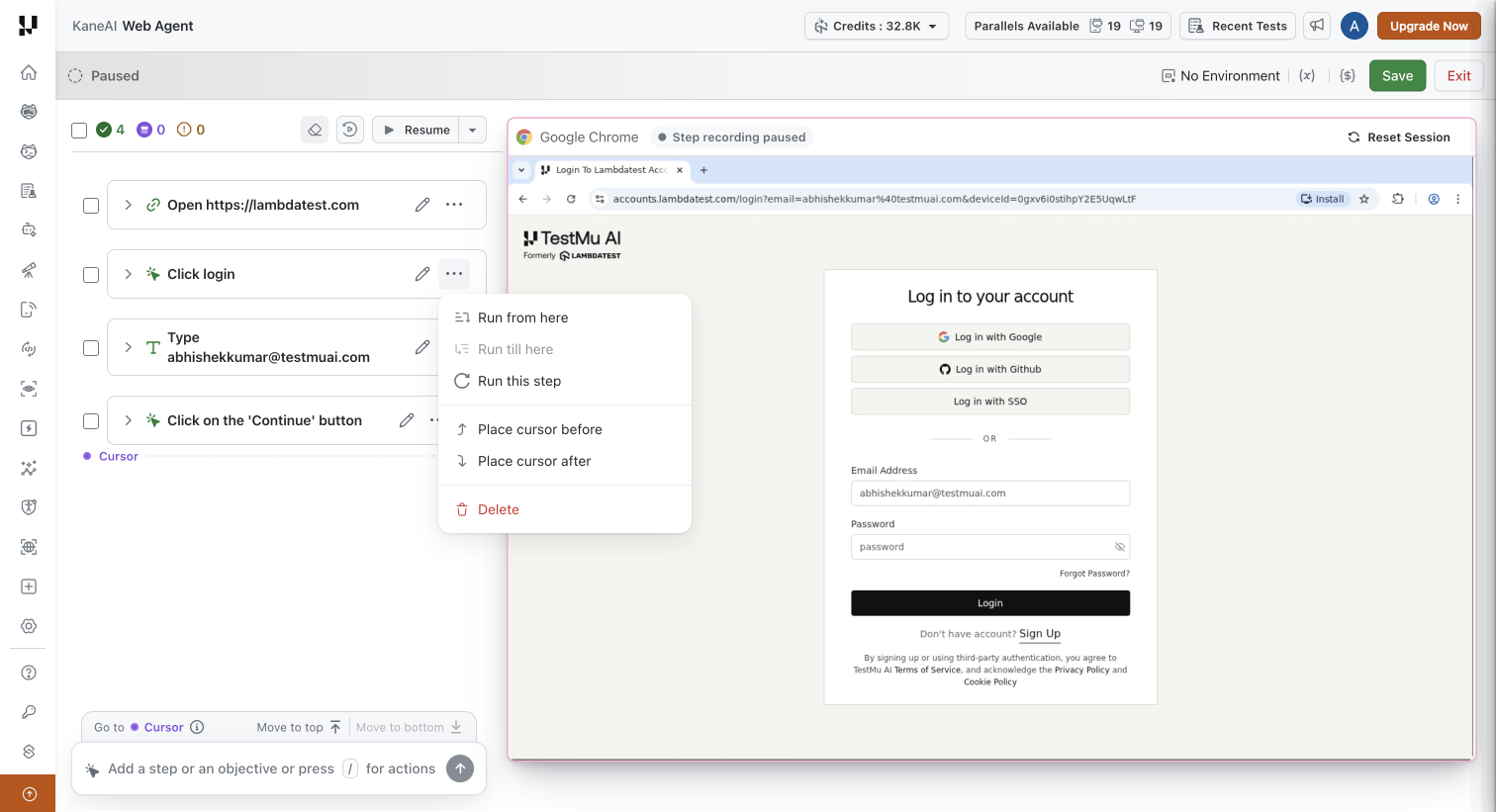
| Step overflow menu | All applicable run actions, plus cursor placement |
| Right-click on a step | The same actions as the overflow menu |
In Authoring Steps the overflow menu lists run actions only; cursor placement, edit, duplicate, and delete appear there when the session is Paused.
Blocks run as a unit
You can insert a step anywhere inside a conditional block or a loop body, but you cannot run one of those interior steps on its own. If/Else blocks, While loops, and generative instructions execute as a whole.
| Structure | How it runs |
|---|---|
| If / Else-If / Else | The block header carries a single Run block control. It evaluates the conditions and runs the branch that matches, to completion. |
| While | The block header carries a single Run block control. It evaluates the loop condition and runs the loop to completion. |
| Generative instruction | Runs as a whole. The instruction expands into its steps and those execute as one unit. |
| Module | The exception. A module is a labelled group, so its steps run individually — Run This Step, Run From Here, and Run Till Here all work on them, and a range may start or end inside a module. |
Steps inside a block therefore have no individual run control. Anything that would run an interior step runs the whole block instead.
Running across a conditional block
When a run range passes over a block, the block runs as a whole in sequence. Steps in the branch that matched become Verified. Steps in branches that did not match stay Queued (branch) — this is expected, not an error.
If a step errors while a block is running, the session goes to Paused with the Error flag. The errored step is pinned, and the rest of the block along with everything after it is blocked until the error is resolved.
Running a queued step on its own
A queued step can end up sitting between steps that have already run — for example if you added it while Paused and then resumed. You do not have to pause again to run it. A queued step has its own Run this step control that works from any state, including Authoring Steps. It runs just that step in place and the session returns to whatever state you were in. On pass the step becomes Verified; on an execution error the session drops to Paused with the Error flag, as with any other run.
While a run is in progress
- The application view shows an Interaction off indicator. Your clicks on it are ignored while the agent works.
- The step list is read-only. You cannot edit, insert, or move the cursor.
- The state banner shows Running.
- The range being executed is bracketed in the step list: a Run from here marker above the first step in the range and a Run till here marker below the last. Both clear when the run completes.
- The authored and queued counts update live as steps pass.
Step Statuses
Every step in the list carries a status. The statuses determine what happens when you save.
| Status | Meaning |
|---|---|
| Verified | The step has run and passed at least once. Ready for code generation. |
| Queued | The step was added but has never run. Counts as unverified. |
| Queued (branch) | A queued step inside a conditional branch, decided by where it sits rather than how it got there. Does not count as unverified — it verifies whenever its branch matches, either in the session or in a Test Run. |
| Errored | The agent could not run the step. Sets the Error flag. |
| Out of sync | A Verified step that passed before a new step was inserted above it. It stays Verified, with a marker noting it may no longer reflect the current flow. See Flow changes and out-of-sync steps. |
Flow changes and out-of-sync steps
Inserting a step between steps that have already run changes the application flow from that point onwards. The steps below it ran against the old flow, so what they verified may no longer hold.
KaneAI marks this rather than silently discarding the earlier results:
- A Flow changed from here divider appears in the step list at the insertion point.
- Every already-executed step below the divider keeps its Verified status but gains an out-of-sync marker. Hovering it explains why: This step passed before the flow changed. A full test run will verify it.
- The session header counts these separately, alongside the authored and queued counts.
The steps are not re-run automatically and are not reset to Queued — they passed, and that result is kept. The marker records that they passed under different conditions, because KaneAI has not authored through them since the new step was added. Running the full test re-verifies them against the current flow and clears the markers.
A test saved with out-of-sync steps saves as Unverified, because it never ran end to end as one continuous flow. Automation code is still generated, as long as every step has executed at some point. See Save states.
Saving a Test
Save is always available, from the single Save button in the top-right of the header. Saving is never blocked — what changes is the state the test is saved in, and whether automation code is generated.
Save states
| Condition at save | Saved state | Code generation |
|---|---|---|
| Every step has run and passed | Ready | Code is generated |
| One or more steps errored (the Error flag is set) | Faulty | No code generated |
| Queued steps present, no errors | Unverified | No code generated |
| Every step has run, but some are out of sync | Unverified | Code is generated |
Saving into Faulty or Unverified shows a warning first. The modal spells out what you are getting — including whether code will be generated, which is not the same answer for every Unverified test. Both states can be reopened and finished later — running the remaining or errored steps to success and saving again moves the test to Ready, and code is generated then.
A step that was edited but not re-run counts as Queued for this purpose. The edited marker tells you why a step is unverified — its instruction changed rather than it never having run — but it does not change how the save behaves. A test mixing executed, edited, and newly inserted steps saves as Unverified.
Save state and code generation
Code generation needs a step to have run at least once — that is how the agent learns the exact elements and actions involved. A step that has never run has nothing to generate code from, which is why a test with queued steps produces no code.
The requirement is per step, not per run. A test whose steps all ran, but in separate runs rather than one continuous pass, still has everything code generation needs. This is the out-of-sync case: inserting a step above executed ones saves the test as Unverified, because it never completed as a single flow, yet code is still generated because every individual step has executed. The save modal states this, so you can tell it apart from an Unverified test that produces nothing.
The save state is not the same thing as the state of the generated code. Once a test saves as Ready and code is produced, the Code tab tracks that code through its own states. See Code Generation for those.
The Steps Panel
Two counts sit directly above the step list in both Authoring Steps and Paused: how many steps are authored (have run and passed) and how many are queued (added but not yet run). The same Authored and Queued counts appear in the session header, and both update live as a run progresses.
Selecting multiple steps
Multi-select is available only while the session is Paused. Each step shows a checkbox and a select-all checkbox sits in the panel header. Selecting one or more steps replaces the counts row with a toolbar showing how many are selected, along with two actions:
- Create Module — wraps the selected steps into a new module. The selection must be contiguous, with no gaps, and must not already be inside a conditional block, loop, module, or generative instruction. If it does not qualify, an explanation tells you why. This creates a module the same way the standard Create Module flow does.
- Delete — removes all selected steps in one action.
Checkboxes do not appear in Authoring Steps, Running, or Setting up, and any selection is dropped when you leave Paused. Selecting steps is independent of the cursor — ticking a checkbox does not move it.
Resume and Reset Session
Resume
Resume returns the session from Paused to Authoring Steps. It never re-initialises the device — the application stays live exactly where it is, with no boot delay, and no steps are re-run automatically. Editing a step does not re-initialise the device either.
On Resume the cursor returns to the bottom-most step and stays pinned there for as long as the session is in Authoring Steps. Any position you set while Paused is not carried over, so pause again if you need to insert somewhere other than the end.
Resume is unavailable while the Error flag is set, because Authoring Steps cannot be entered with a step errored. The control explains this: Fix the errored step before resuming.
Verifying a fix for an errored step
Editing an errored step is treated as the fix. The failed state clears, so Resume becomes available again, the step becomes Queued and is marked as edited, and it is armed for a re-run. On the next Resume, KaneAI automatically re-runs just that step to verify the fix and then continues into Authoring Steps. If it passes, the error is cleared; if it fails again, the session returns to Paused with the Error flag.
This is the only case where Resume runs anything. In every other situation Resume leaves queued steps untouched.
Until you run it, the edited step's run control is presented as the primary next action, labelled Run to verify your fix.
Reset Session
Reset Session is a separate control in the application view header, for when you want a clean slate. It reinstalls the application and environment only — it does not allocate a new device. It is the only action that reinstalls, it is only ever started by you, and the session shows Setting up while it runs.
After a reset the application is fresh, so steps that had already been executed are treated as unrun.
Manual Interaction in an Authoring Session
While the session is in Authoring Steps, interacting directly with your application is captured as test steps automatically on supported platforms. There is no switch to turn this on or off — pausing the session is how you stop capture, and resuming is how you start it again. Captured steps append to the end of the step list, exactly like typed instructions, because the cursor is pinned to the bottom in Authoring Steps.
| Platform | Capture support |
|---|---|
| Web browser on desktop | Supported |
| Mobile app on Android | Supported |
| Mobile app on iOS | Supported in portrait; not supported in landscape |
| Mobile browser | Not supported |
On platforms where capture is not supported, build the test with natural language instructions and slash commands. For gesture-level detail, limitations, and use cases, see Manual Interaction.
Messages You May See
| What you see | What it means | What to do |
|---|---|---|
| Can't run — prior step errored. Fix the errored step first. | You tried to run a step that comes after an errored step. | Resolve the errored step by re-running, editing, or deleting it. |
| A prompt to move the cursor above the target | Run Till Here was invoked with the cursor at or below the target, so the range is empty. | Move the cursor above the target step and try again. |
| A prompt to move the cursor below the step | Run From Here was invoked with the cursor above the step, so the range is empty. | Move the cursor below the step and try again. |
| Target step was in a non-matching branch. | The run reached a conditional block, and the step you targeted was inside a branch that did not match at runtime. Execution stopped at the end of the block. | Adjust the condition or the data so the intended branch matches. |
| The cursor moved somewhere other than where you clicked | You tried to place it at a position that is not valid, such as a condition row or between two system marker rows. | The cursor snapped to the nearest valid position. Place it at a step boundary instead. |
| The application view shows Interaction off and your clicks do nothing | A run is in progress, so the application is not interactable. | Wait for the run to finish. The session returns to Paused, or to Authoring Steps if the run started there. |
| A step marked as interrupted after reopening a session | The tab was closed while a run was in progress. | The session reopens in Paused with the last-known statuses. Re-run the interrupted step. |
| A warning naming the step that creates a variable | The step you inserted or ran uses a local variable that is produced by a later step. | Reorder the steps if the sequence was unintentional, or continue if it was deliberate. |
Limitations
- Conditional blocks and While loops cannot be nested. Inserting one while the cursor is inside a branch or loop body is refused.
- A module cannot contain another module.
- Individual steps inside a conditional block, While loop, or generative instruction cannot be run on their own — the block runs as a whole. Modules are the exception.
- A generative instruction is not addressable internally until it has run once.
- The cursor is read-only while the session is Running.
- Direct interaction is not captured on mobile browser sessions, or on iOS in landscape.
- Editing, duplicating, deleting, and multi-select are available only while the session is Paused.
FAQ
Where did the Manual Interaction toggle go?
It has been removed. Capture is always active while the session is in Authoring Steps, so there is nothing to turn on. Use Pause when you want to interact with the application without those actions becoming steps.
Does Resume restart my device?
No. Resume returns the session to Authoring Steps with the application exactly as you left it. Only Reset Session reinstalls, and only when you start it.
Why is Resume unavailable?
A step has errored. Authoring Steps cannot be entered while the Error flag is set. Re-run, edit, or delete every errored step and Resume becomes available again.
Why can't I edit or delete a step right now?
Editing, duplicating, deleting, and multi-select are Paused-only. If the session is in Authoring Steps, pause it first.
Can I save a test that still has queued steps?
Yes. Save is never blocked. The test saves in the Unverified state after a warning, and no code is generated until those steps have run.
Why did my test save as Faulty?
A step was errored at the time you saved. Reopen the test, resolve the errored step, and save again to move it to Ready.
Can I run one step inside a While loop or an If block?
No. Those run as a whole through the Run block control on the block header. Steps inside a module are different — they run individually.
What is the difference between an error and a failed assertion?
An error means the agent could not execute the step at all, and it sets the Error flag. A failed assertion means the step ran but its check returned false, which follows the failure condition you configured and does not set the flag.
Why is my application back at the start after Reset Session?
Reset Session reinstalls the application, so it comes up fresh. Steps that had already run are treated as unrun, and you will need to run them again to verify them.


 Chat with Us