Diff Highlighter & Navigation
When reviewing SmartUI visual comparisons, small differences can be easy to miss on dense or zoomed-out screens. The Diff Highlighter feature helps you discover every change quickly using in-view navigation and an optional highlight animation—so you spend less time scanning and more time deciding what to accept or reject.
What You Get
| Feature | Description |
|---|---|
| Previous / Next | Move focus to the previous or next diff region in order (top to bottom). |
| Highlight | Run an animation that traverses each diff from top to bottom with popping circles, making every change location obvious at a glance. |
| Actions menu | All controls live in the comparison view’s actions menu (e.g. 3-dot or actions dropdown). |
No extra setup is required: if your screenshot uses Smart Ignore comparison, diff navigation and highlight are available as soon as you open the comparison.
How to Use Diff Navigation
Step 1: Open the comparison view
- In your SmartUI dashboard, open the build that contains the screenshot you want to review.
- Open the screenshot/comparison view (e.g. by clicking the screenshot or “View issues”).
Step 2: Open the actions menu
On the comparison view, open the actions menu (e.g. the 3-dot or actions dropdown).
Step 3: Use Previous, Highlight, and Next
In the actions menu you’ll see:
- Previous — moves focus to the previous diff (above the current one).
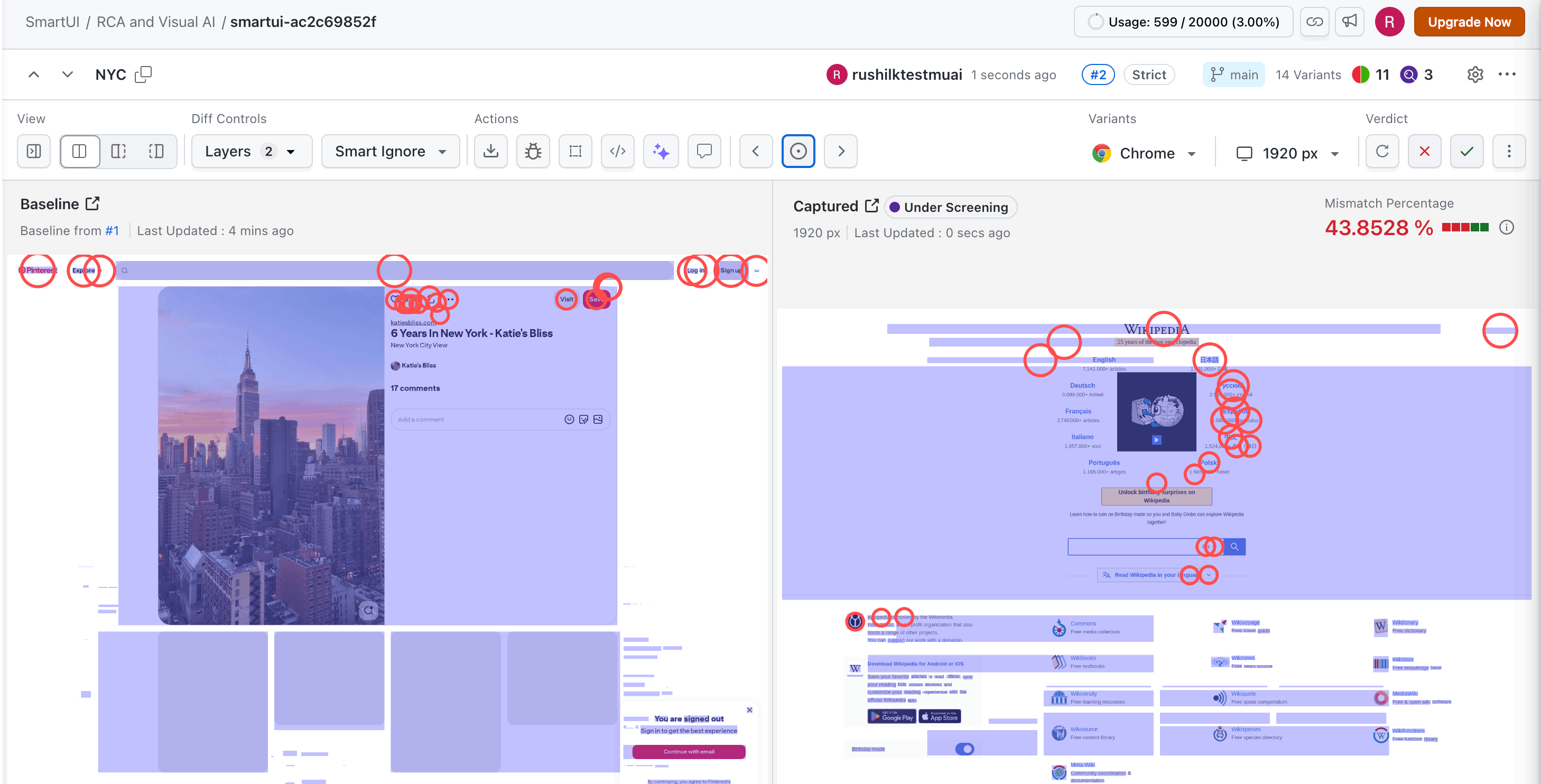
- Highlight — runs the highlight animation: popping circles traverse each diff from top to bottom, so you can see every change location in sequence.
- Next — moves focus to the next diff (below the current one).


Use Highlight when you want to quickly see all diffs without clicking through. Use Previous and Next when you want to step through differences one by one.
Step 4: Review each difference
- On clicking the Previous or Next buttons, the view will zoom into that specific diff and highlight it with a bounded box.
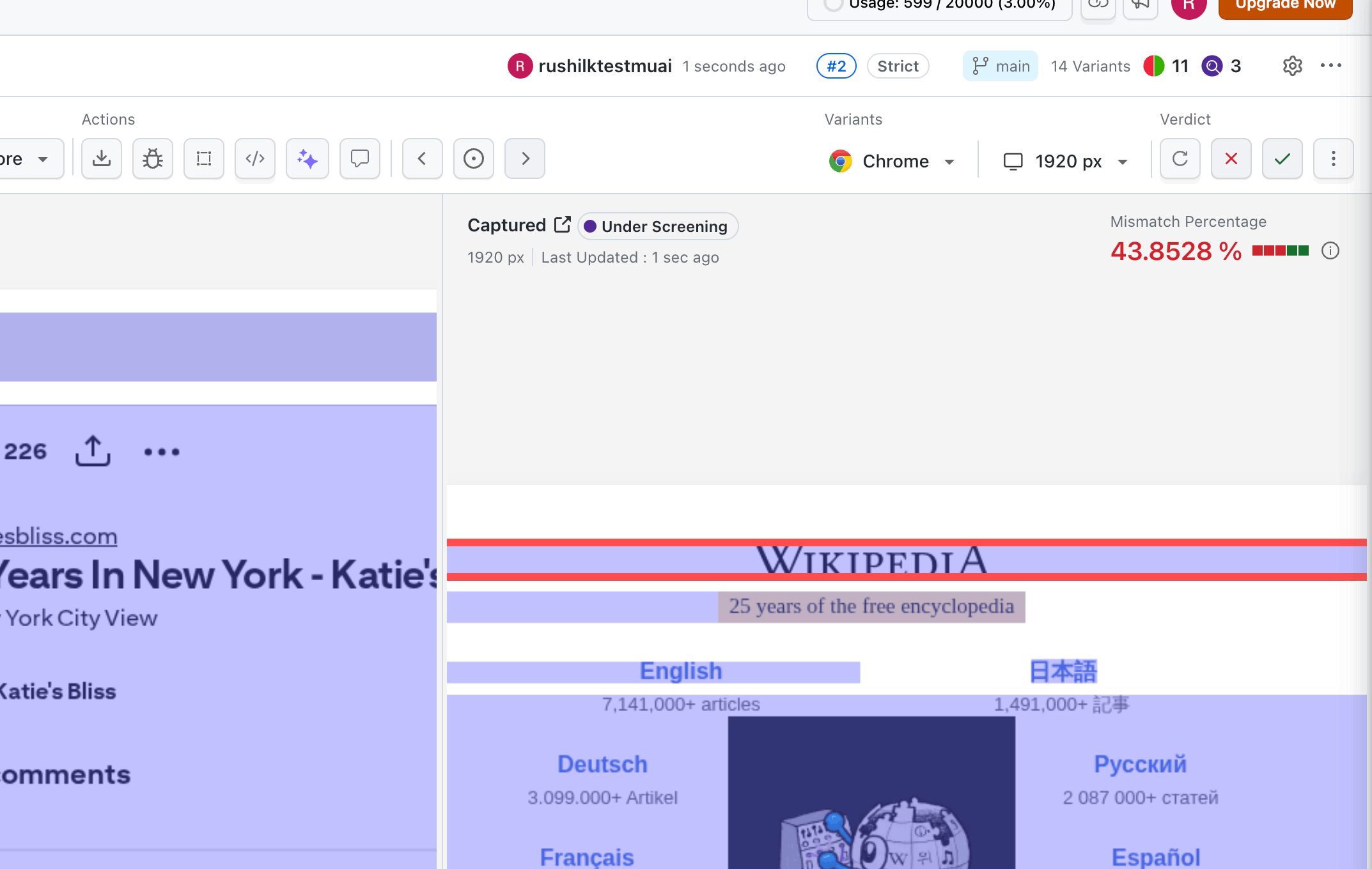
- You can continue to use overlay toggles, zoom, slider/side-by-side, and Mark as bug or approval actions as usual.
- Diff navigation and highlight do not replace existing comparison tools—they only make it easier to find where the changes are.
Highlight animation
When you click Highlight:
- It will show circles around the areas where the differences are present.
- They traverse each diff region from top to bottom in sequence.
- This makes it easy to see how many changes there are and where they sit, without manually scanning the whole screenshot.
Comparison mode support
| Comparison mode | Diff navigation & highlight |
|---|---|
| Smart Ignore | Supported |
| Strict | Not yet supported |
| Layout | Not yet supported |
Diff navigation and highlight use precomputed diff regions from the comparison. Today these are available for Smart Ignore only. Support for Strict and Layout modes is planned for a future release.
To use diff navigation and highlight, ensure the screenshot is compared with Smart Ignore. You can enable Smart Ignore in Project Settings or choose it per screenshot from the Diff options dropdown on the comparison page.
Tips
- Use Highlight first on a new comparison to see how many diffs there are and where they are, then use Previous/Next to inspect each one.
- Zoom and overlays still work as before; combine them with diff navigation for a faster review.
- Commenting and Mark as bug are unchanged; use them as usual while stepping through diffs.
Troubleshooting
| Issue | What to check |
|---|---|
| No Previous/Next/Highlight in the menu | Confirm the screenshot is using Smart Ignore comparison. These controls are not shown for Strict or Layout mode yet. |
| Highlight doesn’t show anything | Ensure there is at least one diff; if the comparison is identical, there’s nothing to highlight. |
| Order of diffs | Diffs are always traversed top to bottom; Previous goes up, Next goes down. |
Related docs
- Smart Ignore — Reduce noise and use diff regions for navigation.
- Layout Testing — Compare layout structure (diff navigation for this mode coming later).
- View comparison and issues — Basics of the comparison view.

 Chat with Us
 Ask the Community