AI Test Generation: Requirements to Code
TestMu AI provides a complete workflow to convert your manual test requirements into fully automated test scripts,from requirement input to executable code. This guide walks through the end-to-end flow using Test Manager and KaneAI.
Overview
The conversion flow has four stages:
- Set up your project in Test Manager
- Provide requirements,text, documents, images, audio, Jira/ADO tickets, or record user interactions
- Generate test scenarios,AI creates structured test cases from your input
- Automate and export code,convert generated test cases into automation scripts across frameworks
Step 1: Create a Project
Start by creating a project in TestMu AI Test Manager. A project is the container for all your test cases, test runs, and configurations.
- Navigate to Test Manager.
- Click Create New Project.
- Enter the project name and description.
- Save the project.
For detailed steps, see Create Projects.
Step 2: Generate Test Scenarios with AI
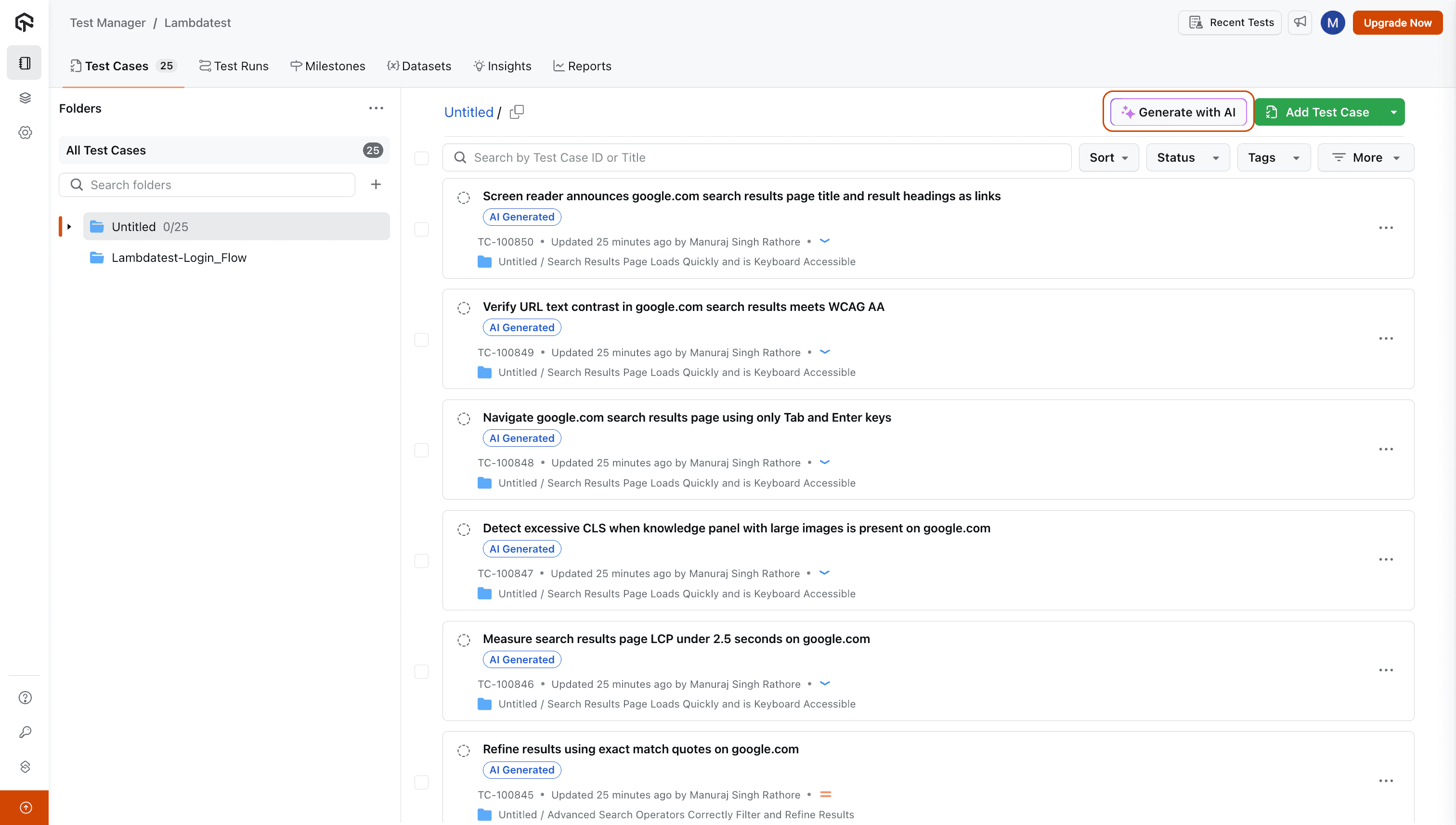
Navigate to the Test Case Listing page within your project and click Generate With AI.
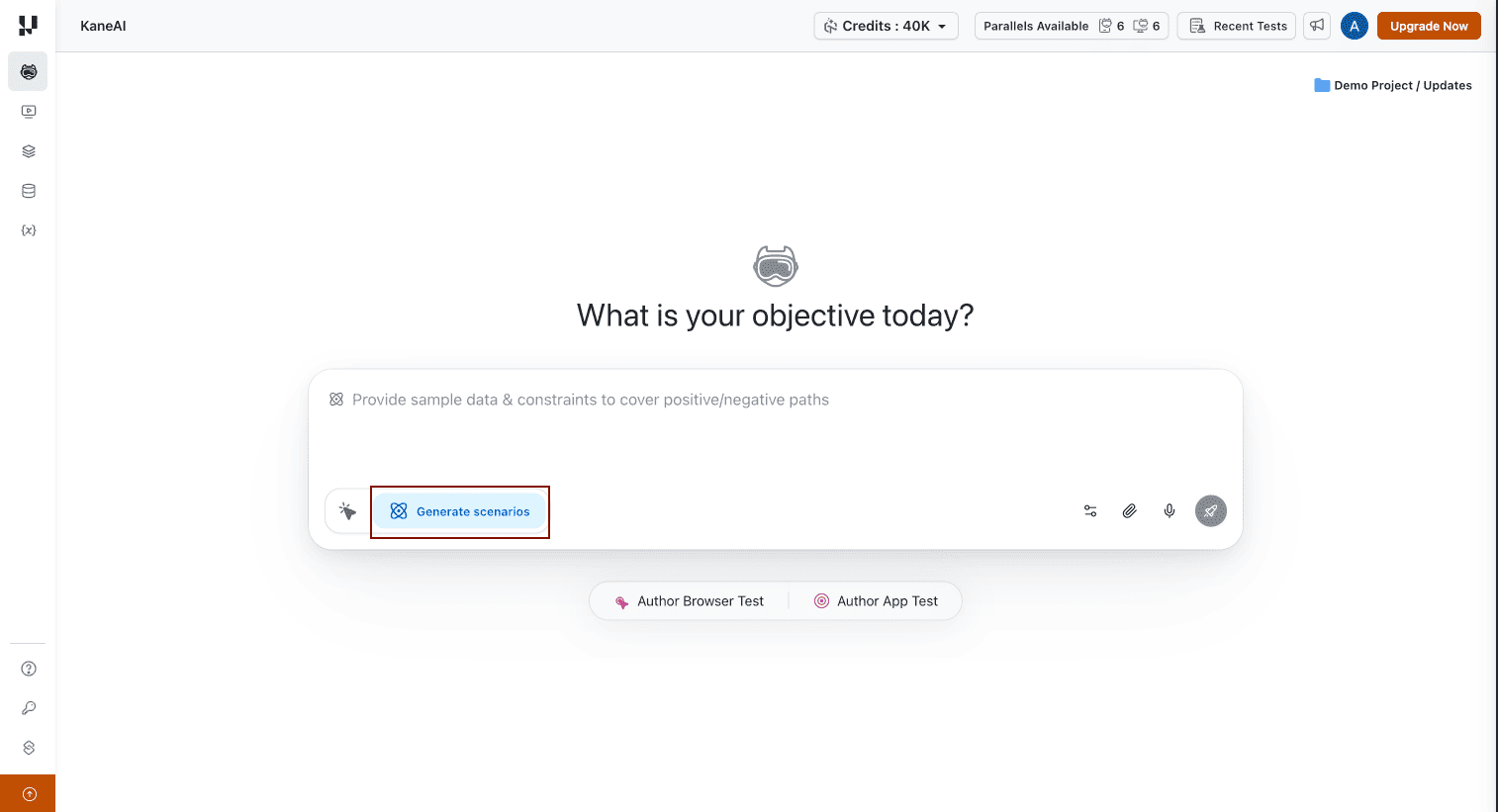
You can also access this from KaneAI by clicking Generate Scenarios on the Agent page.
Supported Input Formats
Provide your requirements in any of the following formats:
| Input Type | How to Add |
|---|---|
| Text | Type your requirement directly in the input box |
| Documents | Upload PDFs, spreadsheets (CSV/XLSX), JSON, XML |
| Images | Upload screenshots, wireframes, or UI mockups |
| Audio | Record audio or upload audio files describing the feature |
| Videos | Upload walkthrough or demo videos |
| Jira Tickets | Link Jira issues (epics, stories, tasks) via the pin icon |
| Azure DevOps | Link ADO work items via the pin icon |
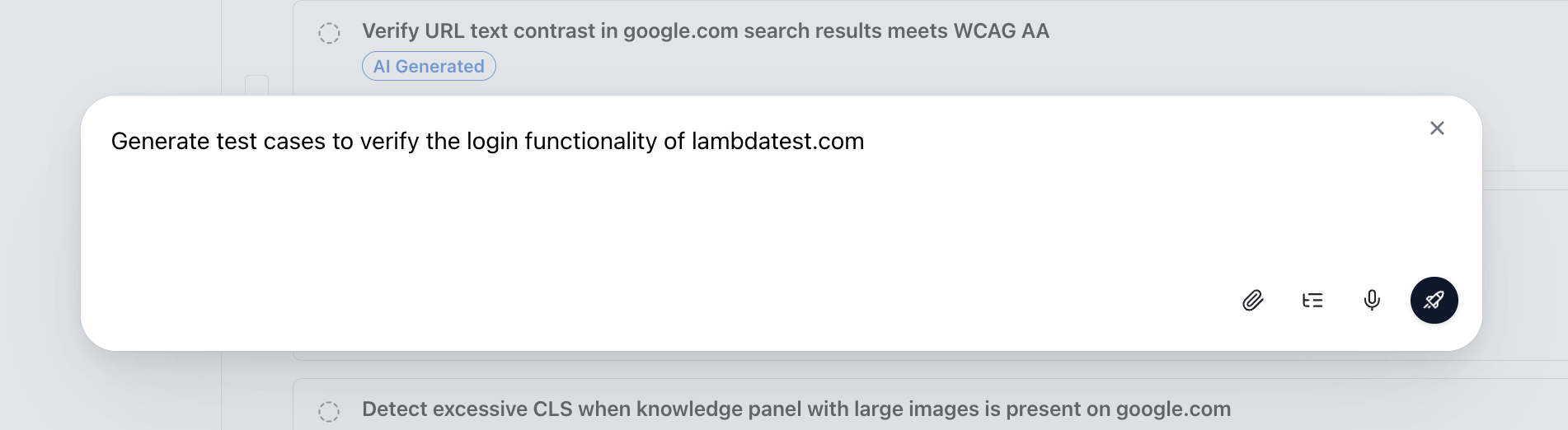
Before generating, configure Max Scenarios, Max Test Cases per Scenario, and toggle Memory Enhancement to leverage your existing test case repository and avoid duplicates.
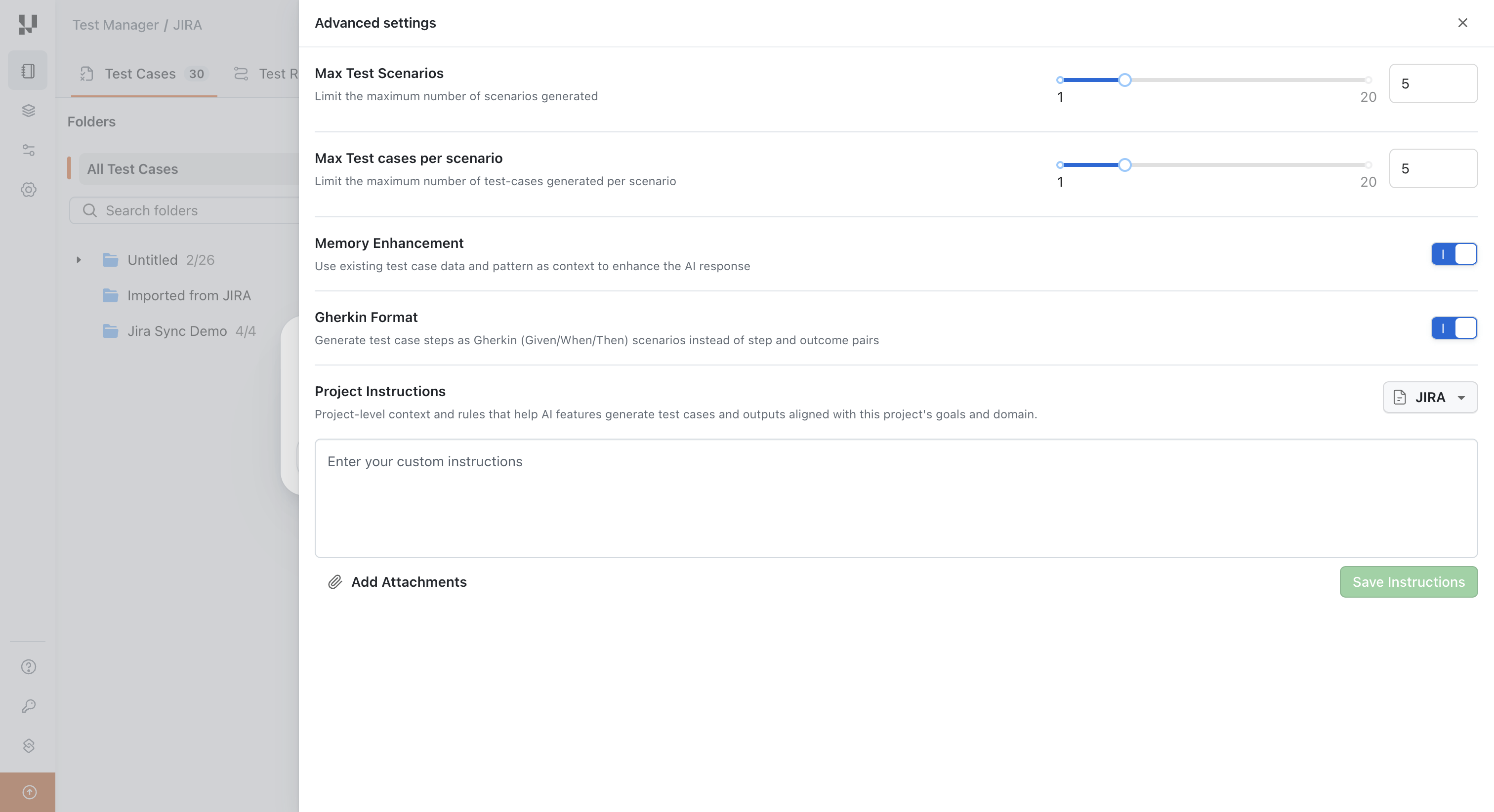
Press Enter to generate. The AI analyzes your input and produces structured test scenarios with test cases.
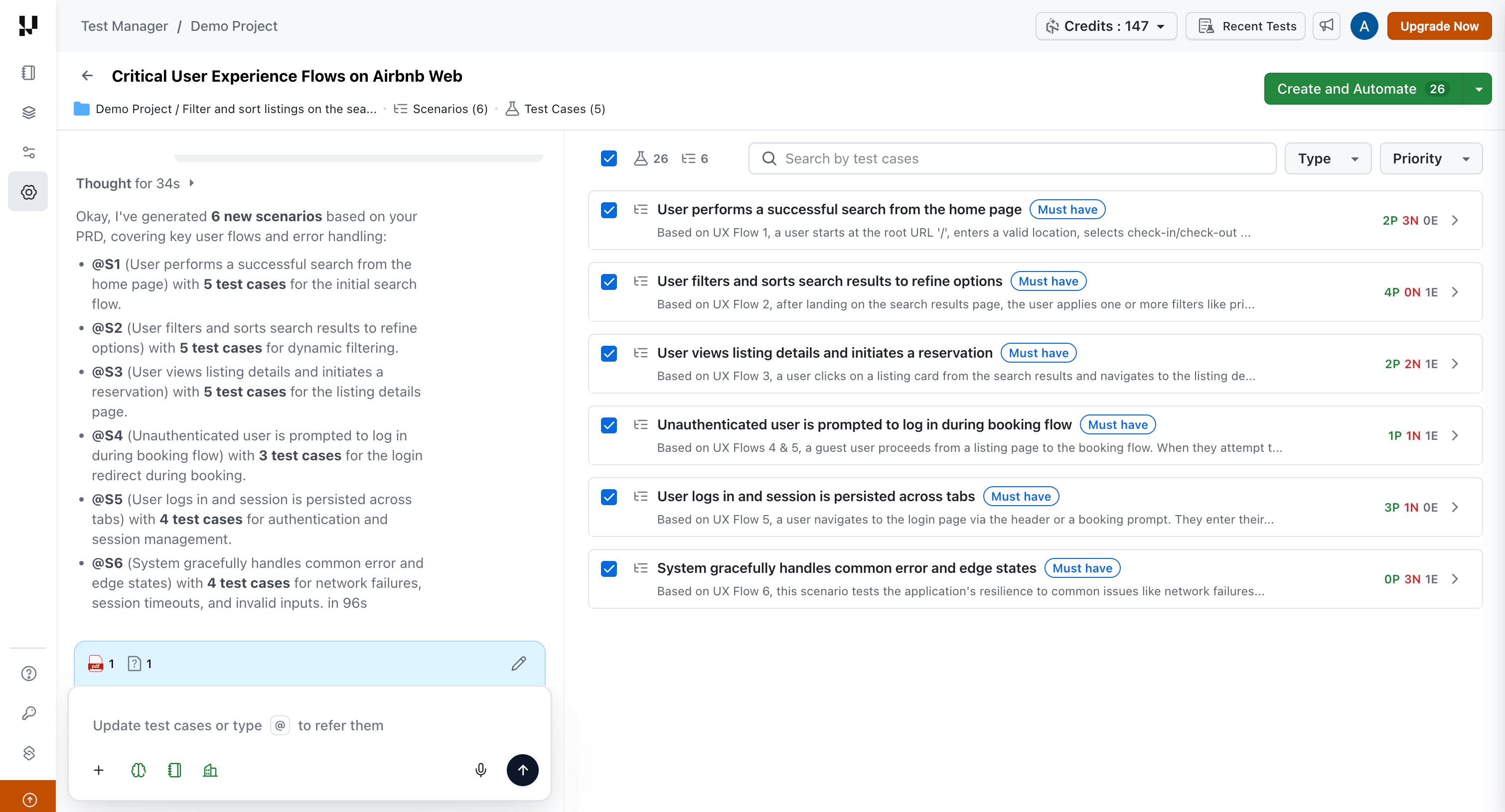
Each scenario is tagged with priority (Must have, Should have, Could have) and each test case is categorized as Positive, Negative, or Edge.
Refine with Conversation Layer
After generation, use the Conversation Layer to refine your test cases through natural language,add coverage, remove duplicates, reorganize scenarios, or update details without manual editing.
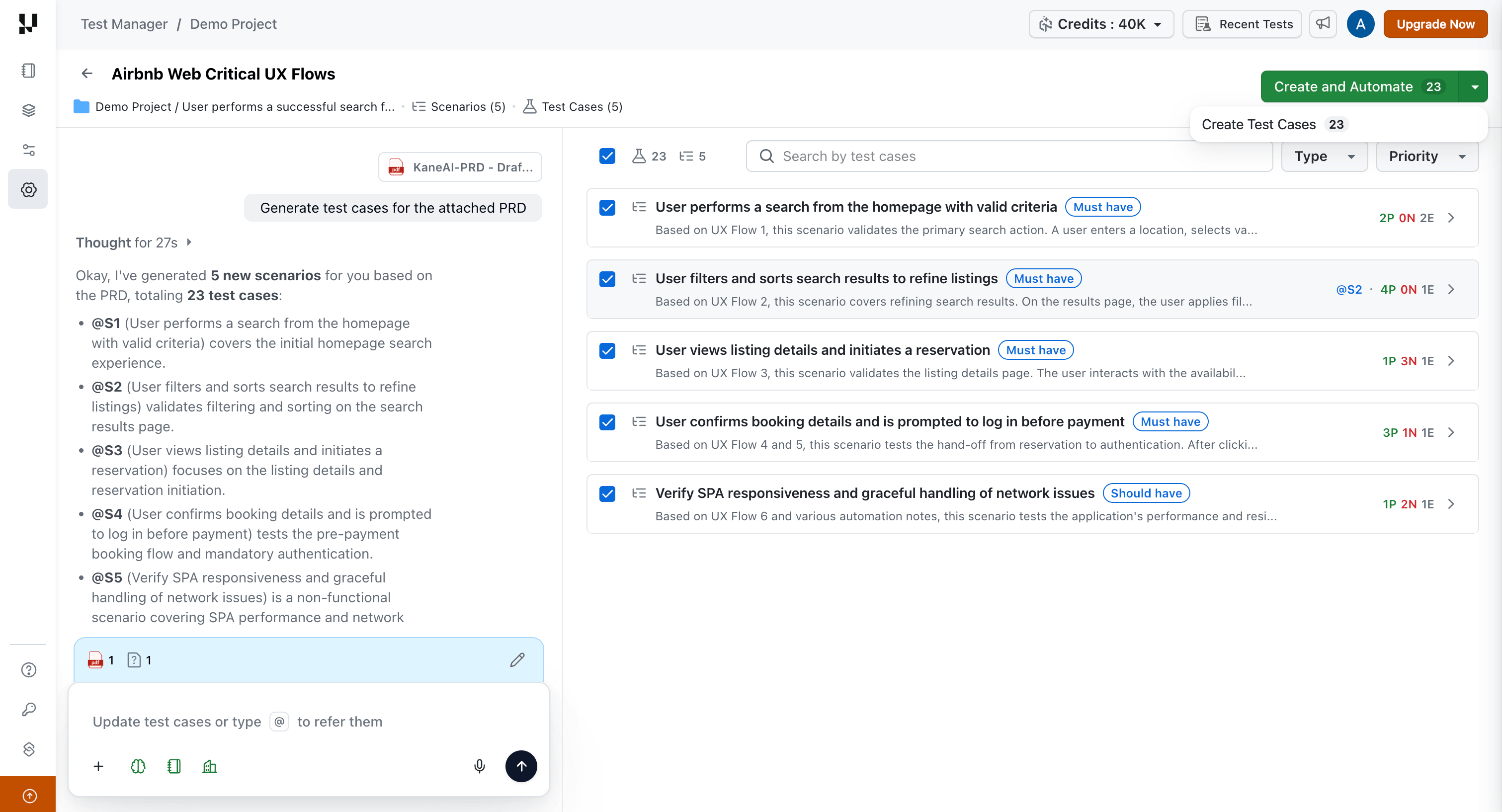
For the full guide on conversational refinement, see AI Test Case Generator.
Telemetry- and trace-driven test generation
TestMu AI can ingest production telemetry, application logs and runtime execution traces to generate and maintain tests. Real user interactions and session traces are converted into structured, editable test scenarios that reflect how the application is actually used, and telemetry signals feed Test Intelligence to prioritise coverage where failures are most likely.
Step 3: Save or Automate
Once your test scenarios are ready, select the test cases you want to keep and choose one of two paths:
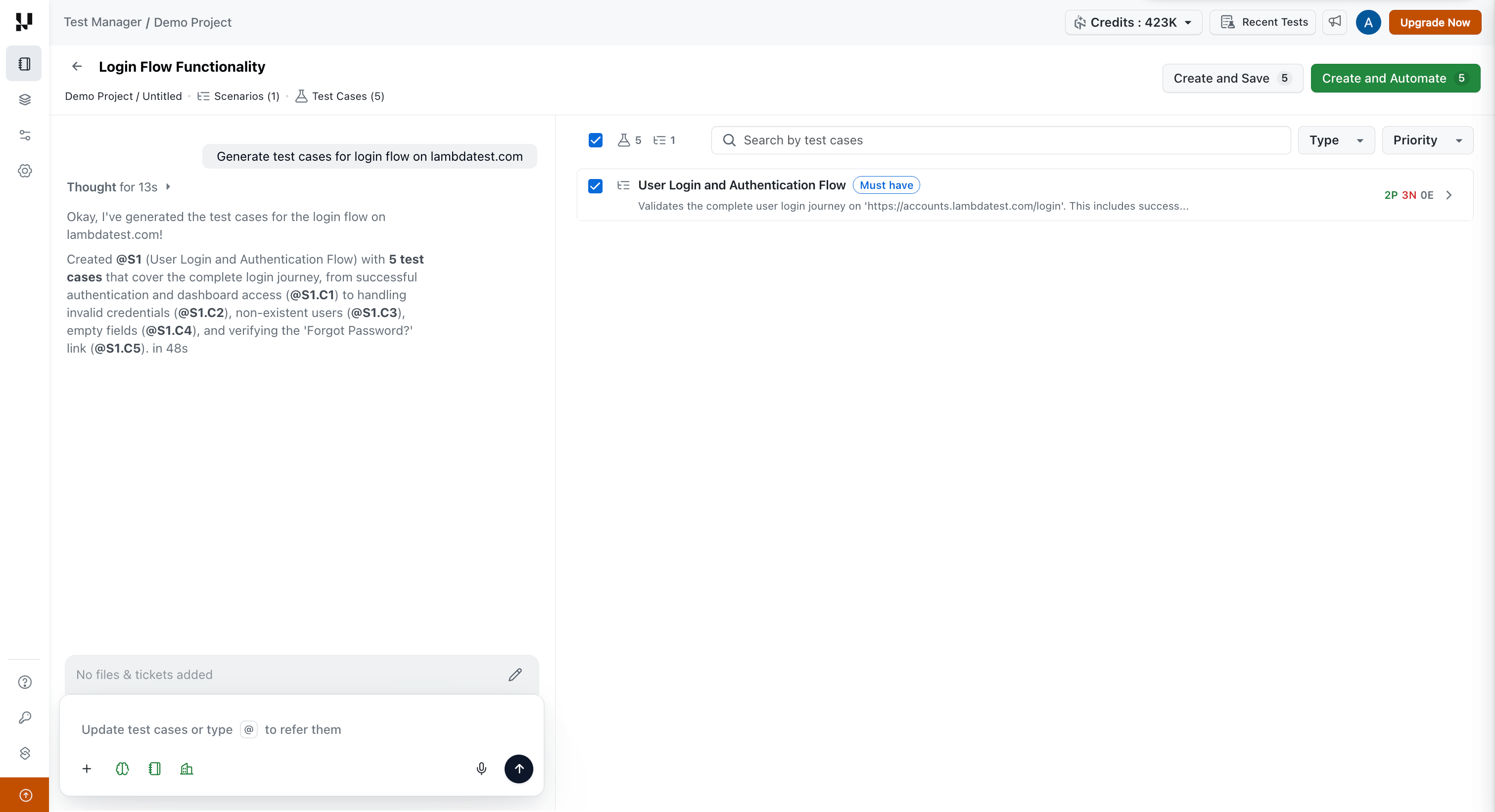
Option A: Create Test Cases
Click Create to save the test cases to your Test Case Repository in Test Manager. These can be used for manual test planning, assigned to test runs, or shared with your team.
Option B: Create and Automate with KaneAI
Click Create and Automate to save the test cases and automatically send them to KaneAI for automation. KaneAI executes each test case using natural language understanding and generates automation scripts.
Step 4: Generate Automation Code
Once KaneAI has automated your test cases, you can generate code in multiple frameworks and languages.
- Open the automated test case in KaneAI.
- Click Generate New Code.
- Select your desired framework and language.
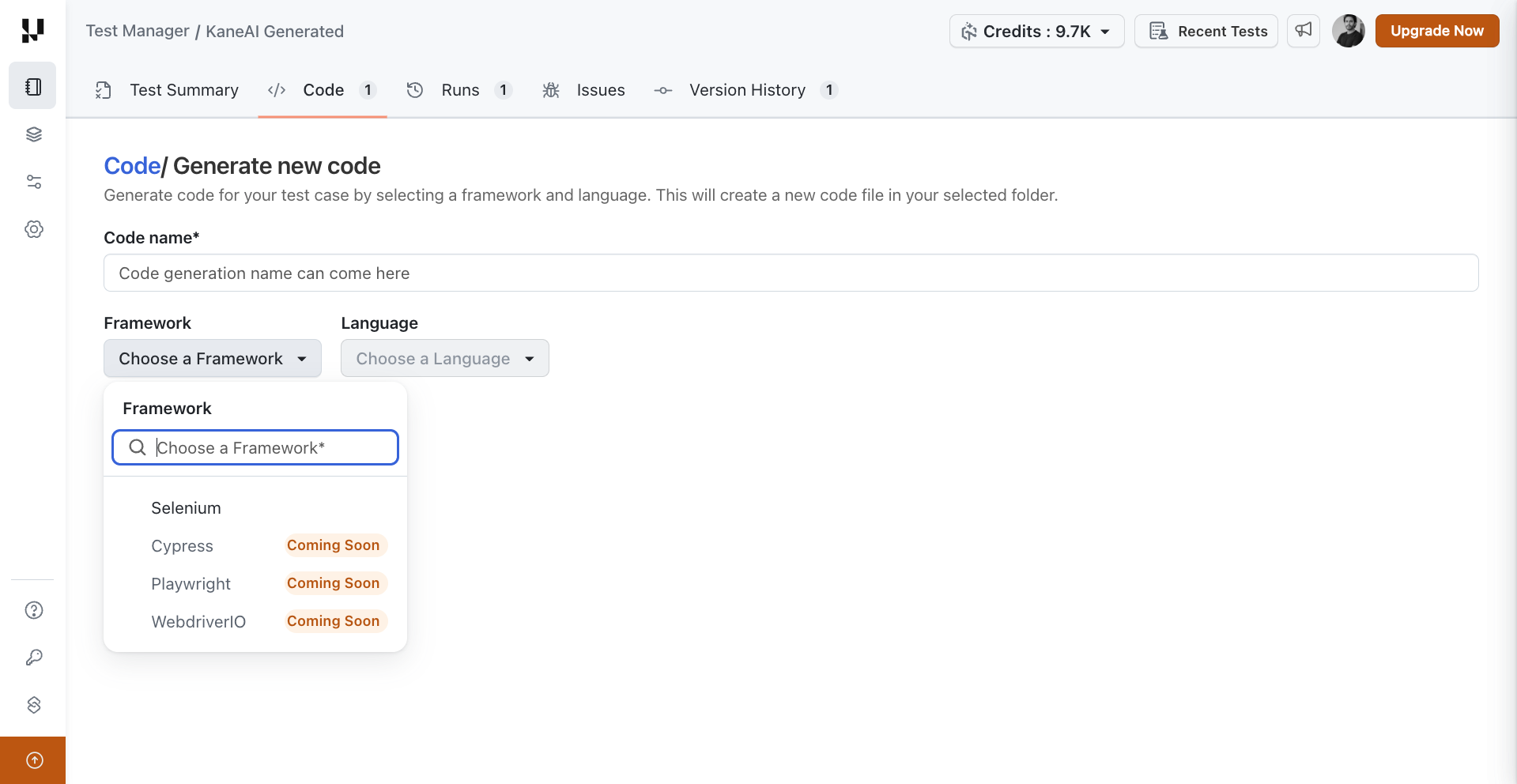
Supported Frameworks
| Platform | Framework | Languages |
|---|---|---|
| Web | Selenium | Python |
| Web | Playwright | JavaScript, Python |
| Web | Cypress | JavaScript |
| Web | WebdriverIO | JavaScript |
| Mobile | Appium | Python, Java, JavaScript |
The generated code is fully accessible,download it, customize it, and integrate it into your CI/CD pipeline or execute it on TestMu AI HyperExecute.
For the full code generation guide, see KaneAI Code Generation.
Alternative Path: Record User Interactions
Instead of providing written requirements, you can use KaneAI's Manual Interaction to record real user actions and convert them into automated tests.
- Start a new test in KaneAI. The session begins in the Authoring Steps state, where capture is already active.
- Perform actions on your application, clicks, form fills, navigation.
- KaneAI captures each action and converts it into test steps.
- Generate automation code from the recorded steps.
This is useful when requirements are easier to demonstrate than describe, or when you want to capture existing user workflows as automated tests.
For the full guide, see Manual Interaction in KaneAI.
End-to-End Flow Summary
VerifiedRequirements (text, docs, images, audio, Jira, ADO)
│
▼
AI Test Case Generator (Test Manager / KaneAI)
│
├── Create ──► Test Case Repository (manual testing)
│
└── Create and Automate ──► KaneAI Automation
│
▼
Code Generation
(Selenium, Playwright,
Cypress, Appium, etc.)
│
▼
Download / CI/CD / HyperExecute
Related Docs
- Create Projects: Set up your Test Manager project
- AI Test Case Generator: Full guide for AI-powered test case generation
- KaneAI Manual Interaction: Record user actions to create tests
- KaneAI Code Generation: Export automation scripts in multiple frameworks
- KaneAI Test Planner: Generate tests from high-level objectives
- KaneAI Jira Integration: Generate tests from Jira tickets
- Getting Started with HyperExecute: Execute automated tests at scale


 Chat with Us