Live Interaction
What Is Live Interaction?
Live Interaction lets you take manual control of an active automation session.
Live Interaction is a feature within automation testing that allows you to take control of the session manually. This helps abort the automated test session, debug any exception in real time, and report the test session.
Why Use Live Interaction?
Debug exceptions, interact with OS-level prompts, and track who paused the test.
- It allows you to partially interact by clicking a button or filling OS-specific credentials without breaking the currently running automated tests.
- It helps find the root cause of exceptions raised during automated tests and allows you to debug the exception during the session.
- It works smartly by letting stakeholders know who has stopped or paused the test, which helps report the issue.
Prerequisites and Limitations
Review the supported platforms, browsers, and session time limits before using Live Interaction.
- Live interaction is available on:
- Windows: 11, 10, 8, and 8.1
- macOS: Big Sur, Monterey, Ventura
- All browsers except Safari.
- You can only interact with the browser for 15 minutes.
note
Safari browser will be added in upcoming releases.
How to Use the Live Interaction Feature
Open the test summary page and click "Click to view live test" to take manual control.
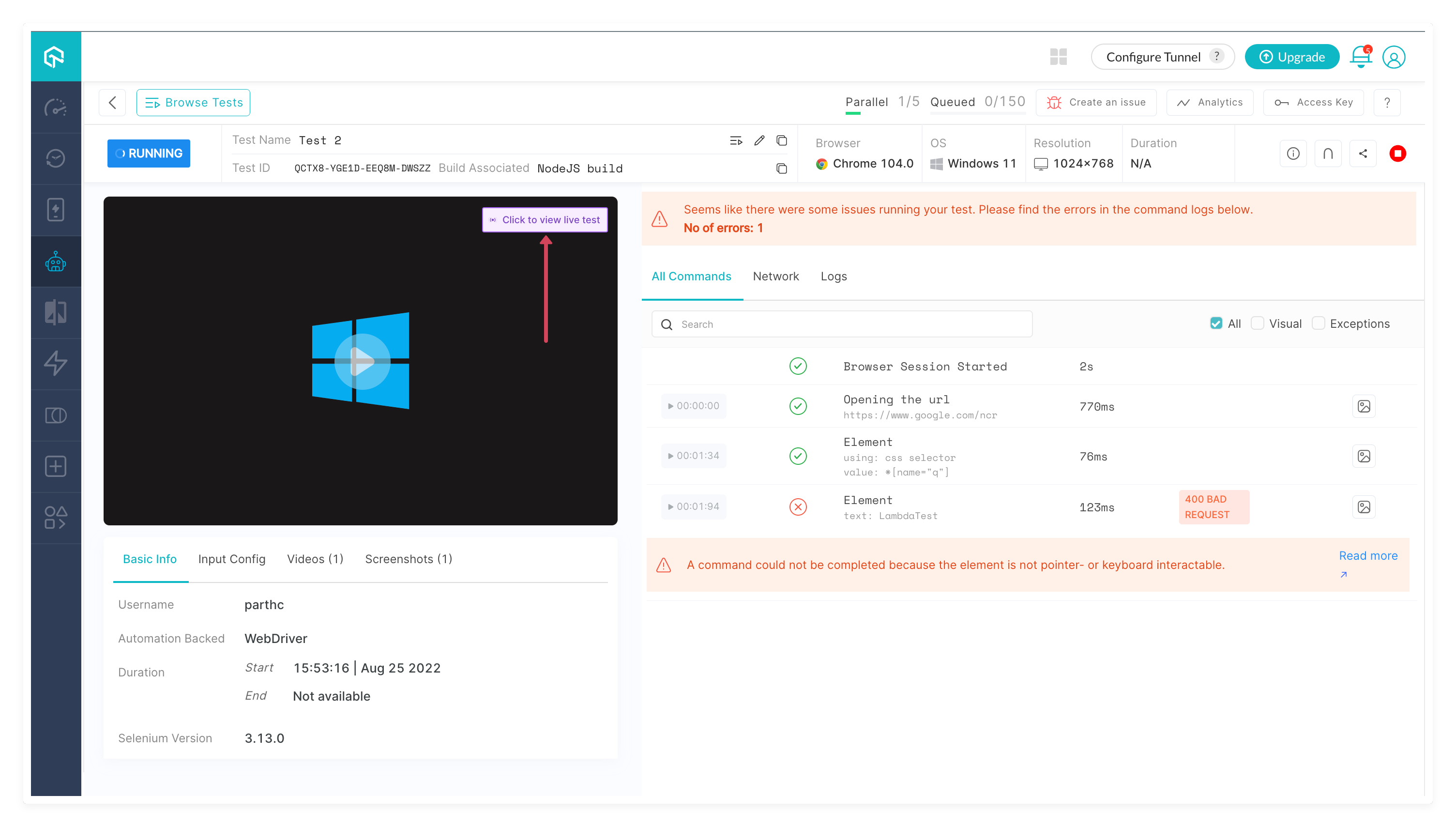
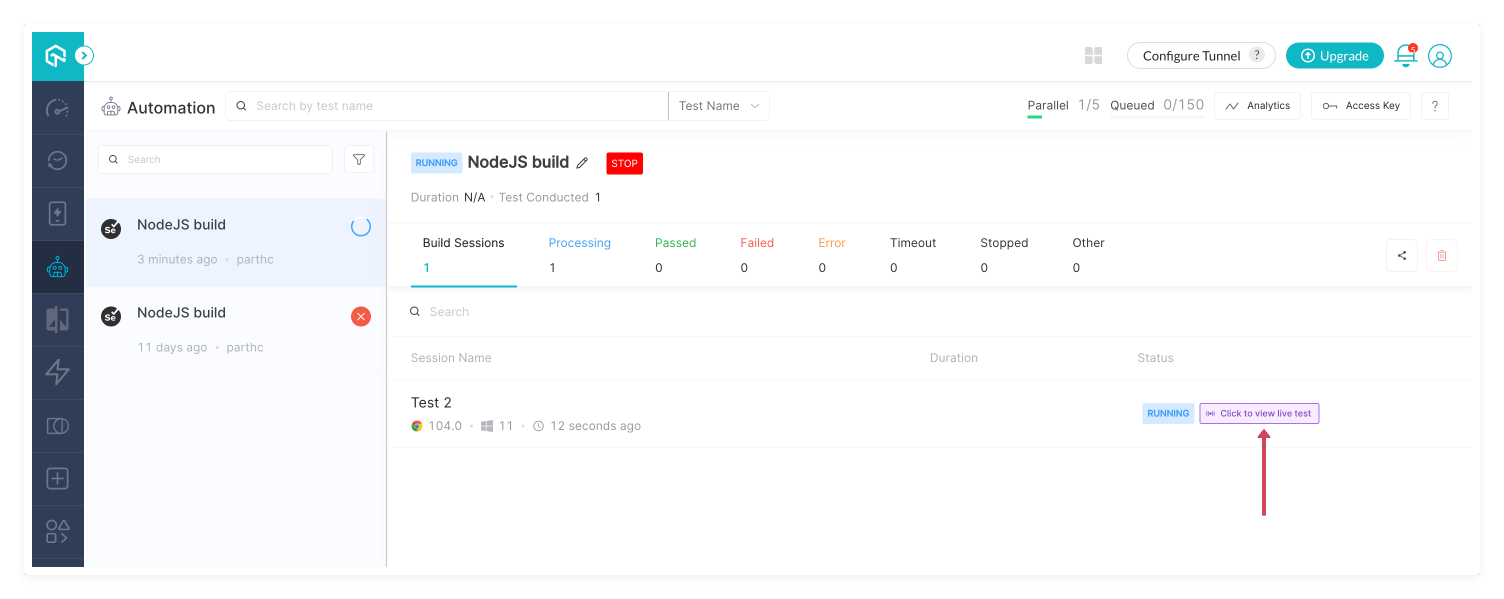
Follow the below steps to interact with the browser manually in an automation test:
- Open the test summary page in the TestMu AI dashboard.
- Click on the "Click to view live test" button.
- The status of the test changes to idle_timeout while using the Live Interaction feature.
- Take control of the browser.

 Chat with Us
 Ask the Community