Run k6 Performance Tests on HyperExecute
k6 is an open-source tool designed to make load testing easy and accessible for developers and QA engineers. It's specifically built for testing the performance of APIs, microservices, and websites.
HyperExecute is an AI Native Test Orchestration Cloud Platform that empowers you to run end-to-end tests quickly and efficiently. It provides Just-in-Time (JIT) testing infrastructure with fast execution speeds, smart orchestration, and detailed logs.
HyperExecute lets you upload a k6 script, set the load from the dashboard, and run it without writing a YAML file.
Prerequisites
- Your organization must have access to HyperExecute performance testing. If not, please contact sales.
- Your script must export a
defaultfunction. HyperExecute runs that function for every virtual user. - The Total Users, Duration and Ramp-up Time you set in the dashboard replace the load profile in your script (
vus,duration,stagesandscenariosinoptions). Everything else in the script, such as thresholds, checks and tags, still applies.
Step 1: Setup your k6 Project
- Go to the HyperExecute Project's Dashboard and click on the New Project button.
- In Type of Project, select k6, enter a Project Name and click on the Continue button.
- Browse and upload your k6 script (
.jsor.ts), along with any modules or data files it reads (for example.json,.csvor.txt). - Click on the Save button.
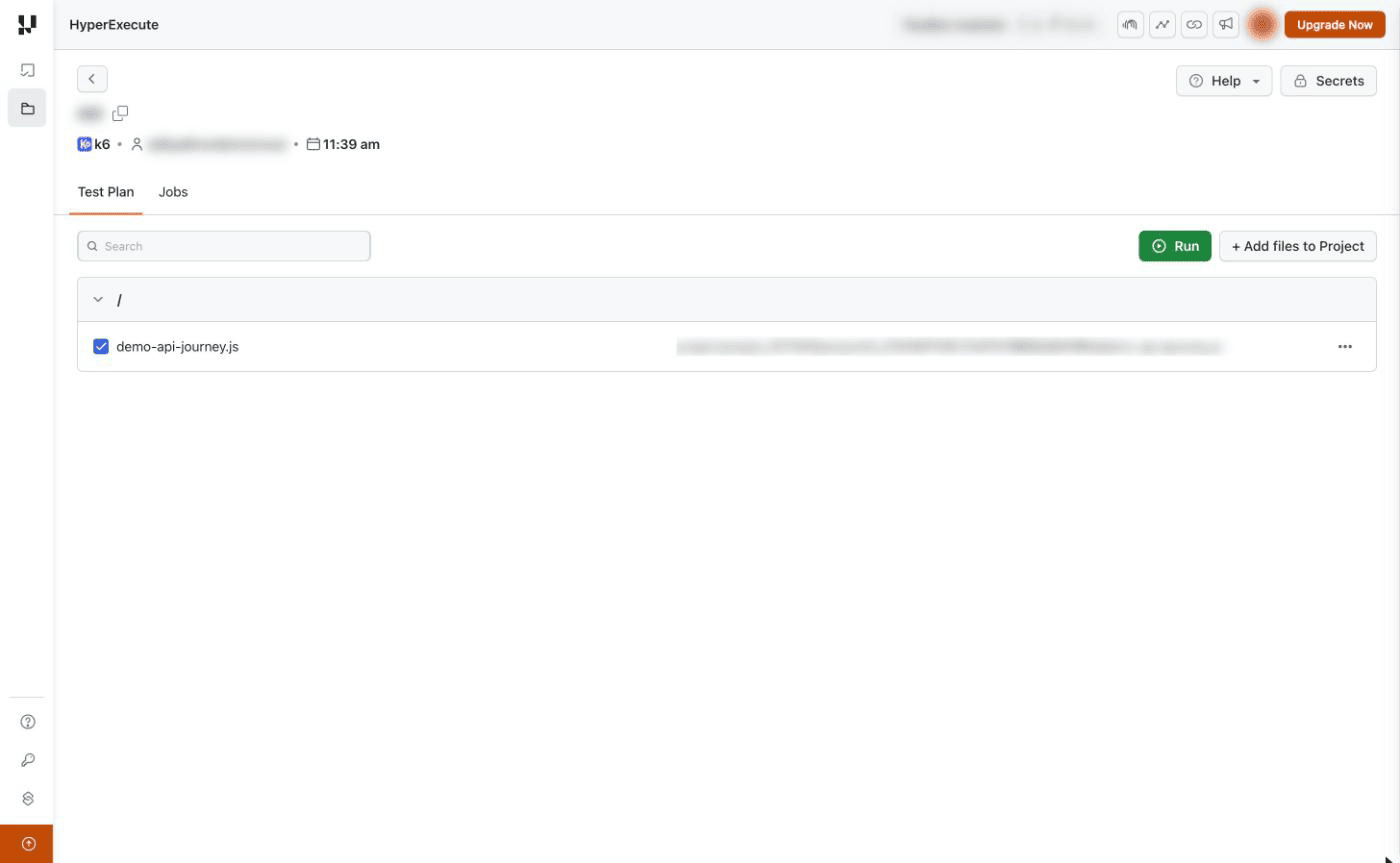
To add more files later, open the project and click on + Add files to Project.
Step 2: Configure Test Load Criteria
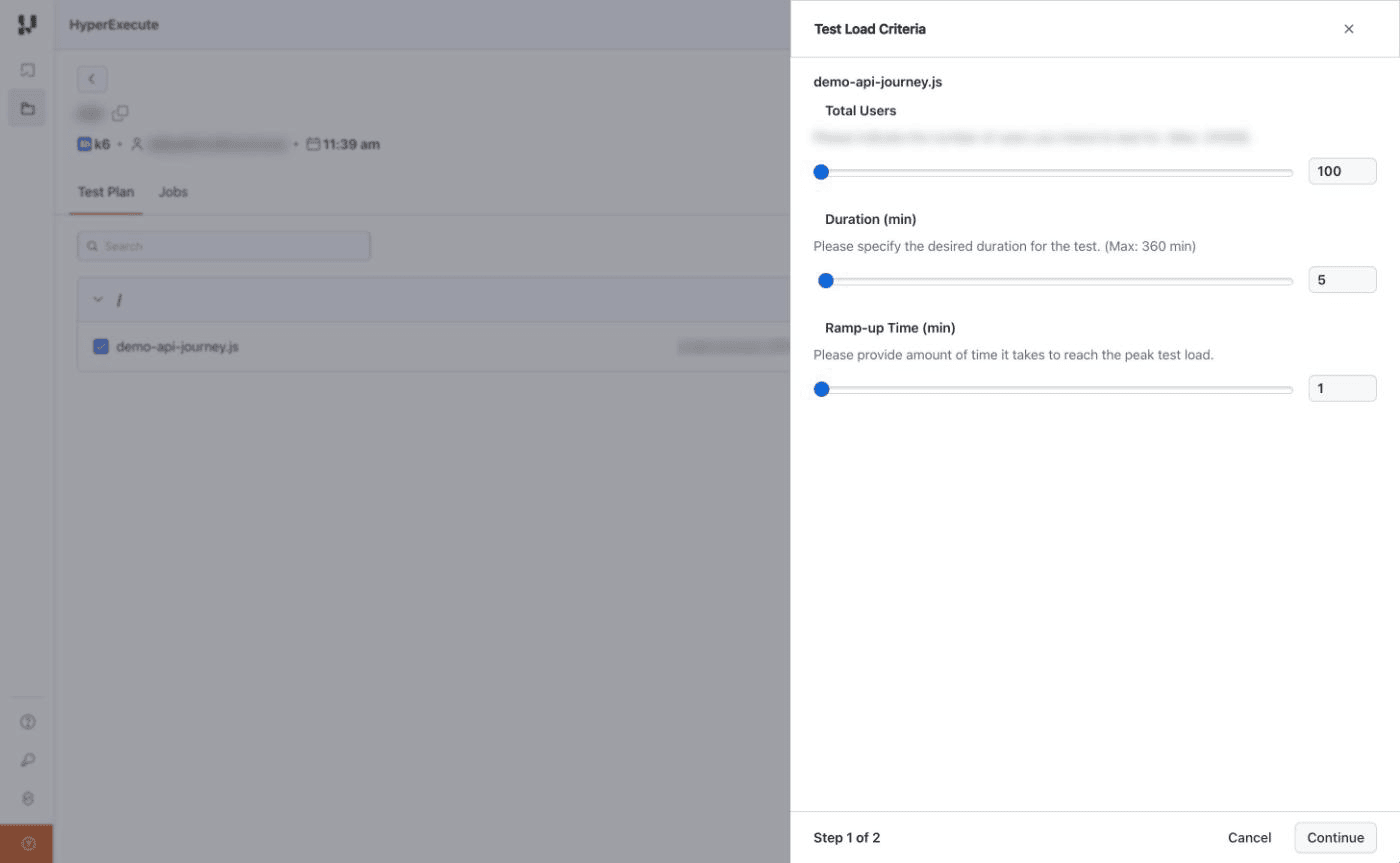
Select your script and click on the Run button. Configure the following parameters and click on the Continue button:
- Total Users: The number of virtual users (VUs) you want to run. The maximum depends on your plan.
- Duration (min): How long the test runs at full load. The maximum depends on your plan.
- Ramp-up Time (min): How long it takes to go from zero to the full number of users. Set it to
0to start all users at once.
Step 3: Configure Test Load Distribution
- Region: k6 tests run from East US (Richmond, Virginia).
- Job Labels: Add meaningful labels or tags for better identification and traceability.
- Max Users per Engine: The maximum number of virtual users each load generator runs (up to 1500). This option appears when Ramp-up Time is greater than
0. HyperExecute splits the total users across as many load generators as needed and starts them together. - Global Timeout: The maximum duration for the HyperExecute job (default: 90 minutes). Ramp-up Time plus Duration must be shorter than this value.
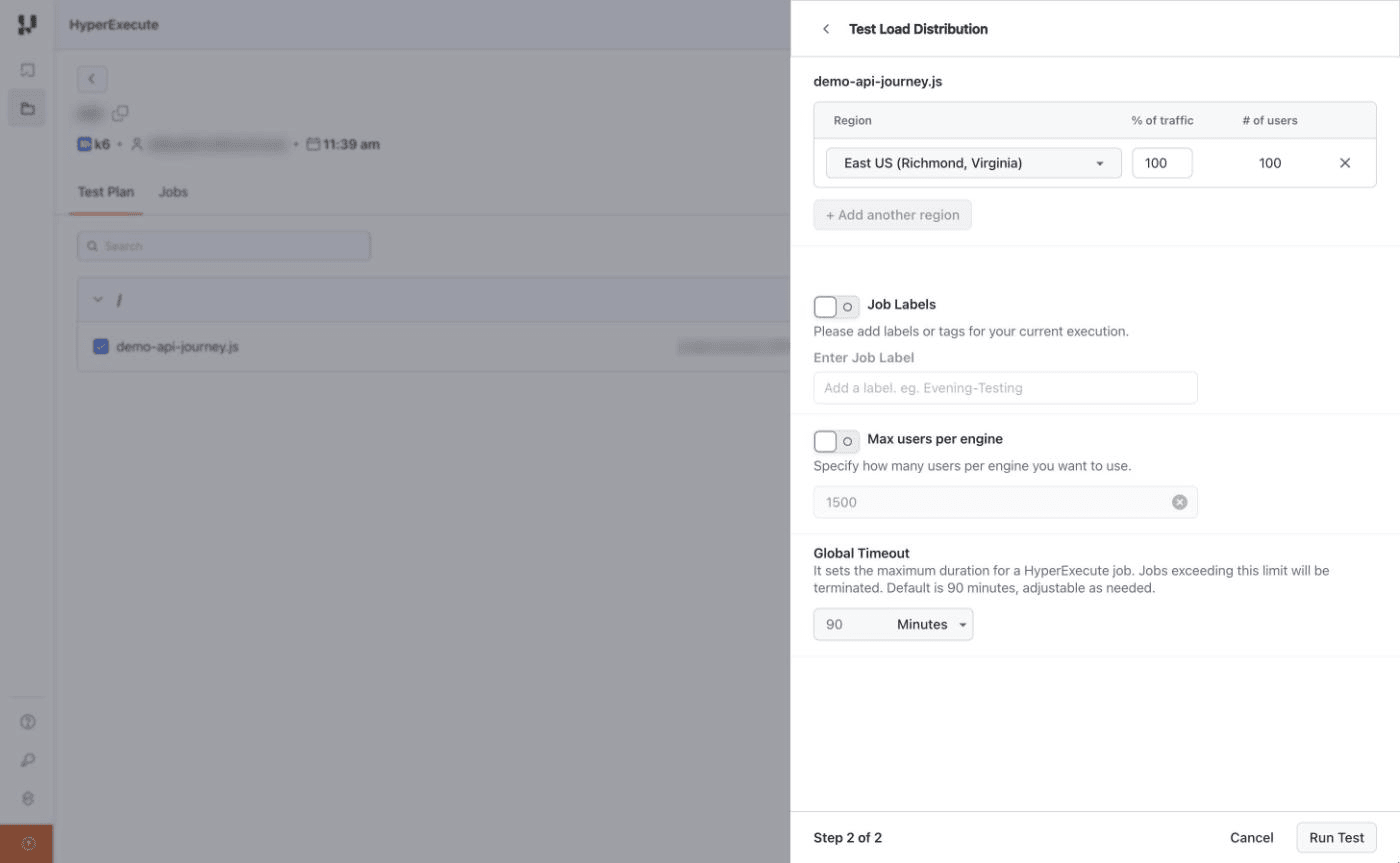
Click Run Test to start the execution.
Step 4: Analyze Your Test Results
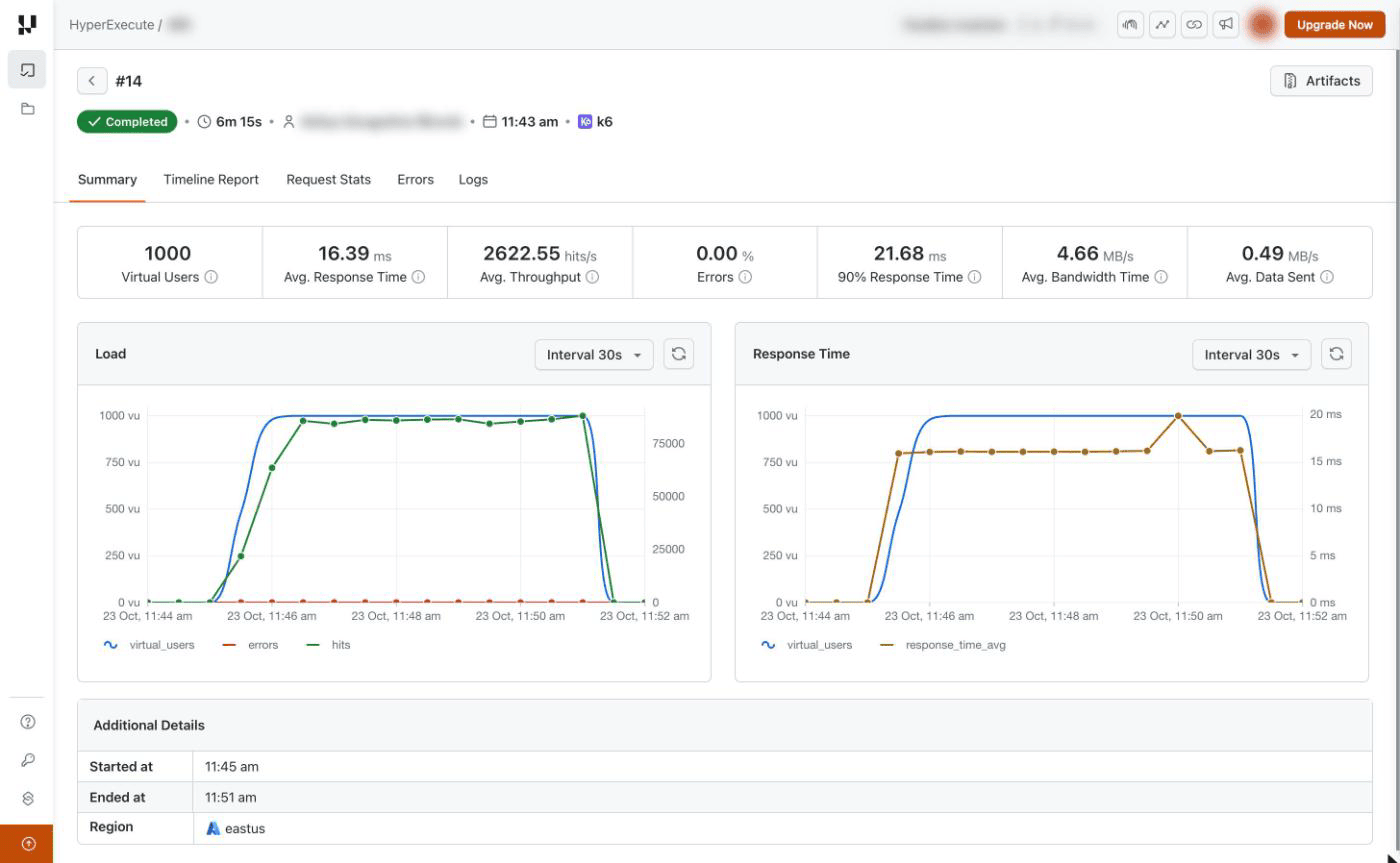
Toggle to the Jobs section and open your job. You can follow the results while the test is running:
- Summary: Virtual users, average and 90th percentile response time, throughput, error rate, bandwidth and data sent, with the Load and Response Time graphs.
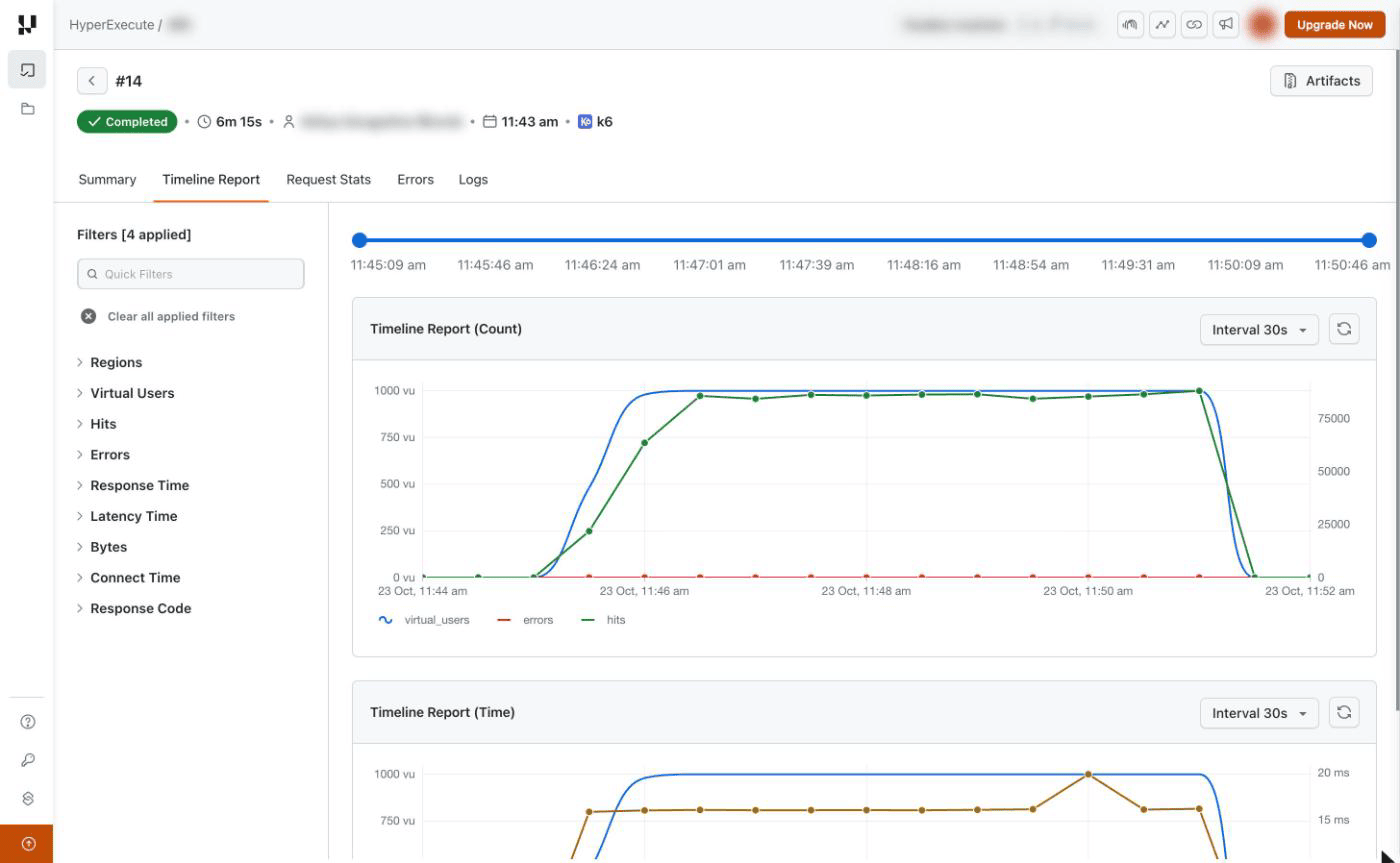
- Timeline Report: Request count and response time over the course of the test.
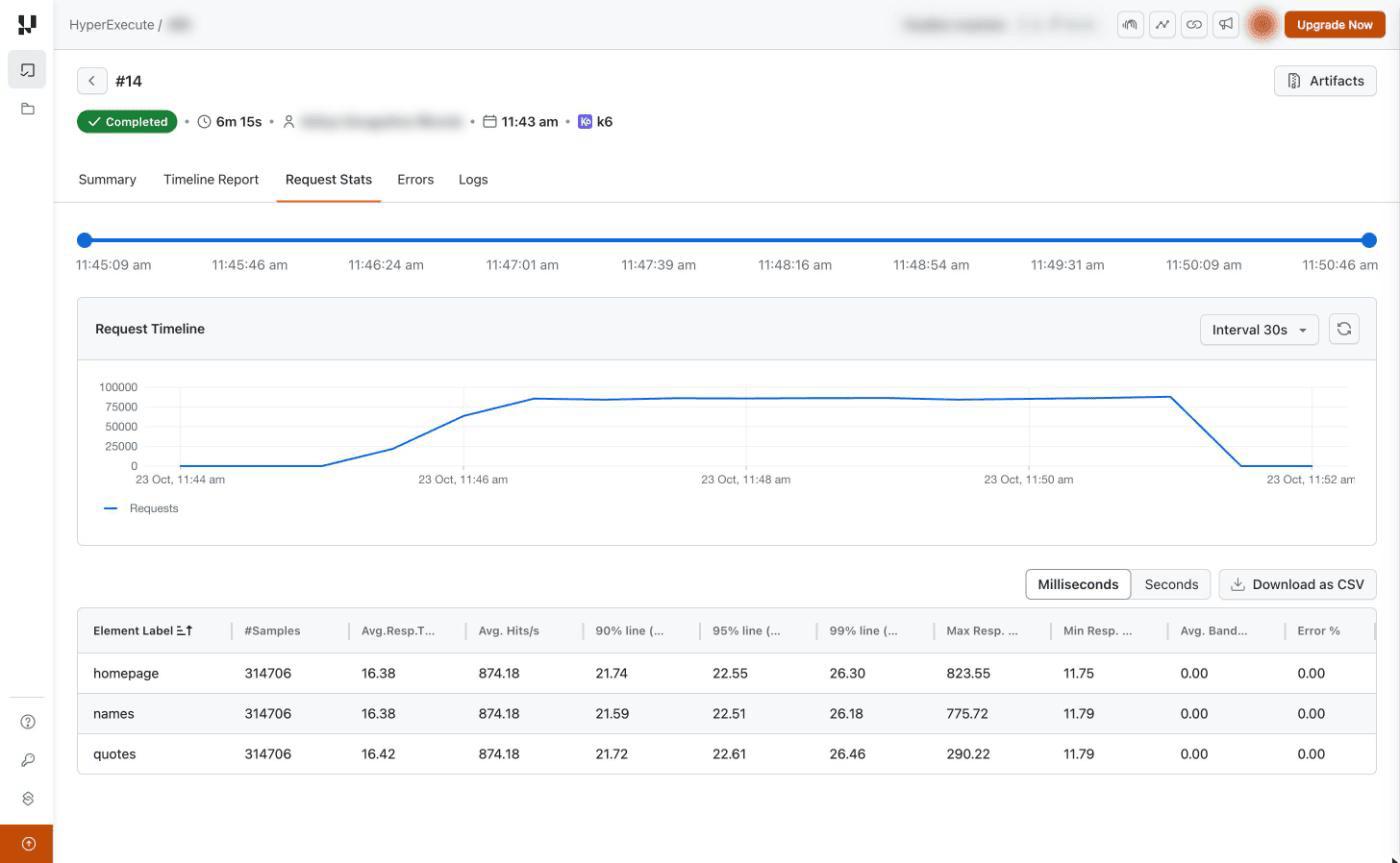
- Request Stats: Per-request statistics, grouped by request name.
- Errors: Failed requests grouped by request name and by response code.
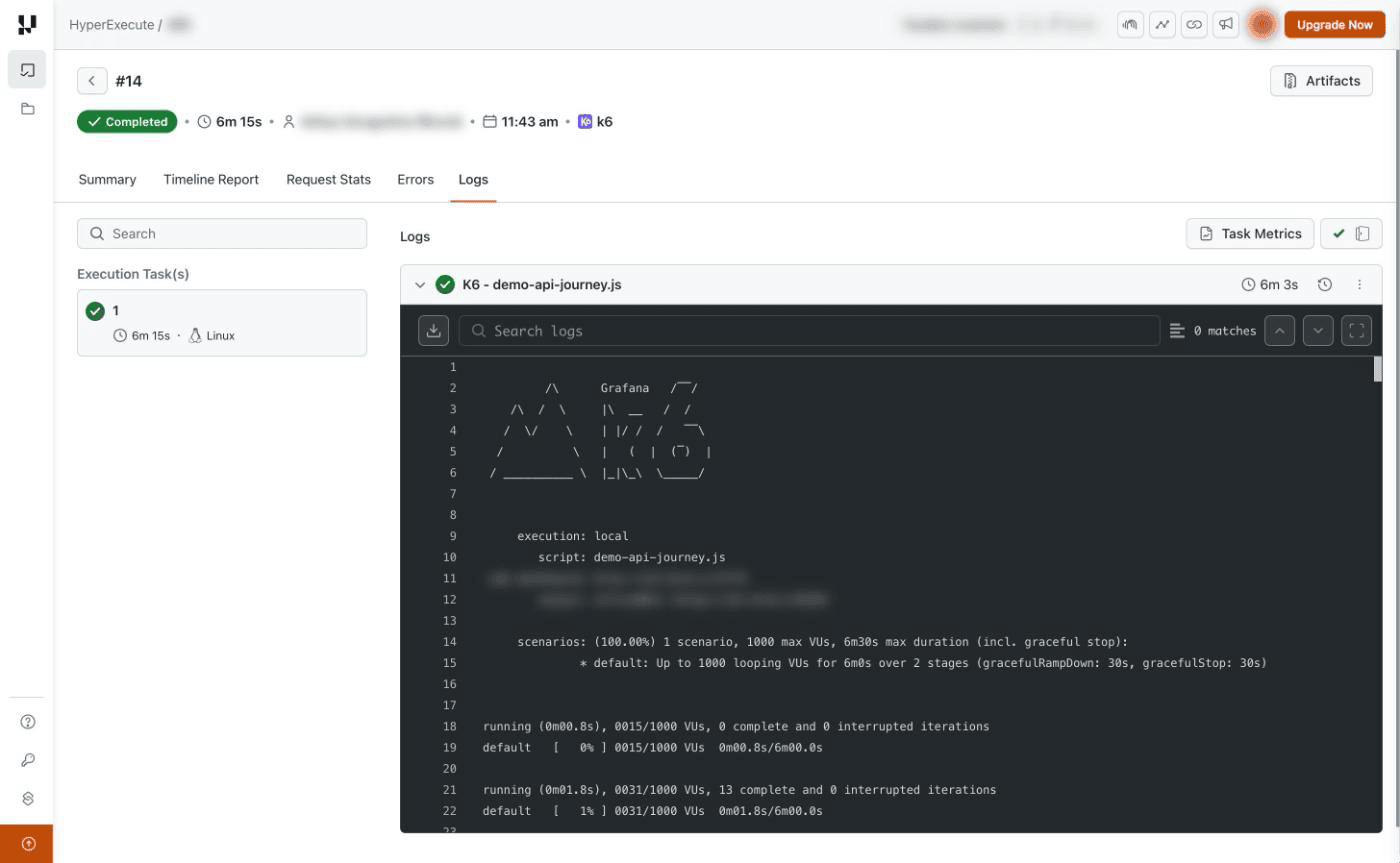
- Logs: The k6 output of each load generator.
- Artifacts: The k6 HTML report and the end-of-test summary (
k6-summary.json).
Summary Report
Timeline Report
Request Stats
Logs
If your script defines thresholds and one of them is crossed, the job is marked Failed and the job remark names the crossed threshold. The metrics and graphs collected up to that point remain available.
Frequently Asked Questions
Why does my job run a different number of users than my script defines?
In the UI flow, the values you enter in Total Users, Duration and Ramp-up Time replace the load profile in your script, so every run uses the load you set in the dashboard.
Why did my job fail a few seconds after it started?
This usually means k6 could not load the script, for example because of a syntax error or a missing module. The job remark shows k6's error, and the full message is in the Logs tab.
Can I load test private or internal endpoints with k6?
Yes. A tunnel adds its own latency to every request, which skews response-time results, so it is not recommended for load testing. Instead, contact the TestMu AI support team for HyperExecute's static outbound IPs and allow them in your firewall or security group.

 Chat with Us