Group Tests Using Custom Tags
TestMu AI allows you to group your automation tests using custom tags. This document shows how to create custom tags and use them. For demonstration purposes, we use a sample TestNG script to run on the TestMu AI platform.
How to Create Custom Tags on the Selenium Grid
Add a tags capability with a String array to your desired capabilities.
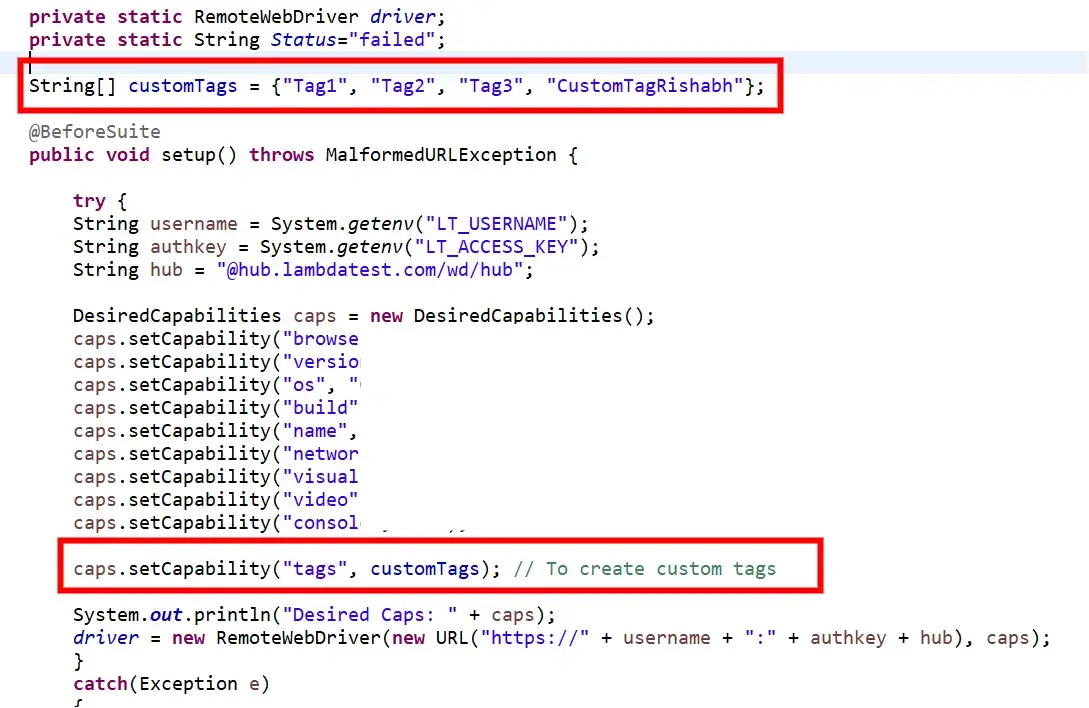
You can create a custom tag while writing your Selenium automation tests. When you create the Desired Capabilities via code, add the below lines of code.
- Create a String array that contains the names of your custom tags, separated by a comma.
        // In case for just 1 tag, just add 1 element in the array
        String[] customTags = {"Custom Tag"};

        // In case for multiple tags, add them in the array separated by comma
        String[] customTags = {"Tag 1", "Tag 2", "Tag 3", ...};
- Now add this custom tag in your Desired Capabilities instance:
        DesiredCapabilities caps = new DesiredCapabilities();
        .
        .

        // To create custom tags
        caps.setCapability("tags", customTags);
For example:
You have successfully created the custom tags. Let us now see how to view and group tests based on custom tags.
How to View Custom Tags on the Platform
View your custom tags in the Timeline or Automation Logs views on the dashboard.
There are multiple ways to view custom tags in the automation dashboard, such as Timeline view and Automation logs view.
How to View Custom Tags on Your Timeline
Navigate to Timeline view of your automation dashboard, and toggle the Build View to Test View:
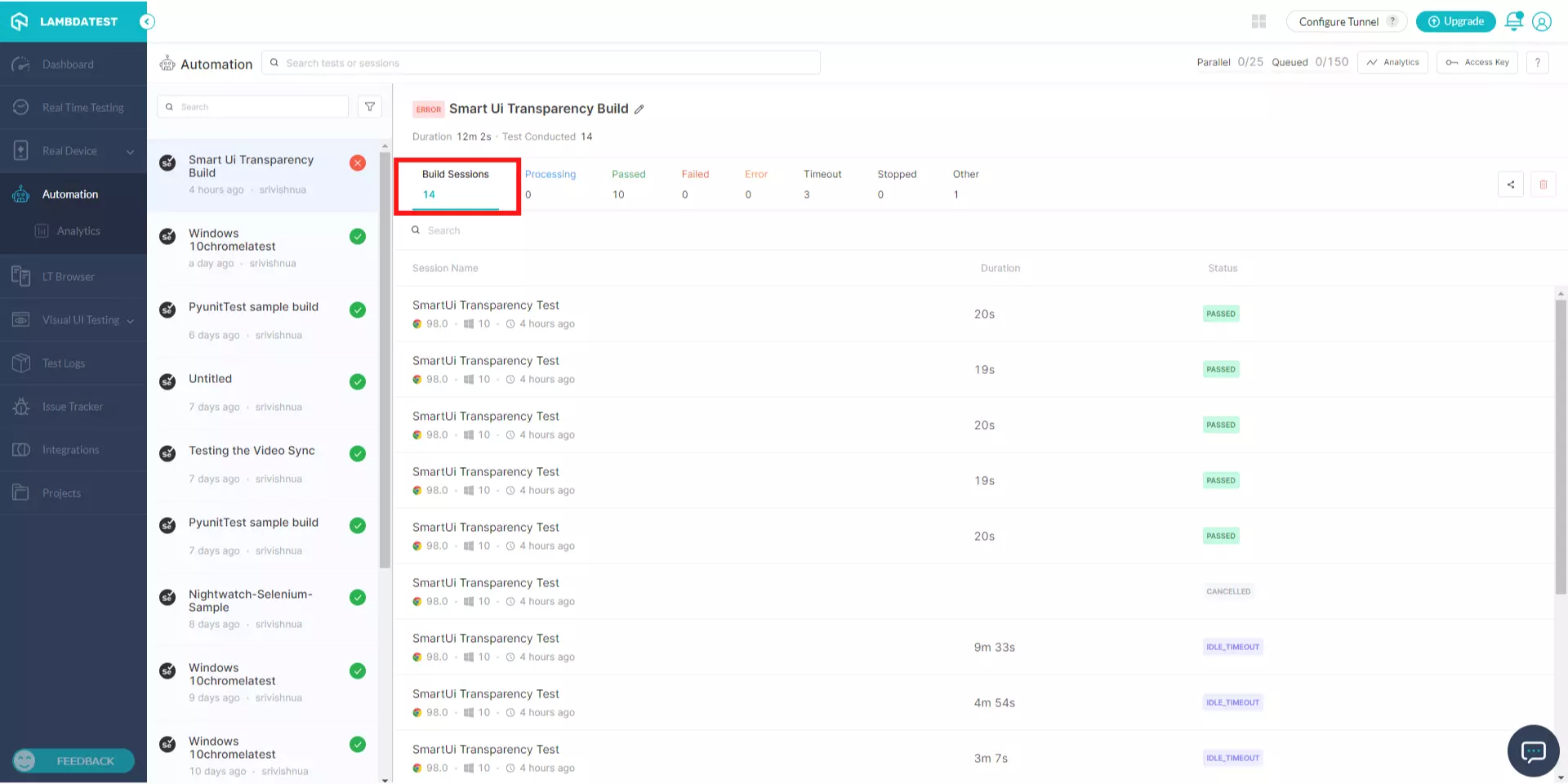
You can see the applied custom tags below the tests in this Test View. 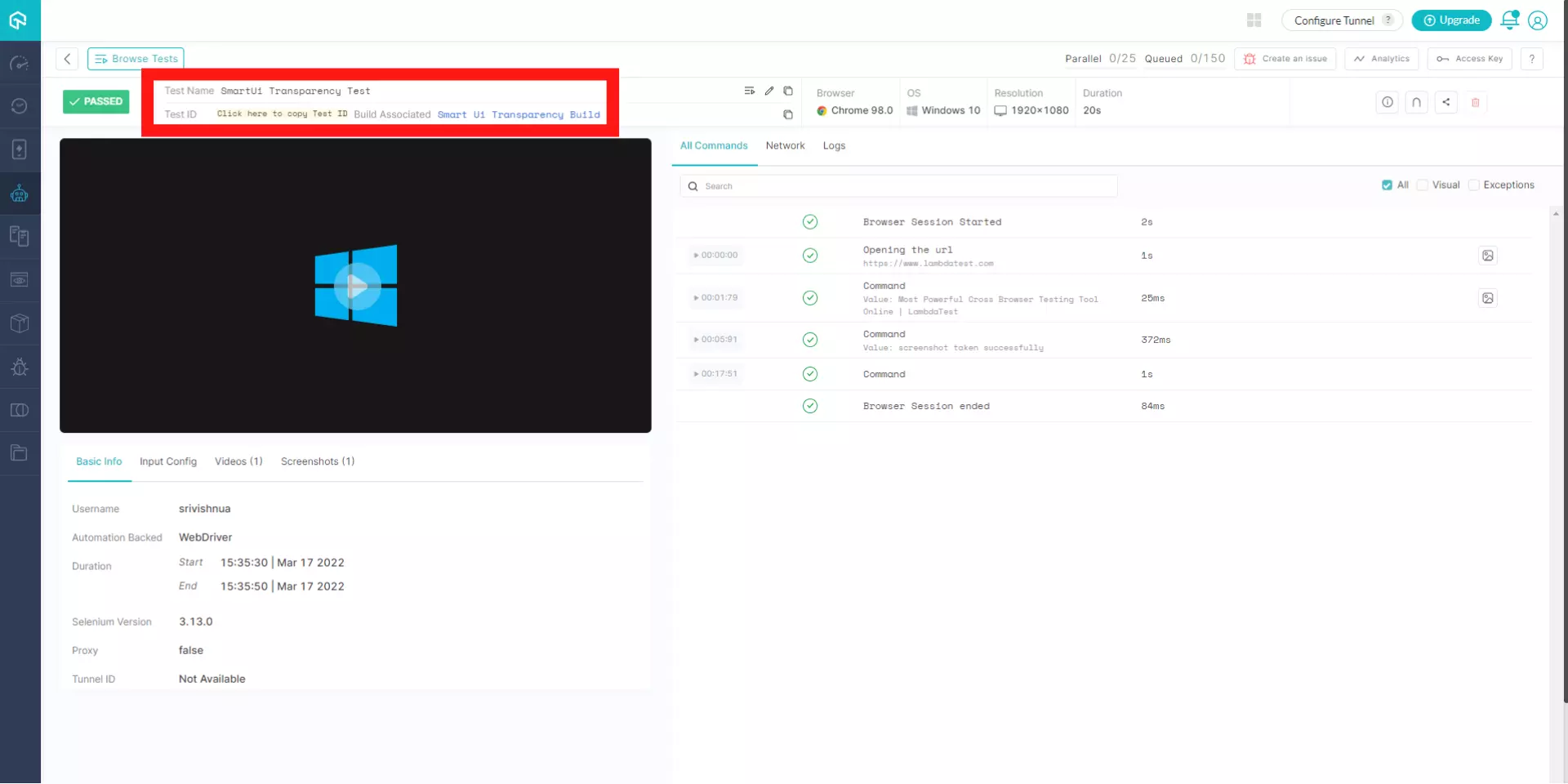
How to View Custom Tags on Your Automation Logs
Navigate to Automation Logs of your automation dashboard, and you can see the applied custom tags below the tests in the left panel. 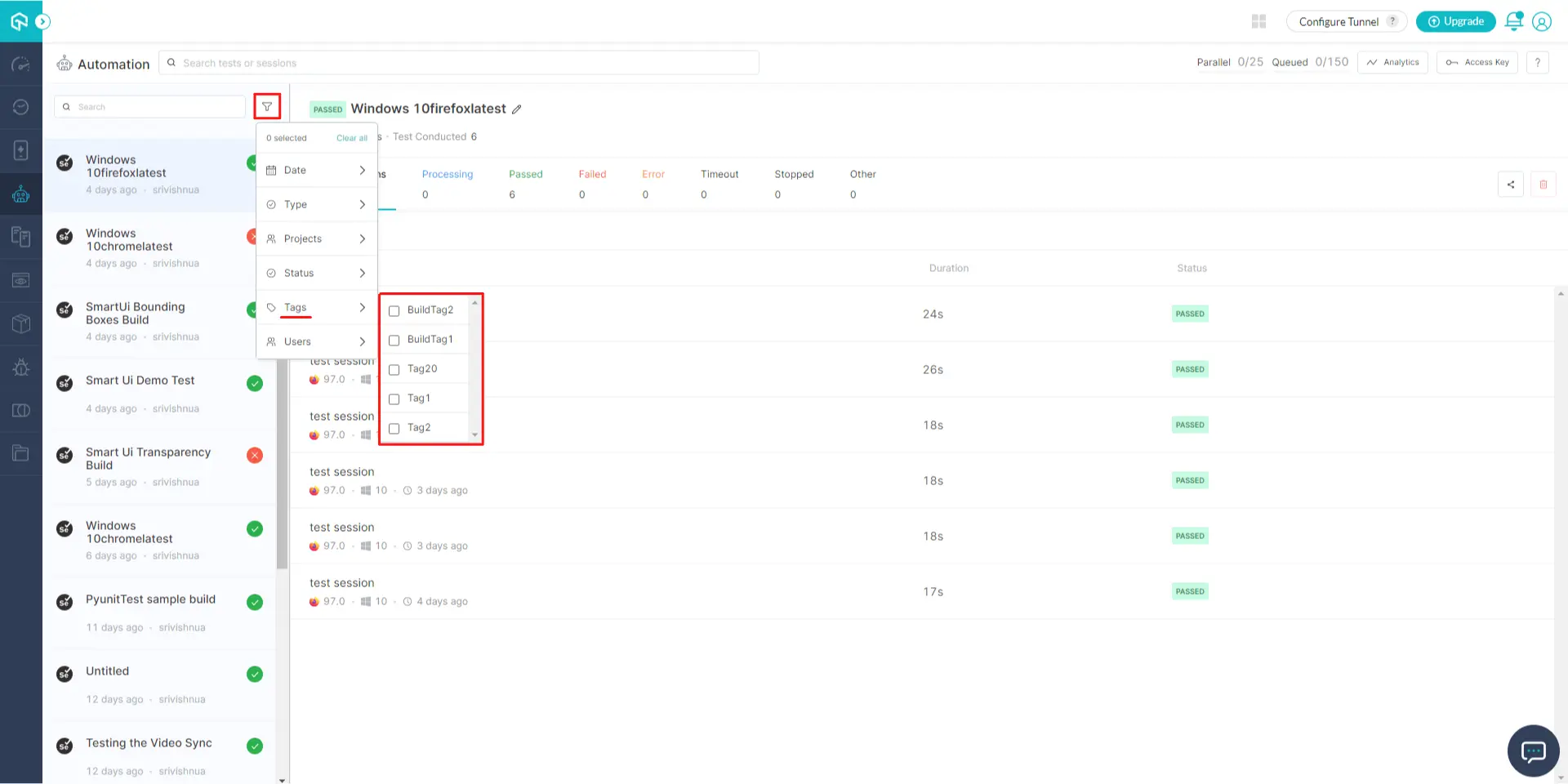
How to Filter Tests Using Custom Tags on the Platform
Select one or more custom tags in the filter toolbar to narrow down your test results.
You can filter tests on your automation dashboard with these custom tags.
Navigate to Automation Logs of your automation dashboard, and you can see a filter by name Tags in the filter toolbar. 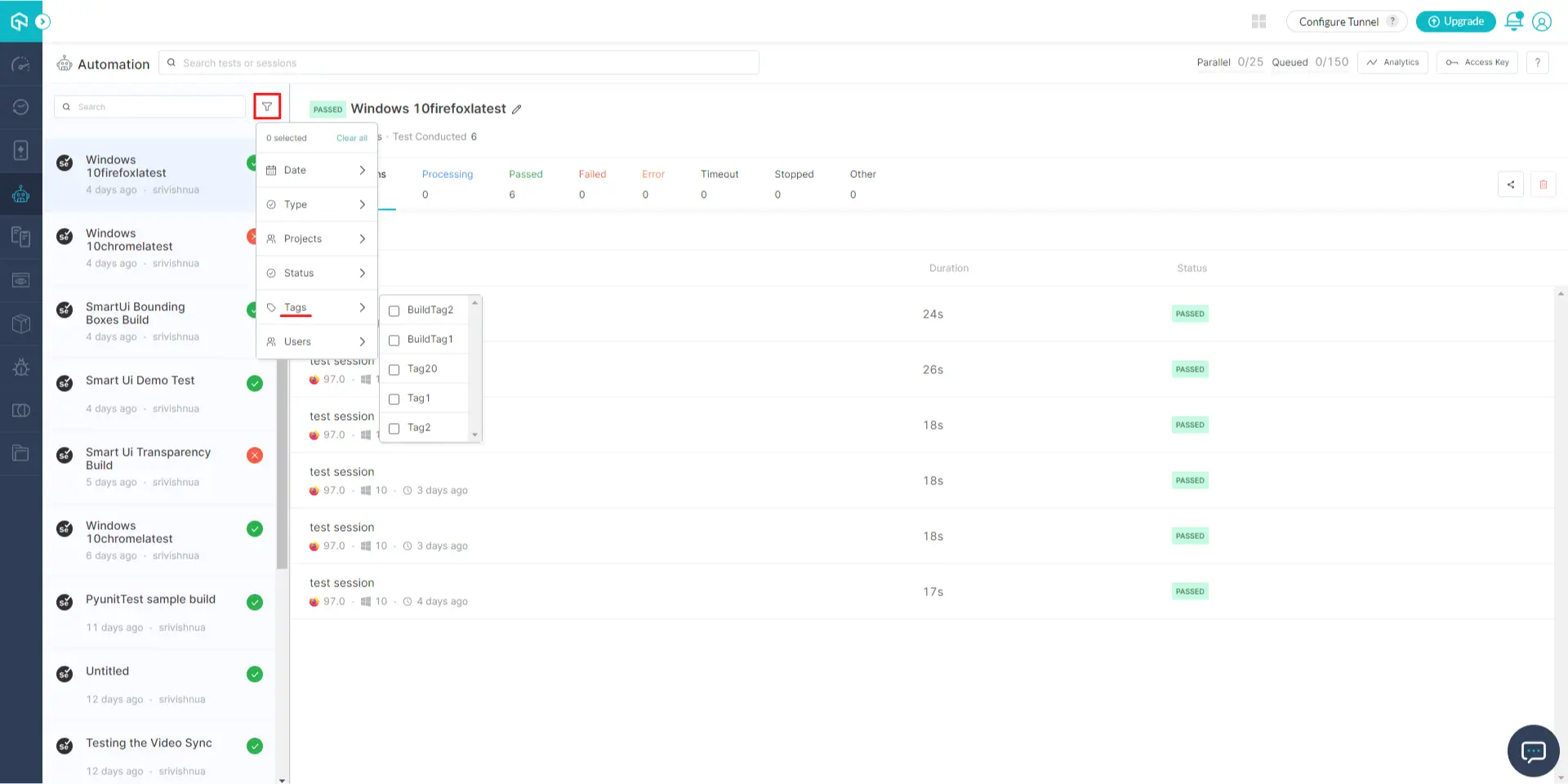
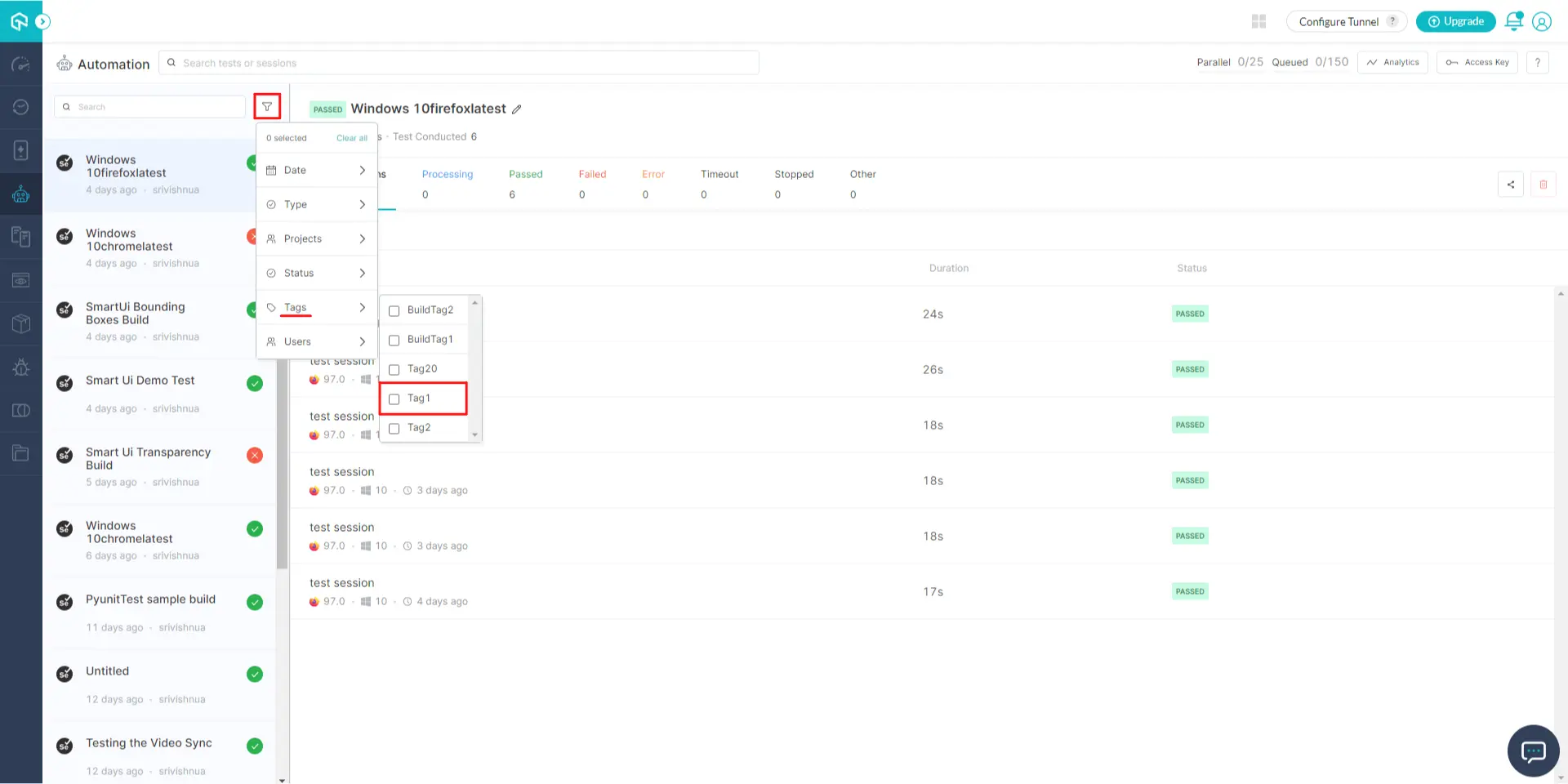
Click on it and select the Tag by which you want to filter the tests on your dashboard. For example, we have filtered the test using Tag2 custom tag:
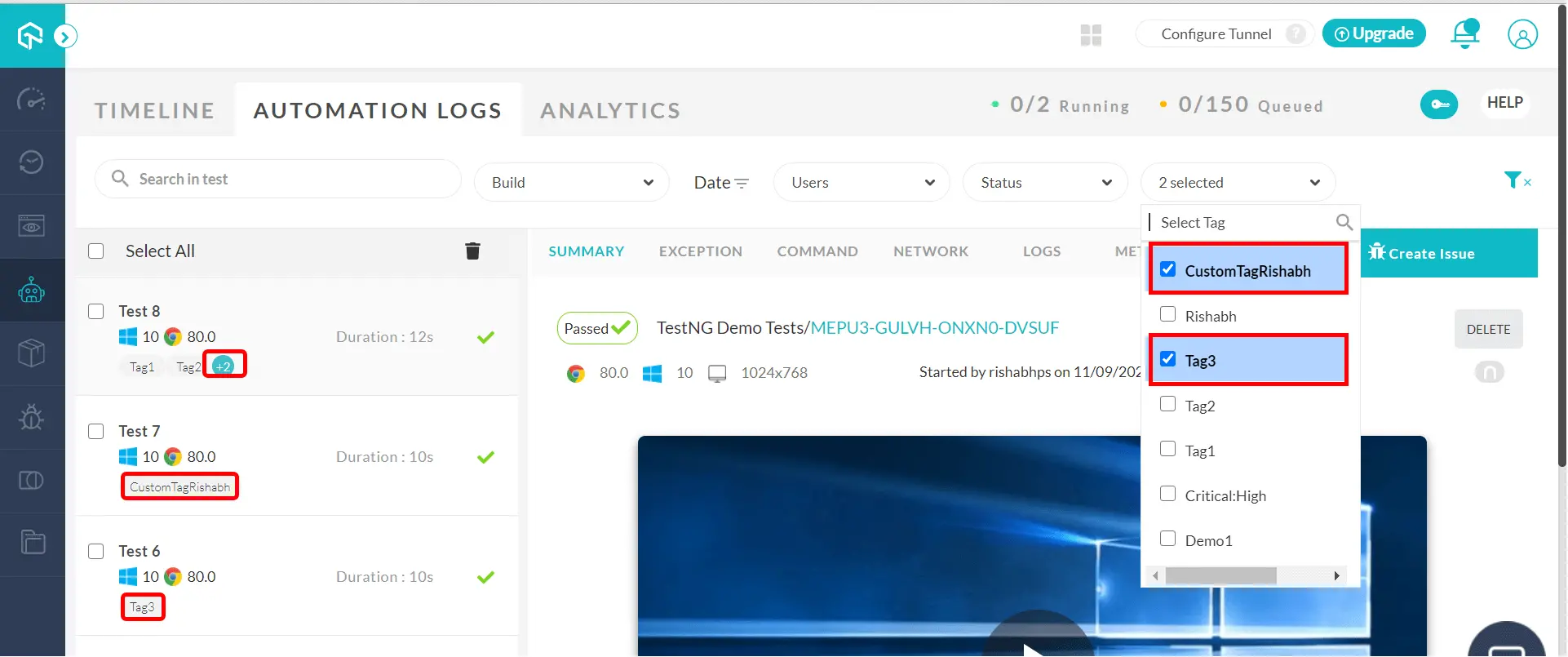
You can filter tests by selecting multiple custom tags at once from the filter toolbar:
You have successfully created a custom tag and grouped your tests based on the custom tag. If you have questions, share them with us through our 24/7 chat support or by mailing us at [email protected].

 Chat with Us
 Ask the Community