Travis CI Pipeline Integration with SmartUI
Travis CI is one of the most popular CI/CD platforms, known for its simplicity and support for open-source projects. It provides continuous integration for projects hosted on GitHub and Bitbucket.
This guide explains how to integrate your project with the Travis CI CI/CD pipeline to trigger visual regression testing with TestMu AI SmartUI whenever changes are made to your repository.
Steps to Integrate Travis CI Pipeline with SmartUI
To integrate Travis CI Pipeline with SmartUI, follow the below steps. You can use your own project to configure and test it. For demo purposes, we are using the sample repository.
Download or Clone the code sample from the TestMu AI GitHub repository to run the tests on the SmartUI.
 View on GitHub
Step 1: Set Up Your Repository
Ensure your project is hosted in GitHub, or any supported repository.
Step 2: Create a New Pipeline:
- Navigate to Pipelines in your TravisCI project.
- Select New Pipeline and connect your repository.
Step 3: Add Environment Variables
Go to Pipeline Settings > Variables. Add the following variables:
LT_USERNAME: Your TestMu AI username.LT_ACCESS_KEY: Your TestMu AI access key.
Step 4: Setup your Workflow
Verifiedlanguage: node_js
node_js:
- "16"
env:
global:
- LT_USERNAME=${LT_USERNAME}
- LT_ACCESS_KEY=${LT_ACCESS_KEY}
script:
- echo "Installing SmartUI CLI"
- npm install @lambdatest/smartui-cli
- echo "Running SmartUI tests"
- npx smartui --version
- npx smartui config:create smartui-web.json
- npx smartui --config smartui-web.json exec -- mvn --quiet test -D suite=sdk-cloud.xml
Step 5: Check the output
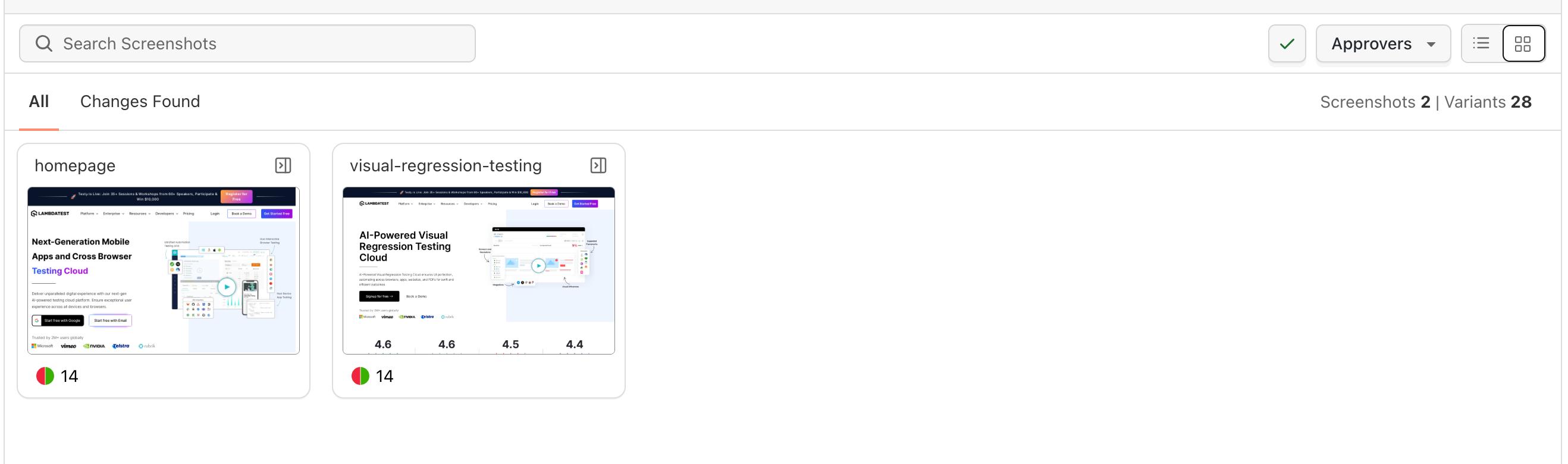
- After triggering the workflow, check your results in the SmartUI Dashboard
Best Practices
Verified- Secret Management
- Pipeline Optimization
- Build Naming
- Error Handling
- Resource Management
- Resource Management
Secret Management
- Never commit credentials to repository
- Use Travis CI Environment Variables for all sensitive data
- Mark variables as secret to hide values in logs
- Rotate secrets regularly
- Use different secrets for different environments
Pipeline Optimization
- Use matrix builds for parallel execution
- Cache dependencies to speed up pipelines
- Only run visual tests on relevant branches
- Set up pipeline conditions to avoid unnecessary runs
Example:
branches:
  only:
    - main
    - develop
Build Naming
- Use meaningful build names that include branch/commit info
- Include commit SHA for traceability
- Use consistent naming conventions
Example:
env:
  global:
    - BUILD_NAME="${TRAVIS_BRANCH}-${TRAVIS_COMMIT:0:7}"
Error Handling
- Set up proper error handling in pipelines
- Use pipeline status checks
- Configure notifications for failures
- Add retry logic for flaky tests
Resource Management
- Limit concurrent pipeline runs
- Clean up old builds regularly
- Monitor pipeline execution time
- Optimize test execution order
Resource Management
- Limit concurrent pipeline runs
- Clean up old builds regularly
- Monitor pipeline execution time
- Optimize test execution order
Troubleshooting
Verified- Pipeline Fails with Variable Not Found
- PROJECT_TOKEN Not Available
- Tests Run But No Results in Dashboard
- Pipeline Times Out
- Dependencies Installation Fails
- SmartUI CLI Not Found
Issue: Pipeline Fails with "Variable Not Found"
Symptoms: Pipeline fails with error about missing environment variables
Possible Causes:
- Variables not created in Travis CI project
- Variable names don't match
- Variables not accessible to build
- Variable scope issues
Solutions:
-
Verify variables exist in repository settings:
- Go to Repository Settings → Environment Variables
- Check
LT_USERNAME,LT_ACCESS_KEY, andPROJECT_TOKENexist
-
Ensure variable names match exactly (case-sensitive)
-
Check variable scope (public or private)
-
Verify variables are not displayed in logs if marked as secret
Issue: PROJECT_TOKEN Not Available
Symptoms: Pipeline prompts for PROJECT_TOKEN or token not found
Possible Causes:
- PROJECT_TOKEN not set as environment variable
- Variable not passed to build
- Variable marked as secret incorrectly
Solutions:
-
Add PROJECT_TOKEN as Travis CI Environment Variable
-
Pass variable to build:
env:
  global:
- PROJECT_TOKEN=$PROJECT_TOKEN -
Check variable is accessible to the build
-
Verify variable scope includes your repository
Issue: Tests Run But No Results in Dashboard
Symptoms: Pipeline completes but screenshots don't appear in SmartUI
Possible Causes:
- Incorrect PROJECT_TOKEN
- Project name mismatch
- Network issues
- Pipeline build failure
Solutions:
-
Verify PROJECT_TOKEN is correct:
- Check token in SmartUI Project Settings
- Ensure token includes project ID prefix
-
Check build logs for errors:
after_failure:
- cat /tmp/*.log || true -
Verify network connectivity in build
-
Check if SmartUI CLI step completed successfully
Issue: Pipeline Times Out
Symptoms: Pipeline execution exceeds time limit
Possible Causes:
- Too many tests running
- Slow test execution
- Network latency
- Resource constraints
Solutions:
-
Increase build timeout in Travis CI settings
-
Run tests in parallel using matrix:
matrix:
  include:
    - env: TEST_GROUP=1
- env: TEST_GROUP=2 -
Optimize test execution
-
Split tests across multiple build jobs
Issue: Dependencies Installation Fails
Symptoms: npm install or dependency installation fails
Possible Causes:
- Network issues
- Package registry problems
- Version conflicts
- Node version mismatch
Solutions:
-
Use specific Node version:
node_js:
- "18" -
Clear npm cache:
before_install:
- npm cache clean --force -
Use package-lock.json for consistent installs
-
Check for version conflicts in package.json
Issue: SmartUI CLI Not Found
Symptoms: npx smartui command fails with command not found"
Possible Causes:
- Node.js not installed
- npm not available
- PATH issues
Solutions:
-
Ensure Node.js is specified:
node_js:
- "18" -
Verify npm is available:
before_script:
- npm --version -
Install SmartUI CLI explicitly:
before_script:
  - npm install -g @lambdatest/smartui-cli
Getting Help
If you encounter issues not covered here:
- Review Travis CI Documentation
- Check SmartUI CLI Documentation for CLI-specific issues
- Visit TestMu AI Support for additional resources
- Contact support at support@testmuai.com or use 24/7 Chat Support


 Chat with Us