Rerun Failed Jobs on HyperExecute
When a job finishes with failures, you do not have to trigger the whole pipeline again to check a fix. From the job page you can rerun the job. A rerun is a whole new HyperExecute job, not a retry of individual tests inside the original one: it checks the code out again, uses the same YAML the original job ran with, and gets its own job number, logs and results.
Two ways to rerun a job
| Rerun type | What it runs | When to use it |
|---|---|---|
| All scenarios | Every scenario the original job ran. | Re-validate the entire suite, for example after a fix that touches shared code or the environment. |
| Failed scenarios | Only the scenarios that did not pass, plus any that never ran. | Re-verify just the failures. A 900-scenario job with 20 failures reruns those 20. |
Either type can run on the commit the original job ran or on the latest commit of that branch.
Prerequisites
- Your test suite is on Git (GitHub, Azure Repos and Bitbucket are supported). A rerun checks the code out again, so it needs somewhere to check it out from.
- A Git token the checkout can use. HyperExecute uses the project's PAT first. If the project has no PAT, it falls back to a secret named
git_token, which can be saved at the user, project or organization level. If neither is found, the rerun cannot check the code out. - The job uses YAML version 0.1.
- You can open the job's project and run jobs in it.
Jobs started from your local machine can be rerun as long as Git details were recorded. If the working tree had uncommitted changes when the job ran, the commit is not reproducible and the job cannot be rerun — commit or stash before you run it.
What you can choose
| Option | Choices |
|---|---|
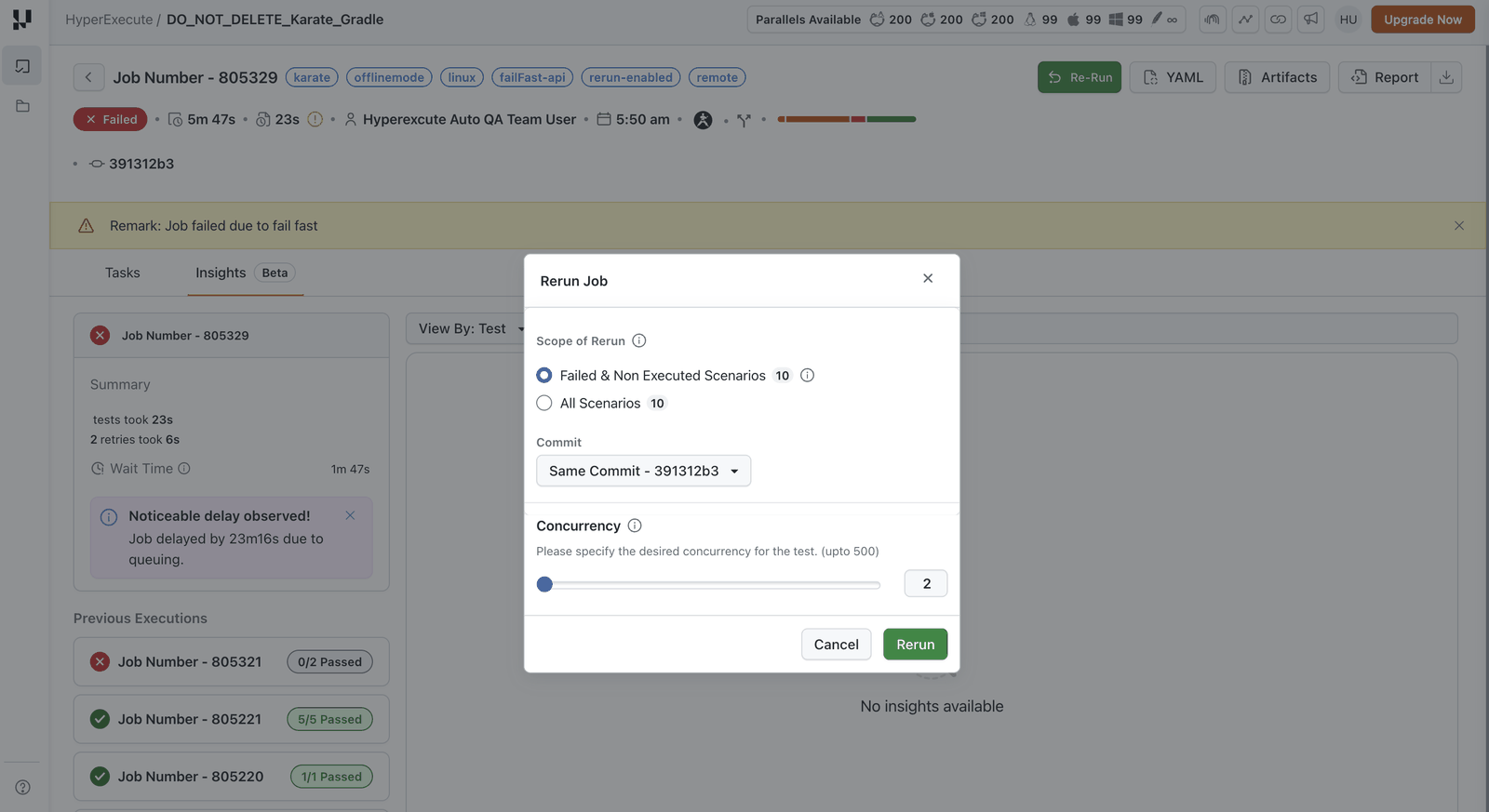
| Rerun type | Failed scenarios — only what did not pass. All scenarios — everything the job ran. |
| Commit | Same commit — the exact commit the job ran, to reproduce a failure. Latest commit — the newest commit on that branch, once the fix is merged. |
| Concurrency | Defaults to the original job's. Raise or lower it for the rerun; the rest of the YAML is unchanged. |
The dialog shows how many scenarios each rerun type will run, so you can see the size of the rerun before you start it.
How to rerun a job
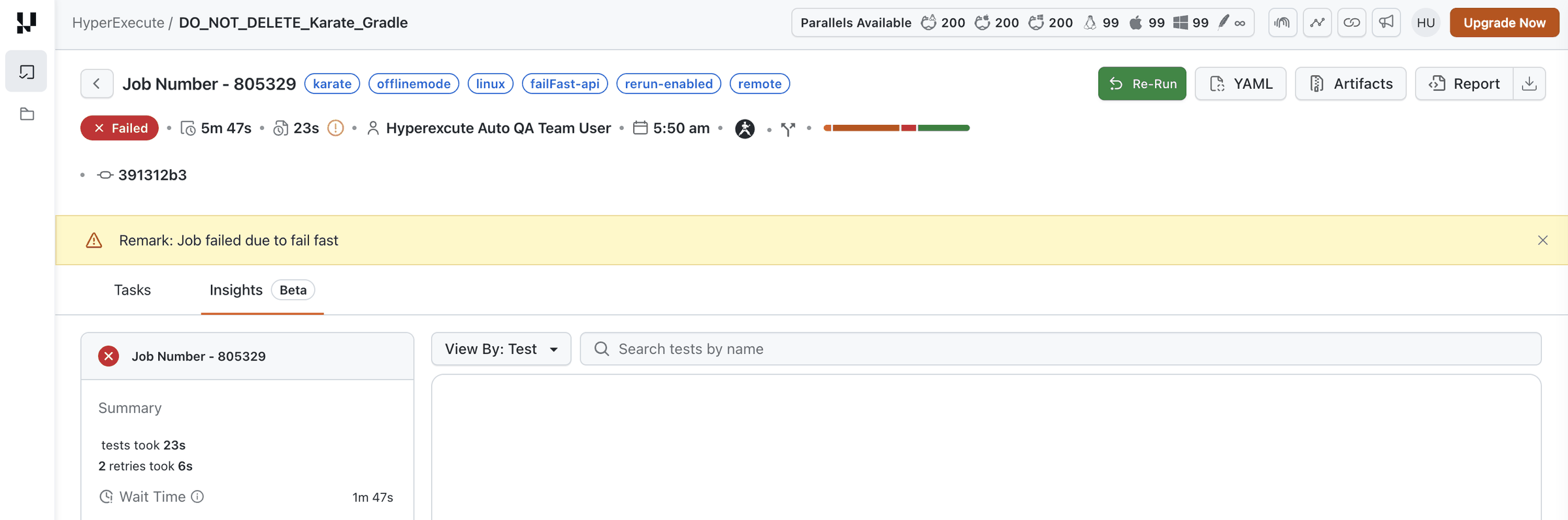
Step 1: Open the job from the Jobs page and click Re-Run in the top bar.
Step 2: In the dialog, pick the rerun type under Scope of Rerun, pick the commit, adjust concurrency if you want to, then click Rerun. The new job opens and you can follow it like any other.
How failed scenarios are picked
A scenario is included when it did not finish successfully. Three cases are worth spelling out:
- Retries. A scenario that failed and then passed on a retry counts as passed and is not rerun. If the retry never finished, it is rerun.
- Fail fast. The scenario that tripped the limit counts as a failure, and scenarios that never started are included as well, because they have no result yet.
- Dependent scenarios. Where scenarios run as a dependent group, the whole group runs together; one member cannot be rerun on its own.
If a failed scenario contains several test cases, all of them are rerun.
What the rerun keeps
- The same YAML as the original job, even on the latest commit, so the environment does not change underneath you.
- The project the original job ran in.
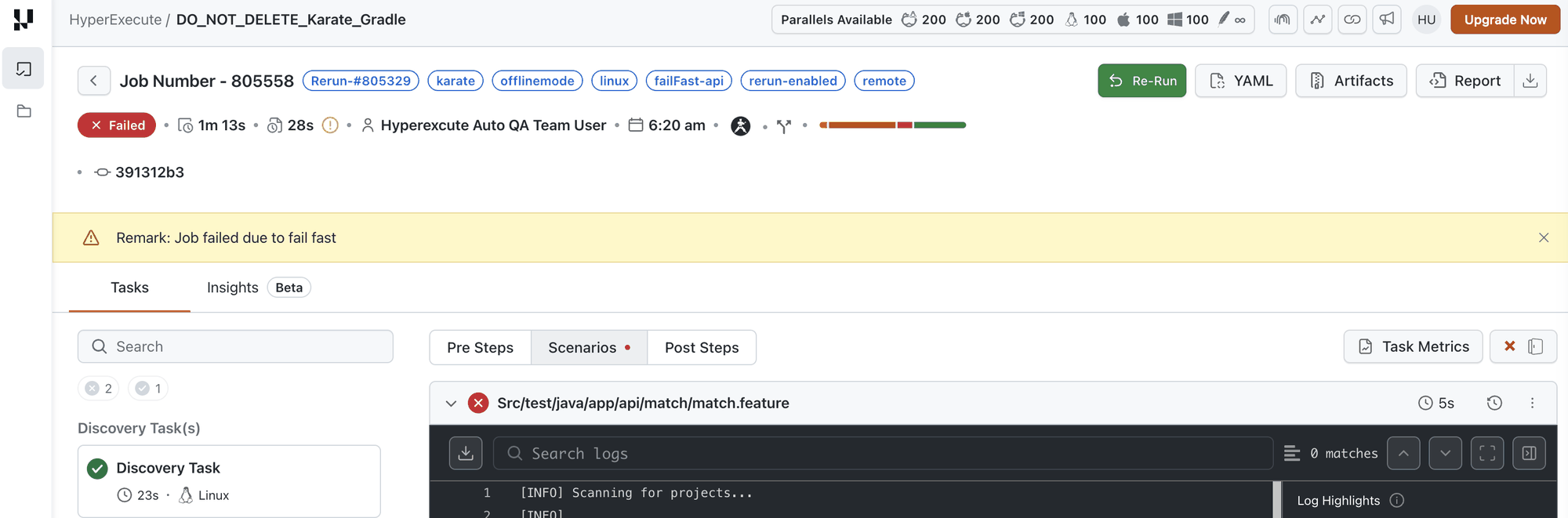
- The labels of the original job, with
Rerun-#<original job number>added as the first label, so reruns are easy to spot in the Jobs list. - Your policies, applied fresh to the new job rather than carried over from the original run.
When Rerun is unavailable
The Re-Run button appears only on jobs that can be rerun. Where a job cannot be, the button is not shown at all: each reason below is a property of the job itself, so nothing you could change in the dialog would make it rerunnable.
| Reason | What to do |
|---|---|
| The job is still running. | Wait for it to finish. |
| Nothing failed, or the job ran no scenarios. | There is nothing to rerun. |
| The job is older than the retention window, or its stored configuration is gone. | Start a fresh job from your CLI or pipeline. |
| The job's project has been deleted. | A rerun belongs to the original project, so run the suite in a current one. |
A globalPre or globalPost step ran with mode: local. | That step runs on the machine that started the job, which a rerun has no access to. Run it again from the CLI. |
| The job ran mobile (Appium) tests. | Not supported yet. |
A job that can be rerun may still come with something to note — one of the two rerun types unavailable, or a named tunnel that has to be running before you start. The dialog shows that as a message when you open it.
Frequently asked questions
Does a rerun change the original job?
No. The original job and its results are untouched, and the two can be compared side by side.
Can I rerun a rerun?
Yes. A rerun is an ordinary job, and its label points at its own parent, so the chain stays traceable.
Is a rerun billed like any other job?
Yes, it uses concurrency and minutes as any job of that size would. A failed-scenarios rerun is usually much smaller than the original, which is the point.
Can I start a rerun from the CLI or an API?
Not yet. Reruns are started from the dashboard.
If you do not meet the conditions above but want to use the rerun feature, write to us at support@testmuai.com. We are evolving this feature and welcome your feedback.


 Chat with Us