Global Policies in HyperExecute
Every HyperExecute job is configured by a YAML file, and that file belongs to the team that owns it. So enforcing an organization-wide rule has traditionally meant asking every team to edit their own YAML, one team at a time.
Global Policies let an organization admin define a rule once and have it govern every HyperExecute job across the projects they choose. The rule is applied when a job is submitted, so no developer has to touch their YAML.
Global Policies is currently in BETA. Phase 1 supports five YAML parameters, listed in Supported parameters and modes. More parameters and policy modes will follow.
Creating, editing, and deleting policies is admin-only. Developers can see which policies acted on their jobs, but cannot change them.
| What you want to do | Policy mode | Example |
|---|---|---|
| Inject a command into every job | append | Post a job's results to an internal API |
| Force a setting org-wide | set | Turn failFast on everywhere |
| Mandate a practice | require | Caching must be configured in every job |
| Bound a value | constrain | Cap max retries at 3 |
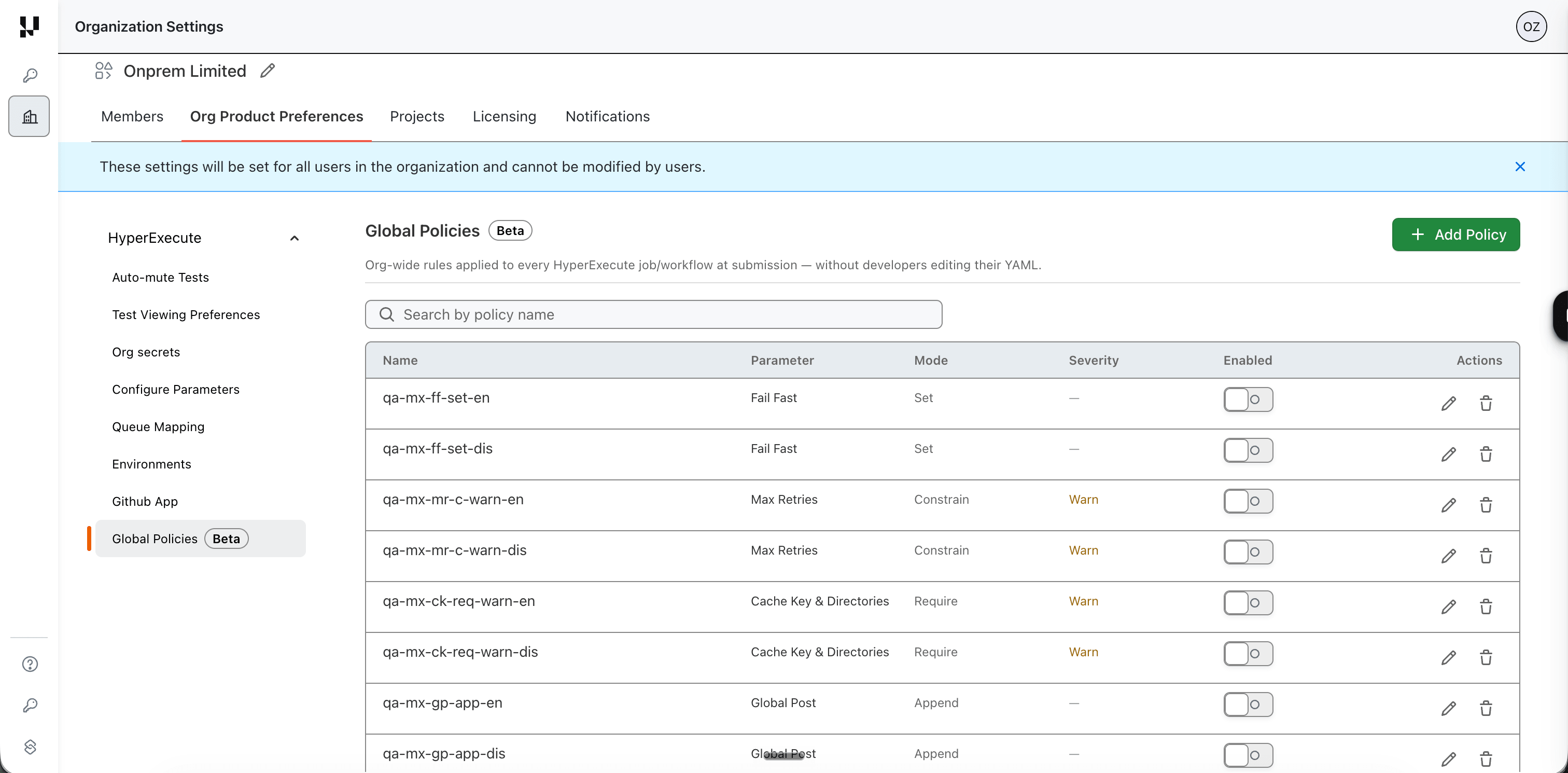
Policies are API-first, so you can create and maintain them from your automation (Harness, Jenkins, a Git-managed script) exactly like the rest of your pipeline. You can also manage them from the TestMu AI dashboard under Org Product Preferences.
What a policy is
A rule defined as a JSON object with a small, fixed set of fields (same fields on UI and API):
- Name: A unique, admin-facing name for the policy.
- Parameter: The YAML parameter it governs.
- Mode: What the rule does, derived automatically from the YAML parameter.
- Value: The commands to inject, the value to force, or the bounds to enforce.
- Scope: The projects it applies to — a list of selected projects, or
*(all) with anexcludelist. - Severity:
warnorerror— applied inrequire/constrainmodes only. - Enabled:
true/false— turn a policy off without deleting it.
Supported parameters and modes
Phase 1 covers five YAML parameters. Each parameter has exactly one applicable mode — the mode follows from the parameter, and is shown as read-only when you create the policy.
| Parameter | Mode | What a policy does |
|---|---|---|
globalPost | append | Adds your commands after the job's own global post-run steps. If the job has no globalPost block, one is created. |
failFast | set | Forces the fail-fast setting — a maximum failure count and a failure level (scenario or test). |
report | set | Forces reporting on or off. |
cacheKey and cacheDirectories | require | Requires that caching is configured, by checking that both parameters are present in the YAML. |
maxRetries | constrain | Bounds the retry count within a range, so a runaway retry setting can't choke your concurrency. |
How severity works
The four modes split into two families, and that split decides whether severity applies at all.
| Mode | Family | What it does | Severity? |
|---|---|---|---|
append | Changing | Adds your commands after the developer's, in globalPost. | No |
set | Changing | Forces a setting to your value, whatever the developer wrote. | No |
require | Checking | The parameter must be present in the YAML. | Yes |
constrain | Checking | A numeric value must fall within a min/max range. | Yes |
Changing policies always act, and always disclose what they did on the job page. They add to or overwrite the job's configuration, so there is nothing for a developer to fix and nothing to warn about.
Checking policies inspect the job without modifying it. Because they can find a violation, they carry a severity:
warn— the job runs. The violation is shown to the developer and recorded for you. Use this to see who a rule would hit before you enforce it.error— the submission is rejected. No job is created, and the developer gets a message naming the policy, the offending value, and the fix.
You choose severity when you create the policy, and you can move a policy from warn to error at any time.
Roll out a checking policy at warn first. You get the full list of jobs that would have been blocked, without blocking anyone, and can switch to error once teams have caught up.
Create a policy
You can manage policies two ways:
- API (recommended for automation) — create, update, enable/disable, and delete policies straight from your pipeline or Git. See Manage policies with the API.
- UI dashboard — a form to create and view policies.
The Global Policies dashboard lives at Org Settings → Org Product Preferences → HyperExecute → Global Policies. The landing page lists every policy with its Name, Parameter, Mode, Severity, and an Enabled/Disabled toggle, along with a name search and per-row edit and delete actions.
Click + Add Policy to open the create drawer. It has two steps.
Step 1: Parameter Settings
Give the policy a name, decide whether it starts Enabled or Disabled, and choose the Parameter. The Mode fills in automatically and is read-only — Global Post is always Append, Max Retries is always Constrain, and so on.
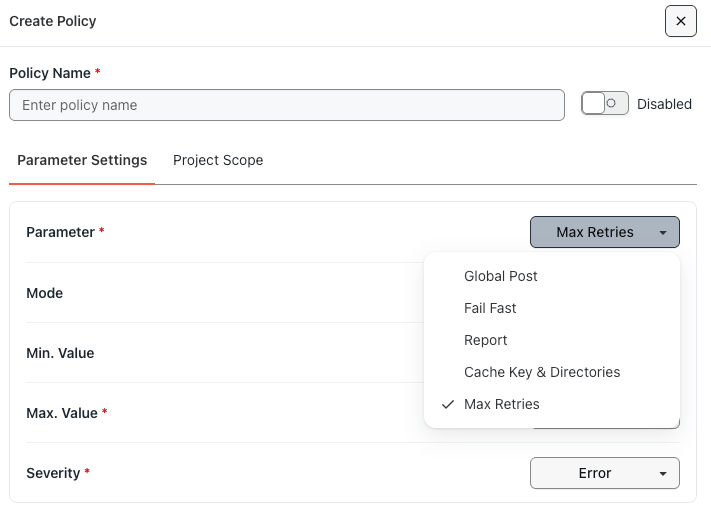
The rest of the form changes to match the parameter you picked.
- Global Post (Append) — you are writing commands that run at the end of every job in scope. Because a command written for bash won't run on a Windows agent, commands are organised into per-OS tabs, Linux (default), Win, Mac etc. Add commands with + Add command, drag to reorder them, and use the Default toggle to mark the OS block to use for any runner you haven't written a block for.
A single OS list applies everywhere: If you fill in commands for just one OS, they're treated as universal and run on every job in scope.
- Max Retries (Constrain) — set a Min and Max value. The range is capped at 0–5, which is the executor's own ceiling. Then choose a Severity: Warn or Error.
- Report (Set) — a simple on/off.
- Fail Fast (Set) — a maximum failure count and a failure level (scenario or test).
- Cache Key & Directories (Require) — a presence check with a severity.
Step 2: Project Scope
The Project Scope tab decides where the rule applies. Set the scope to All Projects, or pick a specific list. If a few projects need to be left out, switch on Exclude Specific Projects.
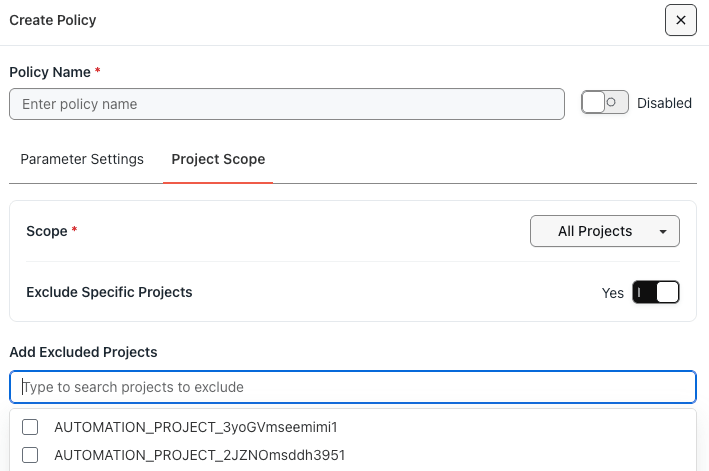
The exclude list is your exception mechanism. If a team has a legitimate reason to deviate, exempt that project here rather than weakening the policy for everyone.
Two enabled policies can't govern the same parameter for the same project. If a new policy's scope overlaps an existing one on the same parameter, the policy is rejected and the conflicting policy is named in the response. Narrow the scope of one of them, or disable the other.
Manage existing policies
Policies are evaluated when a job is submitted, so any change you make takes effect on the very next job.
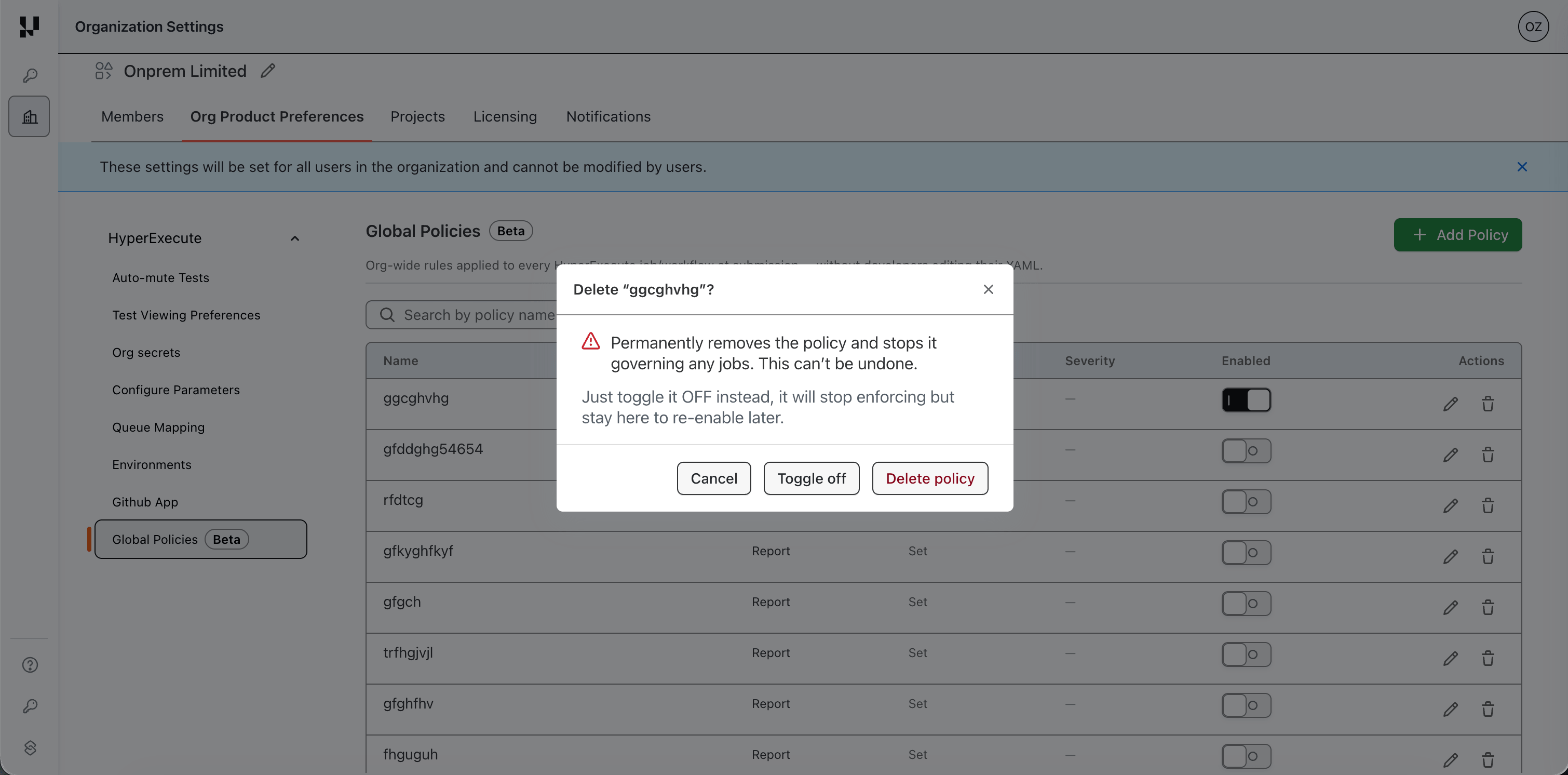
- Disable a policy to pause it without losing it. Its configuration stays intact and you can re-enable it at any time. This is the safest way to stop enforcement during an incident, or while a team fixes something.
- Update a policy's value, scope, or severity. Every job submitted afterwards picks up the new value.
- Delete a policy when you don't want anyone to enable it, even by mistake. Deletion cannot be undone, so prefer disabling.
What developers see
Global Policies is built so developers are never surprised and never stuck. A policy that changed a job says so on the job itself, and a policy that blocked a job says exactly why.
Applied Policies panel
On any job's detail page, the shield icon opens an Applied Policies panel listing the policies that acted on that job. It sits next to the YAML button in the job header, and again inside the YAML drawer.

The panel header gives the count of policies that applied to the job. Each entry shows the policy name, its parameter and mode, an outcome badge — applied, warned, or errored — and a short message, for example "2 command(s) appended" or "caching is required org-wide: cacheKey is not set".
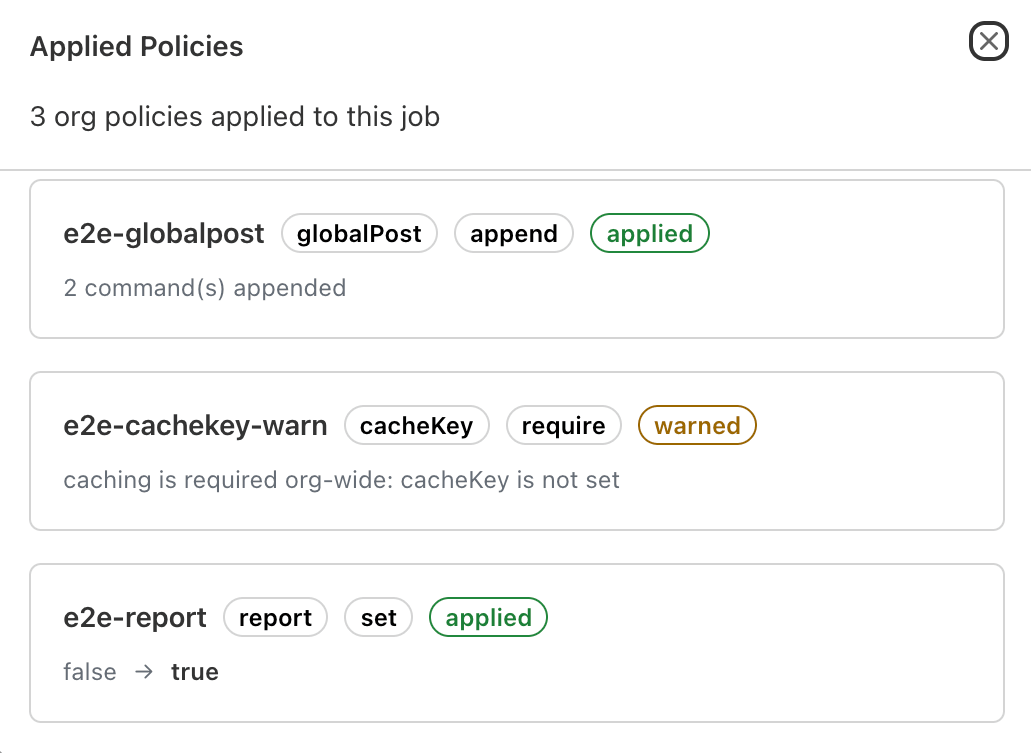
Only policies that had an effect appear here. A policy is listed when it appended something, warned, or errored. A check that passes is a no-op and is never shown — a Max Retries policy whose limit the job was already within passes silently.
Warnings
A checking policy at warn severity lets the job run and records the violation. The developer sees the warning on the job, and it is counted for you as the admin.
Rejected submissions
A checking policy at error severity rejects the submission, so no job is created. The response tells the developer which policy blocked it, the offending value, and the fix:
Your job was rejected by org policy "cap-retries":
maxRetries is 6 — the allowed maximum is 3. Fix: set maxRetries to 3 or lower.
(error code: POLICY_REJECTED)
Rejections return HTTP 422 with the error code POLICY_REJECTED, so an automated pipeline can tell a policy rejection apart from an infrastructure failure and fail the build with a useful message.
Manage policies with the API
Everything you can do in the UI, you can do over the API — which is usually what you want if your policies are reviewed and versioned alongside the rest of your pipeline configuration.
Base URL
Policy routes sit under a /logistics path prefix on the HyperExecute API host:
https://api.hyperexecute.cloud/logistics
Authentication
Policy endpoints use HTTP Basic authentication with your TestMu AI username and access key, the same credentials as the rest of the HyperExecute API. Because policy management is admin-only, use an organization admin user, or a service account if you are driving this from automation with no interactive login.
Verifiedcurl -u "<YOUR_USERNAME>:<YOUR_ACCESS_KEY>" \
-H "Content-Type: application/json" \
"https://api.hyperexecute.cloud/logistics/v1.0/policies?limit=5"
Run that list call first to confirm your credentials work. A 200 with a list — possibly empty — means you are set.
Endpoints
| Action | Method and path |
|---|---|
| Create a policy | POST /v1.0/policies |
| List policies | GET /v1.0/policies |
| Get one policy | GET /v1.0/policies/{id} |
| Update a policy | PUT /v1.0/policies/{id} |
| Enable or disable a policy | PUT /v1.0/policies/{id}/toggle |
| Delete a policy | DELETE /v1.0/policies/{id} |
| Policies that acted on a job | GET /v1.0/job/{jobId}/policies |
GET /v1.0/policies accepts optional query parameters: limit, search (matches on policy name), parameter (for example maxRetries), and cursor for pagination using the cursor returned by the previous page.
Policy object fields
| Field | Type | Notes |
|---|---|---|
name | string | Unique per organization. Cannot be changed after creation. |
parameter | string | One of the supported parameters. Cannot be changed after creation. |
mode | string | append, set, require, or constrain. Determined by the parameter. |
value | varies | Shape depends on the mode — see the table below. |
scope | object | Specific projects: {"projects": ["<project-id>", "<project-id>"]}. All projects: {"projects": ["*"]}. All projects with exceptions: {"projects": ["*"], "exclude": ["<project-id>"]}. Use project IDs, not project names. |
severity | string | warn or error. Checking modes only — omit it for append and set. |
enabled | boolean | Whether the policy governs jobs. |
The value field takes a different shape for each parameter:
| Parameter | Mode | value |
|---|---|---|
globalPost | append | {"commands": {"linux": ["..."], "win": ["..."]}, "default": "linux"} |
failFast | set | {"maxNumberOfTests": 5, "level": "scenario"} — level is scenario or test |
report | set | true or false |
cacheKey | require | {} — a presence check needs no value |
maxRetries | constrain | {"min": 0, "max": 3} — both bounds must fall within 0–5 |
Create a policy
This example appends a result-logging command to every job in the organization, with a per-OS command list:
Verified{
"name": "post-job-result-logging",
"parameter": "globalPost",
"mode": "append",
"value": {
"commands": {
"linux": ["curl -X POST https://internal.example.com/hyperexecute/results"],
"win": ["curl.exe -X POST https://internal.example.com/hyperexecute/results"]
},
"default": "linux"
},
"scope": {
"projects": ["*"],
"exclude": []
},
"enabled": true
}
The response returns the created policy's generated id, which you use for every subsequent call:
{
  "data": {
    "id": "01KXE0W6EYAV3A9NYNNXPRHP8X"
  },
  "status": "success"
}
globalPost commands can differ by operating system, because a bash command won't run on a Windows agent. Supported OS keys are linux, win, win11, and mac.
default is required. HyperExecute injects the command block matching the job's global post runson value, and falls back to the default block for any OS you didn't list. If you supply commands for a single OS only, they are treated as universal and run on every job in scope.
A checking policy adds a severity and drops the per-OS structure:
{
  "name": "cap-retries",
  "parameter": "maxRetries",
  "mode": "constrain",
  "value": { "min": 0, "max": 3 },
  "severity": "error",
  "scope": { "projects": ["<project-id>"] },
  "enabled": true
}
Update, pause, or delete
PUT /v1.0/policies/{id} updates a policy's value, scope, severity, or enabled state. Send the full object back, including name and parameter unchanged — neither can be modified. To change either one, create a new policy instead.
To pause enforcement without losing the policy, use the toggle endpoint. updatedBy is optional and records who made the change for the audit trail:
{
  "enabled": false,
  "updatedBy": "<your-name-or-service-account>"
}
DELETE /v1.0/policies/{id}?actor=<your-name> removes the policy permanently. The actor query parameter records who performed the deletion.
Check which policies acted on a job
GET /v1.0/job/{jobId}/policies returns the policies that had an effect on a specific job, each with an outcome of applied, warned, or errored. This is the same data behind the Applied Policies panel, which makes it useful for a pipeline step that reports policy warnings back into a pull request.
As in the UI, only policies that had an effect are returned. An empty result means no policy changed or flagged this job — not that no policies exist.


 Chat with Us