CodeceptJS With Selenium
CodeceptJS is a modern end-to-end testing framework with a human-readable syntax. It supports Selenium via the WebDriver helper, making it straightforward to run browser automation tests on TestMu AI cloud Selenium Grid across 10,000+ browser/device combinations.
Prerequisites
- You can use your own project to configure and test it. For demo purposes, we are using the sample repository.
Download or clone the CodeceptJS Selenium sample from the TestMu AI GitHub repository to run the tests.
 View on GitHub
git clone https://github.com/LambdaTest/lambdatest-codeceptjs-sample.git
cd lambdatest-codeceptjs-sample
- Install the dependencies.
npm install
- Get your TestMu AI username and access key from your TestMu AI Profile > Account Settings > Password & Security.
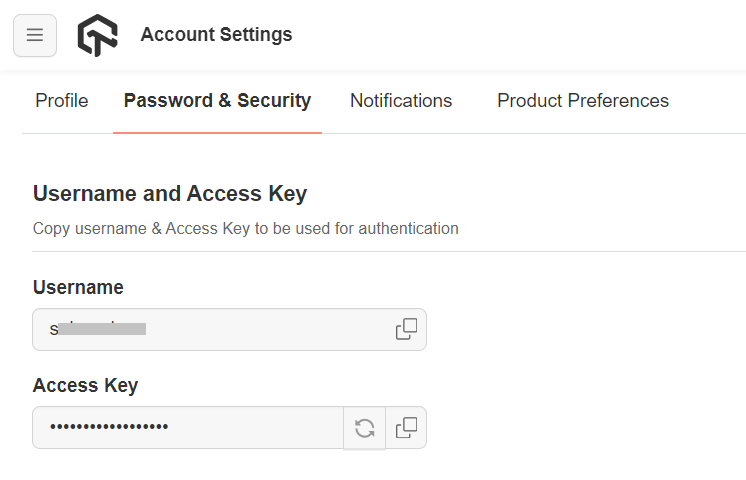
- Set your credentials as environment variables.
Windows
Verifiedset LT_USERNAME="YOUR_LAMBDATEST_USERNAME"
set LT_ACCESS_KEY="YOUR_LAMBDATEST_ACCESS_KEY"
macOS/Linux
Verifiedexport LT_USERNAME="YOUR_LAMBDATEST_USERNAME"
export LT_ACCESS_KEY="YOUR_LAMBDATEST_ACCESS_KEY"
Configure CodeceptJS for TestMu AI
The codecept.conf.js file connects your tests to the TestMu AI Selenium Grid using the WebDriver helper. Set host to hub.lambdatest.com and pass your credentials via environment variables.
exports.config = {
  tests: './*_test.js',
  output: './output',

  helpers: {
    WebDriver: {
      url: 'http://google.com/ncr',
      browser: 'chrome',
      host: 'hub.lambdatest.com',
      port: 80,
      user: process.env.LT_USERNAME,
      key: process.env.LT_ACCESS_KEY,

      desiredCapabilities: {
        name: '[CodeceptJS] Automation Sample',
        build: '[CodeceptJS] Automation Sample',
        platformName: 'Windows 11',
        browserName: 'Chrome',
        browserVersion: 'dev'
      }
    },

    LTHelper: {
      require: 'codeceptjs-lambdatest-service',
      user: process.env.LT_USERNAME,
      key: process.env.LT_ACCESS_KEY,
      updateTestName: true
    }
  },

  include: {
    I: './steps_file.js'
  },

  bootstrap: null,
  mocha: {},
  name: 'CodeceptJS'
}
Use the TestMu AI Capabilities Generator to generate the desiredCapabilities object for any browser, OS, or device combination.
Use the codeceptjs-lambdatest-service
The codeceptjs-lambdatest-service package is a CodeceptJS helper that automatically syncs test names and test results with TestMu AI after each test run. It uses CodeceptJS's built-in _passed and _failed hooks to push the outcome to the TestMu AI platform in real time.
Install the Package
The package is included as a dev dependency in the sample repo. To add it to your own project:
Verifiednpm install codeceptjs-lambdatest-service --save-dev
Add the LTHelper to Your Config
Add the LTHelper block inside the helpers section of codecept.conf.js:
helpers: {
  // ... your WebDriver helper config

  LTHelper: {
    require: 'codeceptjs-lambdatest-service',
    user: process.env.LT_USERNAME,
    key: process.env.LT_ACCESS_KEY,
    updateTestName: true
  }
}
Test Name Updates
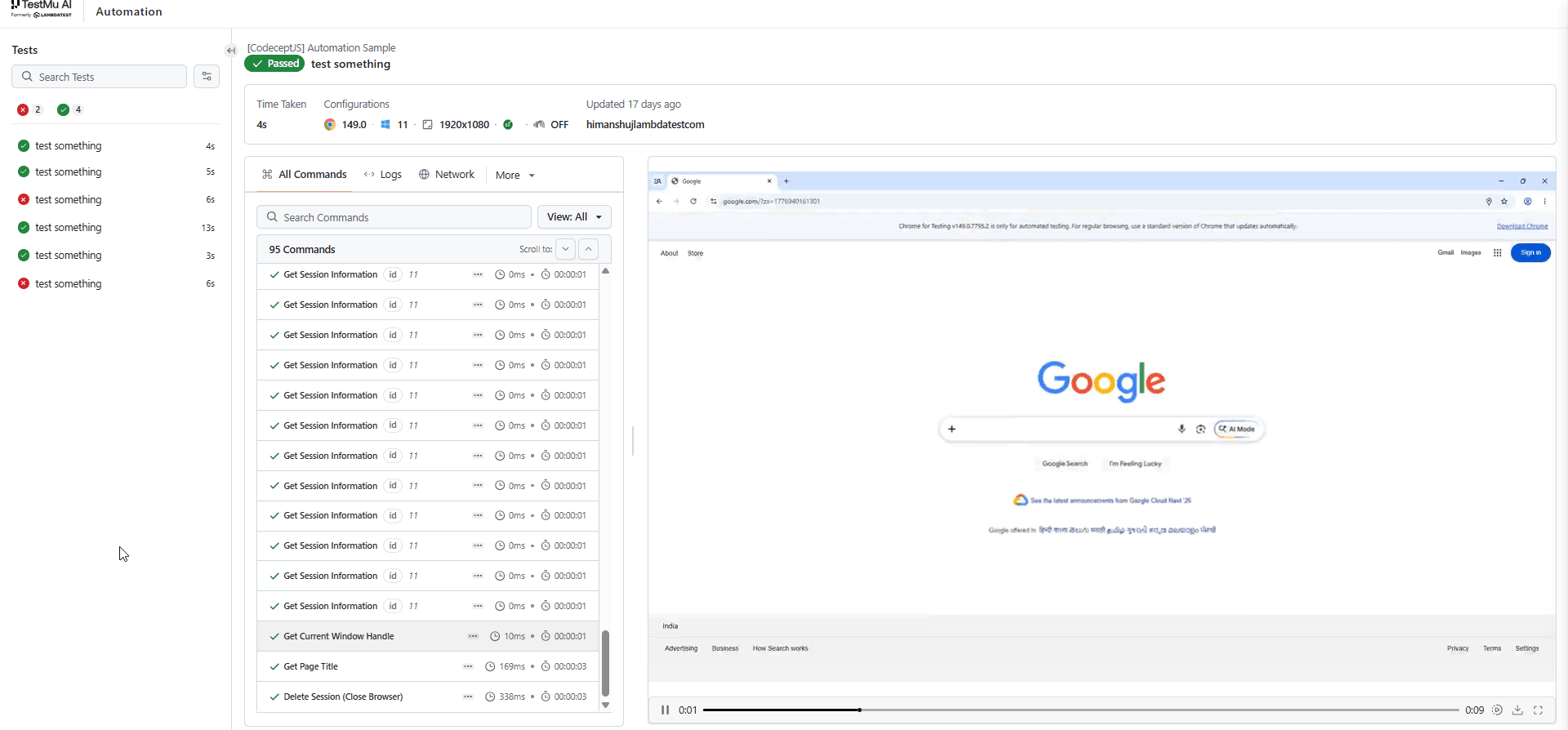
When updateTestName: true is set, the service reads the CodeceptJS scenario title and updates the test name on TestMu AI dynamically. This means each test in the TestMu AI Automation Dashboard reflects the exact scenario name from your test file instead of the default session name.
For example, if your test is:
VerifiedFeature('GoogleTest');
Scenario('test something', async ({ I }) => {
await I.amOnPage('http://google.com/ncr');
await I.seeInTitle('Google');
});
The session will appear on the dashboard as test something under the GoogleTest feature.
Test Status Updates
The service uses the _passed and _failed hooks to mark each session as Passed or Failed on TestMu AI immediately after the test finishes. This is required for accurate status reporting on the dashboard - without it, all sessions show as Unknown regardless of the actual result.
No additional configuration is needed beyond adding LTHelper to your helpers.
Run Your Tests
Run desktop tests:
Verifiednpm test
# or
npm run test:desktop
Run a specific test file:
Verifiednpx codeceptjs run --steps googleTest_test.js
View Test Results
Visit the TestMu AI Web Automation Dashboard to view your test results. Each test session shows:
- Test name (synced from your scenario title via
codeceptjs-lambdatest-service) - Pass/fail status
- Video recording, screenshots, and network/console logs
- Build grouping based on the
buildcapability


 Chat with Us