How to Integrate the Cypress Dashboard With TestMu AI
If you already record Cypress runs to the Cypress Dashboard, you can run those same tests on the TestMu AI cloud grid and see every session in both places at once. This gives you the Cypress Dashboard analytics you rely on alongside real browser and OS coverage from TestMu AI. You link the two by adding your Cypress project ID and record key to the run configuration, then executing with the TestMu AI CLI.
This guide uses the TestMu AI sample Cypress Cloud repository. Every resource shown here comes from that repo.
How to Integrate TestMu AI With the Cypress Dashboard
These steps assume you have already run a Cypress test on TestMu AI. If you have not, see how to run your first Cypress test, then return here to link the Cypress Dashboard.
Update the TestMu AI Cypress CLI
Update the CLI first so the latest run and record commands are available. Install the latest version:
Verifiednpm install -g lambdatest-cypress-cli
Confirm the CLI is on the latest version (3.0.50) by checking the installed version:
Verifiedlambdatest-cypress --version
Create a Project on Cypress Dashboard
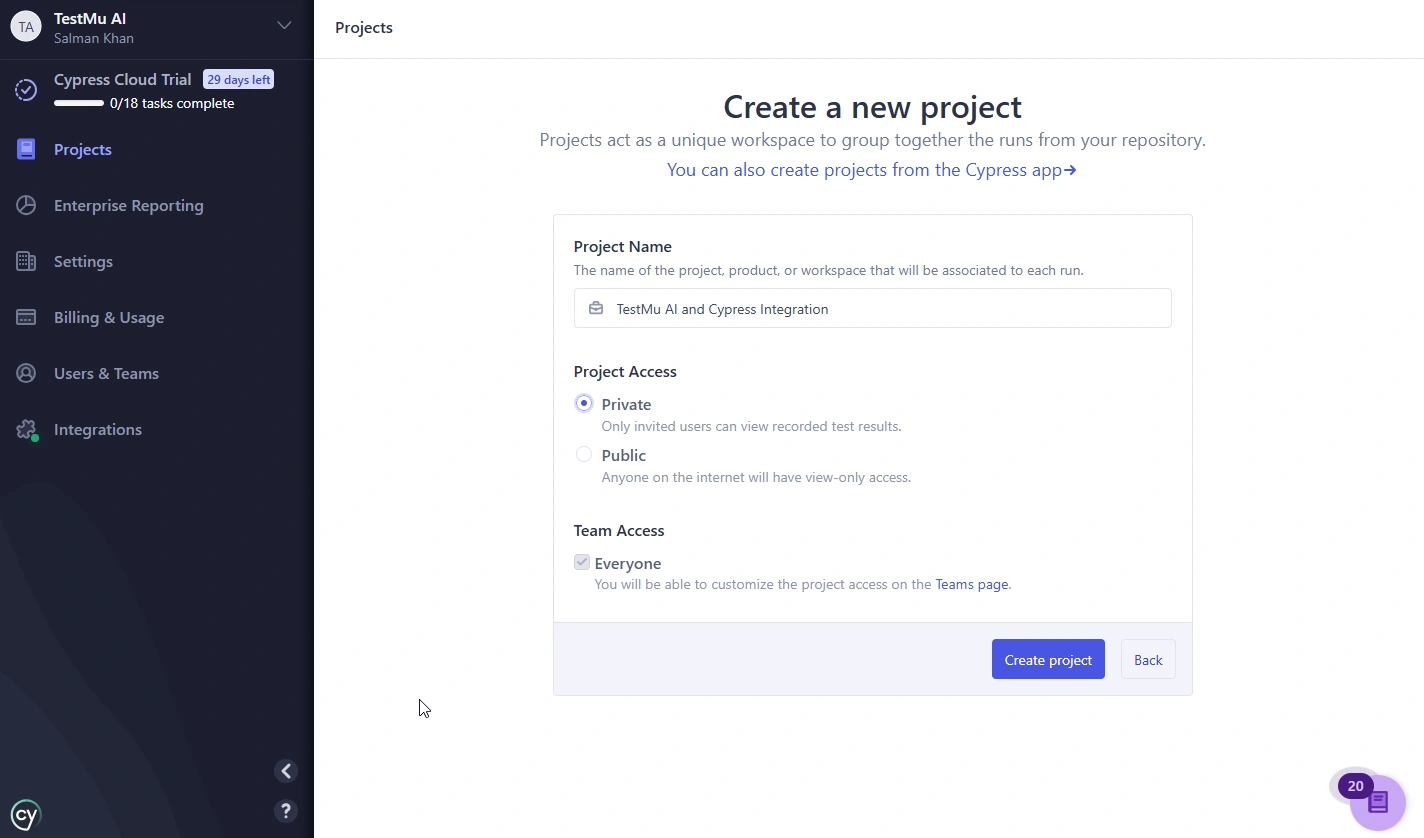
Log in to Cypress Cloud, open the Projects page, and click New project. Enter a project name, choose Private or Public access, then click Create project.
Choose Your CI Provider
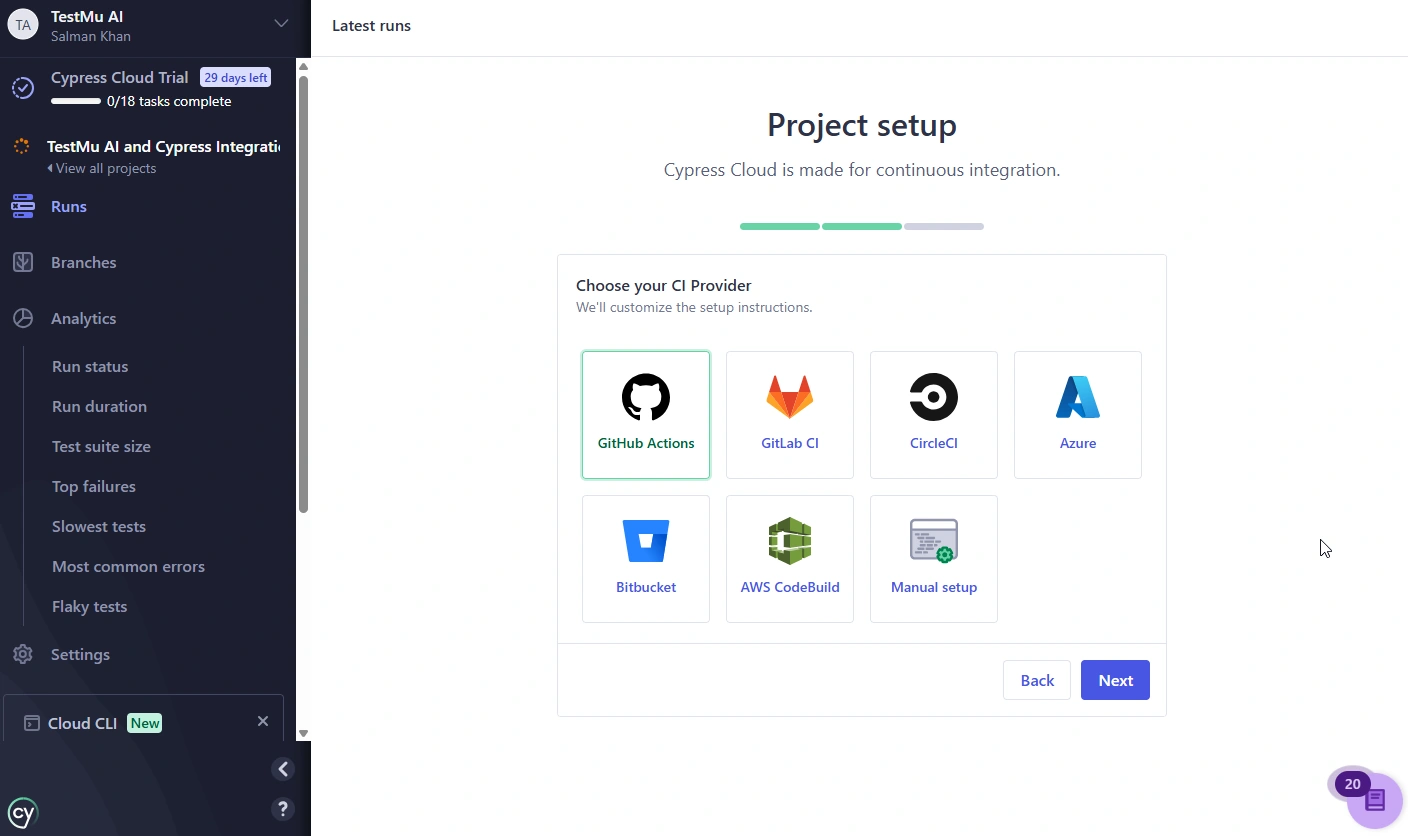
Select the CI provider you use, such as GitHub Actions, then click Next. Cypress Cloud uses this only to tailor its setup instructions - you can still record runs from your terminal.
Copy Your Record Key
On the project setup screen, copy the record key shown under Try it first and in the CYPRESS_RECORD_KEY field. You will pass this key to the run command in a later step.
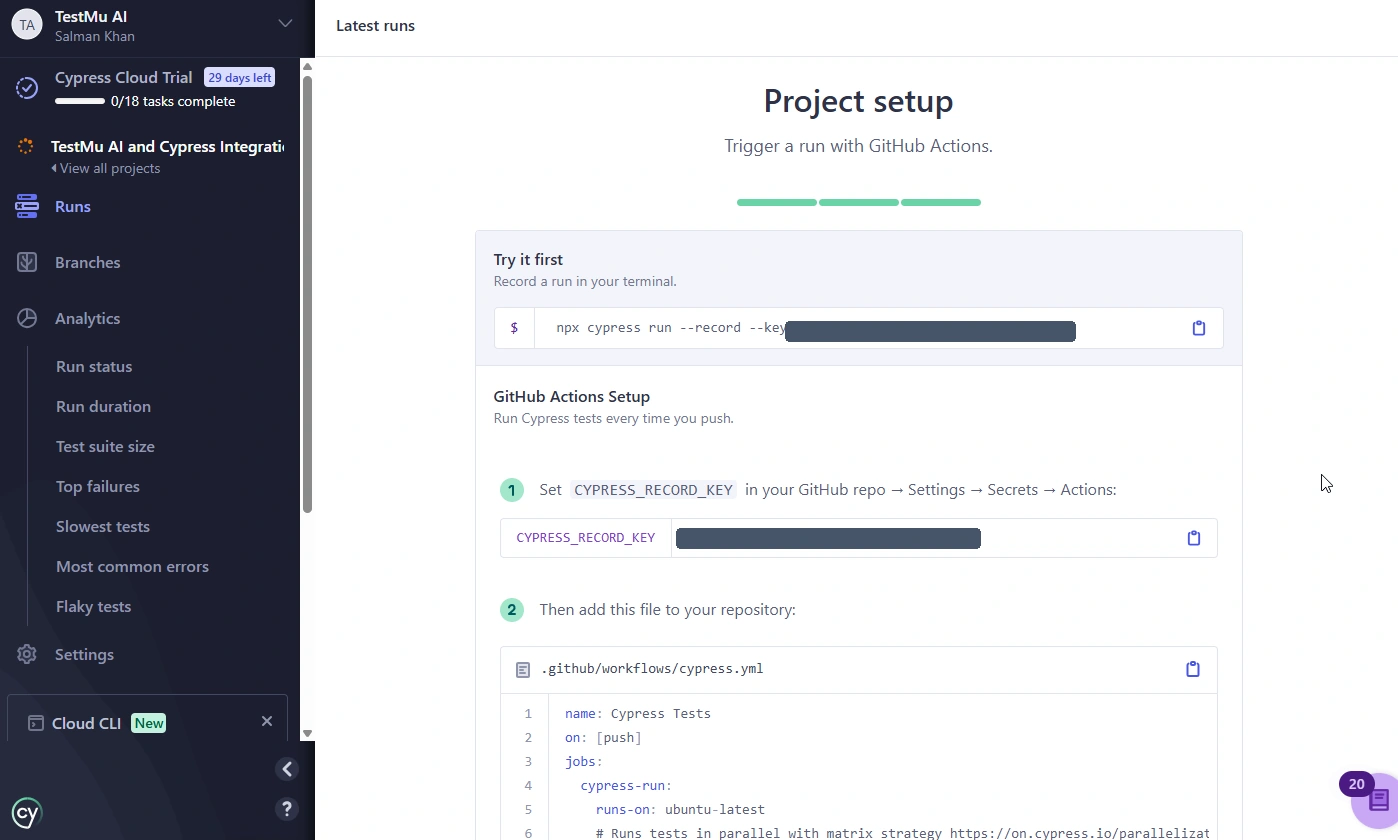
Treat the record key like a password. Set it as the CYPRESS_RECORD_KEY environment variable instead of hard-coding it in scripts or committing it to source control.
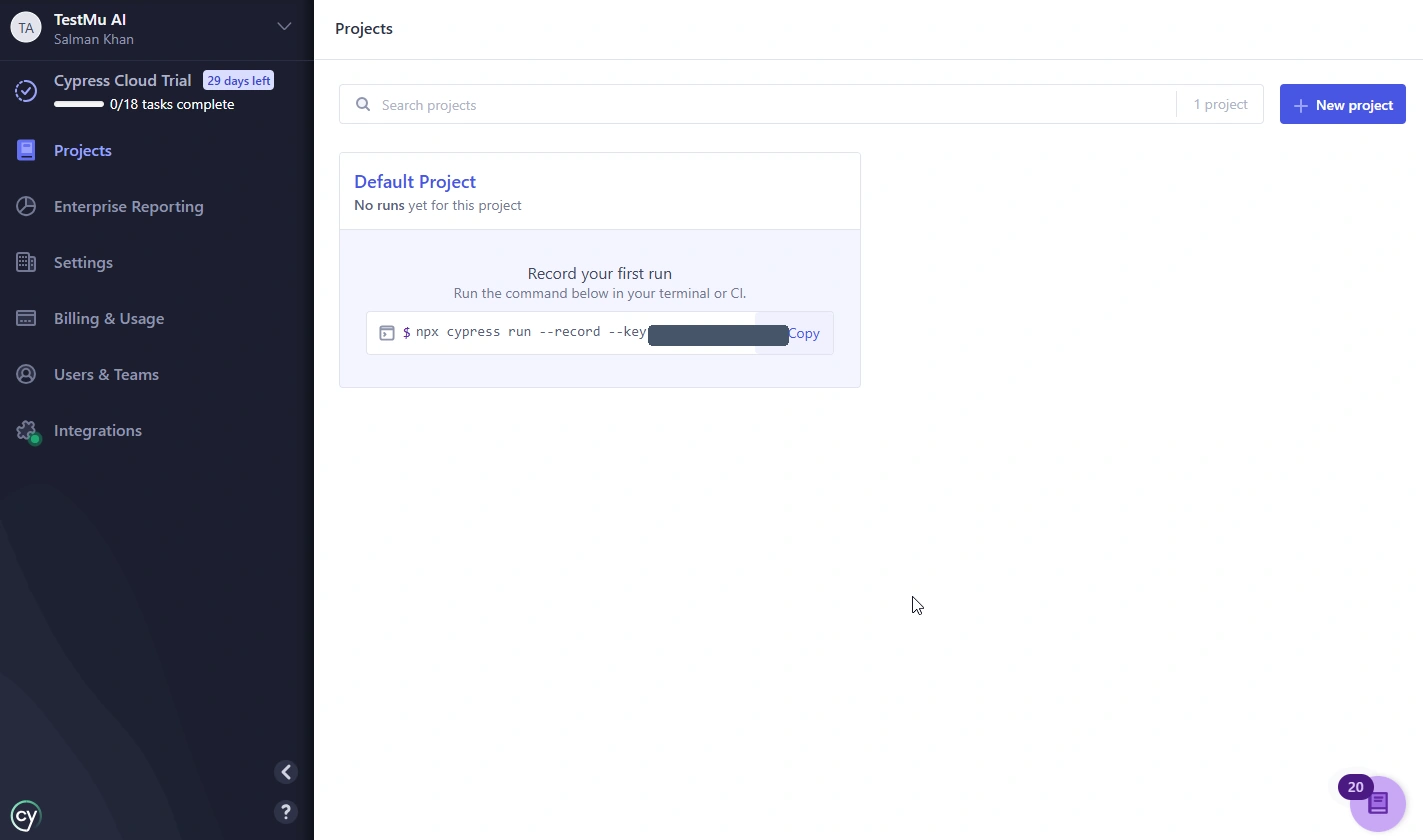
You can find the record command for any project later from the Projects page in Cypress Cloud.
Add the Project ID to Your Cypress Config
When you create the project, Cypress Cloud also generates a unique projectId. Add it to the cypress.config.js file of your project so each recorded run is linked to the correct project:
const { defineConfig } = require('cypress')

module.exports = defineConfig({
  projectId: '<your-project-id>',
  e2e: {
    setupNodeEvents(on, config) {
      return config
    },
  },
})
Cypress 10 and later use cypress.config.js instead of the older cypress.json. You can find your projectId on the project's Settings page in Cypress Cloud.
Run Your Tests With the Record Flag
Start the run on the TestMu AI grid and pass Cypress's --record and --key flags through the CLI. Replace <key_value> with the record key you copied earlier:
lambdatest-cypress run --cy="--record;--key <key_value>"
View Results on Both Dashboards
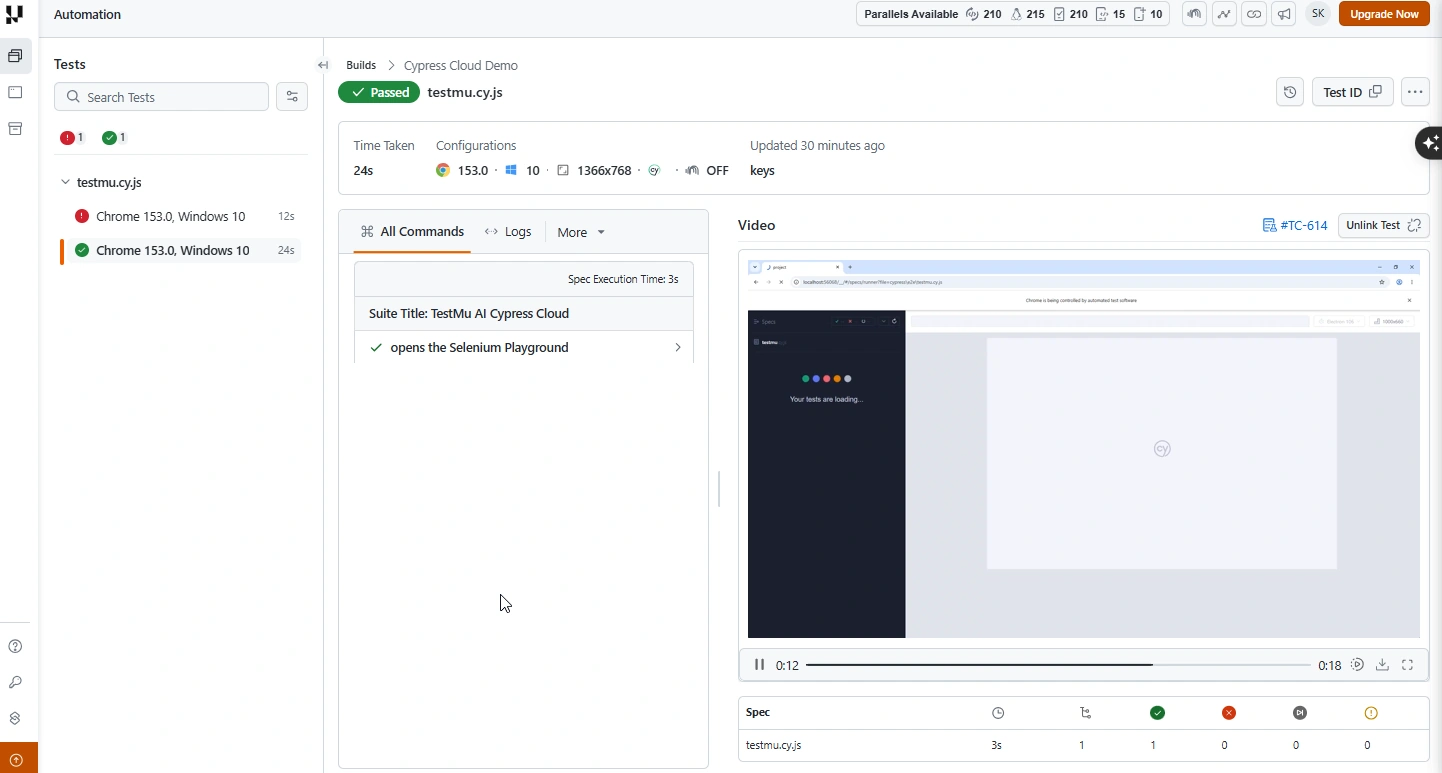
The integration is complete. Your tests run on the TestMu AI grid, and the recorded results are sent to the Cypress Dashboard. Open the TestMu AI Automation Dashboard to see the run with its command logs, video, and other test artifacts. The same run is also available in Cypress Cloud under your project.
Related Cypress Guides
Continue with the guides below to run, debug, and report on your Cypress tests on TestMu AI.
- Reference the Cypress CLI commands covers the full set of commands for running and managing your Cypress tests.
- Download artefacts from a Cypress run retrieves videos, screenshots, and other files generated by your runs.
- Generate Mochawesome reports for Cypress produces detailed reports for your Cypress test executions.


 Chat with Us