Applitools Integration With TestMu AI For Cypress
Applitools provides an end-to-end software testing platform powered by Visual AI. This article will guide you on how to integrate your Cypress automation tests with Applitools and TestMu AI.
Before getting started, make sure you have made accounts in TestMu AI and Applitools platforms.
Setting Up Applitools Dependencies And Packages
You can download or clone the sample GitHub project from the following repo - Cypress-LambdaTest-Applitools-Integration. Navigate to your project directory and follow these steps:
-
Install the NPM dependencies using the below command:
Verifiednpm install -
Set up Applitools Eyes using the below command:
Verifiednpx eyes-setup -
Add the access token of your Applitools account in the
applitools.config.jsfile as highlighted in the below screenshot. You can find your Applitools API key by logging into your Applitools account and going to your Profile > My API Key.
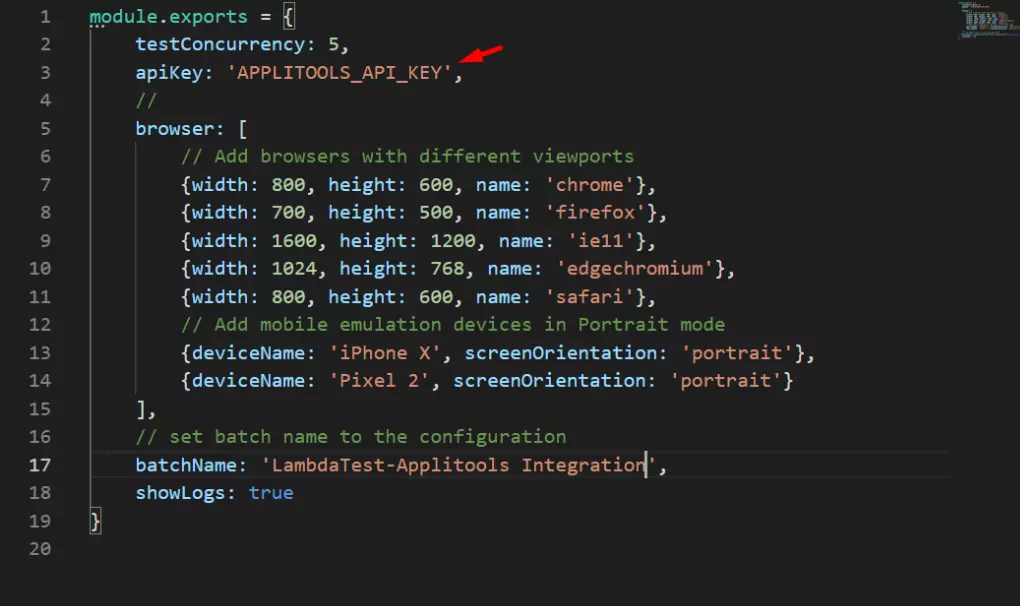
Set the testConcurrency and browser configuration as per the requirement.
-
Install Applitools Eyes dependencies using the below command:
Verifiednpm install @applitools/eyes-cypress --save-devIt will create Applitools Eyes to an Existing Node.js Cypress Project.
Setting up TestMu AI CLI and Dependencies
-
Install the TestMu AI CLI using below command:
Verifiednpm install -g lambdatest-cypress-cli -
Setup configurations on which you want to run your test using the below command:
Verifiedlambdatest-cypress initIt will create a lambdatest-config.json file in the root directory of your project.
-
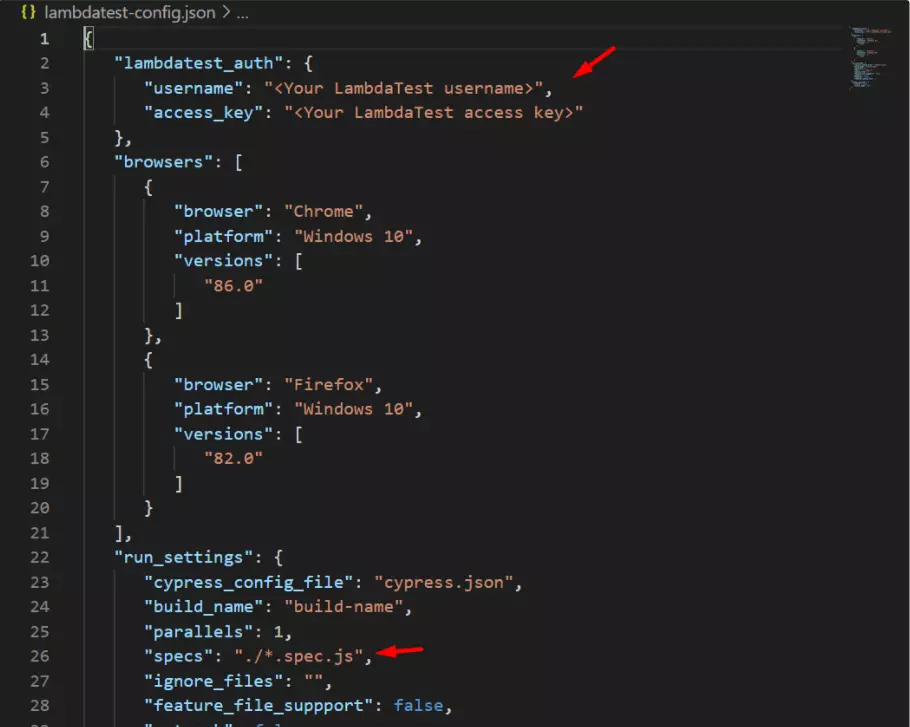
Add spec file path in the
run_settingand your TestMu AI credentials in the auth section of thelambdatest-config.jsonfile as shown in the image below.
Running The Sample Project
Execute your first test case using the below command:
Verifiedlambdatest-cypress run
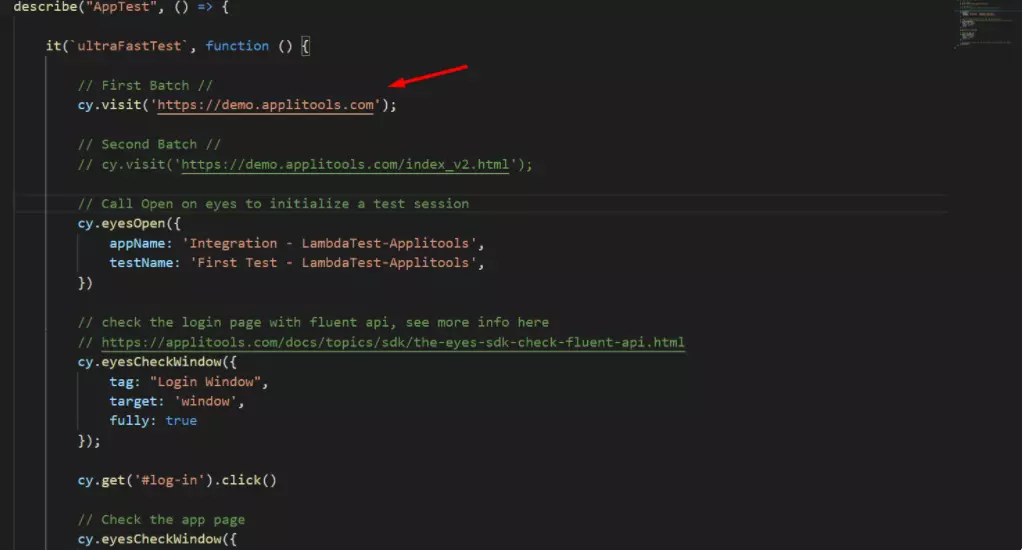
The first test case that you execute will be considered as the base image by default by Applitools.
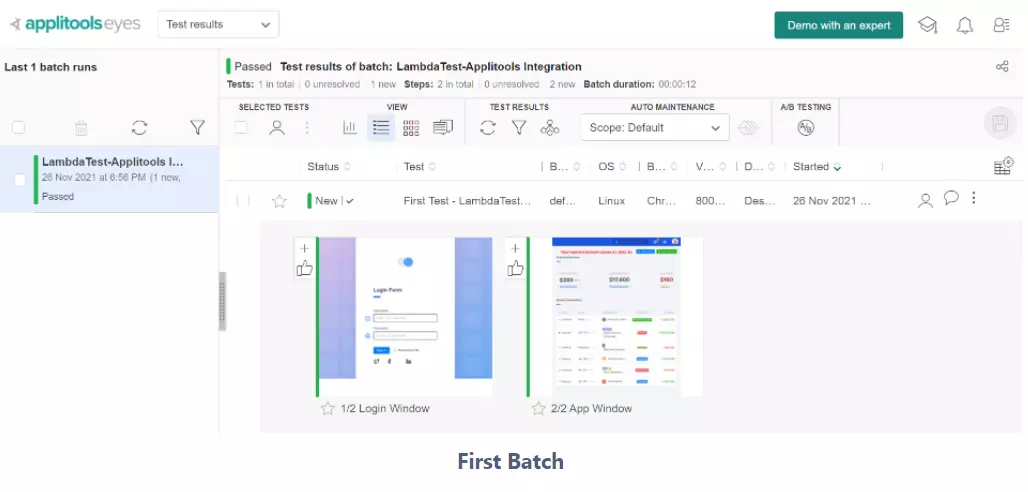
Edit the URL in the applitoolsIntegration.spec.js file and run your second test by using the same run command.
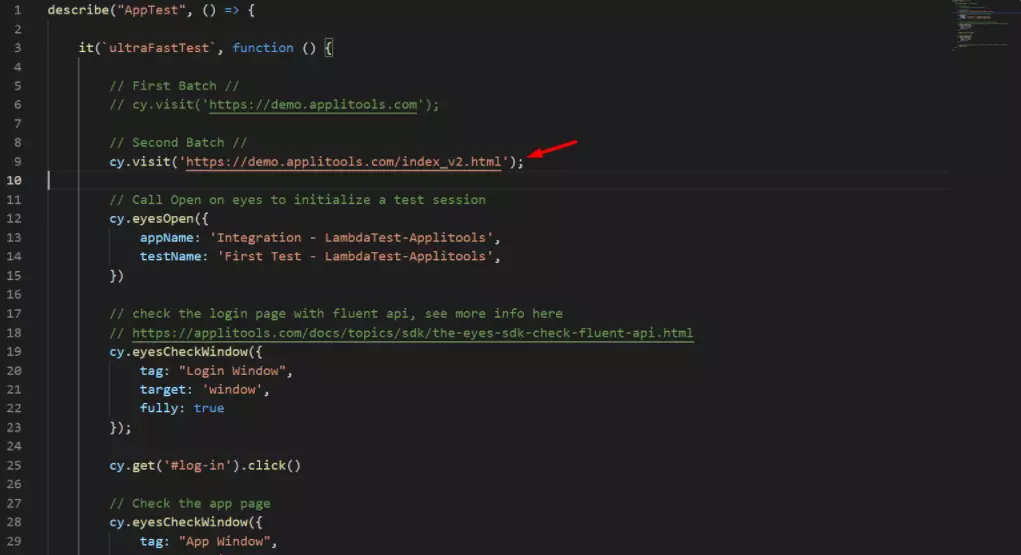
Applitools will compare the base image with this test and highlight the difference.
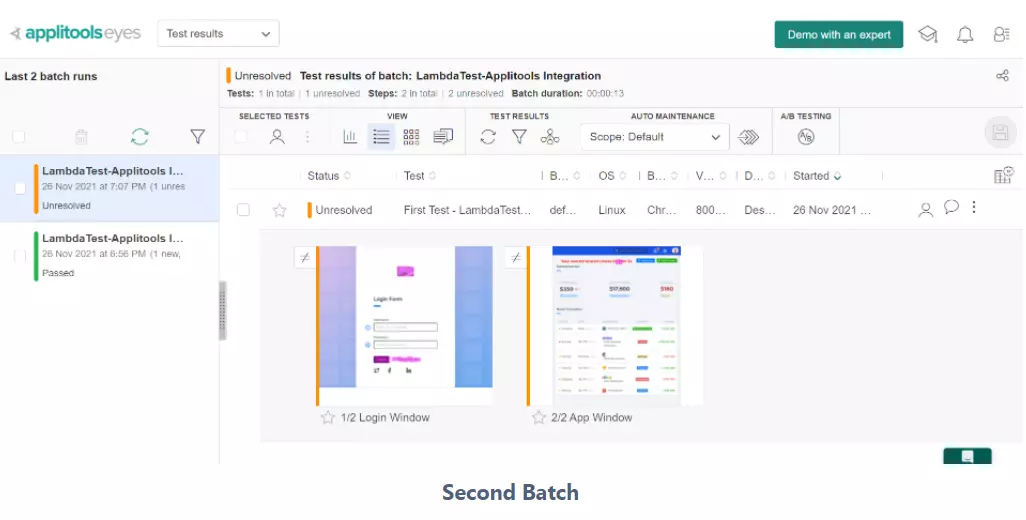
That's all! you have successfully integrated Applitools and TestMu AI for running your Cypress tests. In case you have any questions or need any additional information, you could reach out at our 24X7 Chat Support or mail us directly at support@testmuai.com.


 Chat with Us