Downloading Artefacts For A Cypress Project
This article guides you on how to download the artefacts for a Cypress project from TestMu AI Cloud machine.
In this demo we are demonstrating using TestMu AI's sample Cypress Cloud repo. You can find all the resources used for this article in the linked repo.  View on GitHub
Downloading The Data From The TestMu AI Cloud Machine
Assuming that you have run a Cypress test on lambdatest platform ( if not, this article here will guide you in running your first Cypress test on TestMu AI), you need to follow these steps below:
Update TestMu AI Cypress CLI
Before getting started, you would have to update the lambdatest-cypress cli using the command below:
Verifiednpm install -g lambdatest-cypress-cli
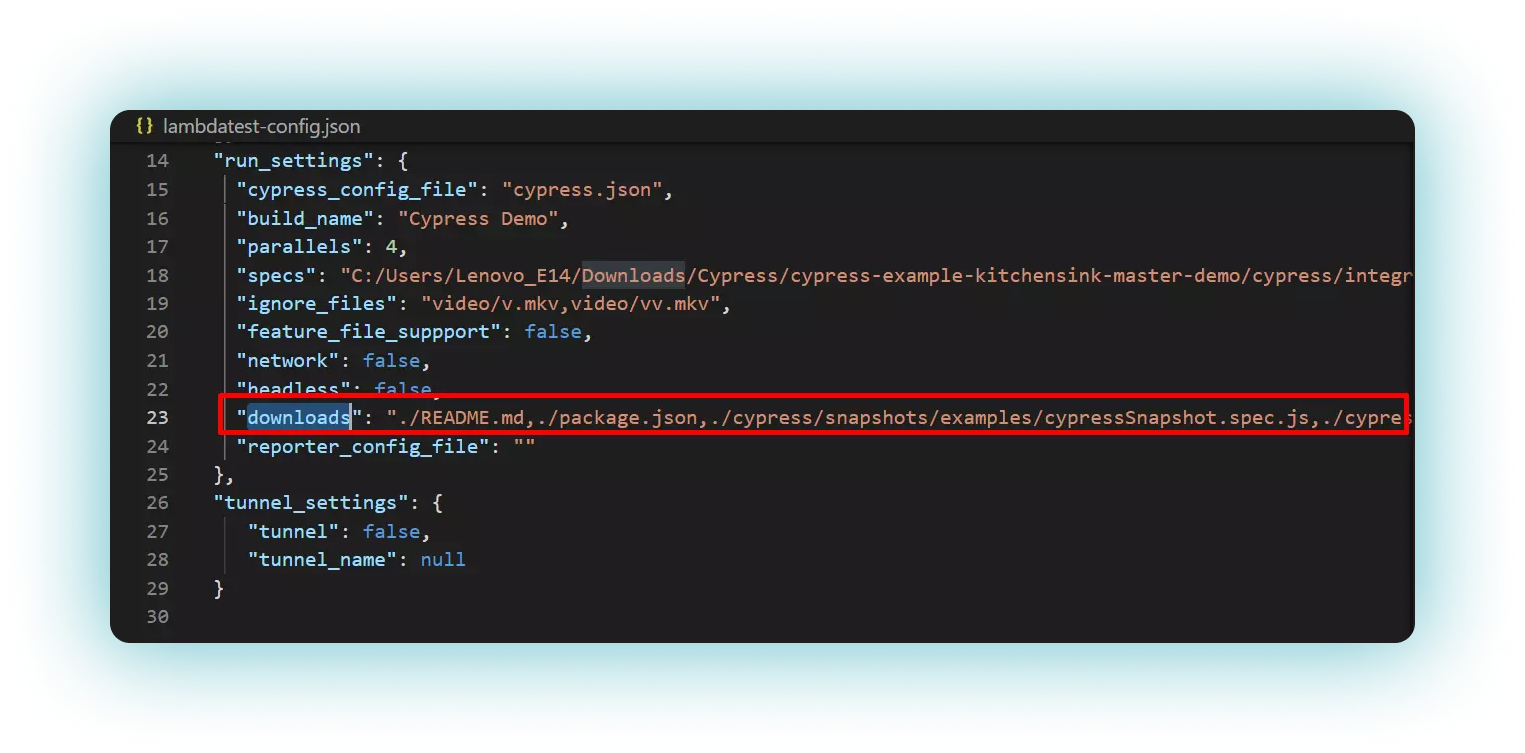
Add downloads Capability
Add "downloads" capability in the lambdatest-config.json file and define the files/directories that you wanted to download in this capability. You can mention multiple file paths in this capability separated by a comma. Refer to the below example for the same.
Add --sync Flag
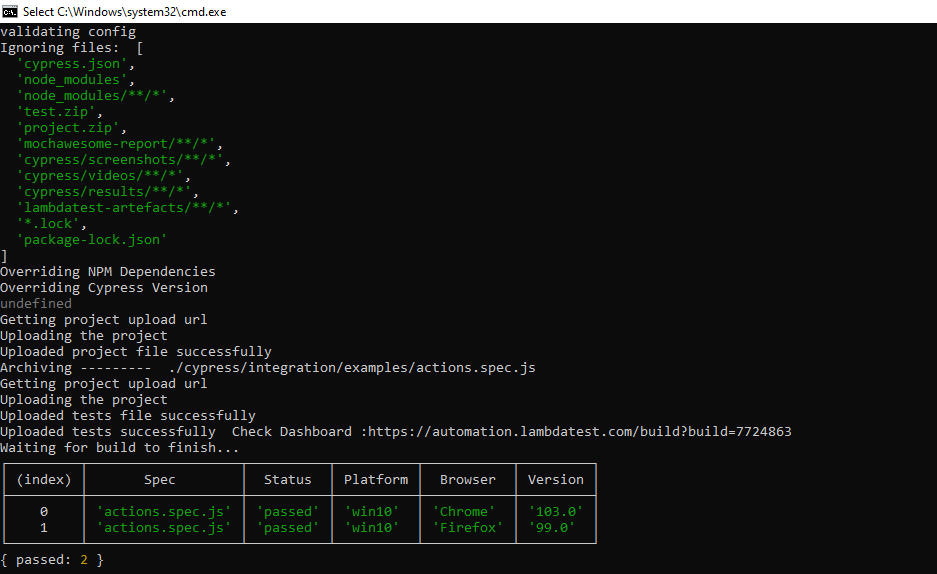
Append -sync flag in the run command as mentioned below and run your test on the TestMu AI platform.
lambdatest-cypress run --sync=true
Once the test gets executed, you will find a build_id on the console corresponding to the executed test.
Get session_id In lambdatest_run.json
Go to your lambdatest_run.json file and copy the session_id.
{
   "build_id": "7724863",
   "session_id": "6c899177-047e-4432-a9a7-17776e23aae3"
}
Now pass the session_id by running the following command.
Verifiedlambdatest-cypress generate-report --session_id 6c899177-047e-4432-a9a7-17776e23aae3
View The Downloaded Folder
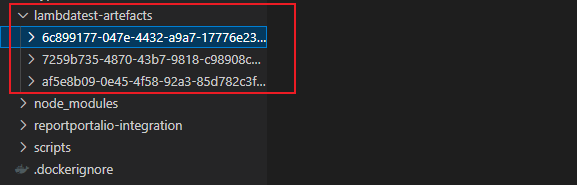
- A new folder with the name lambdatest-artifacts will get created in the root directory of your project and all the files will be downloaded in this folder.
-
The file name will be created with the session_id combined with the browser name, browser version, and the test id corresponding to it.

That's all! In case you have any questions or need any additional information, you could reach out at our [24X7 Chat Support] or mail us directly at support@testmuai.com.


 Chat with Us