TestMu AI VS Code Extension
TestMu AI VS Code Extension enables you to perform real-time cross browser testing of your public and locally hosted websites and web applications right from VS Code. Using this extension, you can trigger real-time cross-browser testing from within VS Code Editor to test your web apps across 3000+ browsers, real devices, and operating systems.
In this guide, learn how to configure TestMu AI VS Code Extension for real-time cross browser testing.
Installing The TestMu AI VS Code Extension
You can also install TestMu AI VS Code Extension from the Visual Studio Marketplace.
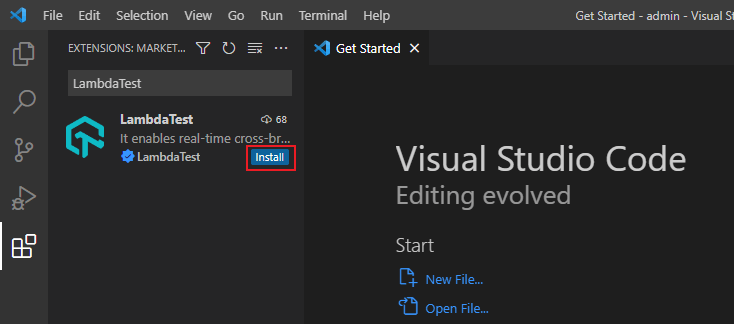
- Open VS Code and select the Extensions icon from the left sidebar.

- Search for TestMu AI in the search box and click Install.
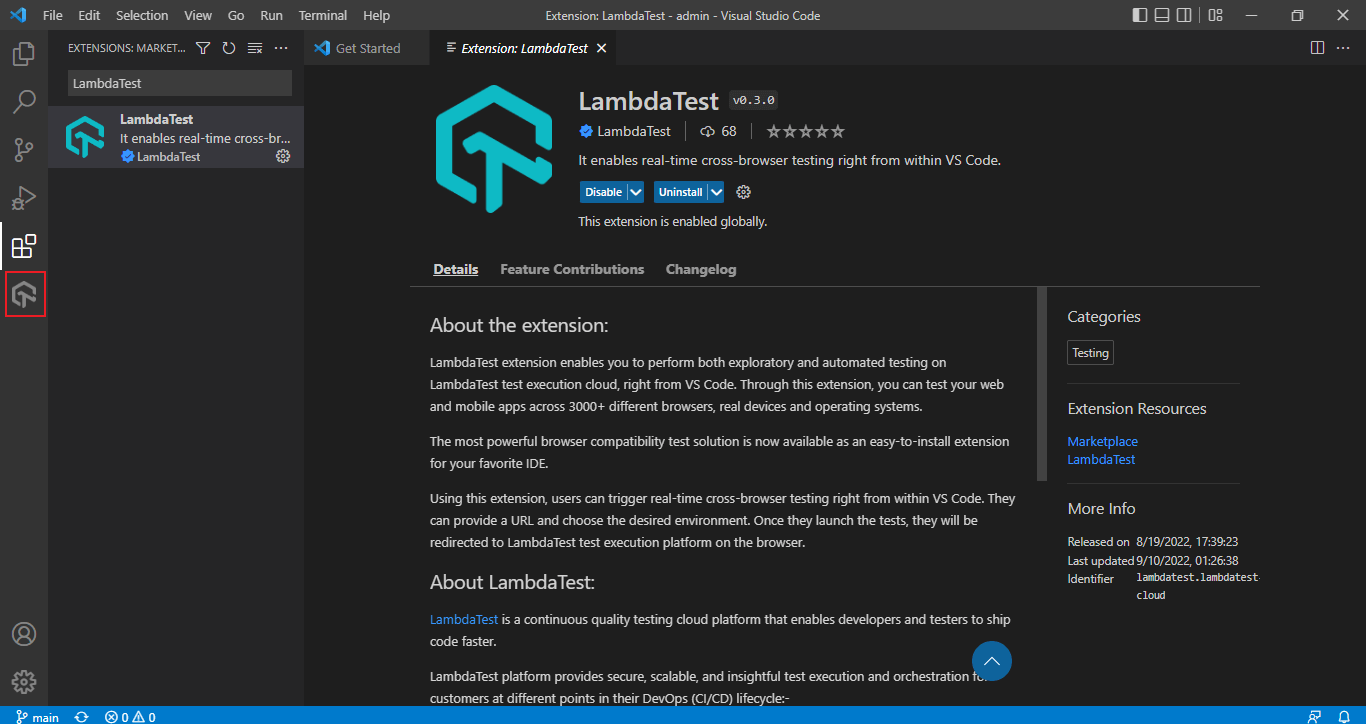
Once you install the extension, you'll notice a TestMu AI icon will be added on the left sidebar.
Authenticating With VS Code Extension
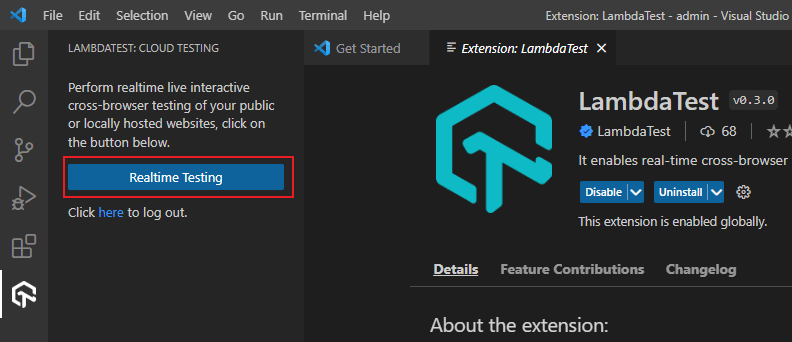
- Click the TestMu AI icon from the left sidebar and select Realtime Testing.
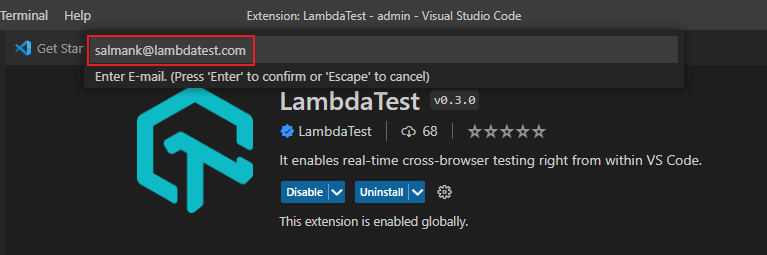
- It will ask you to enter your TestMu AI e-mail and an access key. You can get them from your TestMu AI Profile page.
- Enter your TestMu AI e-mail and press Enter.
- Enter your TestMu AI access key and press Enter.
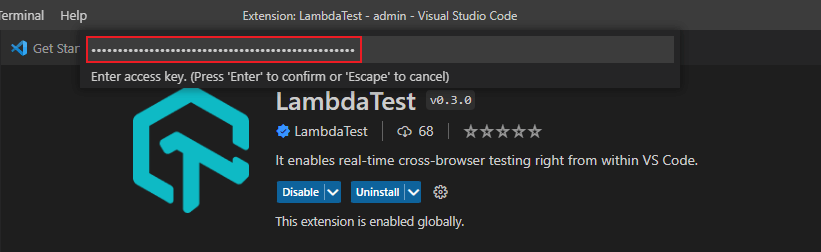
After entering TestMu AI credentials, it will show you a Realtime Testing screen. You're all set to start your real-time cross browser testing!
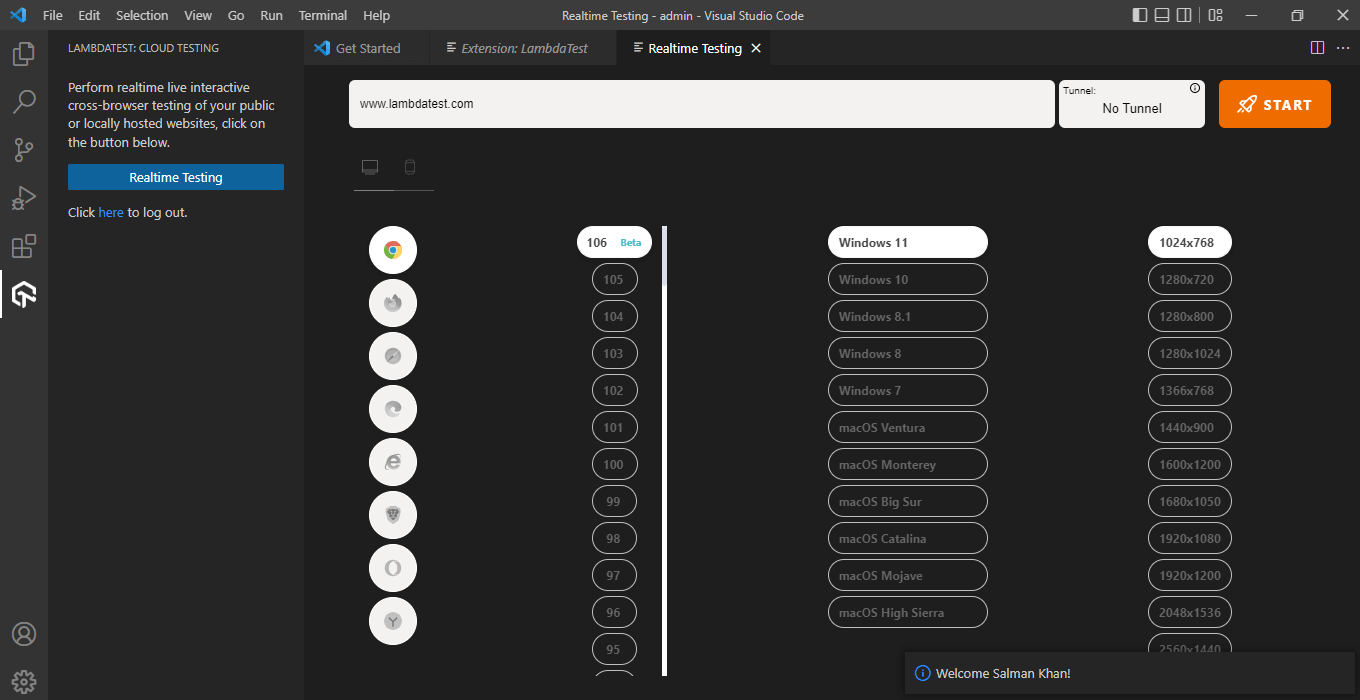
Realtime Cross Browser Testing Using VS Code Extension
- To begin testing, enter the test URL, choose Desktop or Mobile, and select browser, browser version, operating system, and resolution. Click START.
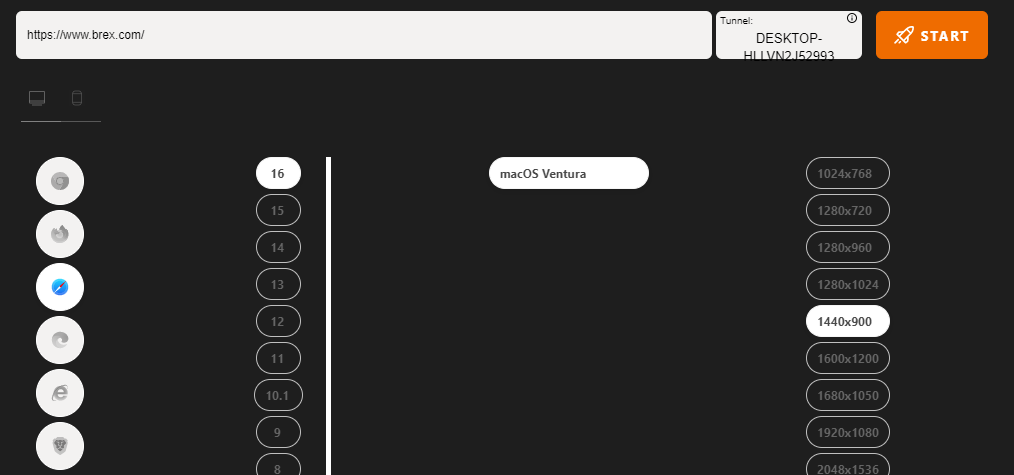
- A confirmation dialog box will appear. Click Open.

It will take you to a cloud-based virtual machine running real browsers and operating systems where you can perform real-time cross browser testing of your websites and web applications.
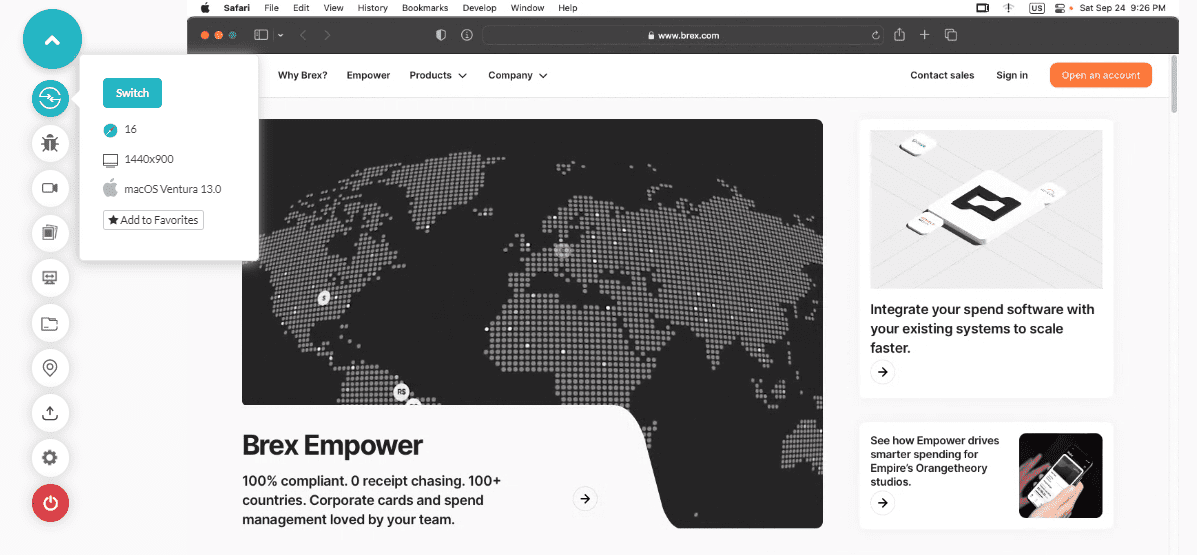
For more details, head over to our guide on Real Time Browser Testing.
Testing Locally Hosted Websites Using VS Code Extension
With TestMu AI VS Code Extension, it's simple to run real-time cross browser tests of your locally hosted websites without configuring the TestMu AI Tunnel binary from the Command Prompt. When you launch TestMu AI VS Code Extension, the tunnel starts automatically.
You can also trigger multiple tunnels based on your requirements by clicking Start new tunnel from the Tunnel dropdown menu
- To start testing, enter the localhost URL, choose Desktop or Mobile, and select browser, browser version, operating system, and resolution. Click START.
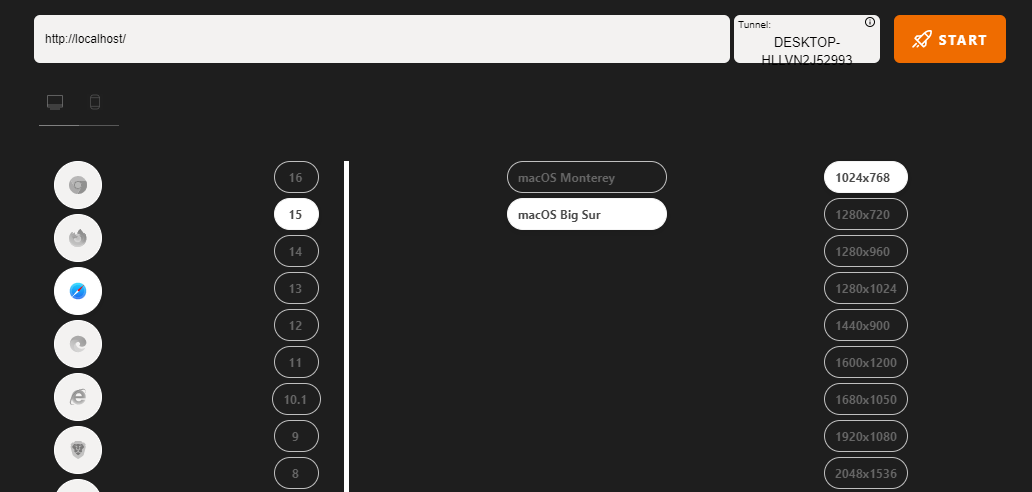
- A confirmation dialog box will appear. Click Open.
It will take you to a cloud-based virtual machine running real browsers and operating systems where you can perform real-time cross browser testing of your locally hosted websites or privately hosted projects.
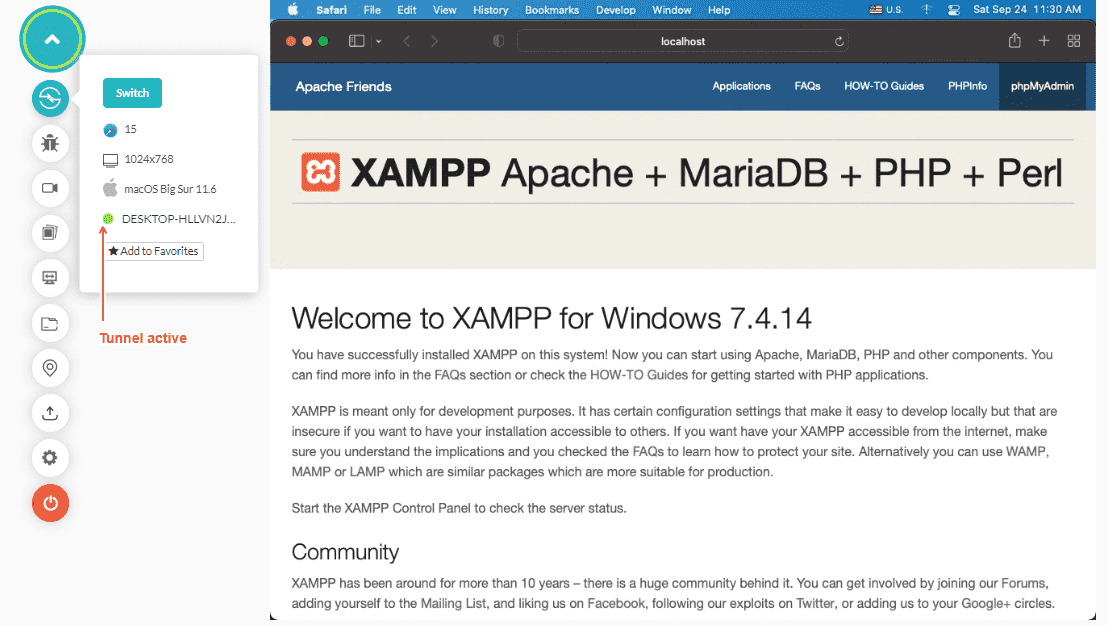
For more details, head over to our guide on Testing Locally Hosted Pages.
Uninstalling The TestMu AI VS Code Extension
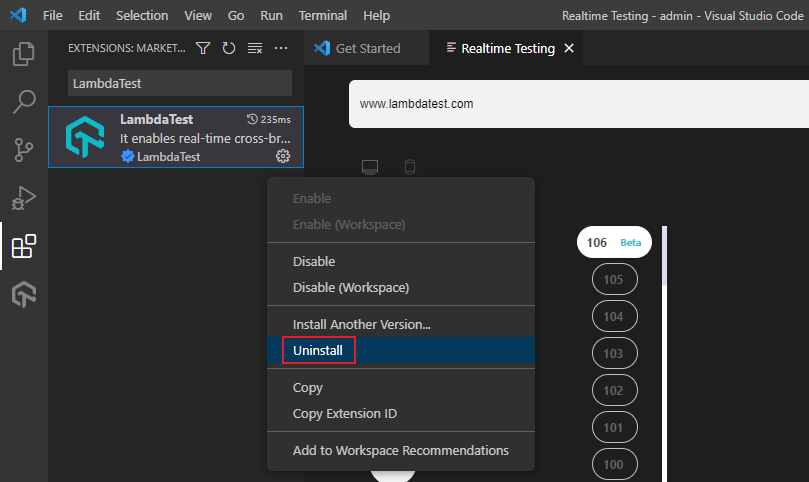
To remove the TestMu AI VS Code Extension, select the Extensions icon from the left sidebar. Navigate to the settings icon and click Uninstall.

 Chat with Us
 Ask the Community