One Click Migration from X-Ray
TestMu AI Test Manager supports one-click migration from X-Ray (Jira Cloud), allowing you to import your entire test library — including projects, test cases, folder structures, attachments, custom fields, and linked requirements — directly into Test Manager without manual data entry.
Key Benefits
- Zero manual effort — All test cases, steps, attachments, and folder structures are automatically migrated.
- Handles both Manual and BDD tests — Manual step definitions and Gherkin/BDD scenarios are both fully supported.
- Custom fields carried over — Custom fields in your X-Ray tests are automatically detected and created in Test Manager.
- Attachments included — File attachments are downloaded from Jira and re-uploaded to Test Manager, including step-level references.
- Real-time progress tracking — A progress bar shows migration status so you know exactly where things stand.
This migration supports X-Ray Cloud (Jira Cloud) only. X-Ray Server and Data Center are not supported at this time.
Prerequisites
Before starting the migration, ensure you have the following ready.
TestMu AI Account
- An active TestMu AI account with access to Test Manager.
X-Ray Cloud Credentials
You need your X-Ray Cloud API credentials (Client ID and Client Secret). Refer to the X-Ray Global Settings - API Keys documentation for detailed instructions. To obtain these:
- Log in to your Jira Cloud instance.
- Navigate to Apps > Manage your apps > X-Ray (or go to X-Ray Settings).
- Under API Keys, generate a new API key pair if you do not already have one.
- Copy the Client ID and Client Secret.
The Client Secret is shown only once. Store it securely before proceeding.
Jira Cloud Credentials
You also need Jira Cloud credentials to access project metadata and attachments:
| Credential | Where to Find It |
|---|---|
| Jira Host URL | Your Jira instance URL, e.g., https://yourcompany.atlassian.net |
| Email Address | The email associated with your Atlassian account |
| Jira API Token | Generate from Atlassian API Tokens |
Jira Integration in TestMu AI
To migrate linked Jira issues and requirements, you must have the corresponding Jira instance integrated with TestMu AI. Without this integration, linked issues will not be carried over during migration. Refer to the Link Jira Issues with Test Manager guide to set up the integration before starting the migration.
Permissions
- Your Jira account must have read access to the project you are migrating.
- Your X-Ray API key must have permission to access test cases and test sets in the target project.
Step-by-Step Migration Guide
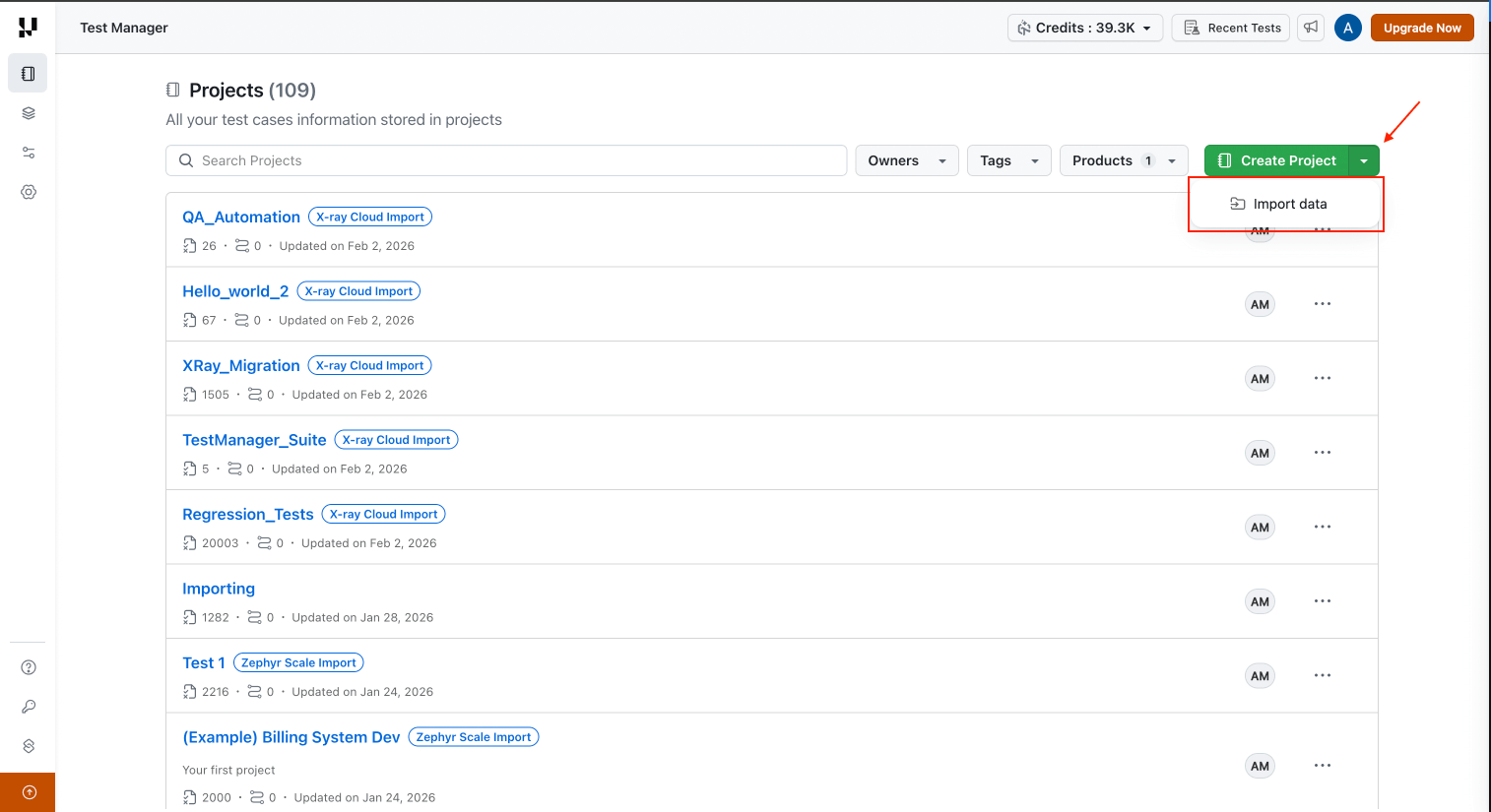
Step 1: Open the Migration Tool
- Log in to your TestMu AI account.
- Navigate to Test Manager Projects from the left sidebar.
- Click the Import data option on the Project Listing page.
- Select X-Ray Cloud as the migration source from the Import from dropdown.
Step 2: Enter Your Credentials
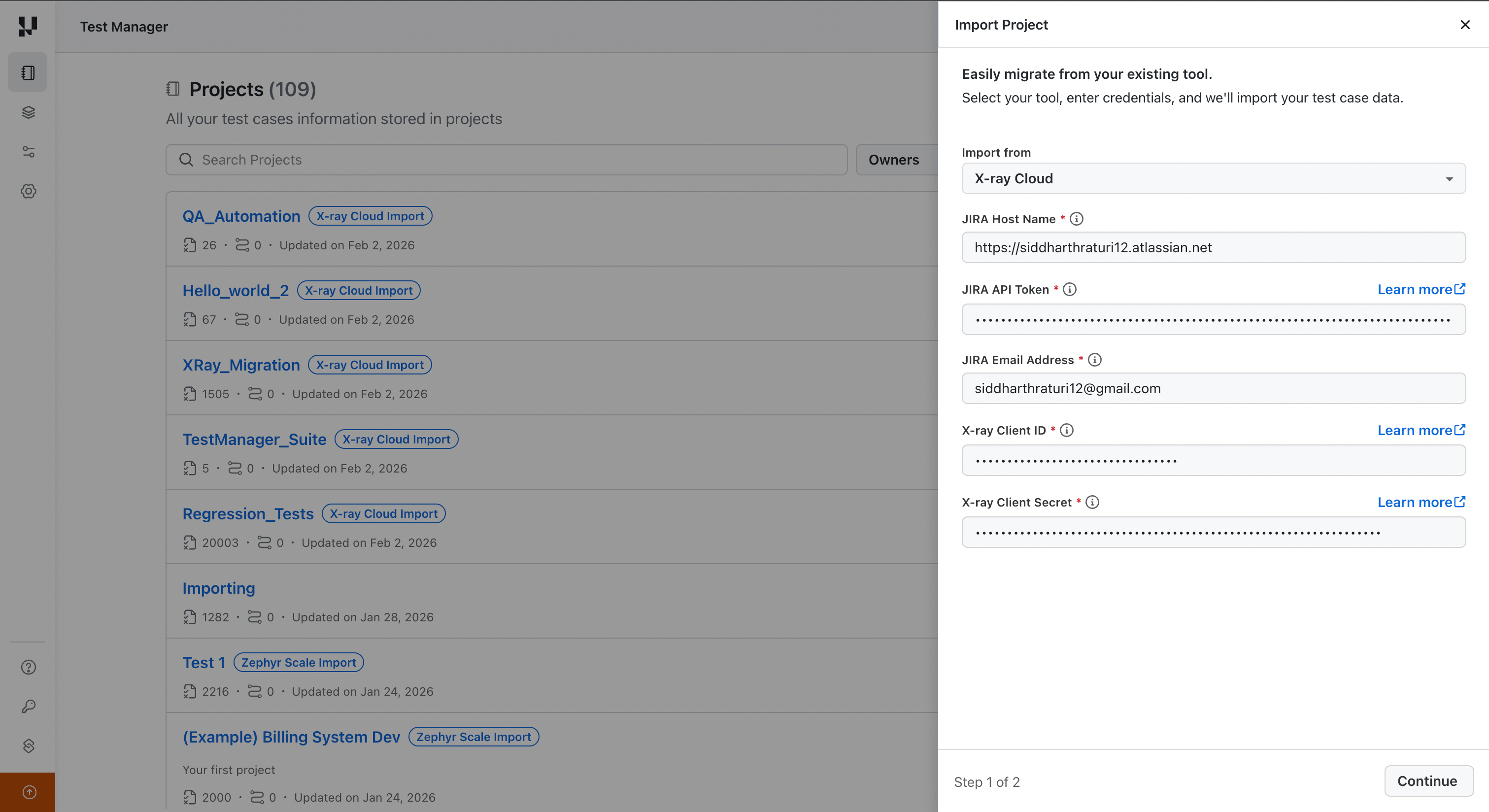
Fill in the following fields:
| Field | Description |
|---|---|
| Jira Host | Your Jira Cloud instance URL (e.g., https://yourcompany.atlassian.net) |
| Jira Email Address | Your Atlassian account email |
| Jira API Token | API token generated from Atlassian |
| X-Ray Client ID | Client ID from X-Ray API Keys. Refer to the X-Ray Global Settings - API Keys documentation. |
| X-Ray Client Secret | Client Secret from X-Ray API Keys. Refer to the X-Ray Global Settings - API Keys documentation. |
Click Continue. The system validates both your Jira and X-Ray credentials in parallel. If either set is invalid, an error message indicates which credentials need to be corrected.
Step 3: Select the Jira Project
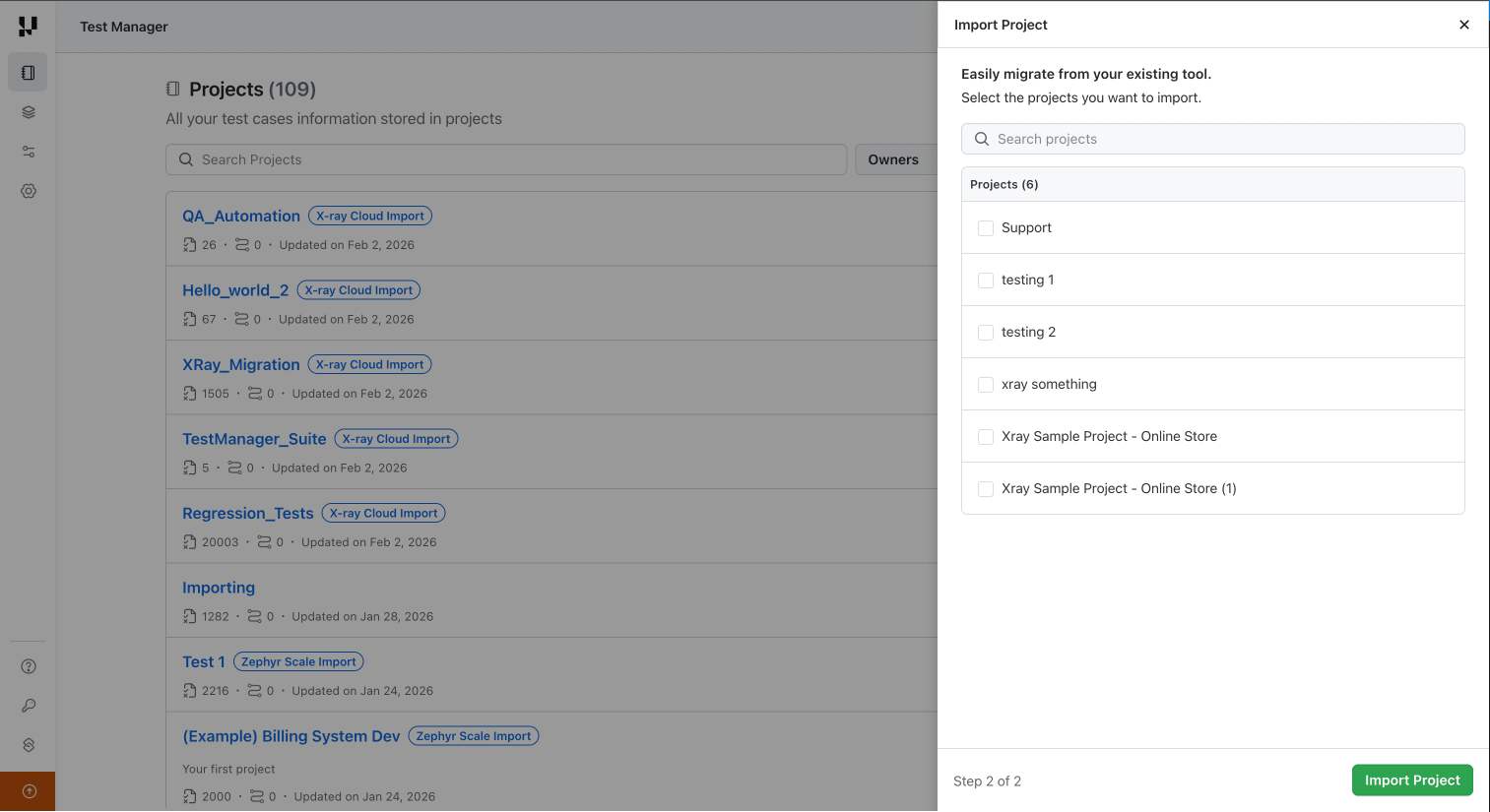
- After successful validation, a list of your Jira projects containing X-Ray test cases is displayed.
- Select the project you want to migrate from. You can select multiple projects at once.
- Click Start Migration.
Step 4: Monitor Progress
- A progress bar shows real-time migration status.
- The migration processes test cases in batches. Depending on the size of your test library, the complete process may take some time.
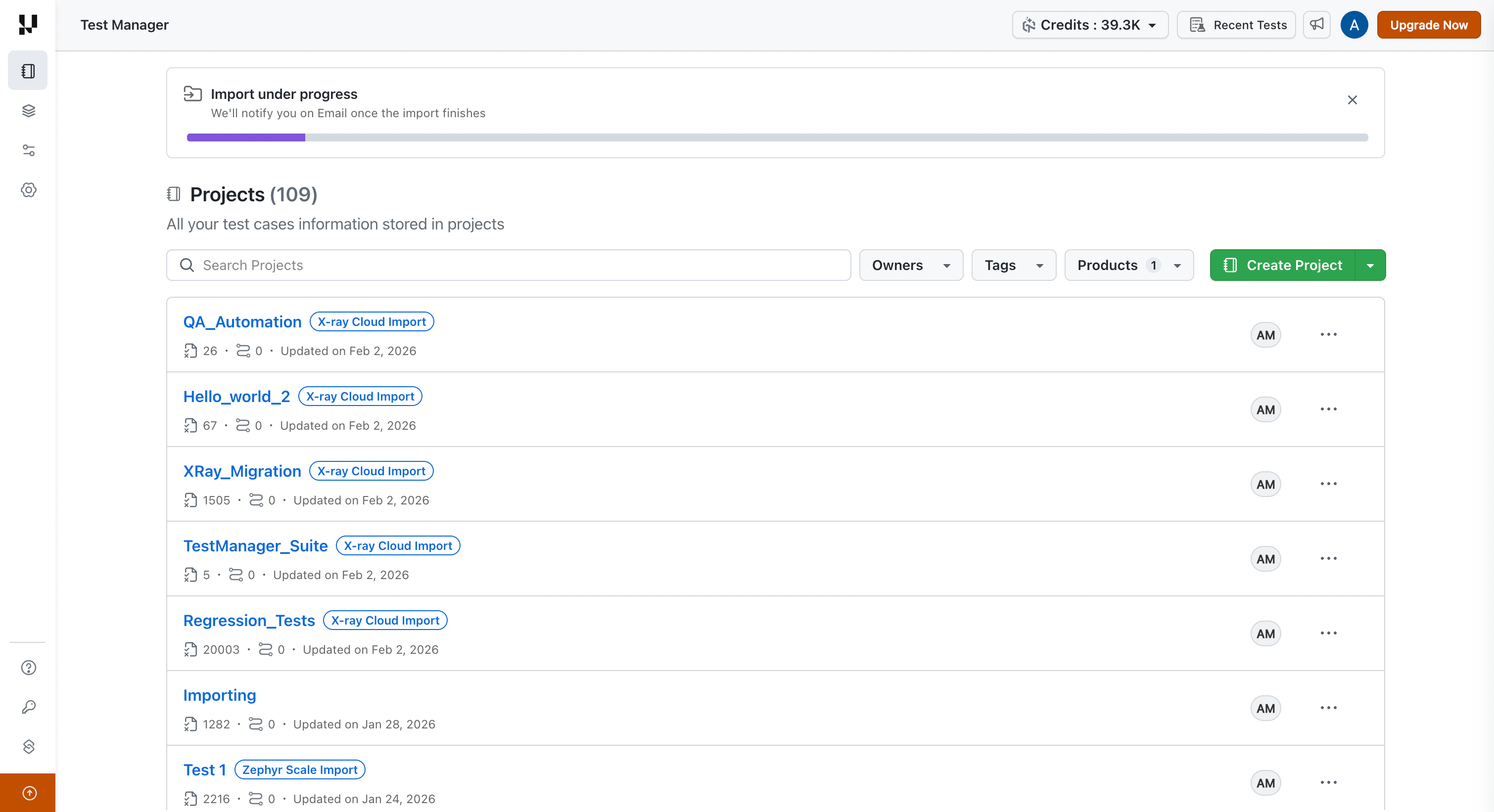
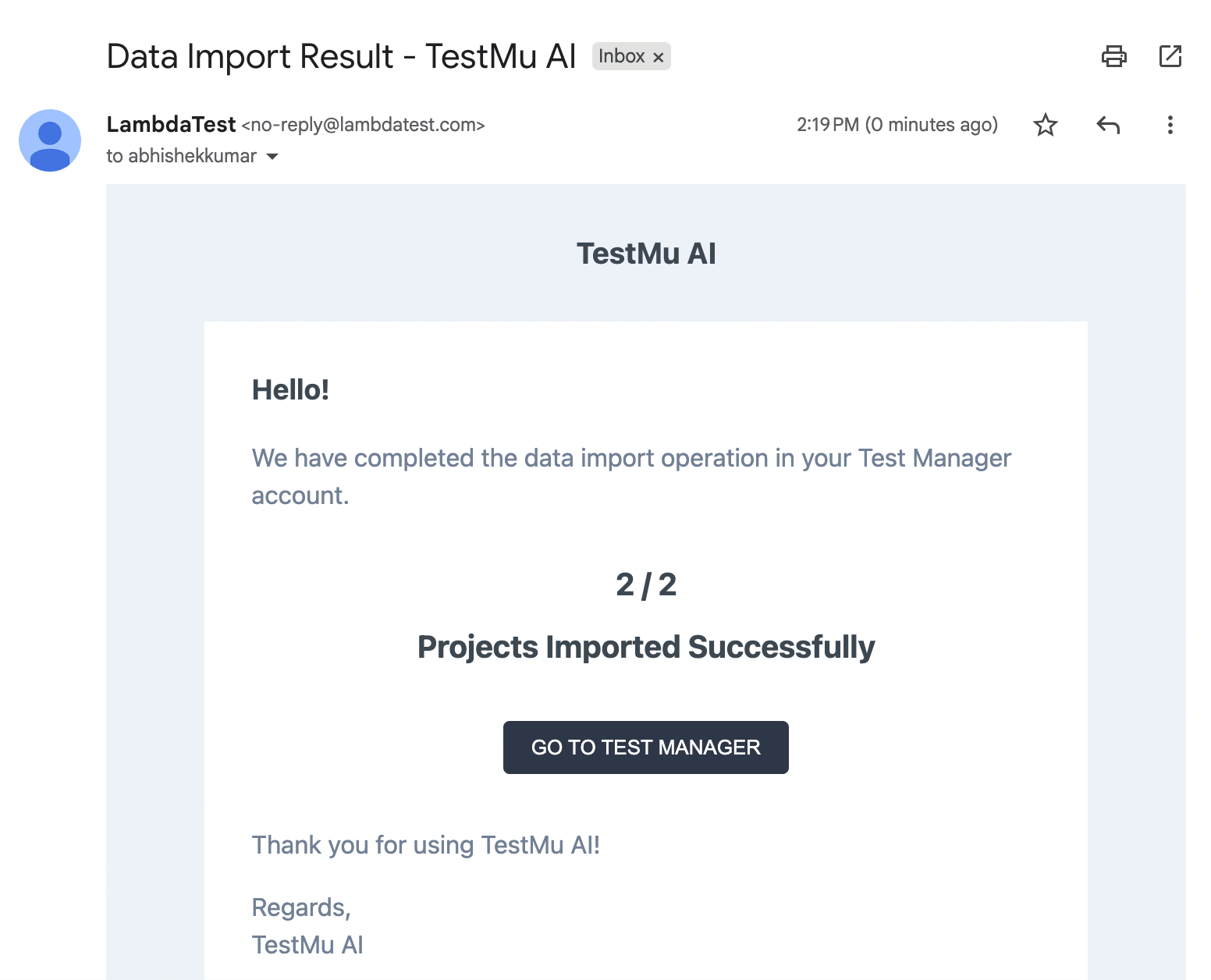
- You can navigate away from the page and continue other work — the migration continues in the background. Once the migration is complete, you will receive an email notification.
Step 5: Review the Results
Once migration completes:
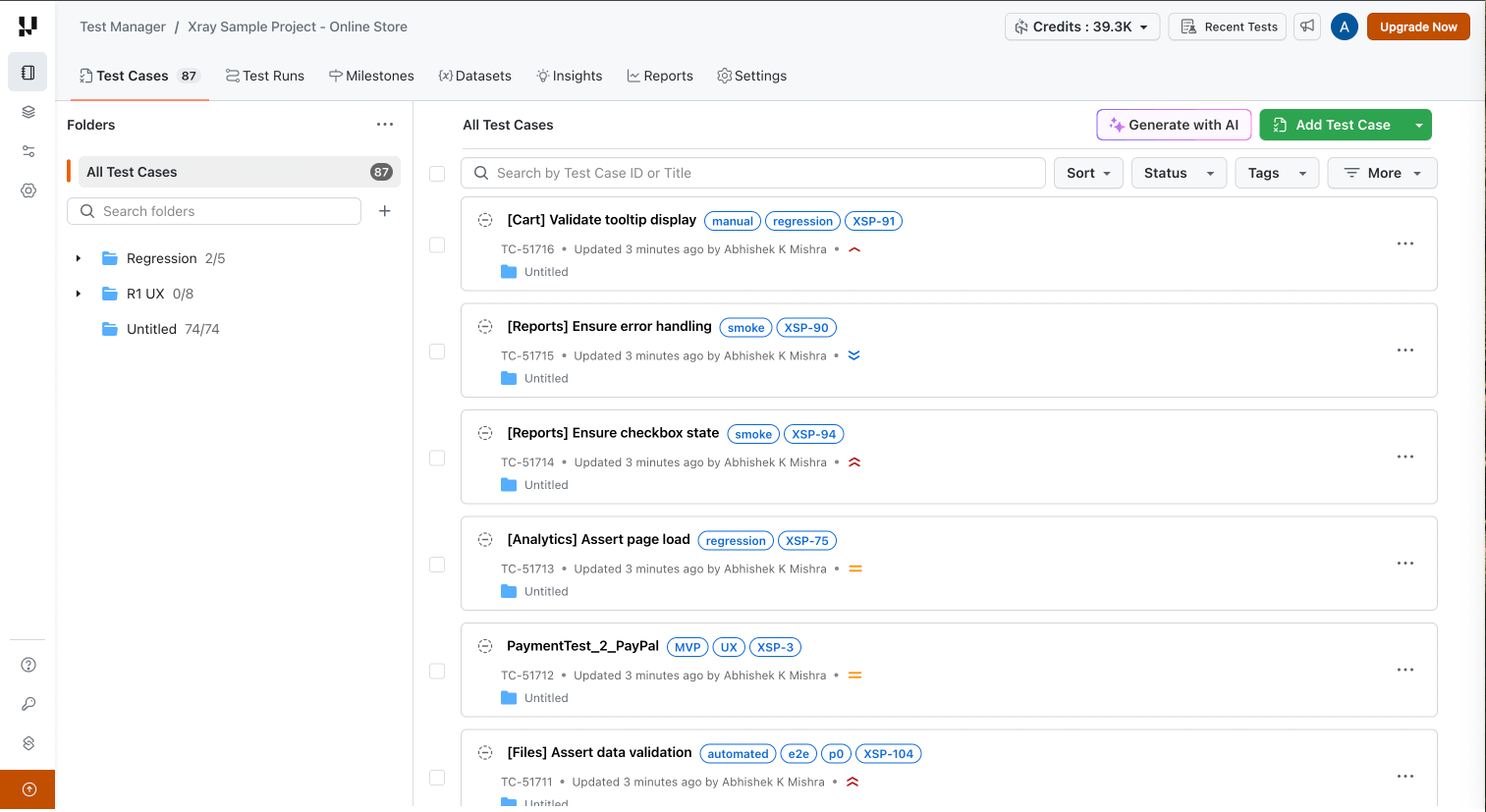
- The migrated X-Ray projects will appear on the Projects listing page in Test Manager.
- Navigate to the Test Cases section in any of your migrated projects.
- Verify that your test cases, folder structure, and attachments have been imported correctly.
- Check a few test cases to confirm that steps, custom fields, and linked requirements are intact.
What Gets Migrated
The following entities and data are transferred from X-Ray to Test Manager during migration:
| Entity | Details |
|---|---|
| Test Cases | All test cases from the selected project are imported with their complete definitions. |
| Test Case Metadata | Summary, description, priority, labels, and preconditions are mapped to their corresponding Test Manager fields. |
| Manual Test Steps | Each step's Step Description and Expected Result are migrated directly. Step ordering is preserved. |
| BDD/Gherkin Scenarios | Full Gherkin scenario text is extracted and stored under the BDD Scenarios template. |
| Attachments | Both test case-level and test step-level attachments are downloaded and re-uploaded to Test Manager. |
| Rich Text Fields | Rich text content — including embedded screenshots, tables, lists, and other supported formatting — is preserved. |
| Custom Fields | Custom fields are automatically detected in X-Ray and created in Test Manager with matching names. |
| Linked Issues / Requirements | Jira issue links and requirement associations are preserved. Requires Jira integration to be configured. |
| X-Ray Test Key | The original X-Ray test key is imported within tags, enabling quick reference and filtering in Test Manager. |
X-Ray fields that cannot be directly mapped to system fields in Test Manager are automatically imported as custom fields. These may include Reporter, Assignee, Environment, Fix Version, Components, etc.
Test Data from X-Ray steps is migrated as a single textarea custom field at the test case level, with textual data consolidated together. This is because Test Manager does not currently support a step-level Test Data field.
What Does Not Get Migrated
The migration focuses exclusively on your test library — definitions, structure, and metadata. The following entities are not included:
| Entity | Reason |
|---|---|
| Test Runs | Execution-layer entity that is not part of the test case definition. |
| Test Execution Logs | Execution history and pass/fail results are excluded by design. |
| Datasets | Datasets and their corresponding parameters are not imported. |
| Standalone Preconditions | Precondition text is captured within individual test cases, but standalone precondition objects are not migrated as independent reusable entities. |
Test Steps Handling
Manual Tests
Manual test cases are migrated with their full step definitions. Each step's Step Description and Expected Result fields are mapped directly. Step ordering is preserved, and step-level attachments (e.g., screenshots embedded in steps) are migrated as well. All X-Ray test step templates, except Gherkin, are mapped to the Manual Test Steps template in Test Steps of a Test Case.
BDD / Gherkin Tests
For BDD-type test cases in X-Ray, the full Gherkin scenario text (Given/When/Then) is extracted and stored in the test case as structured BDD content under the BDD Scenarios template in Test Steps.
Troubleshooting
| Problem | Solution |
|---|---|
| Invalid X-Ray credentials | Verify your X-Ray Client ID and Client Secret. Re-generate them from X-Ray Settings if needed. Ensure you are using X-Ray Cloud credentials, not X-Ray Server/Data Center. |
| Invalid Jira credentials | Confirm you are using a Jira API Token (not your Jira password). Generate one at Atlassian API Tokens. Verify the email matches the account that owns the token. |
| No projects found | Verify your Jira account has access to at least one project containing X-Ray test cases. Check that X-Ray is installed and active on your Jira Cloud instance. |
| Migration stalls or takes too long | Large projects (thousands of test cases with attachments) may take 10–30 minutes. If it does not resume after 30 minutes, re-initiate the migration. |
| Missing attachments | Verify that the Jira API token has permission to download attachments from the source project. |
| Custom fields not appearing | Custom fields are auto-created during migration. Navigate to Project Settings > Custom Fields to verify they exist and are enabled. |
FAQ
Can I migrate multiple Jira projects?
Yes. Run the migration once per Jira project. Each migration imports test cases from one X-Ray project into one Test Manager project. Repeat the process for additional projects.
Will migration affect my X-Ray data?
No. The migration is read-only on the X-Ray side. Your X-Ray test cases, test sets, and all other data remain untouched.
Can I run the migration again if something goes wrong?
Yes. You can re-run the migration for the same project(s). Review the results after each run.
Are Gherkin/BDD scenarios preserved exactly as written?
Yes. The full Gherkin text (Feature, Scenario, Given/When/Then blocks) is extracted and stored in the Test Manager test case with formatting and step structure preserved.
What if I have test cases with no steps?
Test cases without steps are still migrated. The test case metadata (title, description, priority, labels, etc.) is imported, and the steps section will be empty.
Is X-Ray Server (Data Center) supported?
No. This migration currently supports X-Ray Cloud (on Jira Cloud) only.
Known Limitations
| Limitation | Details |
|---|---|
| X-Ray Cloud only | X-Ray Server and Data Center are not supported |
| No execution data | Test Plans, Test Runs, and execution logs are excluded by design |
| No incremental sync | Migration is a one-time import, not a continuous sync |
| Standalone Preconditions | Precondition text is captured within test cases, but standalone Precondition objects are not migrated as independent reusable entities |
| Test case comments | Jira comments on test case issues are not migrated |
| Execution environments | X-Ray environment configurations are not migrated |

 Chat with Us
 Ask the Community