How to Integrate Azure DevOps With KaneAI
The KaneAI Azure DevOps integration brings test management into your Azure DevOps environment through a Marketplace app. Once it is installed and authenticated, you can link existing test cases to work items and generate new test cases with AI, without leaving the Azure DevOps interface. This keeps your testing traceable to development tasks and connected to your TestMu AI account.
Prerequisites
Before you begin, make sure you have:
- An Azure DevOps organization where you can install apps from the Azure DevOps Marketplace.
- A TestMu AI account with access to Test Manager.
- Azure DevOps connected under integrations in that same TestMu AI account, set up with the credentials you use to configure the app.
Install and Configure the App
Install the app from the Azure DevOps Marketplace, then authenticate it with your TestMu AI credentials.
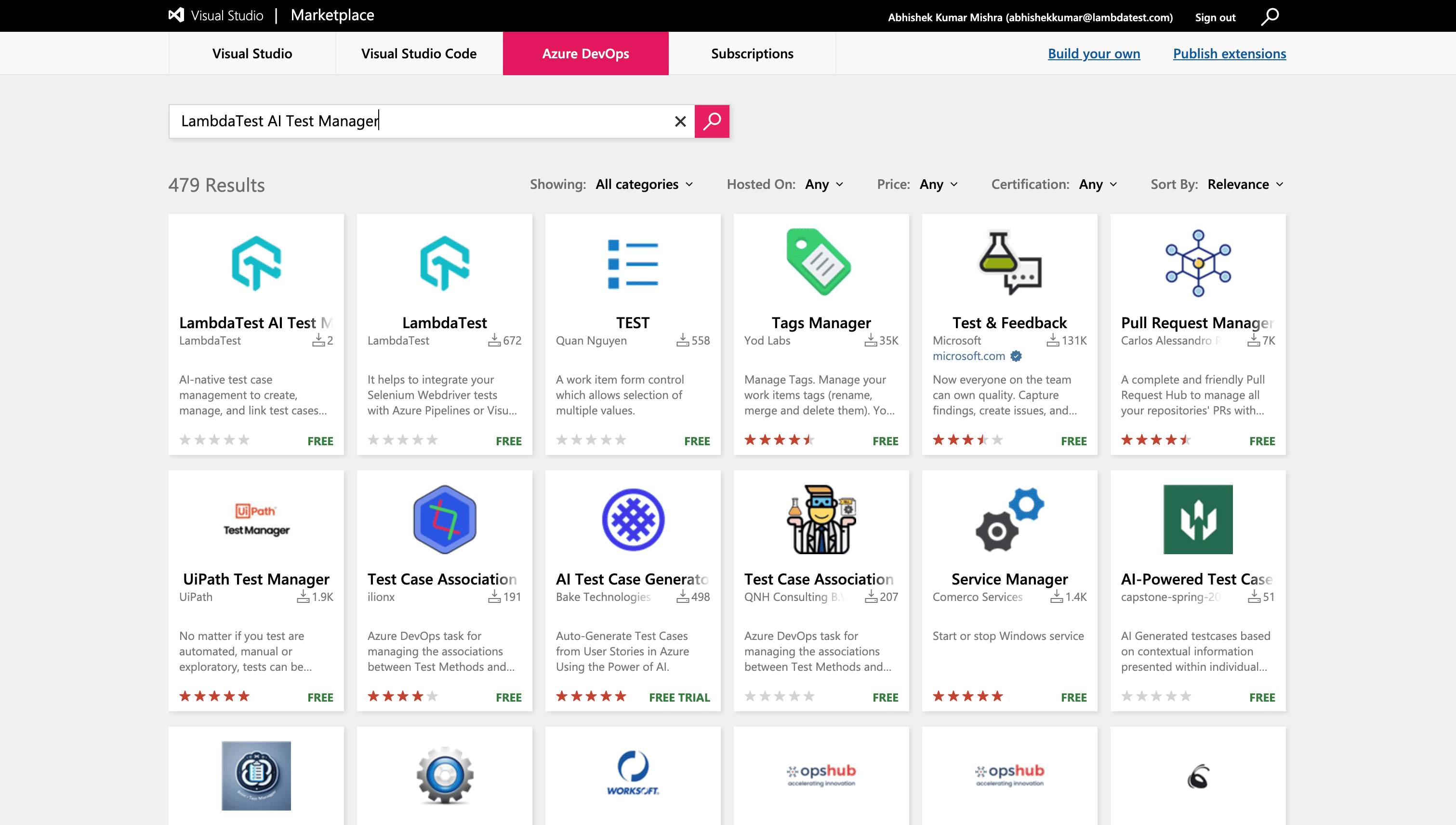
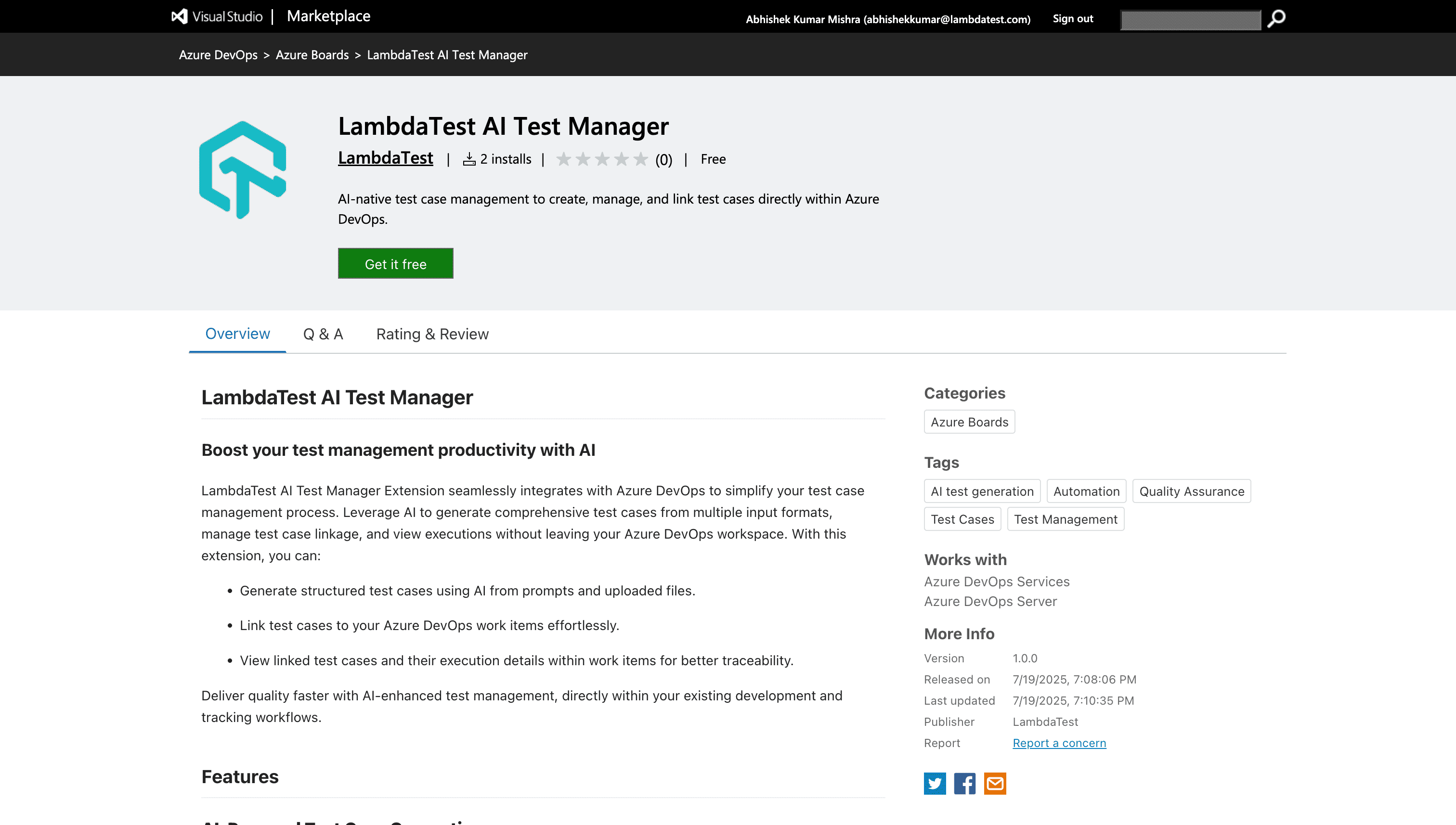
- Open the TestMu AI Test Manager app on the Azure DevOps Marketplace and select Get it free.
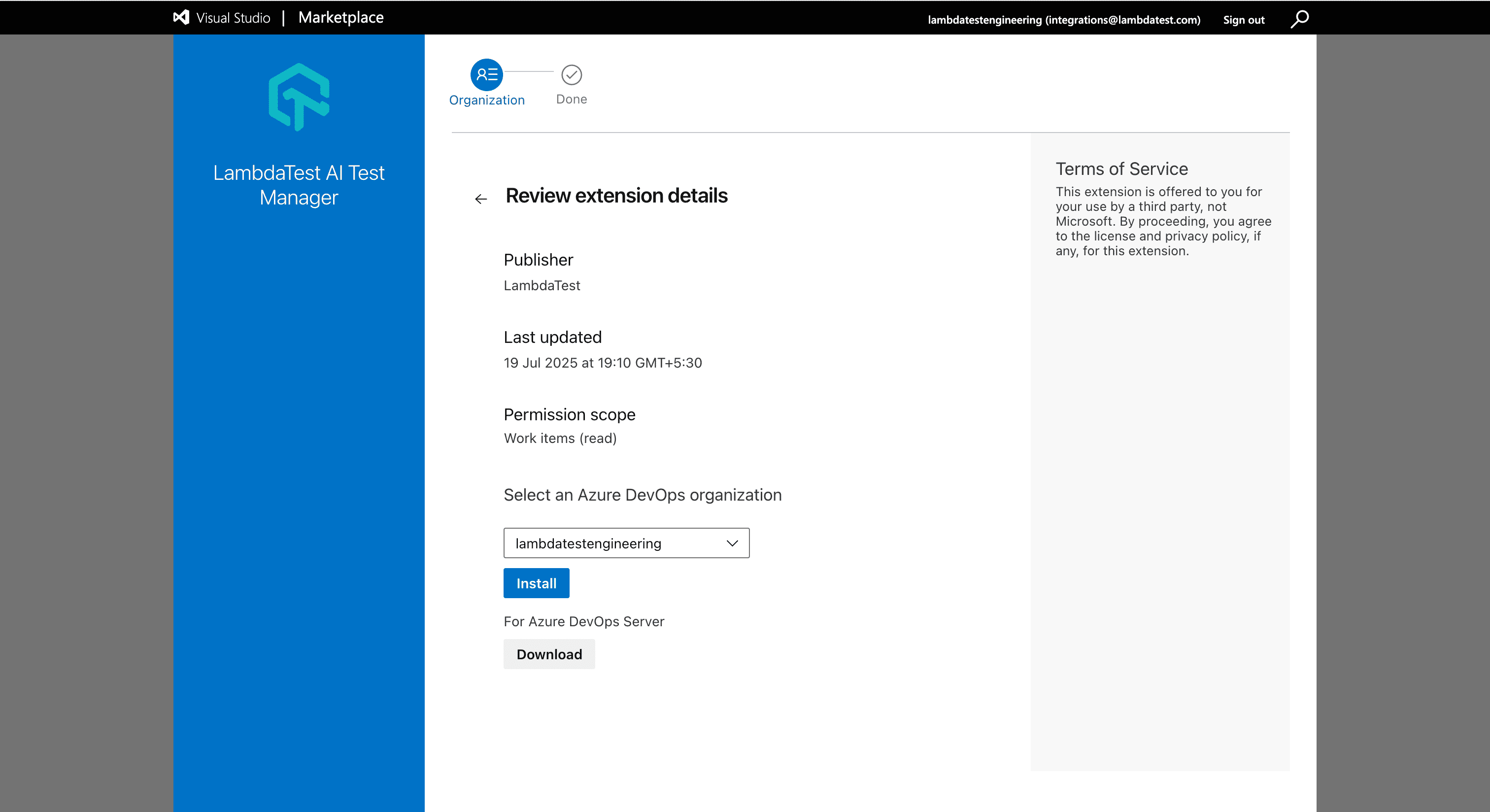
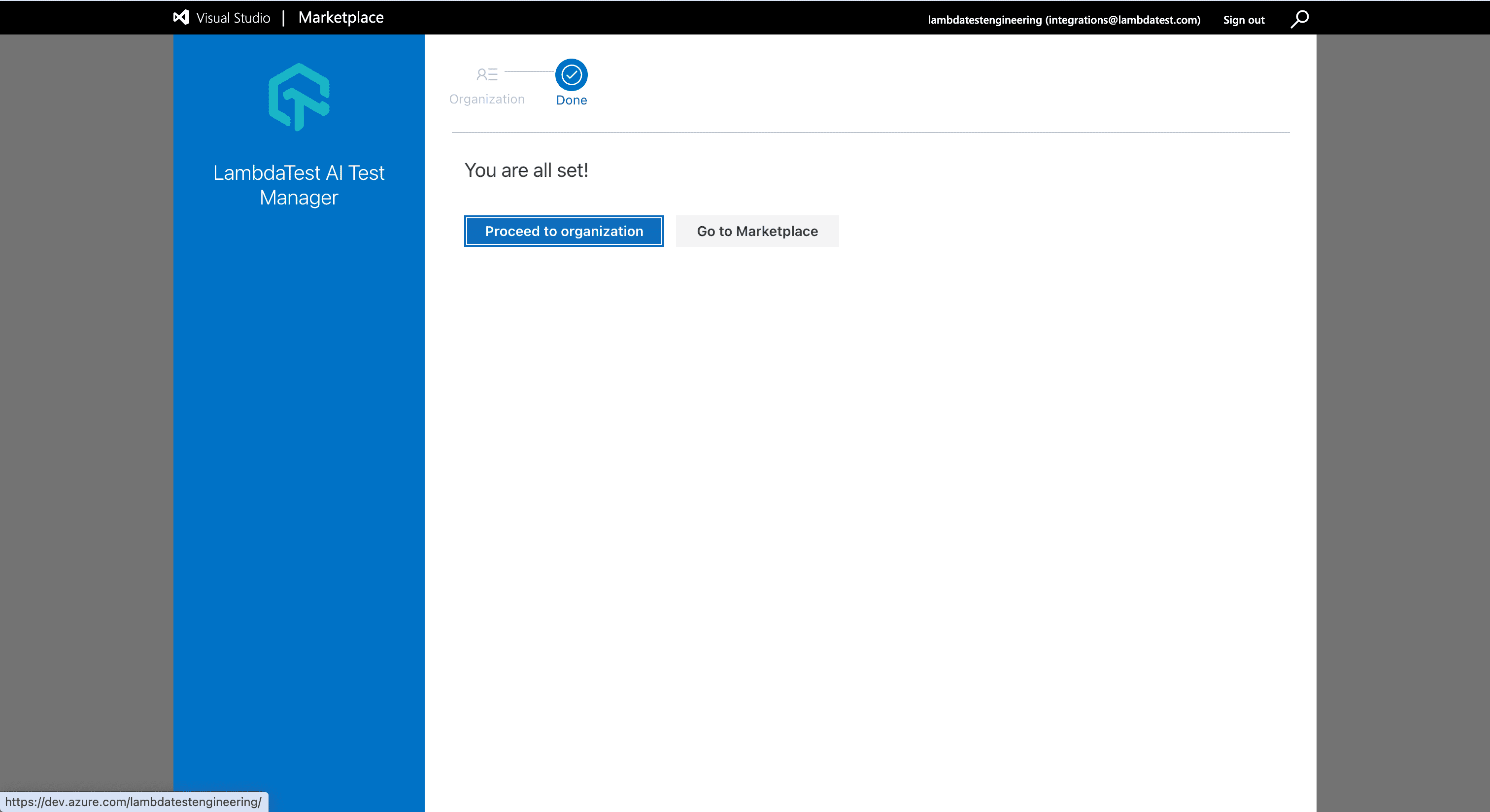
- Select the Azure DevOps organization where you want the app, then click Install.
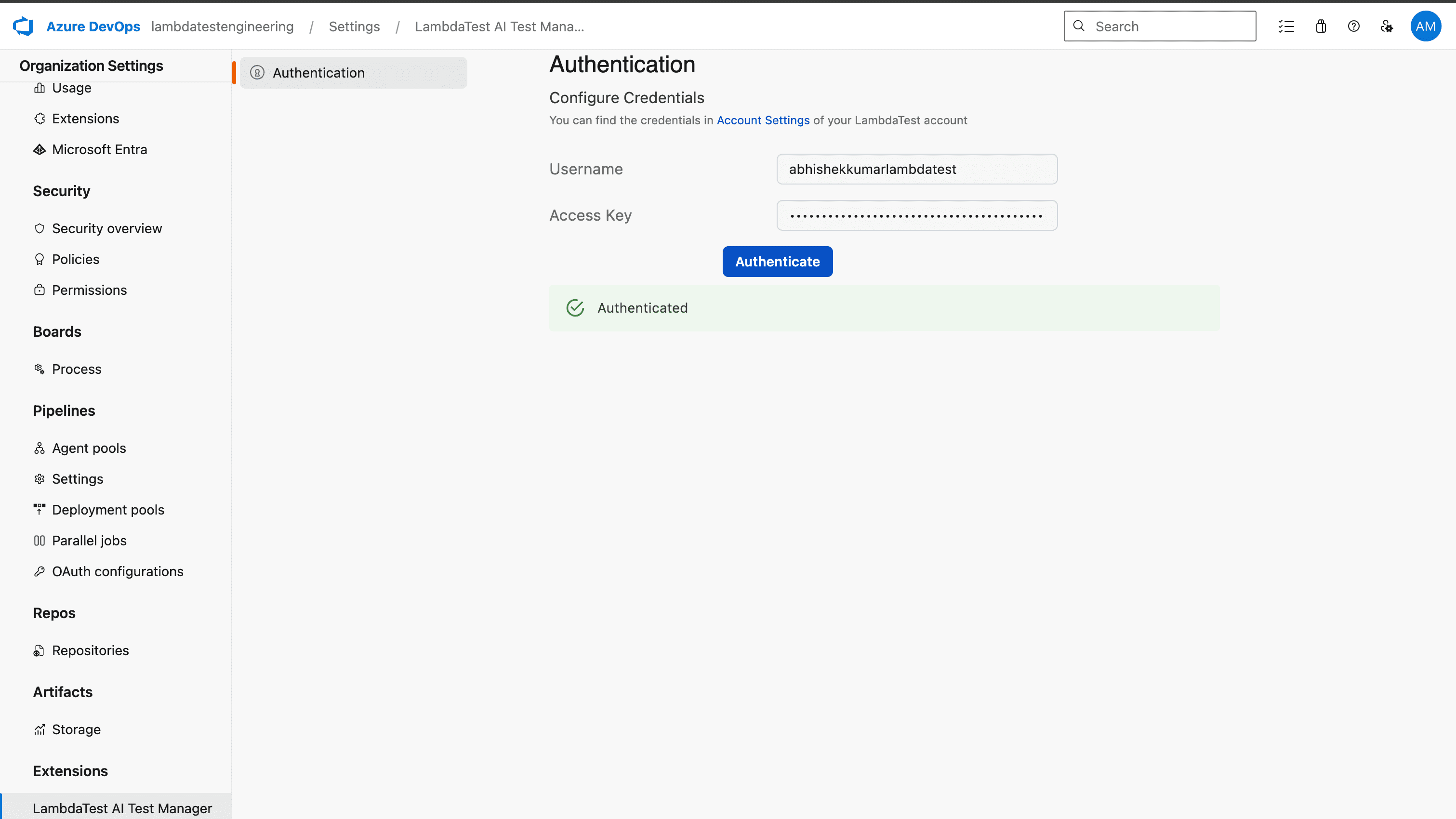
- In Organization Settings, go to Extensions, open TestMu AI Test Manager, enter the Username and Access Key from your TestMu AI account, and click Authenticate.
The TestMu AI account you use to configure the app must also have Azure DevOps connected under its integrations.
Link Existing Test Cases
Connect test cases from your TestMu AI organization to any Azure DevOps work item, then track their runs from the same place.
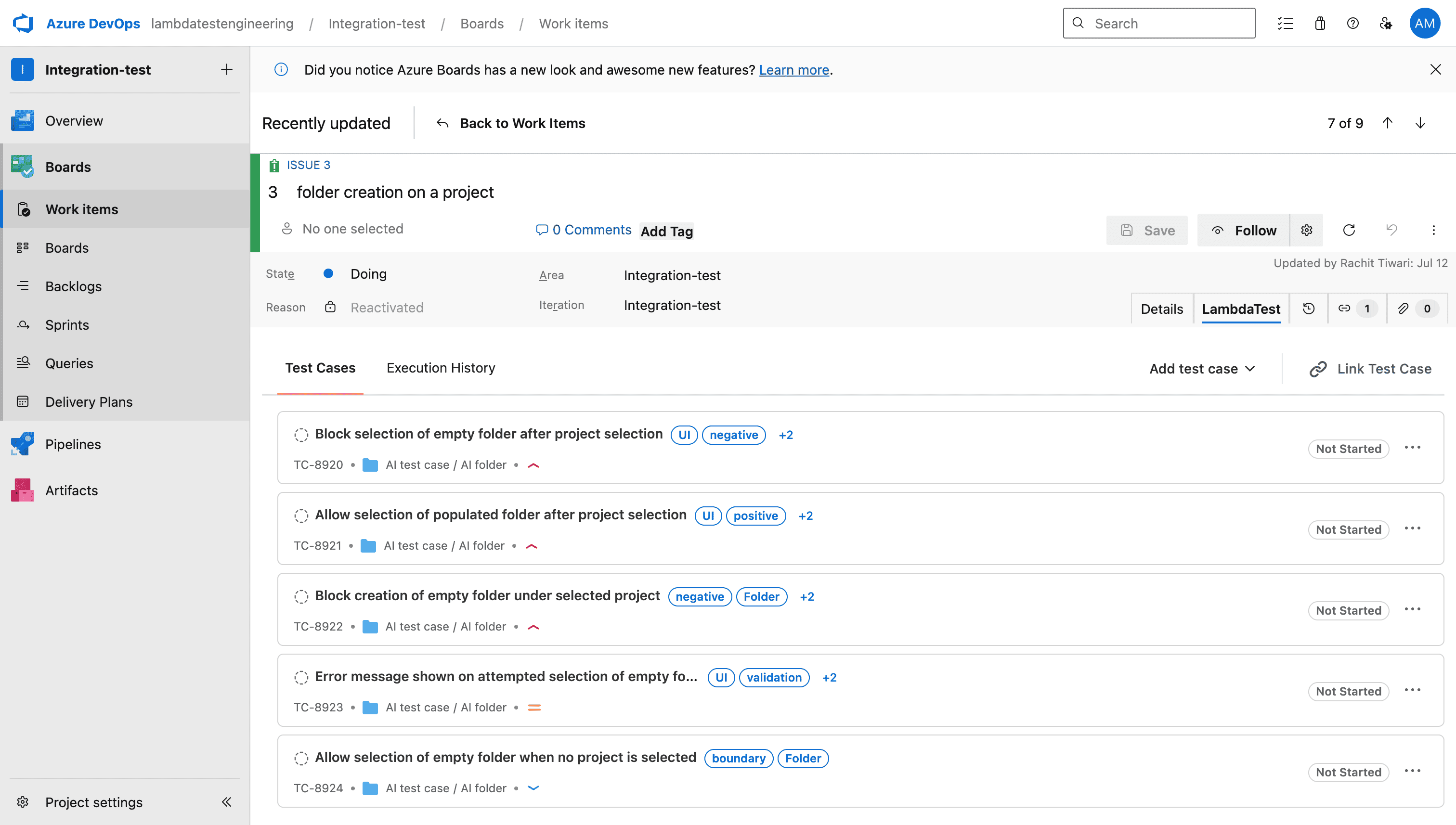
- Open an Azure DevOps work item, select the TestMu AI tab in the work item details, and click Link Test Case.
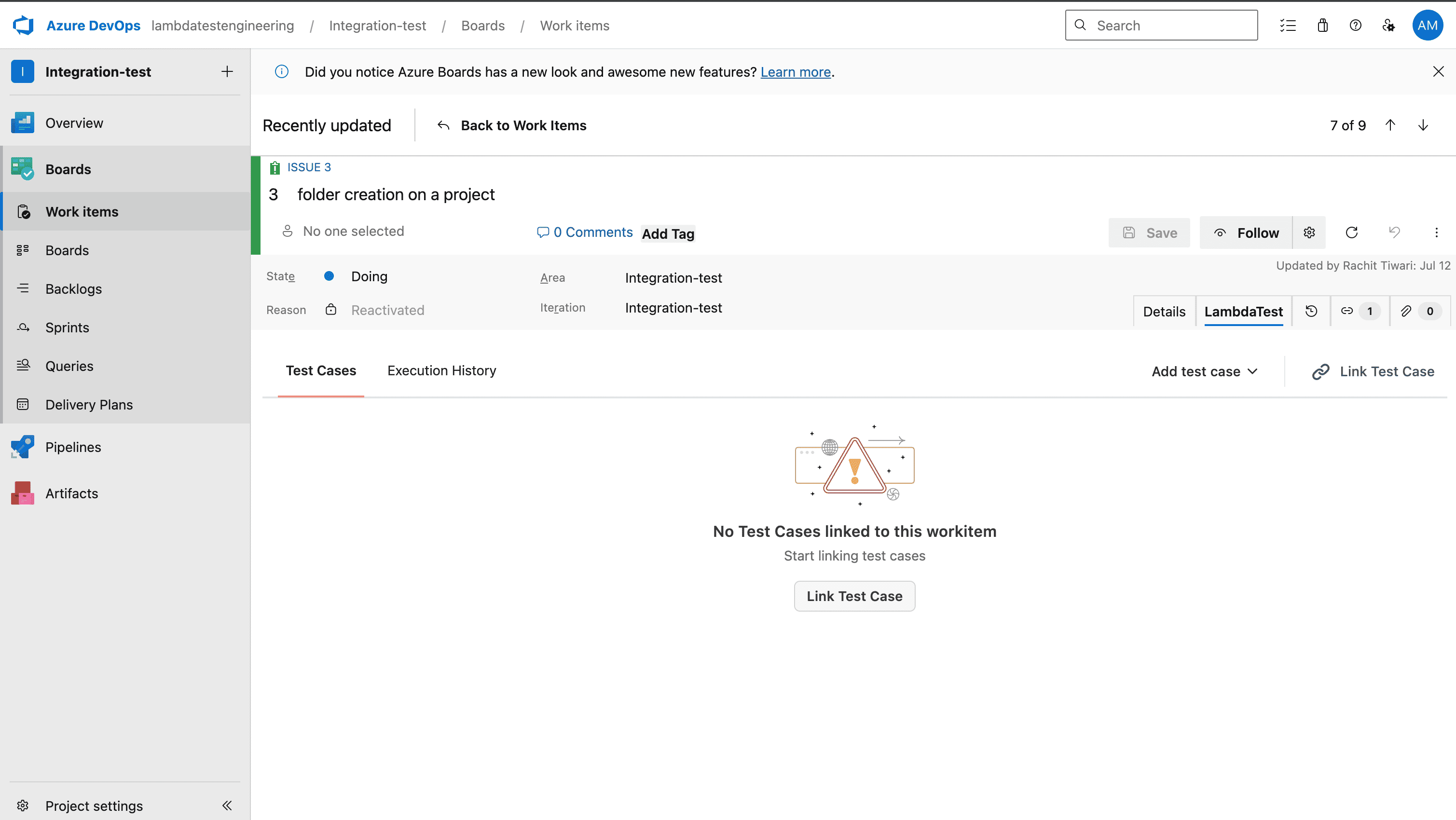
- Search by test case name or ID and select the ones you want to link. Test cases from every project in your TestMu AI organization are available here.
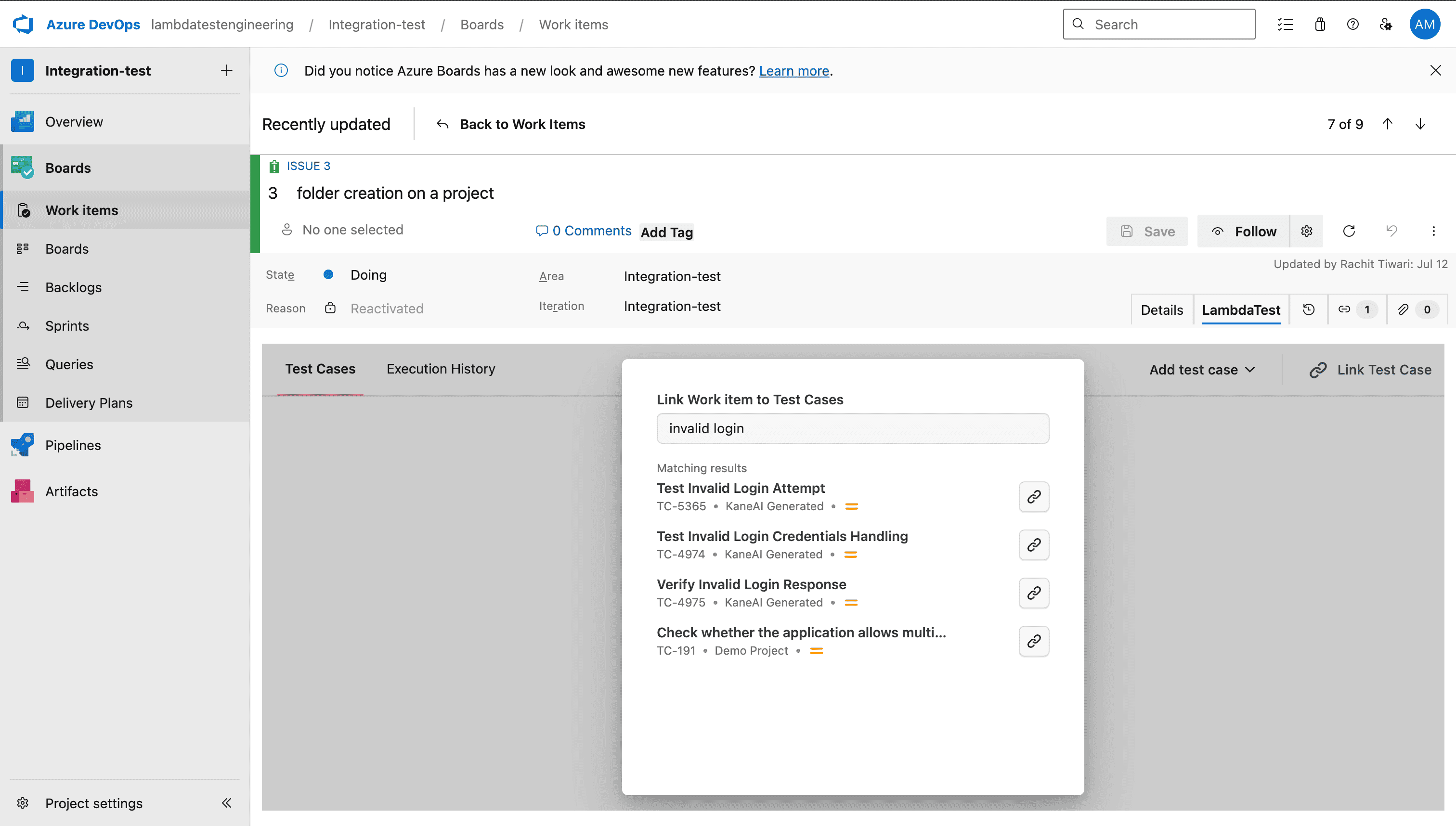
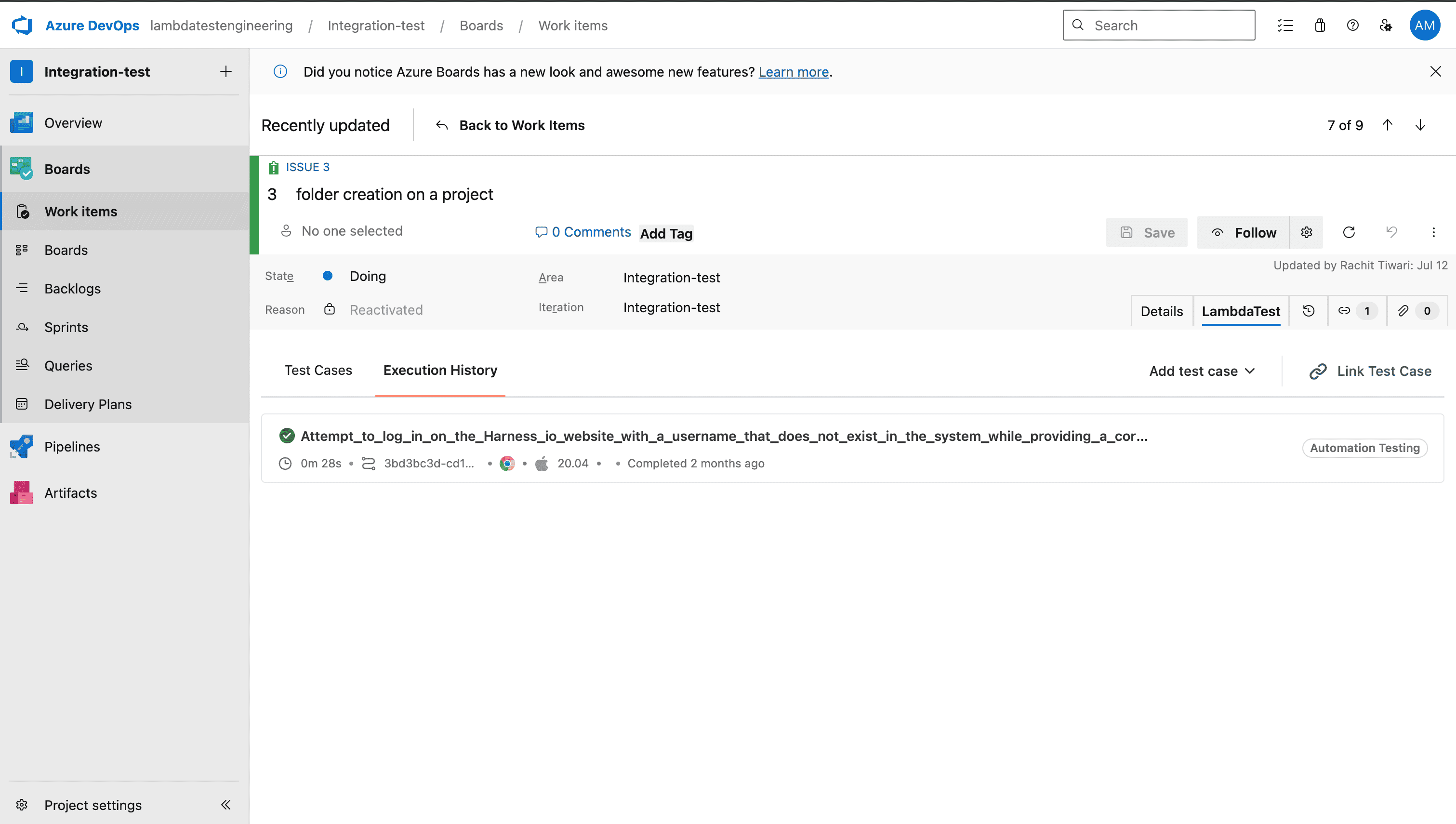
Each linked test case then appears in the Test Cases section of the work item.
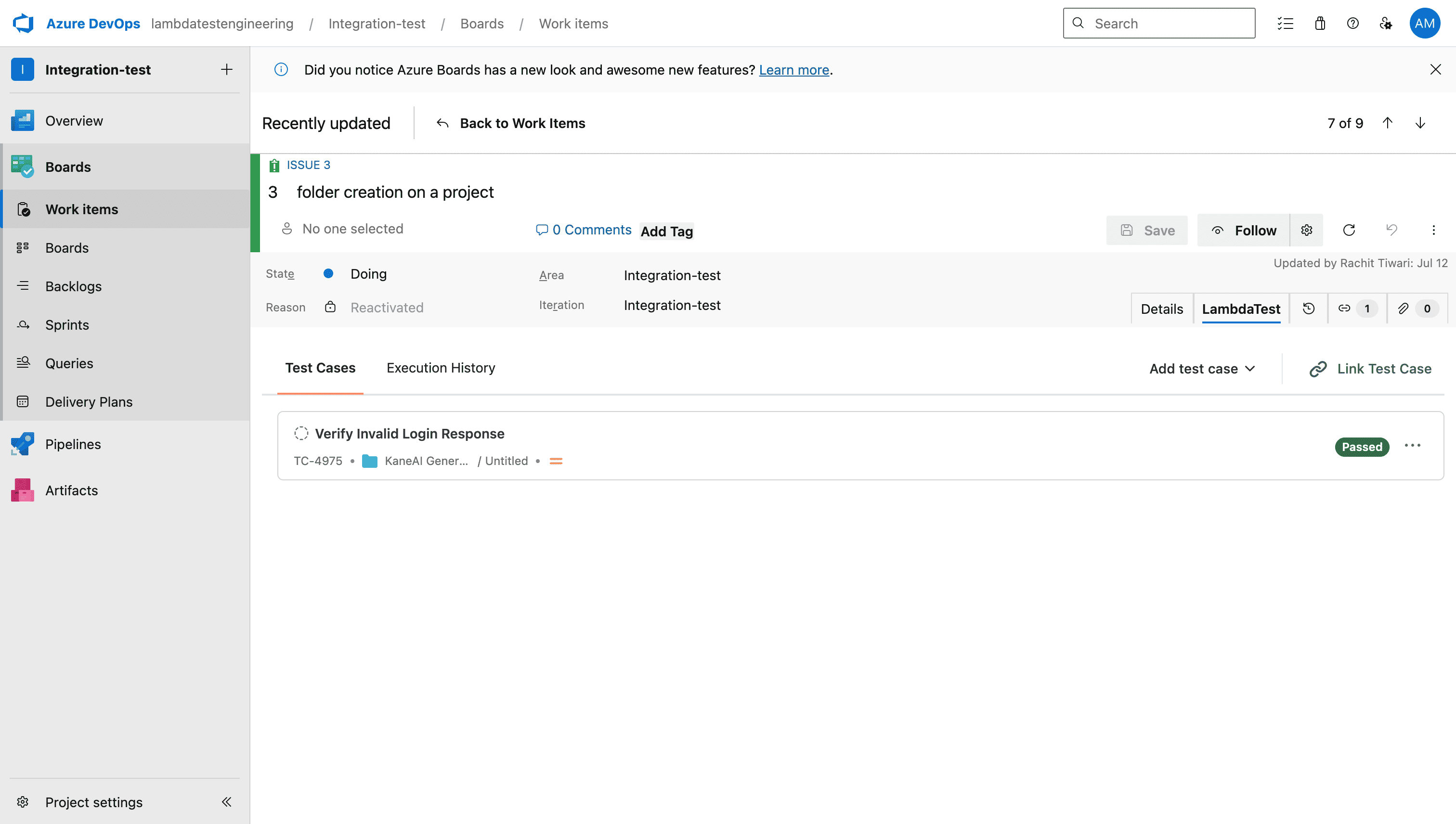
- Open Execution History to review every run of the test cases linked to that work item.
Generate Test Cases With AI
Create test cases directly from a work item, letting AI turn its requirements into ready-to-run tests.
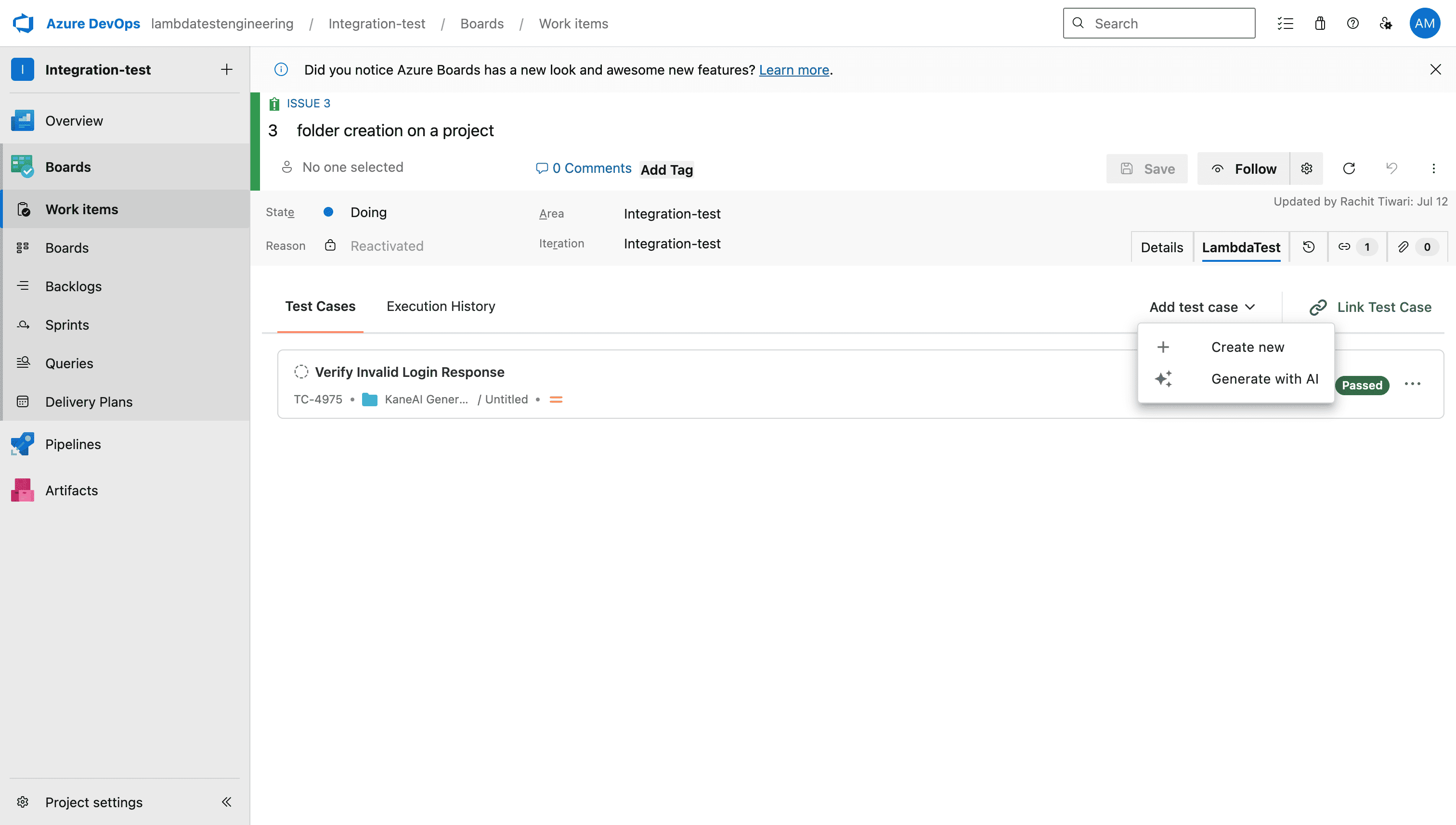
- Click Add Test Case and choose Generate with AI to start. You can also add test cases manually from the same menu.
Generating test cases requires access to Test Manager in your TestMu AI account.
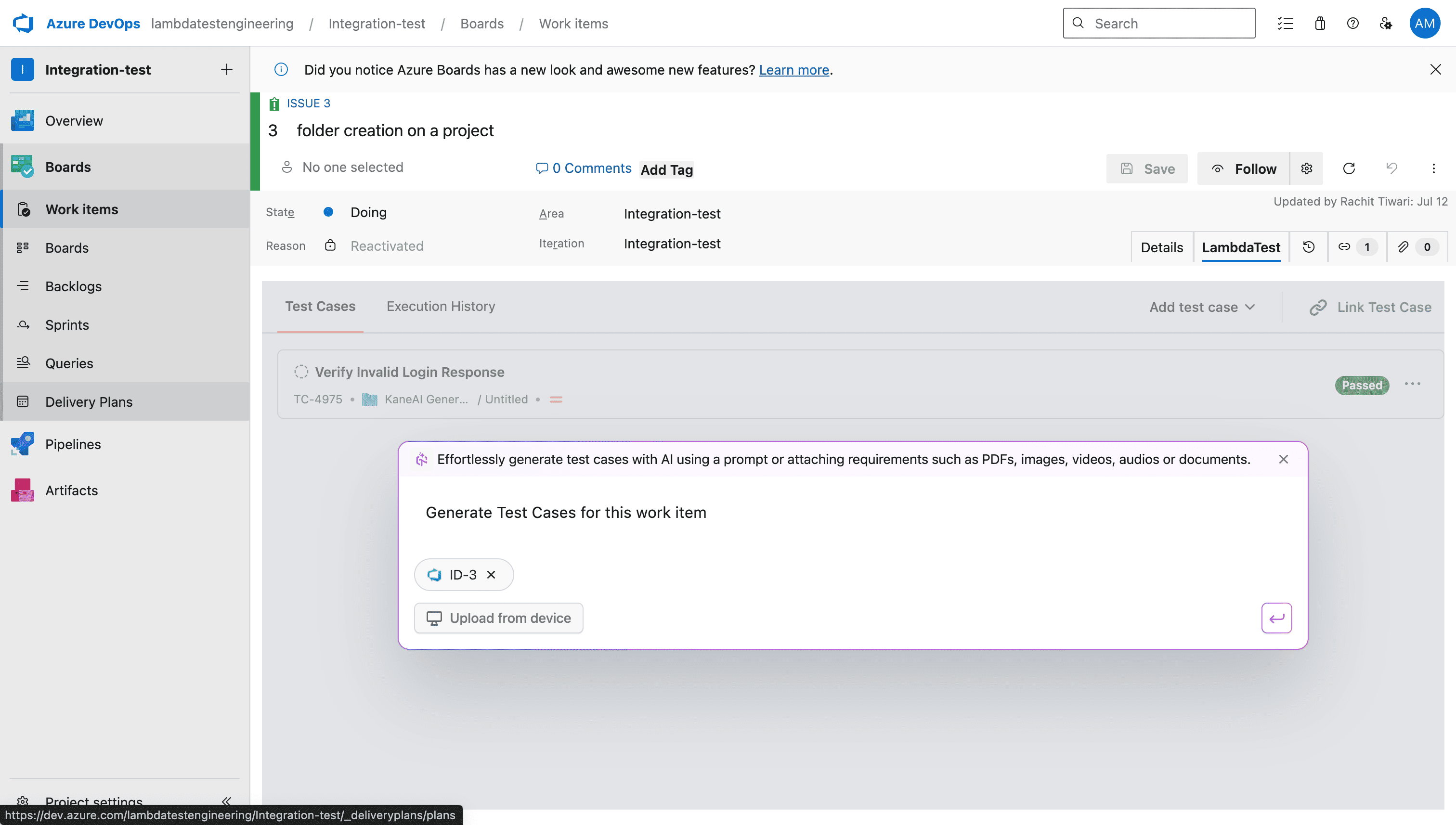
- Describe your requirements as text or attach files. The current Azure DevOps work item is attached to the input by default.
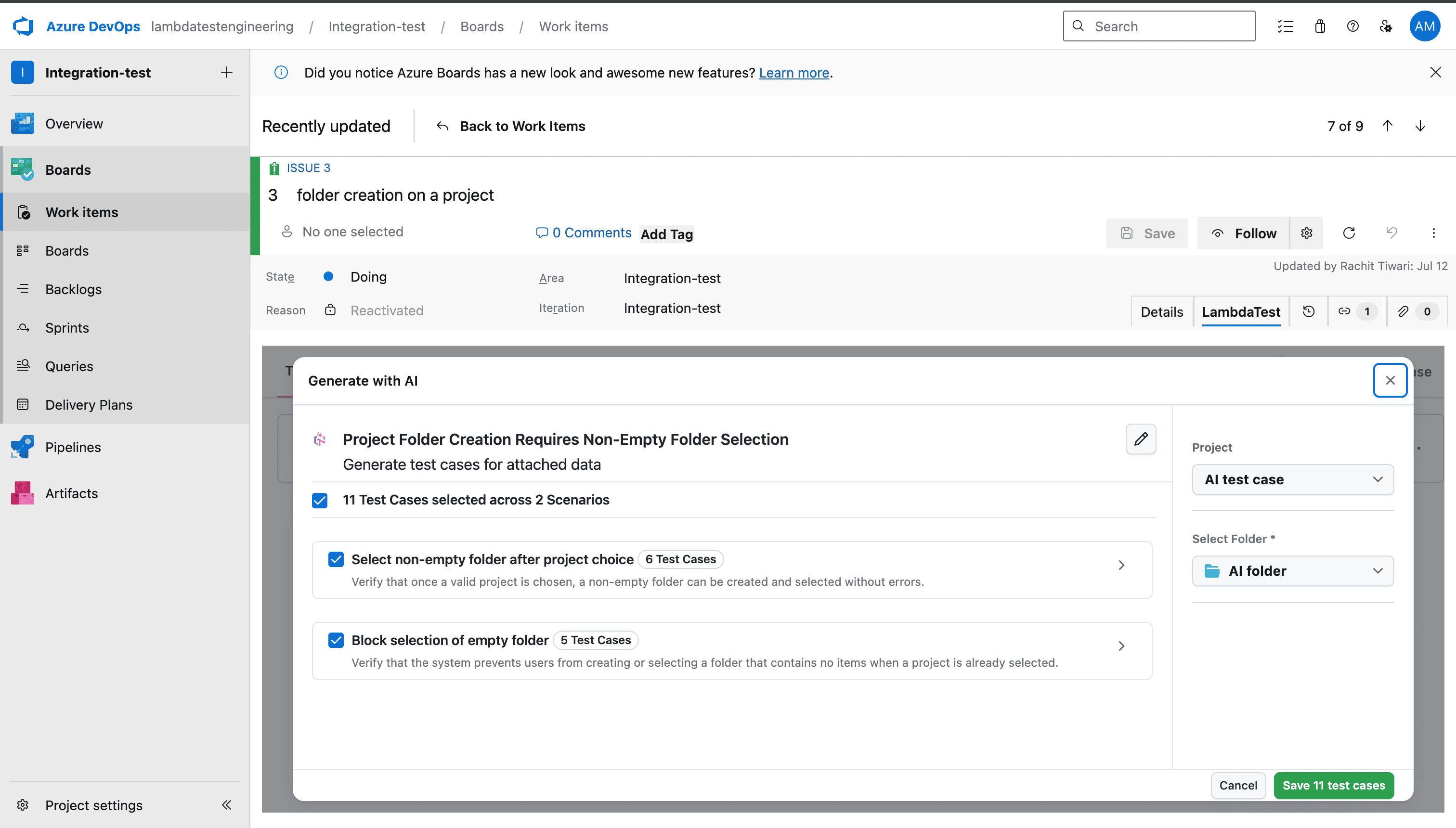
- AI generates scenarios and test cases from your input, each with a title, description, pre-conditions, and steps. Review them, select the ones you want, and save them to a specific project and folder.
- Saved test cases appear in the Test Cases section and link automatically to the originating work item, so traceability is maintained end to end.
Next Steps
Continue with these guides:
- Organize your linked and generated test cases in Test Manager.
- Turn more requirements into coverage with Generate Test Cases With AI.
- Automate your reviewed test cases with the KaneAI Command Guide.
 Chat with Us
 Ask the Community