Beta Testers and Teams Management
Beta Testers in TestMu AI App Distribution are the people you invite to download builds and receive new-build notifications. You can add testers individually, group them into Beta Teams, and then assign teams or individual testers to any app's sharing list.
This is a one-time, organization-level setup. Once a tester is added, you can reuse them across every app in your organization.
You can manage testers from the sidebar under Real Device → App Management and Distribution → Beta Testers.
Before You Begin
- A TestMu AI account with App Distribution enabled for your organization.
- The email addresses of the testers you want to invite. Testers can be inside or outside your organization, new builds can be accessed via the link received in their mail inbox.
Add Beta Testers
Beta Testers are the individual people you invite to access authenticated builds shared from an app's distribution settings.
Step 1: Navigate to Beta Testers in the sidebar.
Step 2: Click + Add Tester.
Step 3: Enter the tester's email address. New-build notifications will be sent to this email.
Step 4 (Optional): Add the tester directly to one or more existing teams from the same dialog.
Step 5: Click Add Tester. This sends the tester a welcome email so they can join your organization as a Beta Tester.
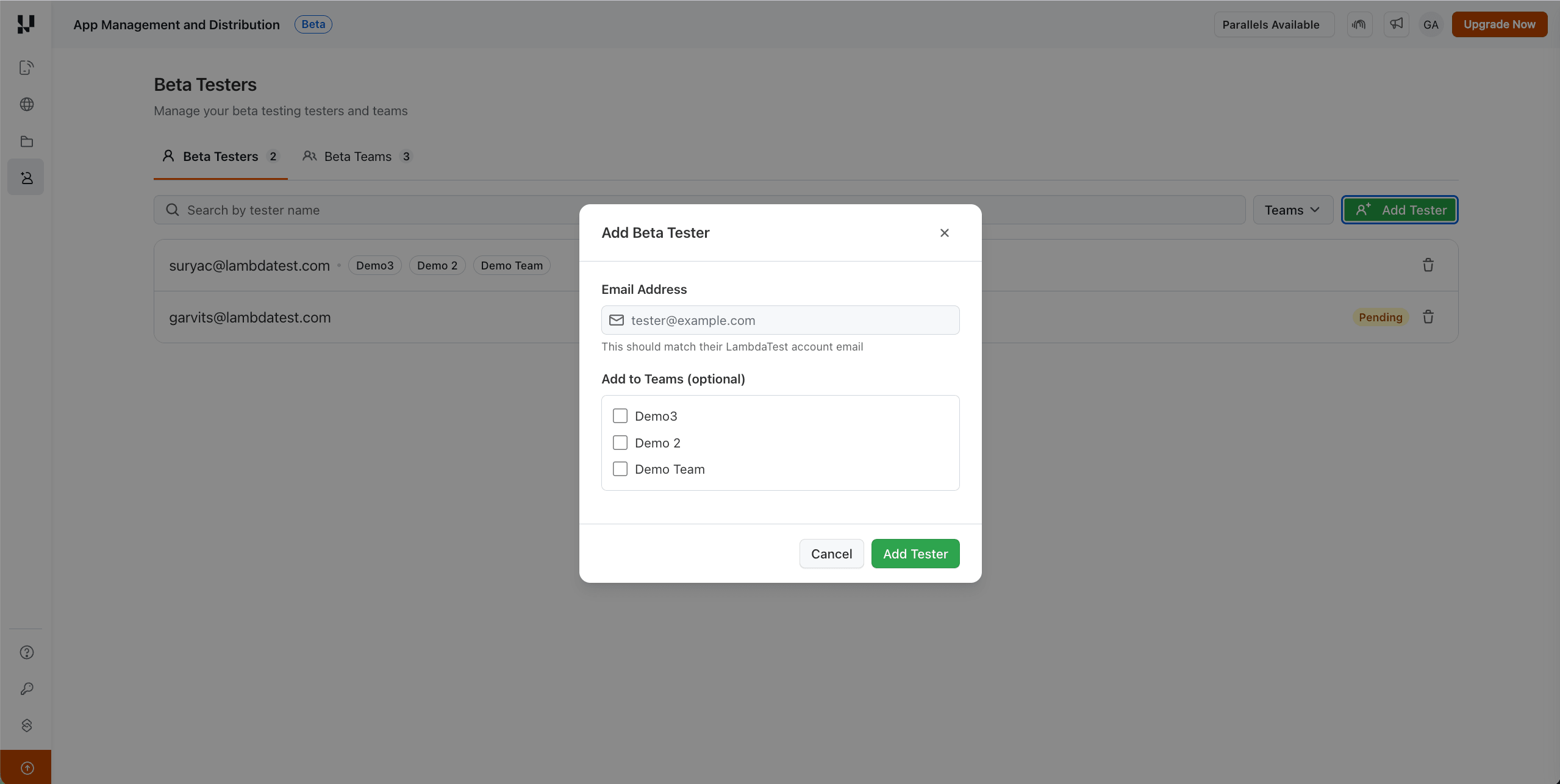
Until the tester accepts the invite, a Pending tag appears next to their email in the Beta Testers list. You can't add a tester to a team until they accept the invite.
Create Beta Teams
Teams are groups of testers that make it easier to manage access and notifications at scale. Instead of adding individual testers to each app, you assign a team, and all current (and future) members of that team get access automatically.
Step 1: Navigate to Beta Teams.
Step 2: Click + Create Team.
Step 3: Enter a team name (for example, QA Team, Release Candidates, External Testers) and an optional description.
Step 4: Select testers from the list to add as members. Only testers who have accepted their invite are selectable.
Step 5: Click Create Team.
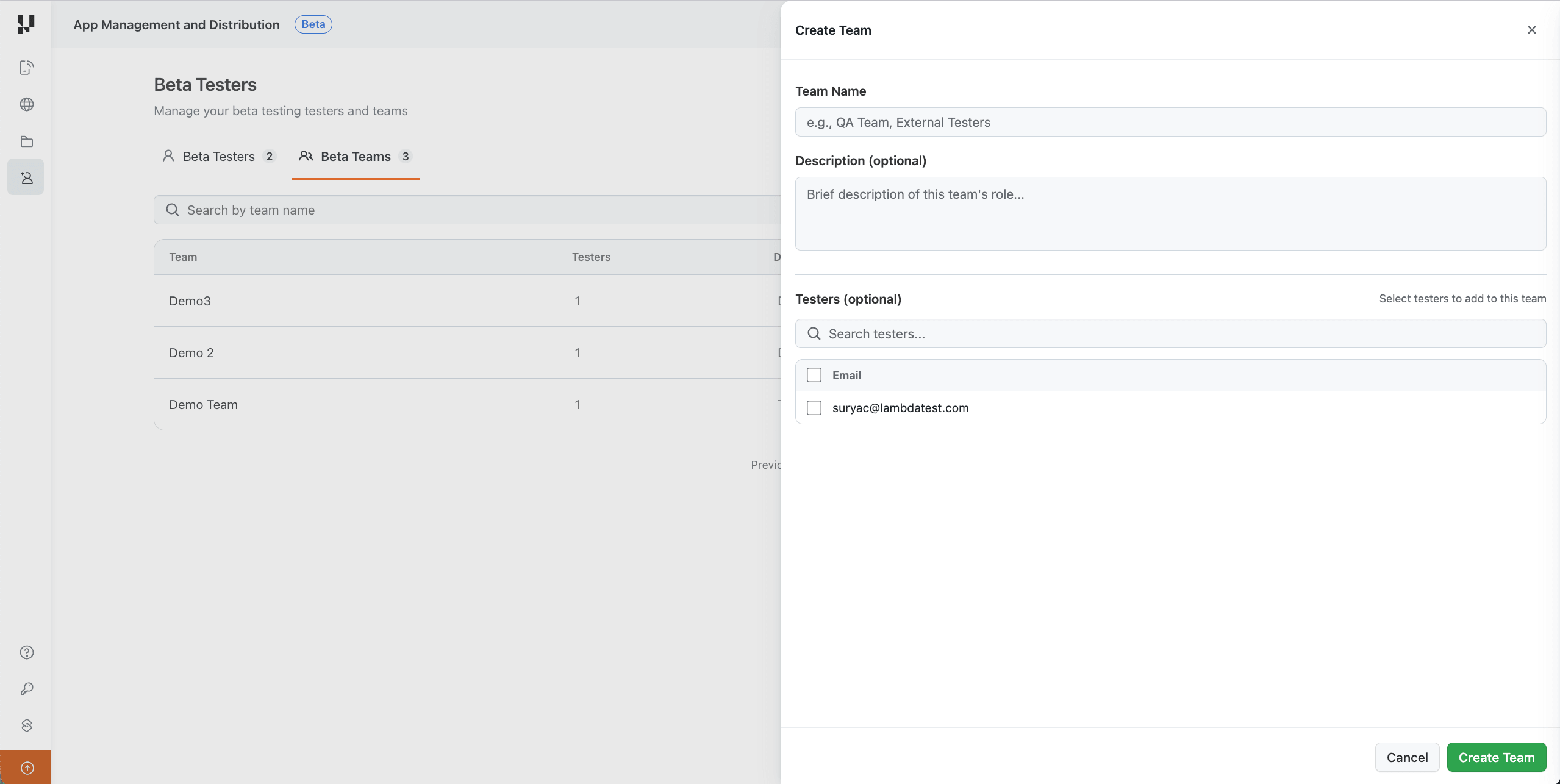
When a team is assigned to an app's sharing list, all members of that team can download authenticated builds and receive notifications.
Related Resources
- App Distribution on Real Devices - upload builds, configure sharing, and notify testers.


 Chat with Us