ACCELQ Integration with HyperExecute
ACCELQ is a cloud-based, continuous testing platform for functional and API testing needs. It is a codeless test automation tool that allows users to create and execute tests without writing any code. ACCELQ uses a natural language abstraction to generate Java code, which makes it easy to learn and use.
Integrate Accleq with HyperExecute
ACCELQ is the most powerful software testing tool to achieve Codeless test automation and accelerate continuous testing.
Prerequisites
- Sample scripts in ACCELQ
- Ensure that you have integrated ACCELQ with TestMu AI Cloud Selenium Grid
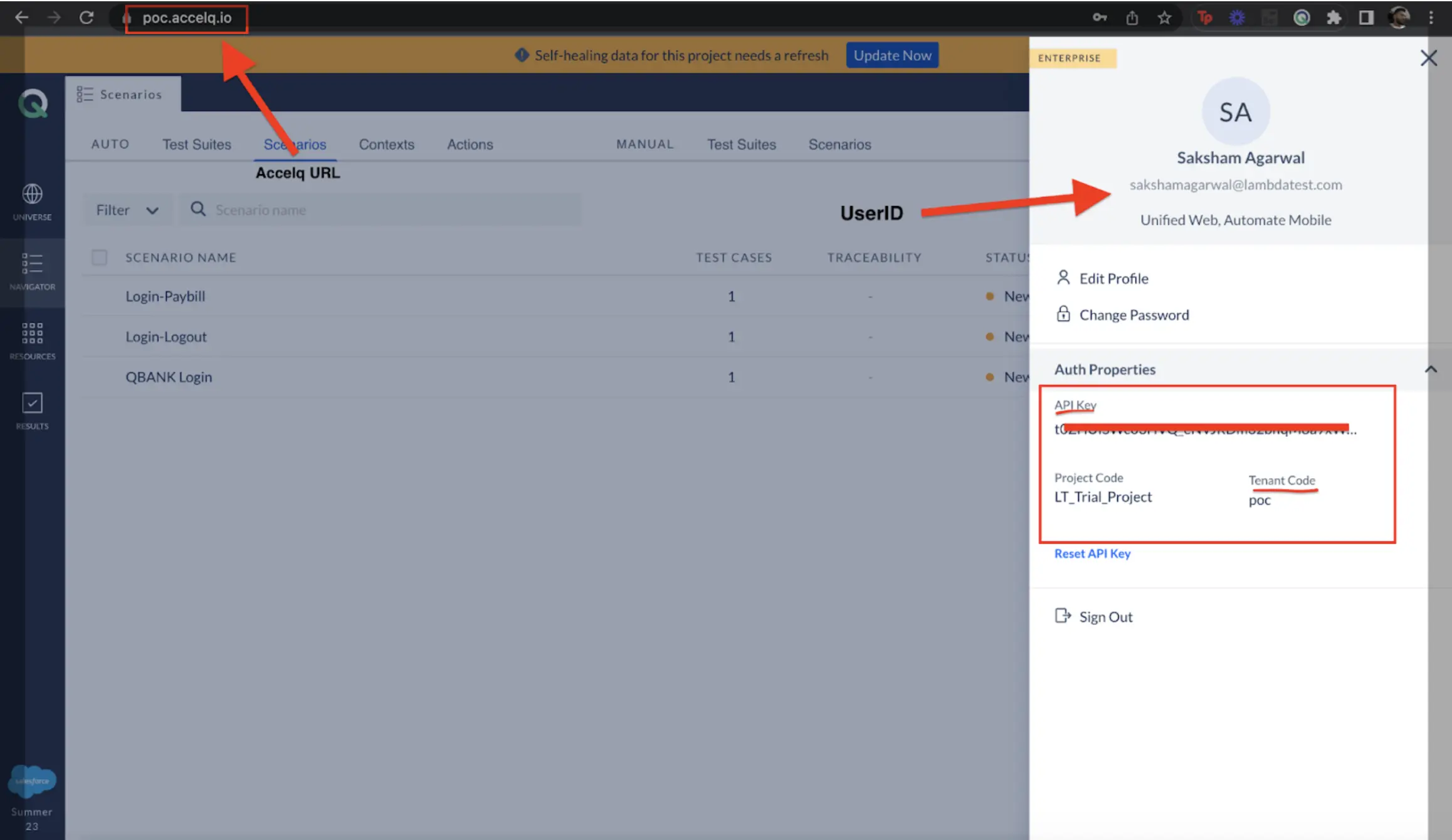
- Parameters- accelq url, userId, apiKey, tenant code, Job Id
- Agent.properties file for you configured agent with TestMu AI
Steps to Integrate
Step 1: Copy your local agent.properties file from <directory path> to root folder of your HyperExecute project.
Step 2: Update your YAML file with your account credentials.
Step 3: Execute HyperExecute job using the command:
Verified./hyperexecute --config hyperdemo.yaml -u <lambdausername> -k <lambda accesskey>
Additional Details
Where to Find the Parameters?
ACCELQ - URL, User-ID, API key, Tenant Code
How to create a Job ID?
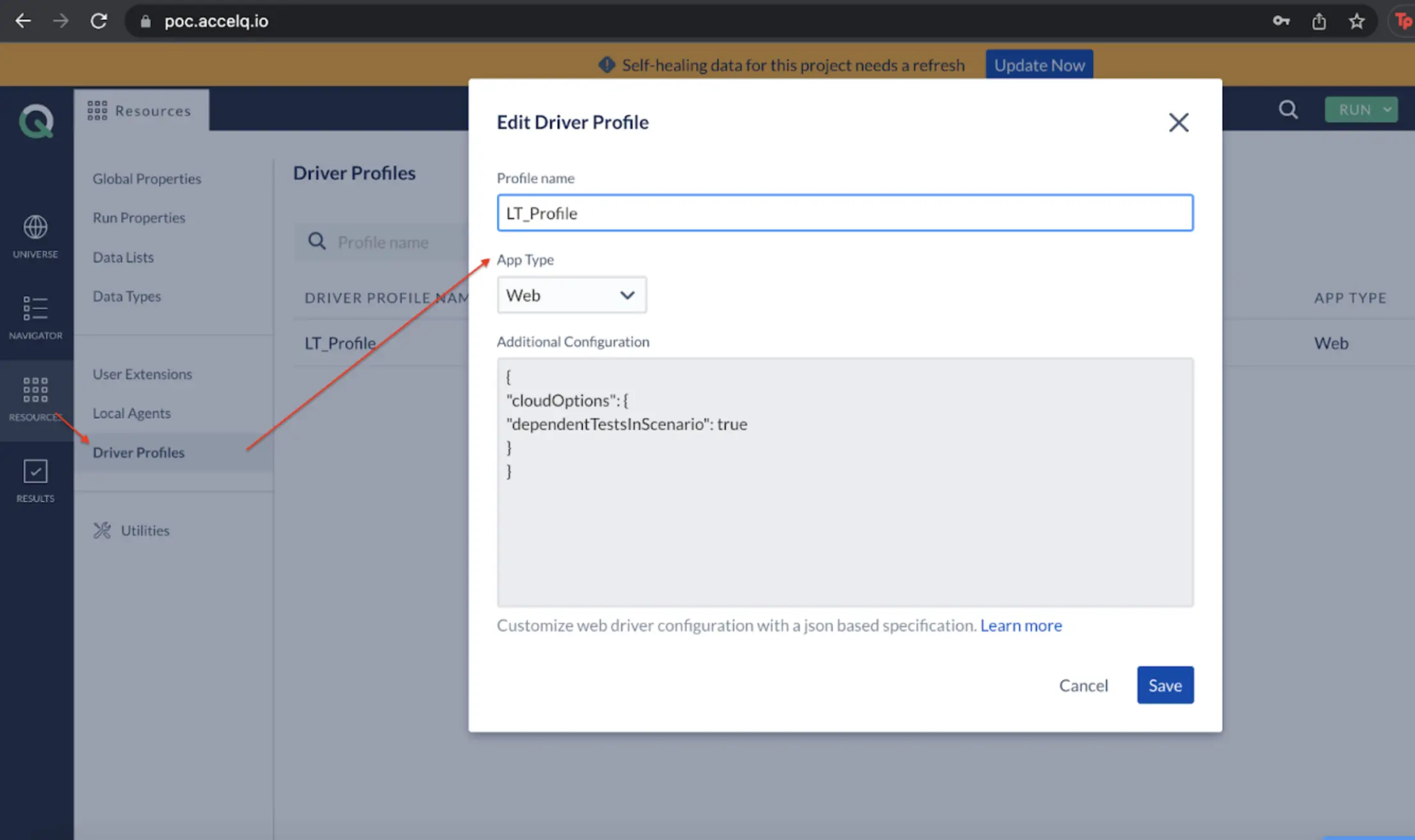
Step 1: Create an LT profile with with the below configuration and save it
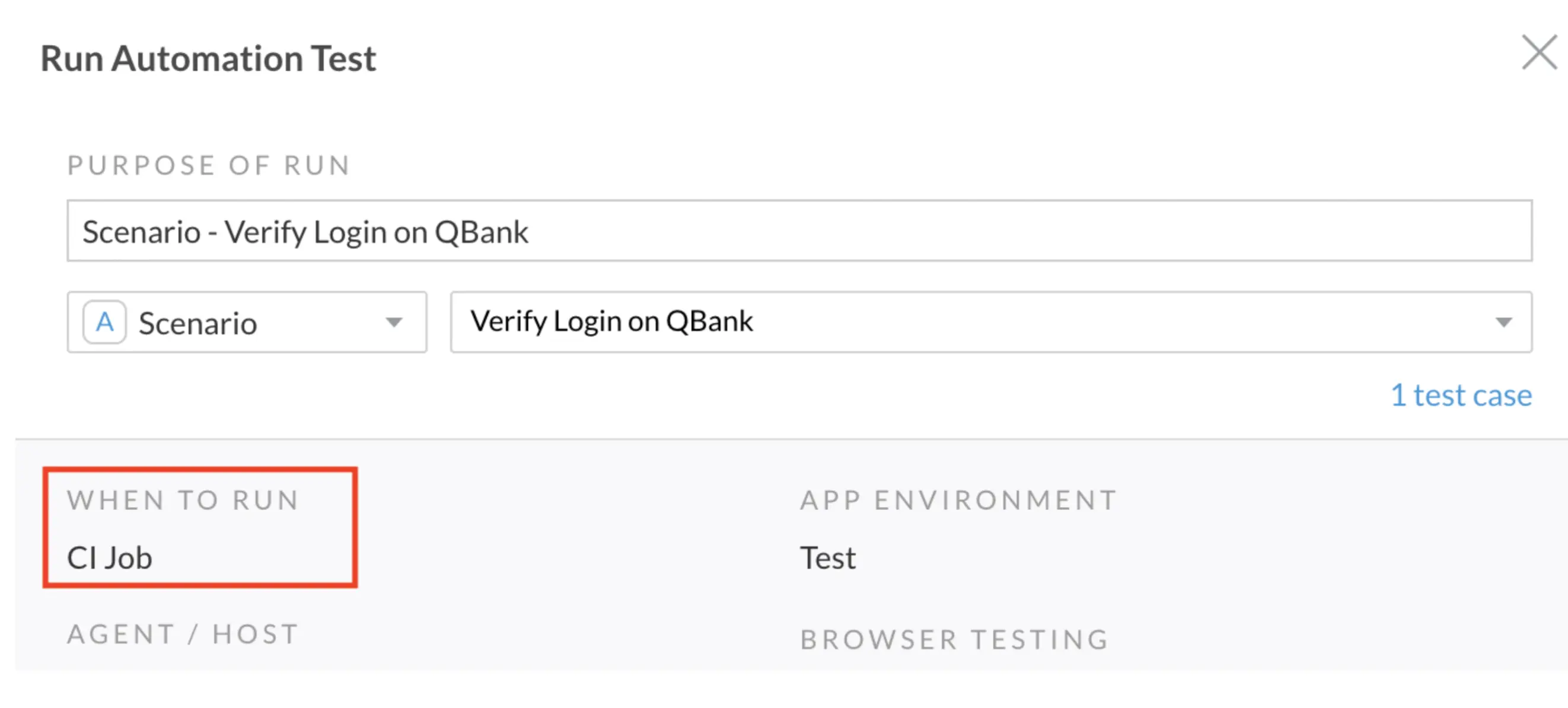
Step 2: Create a CI job with the same profile and agent which has TestMu AI configured with it.
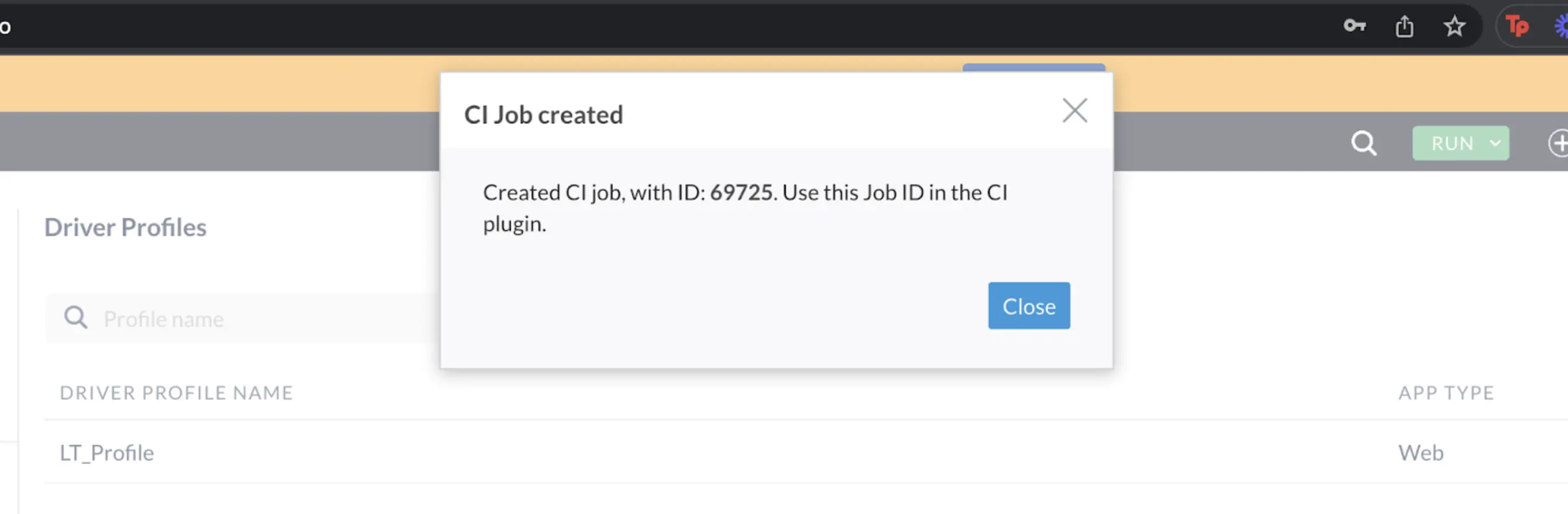
Step 3: Copy the Job ID
Agent.properties file
Agent.property file is a type of file that gets generated when you configures the agents from the ACCELQ to the TestMu AI.
- You can configure your TestMu AI from ACCELQ Agent Dashboard
- You can also find the same at the location
(ACCELQAgent/AgentInstances/<agent folder>/agent.properties)in your local system.
Sample File
Verified# name of the agent, which will appear in your Run modal
# must be a unique name across all projects in the tenant
# only accepts alphabets, numeric and underscore (_)
# Maximum length 32 characters.
agent_name = <Agent name by which JobID was created>
# Port on which the Agent should run. Leave it blank to use an available port dynamically
# agent_port=5000
# ACCELQ server url along with port number (if applicable)
accelq_server_url = <Accelq URL>
# ACCELQ user id you use for login
user_id = <Accelq userID>
# API key (available in the profile menu under the auth properties once you login to ACCELQ)
api_key = <Accelq key>
# Scope of the agent, which defines visibility (User, Project or Tenant)
# "User" Agent is accessible only for the User starting this Agent
# "Project" scope allows sharing the Agent for all Project users
# "Tenant" scope allows all users on the Tenant to use this Agent
agent_type = User
# Project codes where this Agent should be visible, separated with a comma
# Applicable only when scope of the Agent is set to "Project"
# Project Code can be found in the profile menu under the auth properties once you login to ACCELQ
# Example: project_code=proj1,proj2,proj3
# project_code=
# Web Provider Types - LOCALHOST, SAUCE_LABS, BROWSER_STACK, PERFECTO, LAMBDATEST, HEADSPIN, DIGITAL_AI
# Refer to documentation for applicable properties for different providers
web_provider_type = LAMBDATEST
# web_provider_type=LOCALHOST
web_provider_username = <LambdaTest Username>
web_provider_password = <LambdaTest AccessKey>
# web_provider_cloud_name=
# web_provider_security_token=
# web_provider_serverUrl=
# web_provider_hostname=
# web_provider_port=
# web_provider_data_center_endpoint=
# Mobile Provider Types - LOCALHOST, SAUCE_LABS, BROWSER_STACK, PERFECTO, LAMBDATEST, HEADSPIN, DIGITAL_AI
# Refer to documentation for applicable properties for different providers
mobile_provider_type = LOCALHOST
# mobile_provider_username=
# mobile_provider_password=
# mobile_provider_cloud_name=
# mobile_provider_security_token=
# mobile_provider_serverUrl=
# mobile_provider_hostname=
# mobile_provider_port=
# mobile_provider_data_center_endpoint=
# Browserstack Local Settings
# auto_start_bs_local=true
# browserstack_local_key=
# Number of concurrent jobs to allow
# Any invalid number will be considered as one concurrent job
num_concurrent_jobs = 2
# Number of parallel test cases to execute in a given job
# Any invalid number will be considered as single thread
num_parallel_tc_per_job = 4
# Proxy settings for HTTP - uncomment following lines if applicable
# http_proxy_host=
# http_proxy_port=
# http_proxy_user=
# http_proxy_password=
# http_proxy_nonproxyhosts=
# Proxy settings for HTTPS - uncomment following lines if applicable
# https_proxy_host=
# https_proxy_port=
# https_proxy_user=
# https_proxy_password=
# https_proxy_nonproxyhosts=
# SSL Certificate Verification
# ssl_cert_verification=true
# Appuim URL
appium_url = http://localhost:4723
# TE Settings
# te_start_server=false
# te_server_port=9095
# Indicates if the web driver should be auto-updated based on the browser version on the agent machine (local, server_side, off)
# local : Fetch driver jars directly from the Agent host
# server_side : Fetch driver jars from ACCELQ server connection
# off : Do not auto-update the driver jars
# web_driver_auto_update=local
# Port numbers to use for virtualization servers
# Leave this blank to use ports dynamically. If not, give the range with comma separation (e.g. 9000, 10000)
# Number of available ports should be at least twice the number of concurrent threads running at any point
# virtualization_ports_range=
# Experimental Flags (Internal use only)
agent_host = LT-MBP-194
tenant_code = poc
# work_root = file path of agent
# Available Sharing Types: USER (0) or Shared (1)
sharing_type = 0
# cleanup_run_folders=true
# virtualization_debug_log=true
# run_re_trigger_timeout=30
# tc_stmt_line_max_count=100000
# sync_runtime=true
# force_sync_runtime_at_startup=false
# Available Image Qualities: high, medium or low
# image_quality=high
# Extra Flags
provider_type = LAMBDATEST
provider_password = <LambdaTest AccessKey>
provider_username = <LambdaTest Username>
Sample YAML Files
Single YAML File
Verifiedversion: 0.1
user: <Lambdatest Username>
key: <Lambdatest AccessKey>
globalTimeout: 150
testSuiteTimeout: 150
testSuiteStep: 150
autosplit: true
runson: win
concurrency: 1
pre:
- move agent.properties C:\Users\ltuser.ghtestVM\Downloads\acc_installer_win\ACCELQAgent\AgentInstances\agent\agent.properties #move your agent file to hyperex machines agent folder
- acc start # start accelq agent on hyperexecute machines
testDiscovery:
type: raw
mode: remote
command: echo test
testRunnerCommand: node $env:ACCELQ --url "https://poc.accelq.io" --userID "<Accelq UserID>" --apiKey "<Accelq API Key>" --tenantCode "poc" --jobID "<Accelq jobID>"; C:\Users\ltuser.ghtestVM\Downloads\acc_installer_win\ACCELQAgent\Dashboard\AQAgentControllerShutdown.exe;
Parallel YAML File
Verifiedversion: 0.1
globalTimeout: 150
testSuiteTimeout: 150
testSuiteStep: 150
runson: win
matrix:
jobID: ["<jobID 1>","<jobID 2>"]
agent: [hyper1\agent.properties,hyper2\agent.properties]
exclusionMatrix:
- jobID: ['<jobID 1>']
agent: [hyper2\agent.properties]
- jobID: ['<jobID 2>']
agent: [hyper1\agent.properties]
pre:
- move agent.properties C:\Users\ltuser.ghtestVM\Downloads\acc_installer_win\ACCELQAgent\AgentInstances\agent\agent.properties #move your agent file to hyperex machines agent folder
- acc start # start accelq agent on hyperexecute machines
testSuites:
- node $env:ACCELQ --url "" --userID "" --apiKey "" --tenantCode "poc" --jobID $jobID;


 Chat with Us