App Distribution on Real Devices
TestMu AI App Distribution lets your team upload Android and iOS app builds from a CI/CD pipeline or the dashboard, organize them by package, and distribute them to internal QA and external beta testers through secure, authenticated download links. Every new build can auto-notify the right testers, and any build can be launched on a real device in one click.
App Distribution lives in the sidebar under Real Device → App Management and Distribution and includes two sections:
| Section | Purpose |
|---|---|
| App Manager | Upload, organize, and manage your apps and builds. |
| Beta Testers | Manage individual testers and tester teams used for distribution. |
App Distribution is currently in Beta and only supports builds signed with an Enterprise certificate. We're actively working on expanding the features and gradually rolling it out. If you have any queries, please reach out to our support team.
Before You Begin
- A TestMu AI account with App Distribution enabled for your organization.
- An Android (
.apk/.aab) or iOS (.ipa) build, no larger than 1 GB. - For CI/CD uploads, your TestMu AI username and access key (find them on your dashboard).
Manage Beta Testers
Before distributing builds, set up the people who'll receive them. This is a one-time setup at the organization level, done from the Beta Testers section in the sidebar.
For the full walkthrough of adding individual testers and creating tester teams, see the Beta Testers Management guide.
At a glance:
- Beta Testers are individuals you invite by email.
- Beta Teams are groups of testers. Assign a team to an app's sharing list and all current (and future) members of that team get access automatically.
Upload Builds
You can add builds to App Distribution either from the dashboard or directly from your CI/CD pipeline.
From the Dashboard
Step 1: Open App Manager from the sidebar.
Step 2: Drag and drop your build file into the upload zone, or click Click to upload to browse.
| Platform | Supported format |
|---|---|
| Android | .apk, .aab |
| iOS | .ipa |
Maximum size per build: 1 GB
From Your CI/CD Pipeline
Builds produced by Azure DevOps, GitHub Actions, Jenkins, Bitrise, CircleCI, or any other pipeline can be uploaded to App Distribution using the same Upload App API used by App Manager. See App Testing APIs for the request format.
How Builds Are Organized
App Distribution auto-detects each build's app from the package name (Android) or bundle ID (iOS) and groups every version of that app together. You don't need to create apps manually.
| Upload | Result |
|---|---|
| New package name / bundle ID | A new app entry is created. |
| Same package + new version | A new build is added under the existing app. |
| Same package + same version | The previous build is overwritten. |
Distribution Page and Sharing
Every app has a Distribution Page (a hosted landing page testers visit to download builds) and a Sharing configuration (who can access it and who gets notified). Both are configured from the App View tabs.
Distribution Page Settings
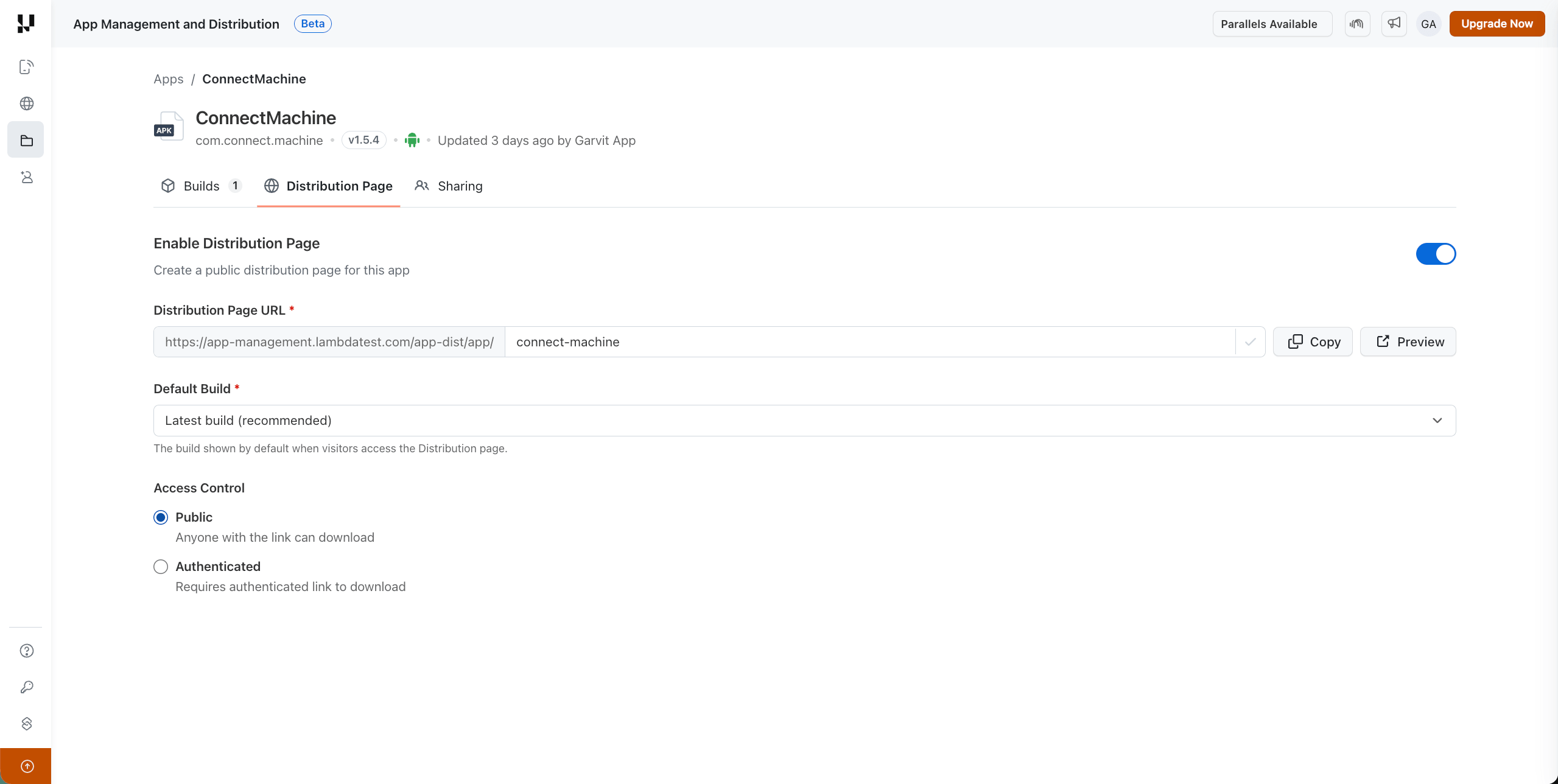
Open any app and go to the Distribution Page tab. Here you can
- Enable or disable the landing page. When disabled, visitors see a "Landing page closed" message instead of a download.
- Customize the URL slug, your landing page lives at a friendly URL such as
https://app-management.lambdatest.com/app-dist/app/android-qa. - Choose the default build to serve:
- Latest build - always serve the most recent upload.
- Specific version - pin the page to a particular build (useful for release candidates).
- Set access control:
- Public - anyone with the link can download.
- Authenticated - only testers in the app's sharing list can download from the link received in their email.
Sharing Settings
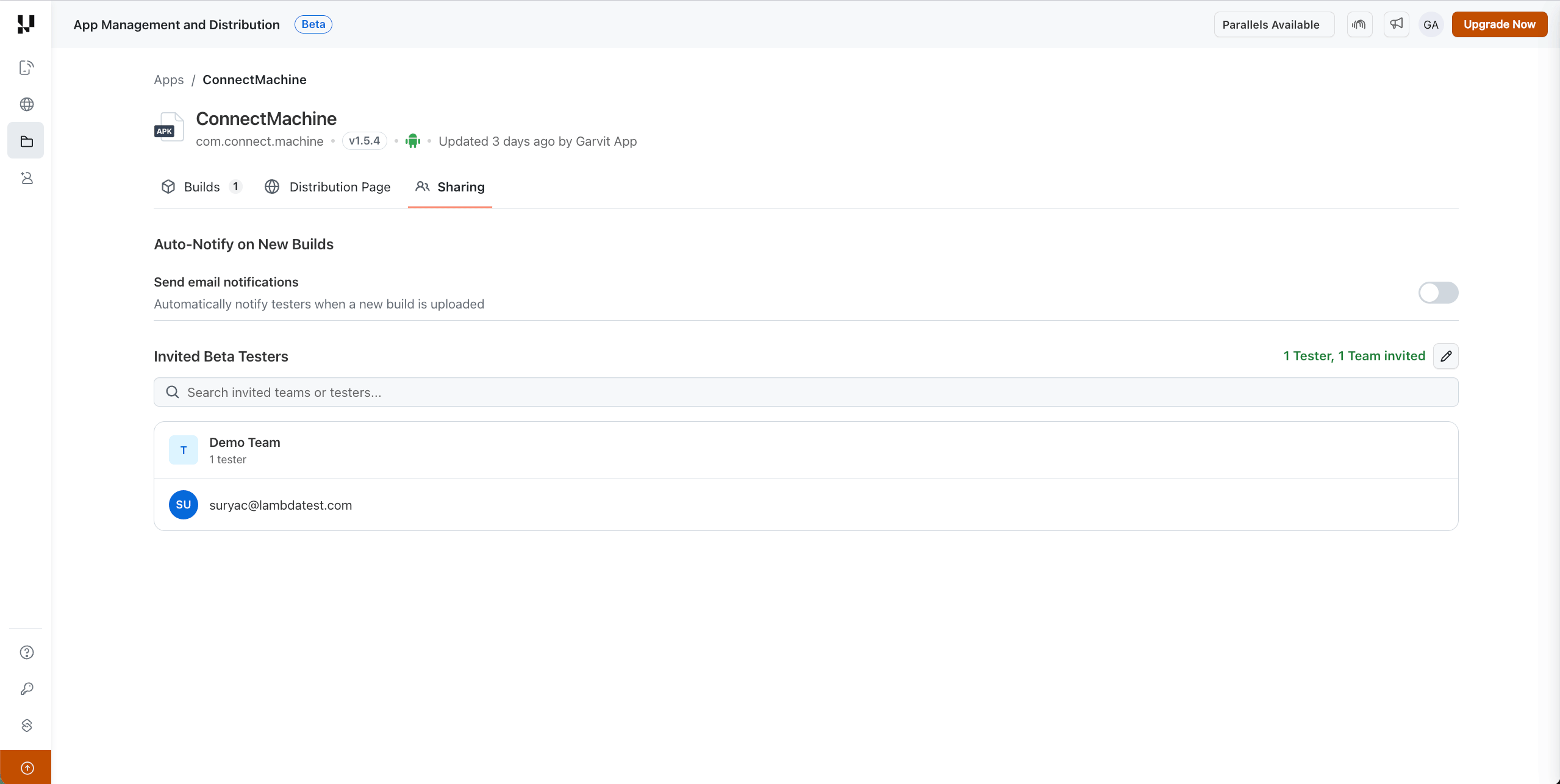
Open any app and go to the Sharing tab. Here you can:
- Toggle Auto-Notify - when ON, every new build upload automatically emails the configured testers.
- Set the notification scope:
- Invited testers only - notify just the teams and members on this app's sharing list.
- All testers in the organization - notify every beta tester in your org.
- Invite beta testers - search and add teams or individual members to the sharing list. Testers added here can download authenticated builds and receive notifications.
Notification Emails
When Auto-Notify is ON and a new build is uploaded, configured testers receive an email with a link to the Distribution Page.
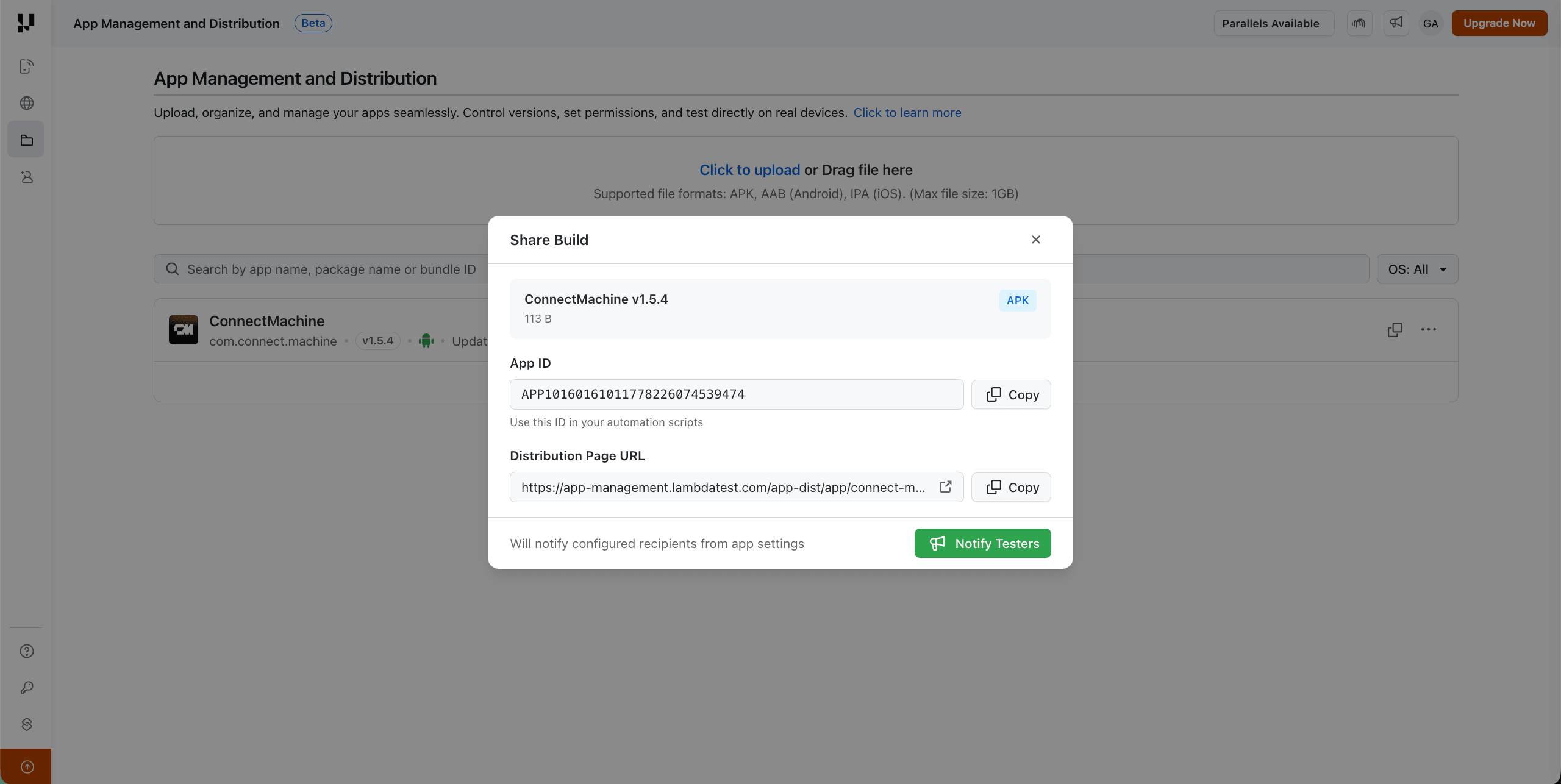
You can also send notifications manually:
- Open the build row in App Manager.
- Click the Share icon.
- Click Notify Testers.
Test on Real Devices
Any build in App Distribution can be launched on a TestMu AI real device in one click.
Step 1: From an app's Builds tab, locate the build you want to test.
Step 2: Click the Run icon on the build row. The device selection modal opens with the build pre-loaded.
Step 3: Select an Android or iOS real device and start your session. The build is installed automatically and ready to test.


 Chat with Us