e2e Integration with TestMu AI
e2e is an end-to-end testing framework for web and mobile apps. With the @e2e-dev/testmu package, your e2e targets run on TestMu AI instead of on your own machine or CI runner:
- Web: hosted Chrome and Edge, through
testmuBrowsers(). - Mobile: Android emulators, iOS simulators, and real devices, through
testmu().
Your tests don't change. Only the target config does. Every session appears on your TestMu AI dashboard with its command log and logs, and with a video recording when you enable it.
Prerequisites
Check these before you start. Missing any of them stops the first run.
- A TestMu AI account. Sign up for free.
- Node.js 22.12 or later.
- A Node project with a
package.json. Runnpm init -yin an empty folder if you don't have one.
Set Up Your TestMu AI Credentials
e2e signs in to TestMu AI with your username and access key. Copy them from Account Settings → Password & Security, then set them in the environment where e2e run starts, such as CI secrets.
On macOS, Linux, or Git Bash, run:
export LT_USERNAME="<your_username>"
export LT_ACCESS_KEY="<your_access_key>"
On Windows PowerShell, run this instead:
$env:LT_USERNAME = "<your_username>"
$env:LT_ACCESS_KEY = "<your_access_key>"
If either is missing, the run stops before any test starts with ENGINE_FAILURE (launch) and the message LT_USERNAME and LT_ACCESS_KEY are not set. testmuBrowsers() sends the credentials only in each session's CDP URL, never in a log line.
Run e2e Web Tests on Hosted Chrome and Edge
These steps run one test in a hosted Chrome browser on TestMu AI.
Install the Web Packages
Install e2e, its web engine, and the TestMu AI integration as dev dependencies:
npm install --save-dev e2e @e2e-dev/web @e2e-dev/testmu
Configure the Web Target
A target tells e2e where to run your tests. Set the target's browser to testmuBrowsers() to run on TestMu AI:
import type { E2EConfig } from 'e2e';
import { web } from '@e2e-dev/web';
import { testmuBrowsers } from '@e2e-dev/testmu/web';

export default {
  targets: [
    {
      name: 'testmu-web',
      engine: web({ browser: testmuBrowsers(), viewport: null }),
      app: { url: 'https://example.com' },
    },
  ],
} satisfies E2EConfig;
Each worker slot gets its own Chrome or Edge session on TestMu AI. Every attempt gets a new browser context in that session, so a test never sees another test's cookies, storage, or permissions.
Write a Web Test
Add a test file next to the config. This test opens the app and checks one element, and it needs no AI model:
import { test, expect } from 'e2e';

test('example.com loads', async ({ app, screen }) => {
  await app.open('/');
  await expect(screen.getByRole('link', { name: 'Learn more' })).toBeVisible();
});
Change app.url in the config to your own app when you move past this test.
Run the Web Test
Run the tests with LT_USERNAME and LT_ACCESS_KEY set in the same terminal:
npx e2e run
A successful run shows the leased TestMu AI session, a passing test, and the browser released:
ℹ testmu-browsers (1 of 1): TestMu AI session "e2e-<run id>-testmu-web-1" in build "<run id>"
ℹ testmu-browsers: leased testmu-web:slot-1
 ✓ example.com loads
ℹ testmu-browsers: released 1 browser(s)

 Tests  1 passed (1)
Verify Test Results on TestMu AI
Every run creates a test session on your TestMu AI dashboard. Use it to verify the test execution through its command log, logs, and video recording.
- Open the Automation dashboard in your TestMu AI account.
- Open the build named after your run ID.
- Open the session
e2e-<run id>-testmu-web-1to inspect its command log, logs, and video recording.
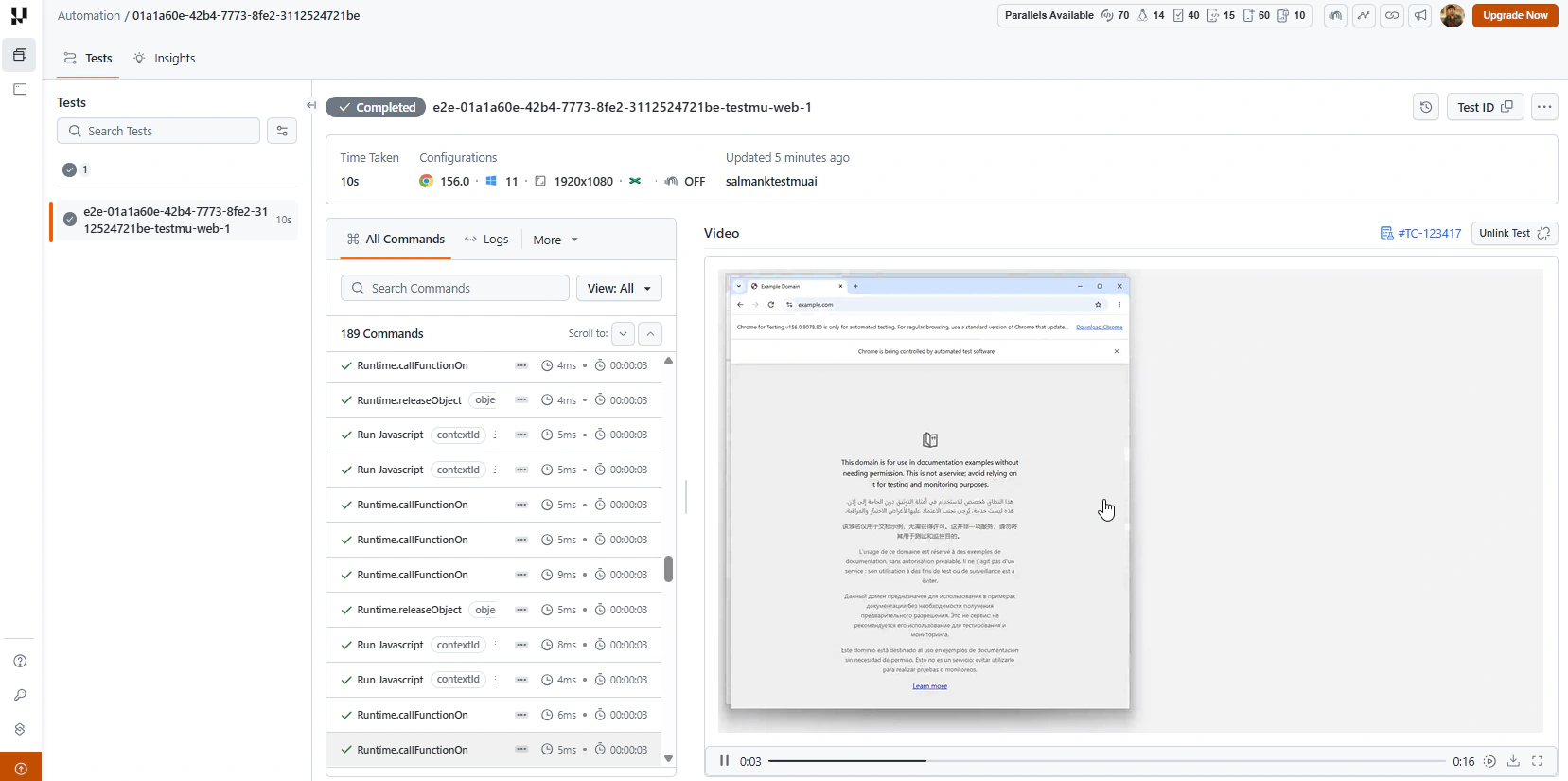
The dashboard marks a session Completed when it ends, whether or not your test passed. The pass or fail test result appears in the e2e run output.
To get a video of a browser session, pass video: true in capabilities.
Browser Options
Pass these options to testmuBrowsers() to choose the browser and to send extra settings to TestMu AI. Both are optional.
| Option | Default | Meaning |
|---|---|---|
browserName | 'Chrome' | 'Chrome' or 'MicrosoftEdge'. Any other browser fails the config. |
capabilities | none | browserVersion, and TestMu AI's LT:Options fields, such as platform, geoLocation, timezone, video, network, or tunnel and tunnelName for TestMu AI Tunnel. |
Unless capabilities sets them, the provider sends:
platform: Windows 11, since TestMu AI refuses a session without one.build: the run ID.project:e2e.idleTimeout: 600 seconds.
Edge sessions also get --user-data-dir=remote-debug-profile-edge in browserOptions unless capabilities set one.
The provider sets user, accessKey, and name itself, so capabilities that set any of them fail the config with INVALID_CONFIG. So do a nested LT:Options, a browserName (use the option instead), a value JSON cannot carry, and a misspelled testmuBrowsers() option. Other capabilities keys go to TestMu AI unchecked.
testmuBrowsers({
  browserName: 'MicrosoftEdge',
  capabilities: { browserVersion: '140', platform: 'Windows 10', build: `checkout ${process.env.GITHUB_SHA}`, video: true },
})
Run e2e Mobile Tests on Emulators, Simulators, and Real Devices
These steps run one test on a TestMu AI device with the Proverbial sample app. Each worker slot leases one device when the run starts and releases it when the run ends. You don't need a Mac, Xcode, or the Android SDK on the machine that runs e2e.
Install the Mobile Packages
Install e2e, its mobile engine, and the TestMu AI integration as dev dependencies:
npm install --save-dev e2e @e2e-dev/mobile @e2e-dev/testmu
Configure the Device Targets
Each target names the device and the app build TestMu AI installs on it. This config uses TestMu AI's sample Proverbial apps:
import type { E2EConfig } from 'e2e';
import { mobile } from '@e2e-dev/mobile';
import { testmu } from '@e2e-dev/testmu';

const apk = 'https://prod-mobile-artefacts.lambdatest.com/assets/docs/proverbial_android.apk';
const ipa = 'https://prod-mobile-artefacts.lambdatest.com/assets/docs/proverbial_ios.ipa';

export default {
  targets: [
    {
      name: 'android-emulator',
      engine: mobile({
        platform: 'android',
        device: testmu({ device: 'Galaxy S22 Ultra 5G', osVersion: '14', app: apk }),
      }),
      app: { bundleId: 'com.lambdatest.proverbial' },
    },
    {
      name: 'ios-real',
      engine: mobile({
        platform: 'ios',
        device: testmu({ device: 'iPhone 16', osVersion: '18', app: ipa, deviceType: 'real' }),
      }),
      app: { bundleId: 'proverbial' },
    },
    {
      name: 'android-real',
      engine: mobile({
        platform: 'android',
        device: testmu({ device: 'Pixel 6', osVersion: '14', app: apk, deviceType: 'real' }),
      }),
      app: { bundleId: 'com.lambdatest.proverbial' },
    },
  ],
  workers: 1,
} satisfies E2EConfig;
This config has three targets, and each one leases its own device. Keep only the targets you want to run.
deviceandosVersionmust match the TestMu AI catalog exactly:18.0for a virtual iOS device,18for a real one, and14for Android. Real and virtual devices have separate catalogs.appis the build TestMu AI installs on every session: anlt://app ID, anhttpsURL, or a local path. A local path is resolved against the directory ofe2e.config.tsand uploaded. To get anlt://ID, upload your app to TestMu AI first.- Use an
.apkor.aabon Android, a zipped.appon an iOS simulator, and a signed.ipaon a real iOS device. - Leave the target's
app.appPathout, and keepapp.bundleIdforapp.open().
Write and Run a Mobile Test
Add a test file for the app. This test opens the Android Proverbial app and checks its welcome text, so run it with the android-emulator target:
import { test, expect } from 'e2e';

test('proverbial app opens', async ({ app, screen }) => {
  await app.open();
  await expect(screen.getByText('Hello! Welcome to lambdatest Sample App called Proverbial')).toBeVisible();
});
Run the tests with LT_USERNAME and LT_ACCESS_KEY set in the same terminal:
npx e2e run
Leasing a device takes about 30 to 75 seconds before the test starts. The run shows the leased device and the session name e2e-<run id>-<target>-<slot>. Find the session on your TestMu AI dashboard by that name or by the build.
Device Options
Pass these options to testmu() to choose the device, the app, and how the session is grouped on the dashboard. Only device, osVersion, and app are required.
| Option | Default | Meaning |
|---|---|---|
device | required | Device name as the TestMu AI catalog lists it ('Galaxy S22 Ultra 5G', 'iPhone 16'). |
osVersion | required | OS version as the catalog lists it for that device. |
app | required | The build TestMu AI installs: an lt:// app ID, an https URL, or a local path. |
deviceType | 'virtual' | 'virtual' for an emulator or simulator, 'real' for a real device. |
project | 'e2e' | Dashboard project the sessions are grouped under. |
build | the run ID | Dashboard build the sessions are grouped under. |
sessionName | e2e-<run id>-<target>-<slot> | Session name on the dashboard. With more than one worker slot, -<slot> is appended. |
orientation | the device's | 'portrait' or 'landscape'. |
geoLocation | TestMu AI's | Country code the device's IP geolocates to ('US'). |
timezone | the device's | Time zone ('UTC+05:30'). |
language | the device's | Language code ('fr'). |
locale | the device's | Locale ('fr_FR'). |
appiumVersion | TestMu AI's | Appium version for the session ('2.16.2'). |
Device features are set when the session starts and hold for the whole session. An unknown option or an invalid value fails the config load with INVALID_CONFIG.
Test Local Apps with TestMu AI Tunnel
To let a browser session reach a server on your network, start TestMu AI Tunnel and set tunnel and tunnelName in capabilities. For device sessions, read logs on the dashboard.
Videos and Session Names
By default, each session is named e2e-<run id>-<target>-<slot> on the dashboard. Use that name to find a session and its video.
- Devices: an attempt links to TestMu AI's recording of the session, found by its
buildandsessionName. The recording covers the whole session, so every attempt on a worker slot links the same video. Runs that overlap and share a fixedbuildandsessionNamecan link each other's videos. The defaults never do. - Browsers: an attempt gets the web engine's screencast of the page, as in a local run. TestMu AI records the session's screen when you pass
capabilities: { video: true }.
Limitations
Know these limits before you scale up a run or move it to CI. Some of them affect cost and whether a run passes.
- Parallel sessions. Keep
workerstimes the number of TestMu AI targets within your plan's parallel sessions. A browser session beyond the plan waits in TestMu AI's queue. - Device sessions are billed while leased. A device session starts when its slot is leased and is billed until the run releases it, even when no test runs on it.
- Stopped runner on a device. If the runner is killed before it releases a device, TestMu AI's idle timeout (120 seconds by default) ends the session, about three minutes after its last command.
- Unconfirmed release fails the run. A run fails when it can't confirm the device session ended, even when every test passed: a forced daemon stop, a lost shutdown report, or a daemon that exited during the run. Find the session on the dashboard by its
buildandsessionName. - Device settings and logs. Device settings (permissions, location, network, appearance), system alerts, recording and device logs through
agent-device, and port reverse are not available. Read logs on the TestMu AI dashboard. - 60-second browser connect. A browser session that is still queued or provisioning after 60 seconds fails with
LAUNCH_TIMEOUT, or withENGINE_FAILUREwhenlaunchTimeoutis over 60 seconds. A shorterlaunchTimeoutends the wait sooner, but a longer one does not extend it. - Dropped browser connections. A browser session cannot be resumed, so a dropped connection fails the attempt.
- Browser downloads. TestMu AI's browsers save downloads on their own machines, so
browser.waitForDownloadfails withENGINE_FAILURE. Assert on the download link or the request instead.
 Chat with Us