Command Annotations
Your test script holds important details about the test, like its description, when different scenarios start and finish, and other data you may want to show on the console for debugging and tracking purposes.
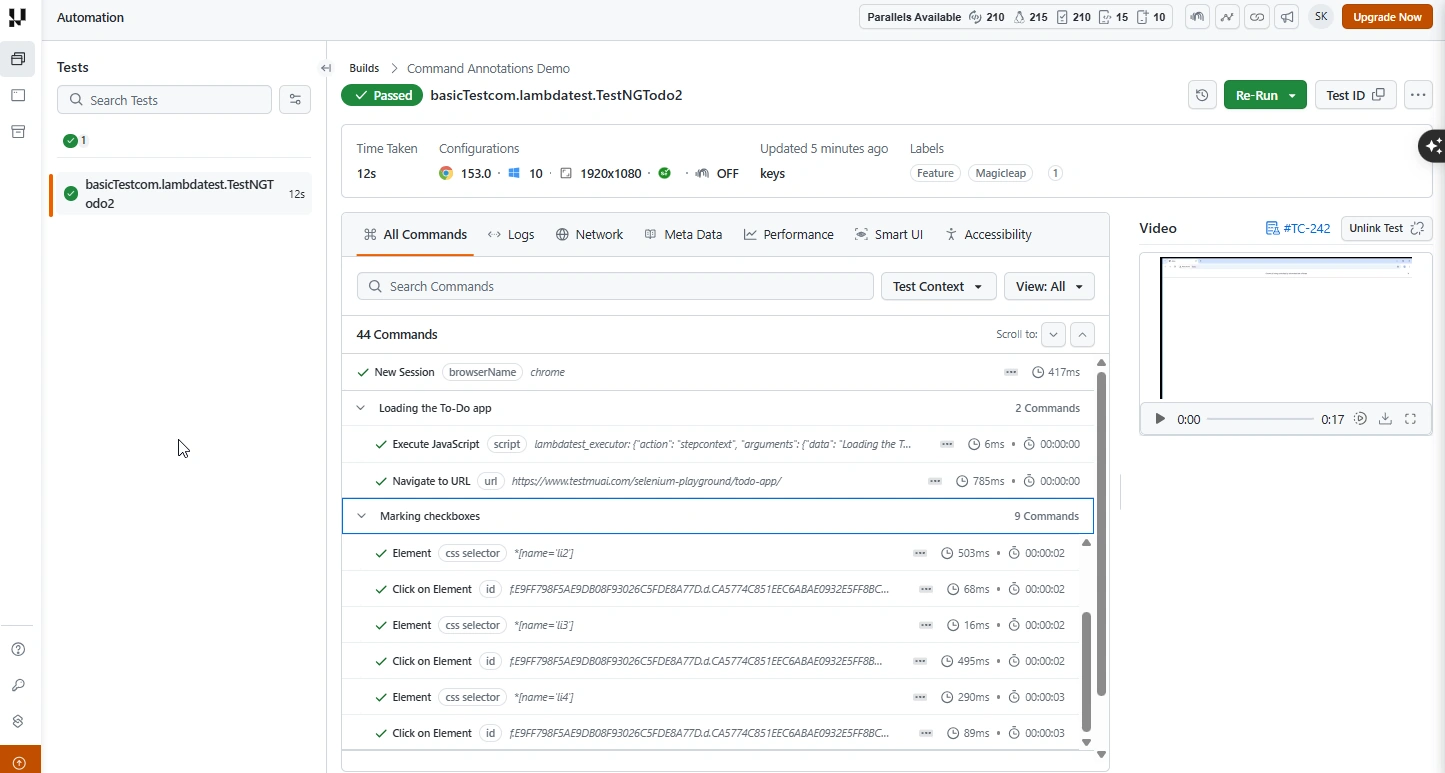
By using command annotations, you can integrate configurations in your tests that log this information on TestMu AI. These logs are available on the TestMu AI Automation Dashboard alongside the command logs, providing a quick way to search and navigate to a specific test section and troubleshoot any failed tests.
Sending Logs to TestMu AI Using JavaScriptExecutor
Use the JavaScriptExecutor to send annotations directly from your test script to the dashboard.
You can send annotations to TestMu AI directly from your test script using the annotate action through the JavaScriptExecutor.
Here is an example written in Java:
VerifiedJavascriptExecutor jse = (JavascriptExecutor)driver;
jse.executeScript("lambdatest_executor: {\"action\": \"stepcontext\", \"arguments\": {\"data\": \"<any string>\", \"level\": \"<info/warn/debug/error>\"}}");
The annotation call takes two arguments, data and level:
-
data: Accepts a value in string data type.
-
level: Accepts the standard log severity levels: info, debug, warn, and error. This argument is optional with the default value of info.
Searching and Filtering
Locate and filter your annotated logs in the All Commands tab on the Automation Dashboard.
Once your test script has sent command annotations to TestMu AI, you can locate all the annotations pushed to the logs in the All Commands tab on the TestMu AI Automation Dashboard. This search feature is especially useful for long-duration test sessions. Additionally, you can filter these annotated logs based on severity levels and customize the selection according to your logging patterns.


 Chat with Us