Edit and Clone Scans in Web Scanner
Overview
After you schedule a Visual UI scan, you can change it or reuse it from the scan list. Two actions in the scan's menu cover this:
- Edit scan config: change the URLs, browsers, viewports, advanced configurations and schedule of the scan you already have.
- Clone scan: create a new scan that starts with the same URLs, settings and schedule as an existing one.
Both actions are available for Visual UI scans. Accessibility scans offer Rename and Delete in their menu instead.
To open either action, go to the Visual UI tab of the Web Scanner dashboard and click the three-dot menu (⋯) on the scan's row.
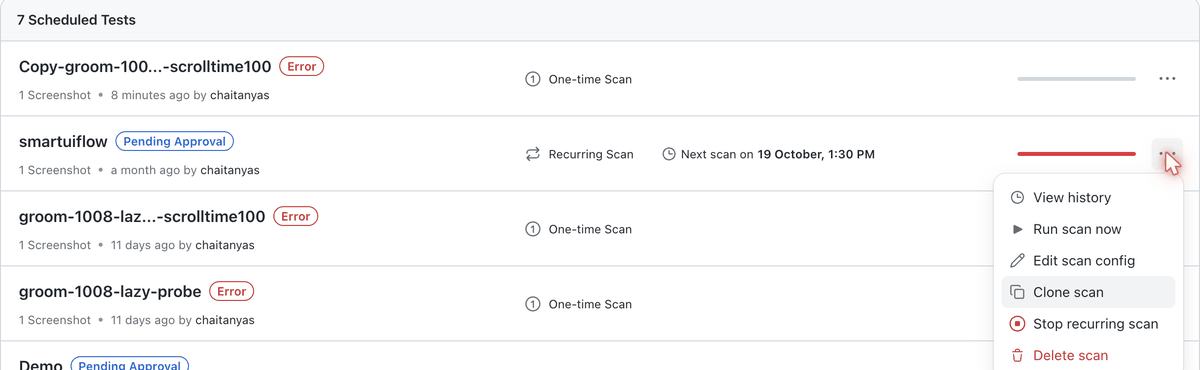
Edit a Scan
Open the Editor
- On the Visual UI tab, click ⋯ on the scan you want to change.
- Select Edit scan config.
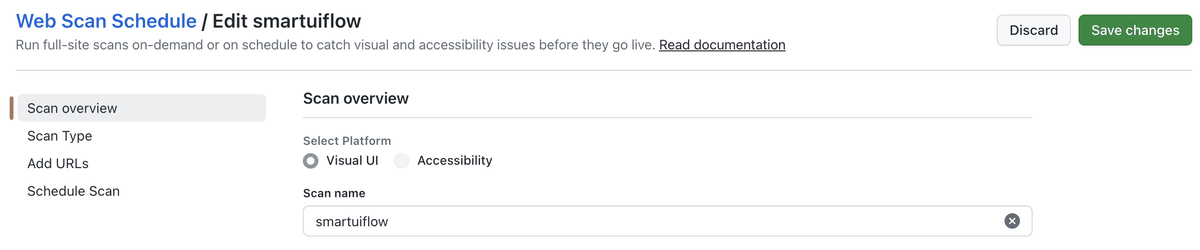
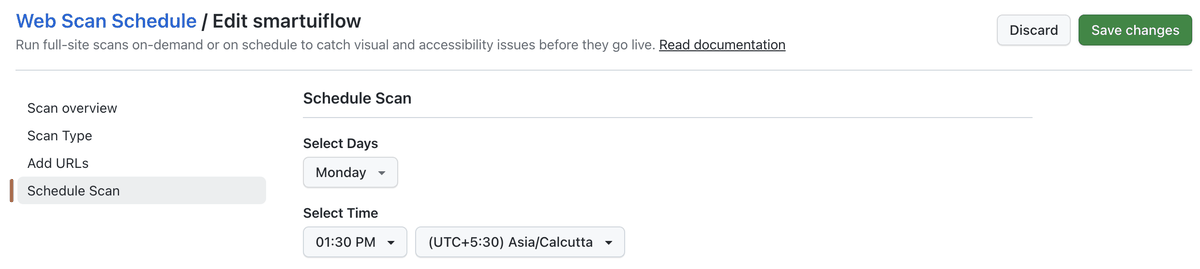
The scan opens in a full-page editor titled Edit <scan name>. It has the same four sections as the scan creation wizard, listed on the left:
- Scan overview
- Scan Type
- Add URLs
- Schedule Scan
Click any section to go straight to it. You do not have to step through the sections in order.
What You Can Change
| Section | What you can change | What stays fixed |
|---|---|---|
| Scan overview | Scan name | The platform (Visual UI or Accessibility) is greyed out. To scan the same pages for accessibility, create a new scan. |
| Scan Type | Browsers, resolutions, devices, orientation, Full Page Screenshot and Add delay (up to 30 seconds). Switch to Advanced to edit the same settings as SmartUI JSON. | |
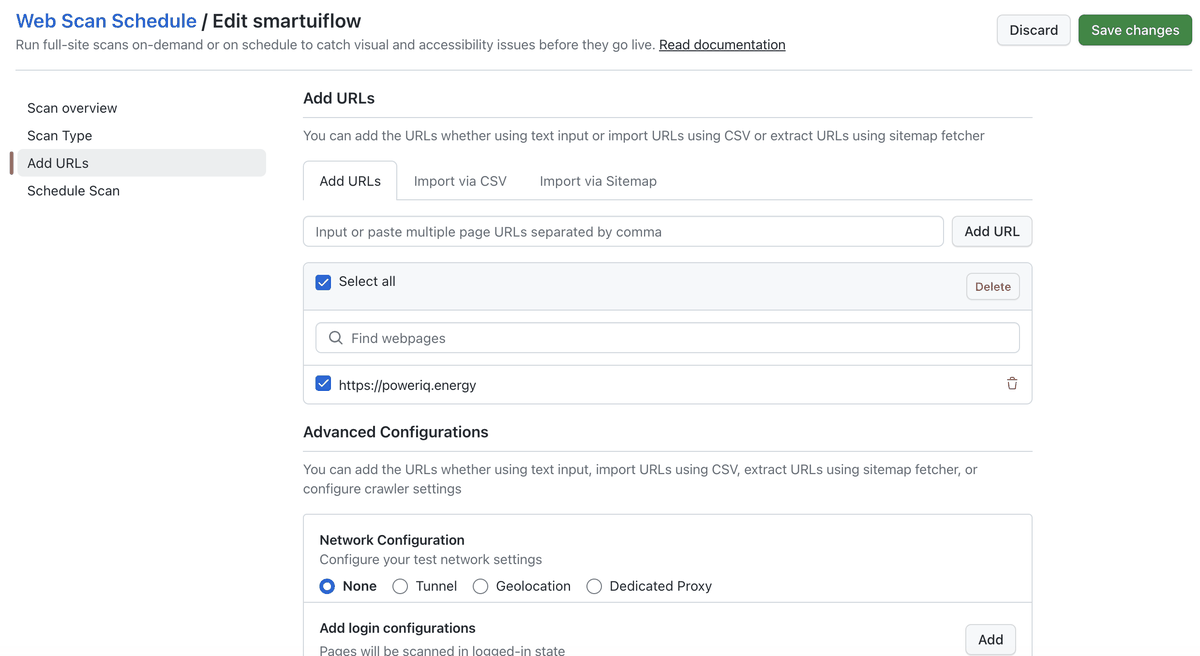
| Add URLs | Add URLs, import more from CSV or a sitemap, or delete URLs. Under Advanced Configurations you can change the network configuration, login configurations and cookies. | |
| Schedule Scan | For a recurring scan: the days, the time and the time zone. | A one-time scan shows "This is a quick scan, so it has no schedule to edit." You cannot turn a one-time scan into a recurring one from the editor. |
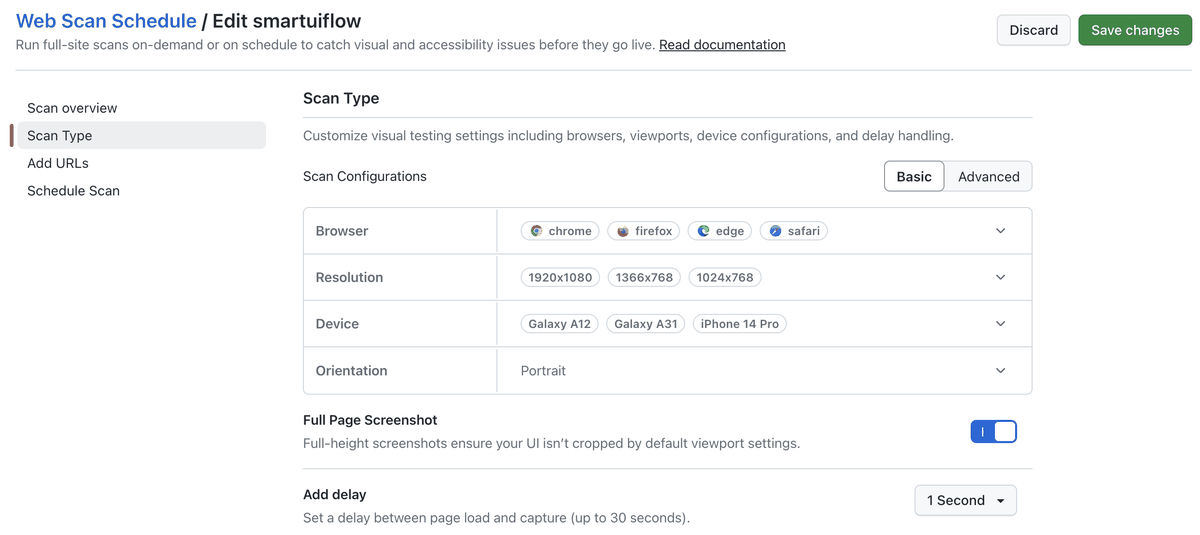
If you use a SmartUI JSON configuration in Advanced mode, it overrides the browser, resolution and delay selections made in Basic mode.
Save or Discard Your Changes
- Click Save changes to save the new configuration.
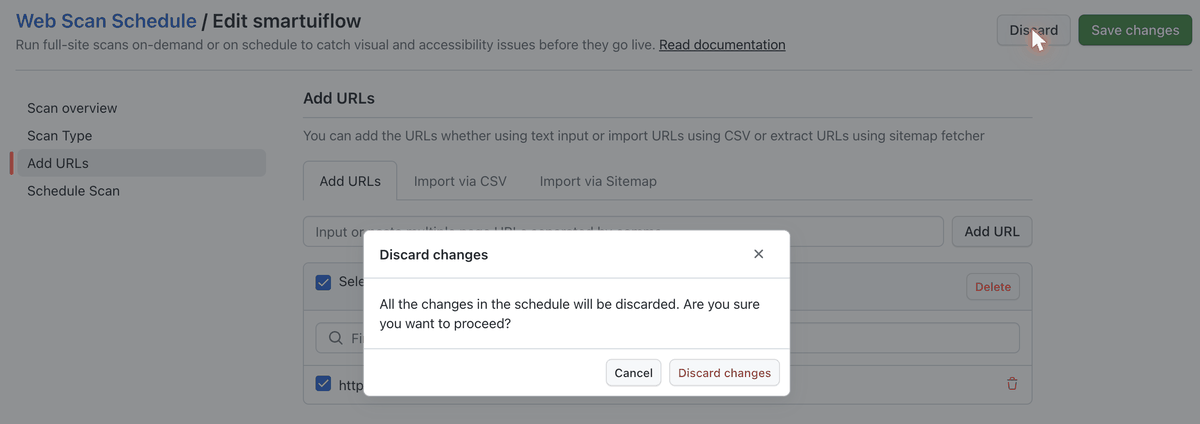
- Click Discard to leave without saving. A Discard changes dialog asks you to confirm. Click Discard changes to go back to the scan list with the scan unchanged, or Cancel to keep editing.
Clone a Scan
Cloning saves you from setting up a similar scan from scratch. For example, you can clone a scan and then change its browsers, or point the copy at a staging site.
- On the Visual UI tab, click ⋯ on the scan you want to copy.
- Select Clone scan.
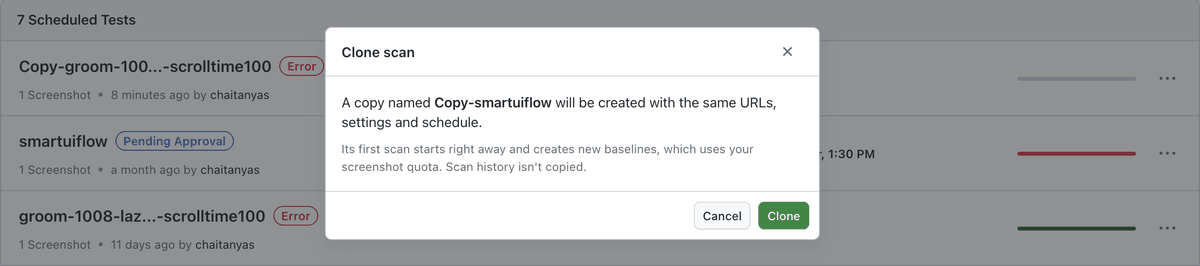
- In the Clone scan dialog, click Clone.
The new scan:
- Is named Copy-<scan name>. For example, cloning
smartuiflowcreatesCopy-smartuiflow. - Has the same URLs, settings and schedule as the original.
- Starts its first scan right away. That scan creates new baselines and uses your screenshot quota.
- Starts with no history. Builds from the original scan are not copied.
- Appears at the top of the Visual UI scan list.
To rename the copy or change its settings, open it with Edit scan config.
A clone of a recurring scan is also recurring, on the same days and at the same time. If you only need the copy once, open its menu and select Stop recurring scan, otherwise both scans keep running and using screenshot quota.


 Chat with Us