TestMu AI Azure DevOps App
TestMu AI Test Manager integrates directly with Azure DevOps through the Azure DevOps Marketplace App, allowing you to manage tests seamlessly within the Azure DevOps interface. It provides Test Manager functionalities in your Azure DevOps environment, boosting workflow efficiency and facilitating improved collaboration among teams.
Let's have a look at how to use the TestMu AI Azure DevOps App:
Installation and Setup
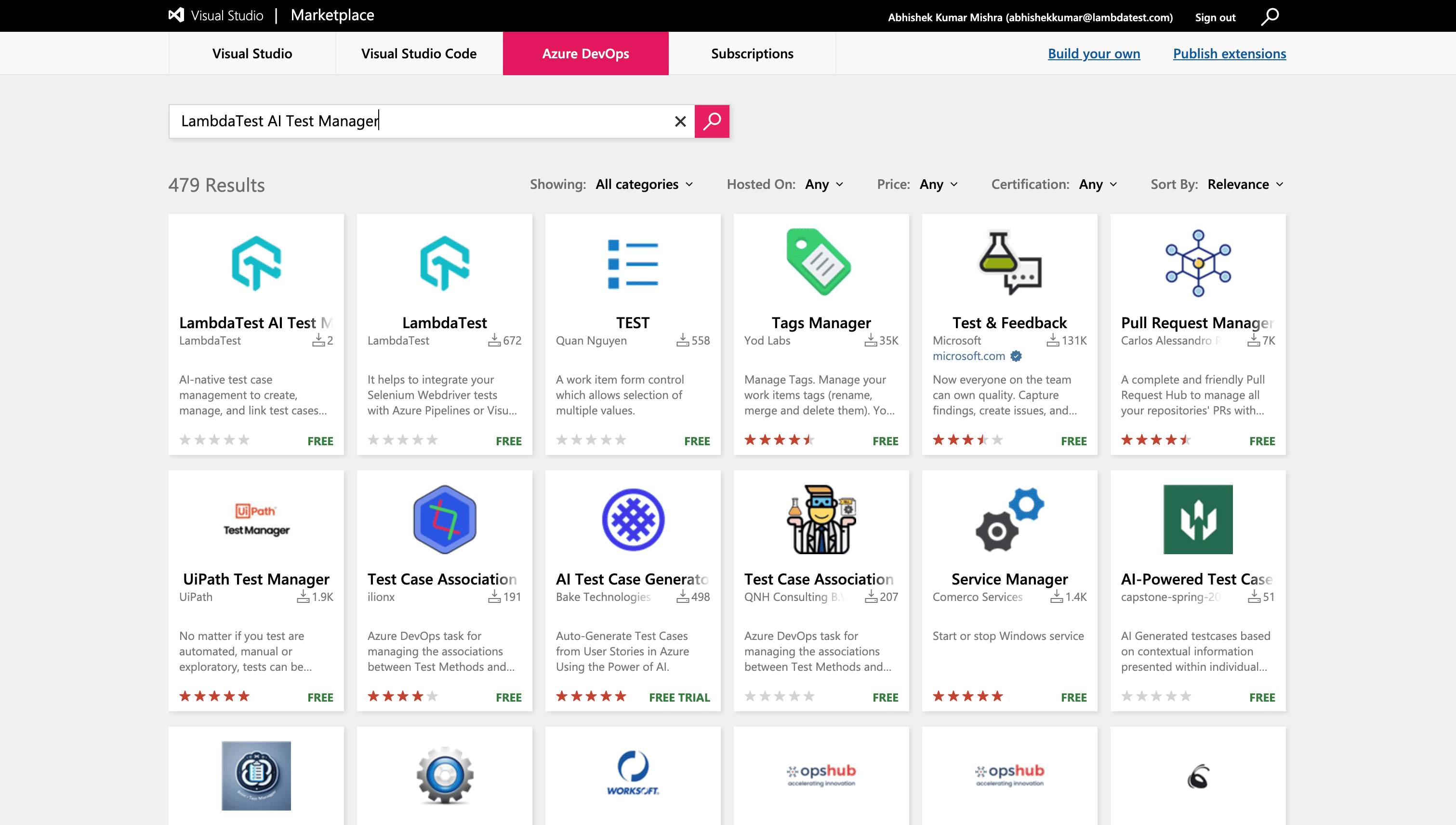
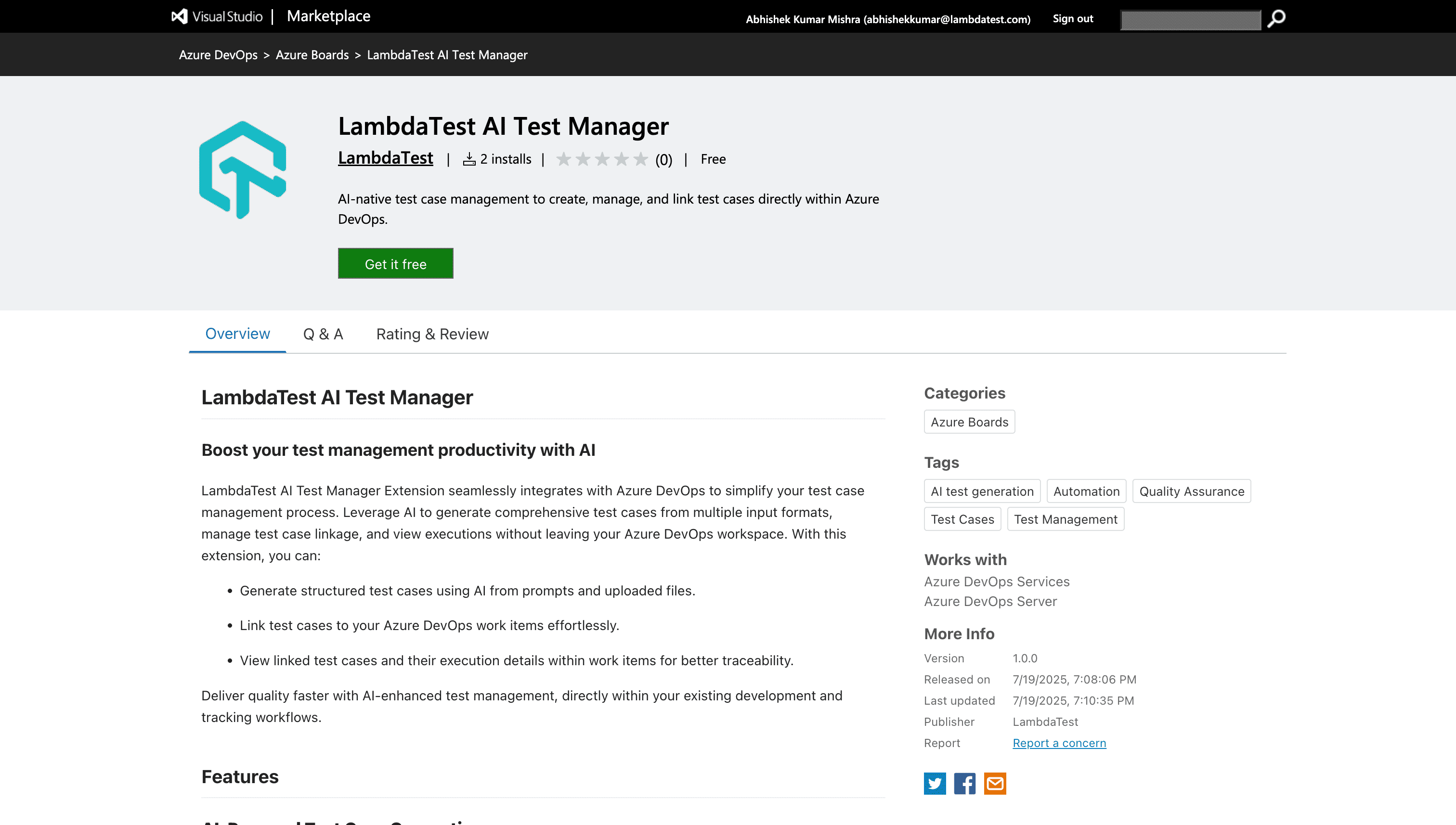
- Head over to the TestMu AI Test Manager Azure DevOps App on the Azure DevOps Marketplace. Select Get it free as shown in the below image.
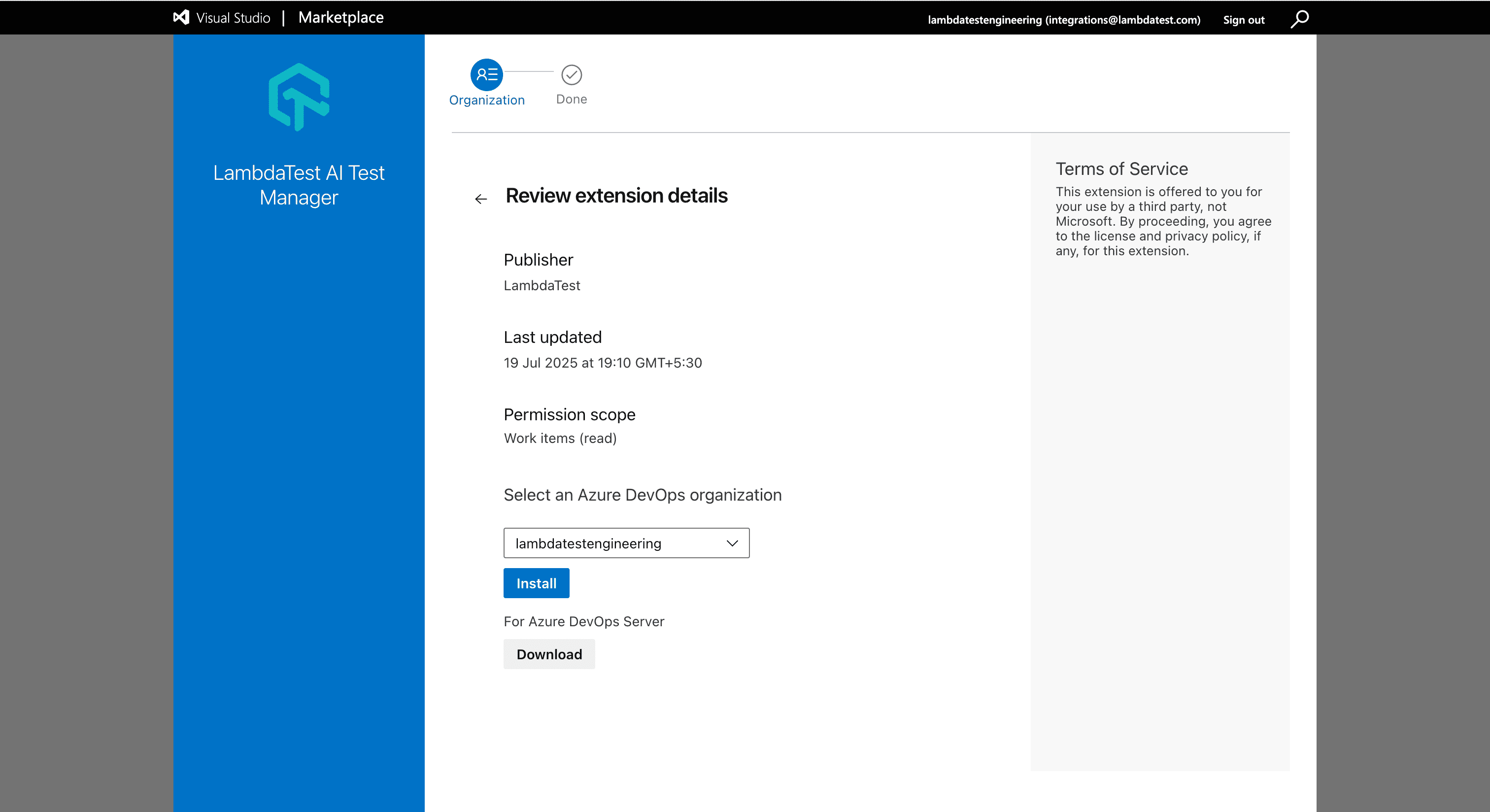
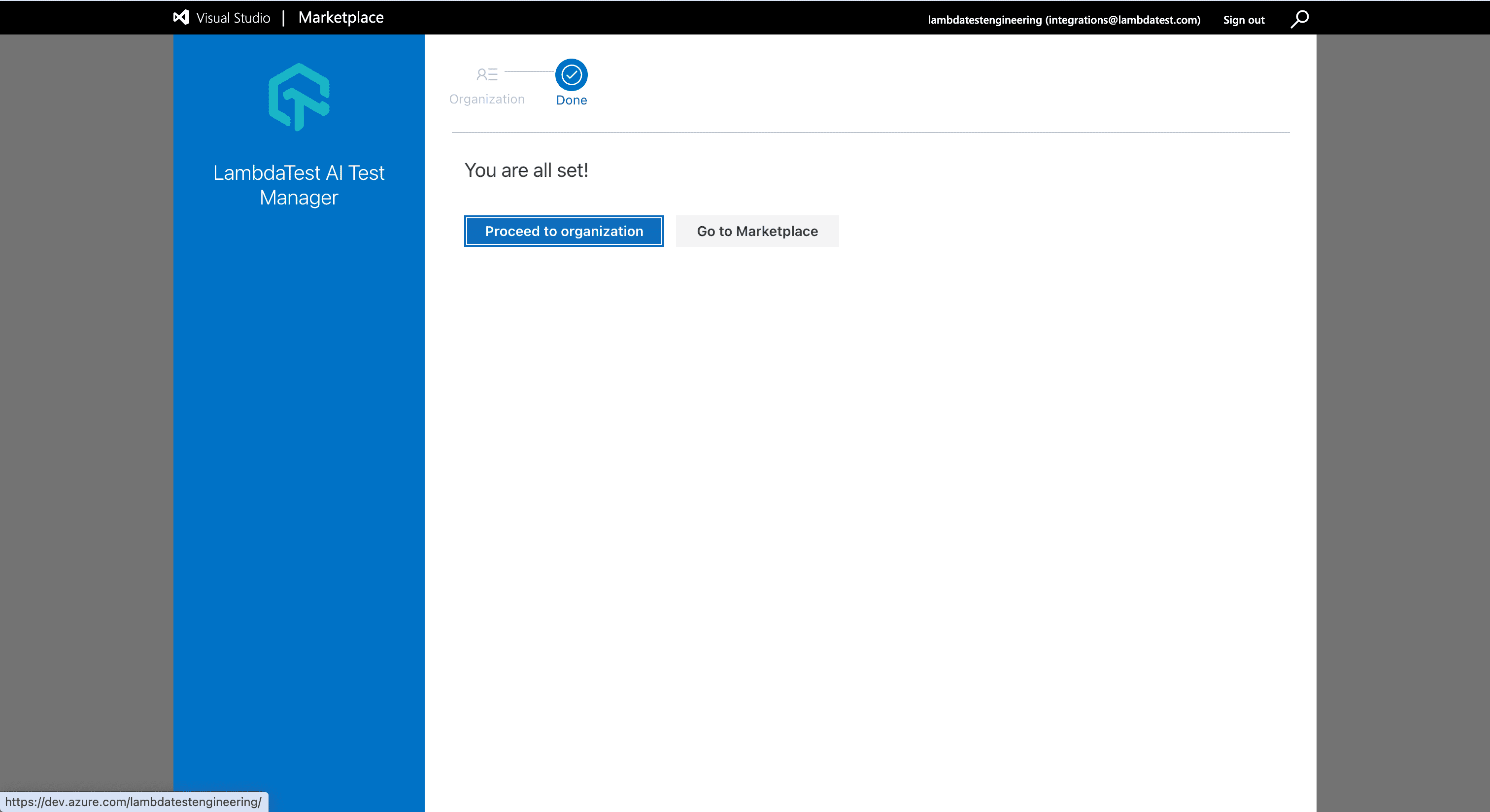
- A screen will appear asking you to select the Azure DevOps organization. Choose your organization and click on Install to install the app.
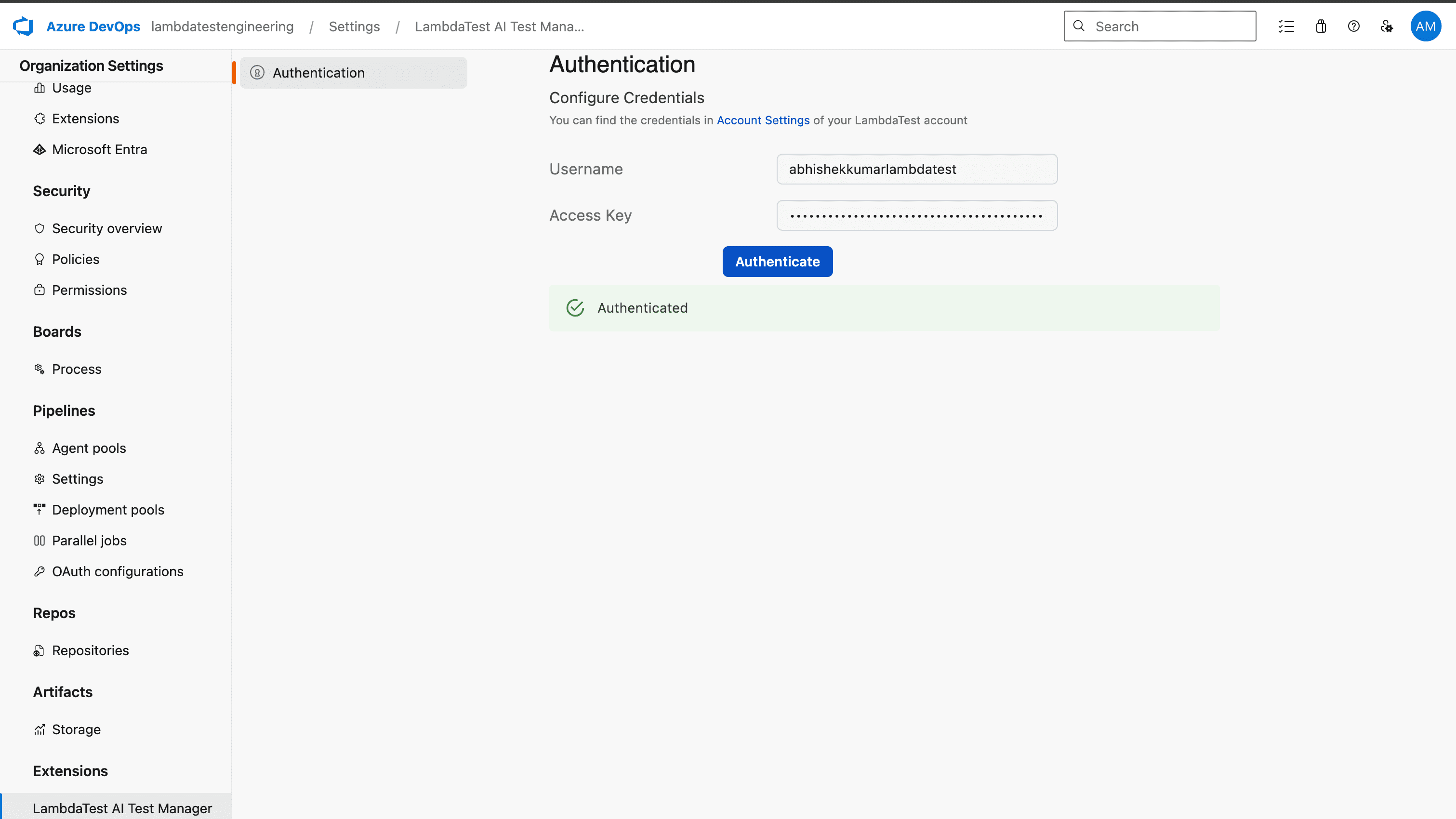
- In the Organization Settings, navigate to Extensions and look for TestMu AI Test Manager, click on it to configure the app. Enter the required credentials, Username and Access Key of your TestMu AI account. Then, click on Authenticate to proceed.
Note: The TestMu AI account credentials used to configure the App must also install and integrate Azure DevOps in their TestMu AI account through integrations.
Linking Existing Test Cases
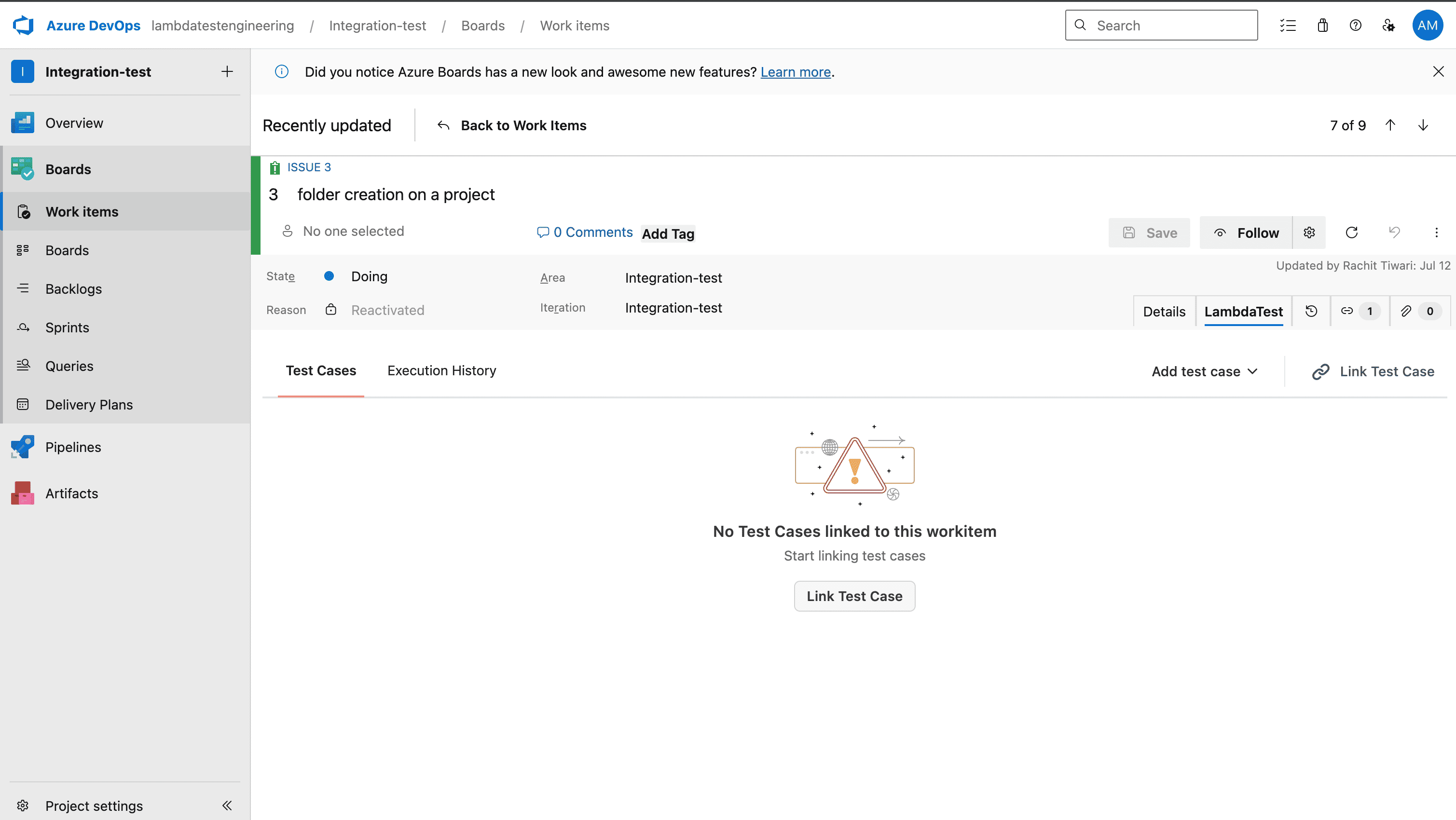
- Go to any Azure DevOps work item and click on the TestMu AI tab located in the work item details. Click on Link Test Case to link a test case to Azure DevOps work item.
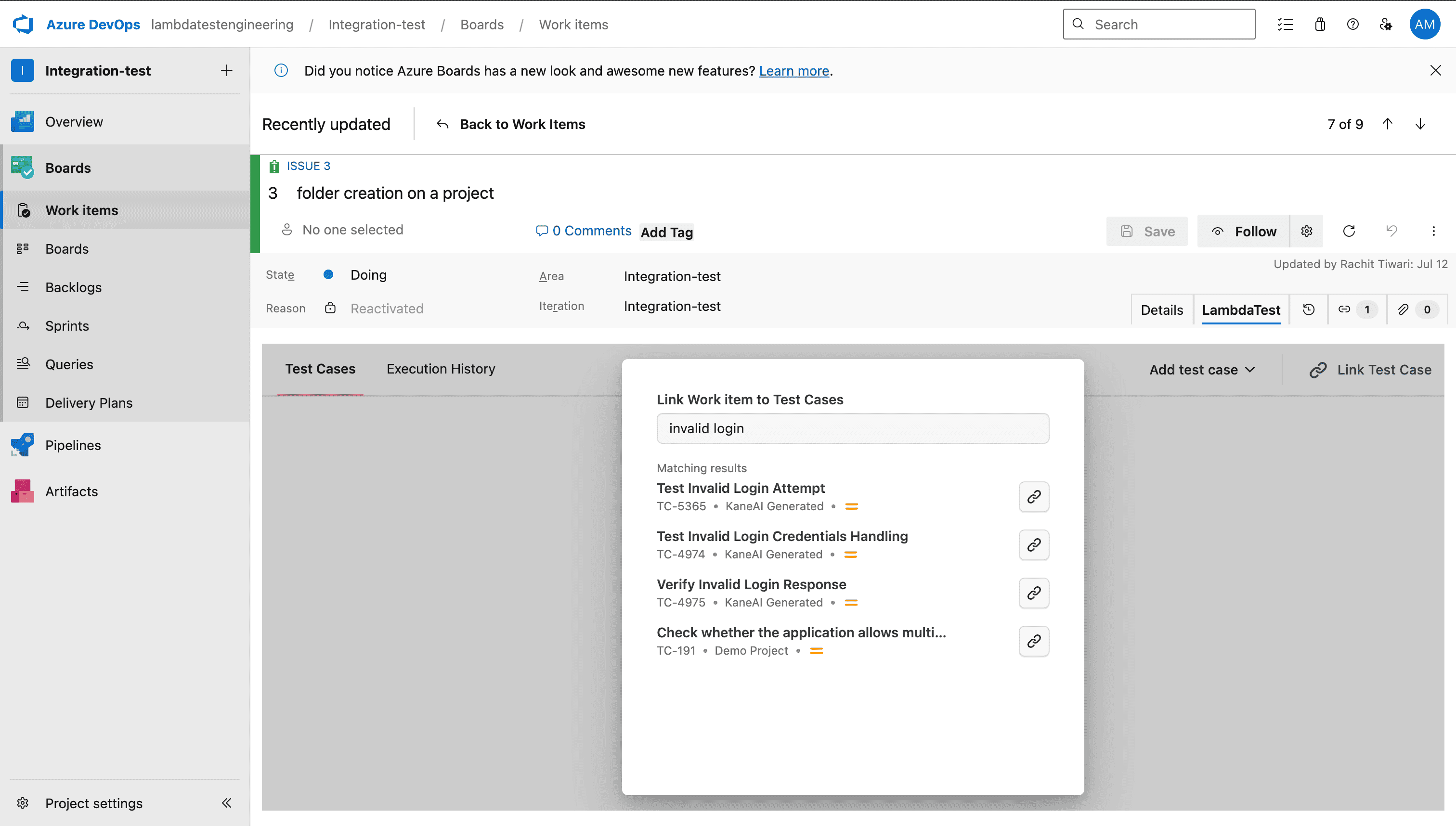
- Enter the test case name or test case ID and select any of the test cases for which you want to link a work item. Test Cases created across all projects in your TestMu AI Organization will be accessible here.
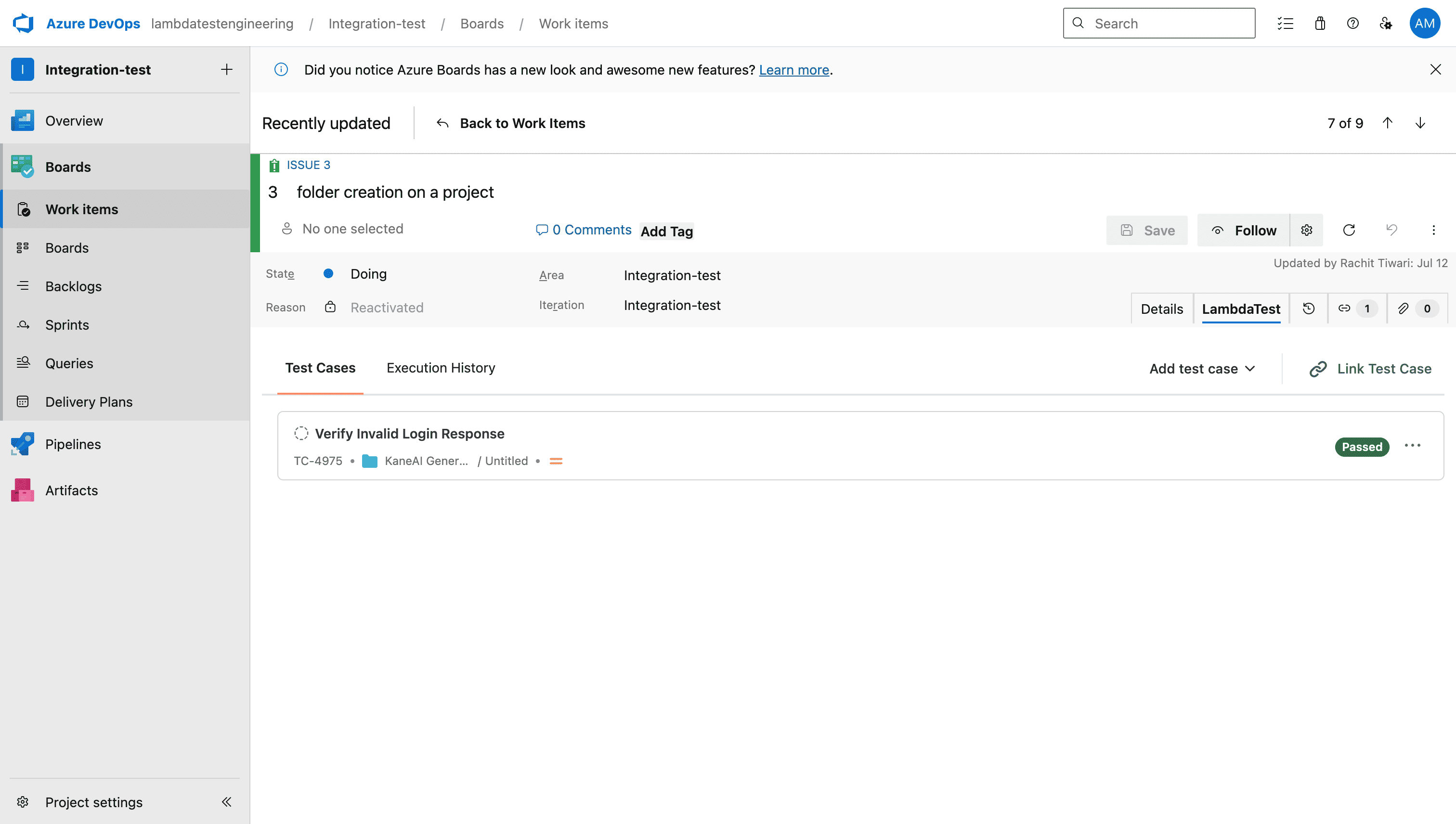
Once linked, the Test Case will be visible in the Test Cases section.
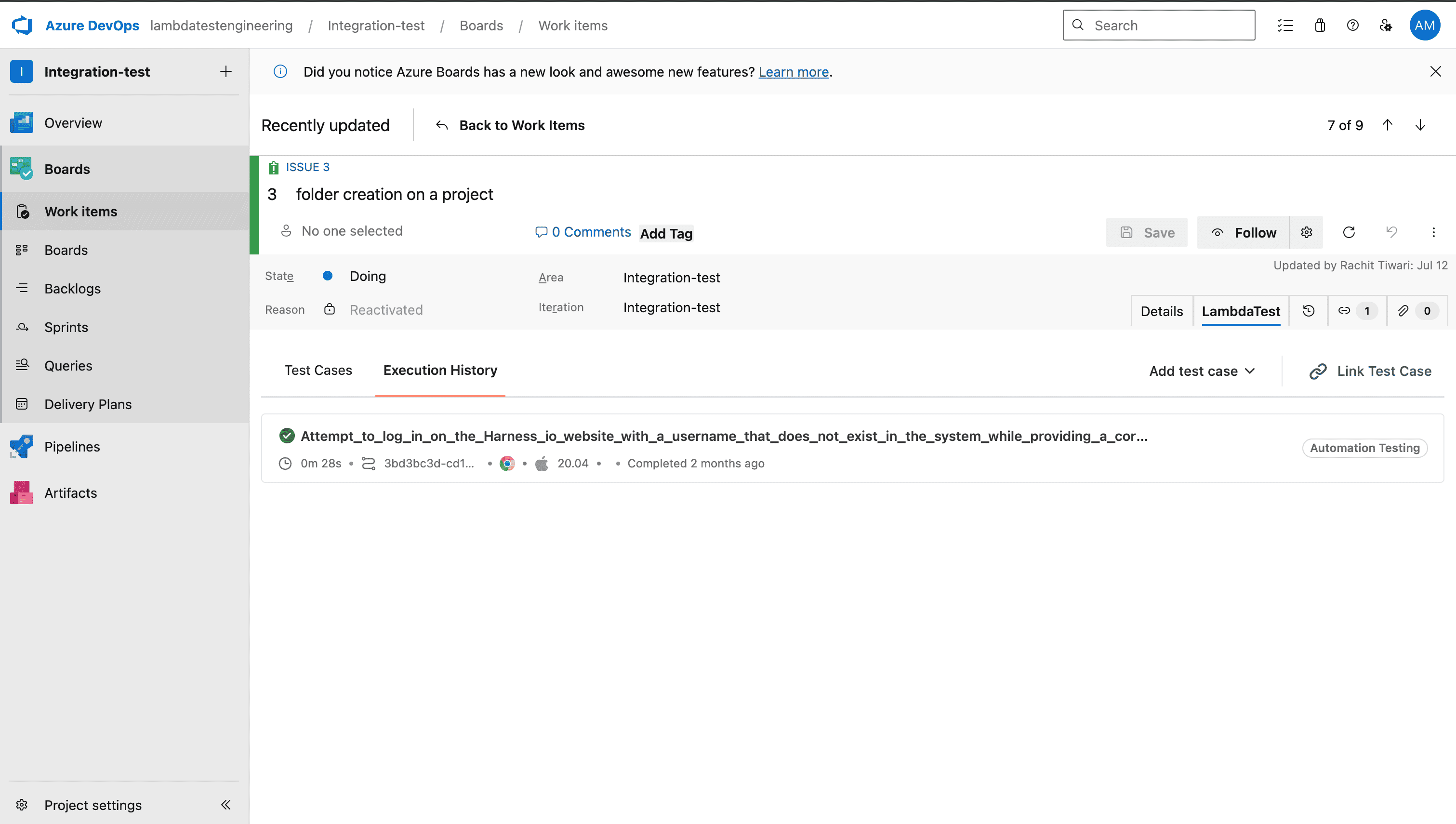
- Go to Execution History to view all the executions of the test cases that are linked to the Azure DevOps work item.
Creating New Test Cases
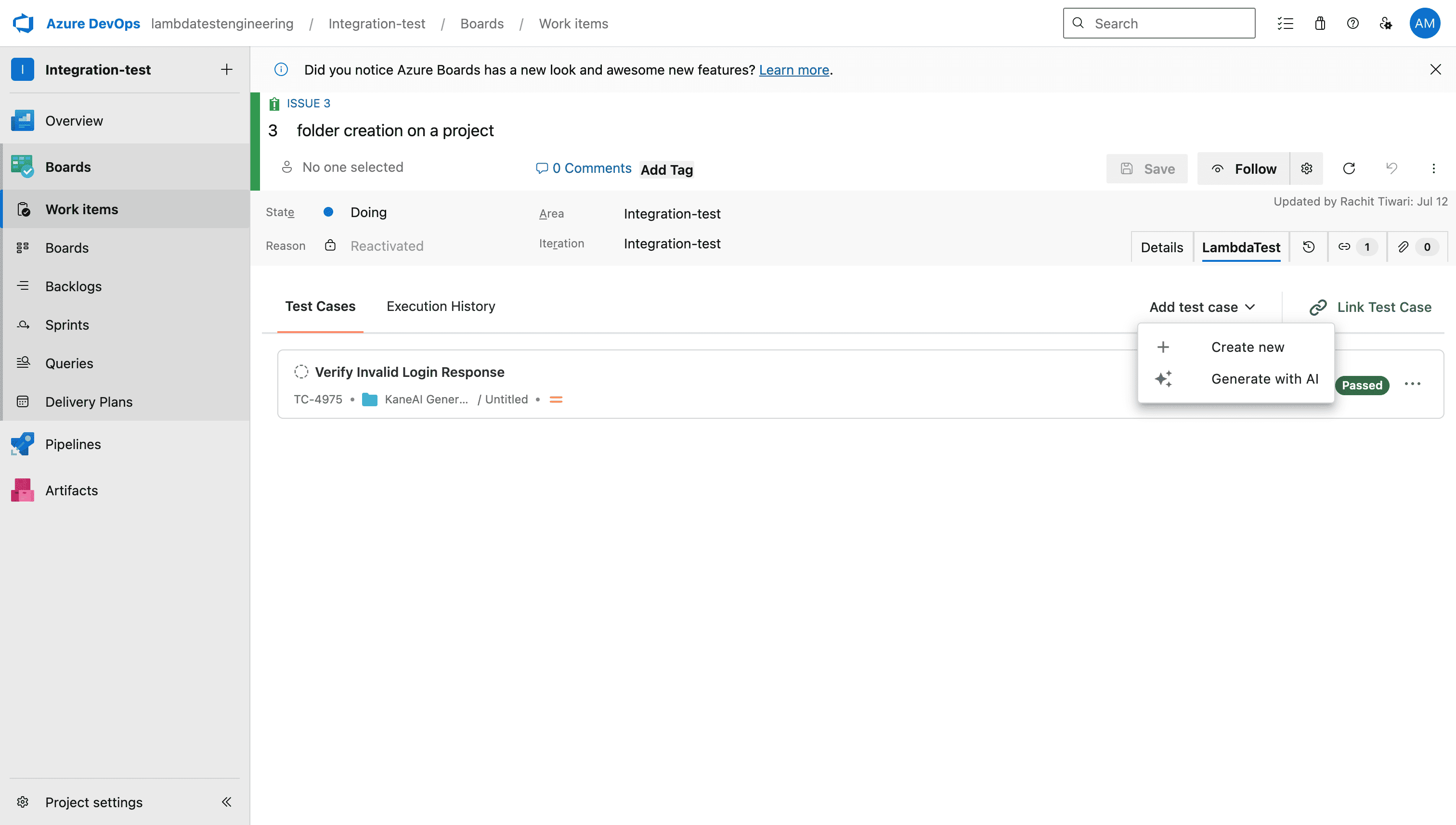
- You can also create test cases with AI or manually within the Azure DevOps interface. To achieve that, click on Add Test Case and choose an option to start creating Test Cases. Let's see how we can utilize the Generate with AI functionality.
Note: To create test cases, the user must have access to Test Manager in their TestMu AI account.
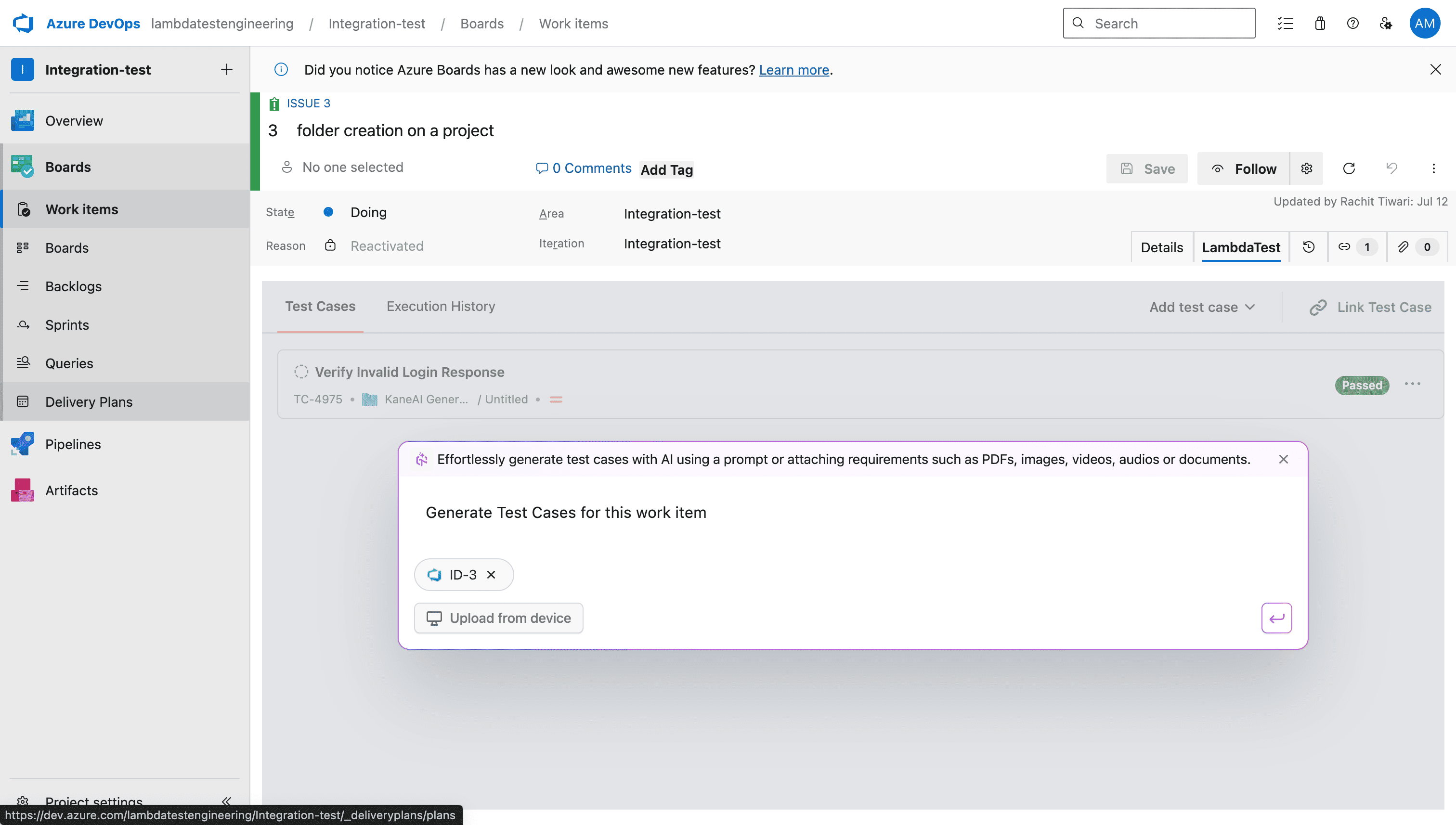
- Provide your requirements by attaching files or adding textual requirements. By default, the existing Azure DevOps work item will be attached in the input box.
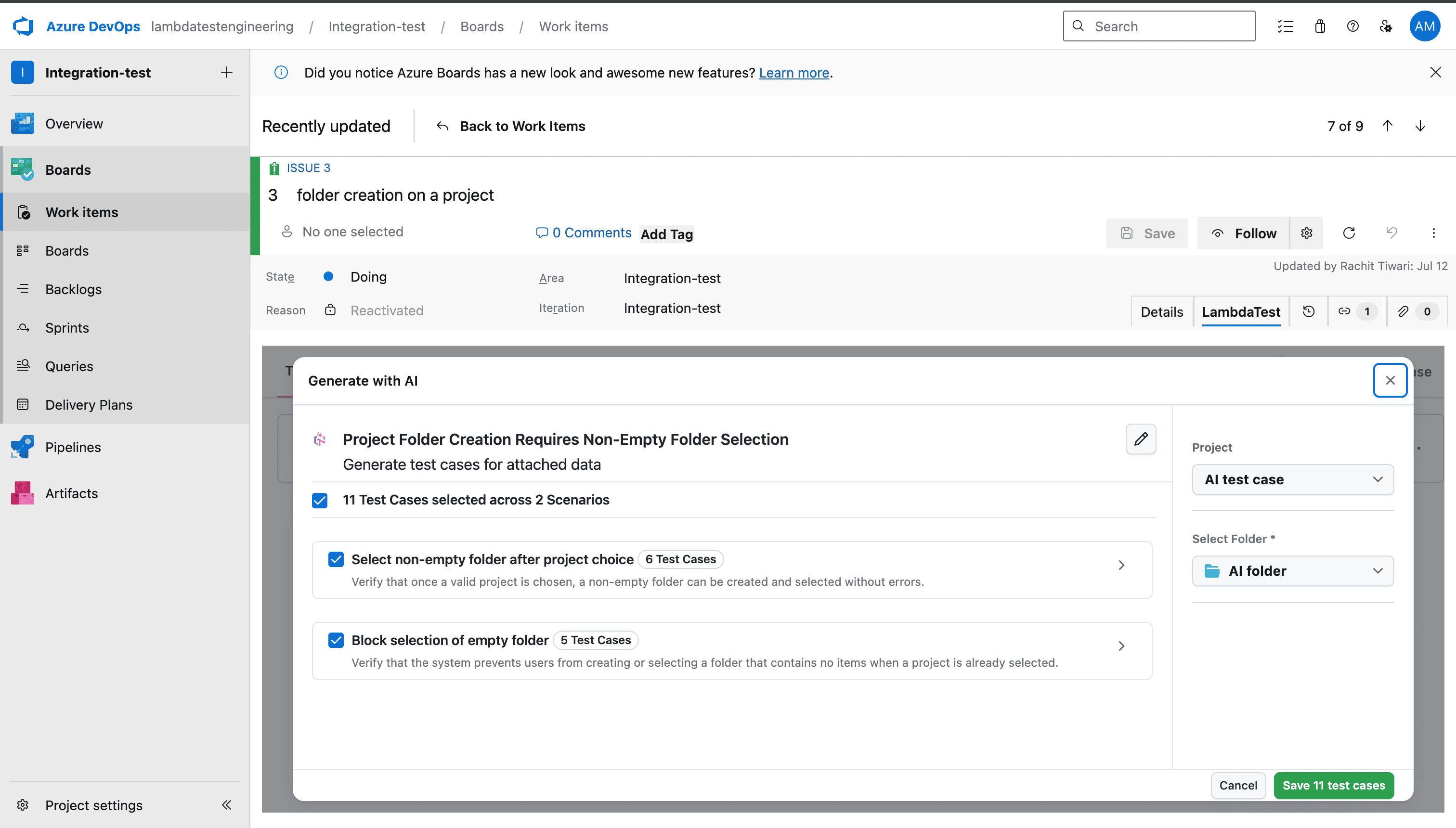
- AI will start generating Test scenarios and Test Cases based on the input requirements. You can view test case title, description, pre-conditions, steps and other fields. Once you have reviewed the test cases, you can select the test cases and save them in the specified Project and Folder.
- You can view all the selected test cases saved in the Test Cases section. All the test cases that are getting saved will get automatically linked to the corresponding Work Item.
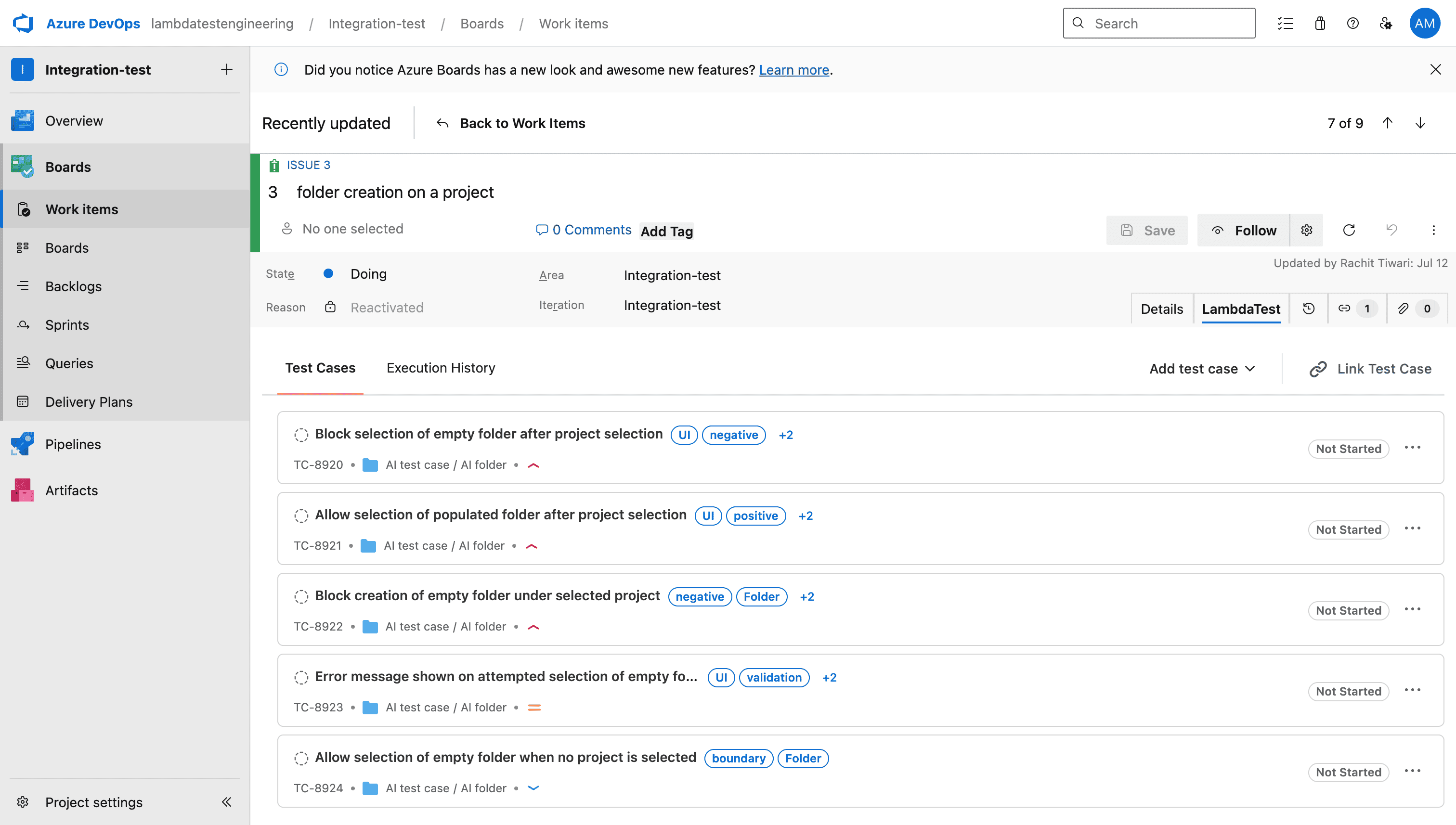
This allows you to seamlessly connect Test Cases right from Azure DevOps work items, enhancing your workflows and maintaining traceability between your development tasks and testing activities.

 Chat with Us
 Ask the Community