Tag Support for Accessibility Scans
Use tags to organize accessibility scans on mobile devices by screen, flow, or activity. This helps you label scans with names like Login Screen, Cart Screen, or Profile Screen so your team can quickly understand what each scan represents.
You can use tags in two ways:
- From the dashboard UI after a scan has already been created.
- During automation when you trigger
lambda-accessibility-scanin your mobile accessibility automation test.
Before You Start
Make sure you have:
- Access to TestMu AI Accessibility for mobile-device testing.
- An accessibility scan result from a mobile-device session available in the dashboard, or
- An Appium test with accessibility enabled in any supported Appium flow for mobile accessibility automation.
Tag support is available for accessibility scans that run on mobile devices. Tags are optional. If you do not add a tag, your scans continue to work as usual.
What Tags Help You Do
- Label scans with meaningful names instead of relying only on generic view names.
- Group related issues by screen or activity.
- Filter the dashboard to focus on scans with selected tags.
- Keep reports easier to review across multi-screen app journeys.
Option 1: Add Tags from the Dashboard
Use this flow when the scan is already available in the dashboard and you want to label it afterward.
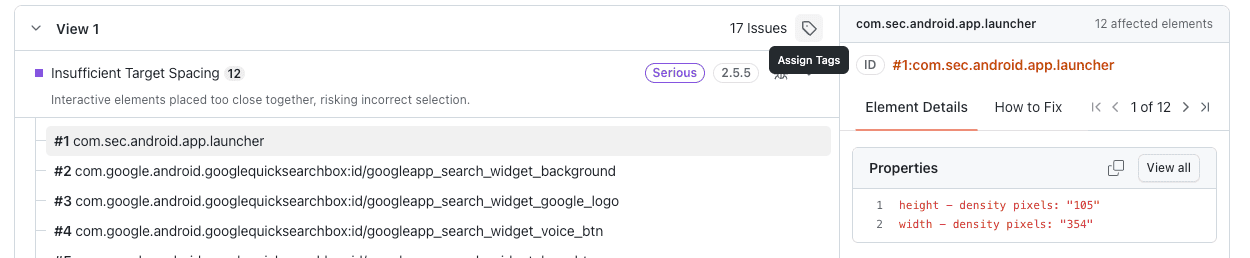
Step 1: Open the tag action for a view
In the issue view, open the scan or view you want to label and click the tag icon.
Step 2: Assign one or more tags
In the Assign Tags modal, search for an existing tag or create a new one, then save your selection.
You can assign multiple tags to the same scan from the dashboard.

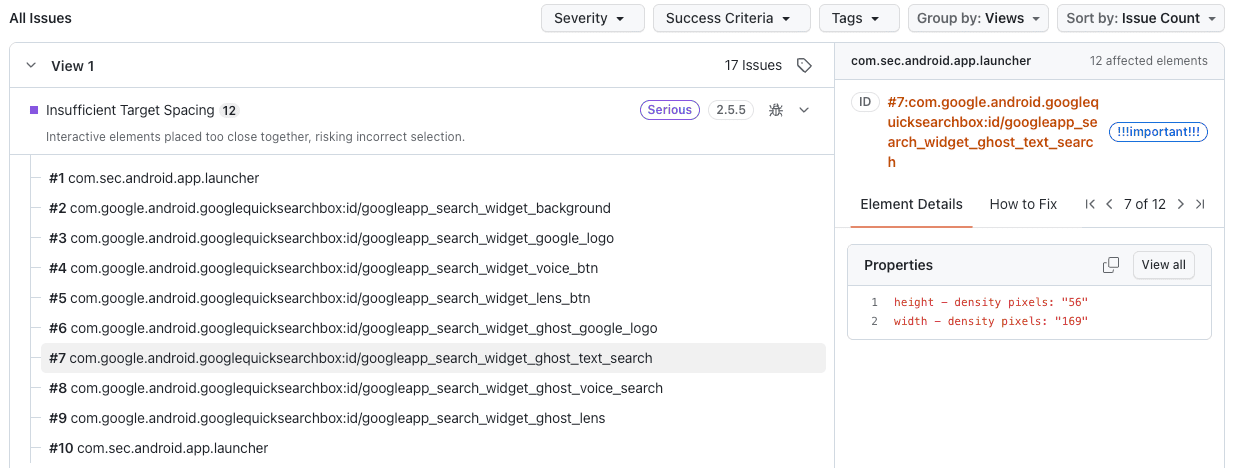
Step 3: Review tagged issues
Once saved, the selected tags appear with the affected issue details.
Step 4: Filter the dashboard by tag
Use the Tags filter to show only the issues or views that match the selected tags.

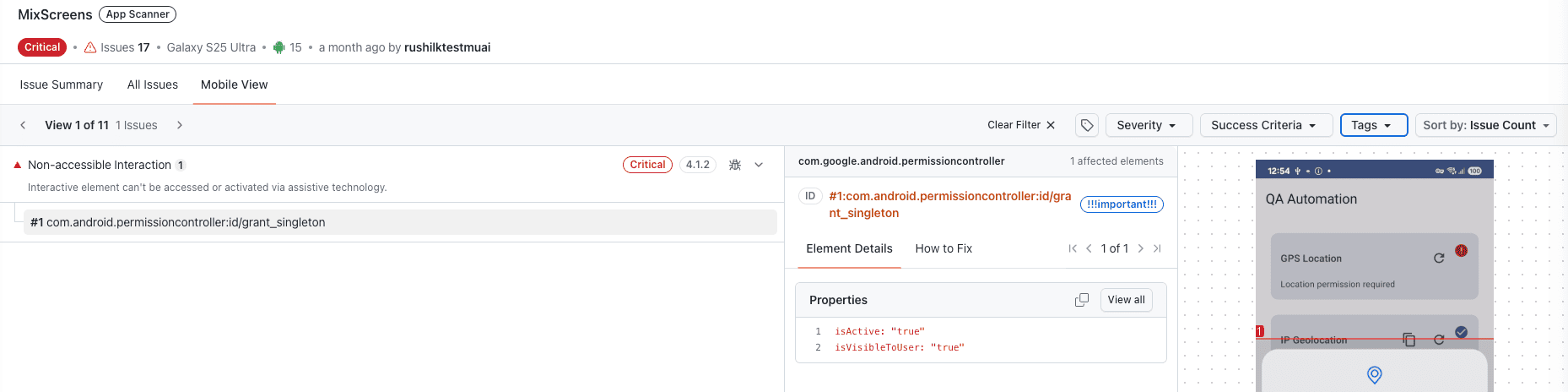
Step 5: Use tags in Mobile View
The same tags are also available when you review the test in Mobile View.
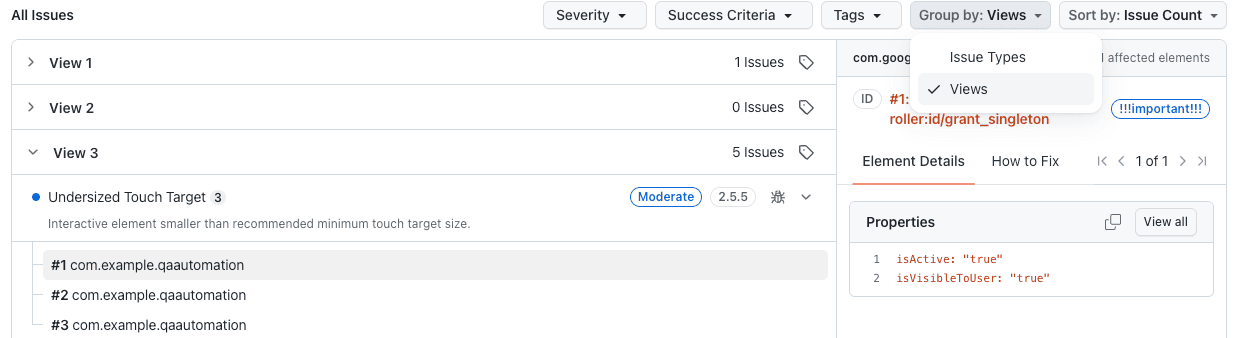
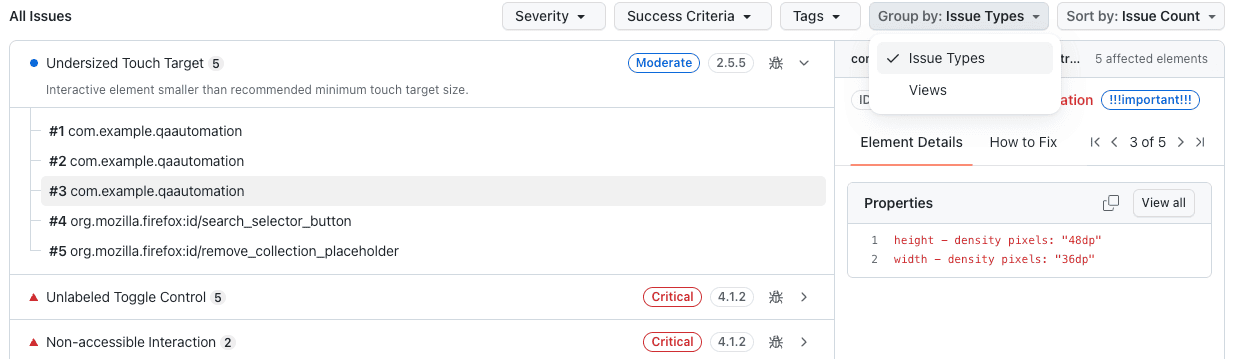
Step 6: Switch how issues are grouped
In the All Issues tab, you can group the results in two ways:
- Group by: Views to review issues screen by screen.
- Group by: Issue Types to review issues by accessibility problem type.
Group by: Views
Group by: Issue Types
Option 2: Add Tags During Automation
Use this flow when you want to attach tags at the exact moment you trigger an accessibility scan during automation on a mobile device.
This is useful when your test moves across multiple screens and you want each scan to carry its own label from the beginning.
Basic Syntax
Trigger the scan with lambda-accessibility-scan and pass one or more tags.
Tag support is available in all supported Appium flows for mobile accessibility automation. The exact method name depends on your client library, but the payload pattern stays the same: call lambda-accessibility-scan and pass a tags list.
((JavascriptExecutor) driver).executeScript(
    "lambda-accessibility-scan",
    new HashMap<String, Object>() {{
        put("tags", Arrays.asList("Login Screen", "Smoke"));
    }}
);
driver.execute_script(
    "lambda-accessibility-scan",
    {
        "tags": ["Login Screen", "Smoke"]
    }
)
await driver.execute("lambda-accessibility-scan", [{
  tags: ["Login Screen", "Smoke"]
}]);
Example: Tag scans for multiple screens
You can call the scan multiple times in the same test and use different tags for each scan.
Verified((JavascriptExecutor) driver).executeScript(
"lambda-accessibility-scan",
new HashMap<String, Object>() {{
put("tags", Arrays.asList("Login Screen", "Smoke"));
}}
);
((JavascriptExecutor) driver).executeScript(
"lambda-accessibility-scan",
new HashMap<String, Object>() {{
put("tags", Arrays.asList("Cart Screen", "Checkout Flow"));
}}
);
((JavascriptExecutor) driver).executeScript(
"lambda-accessibility-scan",
new HashMap<String, Object>() {{
put("tags", Arrays.asList("Profile Screen"));
}}
);
Best Practices
- Use short, meaningful names such as
Login Screen,Search,Checkout, orSettings. - Keep naming consistent across runs so filters and comparisons are easier to use.
- Use one naming style across your team, for example screen names or feature-flow names.
- Keep each tag within 50 characters.
- Use only letters, numbers, spaces, hyphens, and underscores.
- Keep each scan to 20 tags or fewer.
- Add tags during automation when you want scans to be labeled from the start, and use the dashboard flow when you want to organize existing scans afterward.
Troubleshooting
- Tag support is currently available only for accessibility scans that run on mobile devices.
- You can use it while testing mobile apps and web apps on mobile devices.
- Tags help you organize scans, but they do not change scan behavior or issue detection.
- If you do not add tags during automation, you can still assign them later from the dashboard.
- During automation, each
lambda-accessibility-scancall can include one or more tags in all supported Appium flows. - From the dashboard, you can assign multiple tags to the same scan.
- If tags do not appear where expected, confirm the scan was run on a mobile-device session and that accessibility scanning is enabled for that workflow.


 Chat with Us