Configure Accessibility DevTools
This page covers the settings available in the Accessibility DevTools browser extension. These settings apply when you run scans manually through the DevTools panel.
If you are configuring settings for automated test execution (Selenium, Cypress, Playwright, etc.), see Configure Accessibility Automation instead.
Access DevTools settings
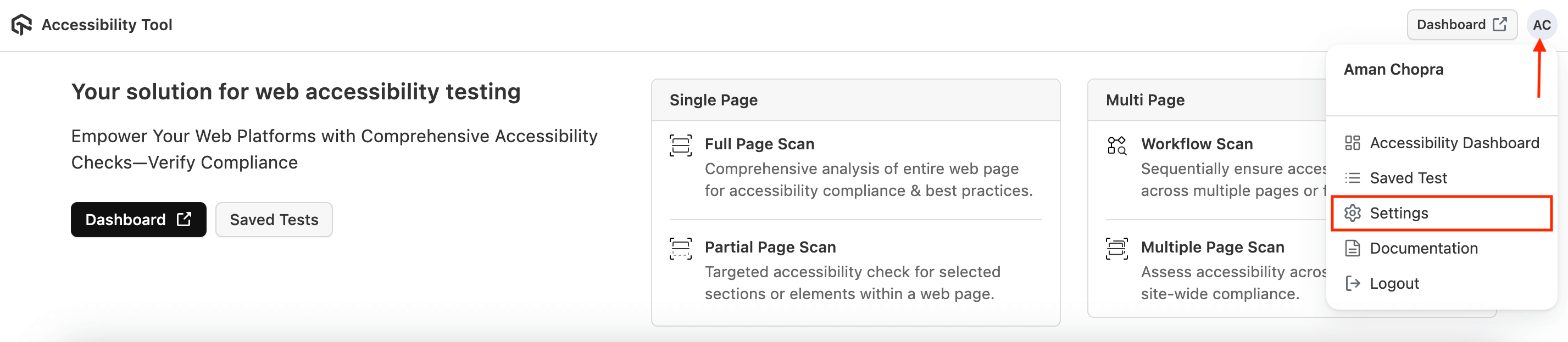
Click on your profile icon and then Settings.
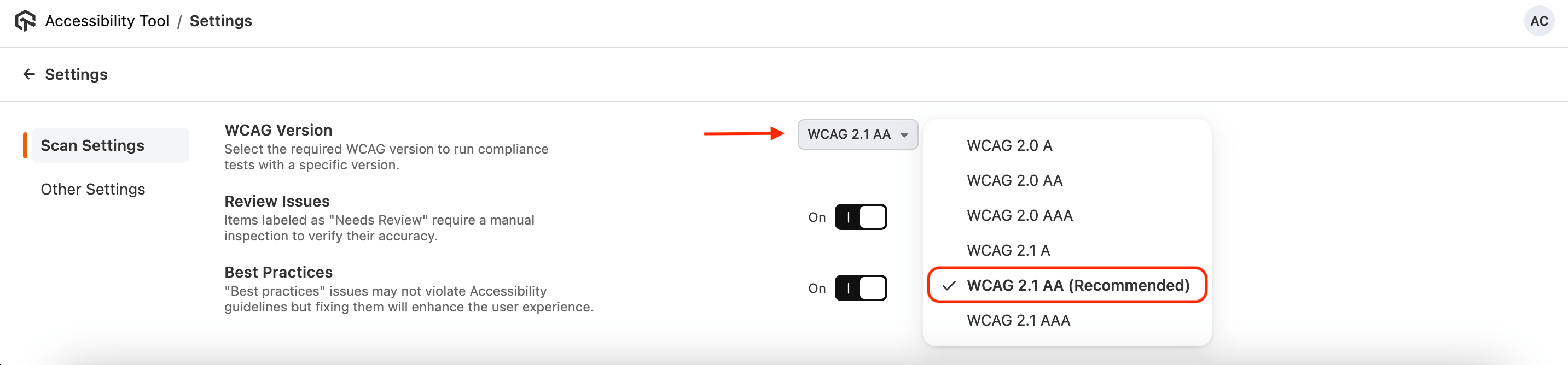
WCAG version
Select which WCAG version your DevTools scans should check against. Options include WCAG 2.0, WCAG 2.1 A, WCAG 2.1 AA, WCAG 2.1 AAA, WCAG 2.2 A, and WCAG 2.2 AA. The recommended version is WCAG 2.1 AA.
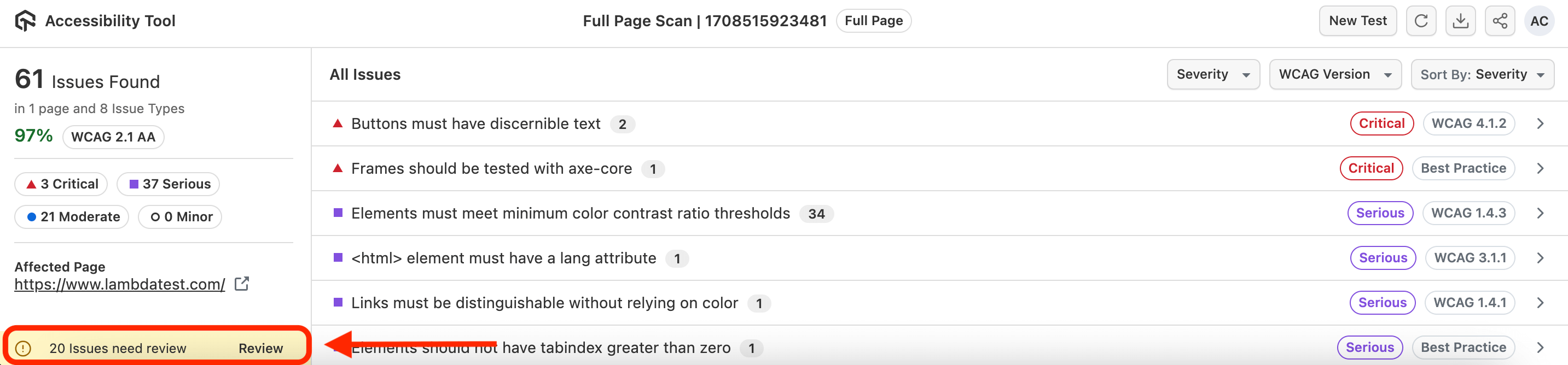
Review Issues
Some issues require manual review before they can be confirmed as true violations. When this setting is enabled, the scan results include a Needs Review category.
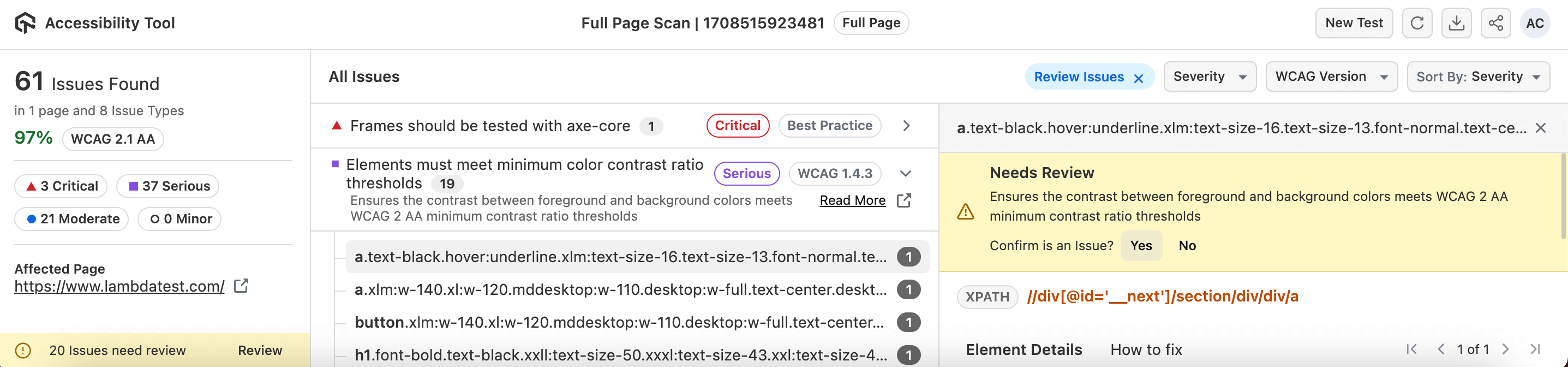
To review an issue:
- Click on the issue to expand it.
- Select the element you want to evaluate.
- Click Yes to confirm it as an issue, or leave it unconfirmed.
- Use Undo to reverse a confirmation.
Best Practices
Enable this setting to include issues that go beyond WCAG requirements but improve overall user experience. Best practice issues are reported separately from WCAG violations.
Evaluation Rules
The Evaluation Rules panel in the Scan Settings tab lists every rule the scan will evaluate, grouped by category. Switch off individual rules with their On/Off toggle, or a whole category with the checkbox on its header, then click Save. A rule that is switched off never runs and does not count towards the score. Saved selections apply to full-page, multi-page, workflow and assisted scans, and follow you across reinstalls as your last-used configuration.
Rules outside the selected WCAG version are silently dropped: they are not listed in the panel and do not appear in the report. Best Practice rules while Best Practices is off are greyed out with a tooltip explaining why. A selection that leaves no rule to run cannot be saved.
See Rule and Category Exclusion in DevTools and Scheduled Scans for details.
Autosave Reports
This option is enabled by default. When active, scan results are automatically saved to the Accessibility dashboard. Toggle it off if you want to review results without persisting them.



 Chat with Us