Configurations in KaneAI & Test Manager
Configurations in Test Manager allow you to define reusable environment setups for your test runs. You can specify platform, browser, OS, and device combinations once and apply them across multiple test runs.
Key Benefits:
- Centralized Management - Create, edit, and delete configurations from a single dashboard
- Reusability - Apply the same configuration across multiple test runs
- Multi-Platform Support - Configure Desktop, Virtual Mobile, and Real Device environments
Accessing Configurations
Navigate to configurations using either method:
| Access Method | Steps |
|---|---|
| Sidebar | Click Configurations under Test Manager in the left menu |
| Test Runs | Click Manage Configurations link within any test run |
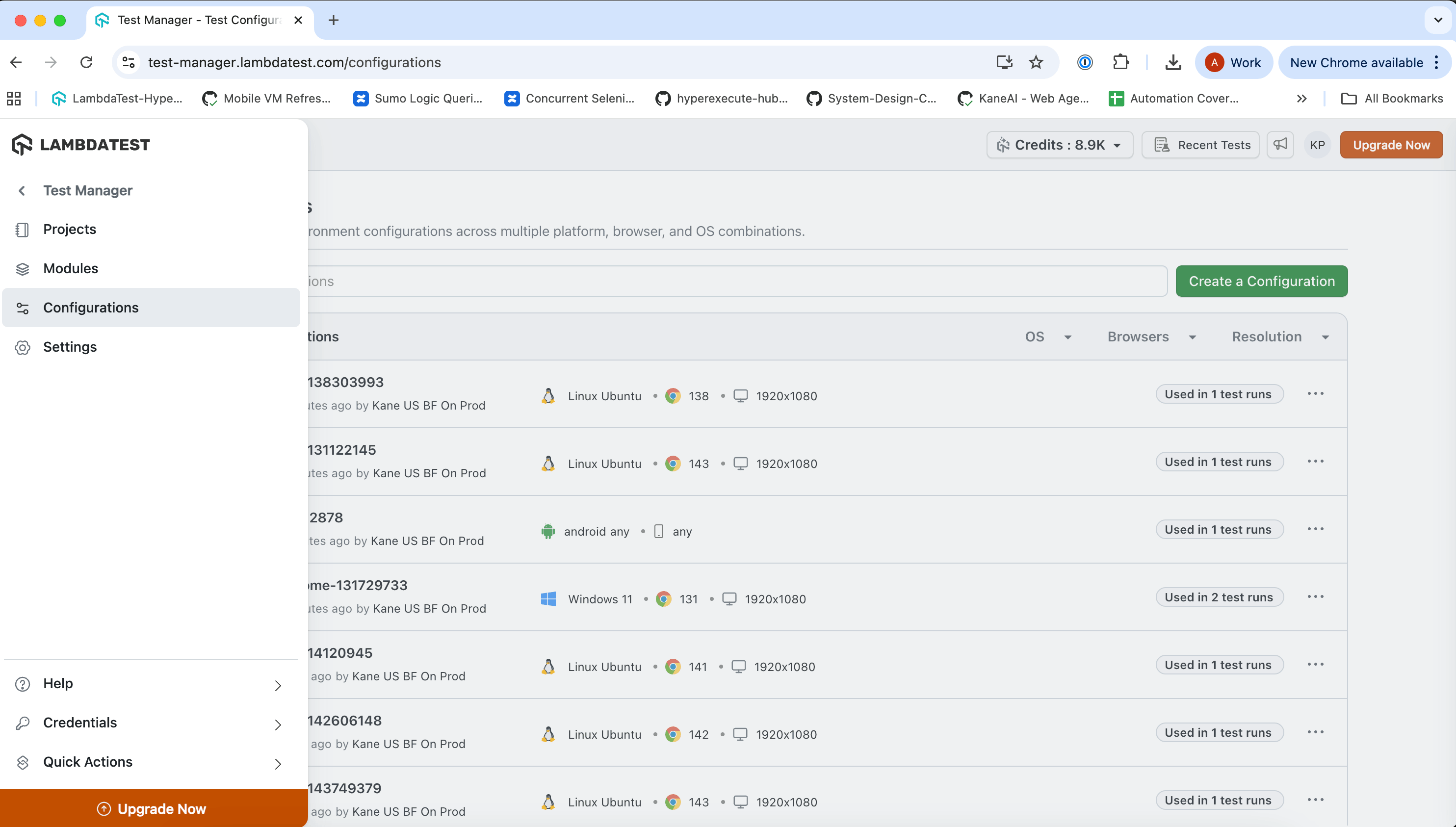
Configurations Dashboard
The central dashboard displays all your configurations with the following features:
| Feature | Description |
|---|---|
| Search Bar | Find configurations by name |
| Filters | Filter by OS, Browser, or Resolution |
| Configuration Details | View name, last updated date, OS, browser, version, and resolution |
| Usage Count | See how many test runs use each configuration |
| Actions Menu | Access Edit and Delete options via the ⋮ menu |
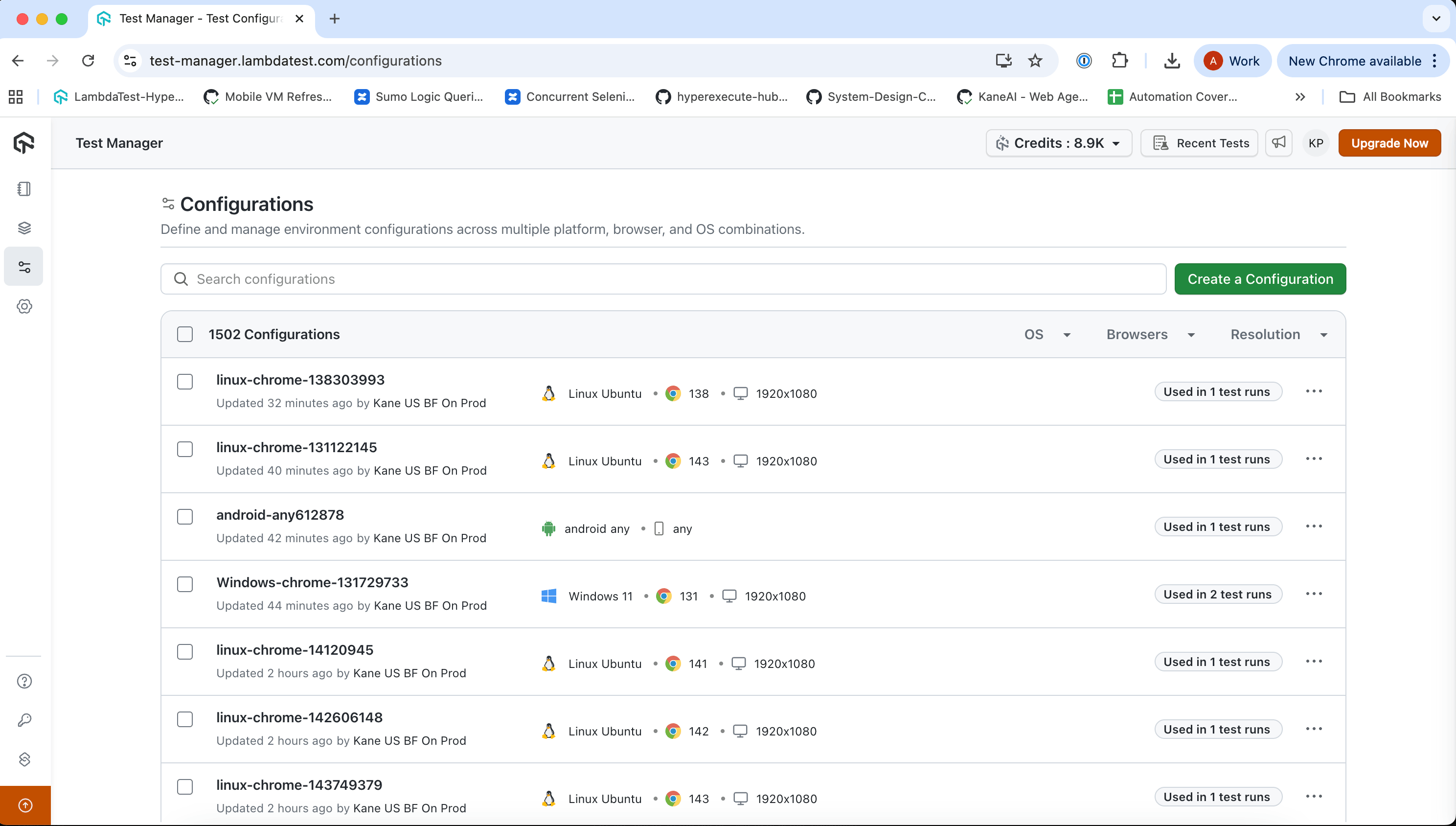
Creating a Configuration
You can create configurations from the central Configurations page or directly within a test run.
Steps to Create
- Click Create a Configuration button
- Toggle the KaneAI switch based on your test run type: set it to ON for KaneAI-generated test runs, or OFF for Non-KaneAI test runs.
- Select your platform (Desktop, Real Device, or Virtual Mobile)
- Fill in the required configuration fields
- Click Create Configuration
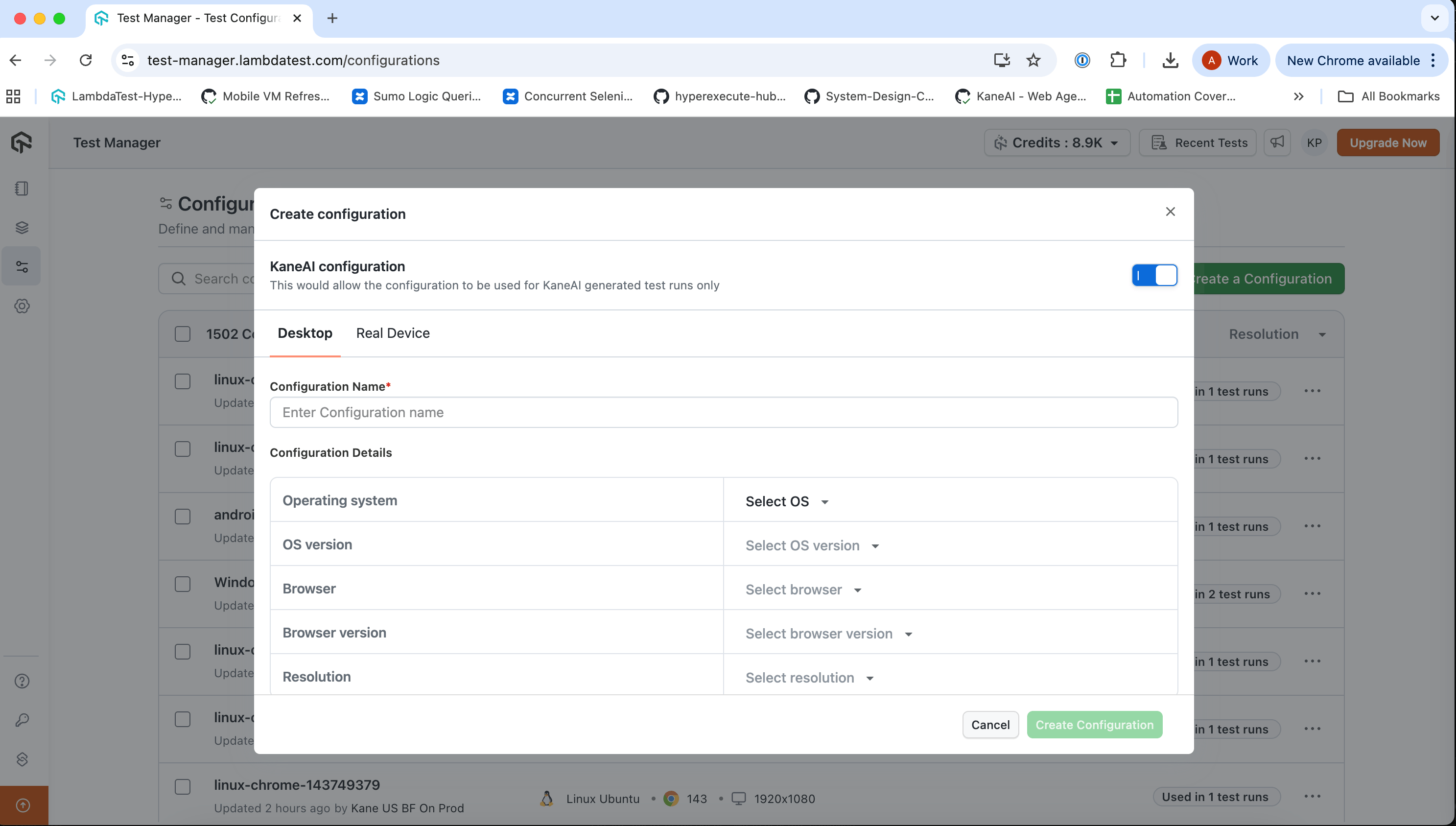
KaneAI Toggle
The KaneAI toggle determines which platforms and options are available:
| Toggle State | Available Platforms | Use Case |
|---|---|---|
| ON | Desktop, Real Device | KaneAI test cases |
| OFF | Desktop, Virtual Mobile, Real Device | Non-KaneAI test cases |
Platform Options
| Platform | Details |
|---|---|
| Desktop | OS, OS Version, Browser, Browser Version, Resolution, URL |
| Virtual Mobile (non-KaneAI only) | OS, Manufacturer, Device, OS Version, Browser/App |
| Real Device | Device Type, OS, Manufacturer, Device, OS Version, Browser/App |
Desktop
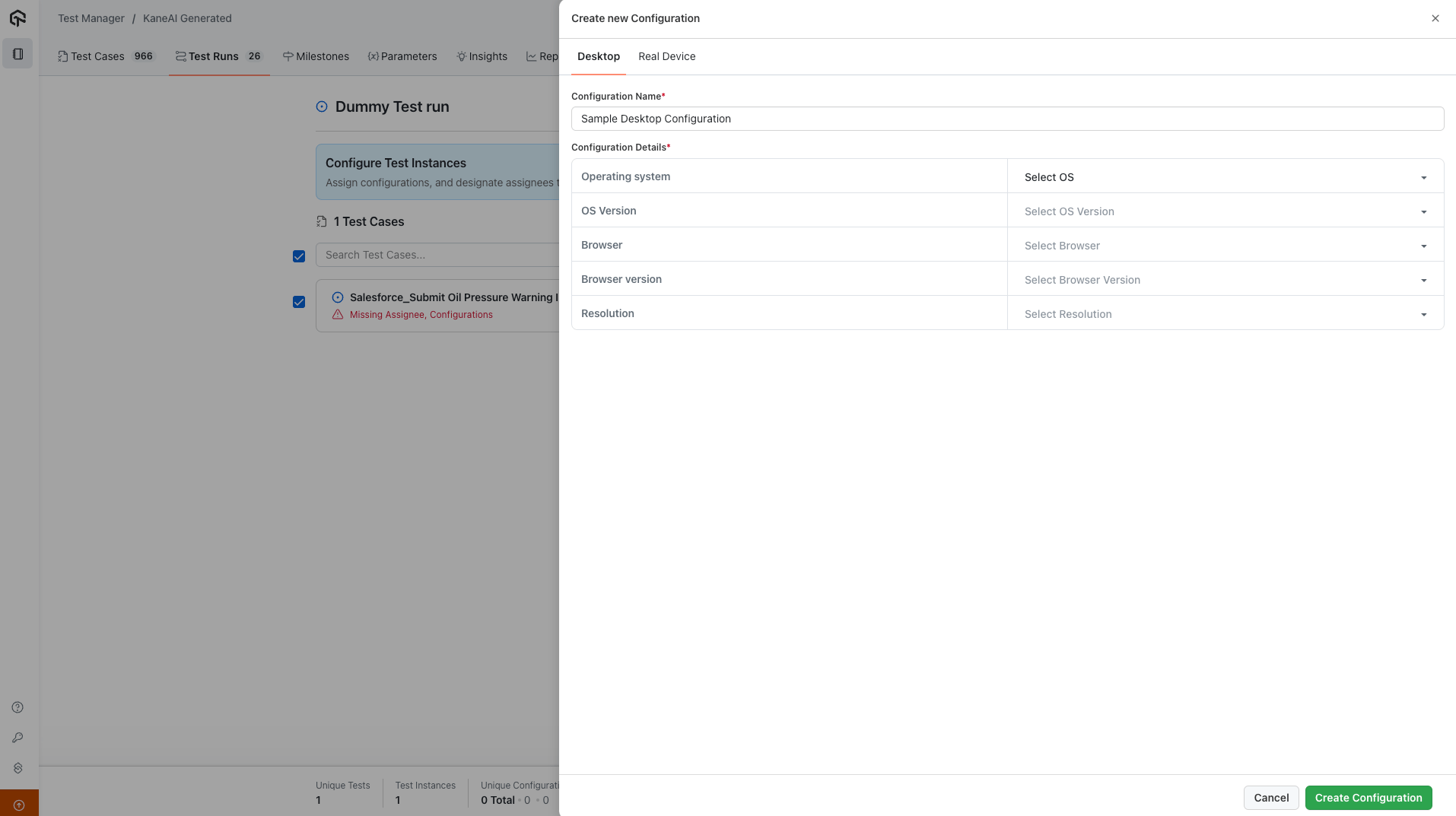
Configure browser-based testing on desktop environments.
Environment Variables:
| Field | Description |
|---|---|
| Operating System | Windows, macOS, etc. |
| OS Version | Specific version of the OS |
| Browser | Chrome, Firefox, Safari, Edge, etc. |
| Browser Version | Specific browser version |
| Resolution | Screen resolution for testing |
Real Device
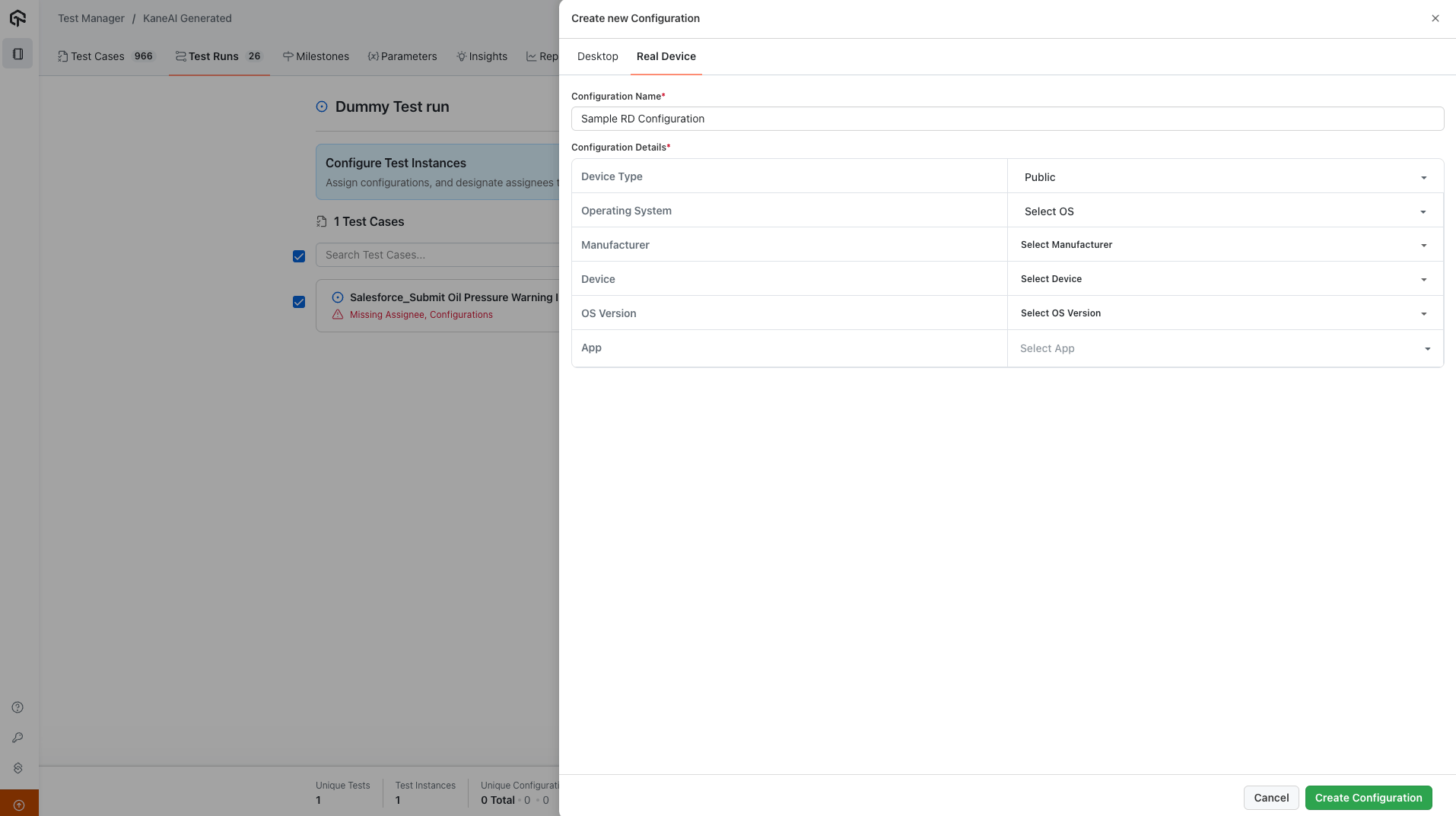
Configure testing on physical mobile devices. Supports both Native App and Mobile Browser testing.
Native Application
Native app testing on Real Devices is available only for KaneAI-generated test runs.
Environment Variables:
| Field | Description |
|---|---|
| Device Type | Public Cloud or Private Cloud |
| Operating System | Android or iOS |
| Manufacturer | Device manufacturer (Samsung, Apple, etc.) |
| Device | Specific device model |
| OS Version | Operating system version |
| App | Application to test |
KaneAI-Exclusive Features
The following options are available only for KaneAI-generated test runs:
Device Type: Private Cloud vs Public Cloud
For organizations with a private cloud real device plan, you can choose between:
- Public Cloud - Shared pool of devices available to all LambdaTest users
- Private Cloud - Dedicated device pool exclusive to your organization
Multi-Select Support
KaneAI allows selecting multiple values for Manufacturer, Device, and OS Version. This creates a larger device pool, ensuring test execution can proceed even if specific devices are unavailable.
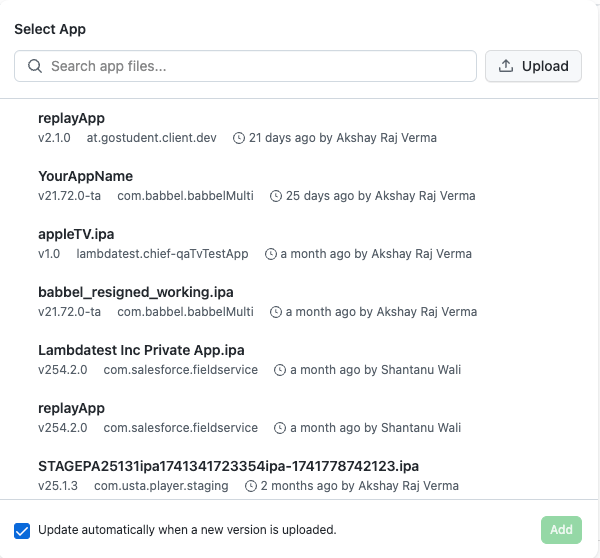
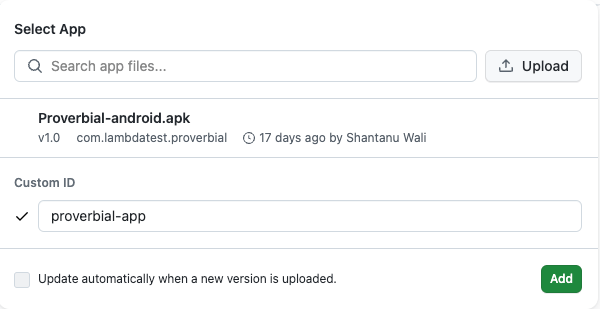
Application Options
| Option | Description |
|---|---|
| Auto Update | Automatically updates the configuration when a new app version (matching appPackage or bundleId) is uploaded |
| Custom ID | Links the configuration to an app uploaded via API with a specific custom_id |
| Pre-Installed App | Available for Private Cloud only. Maps app capability to Stock for testing pre-installed applications |

Mobile Browser
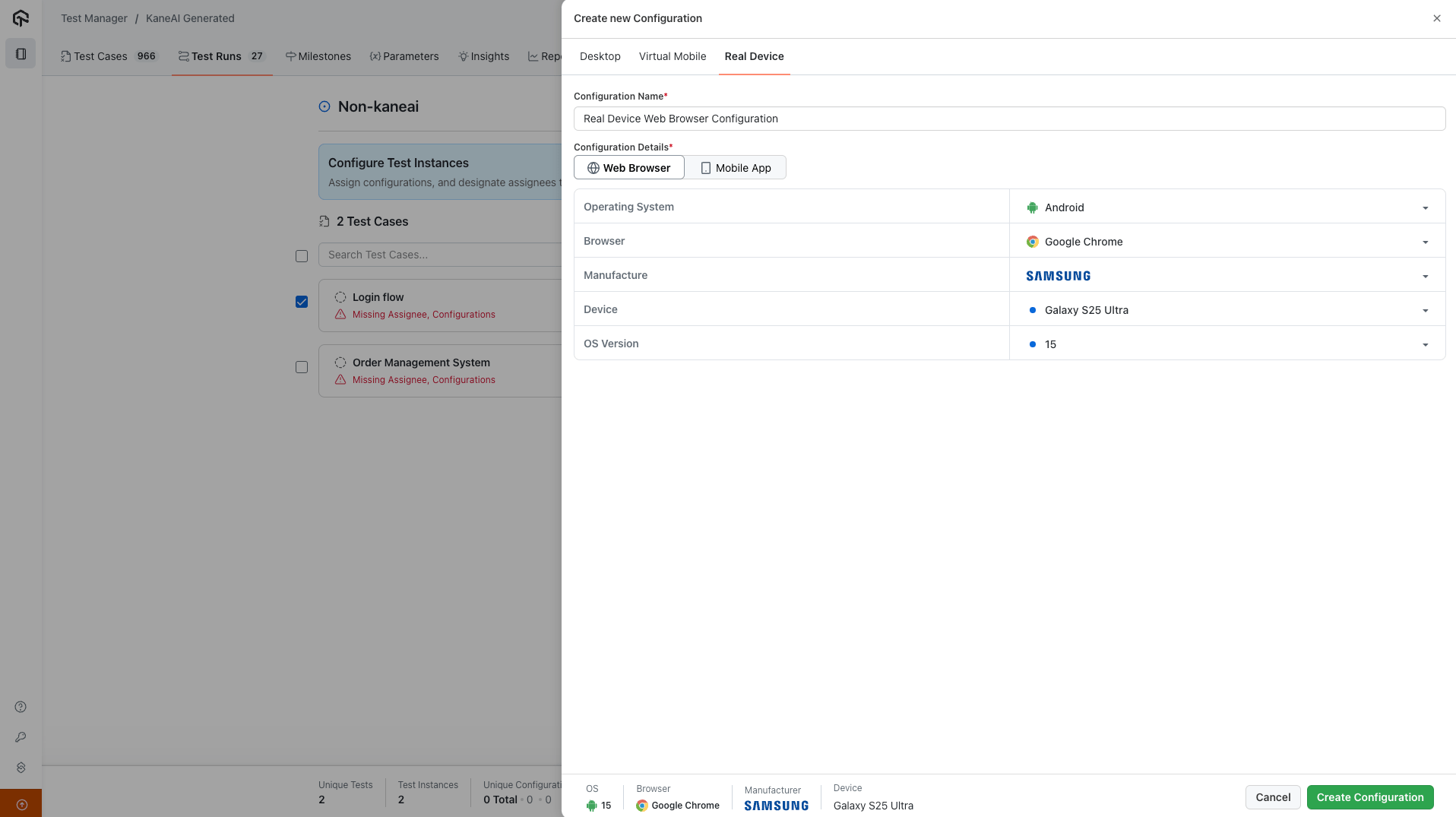
Mobile browser testing on Real Devices is available for non-KaneAI test runs only.
Environment Variables:
| Field | Description |
|---|---|
| Operating System | Android or iOS |
| Browser | Mobile browser to test |
| Manufacturer | Device manufacturer |
| Device | Specific device model |
| OS Version | Operating system version |
Virtual Mobile
Virtual Mobile configurations are available for non-KaneAI test runs only.
Configure testing on emulators and simulators for both Native App and Mobile Browser testing.
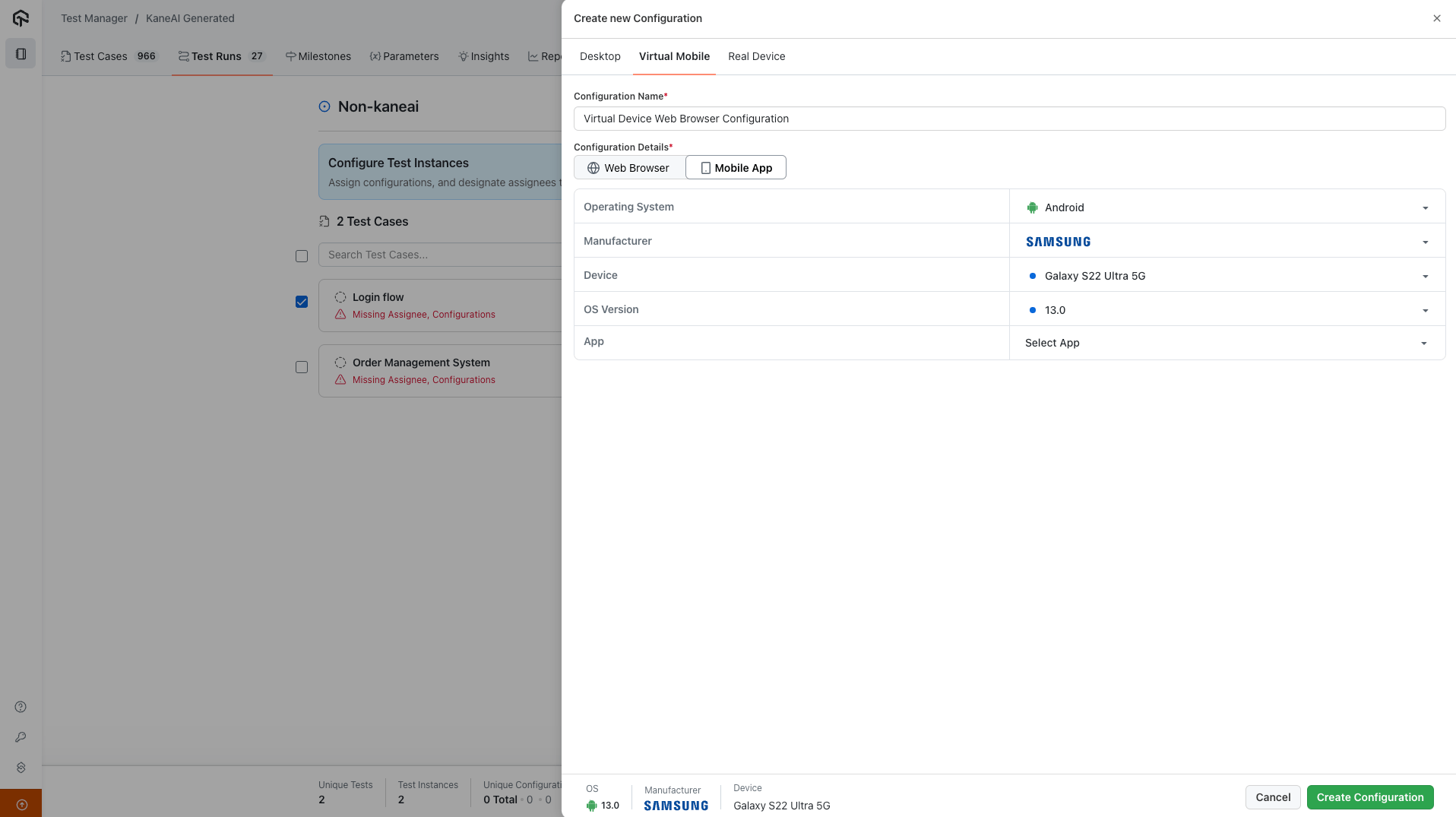
Native Application
Environment Variables:
| Field | Description |
|---|---|
| Operating System | Android or iOS |
| Manufacturer | Device manufacturer |
| Device | Specific device model |
| OS Version | Operating system version |
| App | Application to test |
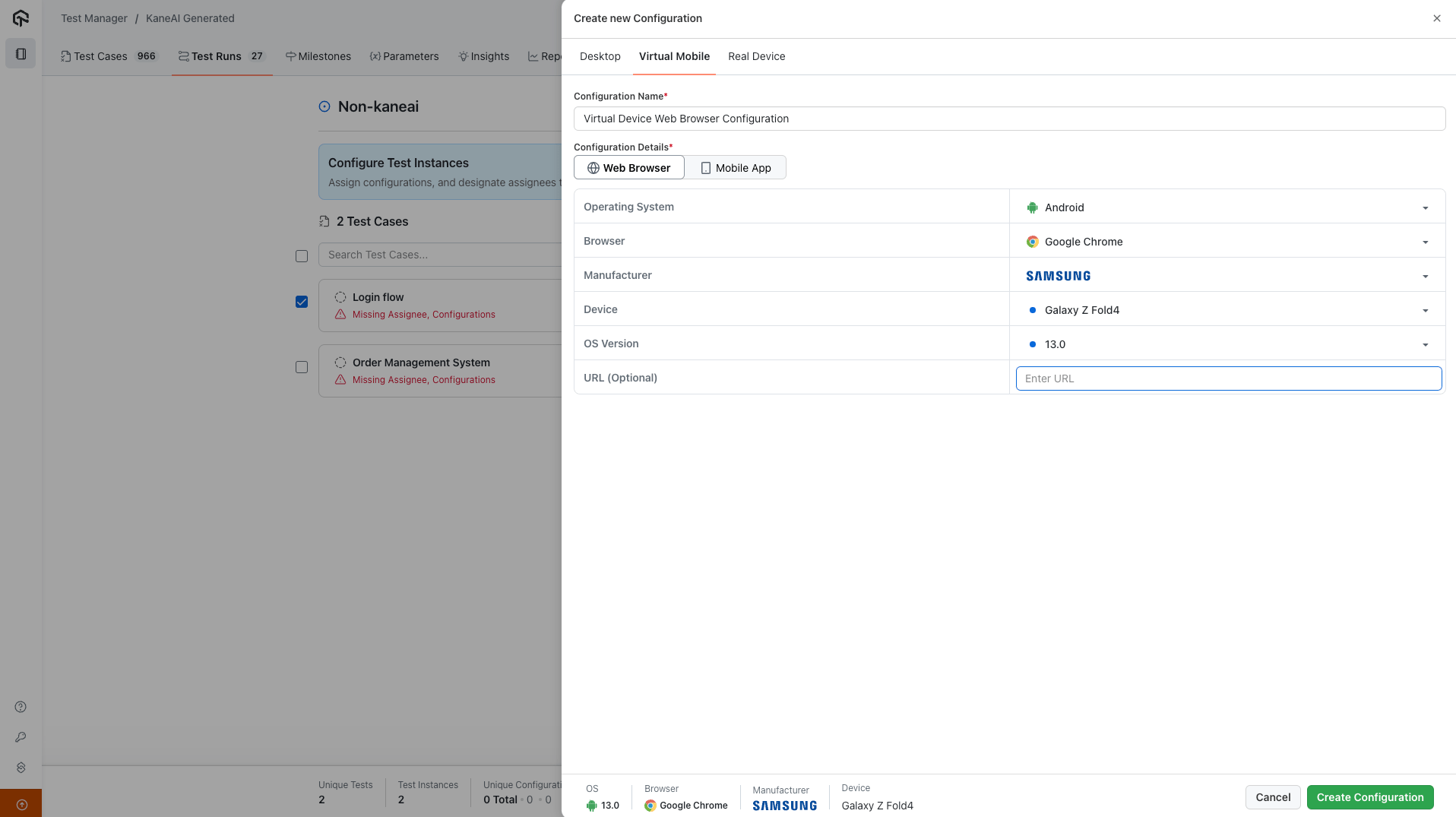
Mobile Browser
Environment Variables:
| Field | Description |
|---|---|
| Operating System | Android or iOS |
| Browser | Mobile browser to test |
| Manufacturer | Device manufacturer |
| Device | Specific device model |
| OS Version | Operating system version |
| URL (Optional) | Default URL to open |
Managing Configurations
Edit a Configuration
- Navigate to the Configurations page from the sidebar
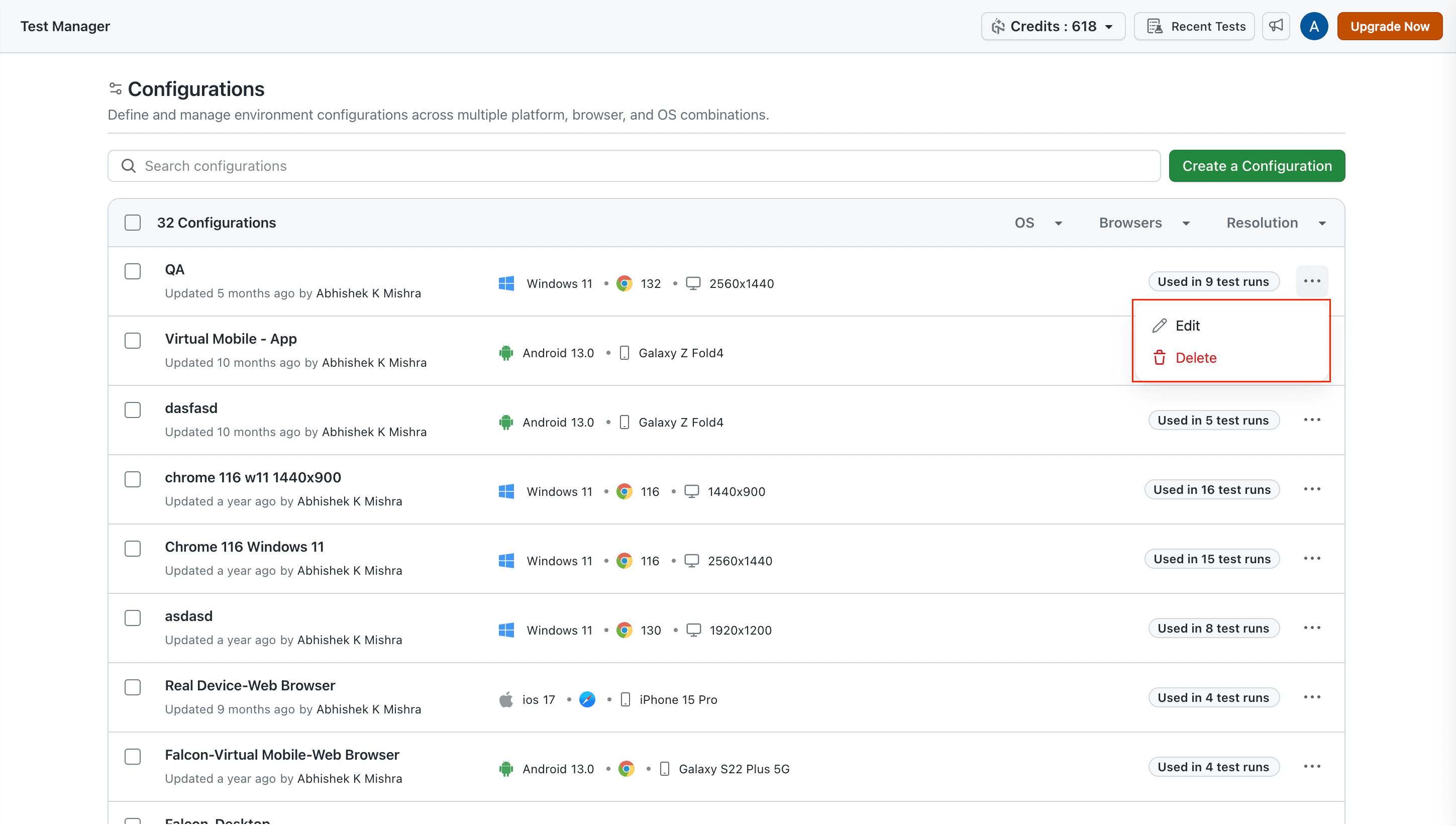
- Locate the configuration and click the Actions menu (⋮)
- Select Edit
- Modify the required fields
- Save your changes
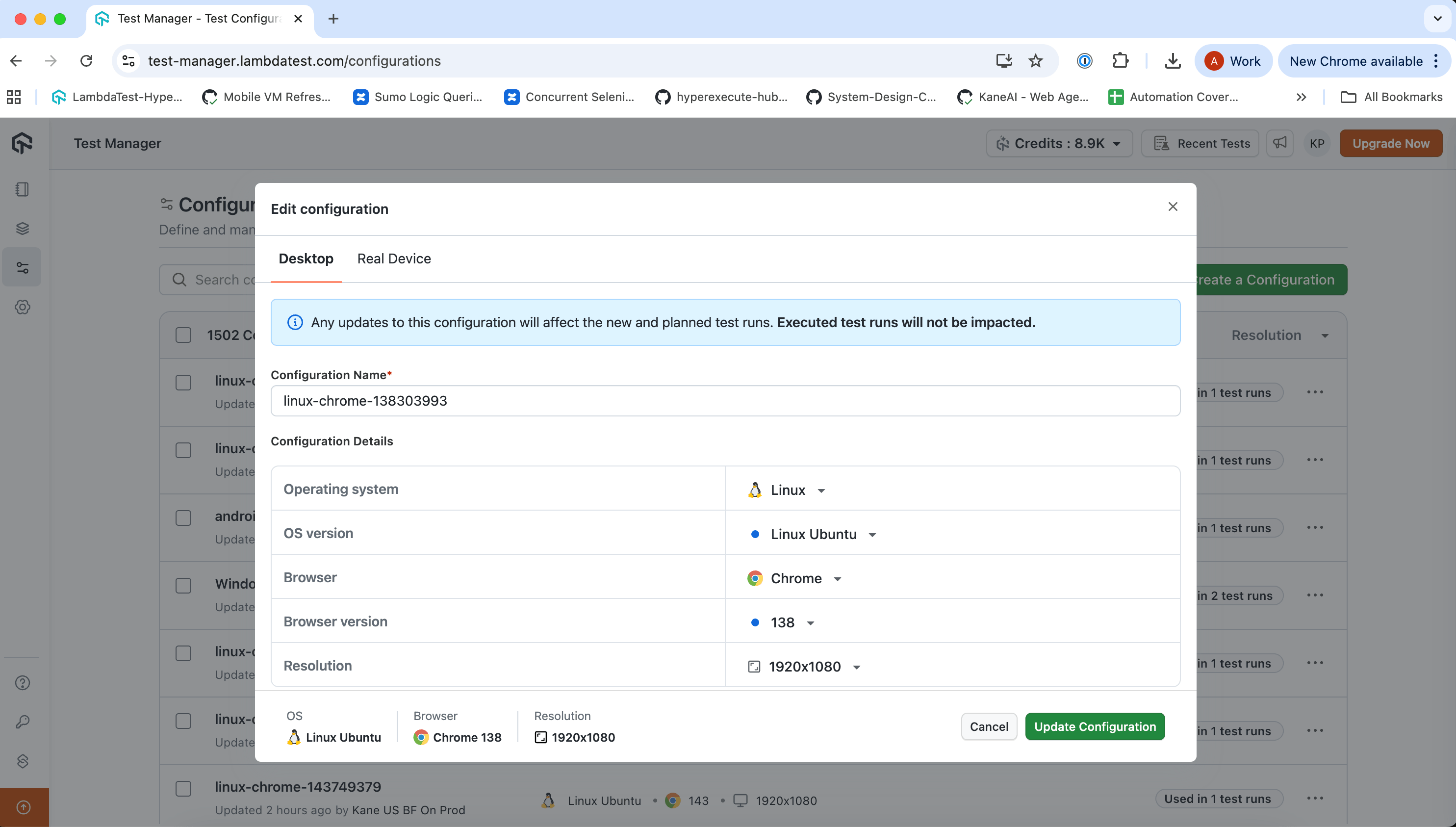
Any updates to the configuration will affect the new and planned test runs. Executed test runs will not be impacted.
Edit functionality is only available on the Configurations page, not within the test run modal.
Delete a Configuration
- Navigate to the Configurations page from the sidebar
- Locate the configuration and click the Actions menu (⋮)
- Select Delete
- Confirm the deletion
Deleting a configuration is only allowed if it's not associated with any Test Instance.
Using Configurations in Test Runs
Apply configurations to test cases when creating or editing test runs.
Steps to Add Configurations
- Select the test cases you want to configure
- Click Configure Test
- In the Add Configuration modal:
- Search for existing configurations by name
- Use filters to narrow down options (OS, Device Type, Browser)
- Select configurations using checkboxes
- Optionally, create a new configuration
- Click Manage Configurations to open the central dashboard in a new tab
Adding configurations appends to existing ones. It does not replace previously assigned configurations.
Bulk Selection
- Use the Select All toggle to select all configurations matching current filters
- This is useful for applying multiple configurations to test instances at once
Best Practices
| Practice | Benefit |
|---|---|
| Use descriptive names | Easily identify configurations (e.g., "Chrome-Win11-1920x1080") |
| Manage from central dashboard | Edit and organize all configurations in one place |
| Enable Auto Update for apps | Always test with the latest app build |
| Use multi-select for devices | Increase device pool availability for KaneAI test runs |
| Review usage count before editing | Understand the impact of changes across test runs |

 Chat with Us
 Ask the Community