Deepgram Voice Agent Integration for TestMu AI Agent Testing
Voice agents built on Deepgram Voice Agent connect to the TestMu AI Agent Testing Platform as voice agents, through an endpoint profile, with no phone number. The test caller connects to Deepgram's Voice Agent API, starts your stored agent configuration, and talks through each scenario the way a real customer would. Every function call the agent makes is recorded with its arguments and result, and checked against the functions each scenario expects.
Integration at a Glance
| Item | Details |
|---|---|
| Agent type | Voice Agent. The test caller talks to your agent over Deepgram's Voice Agent API. |
| Where you connect | The agent's Endpoint Profiles tab, with the Deepgram Voice Agent option. |
| What you need | A Deepgram API key saved in the vault, and the ID of your stored agent configuration. |
| What is recorded | The recording, the transcript, and every function call with its arguments and result. |
| What is checked | The functions listed under Expected Tool Calls on each scenario. |
| Tunnel | Not needed to reach Deepgram. Only for http client tools that call a private server. |
Prerequisites
In Deepgram
- A voice agent with a stored agent configuration, and its agent ID: the UUID shown in the Deepgram Console, or returned by
POST /v1/projects/{project_id}/agents. - A Deepgram API key for the project that holds the agent.
- The names of the agent's functions, if you want to answer client-side functions or check expected tool calls.
- If client-side functions should reach real systems during tests, a server that can answer them, ideally a staging backend.
In TestMu AI
- A Voice Agent with at least one scenario and one suite. See Voice Agent Testing.
- Your Deepgram API key saved in the vault, for example as
DEEPGRAM_API_KEY. You can also add it when you save the profile.
Create a Deepgram Voice Agent Endpoint Profile
- Open the voice agent, select the Endpoint Profiles tab, and click Create New Profile. On an empty tab, the button reads Create New Endpoint Profile.
- Enter a Profile Name and select Deepgram Voice Agent.
- Fill in the Deepgram Agent fields.
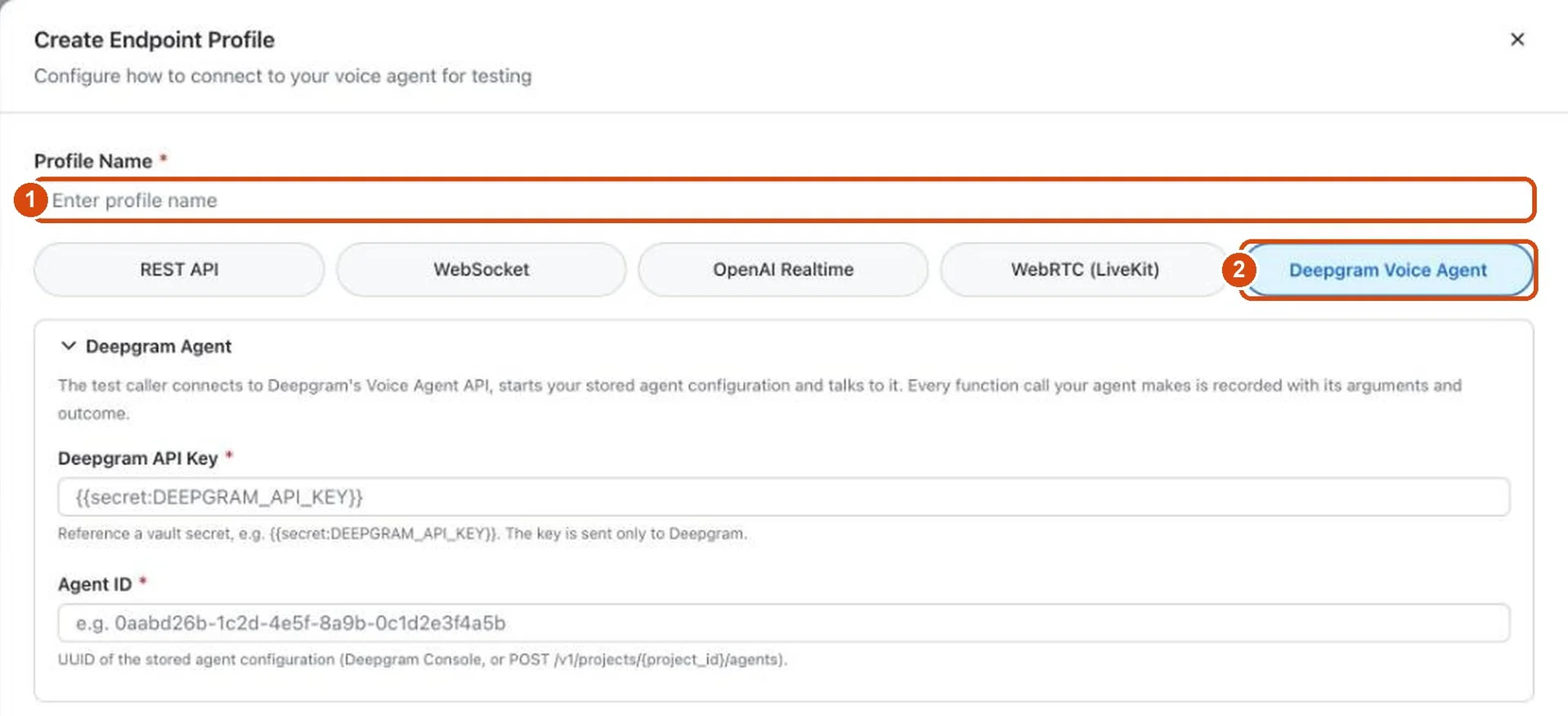
| Field | What to enter |
|---|---|
| Deepgram API Key | A vault reference, such as {{secret:DEEPGRAM_API_KEY}}, not the key itself. The key is sent only to Deepgram. |
| Agent ID | The UUID of your stored agent configuration. |
Don't paste the real API key. A pasted key is saved in the profile as plain text, and the form warns you that it will be. Reference the vault instead.
Answer Client-Side Tools (Optional)
Functions that have an endpoint in your agent configuration are called by Deepgram and need nothing here. Functions without one wait for the client to answer, and during a test the test caller is the client. Under Client-side Tools, add an entry to Client Tools (JSON array) for each one you want to answer, in one of two modes:
mockreplies with the same fixed answer every time. Use it to check that the agent calls the right function with the right arguments, without side effects.httpforwards the arguments to your server and replies with its answer. Use it to test end to end, including how the agent handles real results and errors.
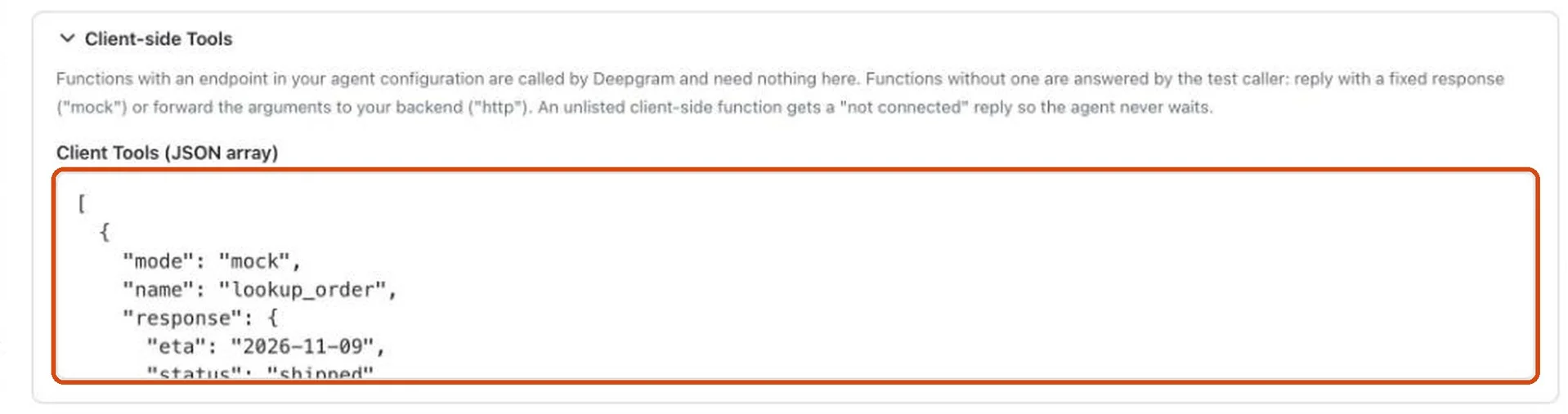
[
  {
    "name": "lookup_order",
    "mode": "mock",
    "response": { "order_id": "A1001", "status": "shipped" }
  },
  {
    "name": "check_inventory",
    "mode": "http",
    "url": "https://your-server.example.com/inventory",
    "headers": { "Authorization": "Bearer {{secret:SERVER_TOKEN}}" }
  }
]
| Key | Meaning |
|---|---|
name | The function name, exactly as it is in your agent configuration. |
mode | mock or http. |
response | With mock, the fixed answer to send back. |
url | With http, your server's address. |
headers | With http, extra headers for your server, such as an auth token. Reference tokens from the vault, as in the example. |
A client-side function you don't list still gets a "not connected" reply, so the agent never waits. It shows on the Tool Calls tab as Not connected (default reply). That's a useful test of how the agent handles a failing tool, but list the function when the scenario needs a real answer to continue.
Adjust Turn Timing (Optional)
The Turn Timing settings control how long the test caller waits for the agent. Keep the defaults unless the agent gets cut off or the test waits too long.
| Setting | Default | Range | What it controls | Raise it when |
|---|---|---|---|---|
| Response Start Timeout (s) | 20 | 1–120 | How long to wait for the agent to start answering. | The agent is slow to start its reply. |
| Turn Settle (s) | 1.2 | 0.2–10 | The quiet time after the agent stops speaking that ends its turn. | The test caller talks over the agent during natural pauses. |
| Tool Call Timeout (s) | 30 | 1–300 | How long a pending function call holds the turn open. | http tools call a slow server. |
| Max Turn Duration (s) | 90 | 10–300 | The longest one agent turn can last. | The agent gives long answers and gets cut off. |
Save the Profile
- If the profile references a vault key that isn't saved yet, click Add secret under Secrets (Vault) and add it. Vault values resolve when tests run and are never stored in the profile.
- Turn on Mark as default to make this the default profile.
- Click Create Profile.
Add Expected Tool Calls to Scenarios
List the functions a scenario expects, and each run shows a pass or fail for them.
- On the Scenarios tab, click the pencil icon on a scenario.
- In Expected Tool Calls, enter one function name per line. Add
(optional)after any function the agent may skip. - Click Save Scenario.
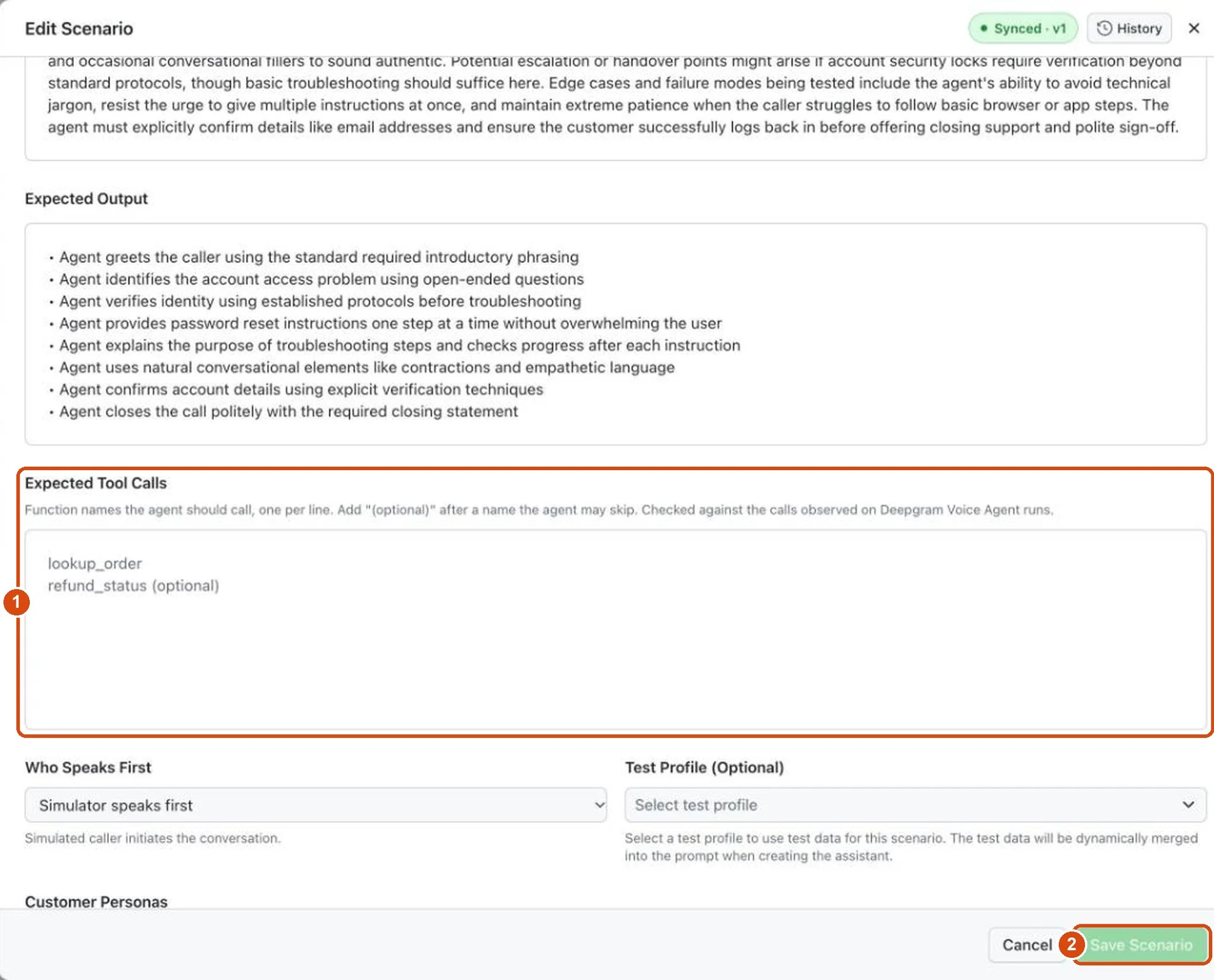
lookup_order
issue_refund
send_confirmation_email (optional)
- Use the function names exactly as they are defined in your Deepgram agent.
- Mark a function optional when the scenario can succeed without it, so a skipped call doesn't fail the scenario.
- Leave the field empty for scenarios that don't need a check. Their calls are still recorded under Observed Tool Calls.
Run the Suite
- On the Suites tab, click Run next to your suite.
- In Select Endpoint Profile, choose your Deepgram profile. The Deepgram Voice Agent Transport label confirms that the run uses it.
- Click Run Voice Test.
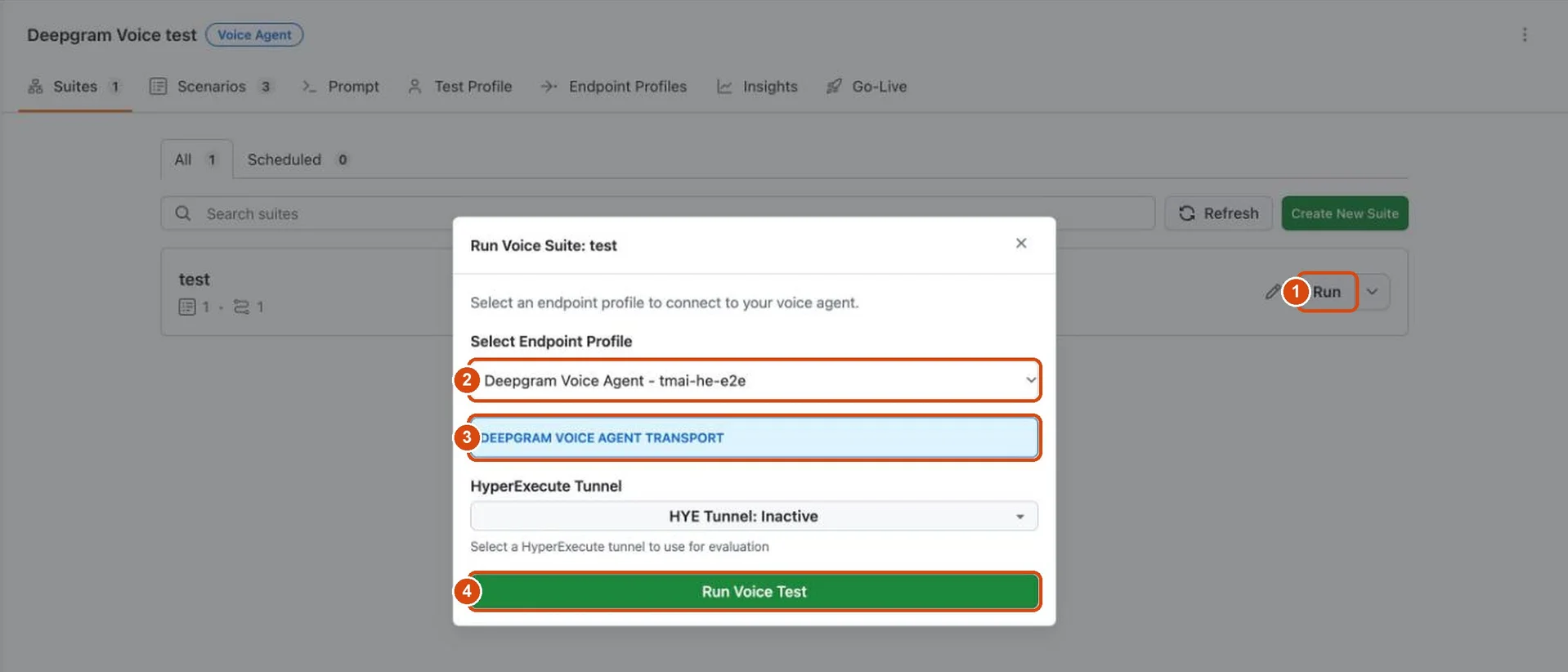
You don't need a HyperExecute Tunnel to reach Deepgram. Select one only if an http client tool calls a server on a private network.
Read the Tool Calls Tab
Click the suite name to open its results, and select a scenario. Play the recording and read the transcript on the Recording tab, then open Tool Calls.
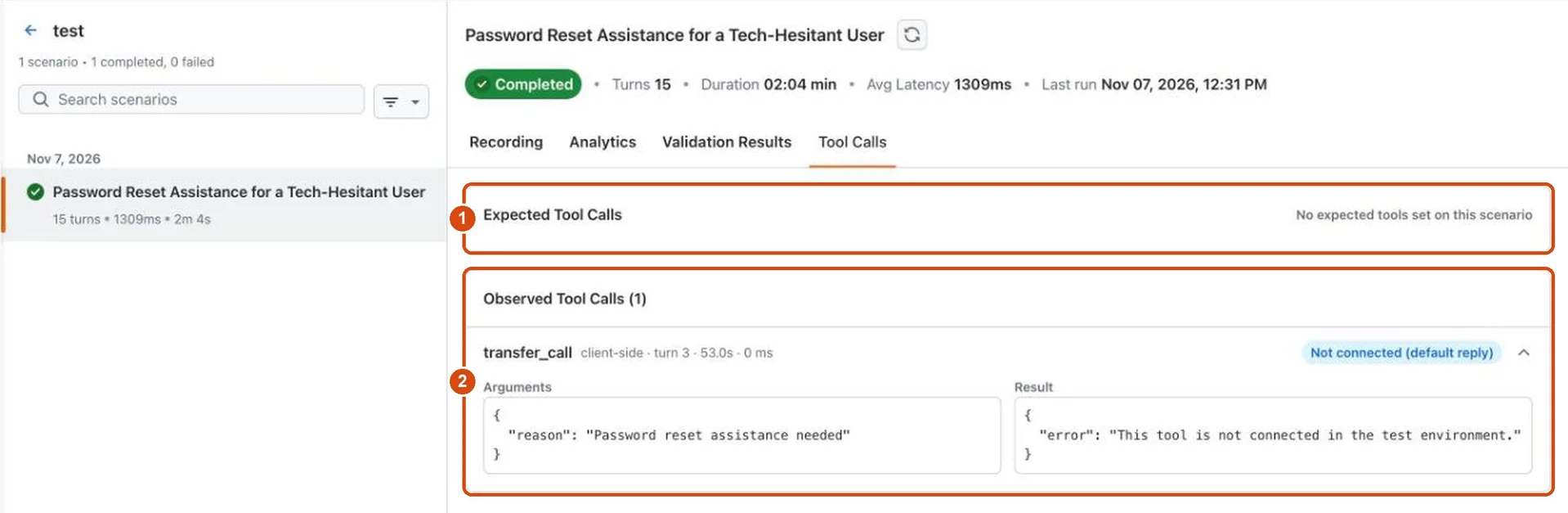
| Section | What it shows |
|---|---|
| Expected Tool Calls | Whether the agent called the functions listed on the scenario. Scenarios without a list show No expected tools set on this scenario. |
| Observed Tool Calls | Every function the agent called, with where it ran, the turn, the time in the call, the latency, and its status. Click a row to see the arguments sent and the result returned. |
- A missing call. If an expected function wasn't called, find that turn in the transcript to see what the agent did instead.
- Wrong arguments. A call to the right function with the wrong arguments is a common defect, so check the arguments, not just the name.
- A failed result. Check how the agent responded to an error result. It should tell the caller, not carry on as if the call worked.
- Not connected (default reply). The function isn't listed under Client Tools. Add a
mockorhttpentry if the scenario needs a real answer. - Latency. With
httptools, your server's response time is part of the pause the caller hears.
Troubleshooting
| Problem | What to do |
|---|---|
| The run fails with an authentication error | Check that the reference in Deepgram API Key matches the vault key name exactly, and that the key is saved in the vault. |
| The agent isn't found | Check that Agent ID is the UUID of a stored agent configuration in the project the API key belongs to. |
| The form warns that the key will be stored as plain text | You pasted the key itself. Replace it with a vault reference such as {{secret:DEEPGRAM_API_KEY}}. |
| The expected tool check fails, but the agent called the function | The name must match exactly. Compare it with the name under Observed Tool Calls. |
| Calls show Not connected (default reply) | Add the function to Client Tools with a mock or http entry. See Answer Client-Side Tools. |
http tool calls fail or time out | Check that the URL is reachable. For a private server, select a tunnel when you run the suite. For a slow server, raise Tool Call Timeout. |
| The agent gets cut off, or the test waits too long | Adjust the turn timing. |
| The Tool Calls tab is empty | Check that the suite ran with the Deepgram profile. The run dialog shows the Deepgram Voice Agent Transport label when it does. |
Security and Credentials
- Reference the API key from the vault as
{{secret:KEY}}. Vault values resolve when tests run and are never stored in the profile, while a pasted key is stored as plain text. - The API key is sent only to Deepgram.
- Reference tokens in
httptool headers from the vault too. - Use a Deepgram key scoped to testing, and rotate it on your usual schedule.
- Point
httptools at a staging server, not production, because your agent's function calls run against it.
Other Integrations
- Phone Caller agents: Amazon Connect, Cartesia, ElevenLabs, Retell, Vapi, and Salesforce Agentforce.
- See Voice Agent Testing for everything else a voice test covers.
 Chat with Us