Cartesia Integration for TestMu AI Agent Testing
The Cartesia integration connects a Cartesia Managed Agent to a Phone Caller agent in the TestMu AI Agent Testing Platform. TestMu AI imports the agent's prompt and tools, and after every test call it checks which tools the agent actually called, the same way as for other voice providers.
Without the integration, TestMu AI still tests any Cartesia agent that answers a phone number, with transcripts, recordings, grading, and call quality metrics. Connect it when you also want the prompt imported and the tool calls checked.
Integration at a Glance
| Item | Details |
|---|---|
| Agent type | Phone Caller, inbound. TestMu AI calls your Cartesia agent's phone number. |
| Where you connect | The agent's Integrations tab, on the Cartesia card. |
| What you need | A Cartesia API key and the managed agent's ID. |
| What is imported | The agent's prompt and tools. |
| What is checked | Whether the agent called each tool a scenario expects, with the arguments and result of every call. |
| Supported agents | Cartesia Managed Agents. Agents built with the Line SDK are not supported. |
Prerequisites
In Cartesia
- A Cartesia Managed Agent with a phone number it answers on.
- A Cartesia API key, created in the Cartesia Playground, and the managed agent's ID.
In TestMu AI
- A Phone Caller agent with the call type Inbound (Bot receives calls), with the Cartesia agent's phone number added on its Phone Numbers tab. See Test an Inbound Phone Agent.
Agents built with the Cartesia Line SDK are self-hosted and don't expose their prompt or tools, so they can't be connected. You can still test them as a phone caller agent without the integration, with transcripts, recordings, grading, and call quality metrics, but without the prompt import or tool call checks.
API keys are secrets. Enter them only in the integration form, never in a scenario, prompt, test data file, or source code.
Connect Cartesia
- Open the Phone Caller agent and select Integrations.
- Select Connect on the Cartesia card.
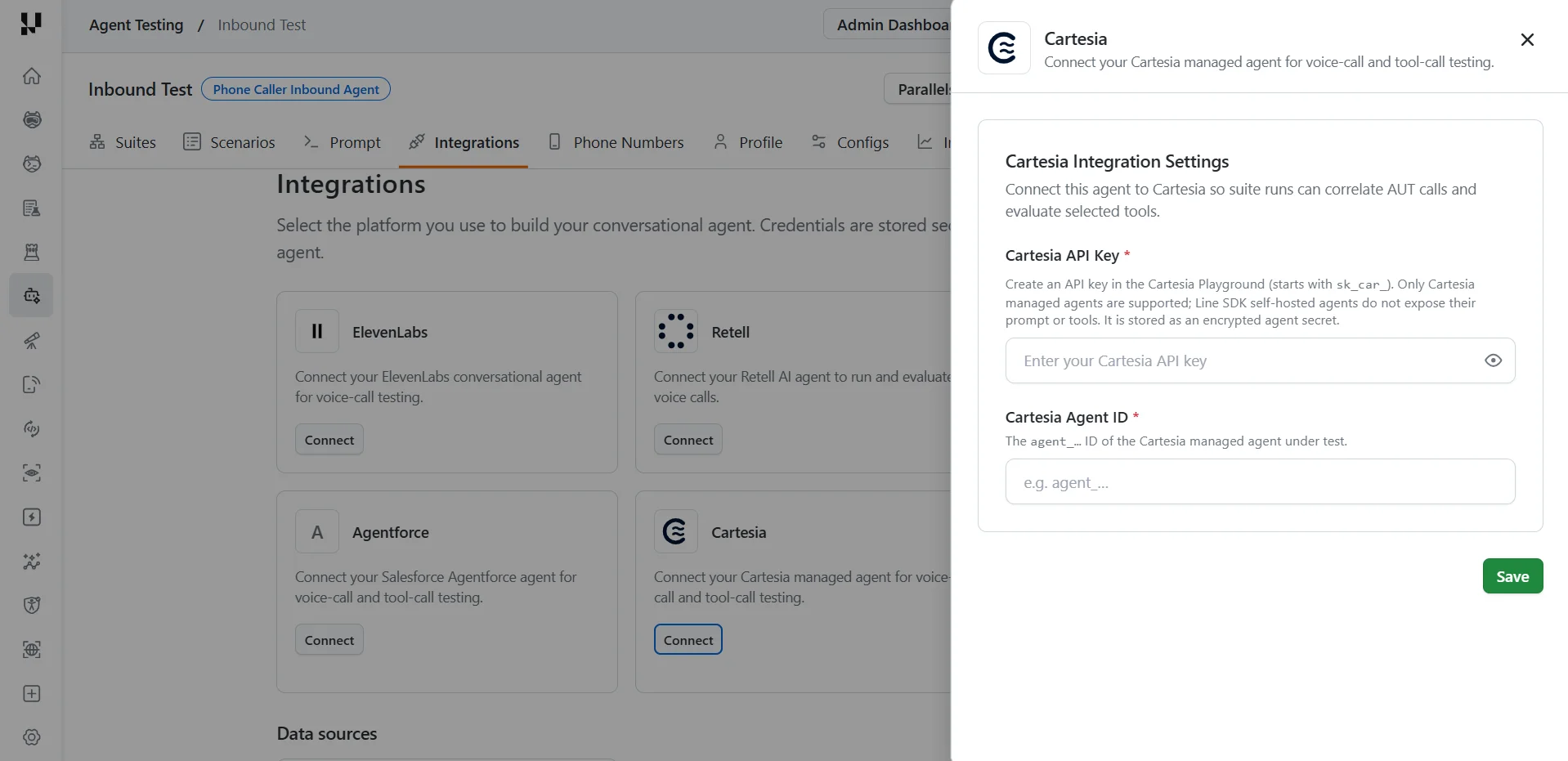
- Fill in the fields, then select Save. TestMu AI imports the agent's prompt and tools.
| Field | What to enter |
|---|---|
| Cartesia API Key | A key created in the Cartesia Playground. Cartesia keys start with sk_car_, so a value with another prefix is the wrong key. |
| Cartesia Agent ID | The ID of the managed agent you want to test. It starts with agent_. |
TestMu AI stores the credentials as HyperExecute secrets, scoped to this agent. One provider can be connected per agent, so use a separate TestMu AI agent to test another Cartesia agent or provider.
Check the Prompt and Tools
Open the Prompt tab to check the imported prompt, then generate your scenarios from it. The imported tools appear in the scenario editor.
After you change the agent in Cartesia, select Re-sync on the Cartesia card so the prompt and tools match what is deployed.
Select the Expected Tools for Each Scenario
Open a scenario and, in the scenario editor, select each tool from the imported catalog that the scenario expects the agent to call.
| Example scenario | Expected tools |
|---|---|
| Booking | check_availability, book_appointment |
| Cancellation | cancel_appointment |
- Select only the tools the scenario must check. The tool check passes only if the agent called all of them.
- Scenarios with no tools selected still run, without a tool check.
- If the agent's tools change, select Re-sync and review the tools selected on each scenario.
Run a Test and Read the Tool Calls
Start with one short scenario and one expected tool in a small suite, to confirm that the right agent answers and the tool check works. Then run your suites as for any inbound phone agent.
Open a call and select the Tool Calls tab.
| Section | What it shows |
|---|---|
| Expected Tool Validation | Each tool selected on the scenario, marked Called or Not Called. |
| Selected AUT Tool Calls | Each call the agent made to a selected tool, with its status, arguments, and result. |
| AUT Tool Calls | Every tool the agent called, including tools you didn't select, so unexpected calls are visible. |
- Read the transcript and the tool calls together. If the agent says it booked or transferred while the tool shows Not Called, it claimed an action it didn't take.
- A tool that ran but returned an error still shows Called, so check the result of each call.
- Not Called can be the right outcome, for example when the caller never gave the agent the details it needed.
Troubleshooting
| Problem | What to do |
|---|---|
| The API key is rejected | Check that the key starts with sk_car_. If it does, create a new one in the Cartesia Playground and save it again. |
| The agent isn't found | Check that the ID starts with agent_, belongs to a managed agent, and was copied in full. Line SDK agents can't be connected. |
| The wrong agent answers | Check the saved agent ID and the number on the Phone Numbers tab, then run the short test again. |
| No tools appear in the scenario editor | Confirm the agent has tools in Cartesia, then select Re-sync. |
| A call shows no expected tools mapped | The scenario has no tools selected, so only the call itself was graded. Select its expected tools. |
| A key may have been exposed | Rotate it in Cartesia and save the new key. |
Security and Credentials
- Saved credentials are stored as HyperExecute secrets, scoped to the agent where you save them.
- TestMu AI uses them to read the agent's configuration and check its tool calls during your test calls.
- Use separate keys for test and production, rotate them on your usual schedule, and disconnect the integration when you no longer need it.
Other Integrations
- Phone Caller agents: Amazon Connect, ElevenLabs, Retell, Vapi, and Salesforce Agentforce.
- Voice agents: Deepgram Voice Agent.
- See Phone Agent Testing for everything else a phone test covers.
 Chat with Us