Sync Test Instances in Manual Test Runs
When a master test case is updated (e.g., steps are added, descriptions are modified, or modules are restructured), the test instances in your existing manual test runs do not automatically reflect these changes. The Sync Test Instance feature lets you manually update a test instance to the latest version of its master test case, ensuring your test runs always reflect the most current requirements.
Each test instance tracks the version of the master test case it was created from (e.g., v1). When the master test case is updated to a newer version (e.g., v2), TestMu AI Test Manager detects this version mismatch and makes the sync action available.
This feature is available only for manual test runs. KaneAI test runs always use the latest code export during execution, so syncing is not applicable.
Currently, you can only sync one test instance at a time. Bulk sync support is planned for a future release.
Identifying Stale Test Instances
From the Test Run Listing
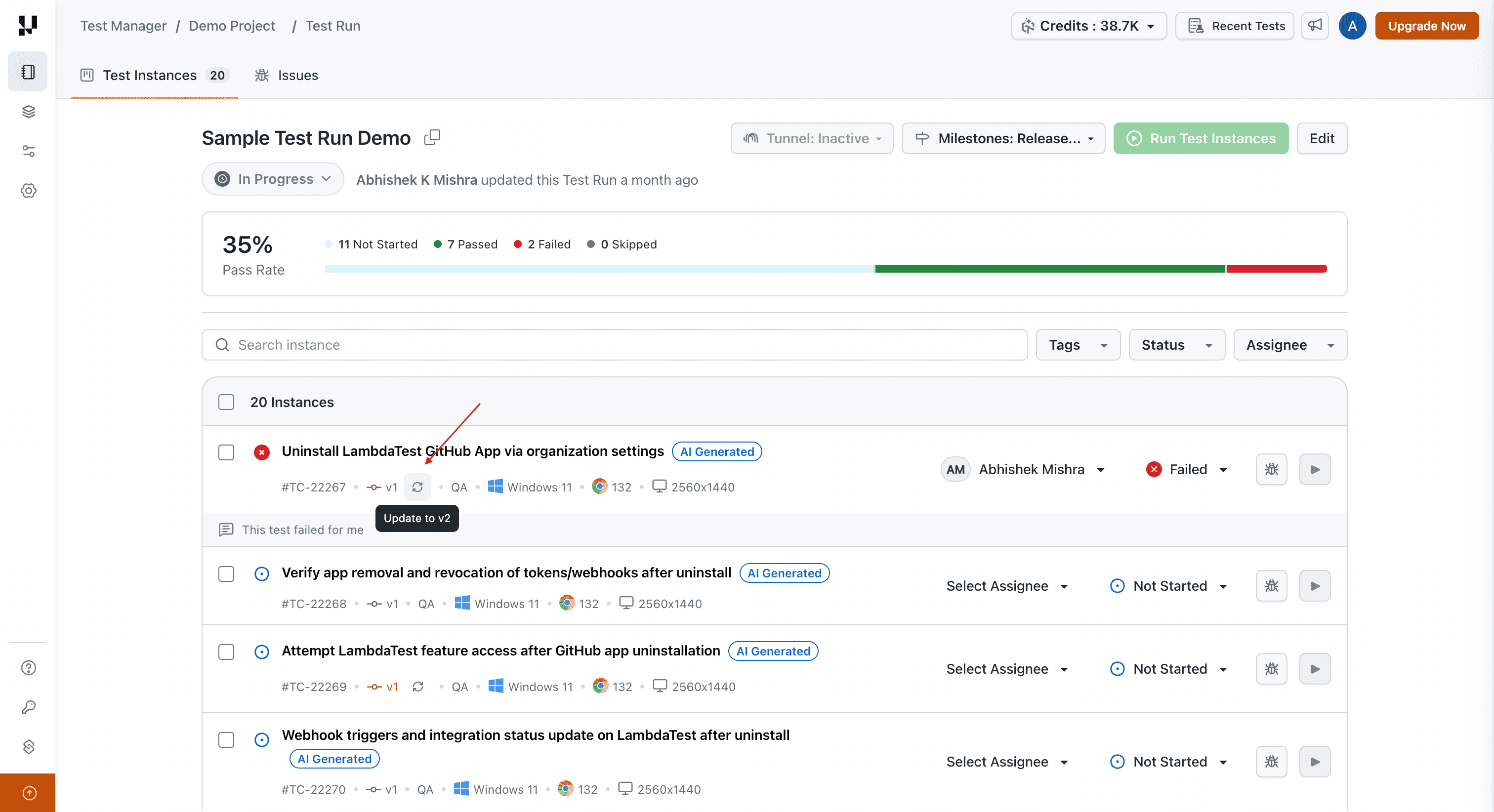
Each test instance card displays its current version (e.g., v1). A grey version label indicates the instance is up to date. If a newer version is available, the version label is highlighted in colour, and a sync icon appears next to it. Hover over the icon to see a tooltip (e.g., Update to v2), and click it to initiate the sync.
From the Test Instance Detail
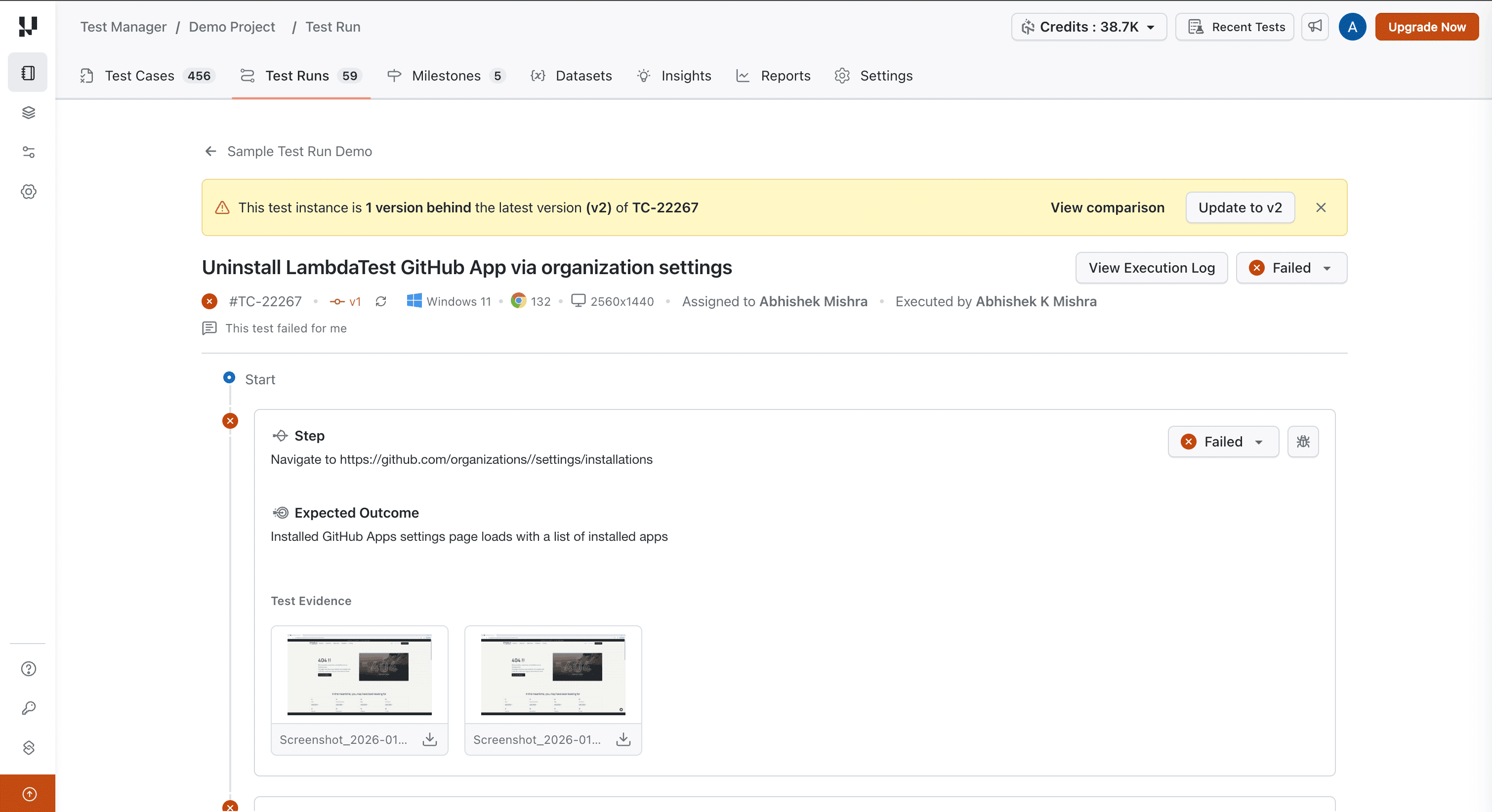
When you open a stale test instance, a banner appears at the top indicating how many versions behind the instance is. From here, you can click View comparison to review the changes or Update to vN to sync.
Comparing Versions
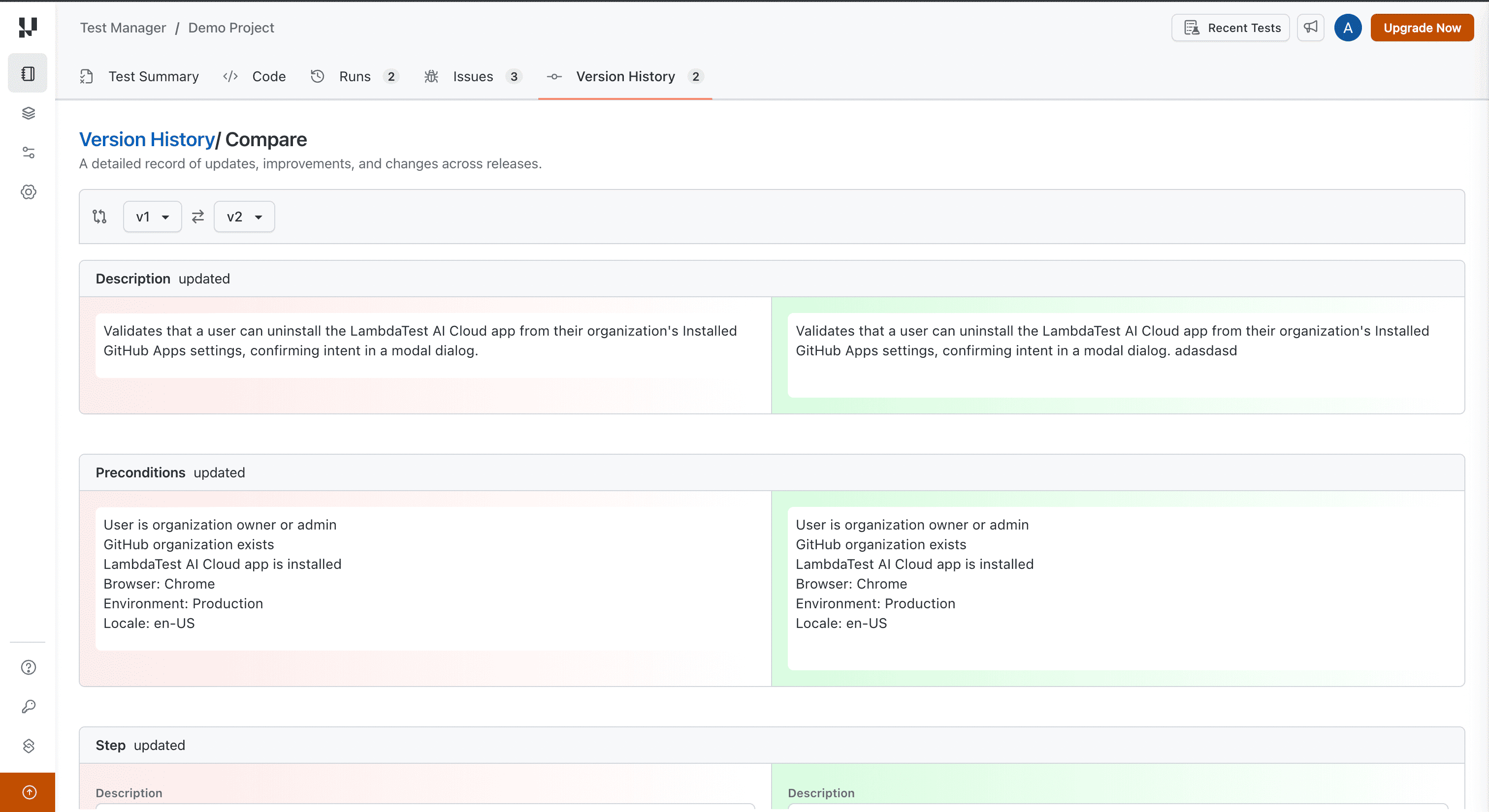
Before syncing, you can review exactly what changed. Click View comparison from the version banner to open a side-by-side diff view. This highlights all differences between the test case version currently linked to the test instance and the latest version of the same test case — including changes to descriptions, preconditions, and individual steps.
Syncing a Test Instance
When you click the sync action, a confirmation modal appears with the following details:
- The instance will be updated to the latest version.
- All statuses will be reset to Not Started — both the overall instance status and every individual step status.
- Existing remarks and attachments will be preserved for re-verification.
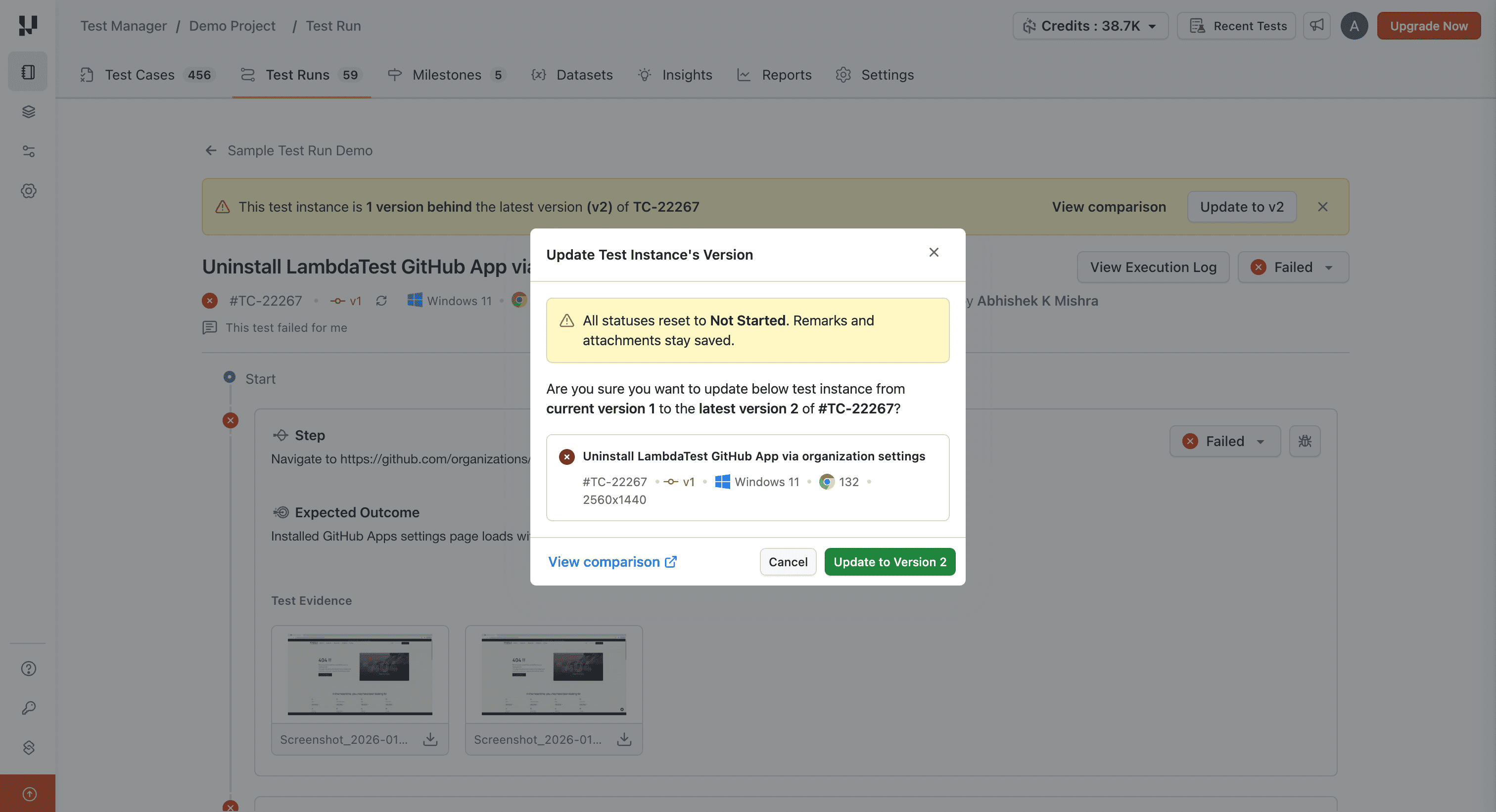
Click Update to Version to confirm, or Cancel to keep the current version.
After Syncing
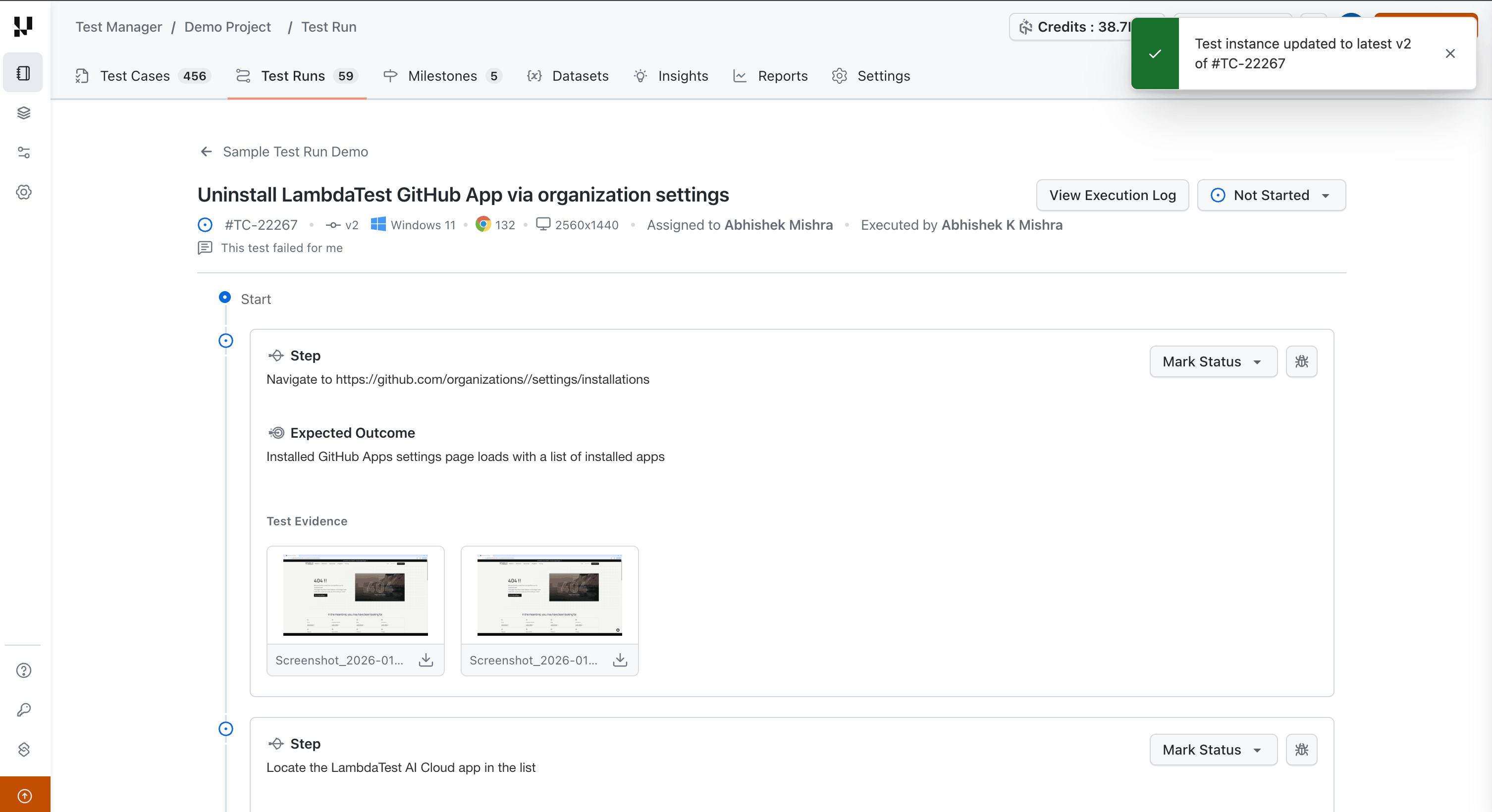
Once synced, the test instance is updated with the latest master test case content — including any changes to the title, step descriptions, expected outcomes, and step structure (added, removed, or reordered steps). The instance and all step statuses are reset to Not Started, and a success notification confirms the update.
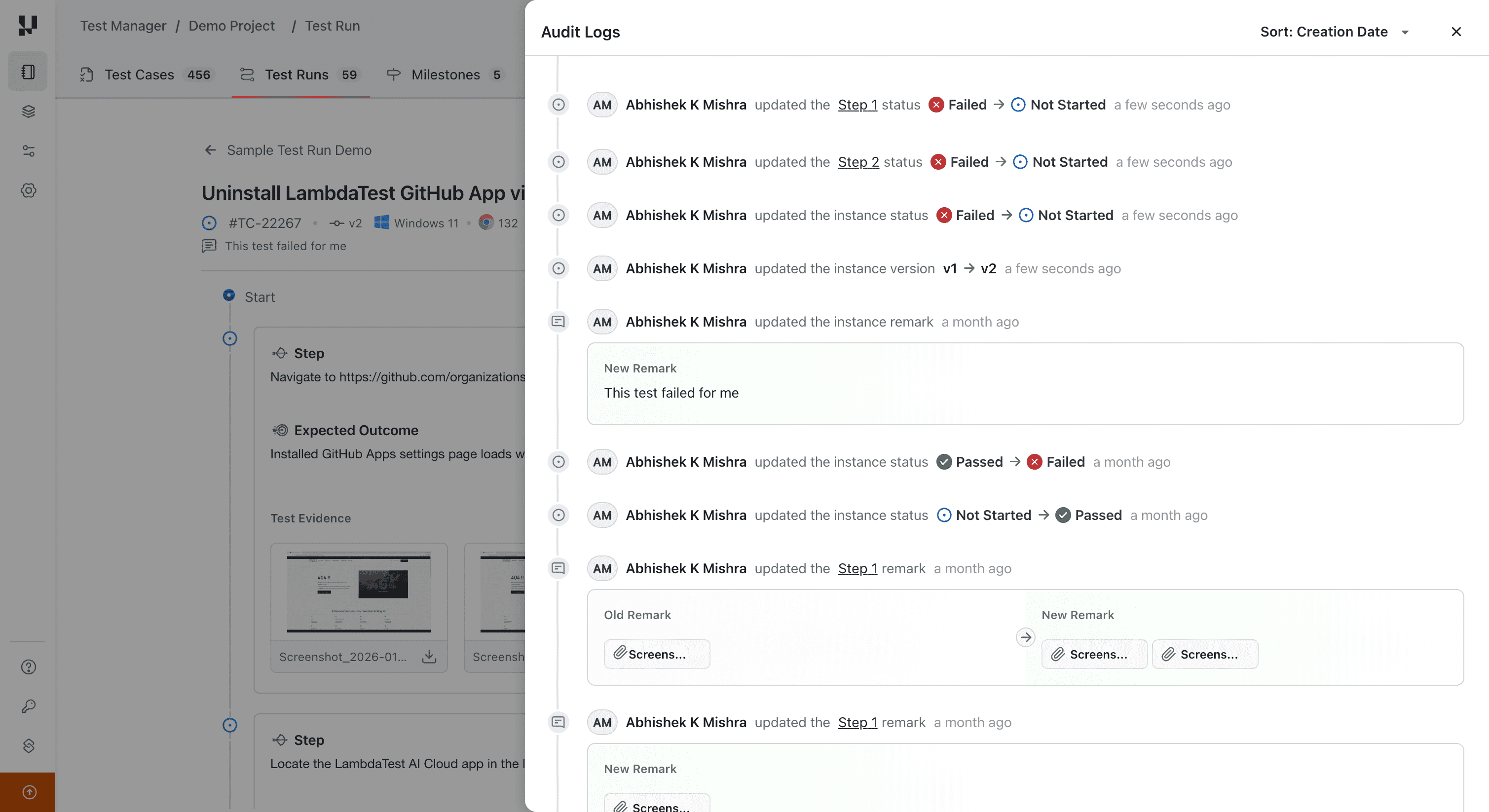
Audit Log
Every sync action is recorded in the test instance's Audit Log. The log captures the version update (e.g., v1 → v2), the instance and step-level status resets, and any related changes — giving your team full traceability.
When you duplicate a test run, all test instances in the new run are automatically linked to the latest version of their master test cases — regardless of which version was used in the original run. All statuses are set to Not Started.
Limitations
- No auto-sync — Syncing is a manual action. Test instances do not update automatically when the master test case changes.
- No partial status retention — All statuses (instance and step level) are reset to Not Started upon sync. There is no option to selectively retain step statuses.
- KaneAI-generated versions — If the latest version of a master test case was generated via Automate with KaneAI, the sync action is disabled for that instance. A tooltip indicates the reason when you hover over the disabled action.

 Chat with Us
 Ask the Community