Sumo Logic Integration
Sumo Logic is a cloud-based platform that modernizes your security operations. By analyzing security and operational issues with Sumo Logic, you can make smarter decisions and free up resources for other critical functions.
TestMu AI and Sumo Logic enables you to view TestMu AI results in a custom Sumo Logic dashboard and gain deeper insight into your automation scripts to ship quality products at light speed.
Prerequisites
- A TestMu AI account. If you don't have an account, sign up for free.
- A Sumo Logic account.
Configuring A Sumo Logic Collector
In order to push test data from TestMu AI to Sumo Logic dashboard, you will need to create a collector in Sumo Logic.
Adding A Collector
If you already have an existing collector, please refer to Adding A Source section.
- Login to your Sumo Logic account. From the left sidebar, navigate to Manage Data > Collection.
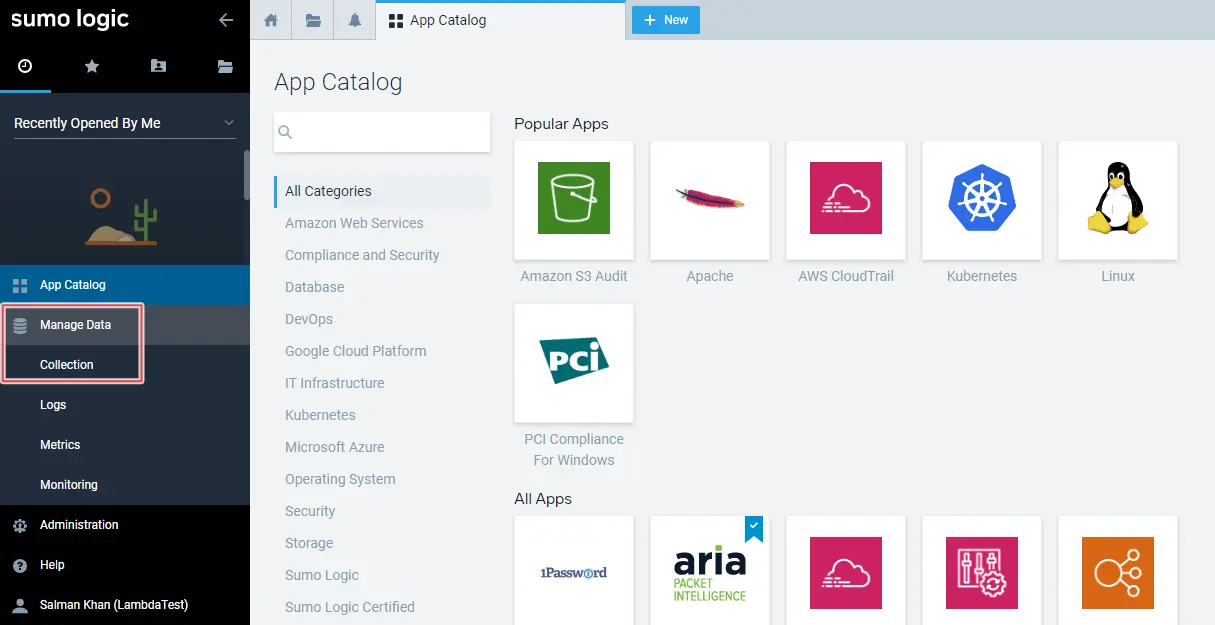
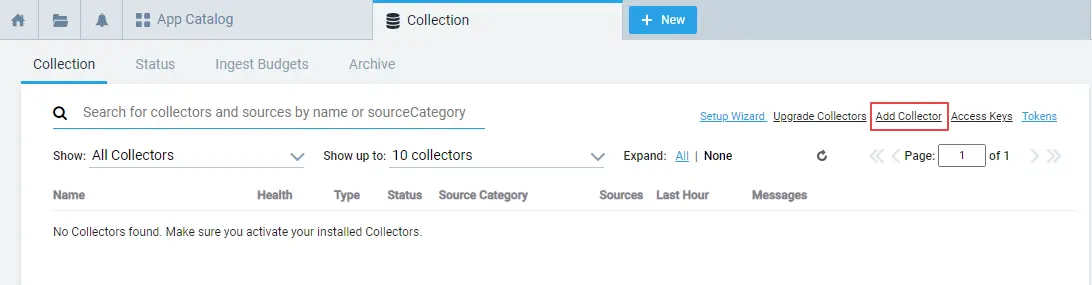
- To add a new collector, click Add Collector on the top-right corner.
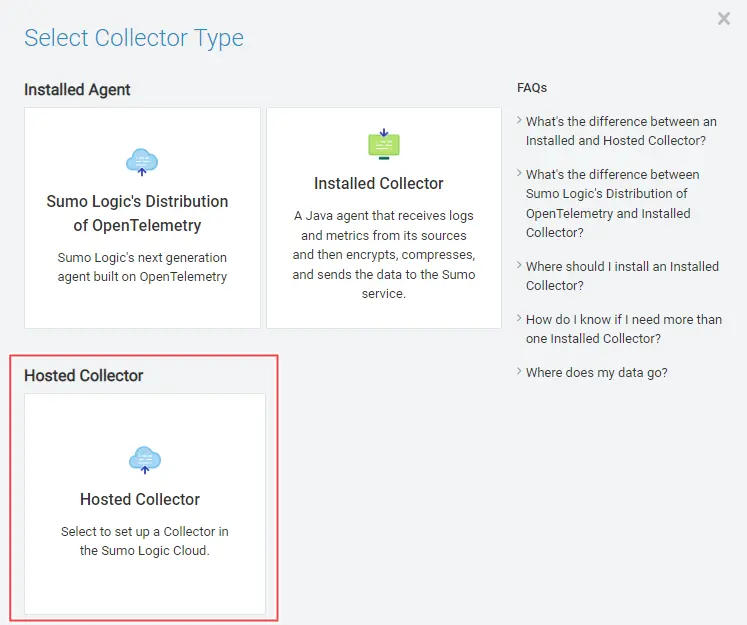
- A Select Collector Type pop-up will appear. Select Hosted Collector.
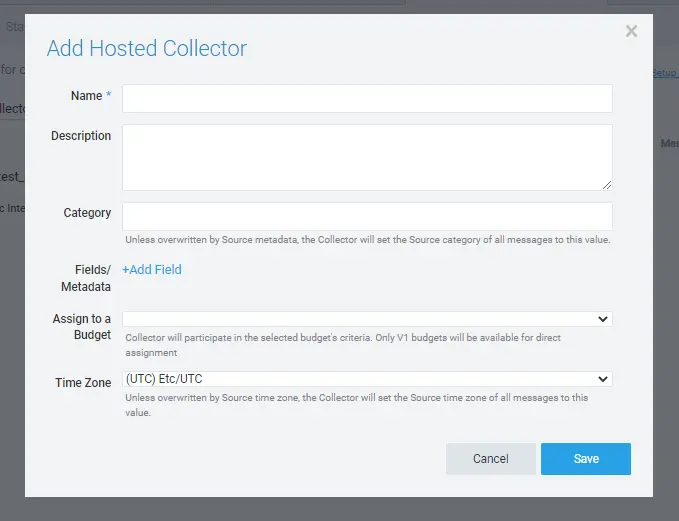
- In the provided fields, enter the collector details like Name, Description, Category, Fields/Metadata, Budget, and, Time Zone. Then click Save.
Adding A Source
- From Sumo Logic Home page, navigate to Manage Data > Collection.
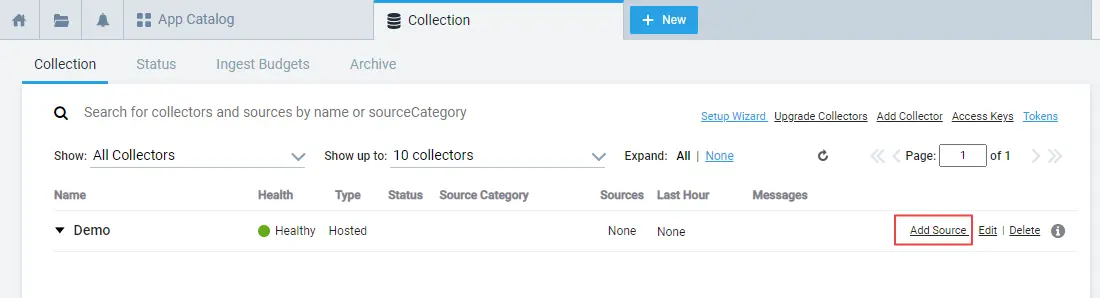
- Click Add Source. If you create a new collector, it will directly route you here.
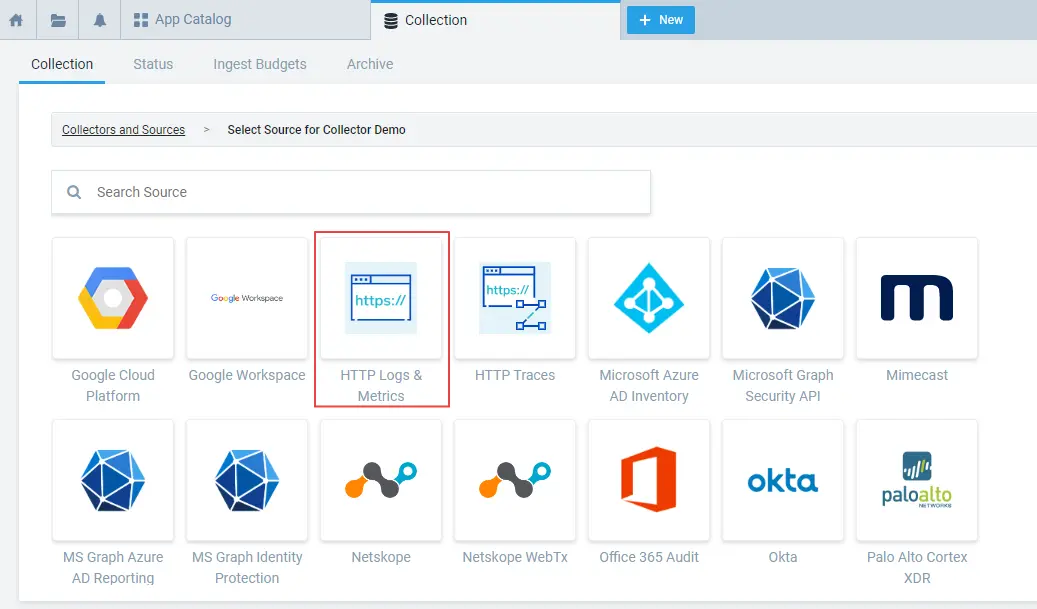
- Select HTTP Logs and Metrics.
- Enter the Source details like Name, Description, Source Host, Source Category and click Save.
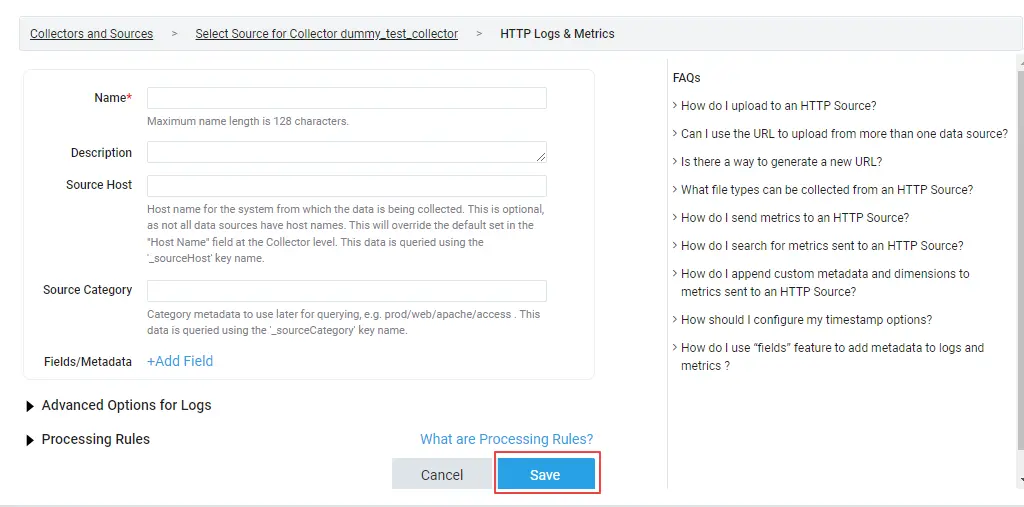
The Source Category field is required. Otherwise, the test data will not get reflected in your Sumo Logic dashboard.
- A HTTP Source URL will be generated that you need to provide while configuring the TestMu AI Sumo Logic webhook. Copy the generated HTTP Source URL.

Configuring The Sumo Logic Integration
-
Login to your TestMu AI account and visit Integrations from the left sidebar.
-
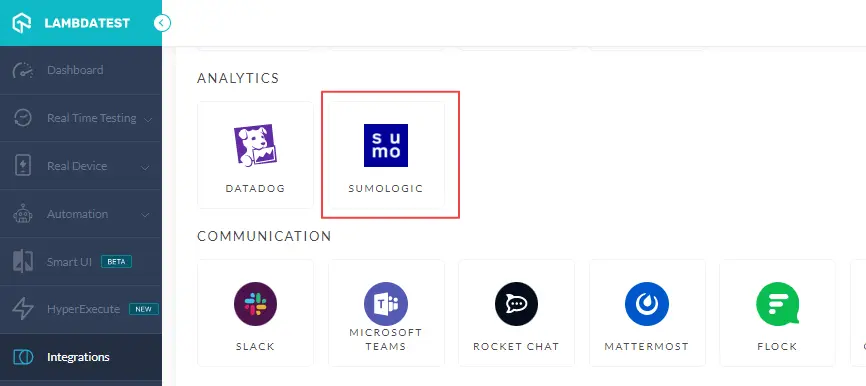
From the ANALYTICS category, select SUMO LOGIC.
- In the Collector endpoint URL field, paste the copied HTTP Source URL and press Install.
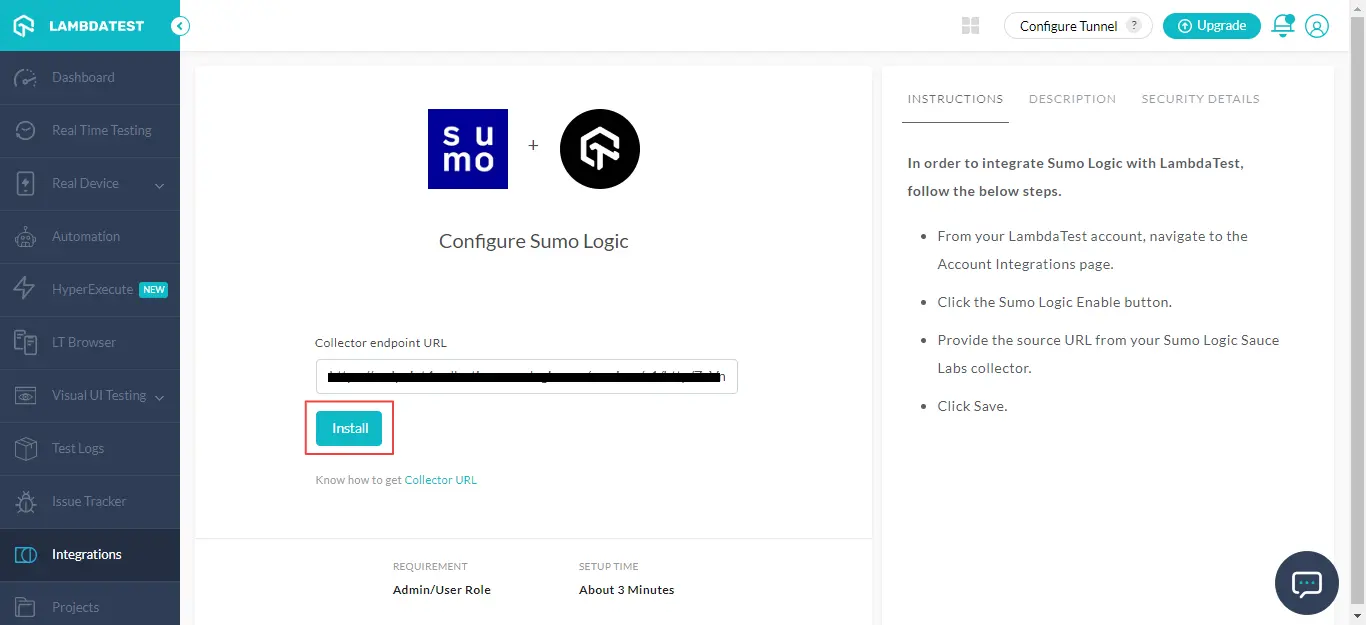
The Sumo Logic will be integrated with your TestMu AI account.
Installing the TestMu AI App in Sumo Logic
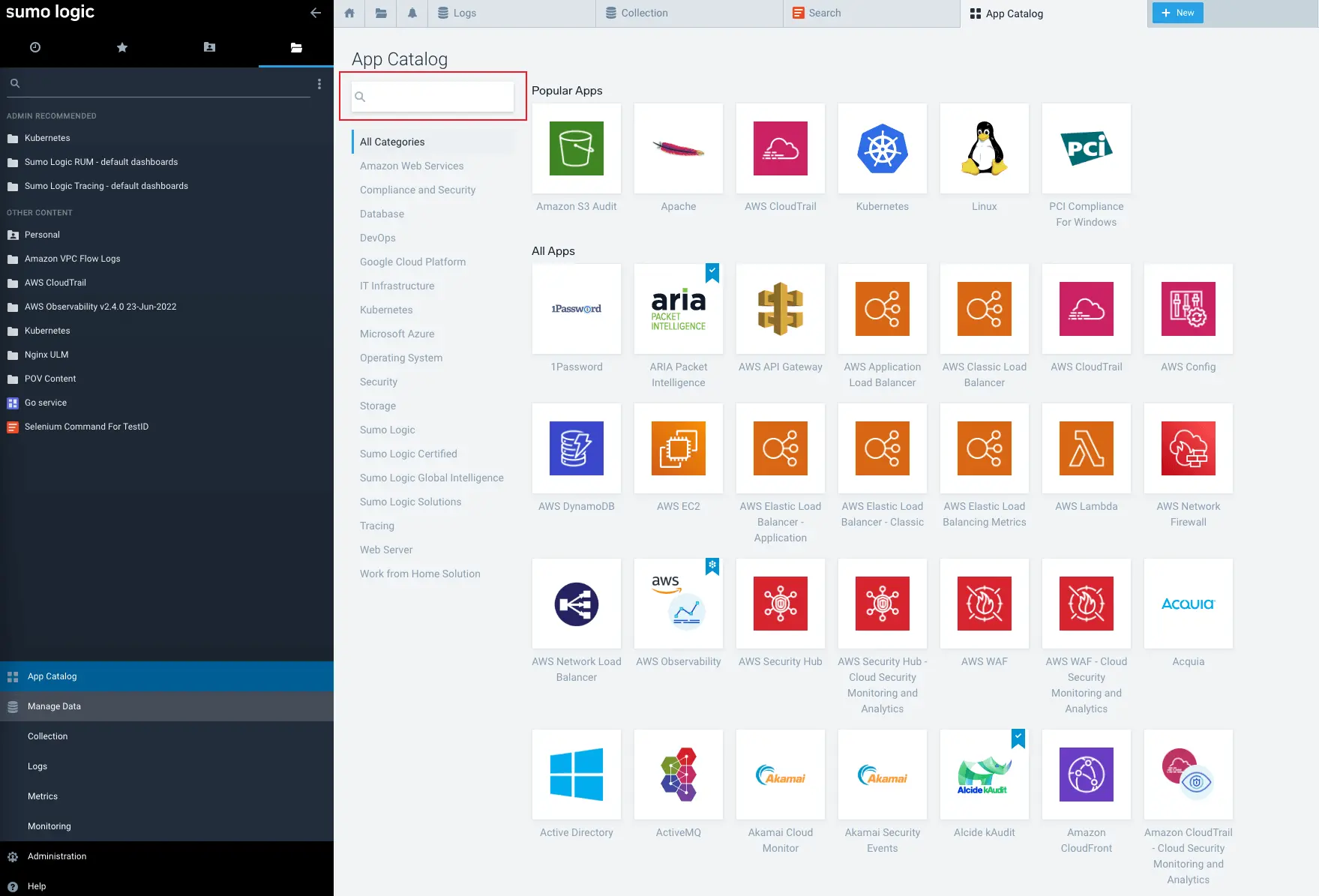
- Navigate to Sumo Logic Home and select App Catalog from the left navigation panel.
-
Find and select the TestMu AI App using the search bar.
-
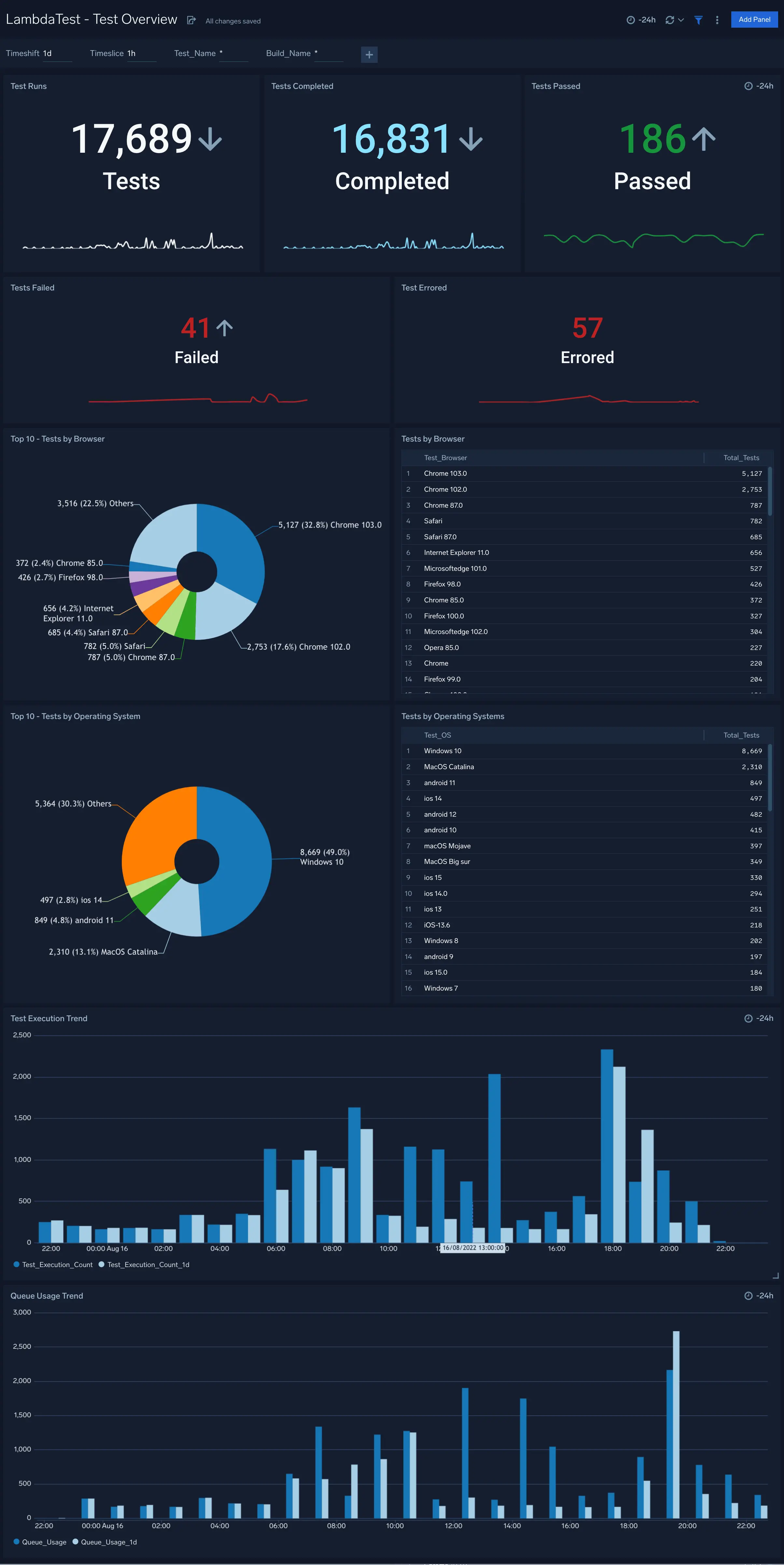
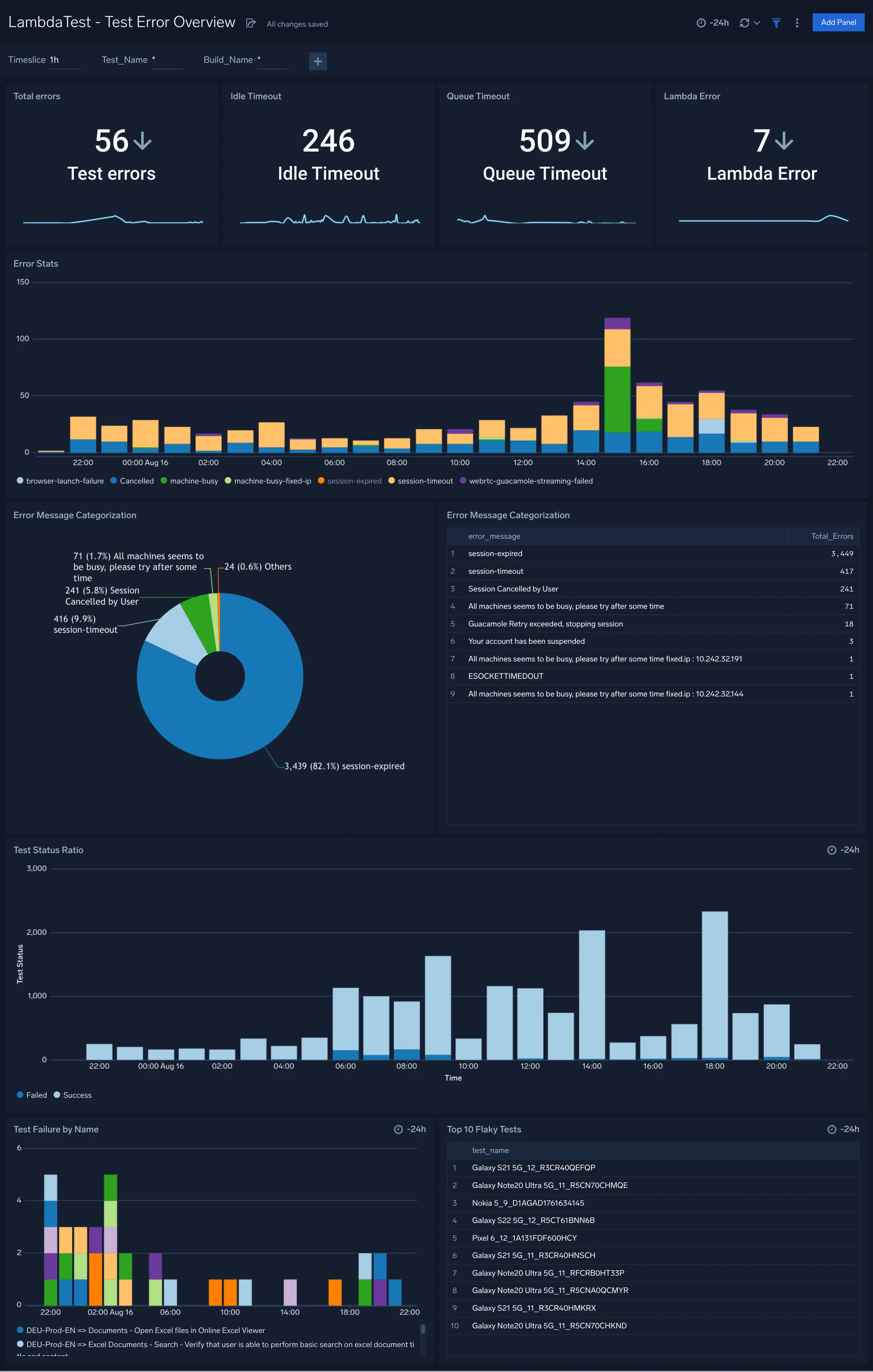
Click Add Integration to install the TestMu AI app into your Sumo Logic account. It will then add the TestMu AI dashboards (TestMu AI - Test Overview and TestMu AI - Test Error Overview) to your directory.
-
Click on the TestMu AI Test Overview dashboard to get an overall insight about your testing trends.
- Click on the TestMu AI Test Error Overview dashboard to understand your test error trends.
Removing The Sumo Logic Integration
-
Login to your TestMu AI account and visit Integrations from the left sidebar.
-
From the MY INTEGRATIONS category, navigate to SUMO LOGIC and click REMOVE.
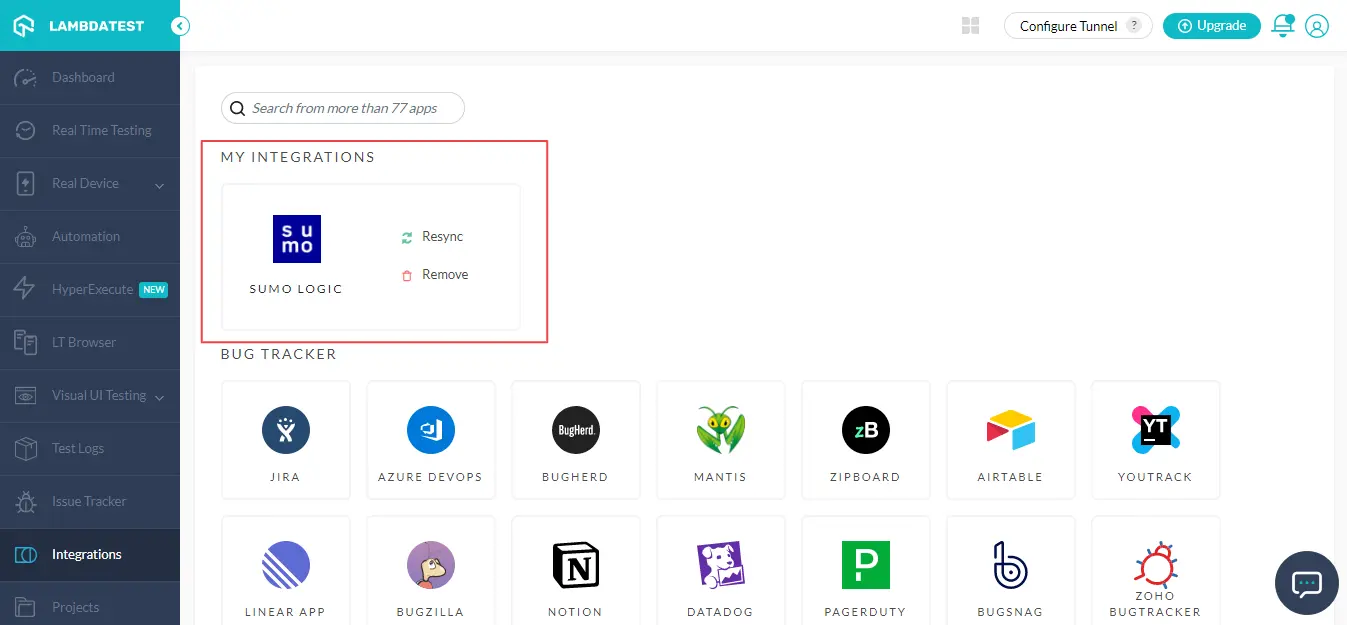
The Sumo Logic integration will be uninstalled.

 Chat with Us
 Ask the Community