Manage AI Capabilities
TestMu AI provides AI-powered capabilities across multiple products, including Test Manager, HyperExecute, SmartUI, Analytics, Web Automation, App Automation, Accessibility, and KaneAI. The AI Capabilities setting allows Org Admins to enable or disable all AI features for their entire organization with a single toggle.
This is useful for enterprise customers who need to comply with client or corporate policies that prohibit the use of AI in testing workflows.
Only Org Admins can access and modify AI Capabilities settings. This option is not available to other user roles.
Accessing AI Capabilities Settings
Step 1: Log in to your TestMu AI account and navigate to Settings from the left sidebar.
Step 2: Click on Organization Settings.
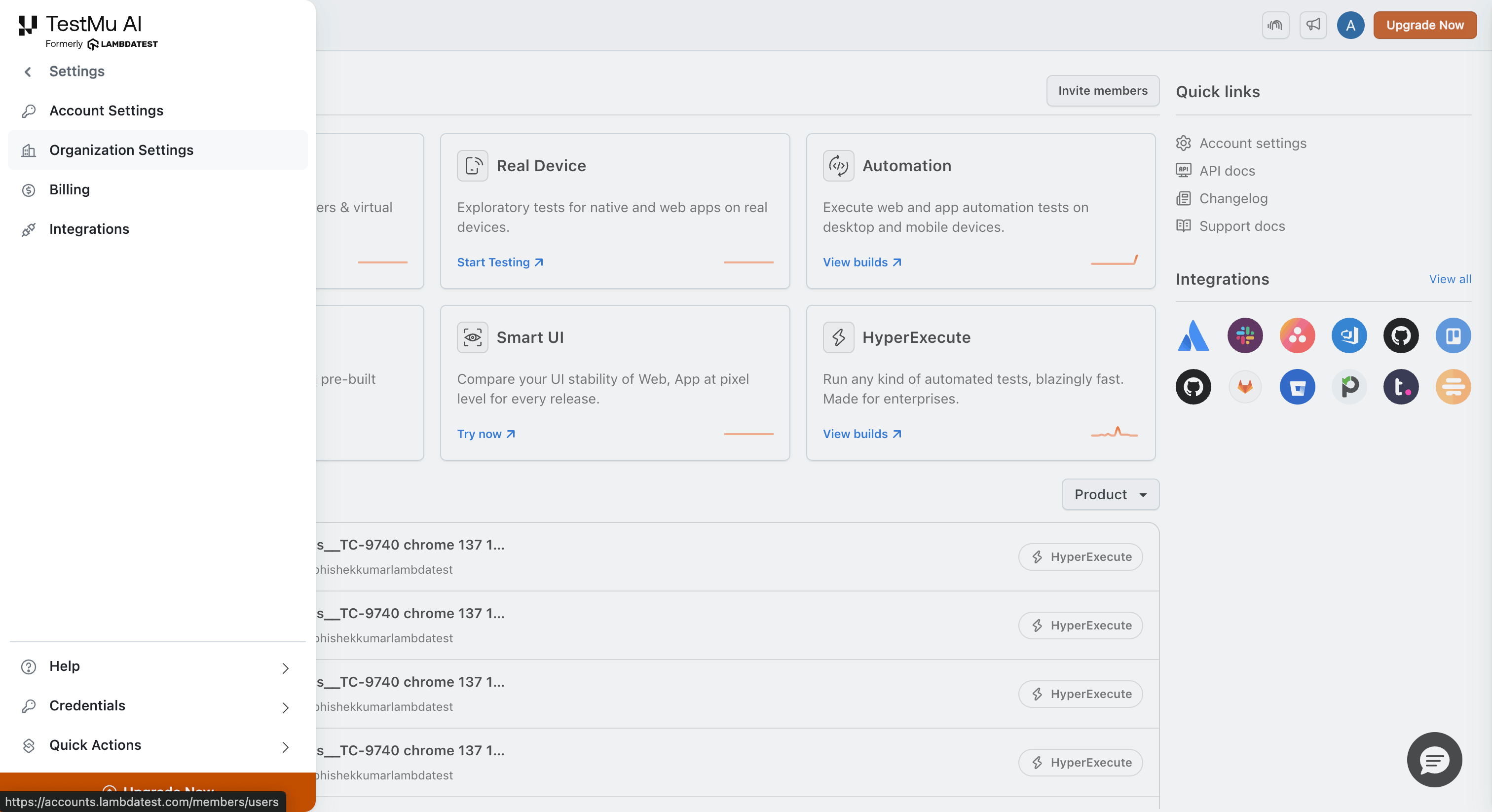
Step 3: Navigate to the Org Product Preferences tab.
Step 4: Select AI Capabilities from the left sidebar.
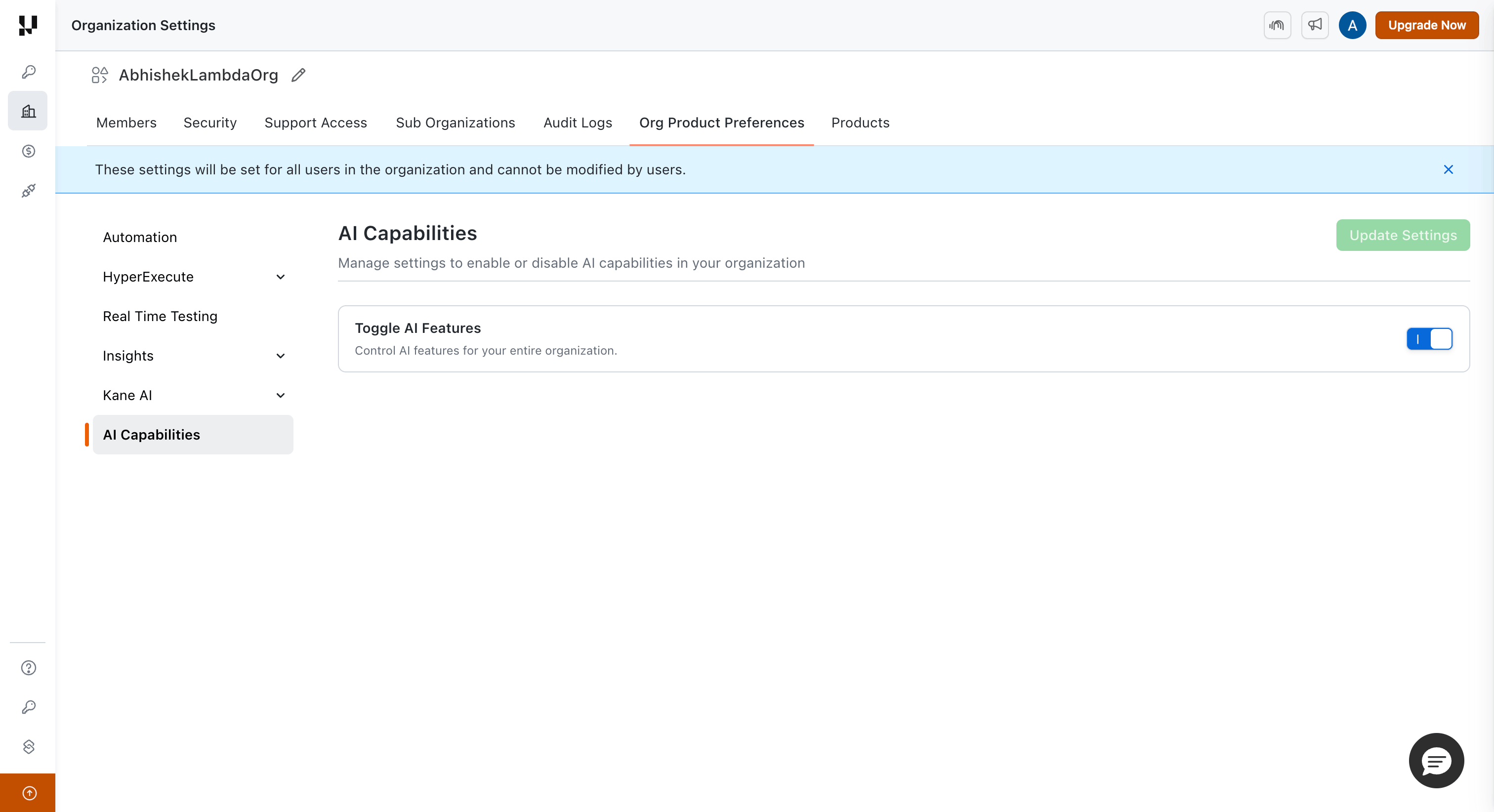
You will see the Toggle AI Features option, which controls AI features for your entire organization. By default, this toggle is set to ON (enabled).
Disabling AI Features
Step 1: On the AI Capabilities page, click the Toggle AI Features switch to turn it OFF.
Step 2: Click Update Settings in the top right corner. A confirmation dialog will appear.
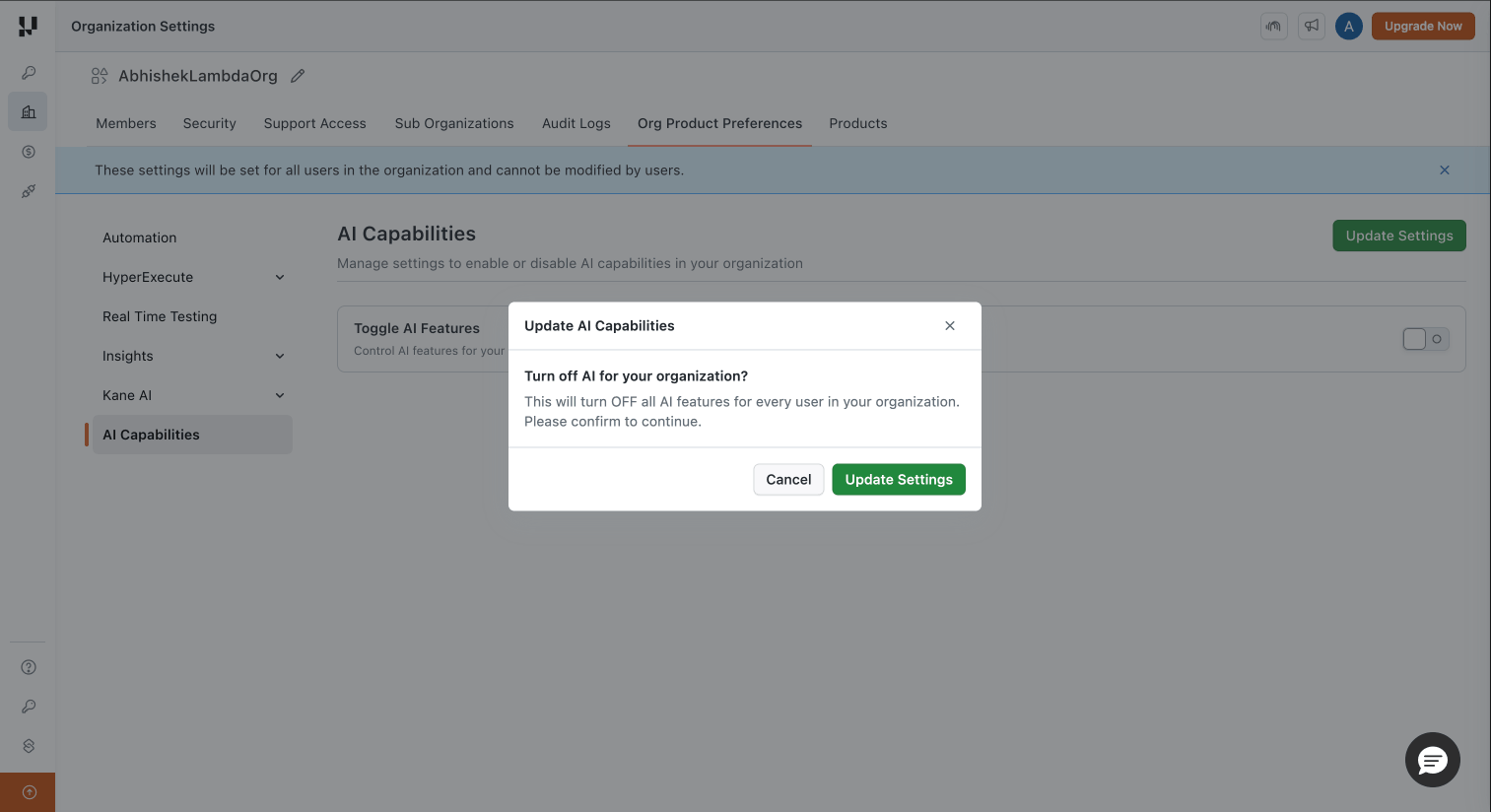
Step 3: Click Update Settings to confirm, or Cancel to keep AI features enabled.
Once disabled, a success message confirms that AI features have been turned off for your organization.
Enabling AI Features
Step 1: On the AI Capabilities page, click the Toggle AI Features switch to turn it ON.
Step 2: A confirmation dialog will appear asking you to confirm the change.
Step 3: Click Update Settings to confirm. All AI features will be restored across all products for all users.
AI Features Controlled by the Toggle
When the toggle is set to OFF, the following AI features are hidden across all TestMu AI products:
| Product | AI Features |
|---|---|
| Test Manager | AI Scenario Generation, AI Test Case Creation, AI Test Step Generation, AI Autofill for Datasets, AI RCA in Test Runs, KaneAI Automation Features |
| HyperExecute | AI RCA Generation |
| SmartUI | AI Screenshot Comparison (Visual AI) |
| Analytics | Insights Copilot |
| Web Automation | AI RCA Generation |
| App Automation | AI RCA Generation, Smart Heal |
| Accessibility | AI-driven Rules |
| KaneAI | Entire Product |
Important Notes
- Existing AI-generated content is preserved. When AI is disabled, all previously AI-generated content — test cases, test steps, RCA reports, autofill values, and scenario tags — remains visible and fully editable. Only new AI invocations are blocked.
- Only Org Admins can modify this setting. Non-admin users cannot access the Organization Settings page.
- The setting applies organization-wide. All users in the organization are affected when the toggle is changed.
In case you have any questions, please feel free to reach out to us via the 24/7 chat support or email us over [email protected].

 Chat with Us
 Ask the Community