Exploration: map your app and design tests from it
kane-cli explore sends an explorer through your app. It clicks, types and follows links the way a curious tester
would, and builds a map of what it finds: the app's screens, the flows between them, and findings: things that
look broken, and places it couldn't get past, each with its evidence. While it explores, it also designs tests
from what it mapped, into your Test Manager project: the same kind of tests assurance
designs from a document.
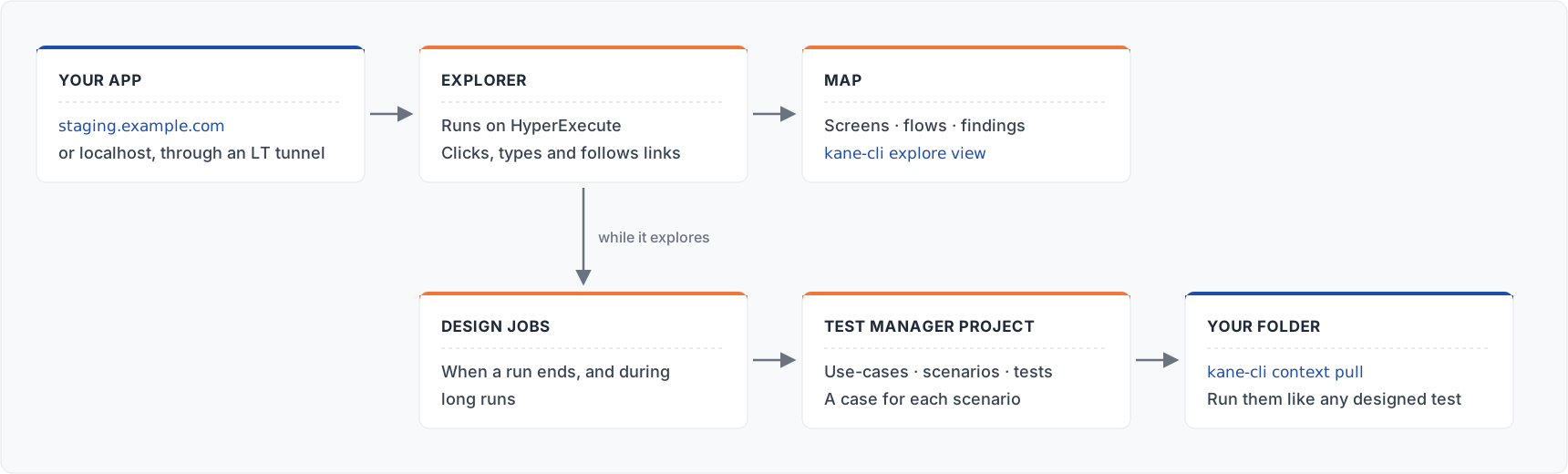
Use exploration when you have an app but no written requirements, or to find what your documents missed. Use assurance when you have a PRD or a spec. Both put their tests in the same project, so you can do both.
Each project has one exploration of one URL. Every run adds to that exploration's map.
Before you start
| You need | Why | How to check |
|---|---|---|
| kane-cli, signed in (Installation, Authentication) | the explorer runs as you | kane-cli whoami |
| A Test Manager project for the exploration | the map and the tests belong to one project | kane-cli projects list --search <name>, or kane-cli projects create "<name>" |
| Permission to create test cases in that project | the design jobs save tests and cases there | if you can't, the map still builds, but no tests are designed (below) |
| Credits | an exploration and each design job spend credits | kane-cli balance |
Exploration runs on HyperExecute by default: kane-cli queues the run there, and the run goes on without your machine (except for a tunnel, below).
Your first exploration
kane-cli explore run --project <project-id> \
  --url https://staging.example.com \
  --prompt "Explore sign-up, the dashboard and the settings pages" \
  --policy read_only \
  --max-leases 40
--projectis the project the exploration belongs to. Always pass it.exploredoesn't read a folder's link to a shared project; without--projectit uses the project kane-cli is configured with, which may not be your team's.--urlis where it starts. The exploration keeps this URL.--promptsays what to explore and why, in your words. The explorer works within it; the hard limits are--allow-domainand--deny(below).--policy read_onlyblocks write requests and never presses controls such as Delete, Sign out and Pay. The default can change data: see Can it change my data? before you leave it out.--max-leases 40is a good first limit: it stops after 40 pieces of work (kane-cli calls them leases).
On a terminal, kane-cli shows a review of your settings (or a setup form, if something is missing). Launch it, and
you see ● queued on HyperExecute · run … · <job link>, then a live view: the run's state and policy, the time so far,
and leases · screens · flows · findings · credits as they grow. Ctrl+C detaches: the run keeps going on
HyperExecute. The lines printed when you detach give the full exploration id and the commands to watch, map or
stop it; when the run ends, they give the map command.
Your exploration id. Most commands below take it. It's in those lines; or run plain kane-cli explore, pick the
project, and use the exploration's card (its map, its last run, and run again, watch, stop, map, sessions,
assurance context, delete). kane-cli explore view --project <project-id> opens the map with no id at all.
Every run takes its options again. A run keeps the exploration's URL and map, and nothing else you passed:
policy, prompt, sign-in steps, domains, variables, limits and tunnel all start from their defaults. The policy's
default is mutating, so pass --policy read_only again on every run that mustn't change data.
Can it change my data?
Yes, by default. --policy decides:
read_only | mutating (the default) | |
|---|---|---|
| Write requests (POST, PUT, PATCH, DELETE) | blocked, to any host | allowed, everywhere it reaches |
| Delete, sign out, pay and similar controls | never pressed | pressed like any other control |
--deny "<control name>" | added to that list | the only controls it won't press |
- Every
mutatingrun says so before it starts. On a terminal, your firstmutatingrun in a project also asks you once. read_onlyhas three exceptions: the setup steps you give in--deps(a sign-in, for example) run as written, so put in--depsonly what you're happy for it to do; the POST endpoints you let through with--allow-post; and the one click that ends an app session it opened. It can't stop an app that changes data on an ordinary page load.- Some apps read their data with POST requests (GraphQL, for example), so under
read_onlythey show no data. Let through only endpoints you know only read:--allow-post api.example.com/graphql(repeatable). Its host must be the--url's or one you add with--allow-domain, so here also pass--allow-domain api.example.com.
Use mutating on a test or staging copy of your app, never on data you care about.
An app behind a login
Tell the explorer how to get in with --deps, and keep the values in a variables file:
kane-cli explore run --project <project-id> --url https://app.example.com \
  --prompt "Explore the account area" --policy read_only \
  --deps "Logged in as {{username}} / {{password}}" \
  --allow-domain login.example.com \
  --variables-file ./explore-vars.json
{
  "username": { "value": "qa@example.com" },
  "password": { "value": "…", "secret": true }
}
--depsalways needs--allow-domain: name every host it signs in or writes on, the--url's own host too if that's where it signs in (--allow-domain app.example.com). Use a project of its own: one project explores one URL.- You can also keep the values in
.testmuai/variables/*.json(see Variables & context). Only the names your--promptand--depsuse are sent. Names are letters, digits and_(login_email, notlogin-email);LT_USERNAMEandLT_ACCESS_KEYare taken. - Secrets (
"secret": true) go to your HyperExecute Secrets. Other values go to your organisation's Test Manager variables, and replace any variable of the same name there, so pick names your team can share. A value never travels in the request itself. kane-cli also keeps your TestMu AI username and access key in HyperExecute Secrets, for the run to sign in to TestMu AI with. - A
{{name}}no variables file defines stops the run before it starts. An empty secret stops it asfailed:secrets_missing, so fill in your values first. - Keep
--max-parallelat 1 (the default) if the app allows one session per account: each extra browser signs in on its own. - If the sign-in doesn't work, the run stops as
failed:setup_failed: check the values, and every sign-in host in--allow-domain.
An app on localhost or a private network
The cloud's browsers can't reach localhost or your private network on their own. They reach it through a TestMu AI
tunnel (LT) that runs on your machine:
HyperExecute browsers ── LT tunnel ── your machine ── your app
-
If
LT --versiondoesn't work, download LT and put it on your PATH:Machine Download Apple silicon Mac https://downloads.lambdatest.com/tunnel/v3/mac/arm64/LT_Mac.zip Intel Mac https://downloads.lambdatest.com/tunnel/v3/mac/64bit/LT_Mac.zip Linux https://downloads.lambdatest.com/tunnel/v3/linux/64bit/LT_Linux.zip ( linux/arm64/LT_Linux.zipon ARM)Windows https://downloads.lambdatest.com/tunnel/v3/windows/64bit/LT_Windows.zip, then run LT.exeFor example, on an Apple silicon Mac:
curl -fLo /tmp/LT_Mac.zip https://downloads.lambdatest.com/tunnel/v3/mac/arm64/LT_Mac.zip
unzip -o /tmp/LT_Mac.zip -d /tmp/lt
sudo mkdir -p /usr/local/bin && sudo mv /tmp/lt/LT /usr/local/bin/LT && sudo chmod +x /usr/local/bin/LT
LT --version
If macOS blocks it from opening:
xattr -d com.apple.quarantine /usr/local/bin/LT. -
Start the tunnel as the same TestMu AI user kane-cli is signed in as, and leave it running:
LT --user "$LT_USERNAME" --key "$LT_ACCESS_KEY" --env ht-prod --tunnelName dev(
$LT_USERNAMEand$LT_ACCESS_KEYare your TestMu AI username and access key: set them in your shell first. Where to find your access key.)--env ht-prodis required. Wait until LT says the tunnel is connected. -
In another terminal, explore through it:
kane-cli explore run --project <project-id> --url http://localhost:3000 \
--prompt "Explore checkout" --policy read_only --tunnel-name dev--tunnel-namemust match--tunnelNamefrom step 2, and it turns the tunnel on. With only one tunnel running,--tunnelalone is enough. Use a project of its own: one project explores one URL.
- Keep the tunnel and your machine up until the run ends; kane-cli reminds you when the run starts. If the tunnel drops, pages stop loading.
- Pass the tunnel flag again on every run, with your other options (see the box under Your first exploration).
- A tunnel needs cloud browsers: with
--local-orchestrationand your own Chrome,--tunnelis refused (your Chrome already reaches your machine).
Keeping it in bounds
| You want | Pass |
|---|---|
More sites than the --url's host | --allow-domain <host> (repeatable). The --url's host, and its subdomains, are always in |
| A control it must never press | --deny "<control name>" (repeatable), under either policy, for example --deny "Archive" |
| A limit on how much it explores | --max-leases <n>: it stops after n leases. Every run also stops at built-in limits (an hour, 400 actions or 800 model calls). Either way it ends budget. Neither limits the design jobs (below) |
| More browsers at once | --max-parallel <n> (default 1): up to 20 cloud browsers |
| To start from one screen of the map it already has | --focus "<screen>" (a later run): the screen's name, or words from its name or URL |
| To explore from your machine | --local-orchestration: your Chrome (up to 4 at once; --headless for no window), or --browser remote for cloud browsers (up to 20). The command waits until the run ends, Ctrl+C stops it, and --focus also needs --exploration-id <id> |
How many controls it tries per screen (--depth-caps), what counts as slow (--slow-budget) and whether new findings
are checked again (--no-recheck) are in kane-cli explore run --help, with their values and defaults.
Watching, stopping, running again
The map. Open it in your browser:
kane-cli explore view --project <project-id> # or --exploration-id <id>
It serves the map on your machine until you press Ctrl+C, and follows a live run from anywhere you're signed in.
- Find your way: zoom from areas of the app, to screens and the flows between them, to each screen's
details and controls. Press
/to search by name or URL. - Follow a flow: open it to see its steps, screen by screen.
- Check a finding: open it for its evidence: the screenshots, the steps that led there, and the network and console logs. Promote it to a bug, or mark it resolved.
- Teach the next run: leave labels and notes, mark a flow or a finding correct or incorrect, and mark a screen or a control do not touch. The explorer reads them when its next run starts, so they're read-only while a run is going.
The map also shows what each flow cost to find, and what each run spent.
Runs.
kane-cli explore list                              # explorations with a run going; --all for every one
kane-cli explore sessions <id>                     # its runs, newest first: state, why it stopped, findings, credits
kane-cli explore sessions <id> --run <run-id>      # one run in full
| A stopped run's reason | Means |
|---|---|
completed | it ran out of things to explore |
budget | it reached --max-leases or a built-in limit |
user_stop | someone stopped it |
stopped_before_start | it was stopped while still queued |
heartbeat_lost | it stopped reporting, so it was stopped |
failed:setup_failed | the sign-in in --deps didn't work |
failed:secrets_missing | a secret it needs wasn't in HyperExecute Secrets, or was empty |
failed:vm_never_started | HyperExecute never started it: run it again |
failed:<other> | it failed; kane-cli explore sessions <id> --run <run-id> shows more |
Stop a run: kane-cli explore stop <id>. A queued run stops at once. A running one finishes the work in hand,
keeps it, then stops; the command waits for that unless you pass --no-wait.
Run it again: kane-cli explore run --project <project-id> with your options again (policy, prompt, sign-in,
domains, variables, limits, tunnel). It goes on the same exploration and its URL, and adds to the map. Only one run at
a time: while one is queued or running, another is refused (RUN_ACTIVE).
Explore another site: use another project. A project's one exploration explores one URL, so a different --url
is refused. If you'd rather reuse the project, kane-cli explore delete <id> (it asks first; --yes when piped;
refused while a run is queued or running) frees it for a new exploration of any URL. Its map is gone from every
command, but the use-cases and tests designed for the first site stay in the project, and a pull brings them along
with the new site's.
The tests it designs
While an exploration's assurance context is on (the default), design jobs (kane-cli calls them assurance jobs) turn what it mapped into use-cases, scenarios and tests in its project, with a Test Manager case for each scenario. A job runs when a run ends, and every few minutes during a long run when enough has changed. Exploration designs and saves tests; it never runs them.
kane-cli explore context status <id>     # on or off, a job running or waiting, and what the last job did
kane-cli explore context sync <id>       # ask for a job now
kane-cli explore context off <id>        # no more design jobs (nothing saved is deleted)
kane-cli explore context on <id>         # turn it back on; it catches up from the newest ended run
explore context statusshows how many use-cases the last job added and changed, how many tests it designed and saved (and any that failed), what it left for you to review, and the credits it used. (With--agentit also lists each saved test's Test Manager case, or why it has none yet.)kane-cli explore run … --no-contextstarts a new exploration with design jobs off, for a map only. For an existing exploration, useexplore context off. Turning it off doesn't stop a job that's already running.- The use-cases it designs were not reviewed by a person, so they show as proposed. Their source is
explore-<exploration id>: in a folder linked to the project,kane-cli context listshows it.
No tests were designed
If nobody had shared the project yet, the exploration's first design job shares it, as you. If you're not allowed to
create test cases there, it can't, and explore context status says the context is blocked. Ask a Test Manager
admin for permission to create test cases, or ask someone who has it to share the project. Once you have permission,
turn the context off and on again (explore context off <id>, then on).
Get the tests into a folder and run them
The tests are in the project as soon as a design job saves them (explore context status <id> says so). To run them
on your machine, bring them into a folder:
mkdir explore-tests && cd explore-tests
kane-cli context pull --project <project-id>    # links this folder and brings the tests in one step
In a folder that's already linked to the project, kane-cli context pull is enough.
- The pull lists each test it wrote, and the variables those tests need: a start-page URL, or an app's sign-in
values, for example. Put them in
.testmuai/variables/assurance.json(the format above). If the project has no tests yet, the pull says so: wait for a design job. - Each test arrives with no recorded steps yet, so its first run writes them in a real browser. That takes minutes and uses more credits than a replay. Later runs replay the steps for far fewer.
- These tests run in Google Chrome on your machine, so install it first (if kane-cli can't find it, see Chrome failed to launch).
- Open a test to see what it checks, then run the ones you want:
kane-cli testrun run .testmuai/tests/<name>_test.md.kane-cli coverthen shows the project's coverage, the exploration's use-cases included.
See Shared projects in the kane-cli repository for what a pull writes and how to update tests that changed.
Exit codes
explore run on a terminal: 0 if you detach with Ctrl+C. If you watch until the run ends, it exits with the run's
own code: 0 completed or budget, 1 failed, 3 stopped.
explore run | With --agent or in a pipe (HyperExecute) | From your machine (--local-orchestration) |
|---|---|---|
0 | the run is queued | it ended completed or budget |
1 | refused: a run is already going (RUN_ACTIVE), or the launch failed | it ended failed:… |
2 | bad input, sign-in, or a secret problem (the run may be recorded as stopped: check explore sessions) | it couldn't start |
3 | it was stopped |
explore list, sessions, stop and delete: 0 done; 1 refused (for example RUN_NOT_ACTIVE on a stop when
nothing is running, or "No" to a delete) or the service failed; 2 bad input, a missing --yes, an unknown
exploration, or no sign-in.
Troubleshooting
| What you see | Why | What to do |
|---|---|---|
required option '--url <url>' not specified | the first run of a project's exploration needs a URL | pass --url |
a remote run needs a project … | no --project, and none configured | pass --project <project-id> |
RUN_ACTIVE: run … is queued/running | the exploration already has a run going | wait for it, or kane-cli explore stop <id> |
--url … is not exploration <id>'s URL | a project explores one URL | use another project, or explore delete this one |
--deps needs --allow-domain … | a sign-in needs the hosts it signs in on | add --allow-domain for each host it signs in on, the --url's own host included |
host … is outside the run's domains on --allow-post | the endpoint's host isn't one the run may visit | add it with --allow-domain first |
--deps uses {{name}} but no variable "name" is defined | a variable your --prompt or --deps uses isn't in any variables file | add it to --variables-file or .testmuai/variables/ |
HyperExecute Secrets does not list …, or a run stopped failed:secrets_missing | a secret didn't reach HyperExecute, or it's empty | check its name and value in your variables file, mark it "secret": true, run again |
a run stopped failed:setup_failed | the sign-in didn't work | check the values, and every sign-in host in --allow-domain |
could not push …, could not read your HyperExecute secrets, or HyperExecute refused the job | a service problem | try again in a minute, or explore from your machine with --local-orchestration |
no running LT tunnel found … | the tunnel isn't running, the name doesn't match, or it was started without --env ht-prod | start LT as in step 2, and pass the same --tunnel-name |
--tunnel needs remote browsers | your own Chrome already reaches your machine | drop --tunnel, or use --browser remote |
a read_only run shows empty pages | the app reads its data with POST | --allow-post <host/path> for the endpoints that only read |
| no tests in the project | the context is off or blocked, or no design job has ended yet | kane-cli explore context status <id>; see No tests were designed |
TOO_SOON on explore context sync | a design job started a few minutes ago | try again when it says |
NO_ENDED_RUN on explore context sync | no run has ended yet | wait for the run to end |
Driving exploration from an AI coding agent: every explore command takes --agent (Agent Mode).


 Chat with Us