How to Automate Unity Games With AltTester on TestMu AI
If you build Unity mobile games and need to test them on real hardware, you can automate them with AltTester on TestMu AI public and private real device cloud.
AltTester reads the live Unity scene graph, so your tests assert on game objects, components, and PlayerPrefs instead of raw screen coordinates.
You upload an AltTester-instrumented build once, point the suite at TestMu AI, and run it with pytest against real Android and iOS devices in the cloud.
This guide uses the testmuai-alttester-unity-game-automation sample, which automates the open-source TrashCat Unity game.
This guide assumes you already have an AltTester-instrumented .apk or .ipa. Instrumenting a Unity build with the AltTester SDK happens inside the Unity editor and is out of scope here. See the AltTester instrumentation documentation for that step.
Prerequisites
Before you run the suite, make sure the following are in place.
- Python 3.9 or higher, with a virtual environment recommended.
- A TestMu AI account. The free tier works for this sample. If you don't have one, register for free.
- An AltTester-instrumented TrashCat build (
.apkfor Android or.ipafor iOS) uploaded to TestMu AI App Automation. Note thelt://app URL returned after upload. The pre-instrumented TrashCat APK used by this sample is available from the sample's download link. - Your TestMu AI Username and Access Key, found under Profile in the dashboard.
- The
LTtunnel binary attunnel/LT. The sample repo ships the macOS binary. Download the binary for your platform from the TestMu AI tunnel downloads if you are on Windows or Linux.
To upload your build and get the lt:// URL, see how to upload apps to the Real Device Cloud.
How to Set Up the AltTester Unity Project
Clone the sample, create an isolated Python environment, and install the four dependencies it needs.
Clone the Repository
Clone the project and change into it.
Verifiedgit clone https://github.com/hjsblogger/testmuai-alttester-unity-game-automation.git
cd testmuai-alttester-unity-game-automation
Create a Virtual Environment and Install Dependencies
Create and activate a virtual environment, then install the requirements.
Verifiedpython -m venv venv
source venv/bin/activate # Windows: venv\Scripts\activate
pip install -r requirements.txt
The suite depends on four packages. AltDriver drives the Unity objects, Appium provisions the device, pytest runs the tests, and python-dotenv loads your credentials.
| Package | Version | Purpose |
|---|---|---|
alttester-driver | ≥ 2.2.5 | AltTester Python SDK (AltDriver) |
Appium-Python-Client | ≥ 4.0.0 | Appium session management |
pytest | ≥ 8.0.0 | Test runner |
python-dotenv | ≥ 1.0.0 | Load .env credentials |
Configure Your TestMu AI Credentials
The suite reads your credentials and app URL from a .env file in the project root. The file is gitignored, so create it yourself.
touch .env
Add your TestMu AI credentials and the lt:// URL of the app you uploaded.
LT_USERNAME=your_testmu_ai_username
LT_ACCESS_KEY=your_testmu_ai_access_key
LT_APP_URL=lt://your_app_url
Each value comes from a specific place in the dashboard.
| Variable | Where to find it |
|---|---|
LT_USERNAME | TestMu AI dashboard, Profile section |
LT_ACCESS_KEY | TestMu AI dashboard, Profile section |
LT_APP_URL | App Automation, the uploaded app's lt:// URL |
Never commit .env or hard-code your Access Key in test files. The Access Key grants full API access to your account. Keep it in .env or a CI secret.
How to Configure the TestMu AI Capabilities
The capabilities live in the lt_options dictionary in tests/conftest.py. This object tells TestMu AI which device to allocate and how to route the session through the tunnel. The sample sets it up for a real Android device and routes AltDriver traffic through a named tunnel.
lt_options = {
    "user": username,
    "accessKey": access_key,
    "app": app_url,
    "deviceName": "Pixel.*",
    "platformVersion": "14",
    "platformName": "android",
    # "deviceName": "iPhone 14",
    # "platformVersion": "16",
    # "platformName": "ios",
    "build": "AltTester TestMu AI demo with TrashCat",
    "name": f"tests - {datetime.now().strftime('%B %d - %H:%M')}",
    "isRealMobile": True,
    "idleTimeout": 300,
    "tunnel": True,
    "tunnelName": TUNNEL_NAME,
}

options = AppiumOptions()
options.set_capability("lt:options", lt_options)
options.set_capability("platformName", "android")

appium_driver = appium_webdriver.Remote(
    command_executor=f"https://{username}:{access_key}@mobile-hub.lambdatest.com/wd/hub",
    options=options,
)
Every key in lt_options is required for this session to start and connect through the tunnel. The table below explains what each one controls and why it matters for an AltTester run.
| Key | Required | What it does |
|---|---|---|
user | Yes | Your TestMu AI username, read from LT_USERNAME. |
accessKey | Yes | Your TestMu AI Access Key, read from LT_ACCESS_KEY. |
app | Yes | The lt:// URL of the instrumented build to install, read from LT_APP_URL. |
deviceName | Yes | Device to allocate. Pixel.* is a regex that matches any available Pixel model. |
platformVersion | Yes | OS version of the device, for example 14 for Android 14. |
platformName | Yes | android or ios. Set it in both lt_options and the top-level capability. |
isRealMobile | Yes | Allocates a physical device rather than an emulator. AltTester game tests need a real device. |
tunnel | Yes | Routes the session through the LT tunnel so AltDriver can reach port 13000 on the device. |
tunnelName | Yes | Binds the session to the named tunnel that conftest.py started. Must match the tunnel's --tunnelName. |
idleTimeout | Optional | Seconds the session waits on an idle command before it is killed. Set to 300 here because AltDriver setup adds a startup delay. |
build | Optional | Groups runs under one build name on the dashboard. |
name | Optional | Per-test session name shown on the dashboard. |
The tunnel and tunnelName keys are the non-obvious part. AltDriver does not connect to TestMu AI directly. It connects to the AltTester Server running inside the app on the cloud device, and the only path to that in-app server is through the tunnel. If tunnel is false or tunnelName does not match the running tunnel, the Appium session still starts but AltDriver cannot connect.
The tunnel itself is launched by conftest.py with the binary at tunnel/LT. The session starts it with these flags before any test runs.
[
    "./tunnel/LT",
    "--user", username,
    "--key", access_key,
    "--tunnelName", TUNNEL_NAME,
    "--verbose",
    "--infoAPIPort", str(TUNNEL_INFO_PORT),
]
--infoAPIPort exposes the tunnel's local info API. conftest.py polls that port until the tunnel reports ready, then starts the Appium session. --tunnelName must be the same value used in tunnelName inside lt_options.
How to Run the Unity Game Tests
With the environment configured and the tunnel binary in place, run the suite with pytest. The fixtures start the tunnel and the Appium session automatically, so you do not start them by hand.
Run the full suite.
Verifiedpytest
Run a single test file with verbose output.
Verifiedpytest tests/test_start_page.py -v
pytest tests/test_main_menu.py -v
pytest tests/test_game_play.py -v
pytest tests/test_store.py -v
pytest tests/test_user_journey.py -v
Run one test by name.
Verifiedpytest tests/test_main_menu.py::TestMainMenu::test_main_menu_page_loaded_correctly -v
The tunnel forwards the WebSocket connection to port 13000 on the cloud device for the entire run, so AltDriver stays connected to the in-app AltTester Server from the first test to the last.
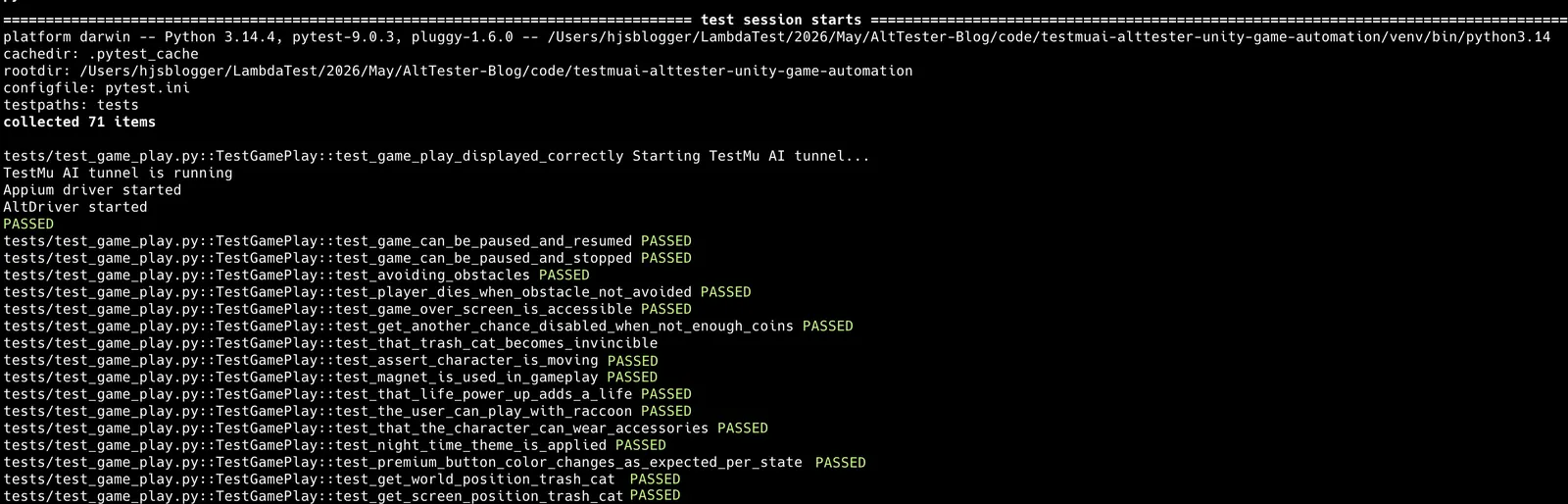
As the suite runs, each test logs its progress in the terminal while the tunnel stays active.
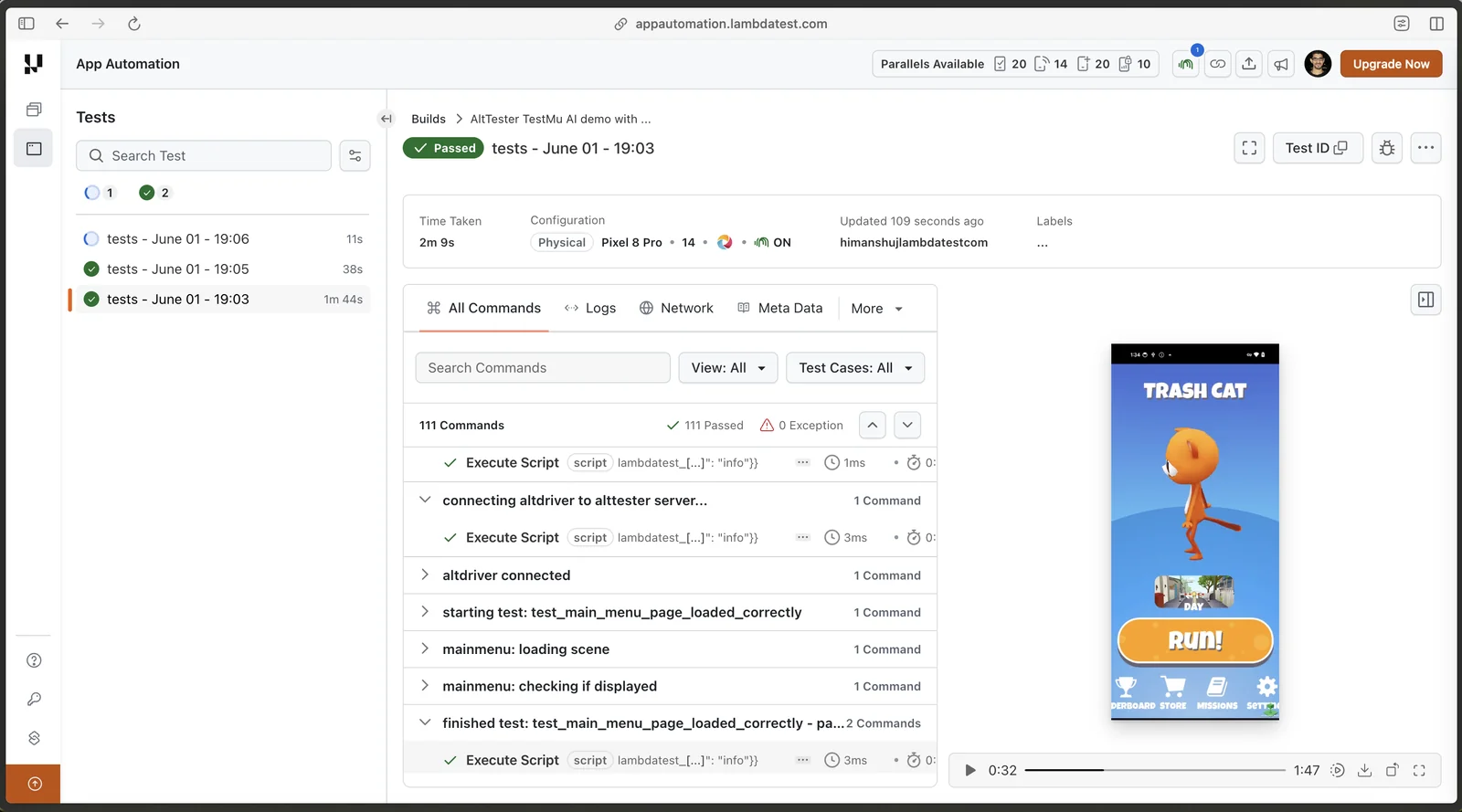
Track the session live on the TestMu AI automation dashboard, where each step annotation pushed through lambdatest_executor appears against the test.
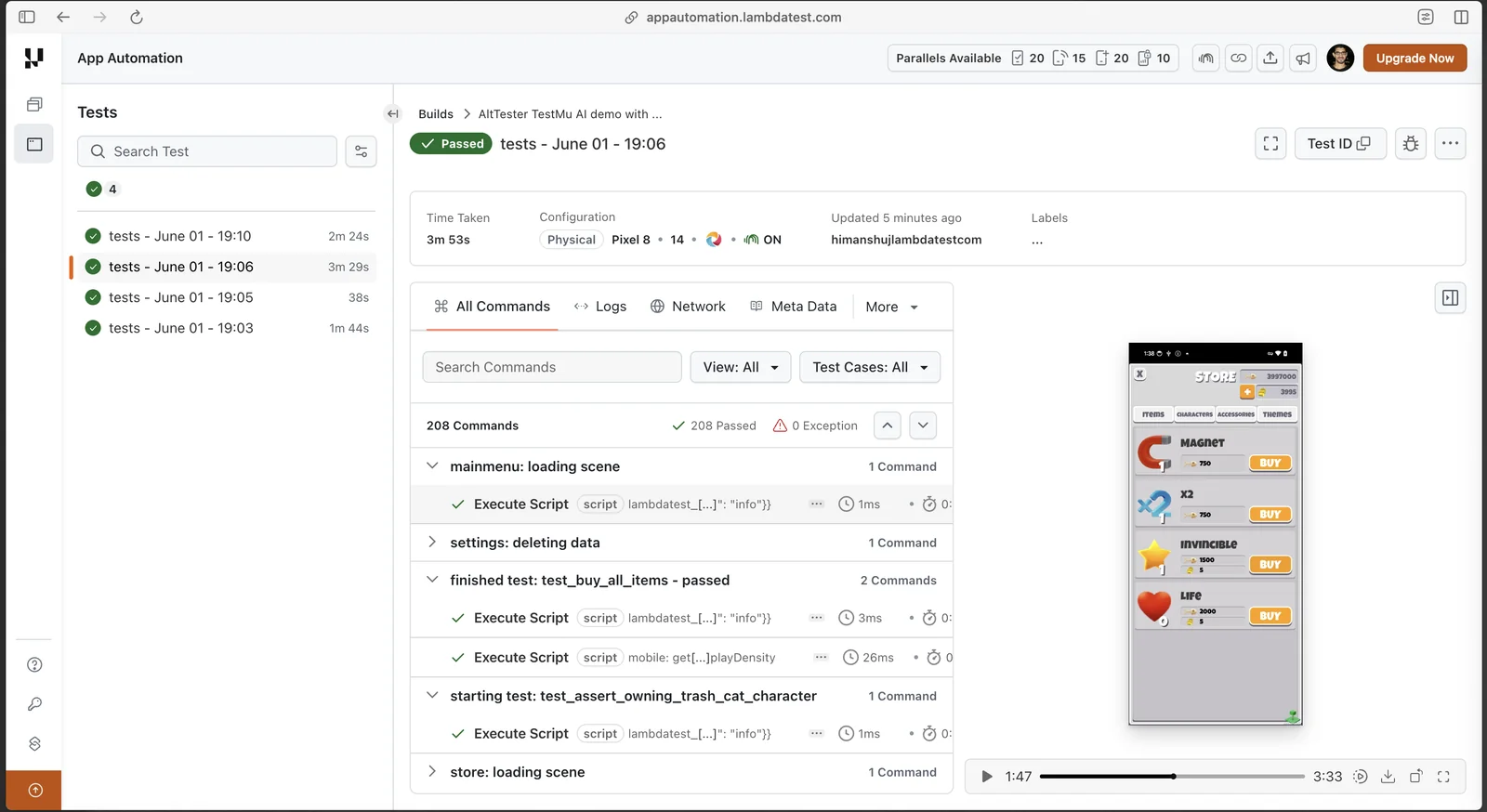
Open a session to see its annotated steps, status, and logs.
How to Change the Target Device
The suite runs on Pixel 8 (Android 14) by default. To target a different device or switch to iOS, edit the lt_options block in tests/conftest.py. The commented iOS lines show the keys to change.
# Android
"deviceName": "Pixel.*",
"platformVersion": "14",
"platformName": "android",

# iOS: uncomment and adjust
# "deviceName": "iPhone 14",
# "platformVersion": "16",
# "platformName": "ios",
When you switch platforms, change LT_APP_URL to the matching build. An Android lt:// URL points to an .apk and an iOS one to an .ipa. The app must be instrumented with AltTester for the platform you target. To confirm the device name and OS version are available, check the supported real device list.
Related TestMu AI Guides
- See how to upload apps to the Real Device Cloud to get the
lt://app URL this suite needs. - See how to get started with Real Device App Testing for manual testing on the same device pool.
- See how to set up the TestMu AI tunnel for tunnel binaries on Windows and Linux.


 Chat with Us