Create and Execute your Test Run for KaneAI Generated Tests on HyperExecute
This documentation outlines the steps to create a test run for KaneAI generated tests using Test Manager. The steps include selecting test cases, setting configurations, and running tests with HyperExecute for efficient execution. Follow the instructions carefully to ensure seamless execution of the process.
Prerequisites
- Access to Test Manager.
- A project with KaneAI-generated test cases.
- Credentials for TestMu AI platform.
Step-by-Step Guide
Step 1: Navigate to the Projects Page
- Log in to Test Manager. Navigate to the Projects page and select the desired project.
- Proceed to the Test Cases section.
Step 2: Create a Test Run
- Go to the Test Run section within the project.
- Click on Create Test Run.
- Provide the following details:
- Name : e.g., Demo Test Run 123.
- Description : A brief overview of the run.
- Tags : Any label to differentiate your test run.
- Type : Choose KaneAI Generated Test Cases.
Step 3: Select and Add Test Cases
- Click Next to view available test cases.
- Select the required test cases for the run.
- Click Add Test Case to include them.
Only KaneAI test cases for which code generation has been successful will be available for selection here.
Step 4: Assign and Configure Test Cases
- On the test run page, review the added test cases.
- Assign team members in bulk.
- Update configurations as required.
Set Configurations
- Choose from available desktop browser and mobile app configurations. If a new configuration is needed, click on Create Configuration button and choose from thousands of configuration options.
Create New Configuration
- Enter configuration name and the following details to create a new Desktop configuration:
- OS : e.g., macOS.
- OS Version : e.g., Monterey.
- Browser : e.g., Chrome.
- Browser Version : e.g., 131.
- Resolution : e.g., 1440x900.
- Enter configuration name and the following details to create a new Real Device configuration:
- OS : e.g., android.
- Manufacturer : e.g., Samsung.
- Device : e.g., Galaxy S24.
- OS Version : e.g., 14.
- App : e.g., Proverbial.
- Click on Create Configuration
Step 5: Run with HyperExecute
- Initiate the run using HyperExecute by clicking Run with HyperExecute.
- View all test instances in the dashboard.
- Set the desired concurrency level, e.g., 5.
Advanced Configurations
Before clicking Execute, you can optionally click Advanced Configurations to customize your test execution. The following settings are available:
| Setting | Description |
|---|---|
| Test Configuration | Configure console logs, network logs, network full HAR, timezone, and retry on failure settings for your execution. |
| Network Settings | Set up tunnel for local/restricted environments, geolocation routing, and region selection for web tests. |
| Replace URL | Replace the pattern URL for all web tests in the run to execute in different environments. See Dynamic URL Replacement for details. |
| Performance | Enable Lighthouse performance reports (Lighthouse Audits). |
| Visual Regression | Add visual testing configuration — select browsers, viewports, devices, and orientation. See Visual Testing with SmartUI for details. |
| Accessibility Testing | Enable accessibility checks (WCAG 2.1 AA) with best practices and needs review options. Available for web with Chrome and Edge browsers only. |
| Reports | Generate HTML reports and receive them via email. See below. |
Reports
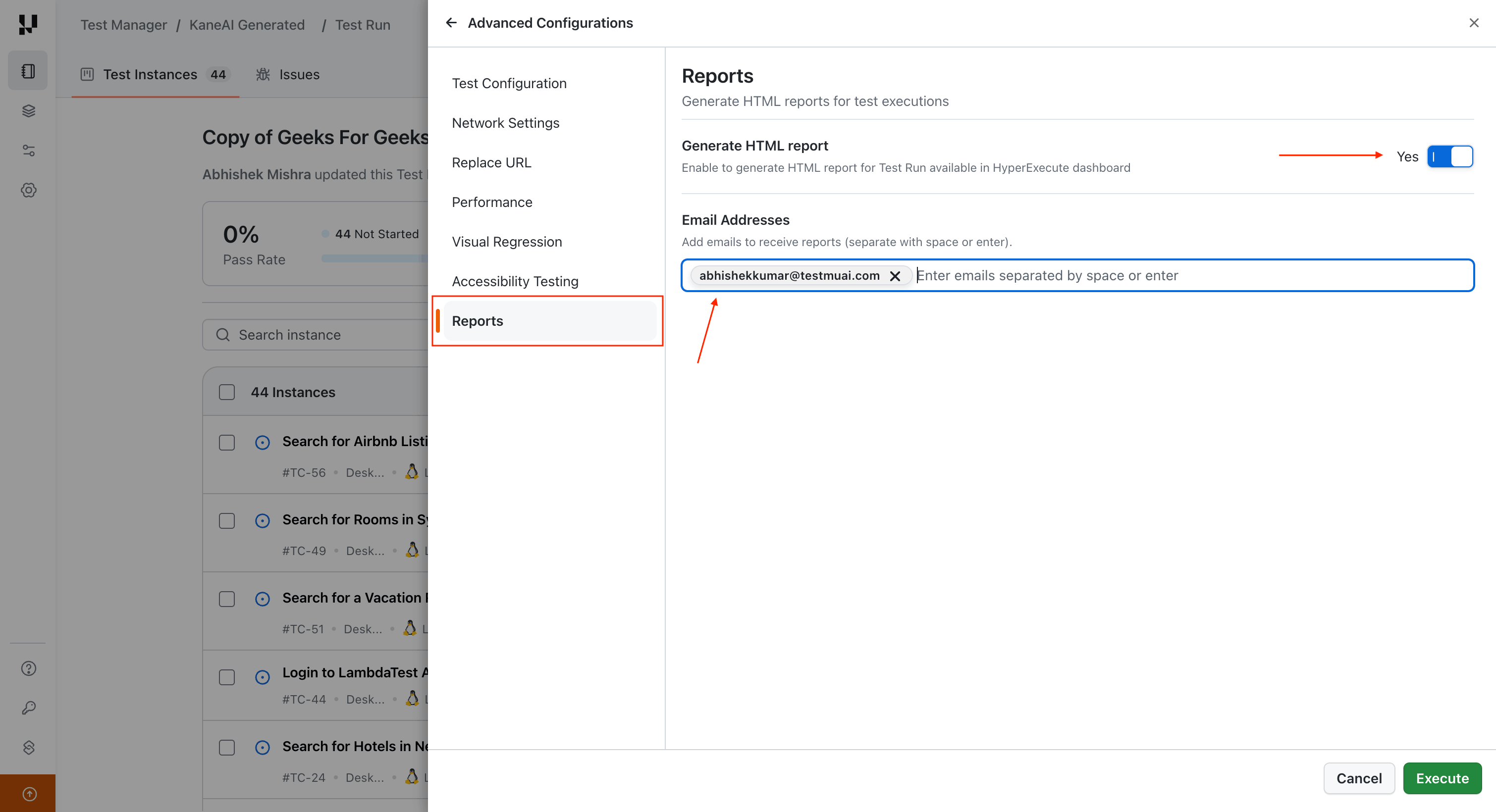
Enable the Reports option in Advanced Configurations to generate an HTML report for your test run. Reports are supported for both web and mobile test executions.
- Generate HTML Report — Toggle to Yes to enable report generation.
- Email Addresses — Add one or more email addresses (separated by space or enter) to receive the report via email after execution. You can add up to 10 email addresses.
Accessing the Report
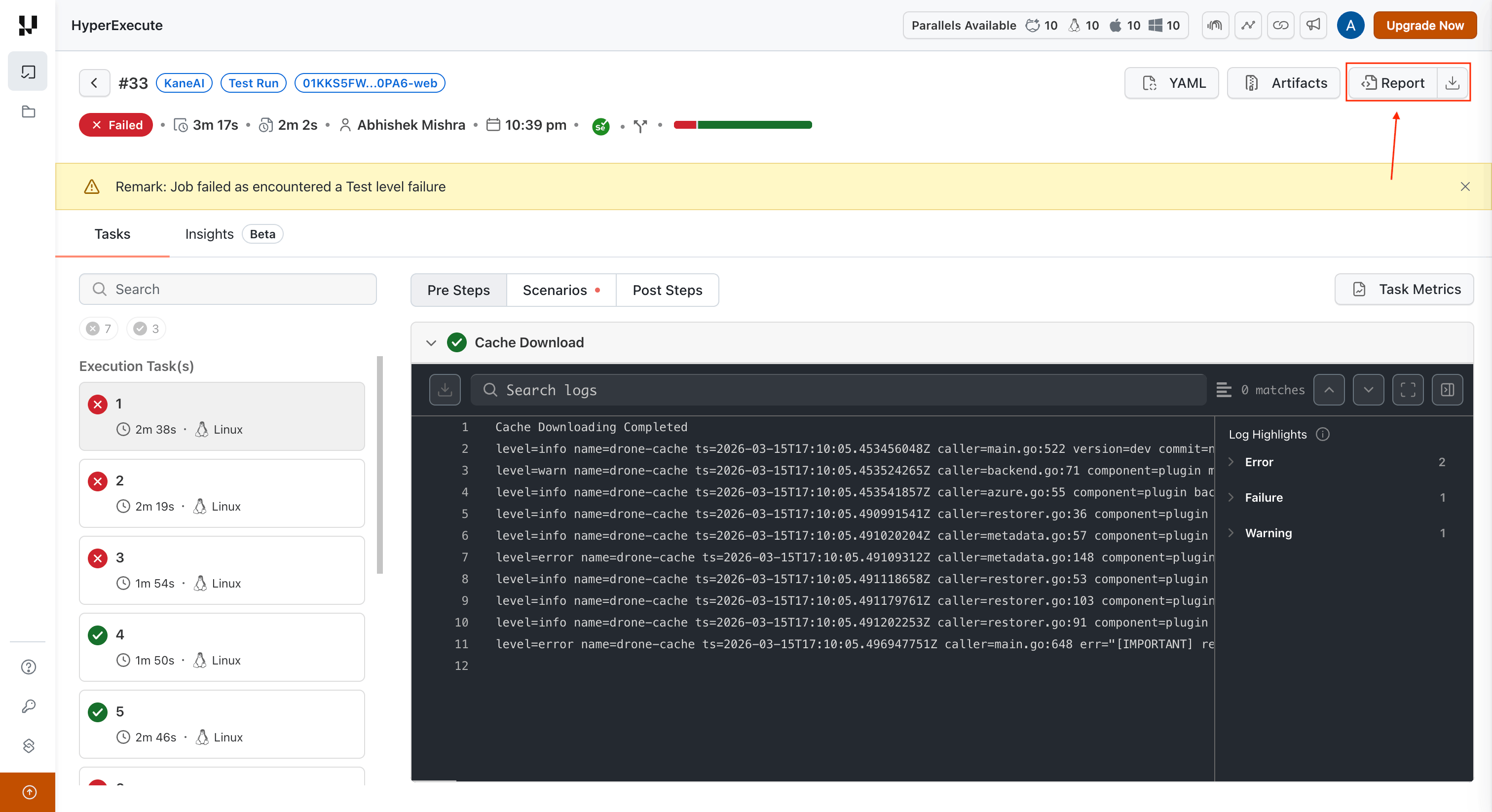
Once your test run execution is complete, you can access the generated HTML report from the HyperExecute Job page. Navigate to the job and click on the Reports section to view or download the report.
HTML Report Overview
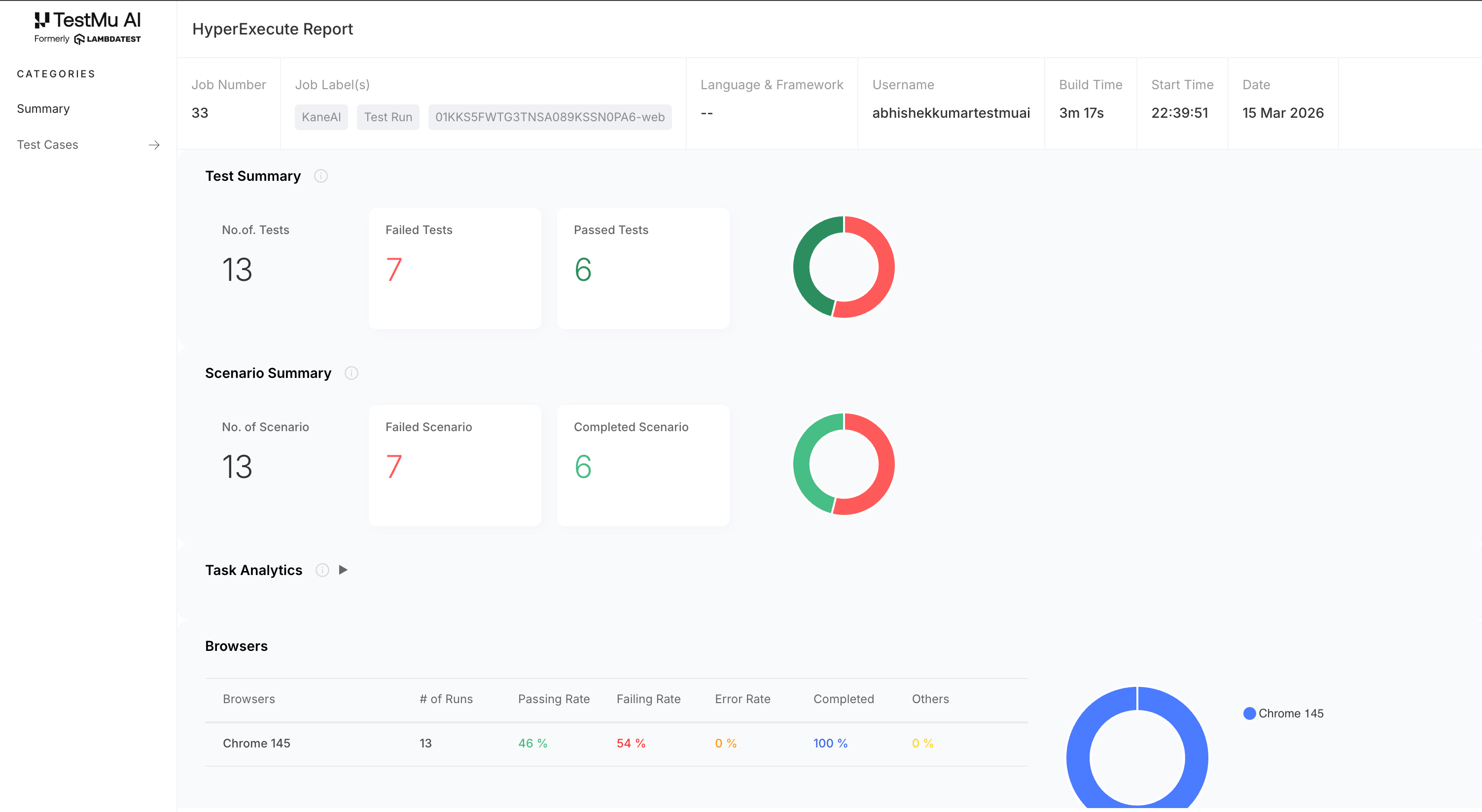
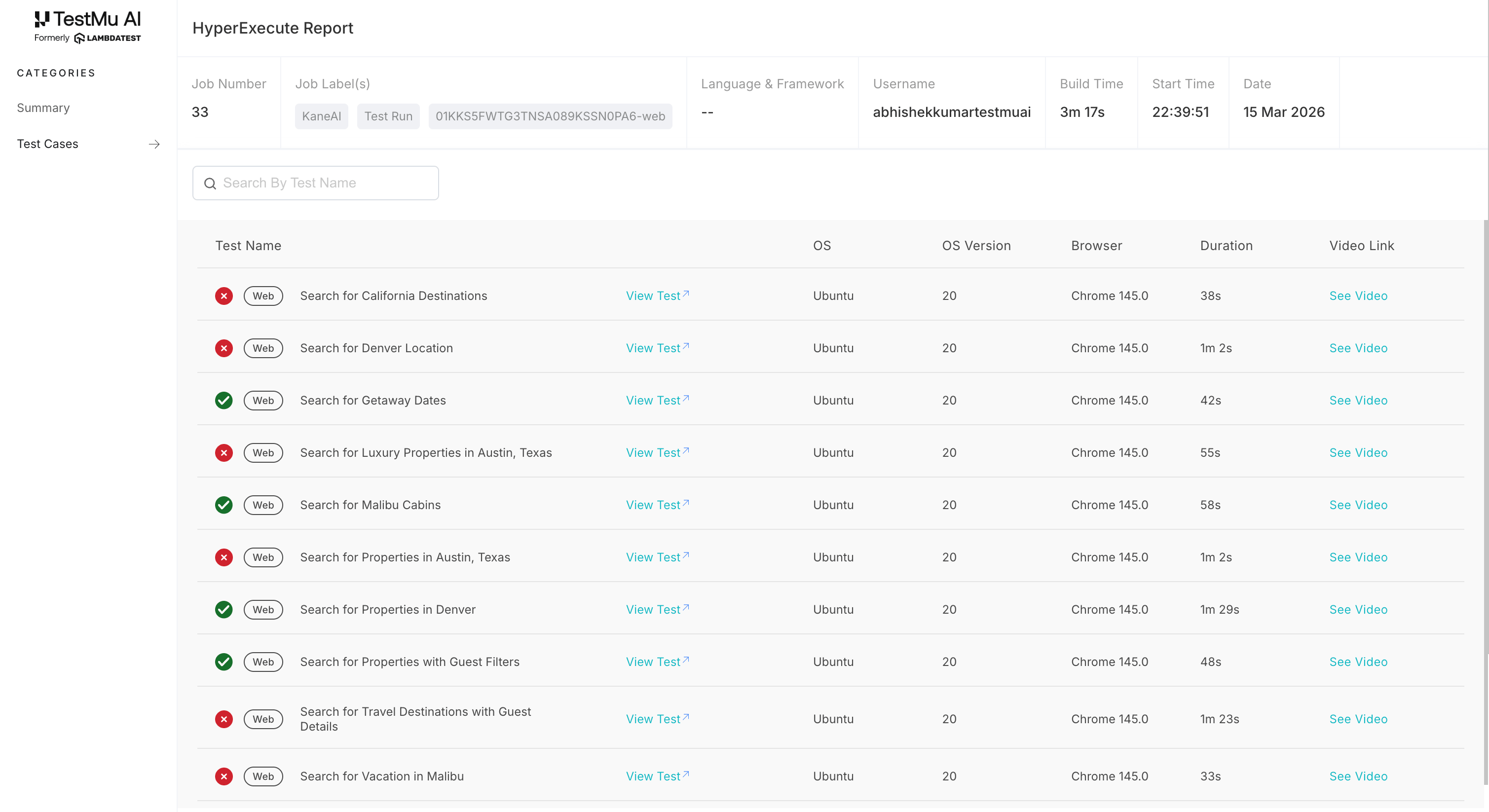
The generated HTML report includes:
- Summary — Job metadata (job number, labels, username, build time, date), test summary with pass/fail counts and donut charts, scenario summary, task analytics, and browser-level breakdown.
- Test Cases — A detailed list of all test cases with their status (pass/fail), OS, OS version, browser, duration, and links to view the test or watch the video recording.
Email Report
If you added email addresses, recipients receive an email with a summary of the test run results along with the HTML report as an attachment.
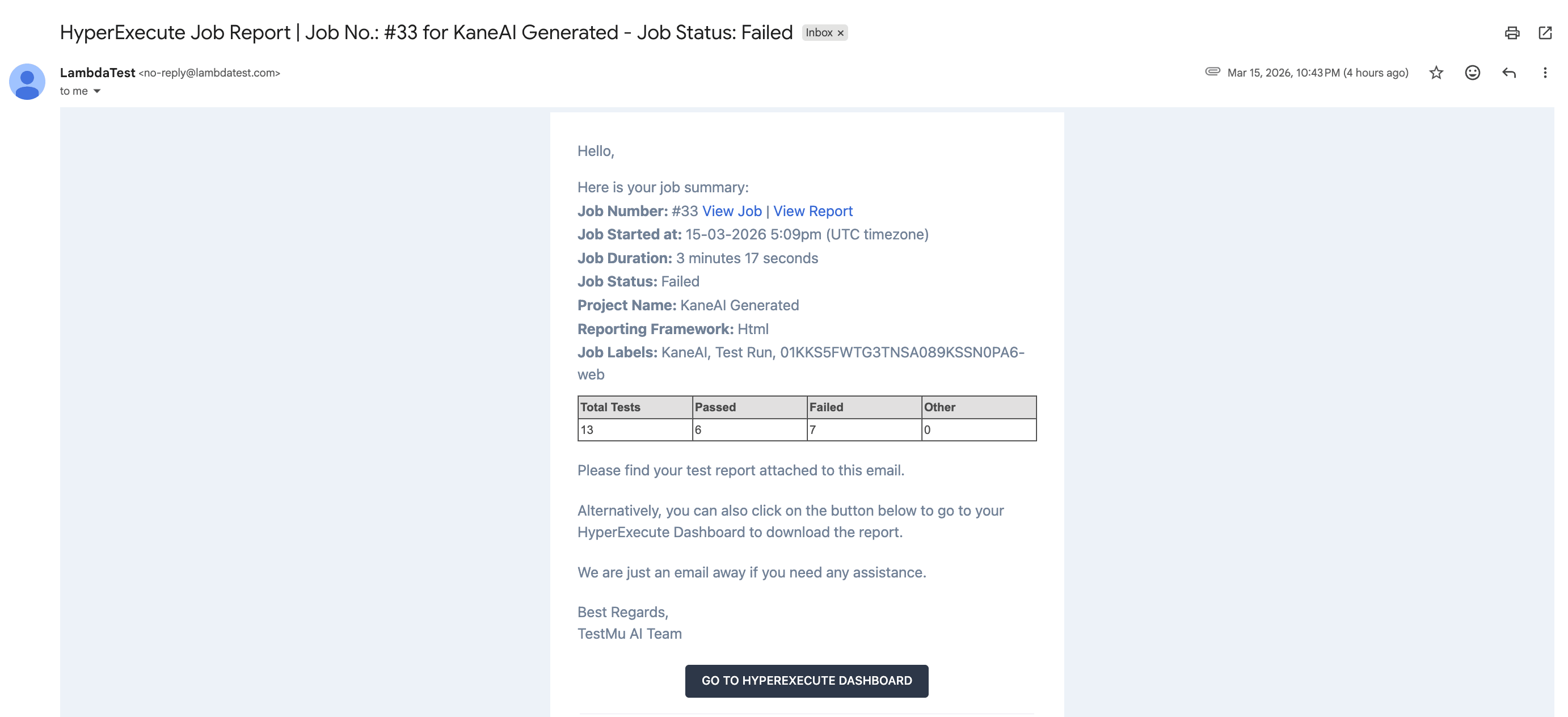
Reports are also available when configuring Scheduled Test Runs.
- Click Execute to run the tests.
Monitor Execution on HyperExecute
- Navigate to the HyperExecute page.
- Observe the discovery and rapid execution of test cases.

 Chat with Us
 Ask the Community