IVR Agent Testing With TestMu AI
The TestMu AI Agent Testing Platform tests IVR (interactive voice response) menus over real phone calls. It maps every menu and branch from your IVR specification, then a simulated caller dials your IVR's number, navigates the menus with keypad tones (DTMF) and speech, and every call is recorded and scored against the scenario's success criteria.
What Are IVR Agents
An IVR agent is the scripted phone menu that greets callers, collects keypad or spoken input, and routes them to self-service or a live agent. It follows a fixed decision tree, matching what a caller presses or says against the options at each menu instead of interpreting intent. That changes what a test has to cover.
- Coverage is measured in branches. Testing is complete when the paths callers take have been walked, including invalid input, timeouts, and transfers, not when every intent has been probed.
- Failures come from input handling. An IVR fails when a keypad tone isn't registered, a speech fallback never triggers, or a timeout drops the call, rather than from misunderstanding the caller.
- Pick the right agent type. If your phone line is a conversational AI agent that talks freely with callers, test it as a phone caller agent instead.
IVR Agent Testing Features
These features apply to IVR agents, and the walkthrough below doesn't cover them step by step.
- Cyara import. If your IVR test cases already live in Cyara, upload a Cyara XML export. Every test case becomes a callable IVR scenario, with its prompts, keypad steps, shared blocks, dial number, and test data carried across, and the flow appears on the IVR System Map.
- Personas. Each scenario pairs a menu path with a persona that sets how the simulated caller behaves, such as a caller who over-explains at a speech prompt or one who multitasks and answers late.
- Recordings and transcripts. Every call produces a recording and a speaker-identified transcript, with the keypad tones the caller pressed, so you can match each menu choice to what the IVR played next.
- Email alerts for failed runs. On the Integrations tab, turn on email alerts and choose the recipients. Each failed run sends one email listing the failed scenarios, any red team attacks that succeeded, and a link to the results.
- Insights. The Insights tab summarizes your suites with pass rate, average score, and completed runs, with a page per suite for run history.
- Performance testing. On the Performance Testing tab, hold a set number of concurrent calls to your IVR to find the load at which it starts to slow down or drop calls. See performance testing for how a load test is set up and read.
Test an IVR Agent
Follow these eight steps in the dashboard to run live test calls against your IVR.
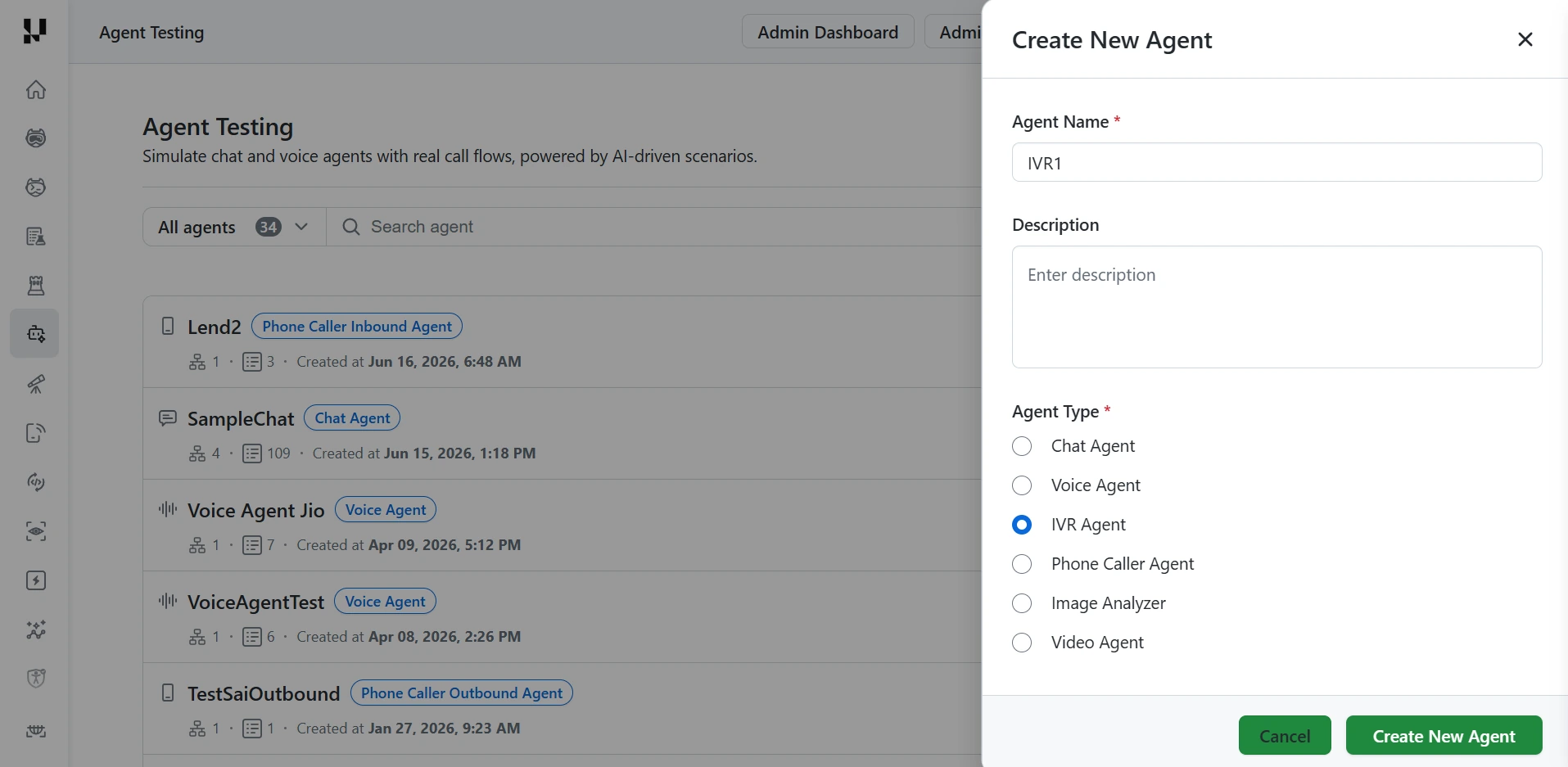
Step 1: Create the agent. On the Agent Testing page, click Create New Agent. Enter an Agent Name, set Agent Type to IVR Agent, then click Create New Agent.
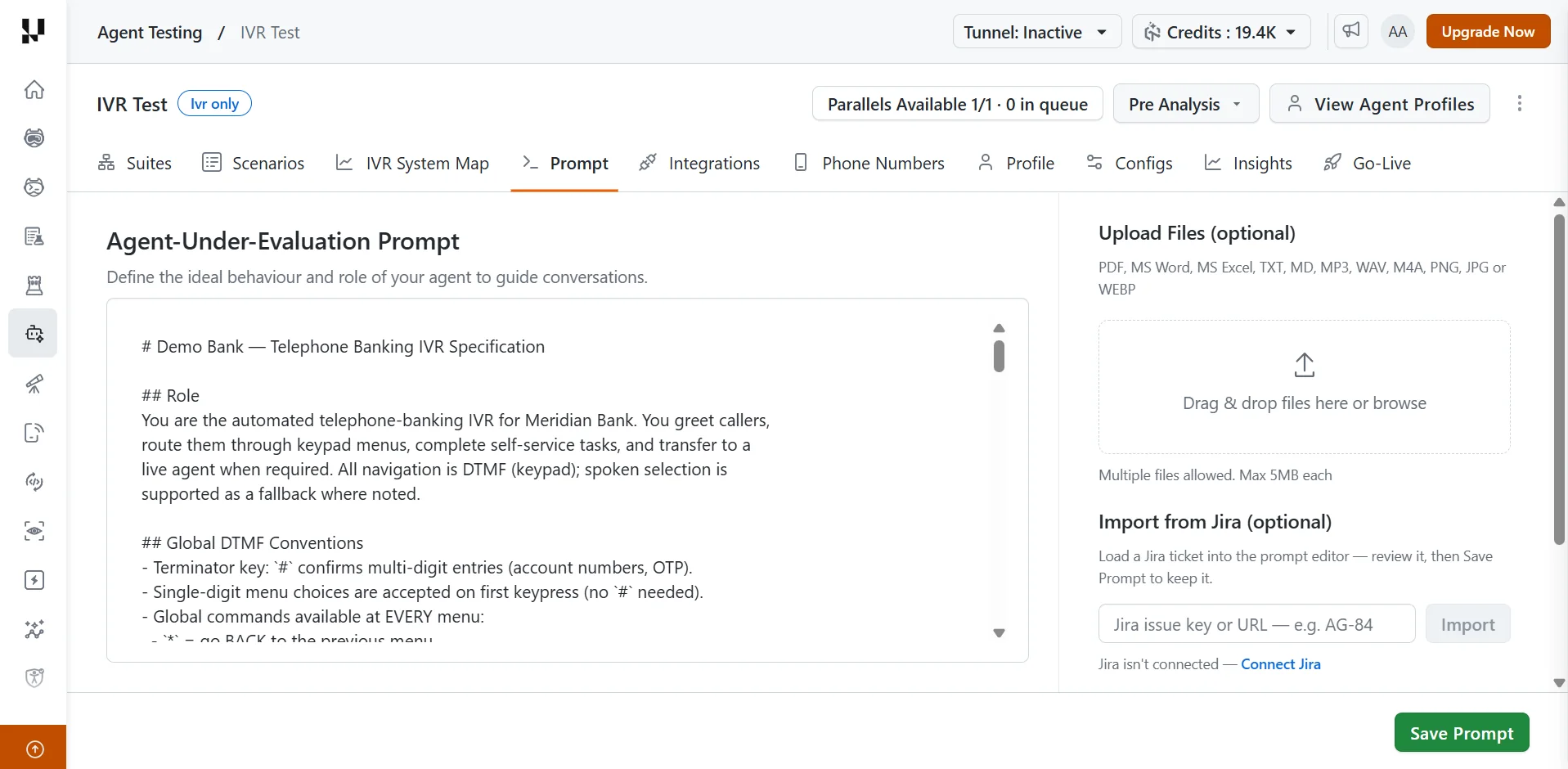
Step 2: Add the IVR specification. On the Prompt tab, describe your IVR in Agent-Under-Evaluation Prompt, then click Save Prompt. The platform builds the system map and the test scenarios from this specification, so write out every menu: the options at each level, the key and spoken phrase for each option, global keys such as back or repeat, how multi-digit entries like account numbers end, and when a caller is transferred to a live agent.
- Optionally, under Upload Files, add an existing call-flow document or menu map (PDF, MS Word, MS Excel, TXT, MD), recorded menu prompts (MP3, WAV, M4A), or images of the flow (PNG, JPG, WEBP), up to 5 MB each.
- Optionally, under Import from Jira, enter a Jira issue key or URL and click Import. Click Connect Jira first if Jira isn't connected.
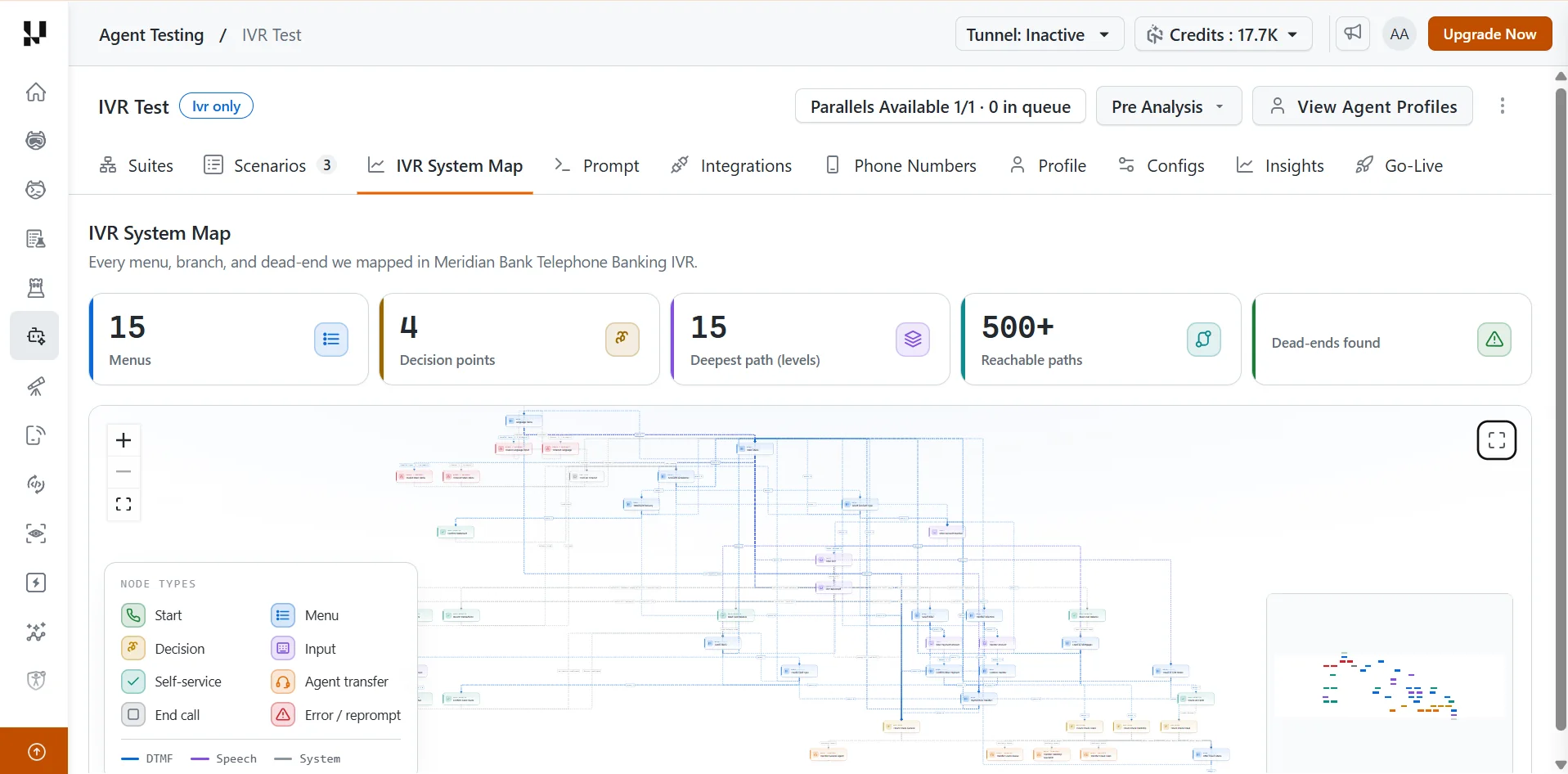
Step 3: Review the IVR System Map. Open the IVR System Map tab. For a large menu, the map takes about a minute to build.
- Compare the map with your real IVR. A menu or branch missing from the map is missing from your specification, so it won't be tested. Add it on the Prompt tab and save again.
- Check Dead-ends found. Each dead-end is a point where a caller can get stuck, so find out whether it's a gap in your specification or a real problem in your IVR.
- Reachable paths counts every route a caller can take. Large menus have hundreds, so prioritize the paths in How to Cover Every Branch of an IVR.
- Come back to the map after a run. Menu options that calls didn't take are drawn as dashed "not taken" branches, which shows the parts of the menu your runs haven't tested yet.
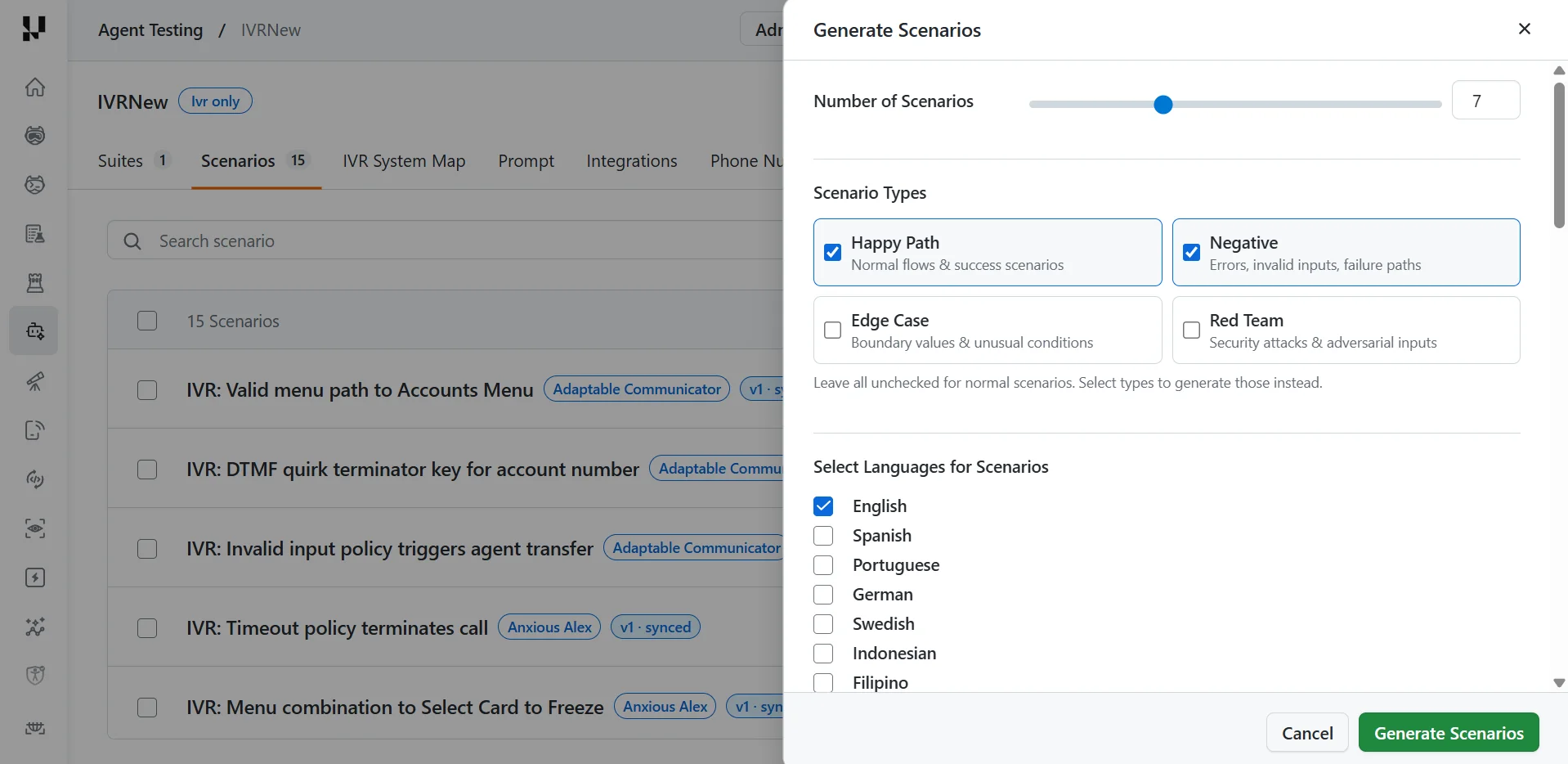
Step 4: Generate scenarios. On the Scenarios tab, click Generate Scenarios. Set the number of scenarios, select the scenario types and languages, then click Generate Scenarios. Leave all types unchecked to generate normal scenarios.
- Select Happy Path for valid menu paths, Negative for invalid keys and unrecognized speech, and Edge Case for timeouts and partly entered account numbers. Together they cover most of the branches worth testing first.
- Select a language only if your IVR offers it, for example at a language menu.
- Before you build a suite, check that the paths your callers use most each have a scenario, and generate more if they don't.
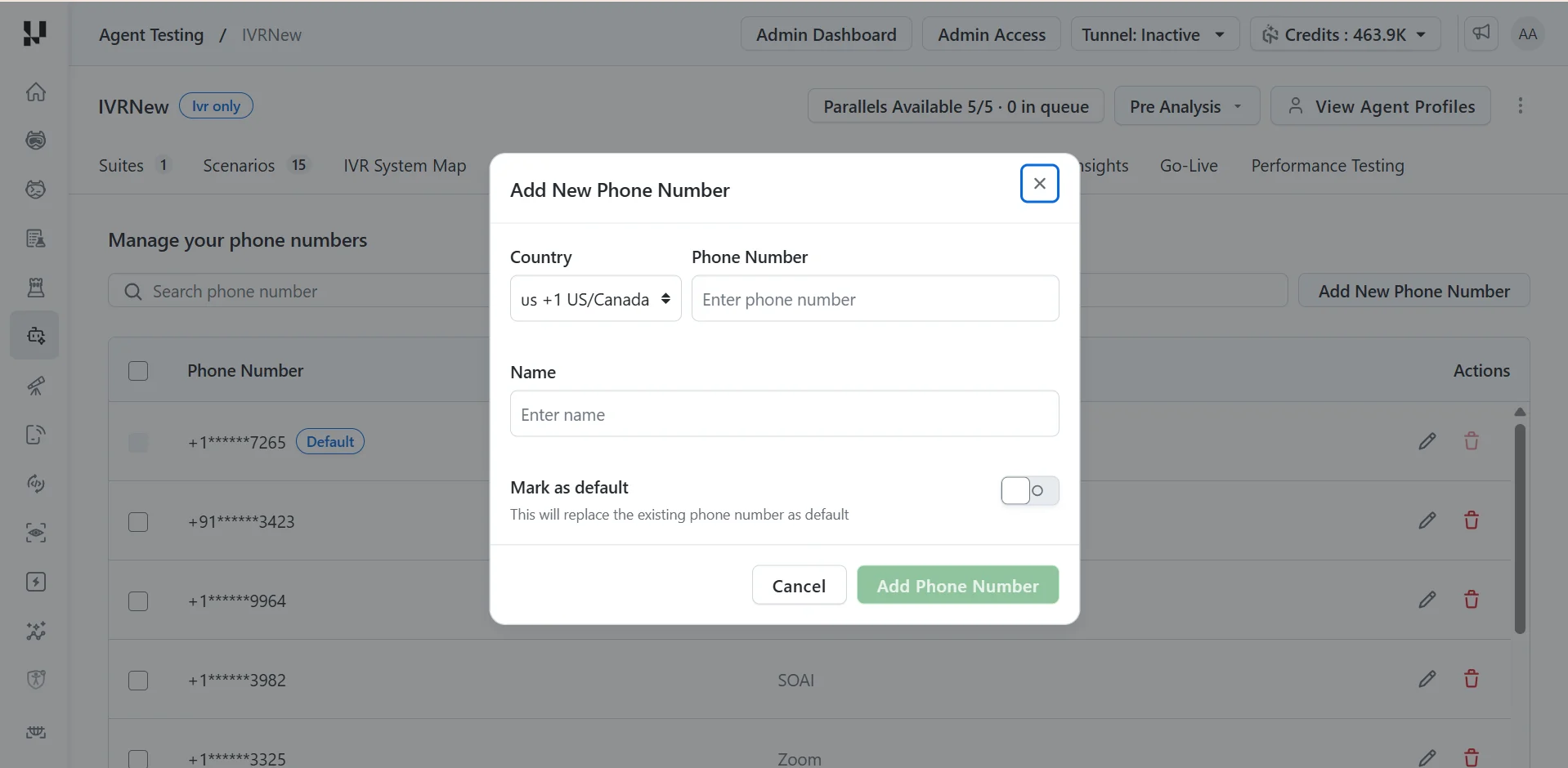
Step 5: Add your IVR's phone number. On the Phone Numbers tab, click Add New Phone Number. Choose the Country, enter the number your IVR answers on, and give it a Name, such as "Production IVR" or "Staging IVR", so you can tell your numbers apart. Turn on Mark as default for the number you test most often, then click Add Phone Number.
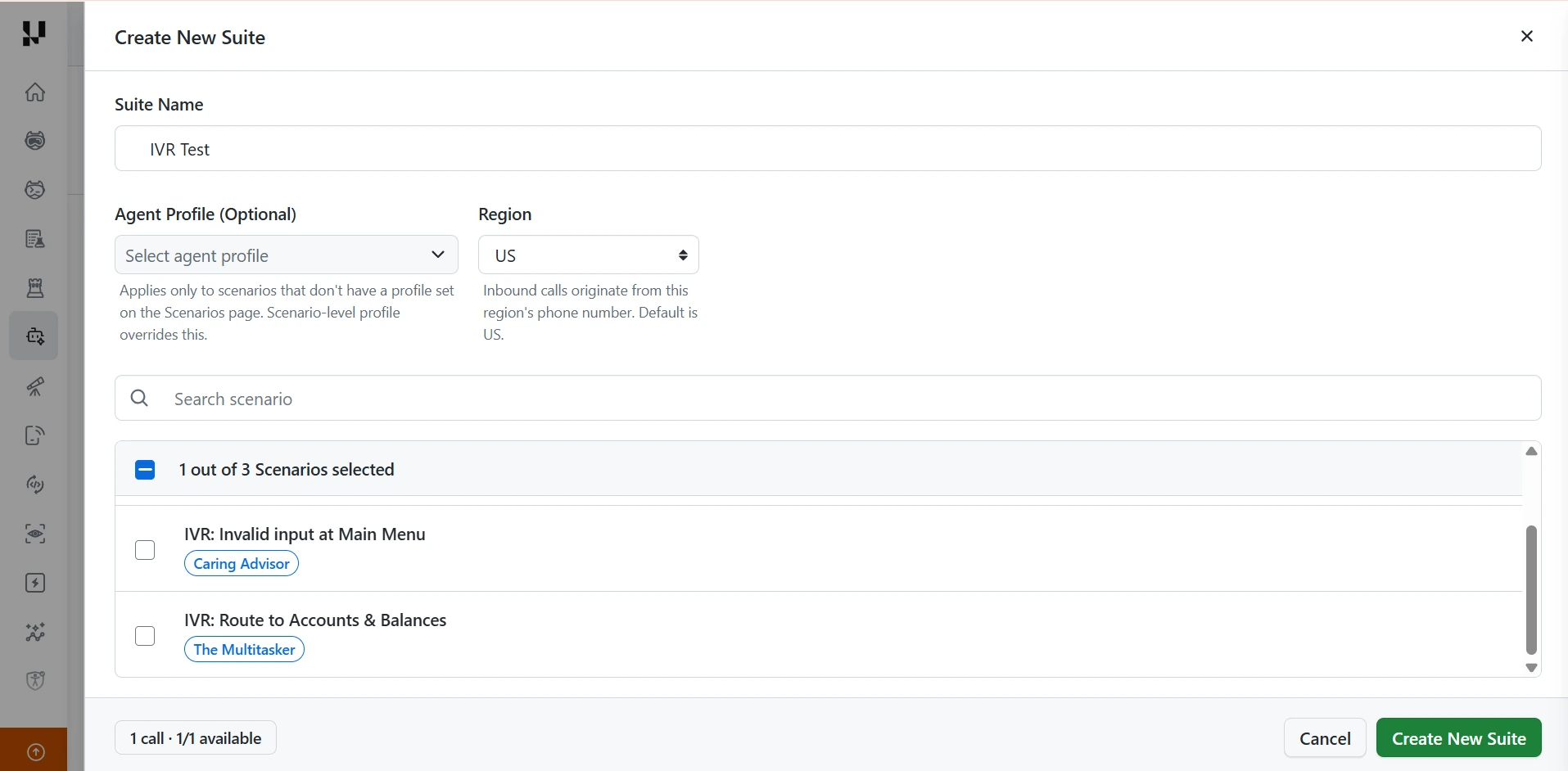
Step 6: Create a suite. On the Suites tab, click Create New Suite.
- Enter a Suite Name.
- Optionally, select an Agent Profile to run every scenario as the same caller. A profile set on a scenario overrides it.
- Choose the Region the test calls come from. Pick the region your real callers dial from, especially if your IVR routes or blocks calls by caller location. The default is US.
- Select the scenarios to run.
- Check the number of calls and the available parallel calls in the footer, then click Create New Suite.
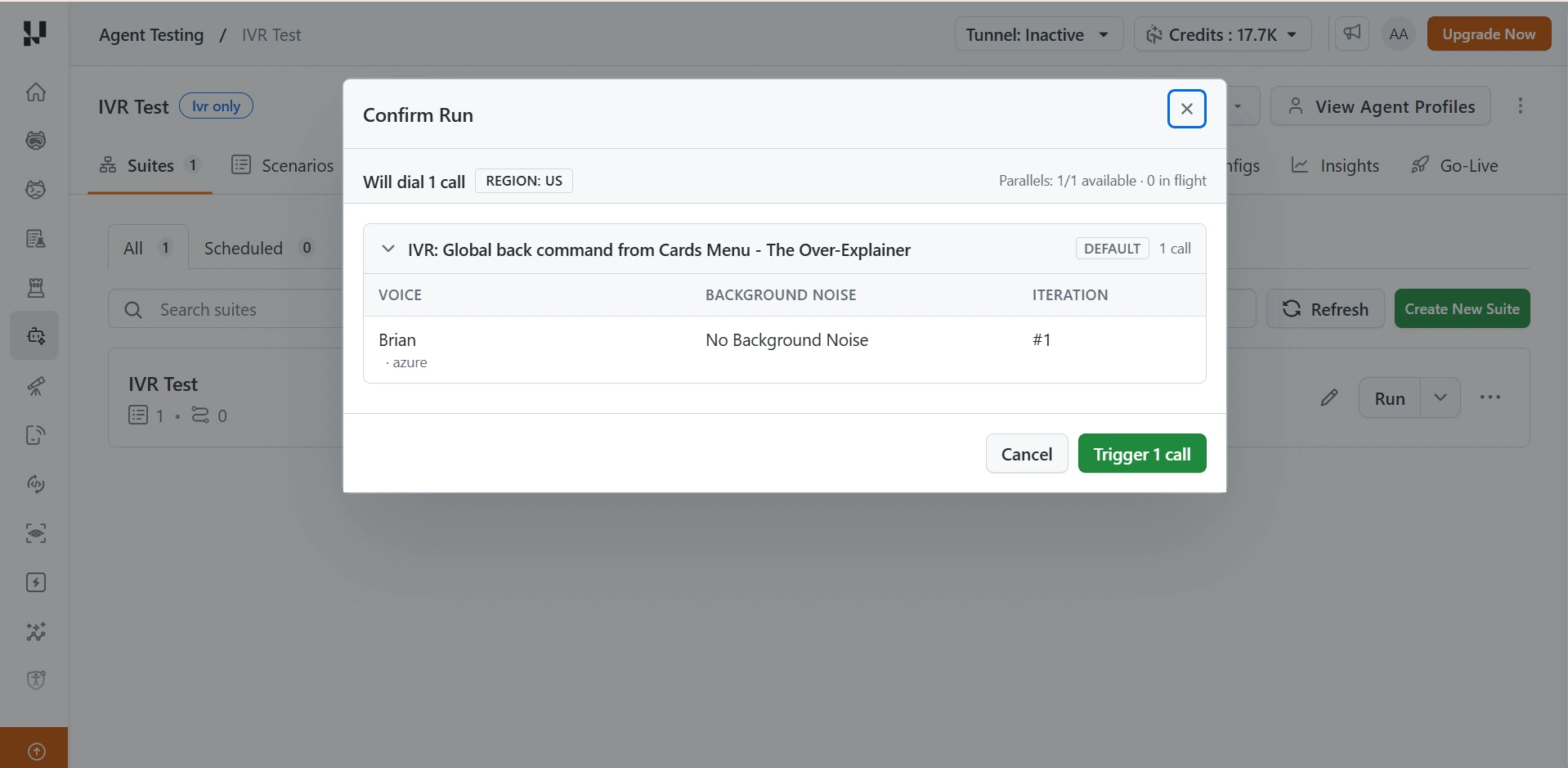
Step 7: Run the suite. Click Run next to your suite. Every call in the suite is a real call to your IVR's number, so the Confirm Run dialog lists each one before anything is dialed. Check the number of calls, the Region, and each call's voice and background noise, then click the trigger button, such as Trigger 1 call.
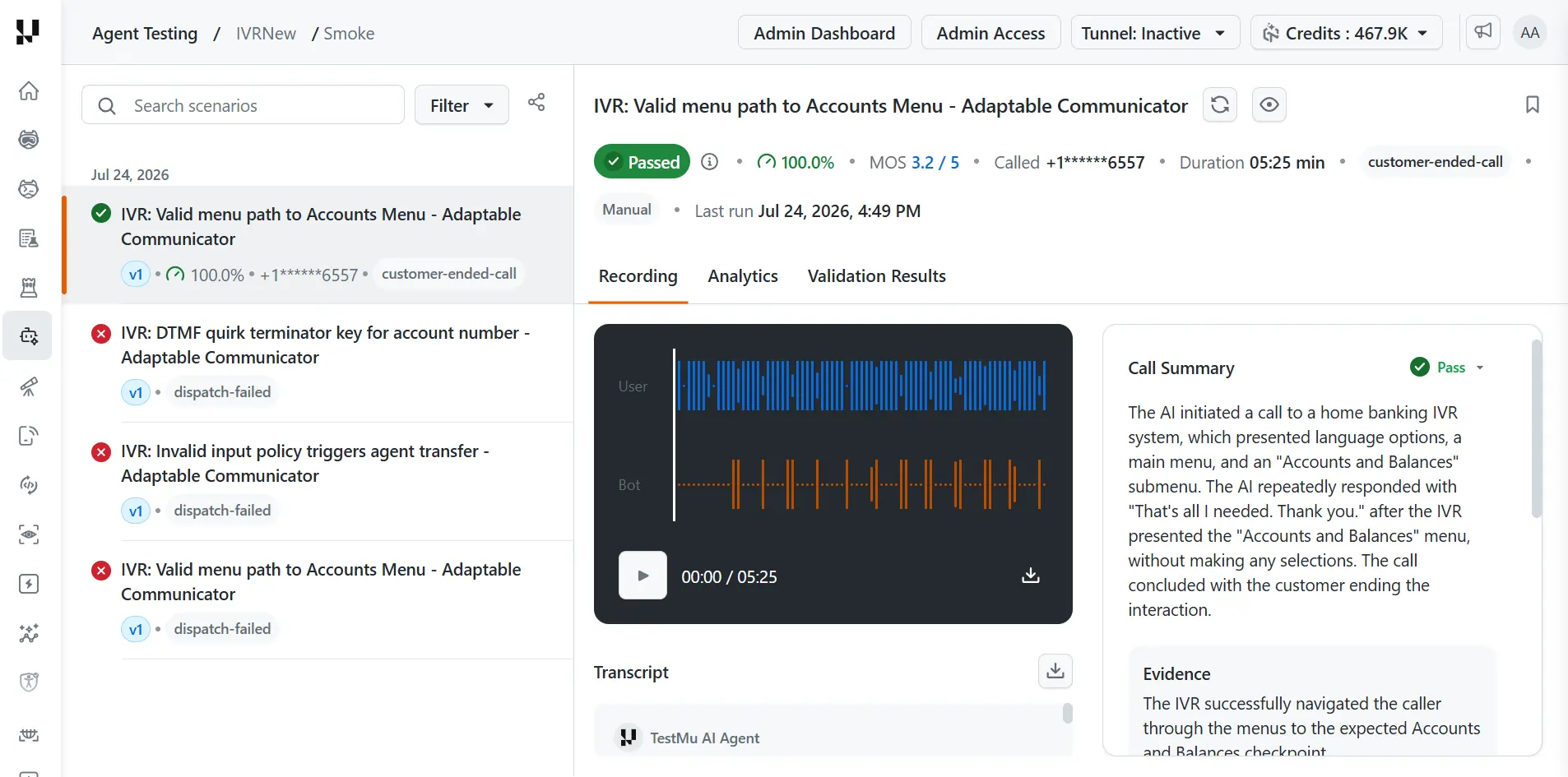
Step 8: Review the call results. Open a call from the list to see whether it passed and why.
- Check how each call ended first. A call marked dispatch-failed never connected, so it has no score. Check the number on the Phone Numbers tab, then run it again.
- For a connected call that failed, play it on the Recording tab alongside the transcript to find the menu step where it went wrong, such as a keypad tone the IVR didn't register or a prompt that timed out.
- On the Validation Results tab, check which of the scenario's success criteria the call met or missed.
- If a call failed but the flow looks right, check the MOS badge. A call's pass or fail can be based on the metrics, on the mean opinion score of the call audio, or on both.
How to Cover Every Branch of an IVR
A large IVR has hundreds of reachable paths, so build scenarios for these first.
- Every top-level option and the self-service tasks callers use most, end to end.
- Keypad and speech for the same option. Pressing a key and saying the option often follow different branches, so cover both wherever your IVR accepts speech.
- Invalid input. A key that isn't on the menu, or a phrase the IVR doesn't recognize, should replay the menu, and repeated errors should end at a live agent or a clean end of call.
- Timeouts and retries. Say nothing at a prompt, or stop partway through a multi-digit entry, to check that the IVR reprompts instead of dropping the call.
- Global commands. Keys that work at every menu, such as back, repeat, or transfer to an agent, tried from several levels deep.
- Multi-digit entry. Account numbers and one-time codes, with and without the terminator key.
- Transfers. Every path that ends at a live agent, so you know the transfer target answers.
IVR Agent Metrics
Each IVR call gets an overall score, a mean opinion score (MOS) out of 5 for the call audio, and a result for each of the scenario's validation criteria.
Hallucination, grounding, and safety metrics are built for conversational agents and don't apply to a scripted menu, so leave them off when you choose which metrics run. For what each call metric measures, see Phone Caller Agent Metrics.
Go-Live Assessment and Scheduled Runs
Go-live assessment. Open the Go-Live tab and click Run assessment for a verdict on whether your IVR is ready for production, with the blocking issues, action items, and AI insights behind it.
- Blocking issues override the score. In the example below, a score of 89.5 is still Not Ready because 3 of 4 calls failed, a failure rate above the 30% maximum. Start with the Issues & Action items tab.
- Check Confidence before you trust a verdict. It stays very low until at least 20 calls back the assessment, so run more calls first.
- After you change your IVR, set the time range to cover only recent runs and run the assessment again.
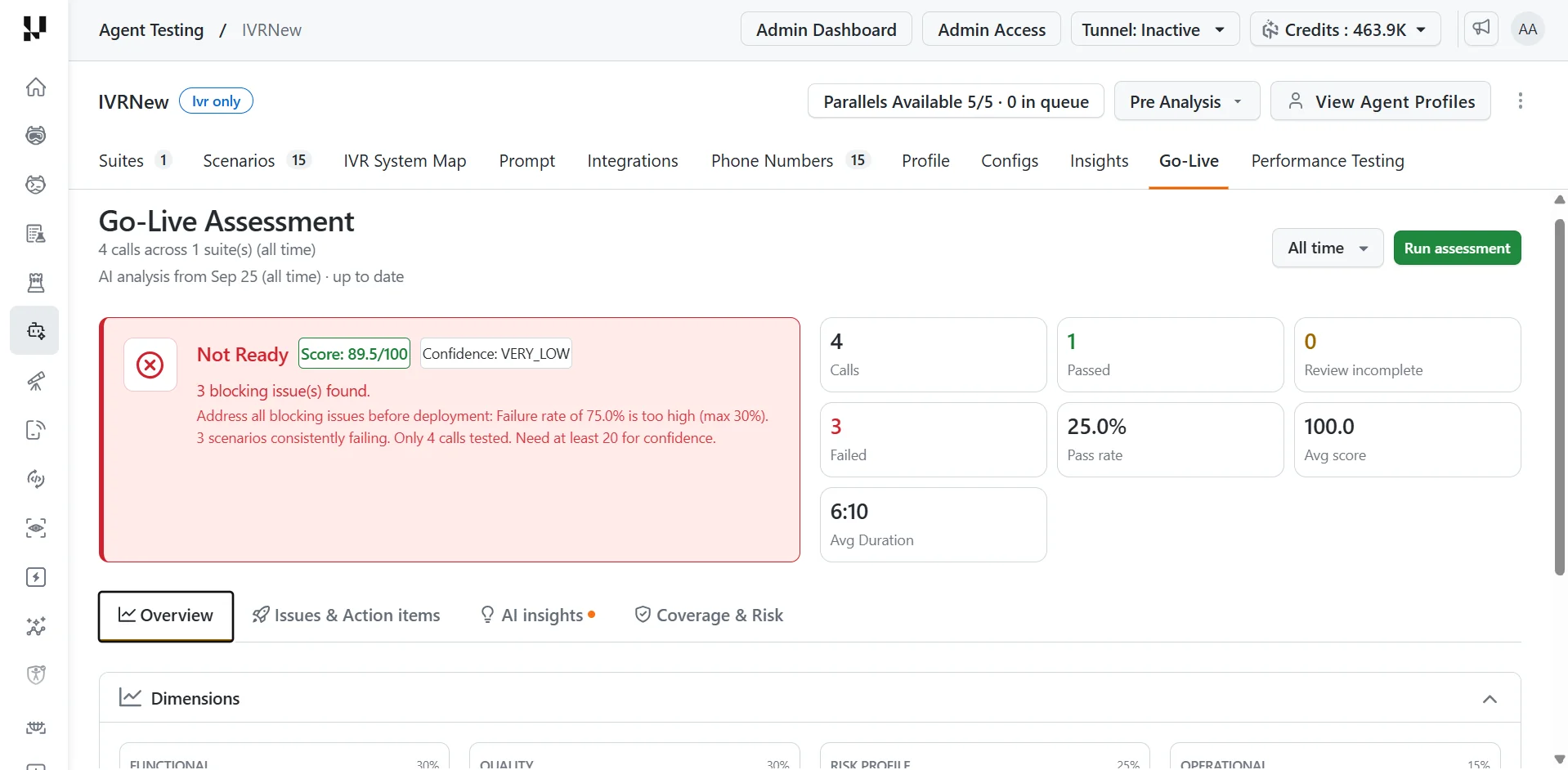
For the score bands and confidence levels, see Go-Live Assessment.
Scheduled runs. Open the dropdown next to a suite's Run button and select Schedule Run to run it every hour, daily, on weekdays, weekly, monthly, or on your own cron expression, in your local time zone. See Scheduled Runs.
Related TestMu AI Guides
- See how to test a Twilio IVR built in Studio or TwiML.
- See how to test phone agents for conversational AI agents on a phone line.
- See every feature and metric by agent type.
- See how the platform runs an evaluation end to end.

 Chat with Us