How to Test Apps Installed via Firebase?
TestMu AI offers real device testing capabilities, enabling developers and QA teams to test on actual Android and iOS devices in the cloud. With Firebase App Distribution, you can easily configure your Firebase account within TestMu AI to seamlessly distribute apps from Firebase to TestMu AI App Live. This integration allows you to collaborate by sharing projects within your team on TestMu AI and test on real devices.
Let’s dive in to learn how to test apps installed from Firebase.
Prerequisites:
Create a new project on Firebase and open it in Google Cloud Platform (GCP). Using a new project is preferred, though an existing one can be used.
Here, create an OAuth Client ID.
In this step, update the following URLs as -
| Input Field | URL |
|---|---|
| JavaScript origins | https://applive.lambdatest.com |
| Redirect URIs | https://applive.lambdatest.com/app |
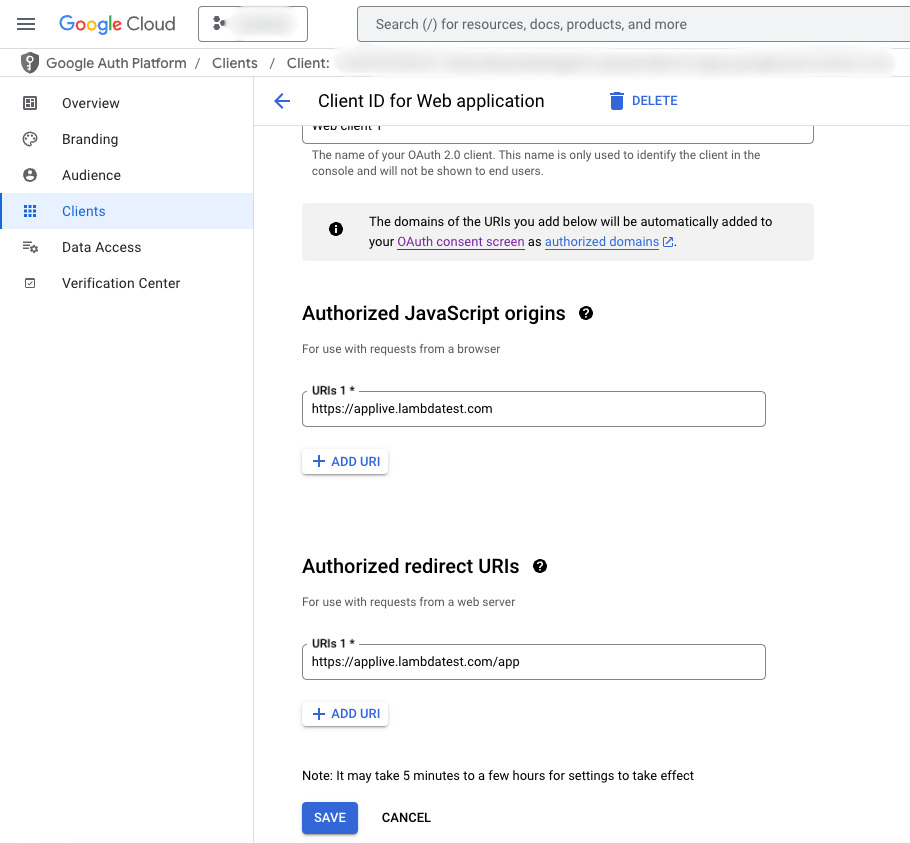
Download the OAuth client config JSON file, or simply take note of the Project ID, Client ID, and Client Secret Key.
Next, add an app, navigate to Firebase, and proceed to App Distribution to upload the application releases.
Access to the project is granted only if-
- You are the owner.
- You are a tester for the app.
- The app is published.
These settings can be updated in the OAuth consent screen.
Steps to Test apps:
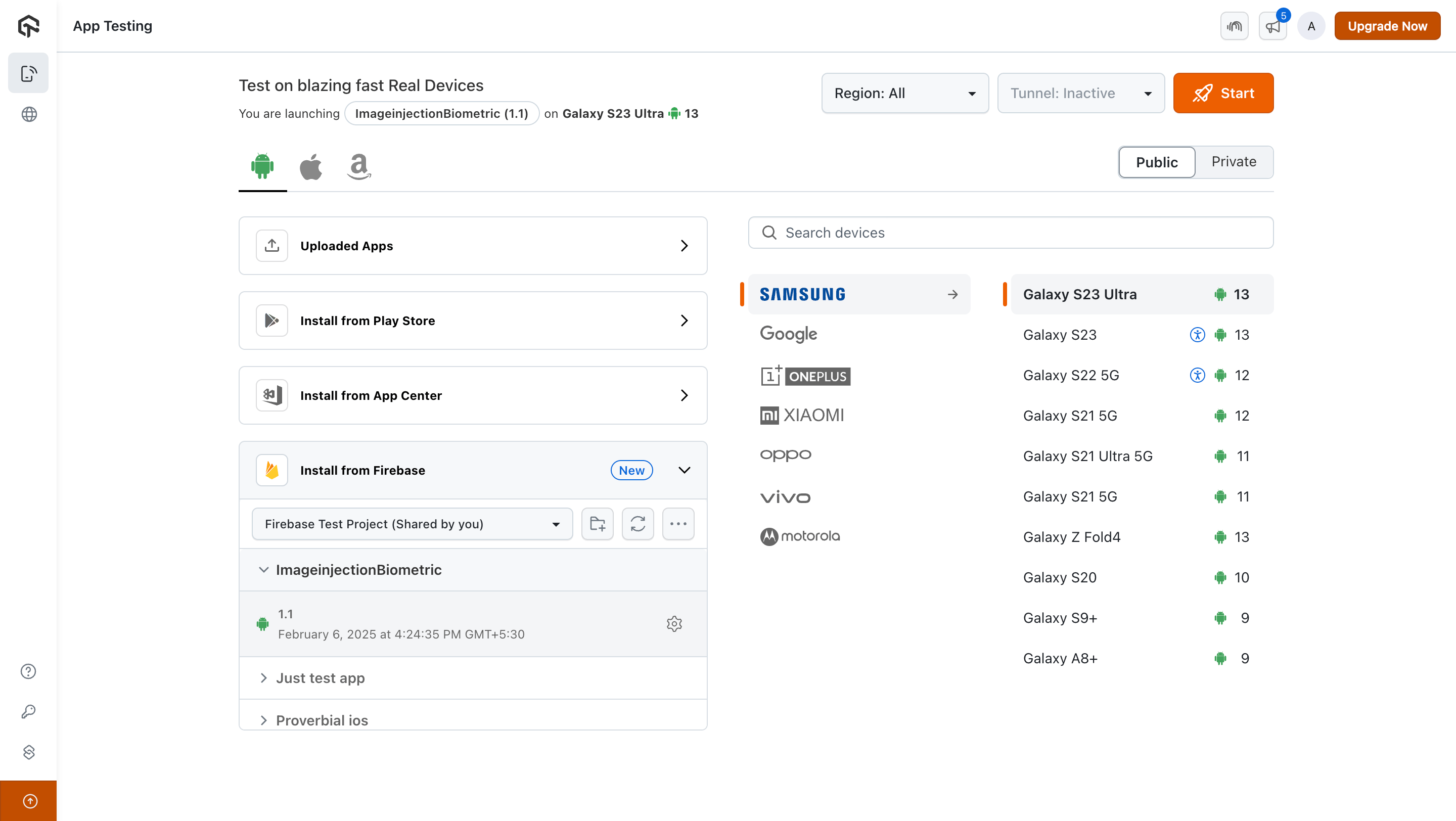
Step 1: Login to your TestMu AI account. Visit Real Device from the left panel and navigate to App Testing and click on Install from Firebase.
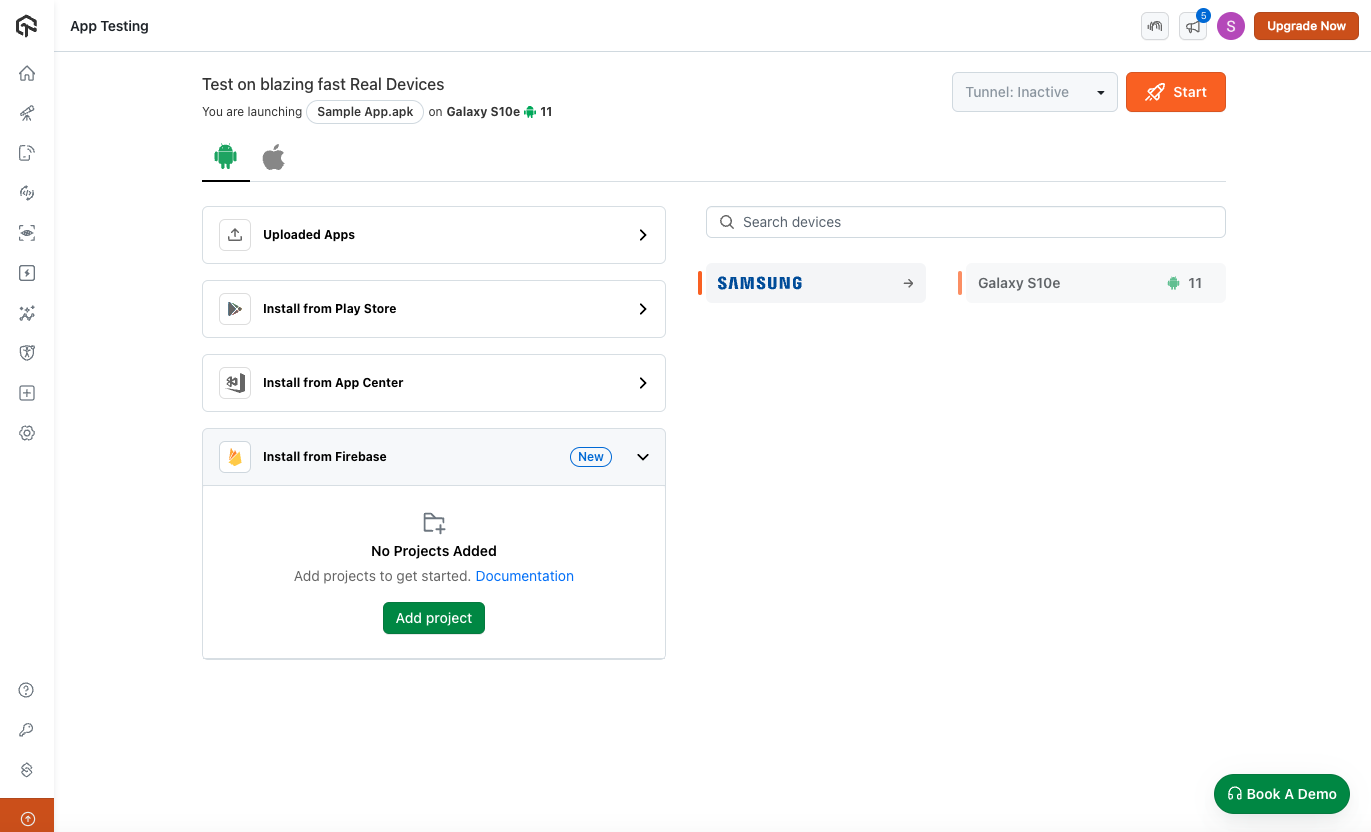
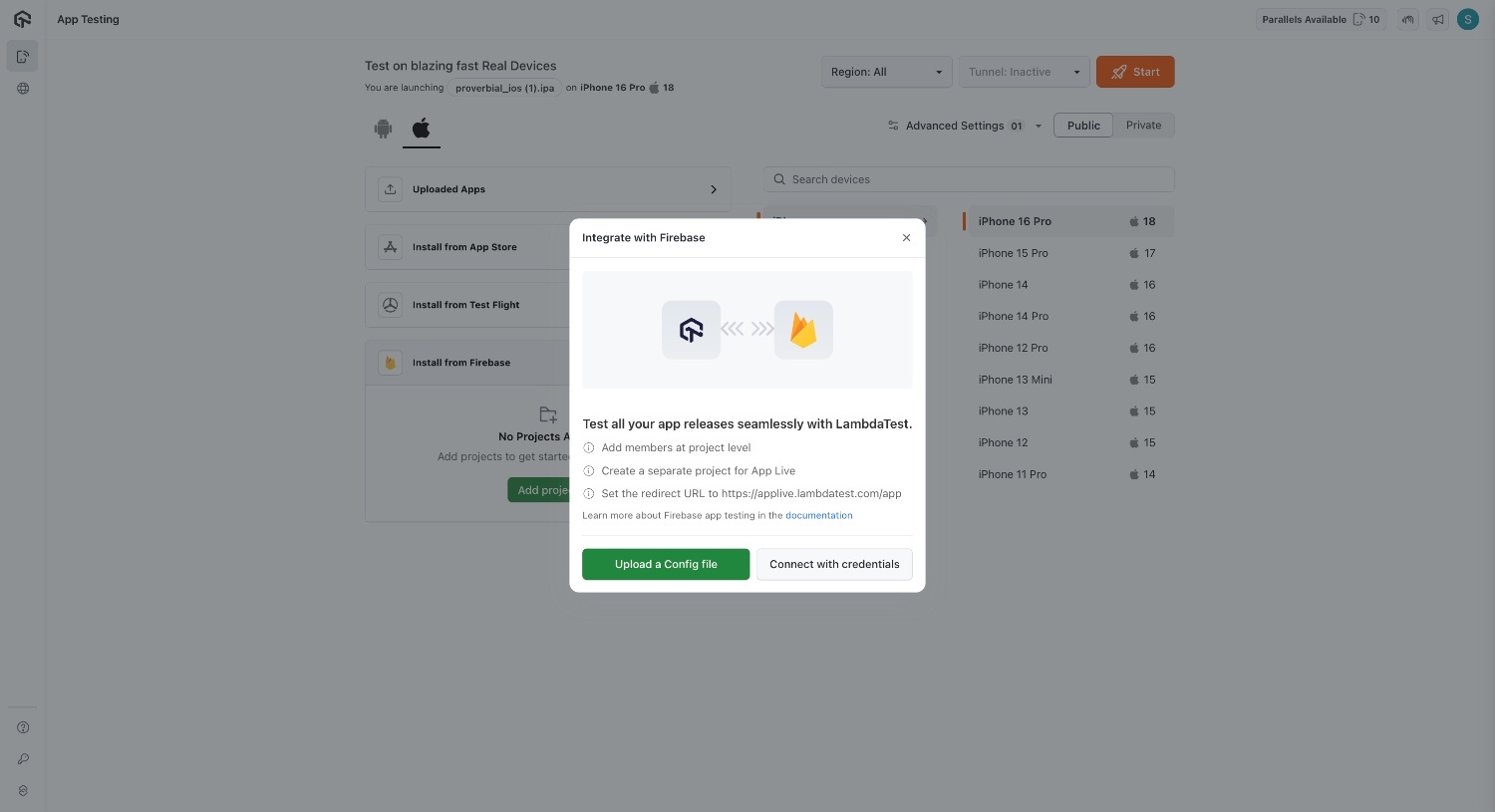
Step 2: When you click on Add Project, you can integrate your Firebase account with TestMu AI either by uploading a config file or connecting using credentials. You should have these credentials from the prerequisite step.
Upload a Config file -
Connect with credentials -
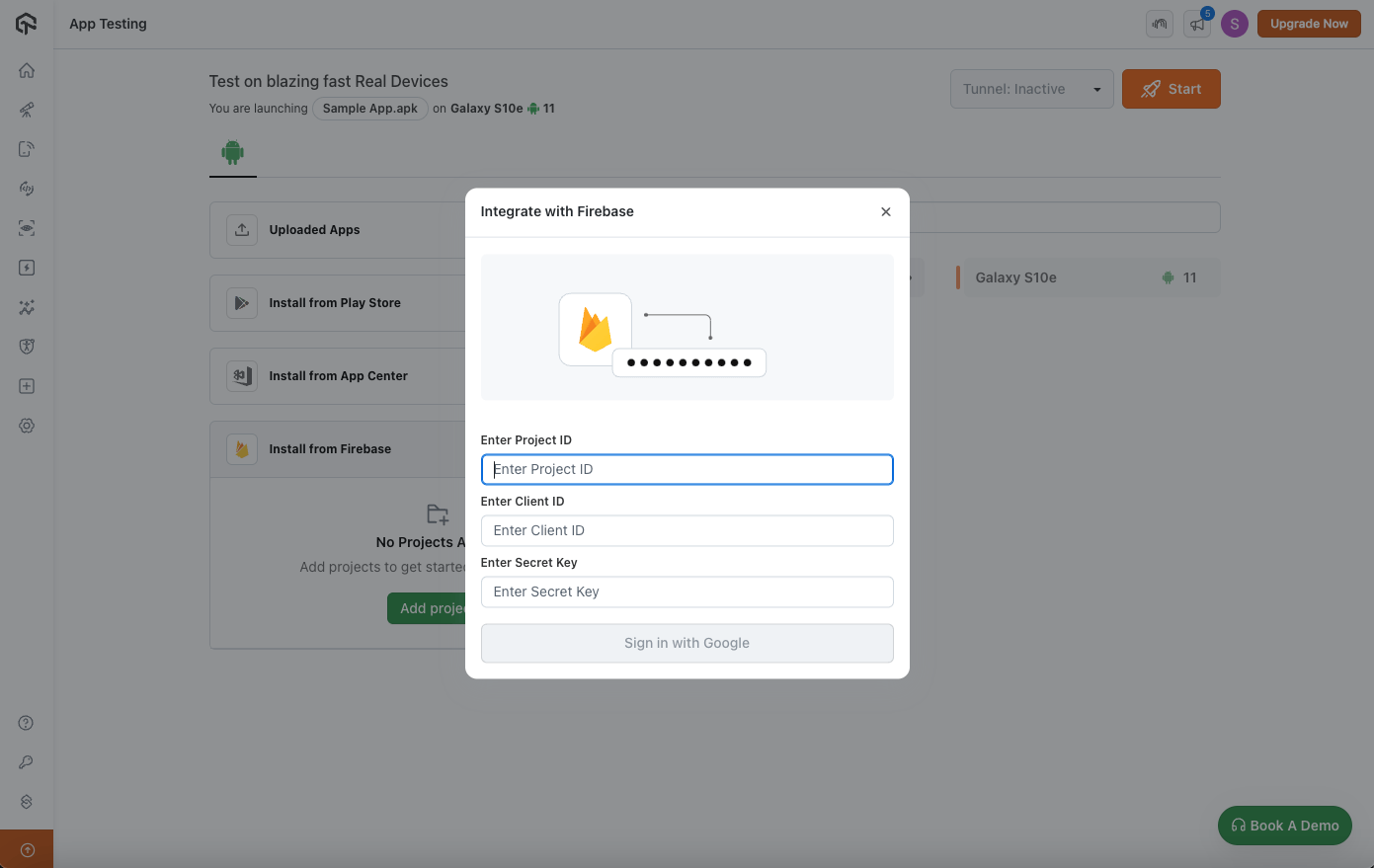
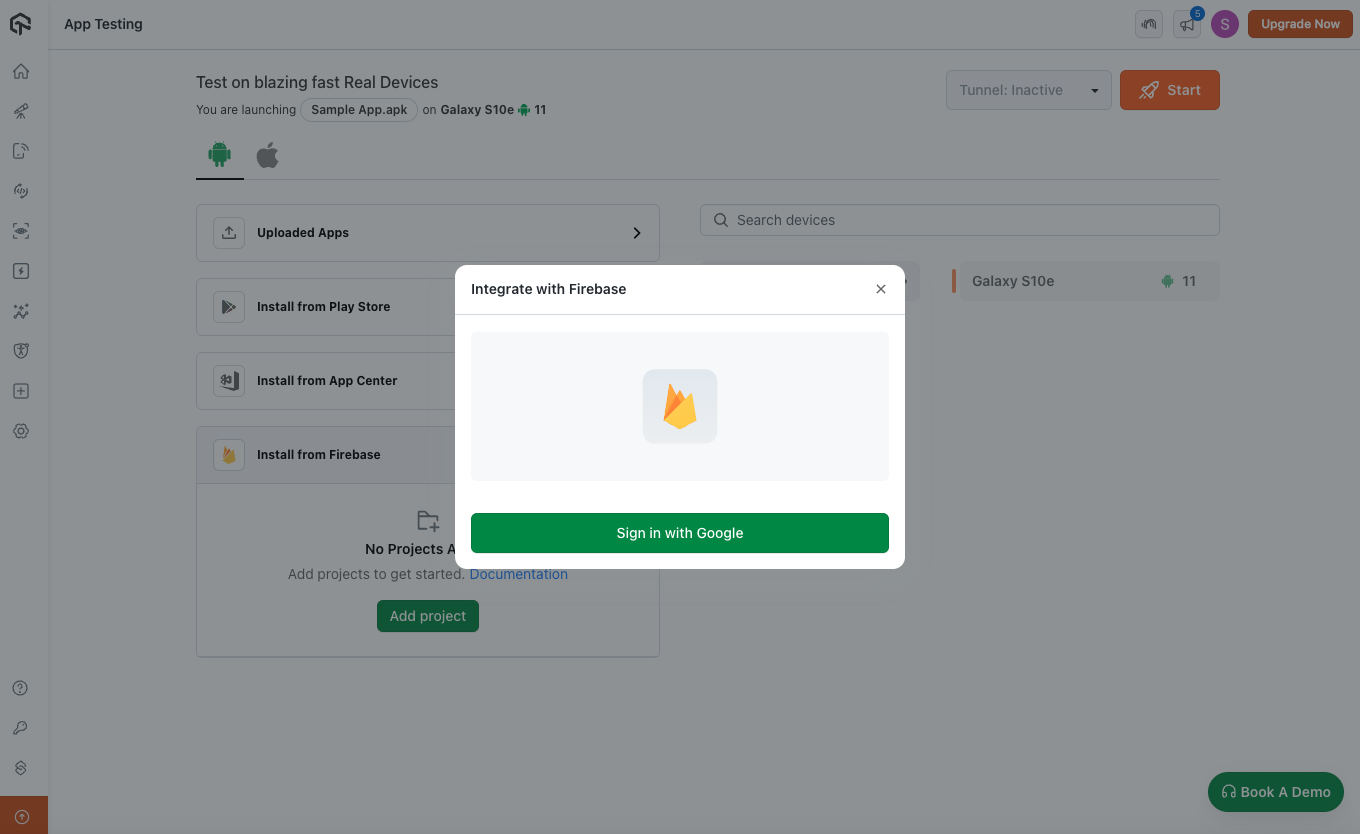
Step 3: After entering these details, the option to sign in with Google will appear. Follow the steps and choose the Google account through which you would like to integrate Firebase with TestMu AI.
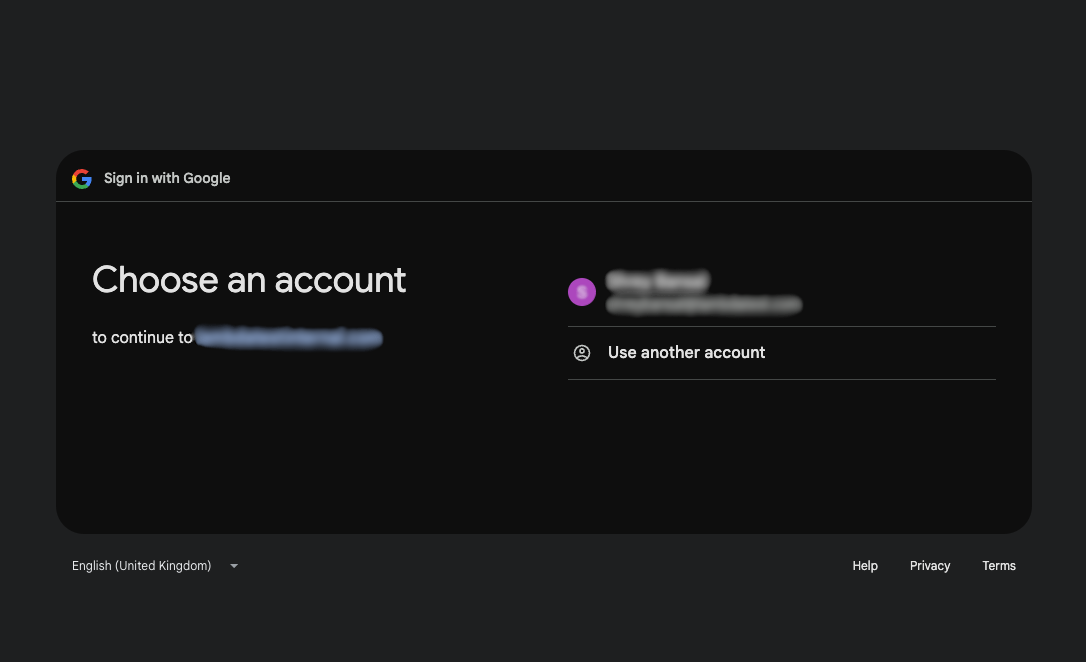
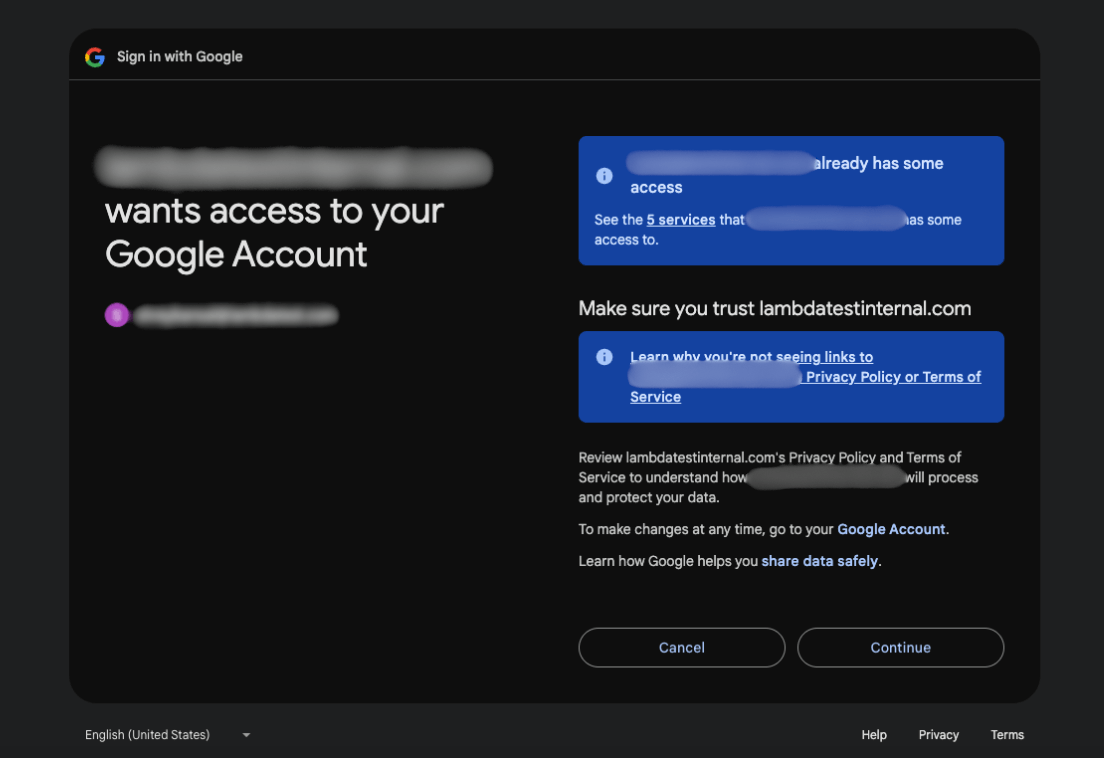
Step 4: You will have successfully integrated TestMu AI with Firebase. You can now click on Share Now to share the project with the testers you added in GCP.
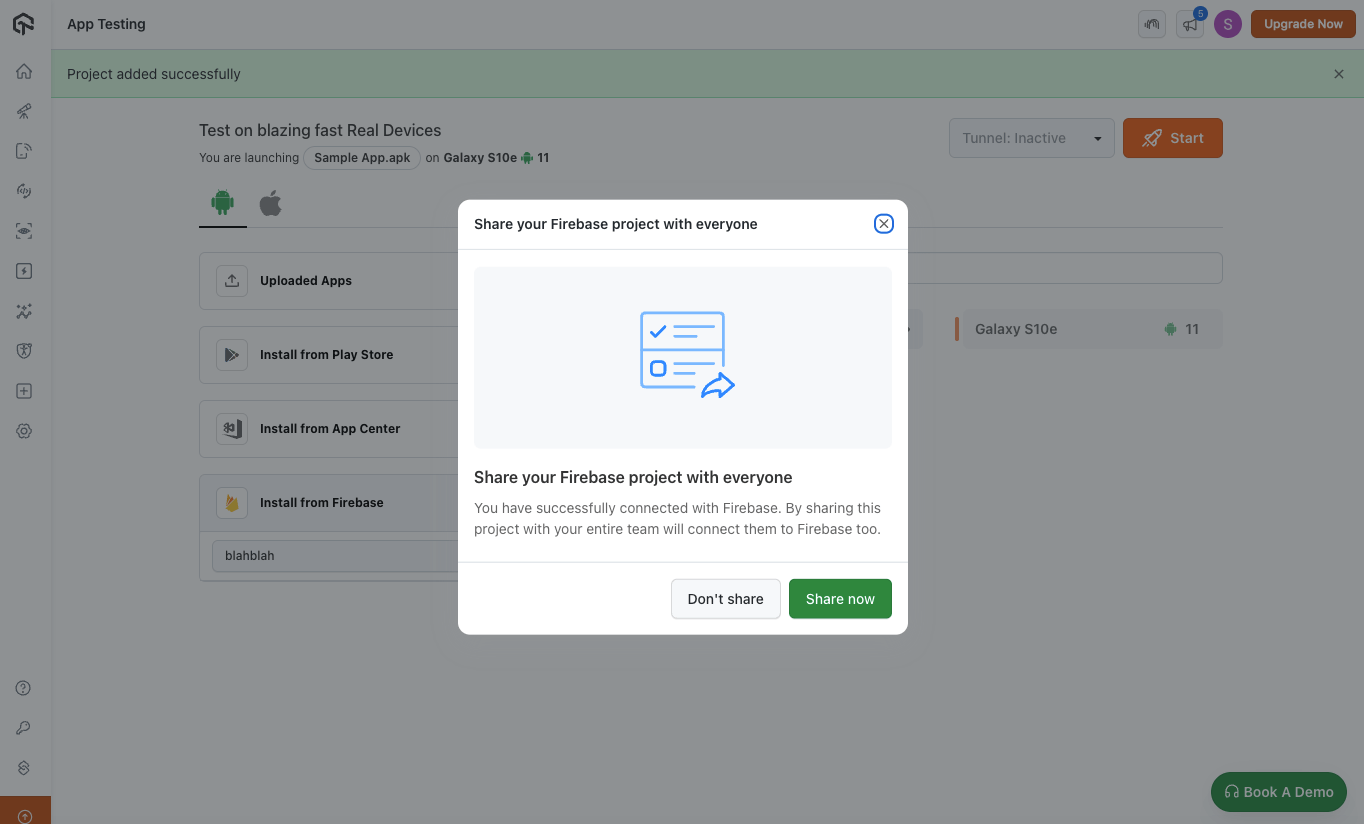
Projects can also be shared later directly from the menu.
Step 5: Now, you can view all the apps you’ve uploaded along with their respective versions, which can be synced with TestMu AI. Select the application, choose the version, pick the device for testing, and start the session.
Key Actions Overview
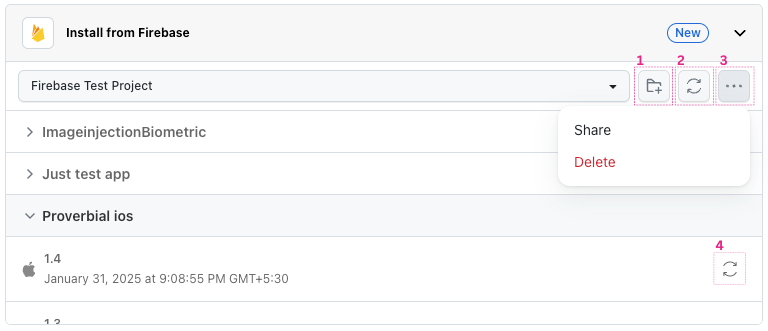
- Add new project: Click this button to add and sync new Firebase projects to your workspace.
- Refresh: This button refreshes the project list, apps, and releases to their latest state without affecting your synced releases.
- Project Menu: Click here to manage your project. You can share it with team members or delete it from the list.
- Sync: Sync your release. This is necessary to start any session and generates a unique app ID for the release, which will be used for automation test cases.
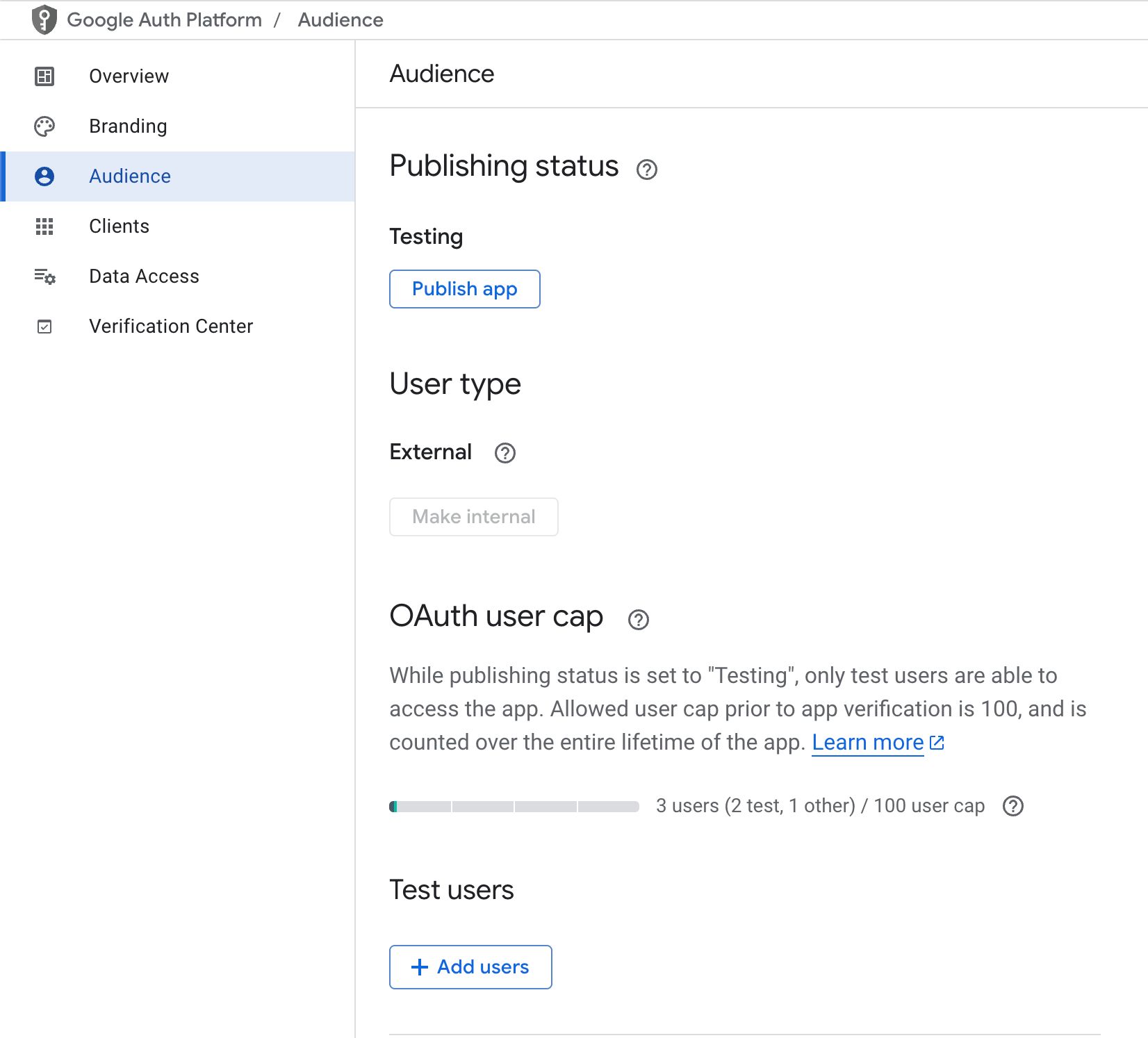
Please verify if your app is in testing mode.
If it is, ensure that you add your email as a test user in GCP. This option is available in the 'Audience' section of GCP.

 Chat with Us
 Ask the Community