Login & Authentication for Scheduled Scans
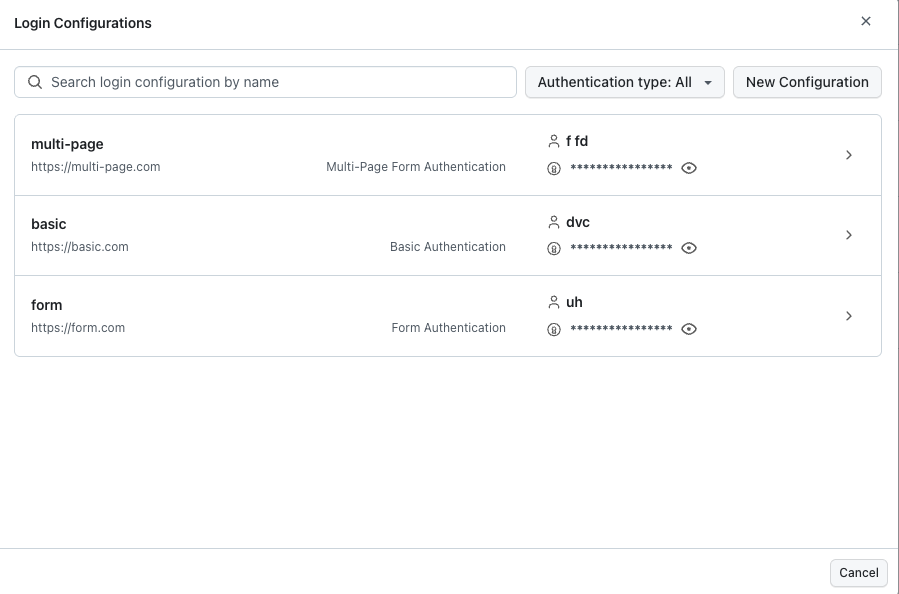
Login configurations are saved profiles the scanner runs before a scheduled accessibility test. You define credentials and selectors once, then select a profile from the login modal whenever you create or edit a scan. The same modal opens from the scheduler (advanced options on the URL step) or from Login configurations on the dashboard, so you can manage profiles without starting a new scan.
Treat credentials as sensitive: prefer dedicated QA or read-only accounts, rotate passwords on your usual cadence, and follow your organization’s access and secrets policy.
When to use a login configuration
Use a saved login when:
- Target URLs redirect to a sign-in page or hide content until the user is authenticated.
- Recurring runs should reuse the same sign-in flow without re-entering details in the wizard each time.
- Your app uses HTTP Basic authentication, a single-page HTML form, or a username-then-password flow that maps to Basic, Form, or Multi-page below.
If the site is not reachable from the public internet, combine login with local testing / tunnel options in the schedule wizard where your plan supports them.
Open the login modal
From the scheduler (create or edit)
- In Create scan or Edit scan, go to the step where you add URLs (manual URLs, CSV, sitemap, or crawler, depending on your setup).
- Expand Advanced options.
- Under login settings, use Add next to Add login configurations to open the modal.

From the dashboard
- Open Login configurations from the Accessibility (or Web Scanner scheduling) area of the dashboard, as labeled in your product.
- The login modal opens. You can review existing profiles or add a new one.
Create a configuration
In the modal:
-
Choose New configuration (or equivalent) to open the editor.
-
Enter a configuration name you will recognize in the list (for example
Staging Microsoft login). -
Select Authentication type:
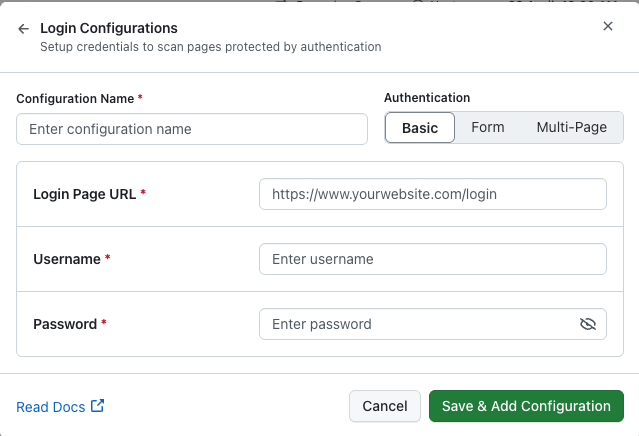
- Basic: HTTP Basic auth (no HTML form).
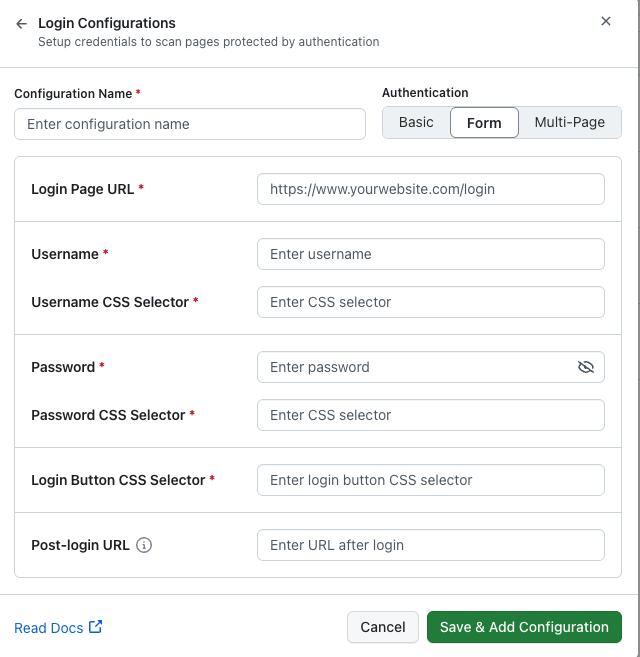
- Form: Username and password on one page.
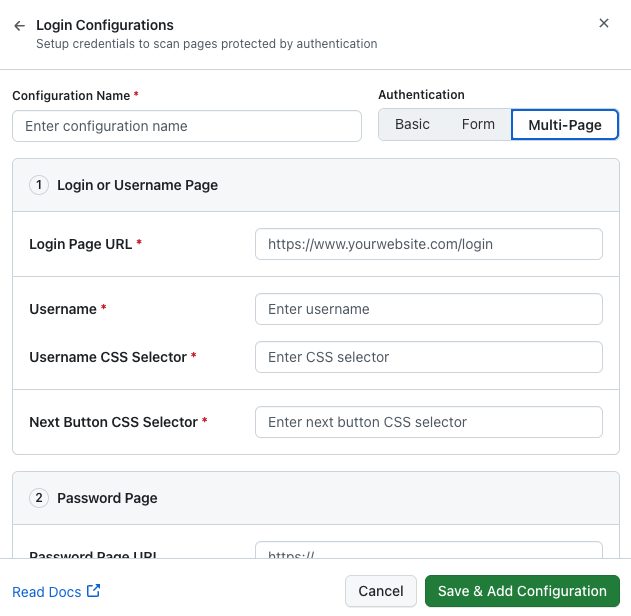
- Multi-page: Username step, then Next, then password (same or different URL).
-
Fill the fields for that type (see tables below) and Save.
The new profile appears in the list immediately. To use it on a schedule, return to the scan wizard, open Add login configurations again, and select that profile before saving the scan.
Confirm every CSS selector in Chrome (or Edge) DevTools on the real login page: inspect the control, copy a stable selector (id, name, data-testid, or a short path), then paste it into the form.
Field reference
Basic authentication
Use when the server responds with HTTP Basic authentication (browser-style username/password challenge), not when you only have a custom HTML login page. In that case use Form or Multi-page.
| Field | Required | Description |
|---|---|---|
| Login Page URL | Yes | Entry URL for the protected experience (for example https://www.yourwebsite.com/login). |
| Username | Yes | Username sent with Basic auth. |
| Password | Yes | Password sent with Basic auth. |
Form authentication
Use when, after opening the Login Page URL, the username field, password field, and submit control are all on the same document.
| Field | Required | Description |
|---|---|---|
| Login Page URL | Yes | URL where the sign-in form appears. |
| Username | Yes | Text entered into the username field. |
| Username CSS Selector | Yes | CSS selector for the username input. |
| Password | Yes | Text entered into the password field. |
| Password CSS Selector | Yes | CSS selector for the password input. |
| Login Button CSS Selector | Yes | CSS selector for the control that submits the form (for example Sign in). |
| Post-login URL | No | If set, helps verify navigation to a URL that indicates a successful login. |
Multi-page authentication
Use for sequential flows: enter the username, click Next (or equivalent), then enter the password, common with many enterprise identity providers.
Step 1: Login or username page
| Field | Required | Description |
|---|---|---|
| Login Page URL | Yes | First page of the flow (email or username step). |
| Username | Yes | Value entered on step 1. |
| Username CSS Selector | Yes | Selector for the username or email field. |
| Next Button CSS Selector | Yes | Selector for the control that advances to the password step. |
Step 2: Password page
| Field | Required | Description |
|---|---|---|
| Password Page URL | No | Use when the password step loads at a different URL; leave empty if only the DOM changes on the same URL. |
| Password | Yes | Password value. |
| Password CSS Selector | Yes | Selector for the password field. |
| Login Button CSS Selector | Yes | Selector for the control that completes sign-in. |
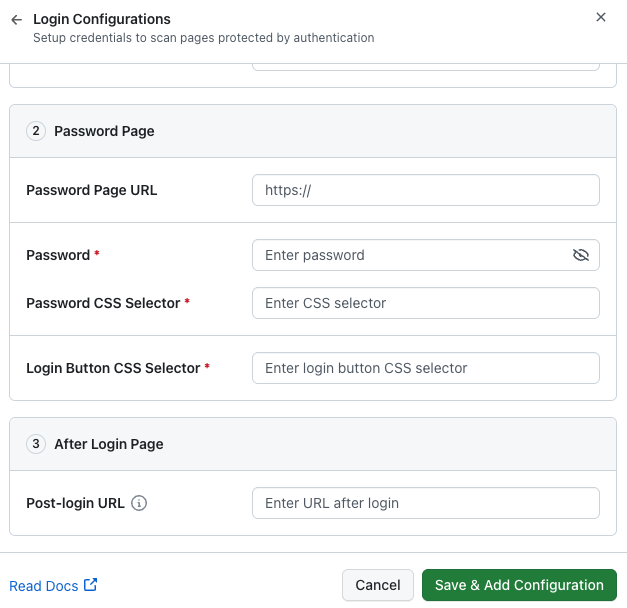
Step 3: After login
| Field | Required | Description |
|---|---|---|
| Post-login URL | No | Same idea as Form authentication: optional URL used to confirm the browser reached a logged-in state. |
Attach a configuration to a schedule
- In Create or Edit scan, on the URL step, expand Advanced options and open Add login configurations.
- In the modal, pick the saved configuration for this scan.
- Save the scan. Scheduled runs use that profile for authentication.
You can reuse one configuration on many scans or keep separate profiles per environment (for example Prod read-only vs Staging QA).
Edit or remove configurations
Open Login configurations from the dashboard (or the same modal from a scan), select the profile you need, and use the product actions to edit or delete it. Updating a profile affects any future runs that reference it; confirm downstream scans if you change selectors or URLs.
Best practices
- Stable selectors: Prefer
id,name,data-testid, or short attribute-based selectors over long positional paths. - Least privilege: Use automation or QA accounts, not personal admin accounts.
- Post-login URL: Point at a route that only appears after a successful login so failures are easier to interpret.
Limitations
These are difficult or unsupported with Basic / Form / Multi-page alone:
| Situation | Why |
|---|---|
| OTP, SMS, authenticator, CAPTCHA | Needs human interaction or a different integration model. |
| OAuth-only web flows | No password fields to drive with selectors. |
| Intermittent risk / “Verify it’s you” prompts | Runs may succeed or fail unpredictably. |
Use staging environments with simplified auth, or other supported access paths, when possible.
Troubleshooting
| Symptom | What to check |
|---|---|
| Scan fails on the first URL | Correct profile selected; Login Page URL is the real start of the flow. |
| Timeout or “element not found” | Selectors, spelling, or UI that loads late. Verify in DevTools with throttling if needed. |
| Multi-page fails after username | Next Button CSS Selector targets the visible control; add Password Page URL if the path changes. |
| Works locally, fails on schedule | Cookie banners, geo restrictions, or MFA triggered for automated sessions. |


 Chat with Us