Migration from Katalon
Migrate your Katalon Studio desktop web test cases into KaneAI New Experience using a Katalon project .zip file. Every imported test case is available as an already-authored KaneAI test case in a new TestMu AI Test Manager project. Before importing, review step compatibility, decide whether to include cases with unsupported steps, and provide values for masked variables.
Migration supports desktop web tests only, not mobile app tests. Imported tests do not have generated code or step screenshots yet. Generate code separately when needed; screenshots become available after you edit or run the test in the KaneAI agent playground.
Key Benefits
-
Continue in KaneAI New Experience: Imported cases arrive as authored KaneAI tests, ready for review and further editing.
-
Review compatibility before importing: Inspect translated steps and see which steps will be excluded or handled by KaneAI.
-
Control partially supported imports: Keep unsupported test cases excluded or import their supported steps.
-
Restore masked values: Supply missing values and choose whether to save them as secrets or global variables.
-
Continue working during import: Track progress on the Projects page while the import runs in the background.
Prerequisites
Before starting the migration, ensure you have the following ready:
- An active TestMu AI account with access to Test Manager.
- A Katalon Studio project containing desktop web test cases, packaged as a single
.zipfile, up to 500 MB. Mobile app tests are not supported. - Values for any masked variables that your imported tests require.
Each import creates a new Test Manager project. Uploading and analyzing the file does not create the project. The project is created only after you click Create Project & Import in the final preview.
Step-by-Step Migration Guide
Step 1: Open the Migration Tool
- Log in to your TestMu AI account and navigate to Test Manager > Projects.
- Open the dropdown beside Create Project and select Import Data.
- Select Katalon from the Import from dropdown.
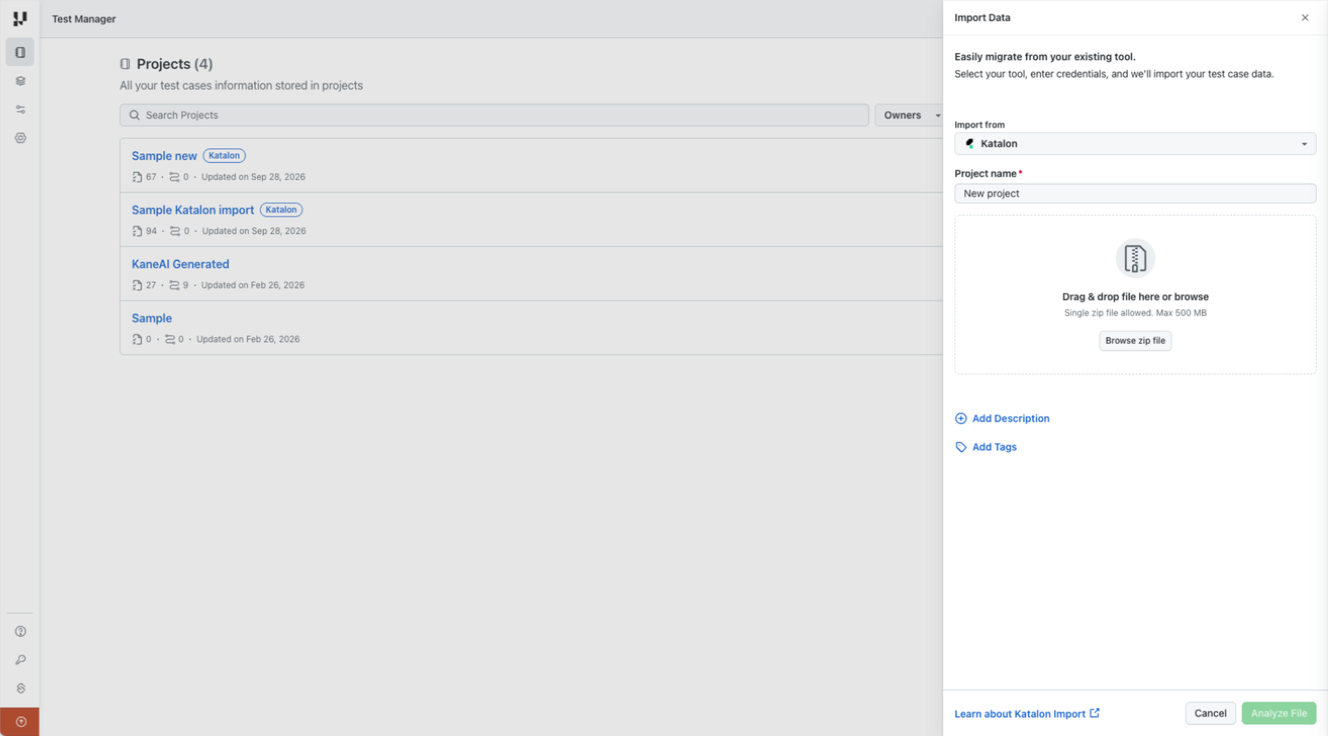
Step 2: Upload and Analyze Your Project
- Enter the required Project name.
- Drag your Katalon project
.zipinto the upload area, or click Browse zip file to select it. - Optionally, use Add Description and Add Tags to add project details.
- Click Analyze File.
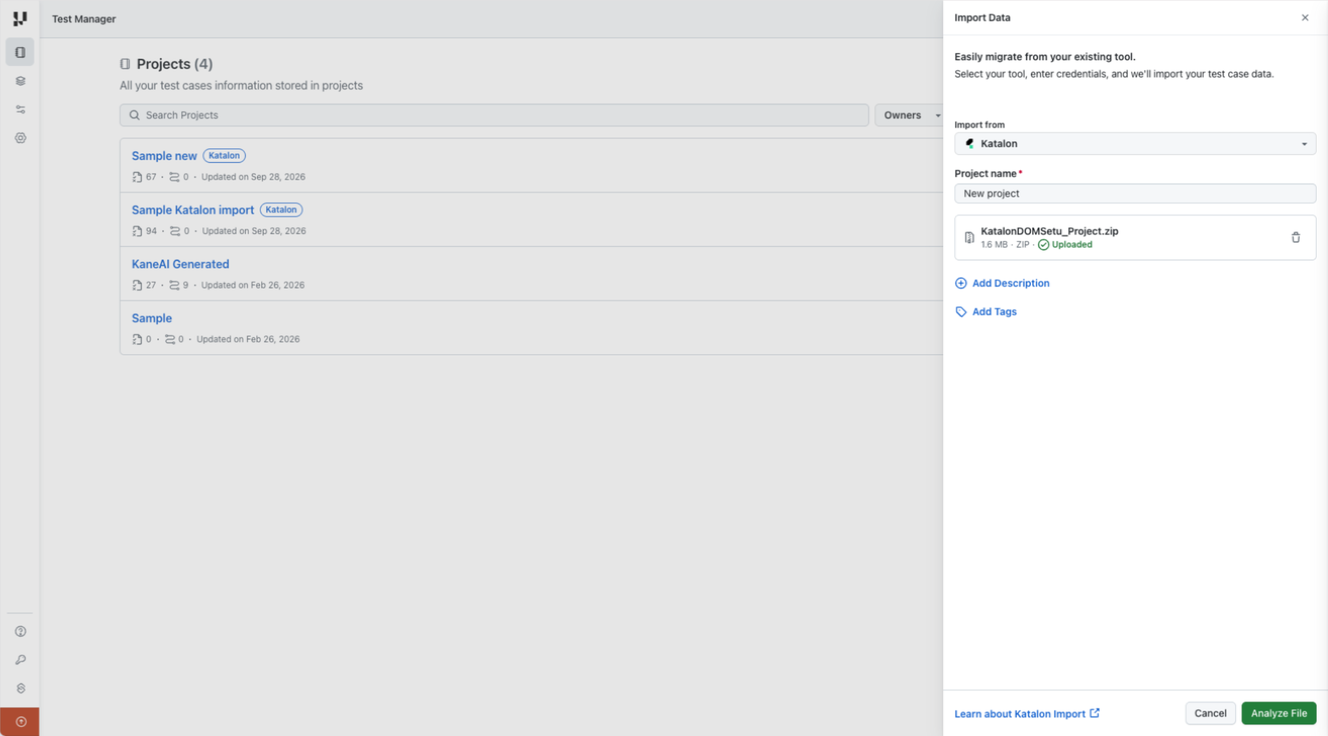
Test Manager reads the file and analyzes the test cases. The drawer shows the analysis progress while it finds test suites and test cases.
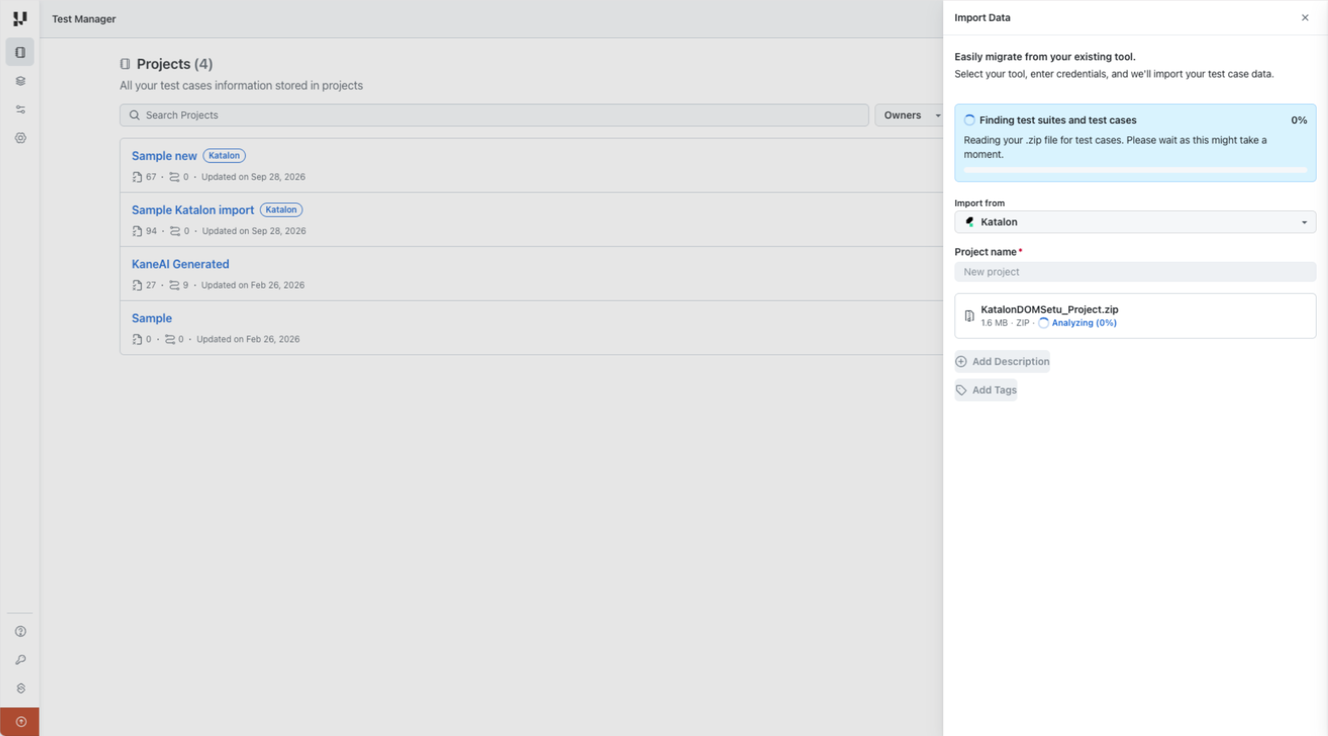
When analysis finishes, continue through the review wizard: Project details, Review supported test cases, Review unsupported test cases, Add masked variables values, and Preview import.
Step 3: Review Supported Test Cases
The Review Supported Test Cases page lists cases that have no blocking unsupported steps.
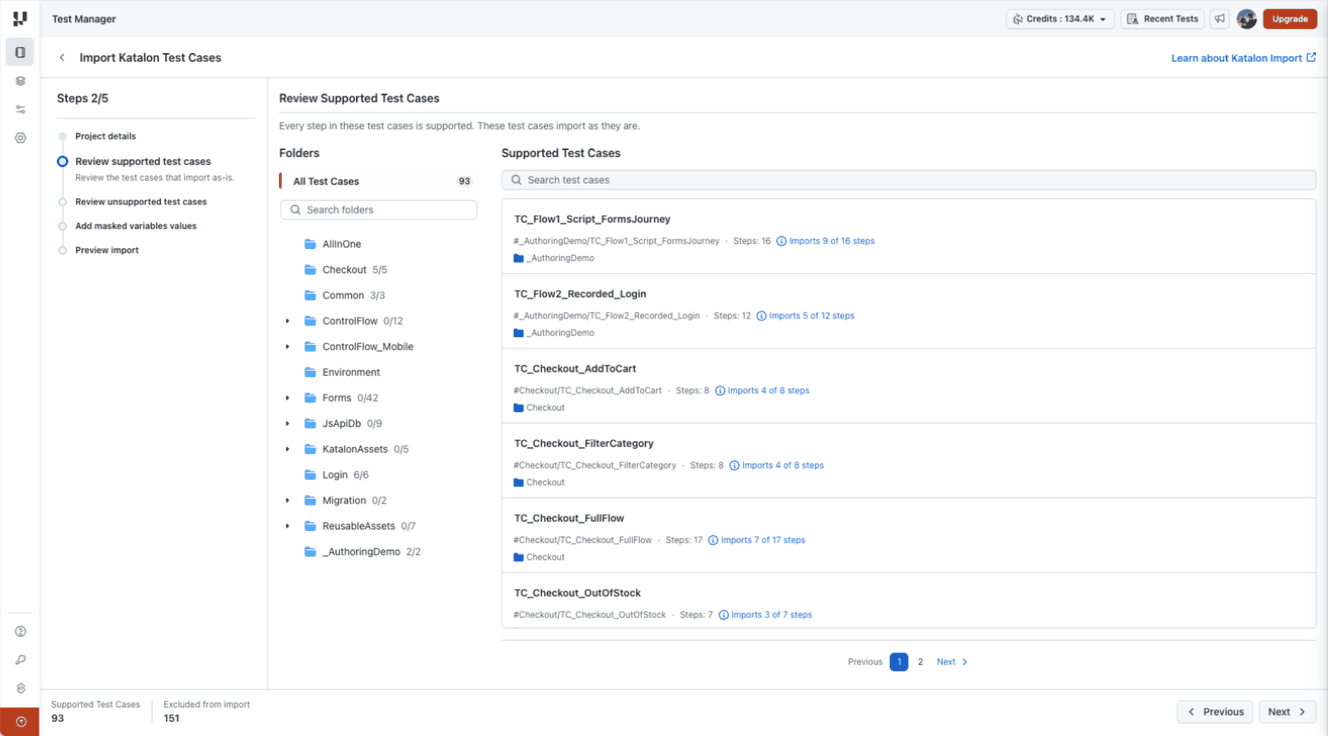
- Browse the Folders tree, or use Search folders and Search test cases to locate a case.
- Click a test case to inspect its steps, translated instructions, and source file references.
- Review the Imports X of Y steps count and any notes on individual steps.
- Use Test Cases List to return to the list, then click Next when you have finished reviewing.
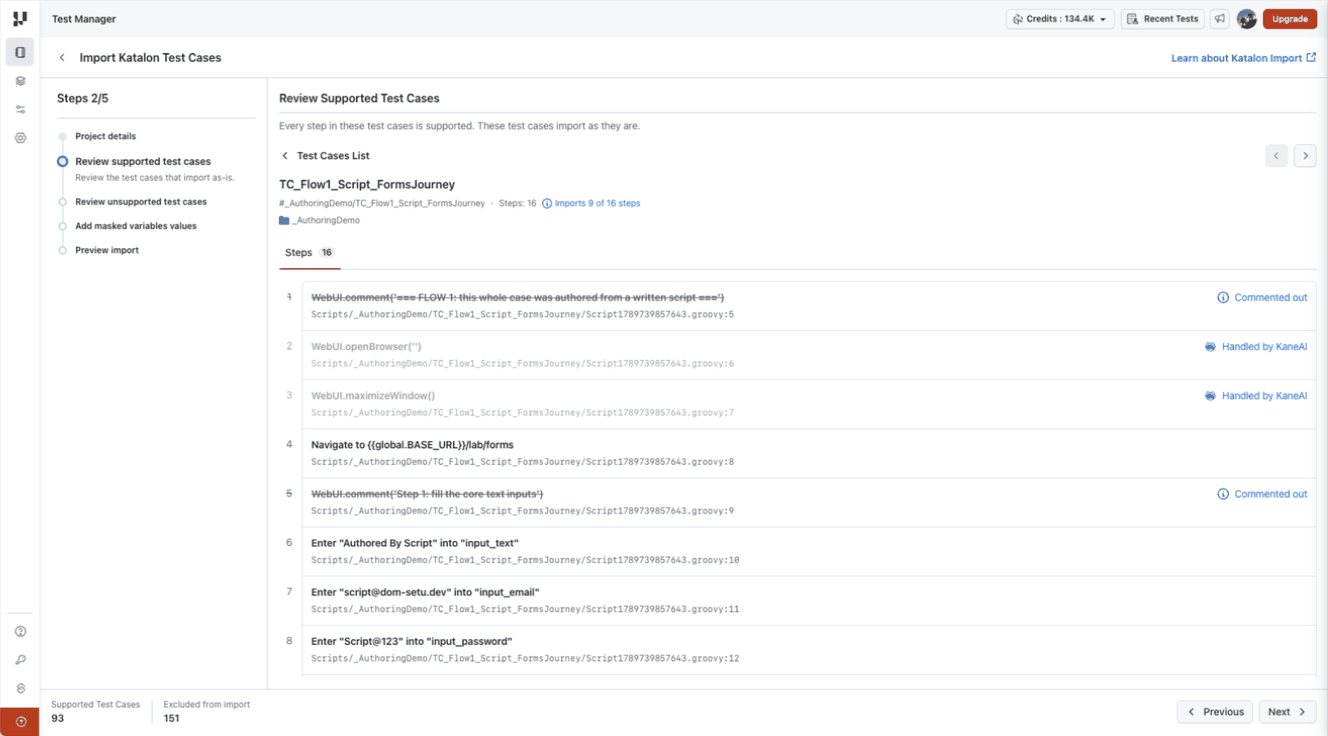
A supported test case can import fewer steps than its original count. Steps labeled Commented out are omitted, and steps labeled Handled by KaneAI, such as browser lifecycle operations, do not become separate imported instructions. Review any conversion notes as well: a supported translation can behave differently from the original Katalon operation.
Step 4: Review Unsupported Test Cases
Cases containing unsupported steps are excluded by default. You can leave them excluded or choose to import them without those steps.
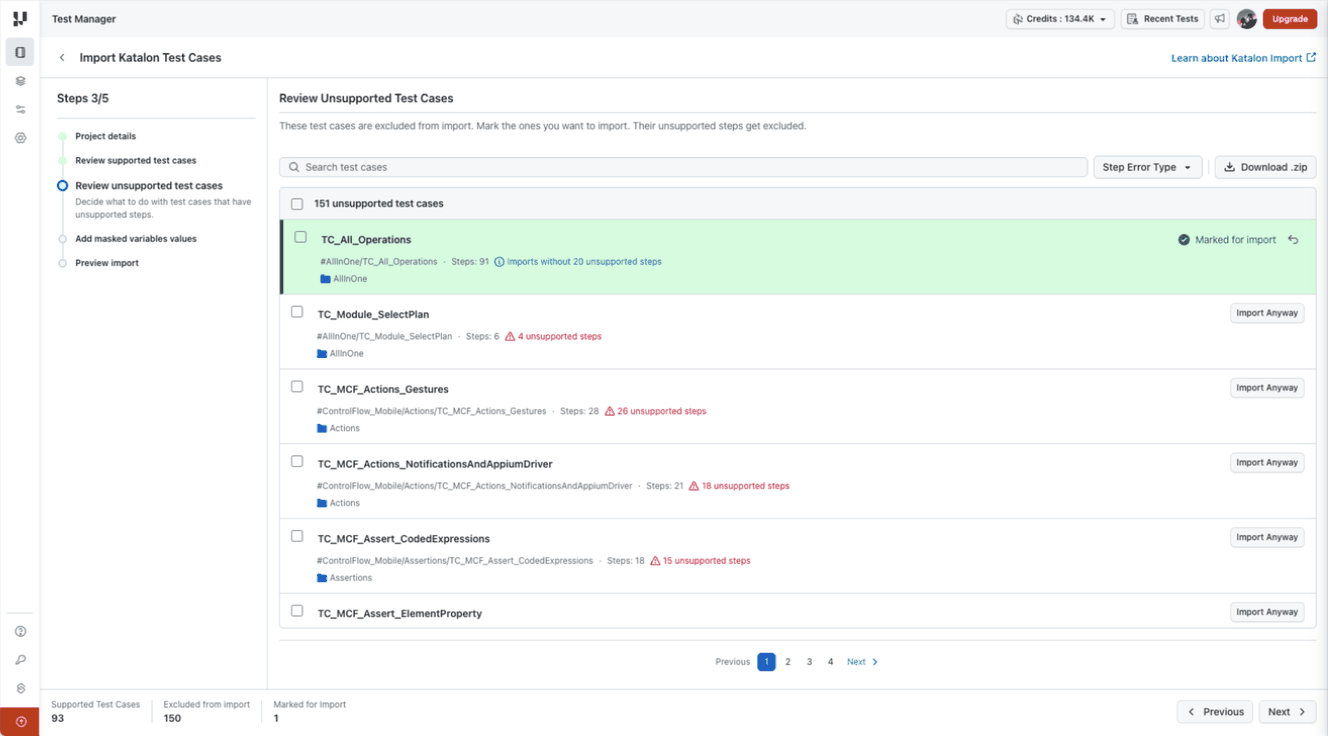
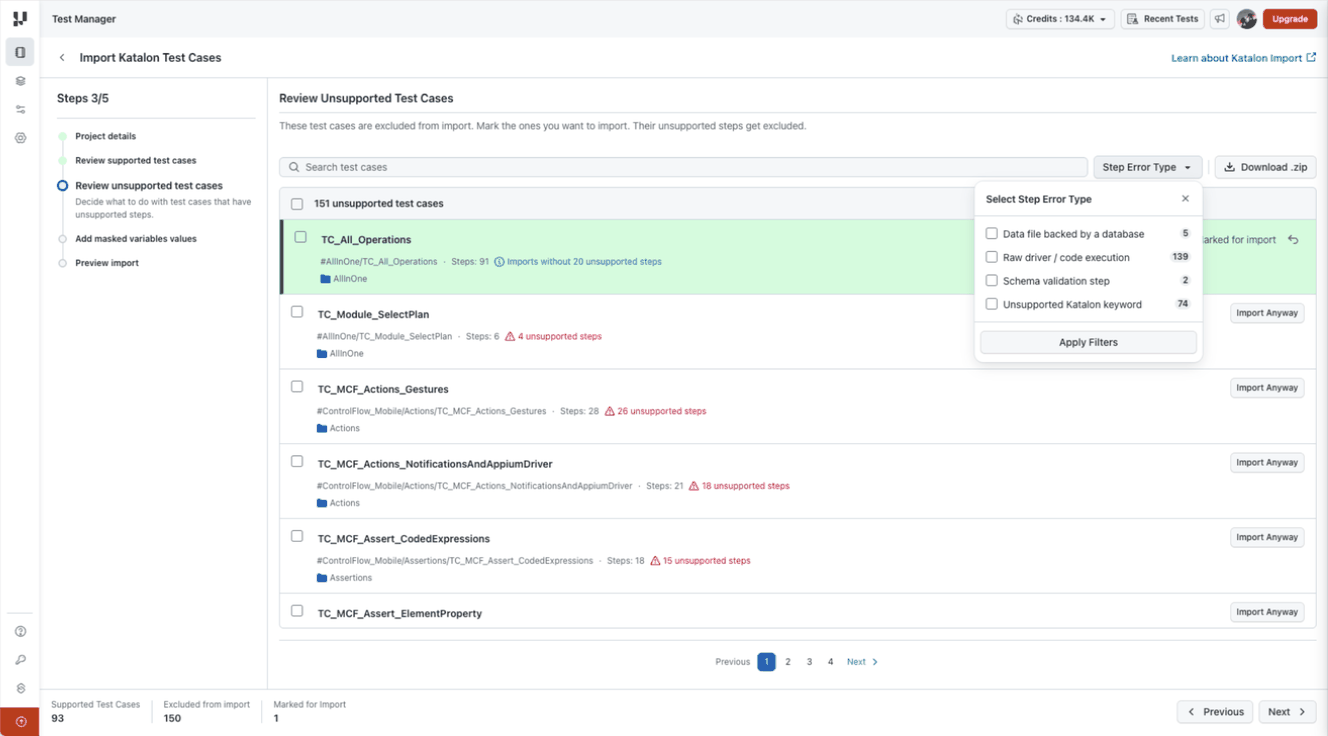
- Use Search test cases to find a case. To narrow the list by incompatibility, open Step Error Type, select the relevant types, and click Apply Filters.
- Click a test case to inspect its steps. Steps that will not be included are labeled Step excluded from import.
- To include the remaining supported steps, click Import Anyway. The case is marked Marked for import, and the summary counts update.
- To reverse that choice, use the undo action on the case or Undo Import in its detail view.
- Use Download .zip if you need to download the review material, then click Next to continue.
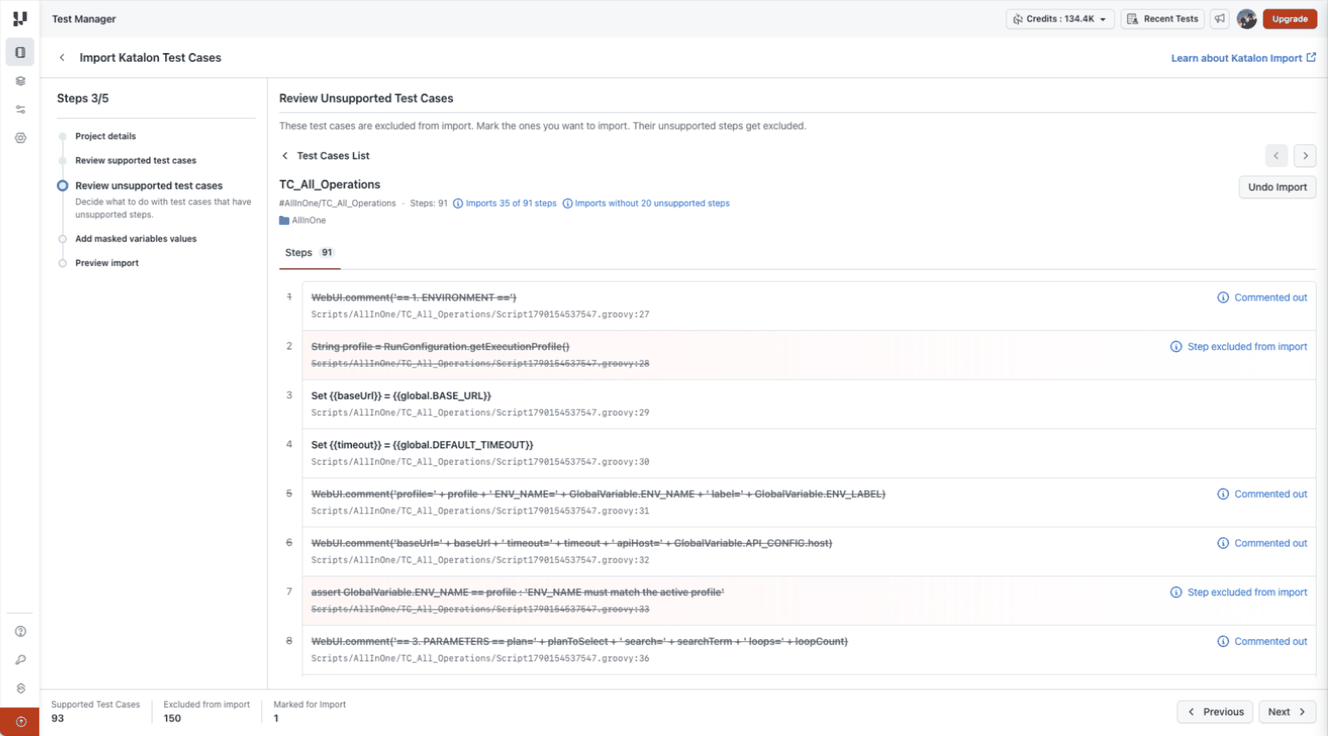
Import Anyway does not convert unsupported steps. It excludes them and imports the remaining steps. The resulting test may no longer cover the original test's full intent. Review and repair these cases before relying on their results.
Step 5: Add Masked Variable Values
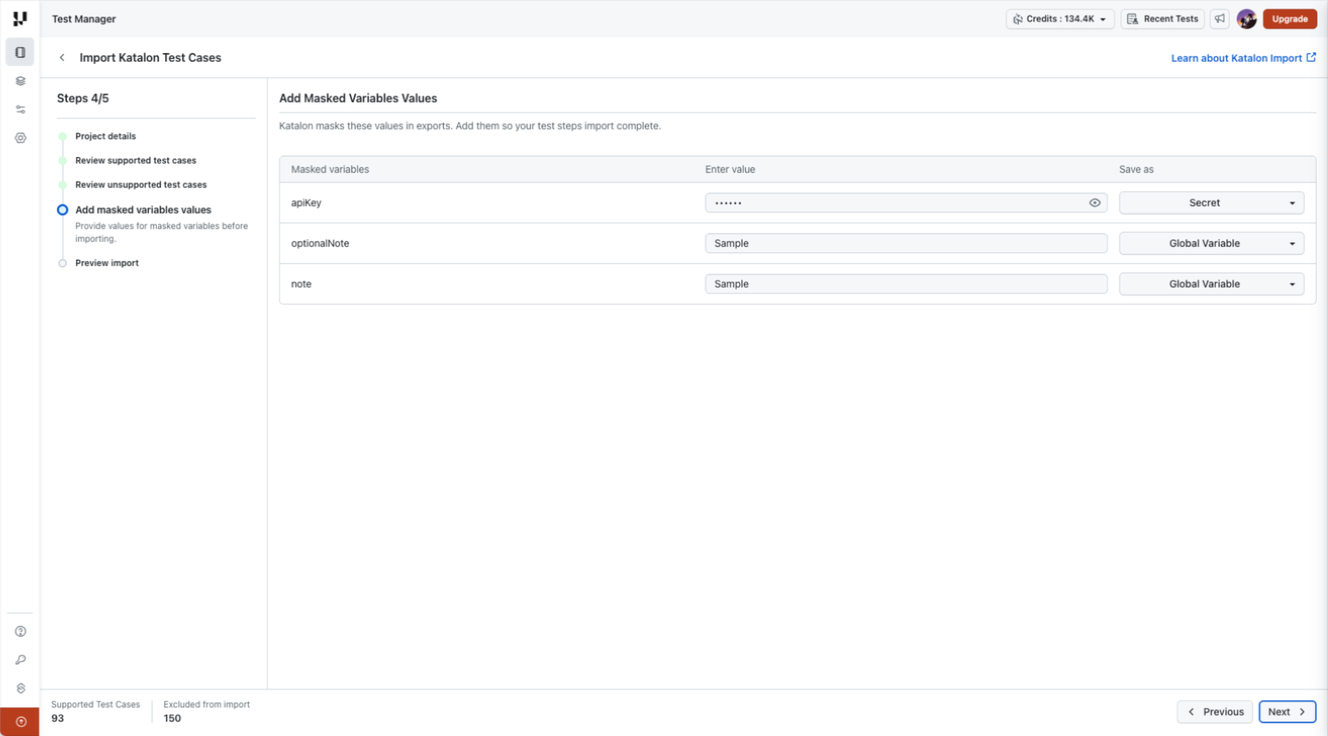
On Add Masked Variables Values, provide the values that were masked in the Katalon export.
- Enter the value for each listed variable.
- In Save as, choose Secret for sensitive values or Global Variable for non-sensitive values.
- Click Next to preview the import.
Use the visibility control beside a secret value when you need to check your entry.
Step 6: Preview and Start the Import
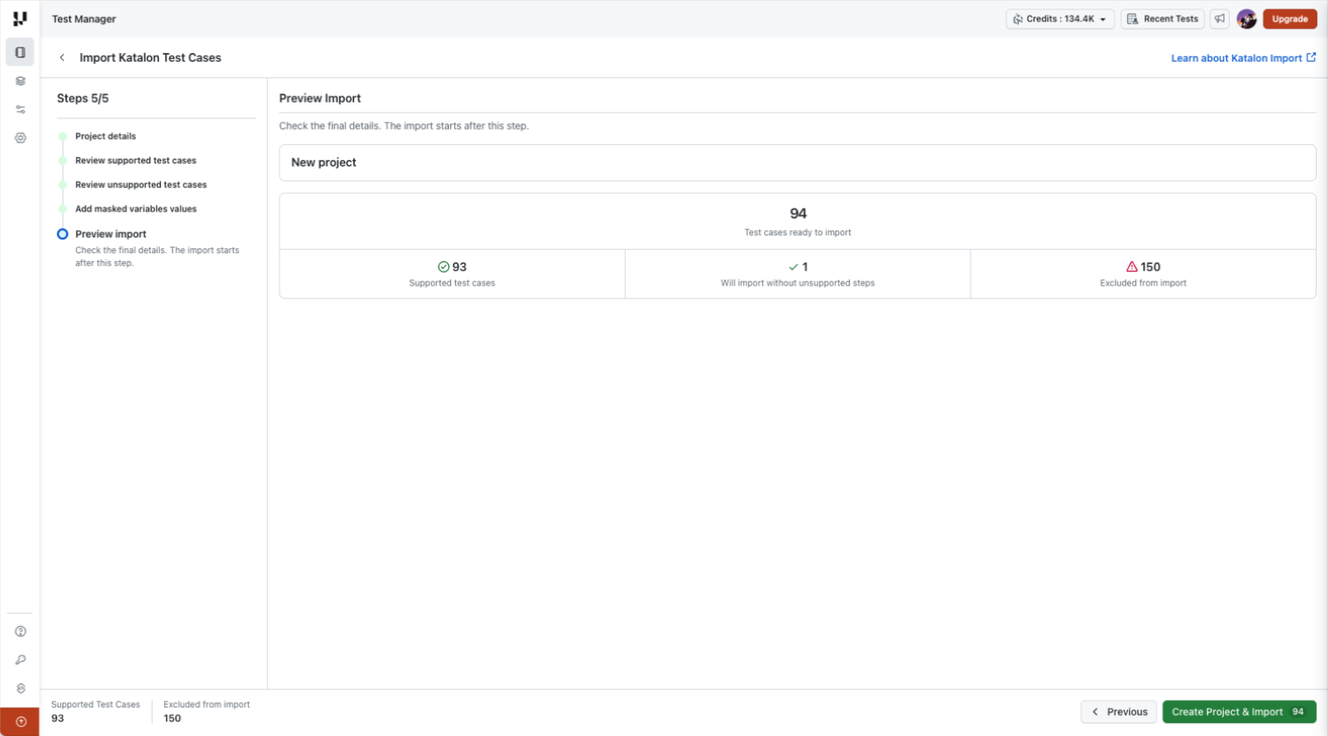
On Preview Import, check the project name and the final counts:
| Count | Meaning |
|---|---|
| Test cases ready to import | Total cases included in this import. |
| Supported test cases | Cases with no blocking unsupported steps. |
| Will import without unsupported steps | Cases you explicitly included using Import Anyway. Their unsupported steps will be excluded. |
| Excluded from import | Cases that will not be added to the project. |
Use Previous if you need to change your choices. When the preview is correct, click Create Project & Import. The number shown on the button is the number of test cases selected for import.
Step 7: Monitor Progress and Review the Results
The import runs in the background. On the Projects page, a progress banner and the new project's progress indicator show the number of test cases imported and the completion percentage. You can continue working while the import runs.
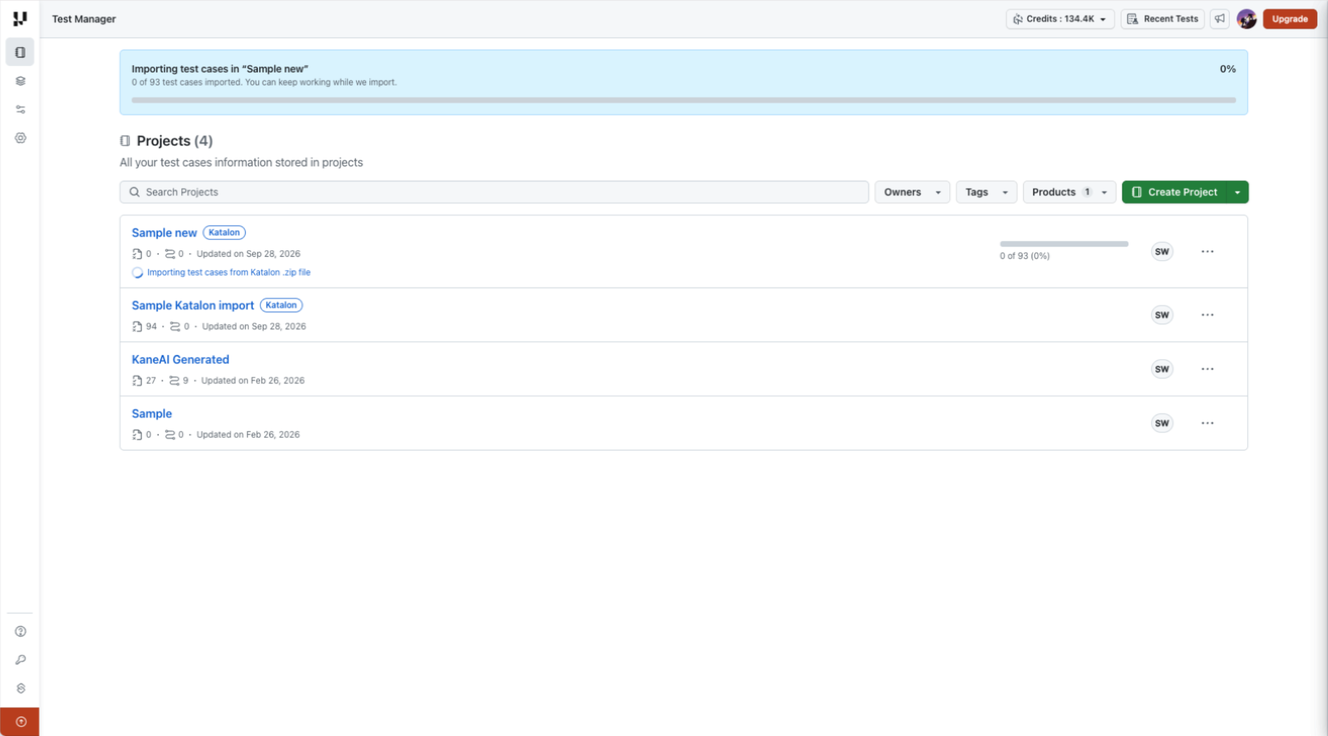
Once the migration completes successfully, you will receive an email notification.
After the import finishes:
- Open the new project and review its test cases. Imported cases are already authored in KaneAI New Experience and show the New Experience label.
- Check the imported instructions and variable references against your original Katalon tests.
- For cases imported without unsupported steps, add or rewrite the missing behavior in KaneAI where supported.
- Edit or run the imported tests in the KaneAI agent playground to validate their behavior and capture screenshots.
- Generate code separately if you need code for an imported test; migration does not generate it.
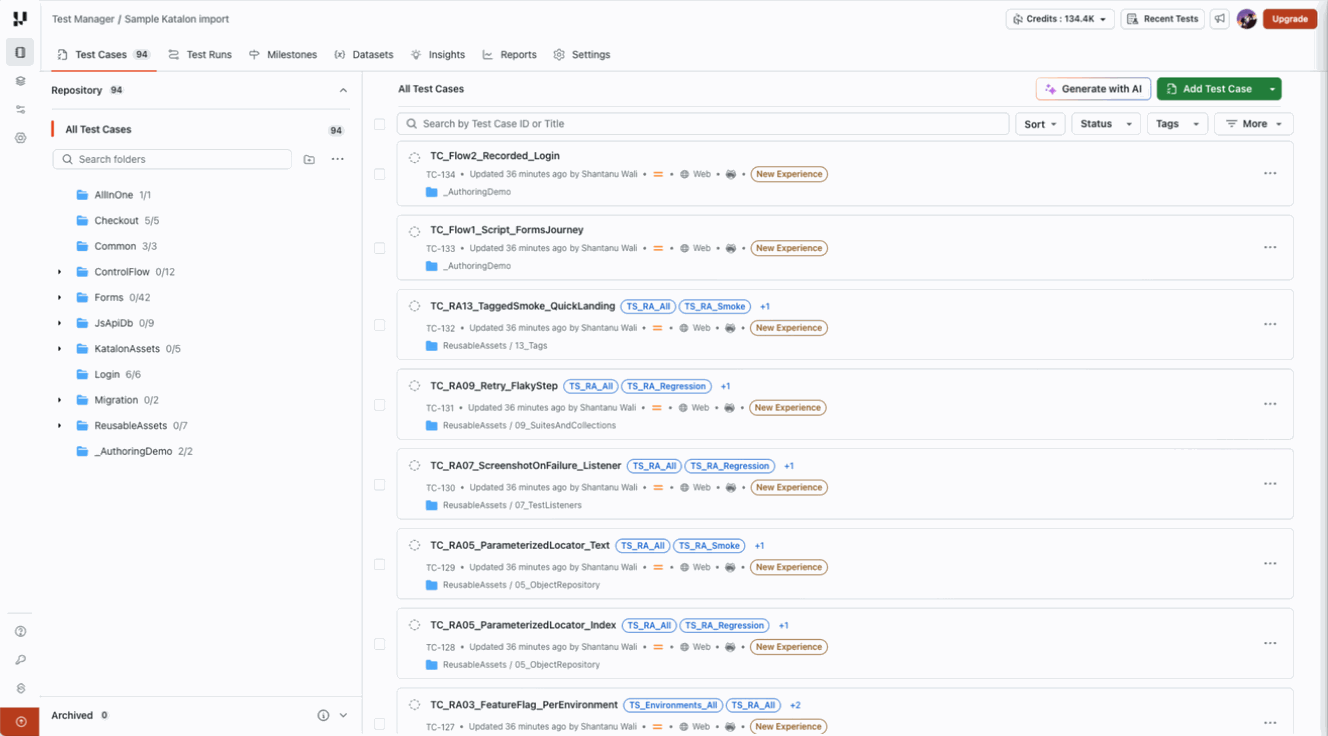
Open a test case to view its authored instructions in Test Summary. Imported tests initially show No screenshot available. Screenshots become available after the test is edited or run in the KaneAI agent playground.
What Gets Migrated
| Entity | Details |
|---|---|
| Supported test cases | Supported desktop web cases are imported as already-authored KaneAI New Experience test cases. |
| Selected partially supported test cases | Desktop web cases marked with Import Anyway become authored KaneAI New Experience tests with their unsupported steps excluded. |
| Supported test instructions | Supported Katalon operations are translated into KaneAI instructions. Review the translated steps and conversion notes before importing. |
| Masked variable values you provide | Values entered during review are saved using the selected Secret or Global Variable type. |
What Does Not Get Migrated
| Entity | Details |
|---|---|
| Mobile app test cases | Migration supports desktop web test cases only. |
| Generated code | Code is not generated during migration. Generate it separately for the imported test. |
| Step screenshots | Imported tests have no screenshots initially. Screenshots become available after editing or running the test in the KaneAI agent playground. |
| Excluded test cases | Unsupported cases remain excluded unless you explicitly mark them for import. |
| Unsupported steps | These steps are excluded even when you choose Import Anyway for the case. |
| Commented-out steps | These do not become executable imported steps. |
| Test run history and execution results | The import brings over test cases, not previous test executions. |
Test Steps Handling
The test case detail view shows source references and explains how individual steps are handled.
| Step display | What it means |
|---|---|
| Translated instruction | The operation is represented as a KaneAI instruction. Read any accompanying conversion note. |
| Commented out | The step is omitted from the executable import. It does not by itself make the case unsupported. |
| Handled by KaneAI | KaneAI handles the operation, so it is not imported as a separate instruction. Examples shown in the review include opening, maximizing, and closing the browser. |
| Step excluded from import | The operation is unsupported and will not be included if you import the rest of the case. |
Conversion Notes
Some translated operations have behavioral differences. For example, the review may indicate that sendKeys is approximated as typing, so append behavior may differ, or that checking a checkbox is approximated as clicking, so the original only-if-unchecked behavior is lost. Review these notes even when a case appears in the supported list.
Unsupported Step Types
Use the Step Error Type filter to identify the categories reported for your uploaded project. The filter offers the following categories.
| Step error type | What to review |
|---|---|
| Data file backed by a database | Data bindings that depend on a live database query. Consider exporting the required data to a file and replacing the binding. |
| Raw driver / code execution | Operations that access driver state or execute code that the importer cannot translate. Review the specific operation and replace it where possible. |
| Schema validation step | Schema checks that cannot be translated. Consider supported assertions on the required fields. |
| Unsupported Katalon keyword | Keywords without a supported import mapping. Review the affected step and recreate its intent with supported instructions where possible. |
The analysis of your uploaded file determines which cases and steps are supported. Do not assume that every operation within a Katalon keyword family will import.
Troubleshooting
| Problem | What to Check |
|---|---|
| File cannot be uploaded | Confirm that you selected one .zip file and that it does not exceed 500 MB. |
| Analysis cannot read the project | Check that the archive contains your Katalon Studio project and is not damaged. Correct the archive and analyze it again. |
| A test case is excluded | Open it in Review Unsupported Test Cases and inspect the affected steps. Leave it excluded or use Import Anyway after reviewing the loss of coverage. |
| The imported step count is lower than the original | Check for Commented out, Handled by KaneAI, and Step excluded from import labels in the review. |
| A variable value is missing | Review the values supplied during Add Masked Variables Values and the imported test's variable references. |
| An imported test behaves differently | Check conversion notes and any excluded steps, then update and validate the test in KaneAI. |
FAQ
Can I import into an existing project?
No. This flow creates a new Test Manager project.
Will the import modify my Katalon project?
No. The import reads the uploaded archive. It does not synchronize changes back to Katalon.
Does uploading the file start the migration?
No. Analyze File prepares the compatibility review. The import starts after you click Create Project & Import on the final preview.
Can I import a test case that contains unsupported steps?
Yes. Choose Import Anyway for the case. Its unsupported steps are excluded, so you must review the resulting test for missing behavior.
Does “supported” mean every original step becomes an imported instruction?
No. Commented-out steps are omitted, and operations handled by KaneAI are not imported as separate instructions. Supported translations may also include conversion notes that explain behavioral differences.
Known Limitations
| Limitation | Details |
|---|---|
| Desktop web only | Mobile app tests are not supported. |
| Code must be generated separately | Tests arrive authored in KaneAI New Experience, but code is not already generated. |
| No screenshots immediately after import | Screenshots become available once the test is edited or run in the KaneAI agent playground. |
| One archive per import | Upload a single Katalon project .zip file, up to 500 MB. |
| New project only | Importing into an existing project is not supported. |
| No two-way synchronization | Changes made after import are not synchronized with Katalon. |
| No execution history | Previous test runs and execution results are not imported. |
| No automatic repair of unsupported steps | Opting a case in excludes unsupported steps; it does not rewrite them. |
| Conversion differences | Some supported operations are approximated. Review conversion notes and validate the resulting behavior. |
Have any feedback or request? Reach out to us via support@testmuai.com and we would be happy to hear from you.


 Chat with Us