Testing Flutter Apps With Appium
Google's Flutter is an open-source tool for developing native mobile apps. It enables developers to create cross-platform apps for both Android and iOS using a single codebase and programming language.
You can now test Flutter apps on the TestMu AI Appium testing platform across 3000+ real Android and iOS devices. TestMu AI supports Appium's Flutter driver that lets you test Flutter apps using the Appium framework. To test Flutter apps, you will need to upload apps on TestMu AI cloud servers and then run your automated tests.
Testing Apps Using Appium Flutter Driver
Before automating Flutter apps using Appium, make sure you have the following things configured.
-
Your Flutter App must be compiled in
debugorprofilemode, as Appium Flutter Driver does not support Flutter App running in release mode. -
Add the below dependencies in Flutter app's
pubspec.yaml
 dev_dependencies:
   test: Demo
   flutter_test:
     sdk: flutter
   flutter_driver:
     sdk: flutter
- In
main.dartfile, ensure the app hasenableFlutterDriverExtension()enabled beforerunApp.
void main() {
    enableFlutterDriverExtension();
    init();
    runApp(MyApp());
 }
- Set the
automationNamecapability toflutterin Appium desired capabilities.
desiredCapabilities.setCapability("automationName", "flutter");
Shown below is the test script for automating Flutter apps on TestMu AI platform.
import os

from appium.webdriver import Remote
from appium_flutter_finder.flutter_finder import FlutterElement, FlutterFinder

# Example

driver = Remote('http://<LT username>:<LT accesskey>@mobile-hub.lambdatest.com/wd/hub/', dict(
    platformName='Android',
    automationName='flutter',
    platformVersion='11',
    deviceName='Google Pixel 4',
    app='<App URL>',
    isRealMobile=True
))

finder = FlutterFinder()

text_finder = finder.by_text('You have pushed the button this many times:')
text_element = FlutterElement(driver, text_finder)
print(text_element.text)

key_finder = finder.by_value_key("next_route_key")
goto_next_route_element = FlutterElement(driver, key_finder)
print(goto_next_route_element.text)
goto_next_route_element.click()

back_finder = finder.page_back()
back_element = FlutterElement(driver, back_finder)
back_element.click()

tooltip_finder = finder.by_tooltip("Increment")
driver.execute_script('flutter:waitFor', tooltip_finder, 100)

floating_button_element = FlutterElement(driver, tooltip_finder)
floating_button_element.click()

counter_finder = finder.by_value_key("counter")
counter_element = FlutterElement(driver, counter_finder)
print(counter_element.text)
Testing Apps Using Appium Flutter Integration Driver
The Appium Flutter Integration Driver lets you write tests in languages like Java, Python, JavaScript, and others that Appium supports. It works by embedding a small server inside your Flutter app which talks back to Appium and drives UI interactions.
Check out this Flutter Appium Java GitHub repository for a hands-on reference.
To run Appium tests using the Flutter Integration Driver on TestMu AI, set the automationName capability to FlutterIntegration.
desired_caps = {
  "deviceName": "Galaxy S20",
  "platformName": "Android",
  "platformVersion": "15",
  "isRealMobile": True,   # Set False for virtual devices
  "app": "YOUR_APP_URL",
  "build": "Sample Build",
  "name": "Sample Test",
  "automationName": "FlutterIntegration"  # Use Flutter Integration Driver
}
The example below shows a basic login flow for an Android Flutter app using the Appium Flutter Integration Driver. It covers driver setup, Flutter-specific capabilities, and widget interaction using ValueKey.
import org.openqa.selenium.remote.DesiredCapabilities;
import org.testng.annotations.Test;
import org.openqa.selenium.WebElement;
import org.testng.annotations.Parameters;
import java.net.URL;
import java.util.HashMap;

import io.appium.java_client.AppiumBy;
import io.appium.java_client.flutter.FlutterIntegrationTestDriver;
import io.appium.java_client.flutter.android.FlutterAndroidDriver;

public class AndroidApp_Flutter_Integration {

    FlutterIntegrationTestDriver driver;

    @Test
    @Parameters(value = { "device", "version", "platform" })
    public void AndroidApp1(String device, String version, String platform) {
        try {
            DesiredCapabilities capabilities = new DesiredCapabilities();
            HashMap<String, Object> ltOptions = new HashMap<>();

            ltOptions.put("automationName", "FlutterIntegration");
            ltOptions.put("nativeFlutterLaunch", true);
            ltOptions.put("platformName", platform);
            ltOptions.put("deviceName", device);
            ltOptions.put("platformVersion", version);
            ltOptions.put("isRealMobile", true);

            capabilities.setCapability("LT:Options", ltOptions);

            driver = new FlutterAndroidDriver(
                new URL("https://username:[email protected]/wd/hub"),
                capabilities
            );

            WebElement username = driver.findElement(AppiumBy.flutterKey("username"));
            username.sendKeys("[email protected]");

            WebElement password = driver.findElement(AppiumBy.flutterKey("password"));
            password.sendKeys("password123");

            WebElement loginBtn = driver.findElement(AppiumBy.flutterKey("login_btn"));
            loginBtn.click();

            driver.quit();
        } catch (Exception e) {
            driver.quit();
        }
    }
}
Below is a screenshot showing Appium test automation running with the Flutter Integration Driver on the TestMu AI platform.
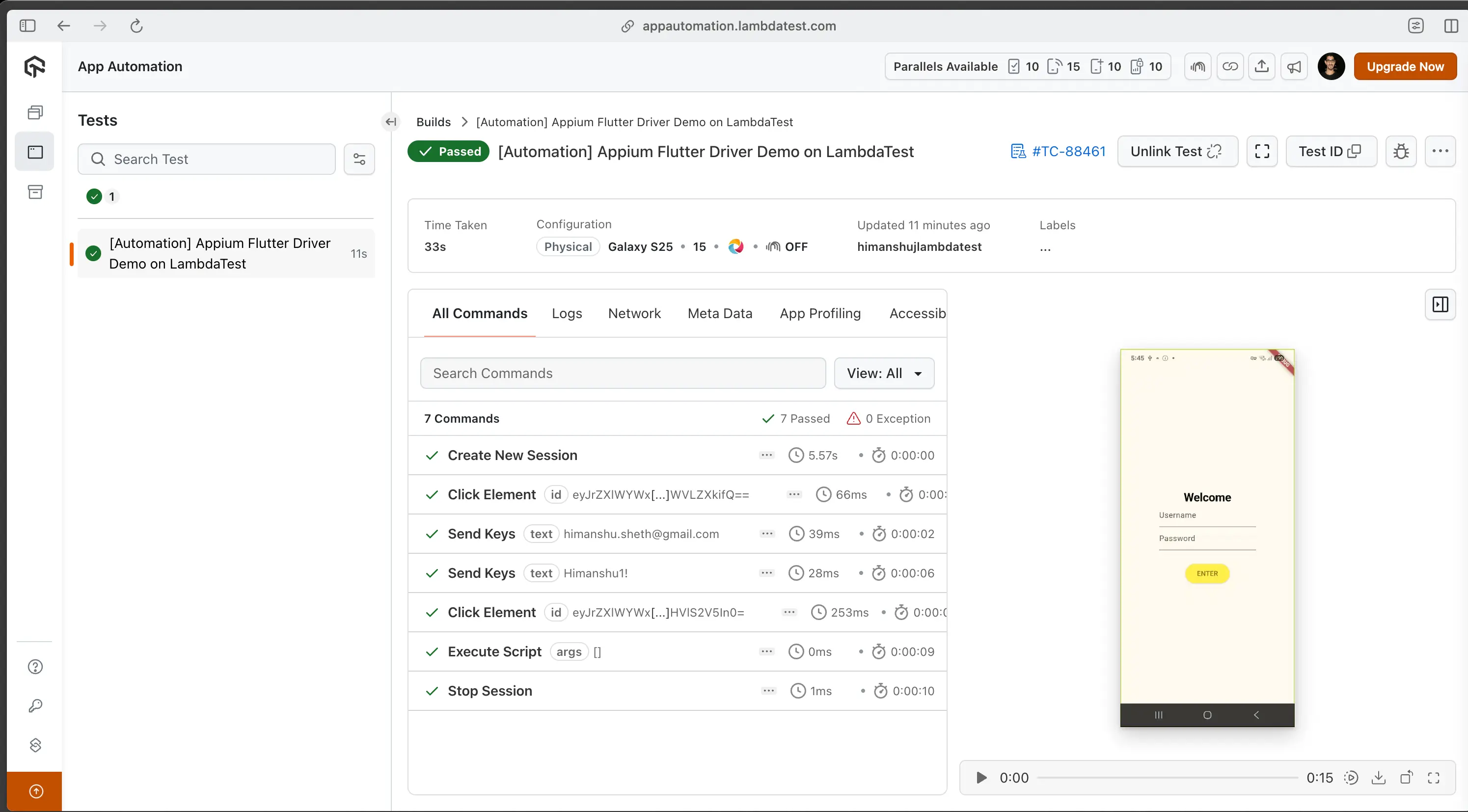
In case you have any questions or need any additional information, you could reach out at our 24X7 Chat Support or mail us directly at [email protected].
Using the Flutter Testing Agent Skill with TestMu AI
The flutter-testing-skill is a part of TestMu AI Skills that guide AI coding assistants in generating production-ready test automation.
The flutter-testing-skill package includes:
flutter-testing-skill/
├── SKILL.md
└── reference/
    ├── playbook.md
    └── advanced-patterns.md
It provides structured guidance for:
- Project structure and setup
- Dependency configuration
- Local execution
- TestMu AI cloud execution
- Debugging patterns
- CI/CD integration
Installing Flutter Testing Agent Skill
Install a Flutter Testing Agent Skill using the command below:
# Clone the repo and copy the skill you need
git clone https://github.com/LambdaTest/agent-skills.git
cp -r agent-skills/flutter-testing-skill .claude/skills/

# Or for Cursor / Copilot
cp -r agent-skills/flutter-testing-skill .cursor/skills/
Note: If you prefer installing all available framework skills instead of only flutter-testing-skill, clone the repository directly into your tool's skills directory (for example, .claude/skills/, .cursor/skills/, .gemini/skills/, or .agent/skills/).

 Chat with Us
 Ask the Community