Automation Tests with Accessibility Tool using Playwright
This document walks you through the process of evaluating the accessibility of your website through the execution of automated tests using TestMu AI's Accessibility Tool.
Note: Accessibility Testing for Playwright is currently supported on the Chrome browser. It is not supported on
pw-chromium.
Prerequisites
- Your TestMu AI Username and Access key
- Setup your local machine as per your testing framework.
Step-by-Step Guide to Trigger Your Test
Step 1: Setup Your Test Suite
You can use your own project to configure and test it. For demo purposes, we are using the sample repository.
Download or Clone the code sample from the TestMu AI GitHub repository to run your tests.
 View on GitHub
If you are using your own project, make sure you update the Hub endpoint in your tests file. By setting up the Hub endpoint, you establish the communication channel between your tests and the browser nodes, enabling effective test distribution and execution.
Configure the desired capabilities based on your test requirements. For example:
  const capabilities = {
    'browserName': 'Chrome',
    'browserVersion': 'latest',
    'LT:Options': {
      'platform': 'Windows 10',
      'build': 'Playwright Accessibility',
      'name': 'Playwright Accessibility',
      'user': process.env.LT_USERNAME,
      'accessKey': process.env.LT_ACCESS_KEY,
      ..//
    }
  }
You can generate capabilities for your test requirements with the help of our inbuilt 🔗 Capabilities Generator.
Step 2: Establish User Authentication
Now, you need to export your environment variables LT_USERNAME and LT_ACCESS_KEY that are available in the TestMu AI Profile page.
Run the below mentioned commands in your terminal to setup the CLI and the environment variables.
- Linux / MacOS
- Windows
export LT_USERNAME="undefined"
export LT_ACCESS_KEY="undefined"
set LT_USERNAME="undefined"
set LT_ACCESS_KEY="undefined"
Step 3: Configure the Necessary Capabilities
To enable the accessibility testing within your automated test suite, set accessibility: true in your configuration file.
There are two primary ways to run accessibility tests:
1. On-Demand Scans (via Hooks)
For precise control over which pages are scanned, you can trigger scans manually at specific points in your test execution. This is the recommended approach to reduce test execution time and focus only on relevant pages.
To use this, simply enable accessibility in your capabilities:
capabilities['accessibility'] = true; // Enable accessibility testing
Then, trigger the scan directly within your test script when the desired page is fully loaded:
// Execute the LambdaTest accessibility scan hook
await page.evaluate('lambda-accessibility-scan');
Note: If you do not execute the hook in your script when using this method, no accessibility reports will be generated.
2. Continuous Auto-Scanning
If you want the accessibility scanner to run automatically on every single page navigation throughout the entire test session without writing manual hooks, you can pass the accessibility.autoscan capability:
capabilities['accessibility'] = true; // Enable accessibility testing
capabilities['accessibility.autoscan'] = true; // Automatically scan all pages
Advanced Capabilities
You can also define other settings capabilities to refine your scan rules as described below:
const capabilities = {
  "accessibility": true,
  "accessibility.wcagVersion": "wcag21aa", // Specify WCAG version (e.g., WCAG 2.1 Level AA)
  "accessibility.bestPractice": false,     // Exclude best practice issues from results
  "accessibility.needsReview": true        // Include issues that need review
};
If your Playwright project is not browser-specific, use Chrome for accessibility automation until pw-chromium extension loading is supported reliably.
This is the safest workaround when reports are not being generated for pw-chromium.
Step 4: Add the following add-on Script
TestMu AI uses a Chrome extension for accessibility scans and report generation. In your lambdatest-setup.js file add these three lines after your page creation command as shown below:
// Load the extension for report generation of the accessibility tests
await ltPage.goto("chrome://extensions/?id=johgkfjmgfeapgnbkmfkfkaholjbcnah");
const secondToggleButton = ltPage.locator('#crToggle').nth(0);
await secondToggleButton.click();
Step 5: Execute and Monitor your Test
Now execute your tests and visit the Automation Dashboard. Click on the Accessibility tab and check the report generated.
npx playwright test --config=./playwright.config.js
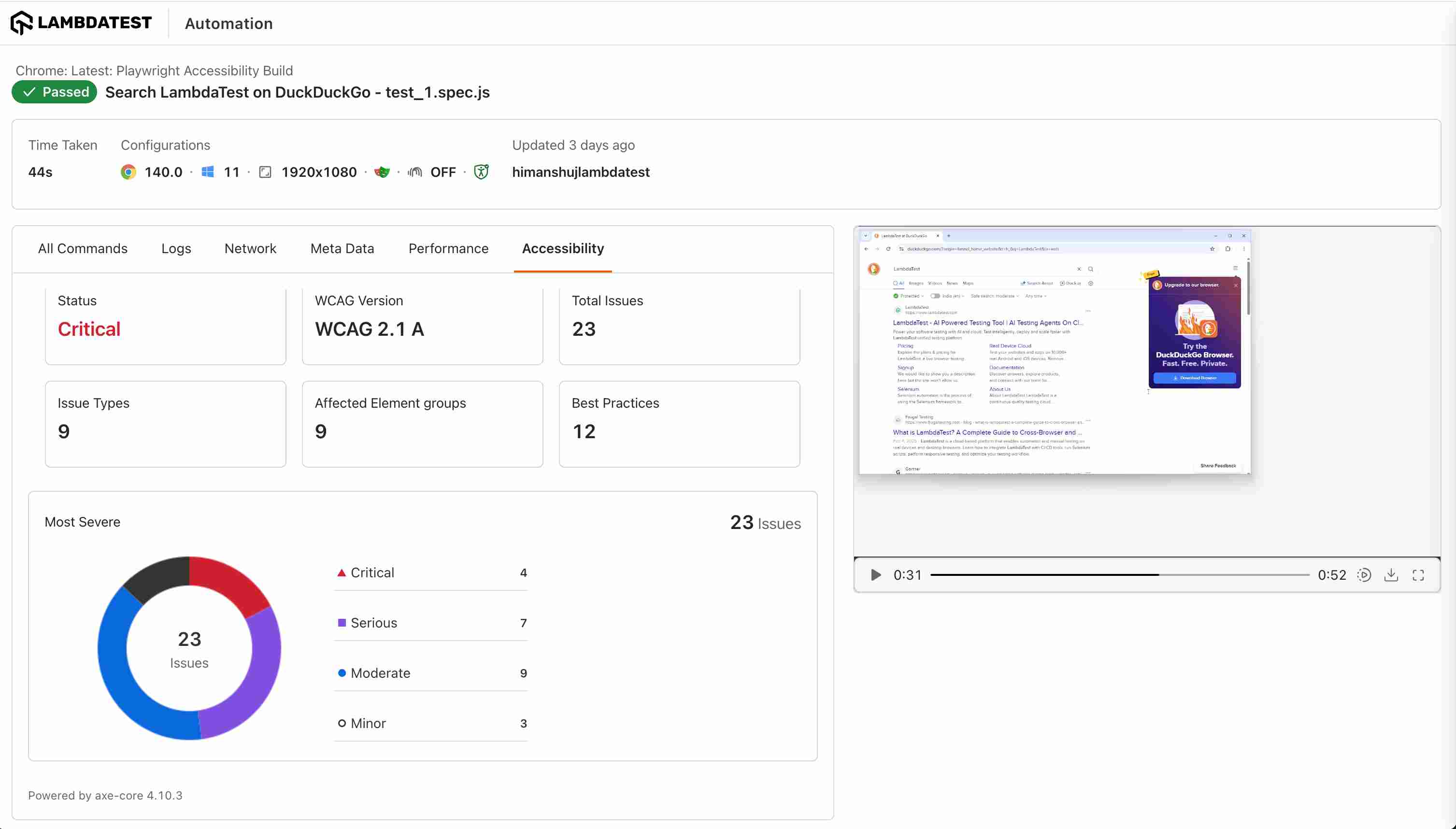
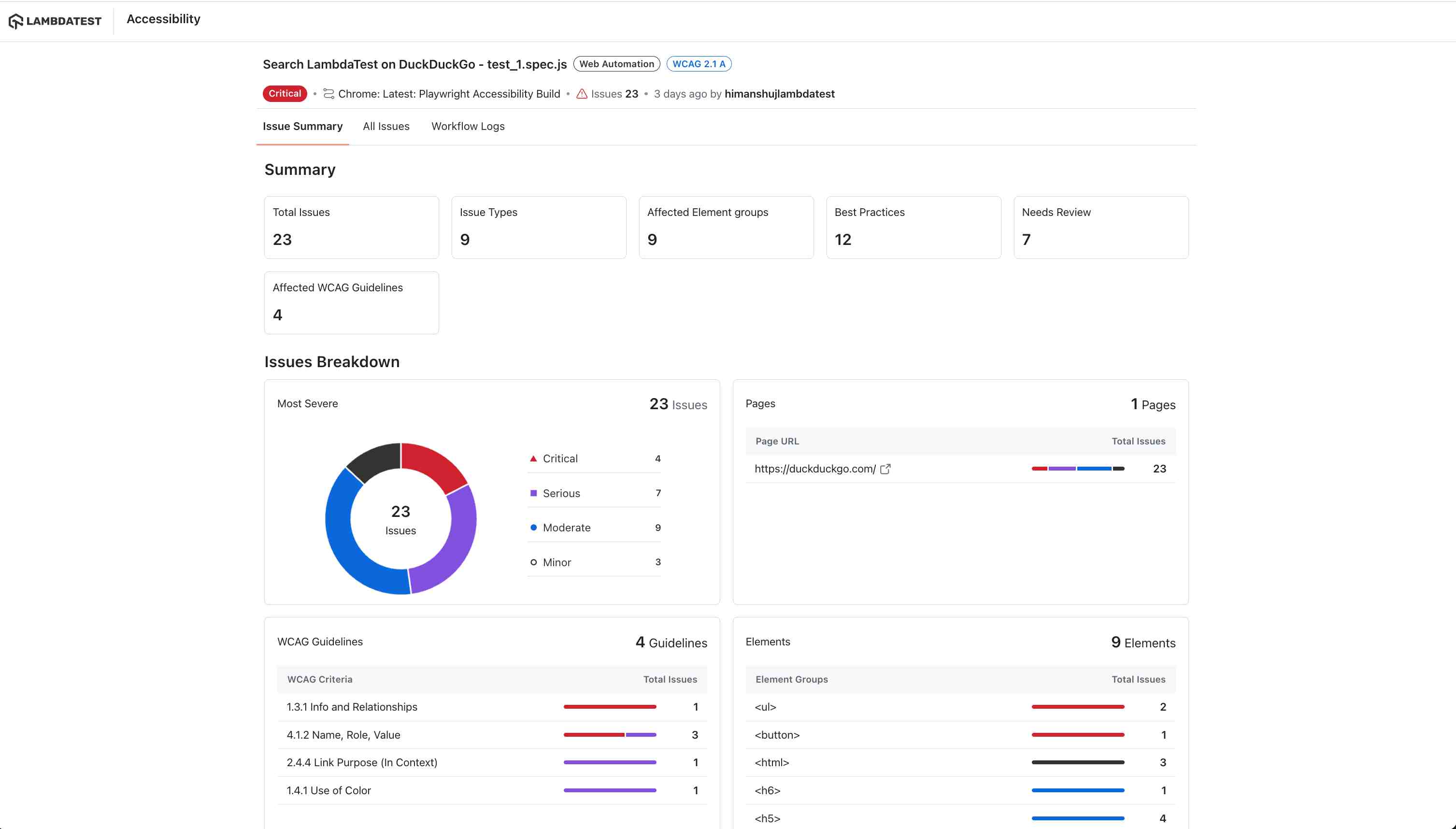
You can access the detailed accessibility report from the Accessibility Automation Reports Dashboard
Troubleshooting
| Issue | What it means | Recommended action |
|---|---|---|
Accessibility report is not generated on pw-chromium | The required accessibility extension is not loading reliably in Playwright bundled Chromium | Run the same test on Chrome instead of pw-chromium |
| Hook executes but no report appears | lambda-accessibility-scan ran, but the accessibility extension was not active in the session | Use Chrome, then rerun the test |
| Unsure whether this is a product bug or setup issue | The test may be correct, but the browser target is unsupported for accessibility automation | Verify the browser is Chrome, not pw-chromium |
| Customer needs immediate unblock | Browser is not central to the use case | Ask the customer to run functional + accessibility automation on Chrome until the limitation is resolved |

 Chat with Us
 Ask the Community