How to Migrate From Legacy Test Execution Platform to TestMu AI
Legacy test execution platforms present various challenges including limited browser and device support, slow test execution, lack of built-in test orchestration, and others; that can impact software quality and increase maintenance efforts and costs. Migrating to a cloud-based test execution platform like TestMu AI is a smart move for any organization that wants to improve software quality, reduce maintenance efforts, and cut costs.
In this guide, we will look at how to migrate from legacy test execution platform to TestMu AI.
How to Migrate From Local Grid to TestMu AI
The major difference between a local Selenium Grid and a cloud-based Selenium Grid like TestMu AI is the point of execution.
On a local grid, tests run directly on the system where browser drivers (ChromeDriver, FirefoxDriver, etc.) are installed. When using TestMu AI, tests execute remotely on cloud infrastructure, all you need is a valid TestMu AI account, and no driver installation is required.
TestMu AI provides scalability, parallel execution, and increased reliability, which are difficult to maintain with a local grid setup.
Migration is simple, tests running on a local grid can be executed on TestMu AI with minimal modifications, typically requiring no changes to your automation logic. Only the execution endpoint and capabilities need to be configured.
Run Your Script Locally
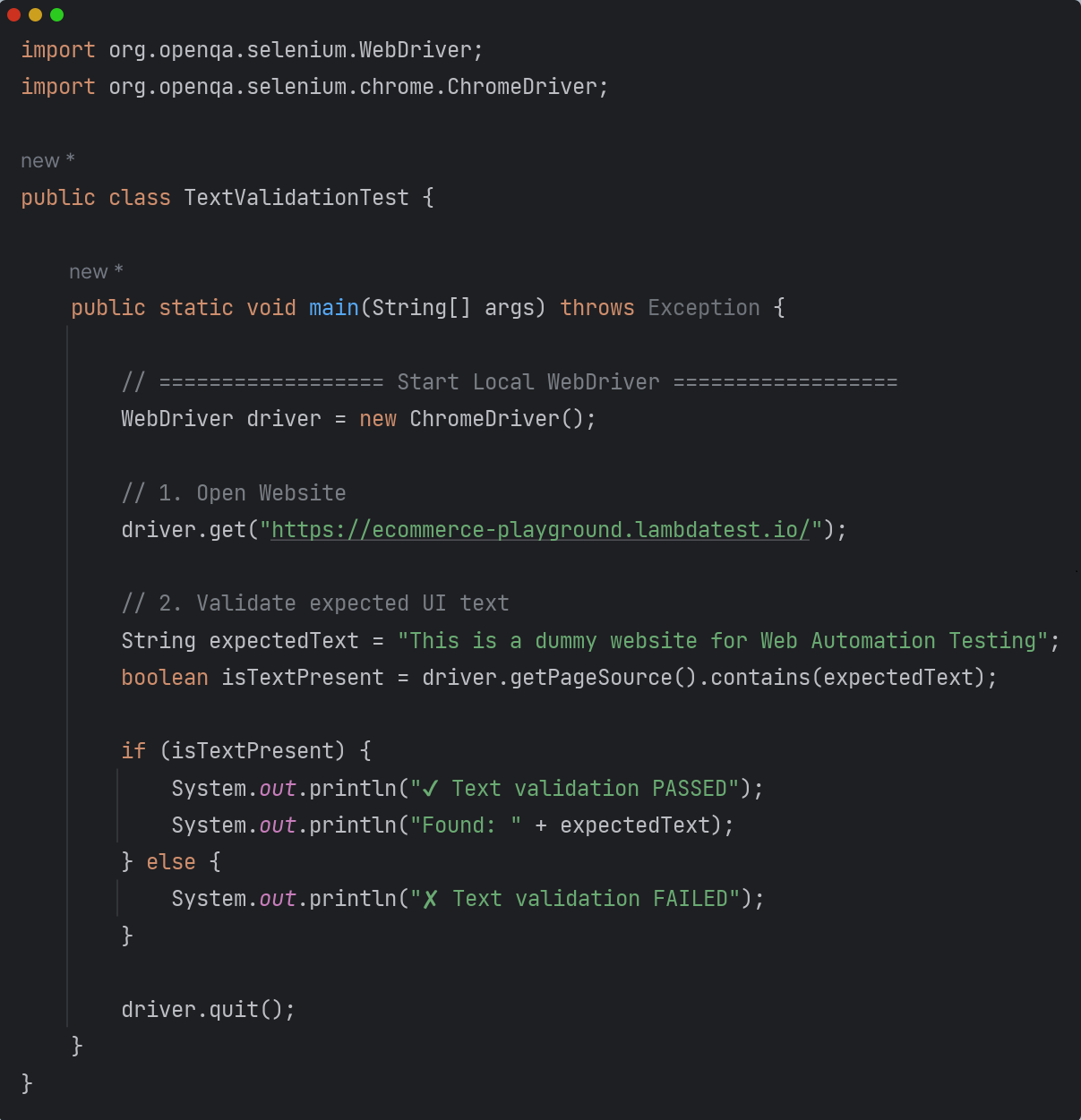
You can run your script locally by executing it directly on your machine with your preferred browser setup. This allows you to quickly test functionality, debug issues, and verify results without relying on external environments. It's an efficient way to validate tests during development.
Connect Your Local Script to TestMu AI
To migrate your existing local script to TestMu AI, you only need to update your WebDriver configuration with cloud capabilities and the TestMu AI Hub URL. Once the credentials and capabilities are added, the same test can run on remote browsers without code logic changes.
Authentication
Firstly, you need to change the authentication in your configuration settings of your test suite. For running tests on TestMu AI Selenium Grid, you need to have a valid user_name and access_key to perform tests on our Grid. In case you do not have an account on TestMu AI, visit the TestMu AI signup page and create a new account.
When migrating your Selenium 4 tests from BrowserStack to TestMu AI, the following updates are required in your existing code:
-
Get TestMu AI Credentials: You can find these credentials under Account Settings > Password & Security and copy your Username and Access Key, then add them to the .env file to keep them safe from public exposure.
-
Create .env file: Securely store your TestMu AI credentials, create a .env file in the root of your project and add the following values:
LT_USERNAME="<your_username>"
LT_ACCESS_KEY="<your_access_key>"
Once the .env file is set up, ensure your test framework correctly reads these variables at runtime. This helps keep your authentication secure and avoids hard-coding credentials within your scripts. With the credentials in place, you’re now ready to update your Hub URL for TestMu AI execution.
Add TestMu AI Hub URL
You need to now add the hub URL in the configuration settings of your test suite. Hub URL is of type String and it defines the Hub location to which the Selenium tests would be submitted for execution.
@hub.lambdatest.com/wd/hub
TestMu AI Automation Capabilities
Add your capabilities using the TestMu AI Capabilities Generator, where you can quickly generate the required browser, OS, and platform configurations for your test script. Select the environment you want, copy the capabilities, and paste them directly into your script to run on TestMu AI.
- Selenium 4 <BrandName /> Capabilities
- Selenium 3 <BrandName /> Capabilities
SafariOptions browserOptions = new SafariOptions();
browserOptions.setPlatformName("MacOS Tahoe");
browserOptions.setBrowserVersion("26");
HashMap<String, Object> ltOptions = new HashMap<String, Object>();
ltOptions.put("username", "<your_username>");
ltOptions.put("accessKey", "<your_access_key>");
ltOptions.put("w3c", true);
browserOptions.setCapability("LT:Options", ltOptions);
DesiredCapabilities capabilities = new DesiredCapabilities();
capabilities.setCapability("browserName", "Safari");
capabilities.setCapability("browserVersion", "26");
HashMap<String, Object> ltOptions = new HashMap<String, Object>();
ltOptions.put("username", "<your_username>");
ltOptions.put("accessKey", "<your_access_key>");
ltOptions.put("platformName", "MacOS Tahoe");
ltOptions.put("visual", true);
ltOptions.put("video", true);
capabilities.setCapability("LT:Options", ltOptions);
Hands On Guide - TestMu AI Migration
You can execute the same test that previously ran on a local environment by connecting it to the TestMu AI cloud grid. With minor configuration changes and added capabilities, your script can run cross-browser on TestMu AI without altering the core test logic.
Test Scenario:
This test script performs a basic text validation on the website TestMu AI eCommerce Playground and shows the expected execution results when running the test in the TestMu AI cloud.
- <BrandName /> Execution With Selenium 4 Capabilities
- <BrandName /> Execution With Selenium 3 Capabilities
// TextValidationTest.java
import org.openqa.selenium.WebDriver;
import org.openqa.selenium.remote.RemoteWebDriver;
import org.openqa.selenium.JavascriptExecutor;
import org.openqa.selenium.safari.SafariOptions;

import java.net.URL;
import java.util.HashMap;

public class TextValidationTest {


    public static void main(String[] args) throws Exception {

        String username = System.getenv("LT_USERNAME") == null ?
        "Your LT Username" : System.getenv("LT_USERNAME");

        String authkey = System.getenv("LT_ACCESS_KEY") == null ?
        "Your LT AccessKey\n"  : System.getenv("LT_ACCESS_KEY");

        String GRID_URL = "https://" + username + ":" + authkey + "@hub.lambdatest.com/wd/hub";


        SafariOptions browserOptions = new SafariOptions();
        browserOptions.setPlatformName("MacOS Tahoe");
        browserOptions.setBrowserVersion("26");
        HashMap<String, Object> ltOptions = new HashMap<String, Object>();
        ltOptions.put("username", "<your_username>");
        ltOptions.put("accessKey", "<your_access_key>");
        ltOptions.put("project", "Text Validation Test");
        ltOptions.put("build", "Text Validation Test Build");
        ltOptions.put("w3c", true);
        browserOptions.setCapability("LT:Options", ltOptions);

        WebDriver driver = new RemoteWebDriver(new URL(GRID_URL), browserOptions);

        try {

            driver.get("https://ecommerce-playground.lambdatest.io/");

            String expectedText = "This is a dummy website for Web Automation Testing";
            boolean isTextPresent = driver.getPageSource().contains(expectedText);

            if (isTextPresent) {
                ((JavascriptExecutor) driver).executeScript("lambda-status=passed");
                System.out.println("✔ Text validation PASSED");
            } else {
                ((JavascriptExecutor) driver).executeScript("lambda-status=failed");
                System.out.println("✘ Text validation FAILED");
            }

        } catch (Exception e) {
            ((JavascriptExecutor) driver).executeScript("lambda-status=pass");
            e.printStackTrace();
        } finally {
            driver.quit();   // 🔹 Correctly placed – runs even if test fails
        }
    }
}
// TextValidationTest.java – Selenium 3 Configuration
import org.openqa.selenium.WebDriver;
import org.openqa.selenium.remote.DesiredCapabilities;
import org.openqa.selenium.remote.RemoteWebDriver;
import org.openqa.selenium.JavascriptExecutor;

import java.net.URL;
import java.util.HashMap;

public class TextValidationTest {


    public static void main(String[] args) throws Exception {

        String username = System.getenv("LT_USERNAME") == null ?
        "Your LT Username" : System.getenv("LT_USERNAME");

        String authkey = System.getenv("LT_ACCESS_KEY") == null ?
        "Your LT AccessKey" : System.getenv("LT_ACCESS_KEY");

        String GRID_URL = "https://" + username + ":" + authkey + "@hub.lambdatest.com/wd/hub";

        DesiredCapabilities capabilities = new DesiredCapabilities();
        capabilities.setCapability("browserName", "Safari");
        capabilities.setCapability("browserVersion", "26");
        HashMap<String, Object> ltOptions = new HashMap<String, Object>();
        ltOptions.put("username", "<your_username>");
        ltOptions.put("accessKey", "<your_access_key>");
        ltOptions.put("platformName", "MacOS Tahoe");
        ltOptions.put("visual", true);
        ltOptions.put("video", true);
        capabilities.setCapability("LT:Options", ltOptions);

        WebDriver driver = new RemoteWebDriver(new URL(GRID_URL), capabilities);

        try {

            driver.get("https://ecommerce-playground.lambdatest.io/");

            String expectedText = "This is a dummy website for Web Automation Testing";
            boolean isTextPresent = driver.getPageSource().contains(expectedText);

            if (isTextPresent) {
                ((JavascriptExecutor) driver).executeScript("lambda-status=passed");
                System.out.println("✔ Text validation PASSED");
            } else {
                ((JavascriptExecutor) driver).executeScript("lambda-status=failed");
                System.out.println("✘ Text validation FAILED");
            }

        } catch (Exception e) {
            ((JavascriptExecutor) driver).executeScript("lambda-status=pass");
            e.printStackTrace();
        } finally {
            driver.quit();   // 🔹 Correctly placed – runs even if test fails
        }
    }
}
Result
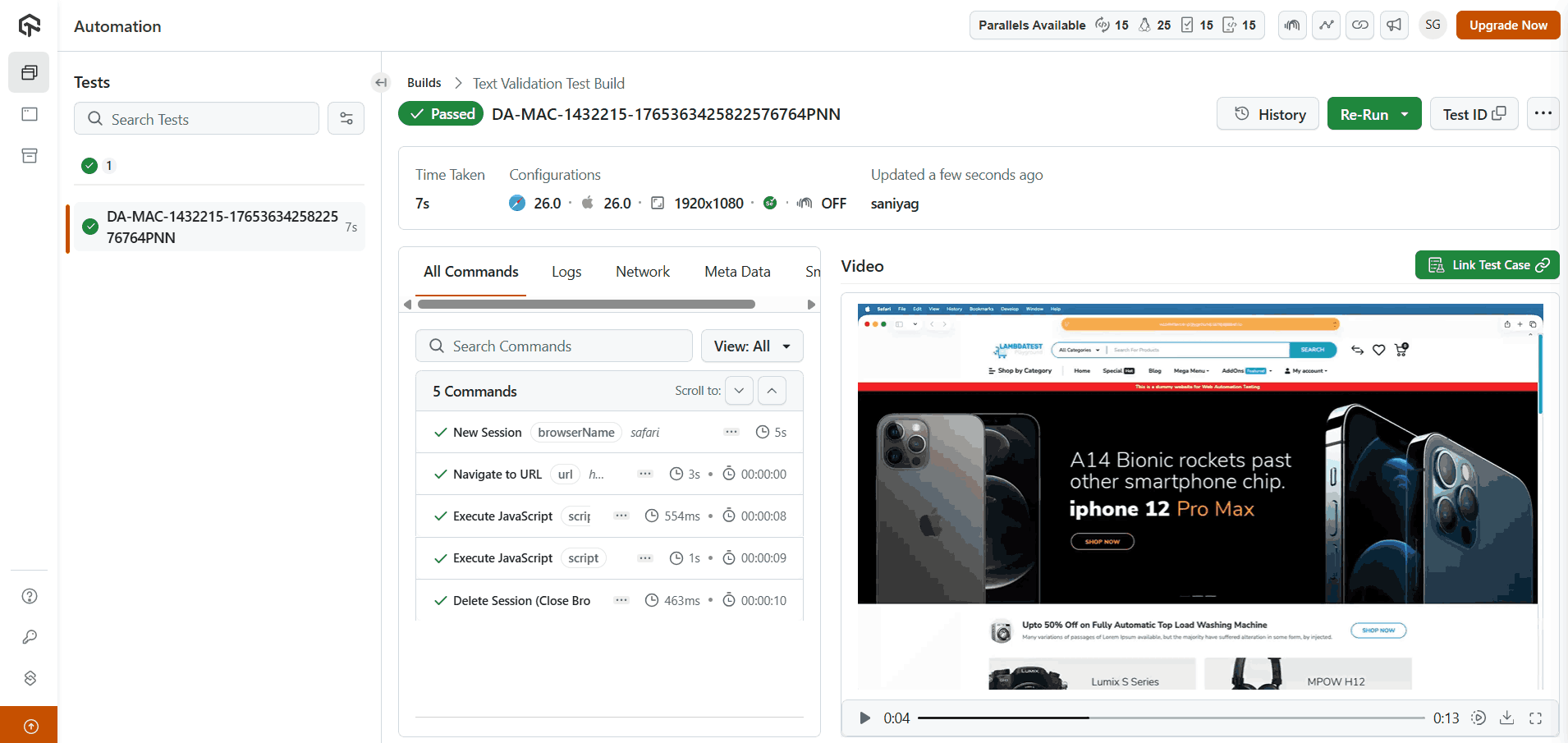
Visit TestMu AI Web Automation dashboard to view your test execution result.
Contact Us for Support
If you come across any challenges while migrating or need help at any stage, feel free to reach out to our support team. We are dedicated to ensuring a seamless transition to TestMu AI and are available around the clock to help you with any queries or issues.
Get in touch with us through our support portal 💬 or community forums 👥.

 Chat with Us
 Ask the Community