Migrate Appium Tests From Sauce Labs To TestMu AI
The online Appium Grid is available on both TestMu AI and Sauce Labs. Therefore, you can effortlessly migrate your current Appium automation scripts (or suites) from Sauce Labs to TestMu AI.
Introduction
Migrating your current Sauce Labs tests to TestMu AI requires a few tweaks in your code. In this guide, we'll look at how to leverage TestMu AI's desired capabilities in your tests, authenticate your test session, and execute tests on our cloud browsers.
Changes In The Test Script
To move from the Sauce Labs to TestMu AI, you need to make some changes to your test suites such as authentication, desired capabilities etc.
Authentication
Firstly, you need to change the authentication in the configuration settings of your test suite. For running tests on TestMu AI Appium Grid, you need to have a valid user_name and access_key to perform tests on our cloud Grid. In case you don’t have an account on TestMu AI, visit the TestMu AI signup page and create a new account.
The following are the changes in the parameters:
- Username
- Access Key
You can find the Username and Access Key in the TestMu AI Profile Section of the Automation Dashboard.
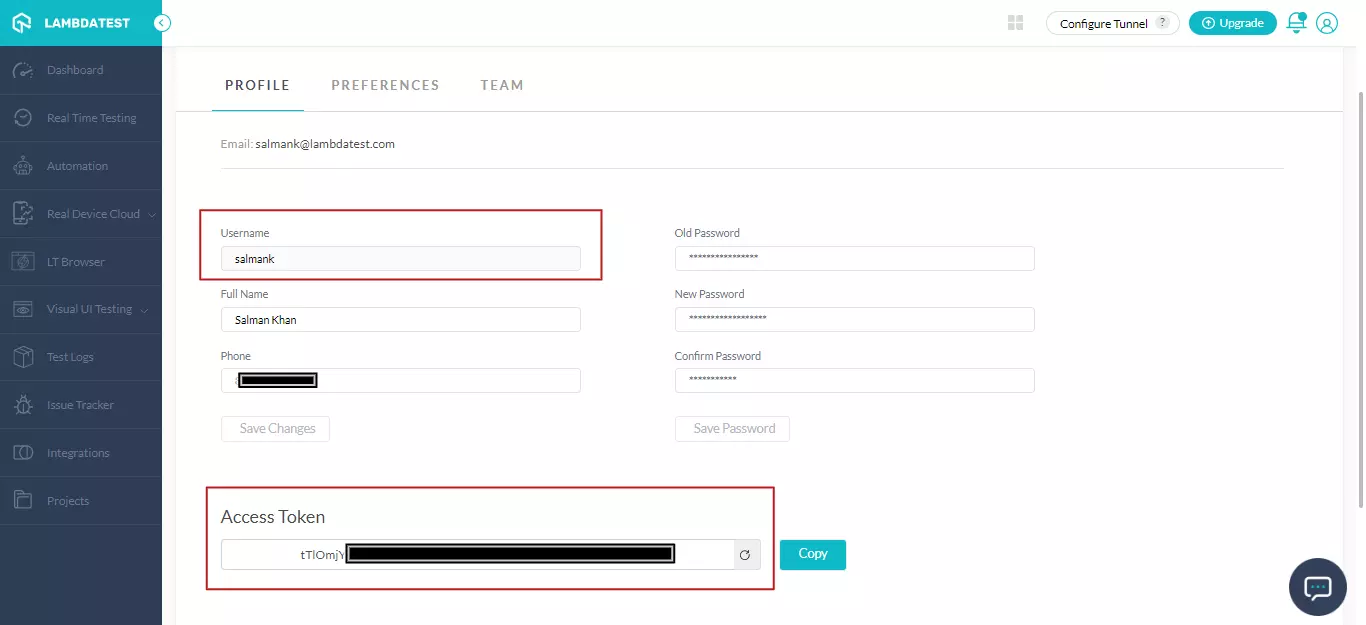
When migrating from Sauce Labs to TestMu AI, you need to make the following changes in the existing code:
- UserName
- AccessKey
- Hub URL
- Desired Capabilities
Here is a side-by-side comparison of each of the fields that we have highlighted above:
| Property | Type | Sauce Labs | TestMu AI |
|---|---|---|---|
| UserName | String | UserName to access Appium Grid on Sauce Labs | UserName to access Appium Grid on TestMu AI |
| AccessKey | String | AccessKey to access Appium Grid on Sauce Labs | AccessKey to access Appium Grid on TestMu AI |
| Hub URL | String | ondemand.us-west-1.saucelabs.com/wd/hub | @hub.lambdatest.com/wd/hub |
For a Python-based implementation, here are the changes in the script for the authentication process.
Sauce Labs
VerifieduserName = "SAUCE_USERNAME"
accessKey = "SAUCE_ACCESS_KEY"
TestMu AI
VerifieduserName = "LambdaTest_UserName"
accessKey = "LambdaTest_AccessKey"
Changes To The Hub URL
Now you have to modify the hub URL in your test suite's configuration settings. The Hub URL is of the String type and specifies the Hub location to which the Appium tests will be routed for execution.
For a Python-based implementation, here are the changes in the script for Hub URL.
Sauce Labs
Verified@ondemand.us-west-1.saucelabs.com/wd/hub
TestMu AI
Verified@mobile-hub.lambdatest.com/wd/hub
Desired Capability Generator
Capabilities generator allows you to specify the desired capabilities (or capabilities), which are configuration options that allow you to specify the following:
- Device
- Operating system
You can also select other advanced options available in the TestMu AI Capabilities Generator.
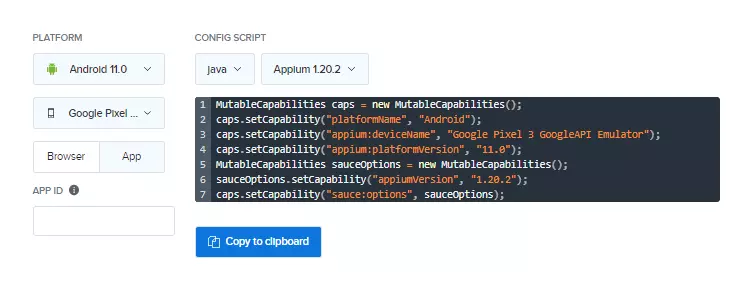
For the migration, we have taken Java-based Appium tests. Below are the screenshots of the capability generator of Sauce Labs and TestMu AI.
Sauce Labs
TestMu AI
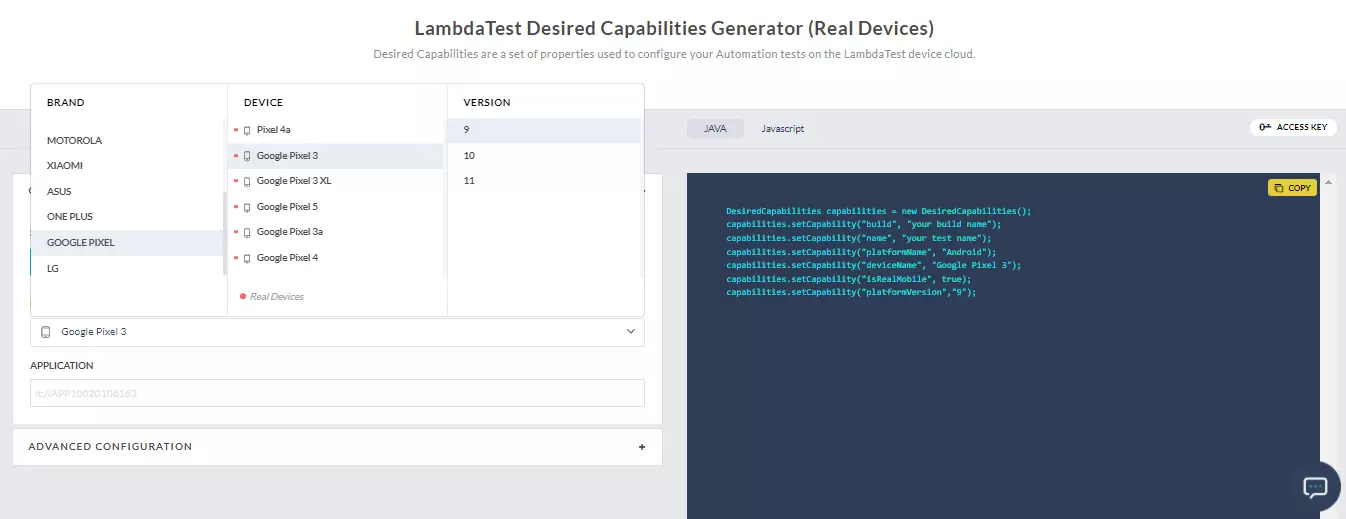
The comparison of the capabilities generated by Sauce Labs and TestMu AI capabilities generator:
| Capabilities | Sauce Labs | TestMu AI |
|---|---|---|
| Device | deviceName | deviceName |
| Operating System | platformVersion | platformVersion |
The following is an overview of the comparison of Desired Capabilities for the Java language:
Sauce Labs
Verified# demo.py
caps = {
caps['platformName'] = 'Android'
caps['browserName'] = 'Chrome'
caps['appium:deviceName'] = 'Google Pixel 3a GoogleAPI Emulator'
caps['appium:platformVersion'] = '11.0'
caps['sauce:options'] = {}
caps['sauce:options']['appiumVersion'] = '1.20.2'
}
TestMu AI
Verified# demo.py
caps = [
{
"deviceName": "Google Pixel 3",
"platformName": "Android",
"platformVersion": "11",
"app": "<lt_app_url>",
"isRealMobile": True,
"deviceOrientation": "PORTRAIT",
"build": "Demo",
},
]
Example: Sauce Labs To TestMu AI Migration
Let's look an example that shows the entire migration process. The test scenario is to open a Wikipedia app that search the term ‘lambdatest’. The following test runs on Google Pixel 3 running Android 11.
Sauce Labs
Verified#samplewikipedia.py
import ssl
try:
_create_unverified_https_context = ssl._create_unverified_context
except AttributeError:
# Legacy Python that doesn't verify HTTPS certificates by default
pass
else:
# Handle target environment that doesn't support HTTPS verification
ssl._create_default_https_context = _create_unverified_https_context
from threading import Thread
import time
from selenium import webdriver
from selenium.webdriver.common.keys import Keys
from selenium.webdriver.common.desired_capabilities import DesiredCapabilities
from selenium.common.exceptions import TimeoutException
from selenium.webdriver.support.ui import WebDriverWait
from selenium.webdriver.support import expected_conditions as EC
from appium.webdriver.common.mobileby import MobileBy
from appium import webdriver


# This array 'caps' defines the capabilities browser, device and OS combinations where the test will run

caps = {
    caps['platformName'] = 'Android'
    caps['browserName'] = 'Chrome'
    caps['appium:deviceName'] = 'Google Pixel 3a GoogleAPI Emulator'
    caps['appium:platformVersion'] = '11.0'
    caps['sauce:options'] = {}
    caps['sauce:options']['appiumVersion'] = '1.20.2'
}


# run_session function searches for 'saucelabs' on google.com


def run_session(desired_cap):
    driver = webdriver.Remote(

        command_executor="https://SAUCE_USERNAME:SAUCE_ACCESS_KEY@ondemand.us-west-1.saucelabs.com/wd/hub",
        desired_capabilities=desired_cap)
# driver.get("https://www.ifconfig.me")
# time.sleep(10)
# Test case for the saucelabs sample Android app.
# If you have uploaded your app, update the test case here.
search_element = WebDriverWait(driver, 30).until(
EC.element_to_be_clickable(
(MobileBy.ACCESSIBILITY_ID, "Search Wikipedia"))
)
search_element.click()
search_input = WebDriverWait(driver, 30).until(
EC.element_to_be_clickable(
(MobileBy.ID, "org.wikipedia.alpha:id/search_src_text"))
)
search_input.send_keys("saucelabs")
time.sleep(5)
search_results = driver.find_elements_by_class_name(
"android.widget.TextView")
assert(len(search_results) > 0)
# Invoke driver.quit() after the test is done to indicate that the test is completed.
driver.quit()
# The Thread function takes run_session function and each set of capability from the caps array as an argument to run each session in parallel
for cap in caps:
Thread(target=run_session, args=(cap,)).start()
TestMu AI
Verified#samplewikipedia.py
import ssl
try:
_create_unverified_https_context = ssl._create_unverified_context
except AttributeError:
# Legacy Python that doesn't verify HTTPS certificates by default
pass
else:
# Handle target environment that doesn't support HTTPS verification
ssl._create_default_https_context = _create_unverified_https_context
from threading import Thread
import time
from selenium import webdriver
from selenium.webdriver.common.keys import Keys
from selenium.webdriver.common.desired_capabilities import DesiredCapabilities
from selenium.common.exceptions import TimeoutException
from selenium.webdriver.support.ui import WebDriverWait
from selenium.webdriver.support import expected_conditions as EC
from appium.webdriver.common.mobileby import MobileBy
from appium import webdriver
# This array 'caps' defines the capabilities browser, device and OS combinations where the test will run
caps = [
{
"deviceName": "Google Pixel 3",
"platformName": "Android",
"platformVersion": "11",
"app": "<lt_app_url>",
"isRealMobile": True,
"deviceOrientation": "PORTRAIT",
"build": "Demo",
},
]
# run_session function searches for 'lambtest' on google.com
def run_session(desired_cap):
driver = webdriver.Remote(
# hub.mobile-dev-1.dev.lambdatest.io/wd/hub",
command_executor="https://LT_USERNAME:LT_ACCESS_KEY@mobile-hub.lambdatest.com/wd/hub",
desired_capabilities=desired_cap)
# driver.get("https://www.ifconfig.me")
# time.sleep(10)
# Test case for the lambdatest sample Android app.
# If you have uploaded your app, update the test case here.
search_element = WebDriverWait(driver, 30).until(
EC.element_to_be_clickable(
(MobileBy.ACCESSIBILITY_ID, "Search Wikipedia"))
)
search_element.click()
search_input = WebDriverWait(driver, 30).until(
EC.element_to_be_clickable(
(MobileBy.ID, "org.wikipedia.alpha:id/search_src_text"))
)
search_input.send_keys("lambdatest")
time.sleep(5)
search_results = driver.find_elements_by_class_name(
"android.widget.TextView")
assert(len(search_results) > 0)
# Invoke driver.quit() after the test is done to indicate that the test is completed.
driver.quit()
# The Thread function takes run_session function and each set of capability from the caps array as an argument to run each session in parallel
for cap in caps:
Thread(target=run_session, args=(cap,)).start()
The majority of the implementation, as shown above, remains unchanged. Only changes to the infrastructure are made (i.e. instead of Sauce Labs, the app automation tests would be run on TestMu AI).
Let's analyze what has changed from the implementation point of view.
Sauce Labs
Verified
from threading import Thread
import time
from selenium import webdriver
from selenium.webdriver.common.keys import Keys
from selenium.webdriver.common.desired_capabilities import DesiredCapabilities
from selenium.common.exceptions import TimeoutException
from selenium.webdriver.support.ui import WebDriverWait
from selenium.webdriver.support import expected_conditions as EC
from appium.webdriver.common.mobileby import MobileBy
from appium import webdriver
# This array 'caps' defines the capabilities browser, device and OS combinations where the test will run
caps = {
caps['platformName'] = 'Android'
caps['browserName'] = 'Chrome'
caps['appium:deviceName'] = 'Google Pixel 3a GoogleAPI Emulator'
caps['appium:platformVersion'] = '11.0'
caps['sauce:options'] = {}
caps['sauce:options']['appiumVersion'] = '1.20.2'
}
# run_session function searches for 'saucelabs' on google.com
def run_session(desired_cap):
driver = webdriver.Remote(
command_executor="https://SAUCE_USERNAME:SAUCE_ACCESS_KEY@ondemand.us-west-1.saucelabs.com/wd/hub",
desired_capabilities=desired_cap)
TestMu AI
Verifiedfrom threading import Thread
import time
from selenium import webdriver
from selenium.webdriver.common.keys import Keys
from selenium.webdriver.common.desired_capabilities import DesiredCapabilities
from selenium.common.exceptions import TimeoutException
from selenium.webdriver.support.ui import WebDriverWait
from selenium.webdriver.support import expected_conditions as EC
from appium.webdriver.common.mobileby import MobileBy
from appium import webdriver
caps = [
{
"deviceName": "Google Pixel 3",
"platformName": "Android",
"platformVersion": "11",
"app": "<lt_app_url>",
"build": "Demo",
},
]
def run_session(desired_cap):
driver = webdriver.Remote(command_executor="https://LT_USERNAME:LT_ACCESS_KEY@mobile-hub.lambdatest.com/wd/hub", desired_capabilities=desired_cap)
That’s all about Sauce Labs to TestMu AI migration. In case you have any questions or need any additional information, you could reach out at our 24X7 Chat Support or mail us directly at support@testmuai.com.


 Chat with Us