Mobile App Accessibility Testing
Mobile app accessibility testing enables automated accessibility scanning for native mobile applications in KaneAI. This feature performs accessibility checks during test execution, helping identify accessibility issues and ensure compliance with accessibility standards.
Platform Support
| Platform | Supported Versions | Notes |
|---|---|---|
| iOS | 17.0 and above | Versions below 17.0 will pass tests but won't generate accessibility reports |
| Android | All versions | Full support for accessibility scanning |
How It Works
Step 1: Add Accessibility Scan Instruction
During test authoring, add the accessibility scan instruction:
- Navigate to the screen you want to scan
- Type "/" in the input box and click on Accessibility scan
- The instruction is recorded as part of the test flow
- The current screen is marked for accessibility scanning
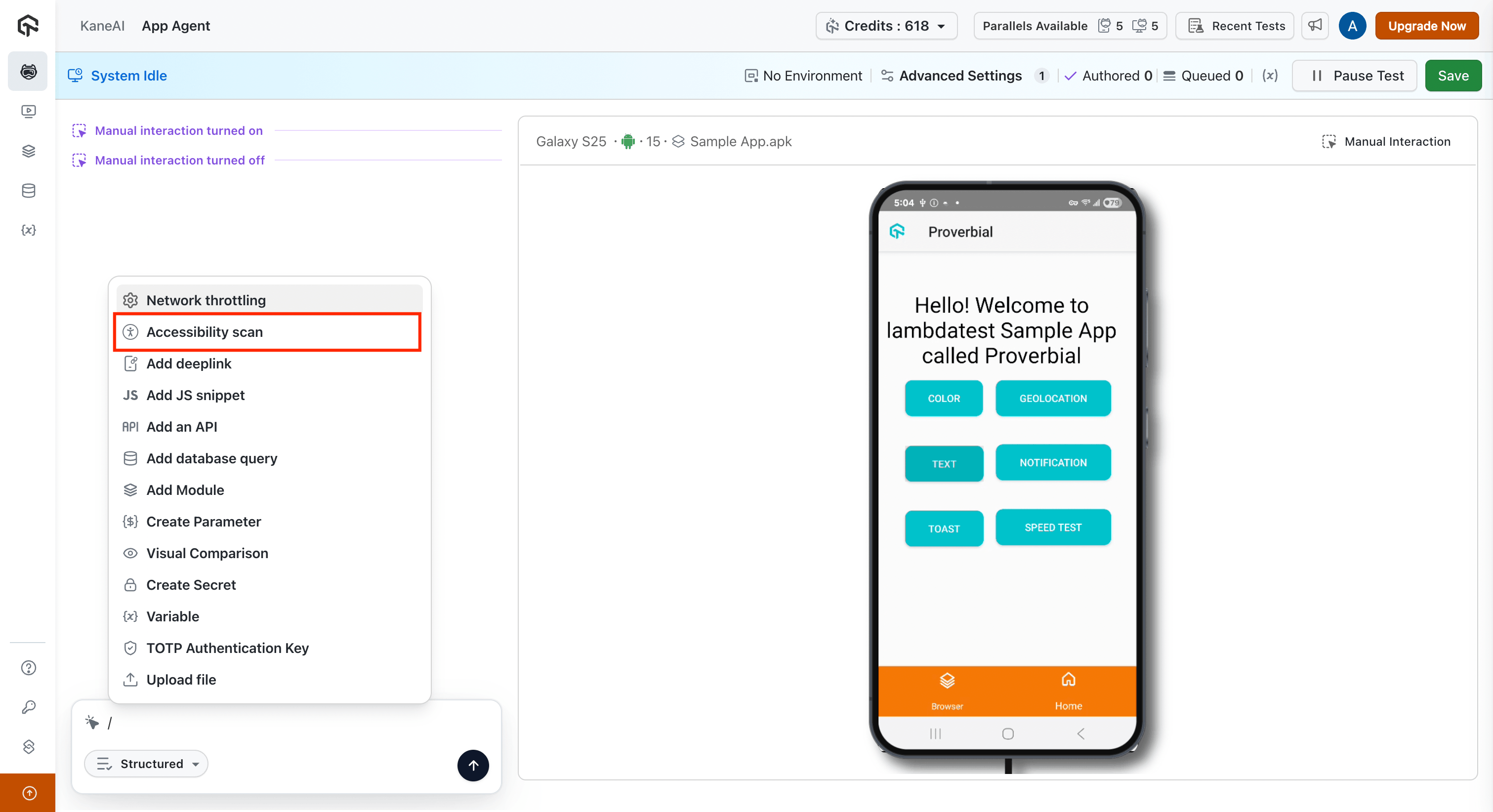
Step 2: Instruction Recording
When the accessibility scan instruction is added:
- The instruction is recorded in the test execution flow
- The current screen is marked to be scanned using the app scanner hook for accessibility
- The scan hook is triggered during test execution at the corresponding screen
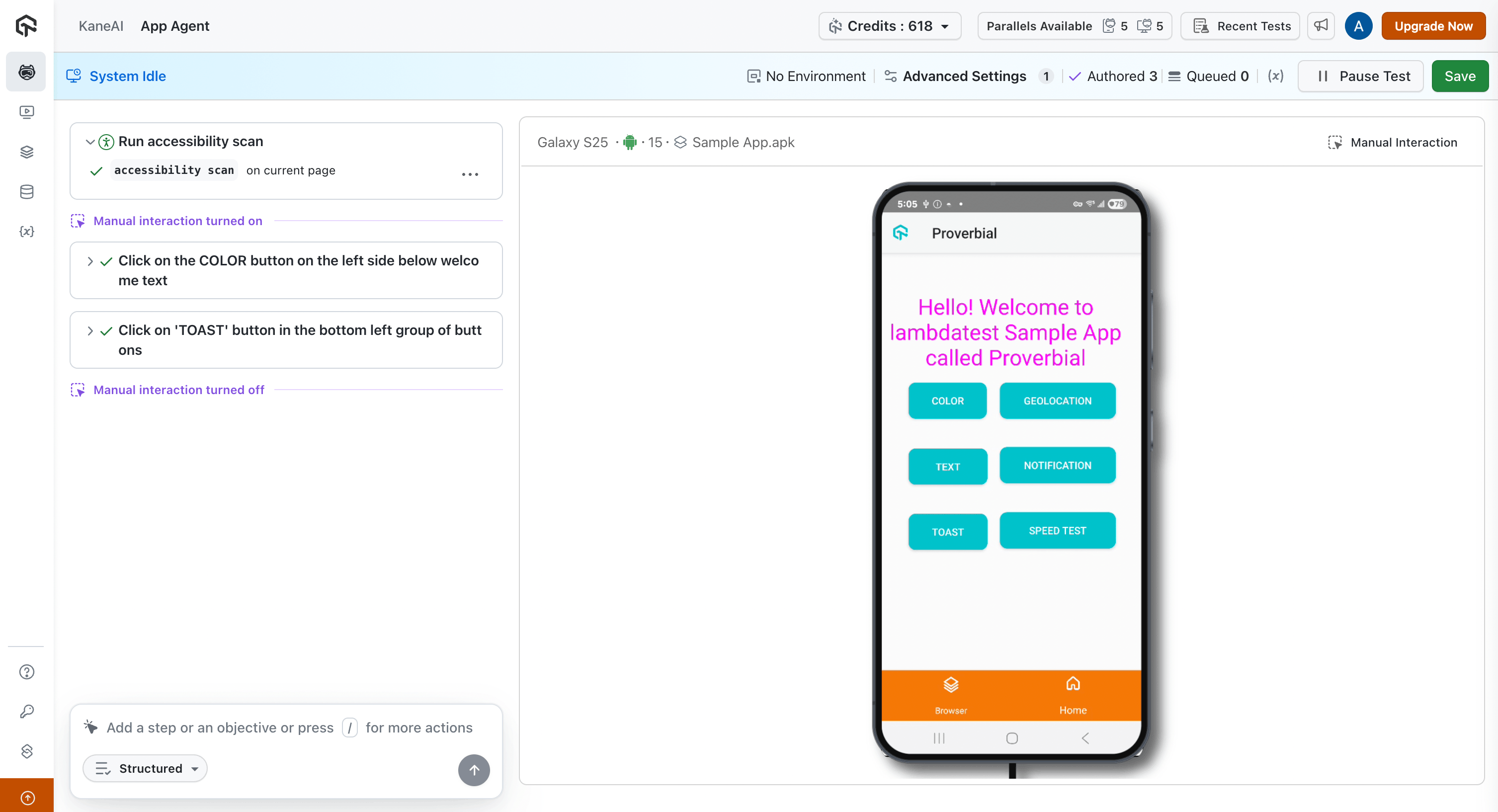
Step 3: Test Case Creation
Once the test is saved:
- A test case is automatically created with the
accessibility-scantag - The accessibility scan instruction is visible in the test case summary
- Use this tag to filter and identify tests that include accessibility scanning
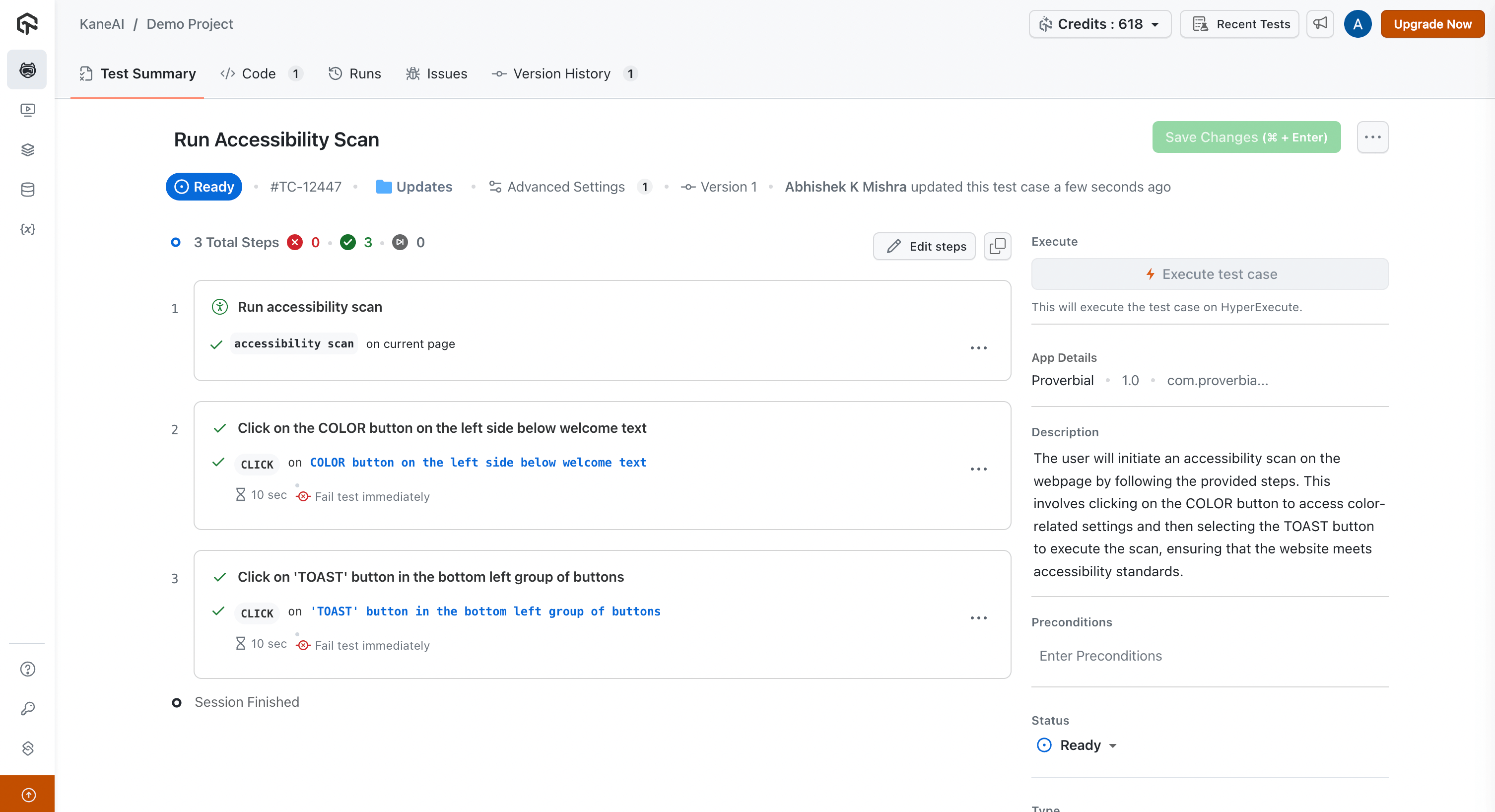
To view the screenshot of the screen where the accessibility scan was performed, click the (•••) icon.
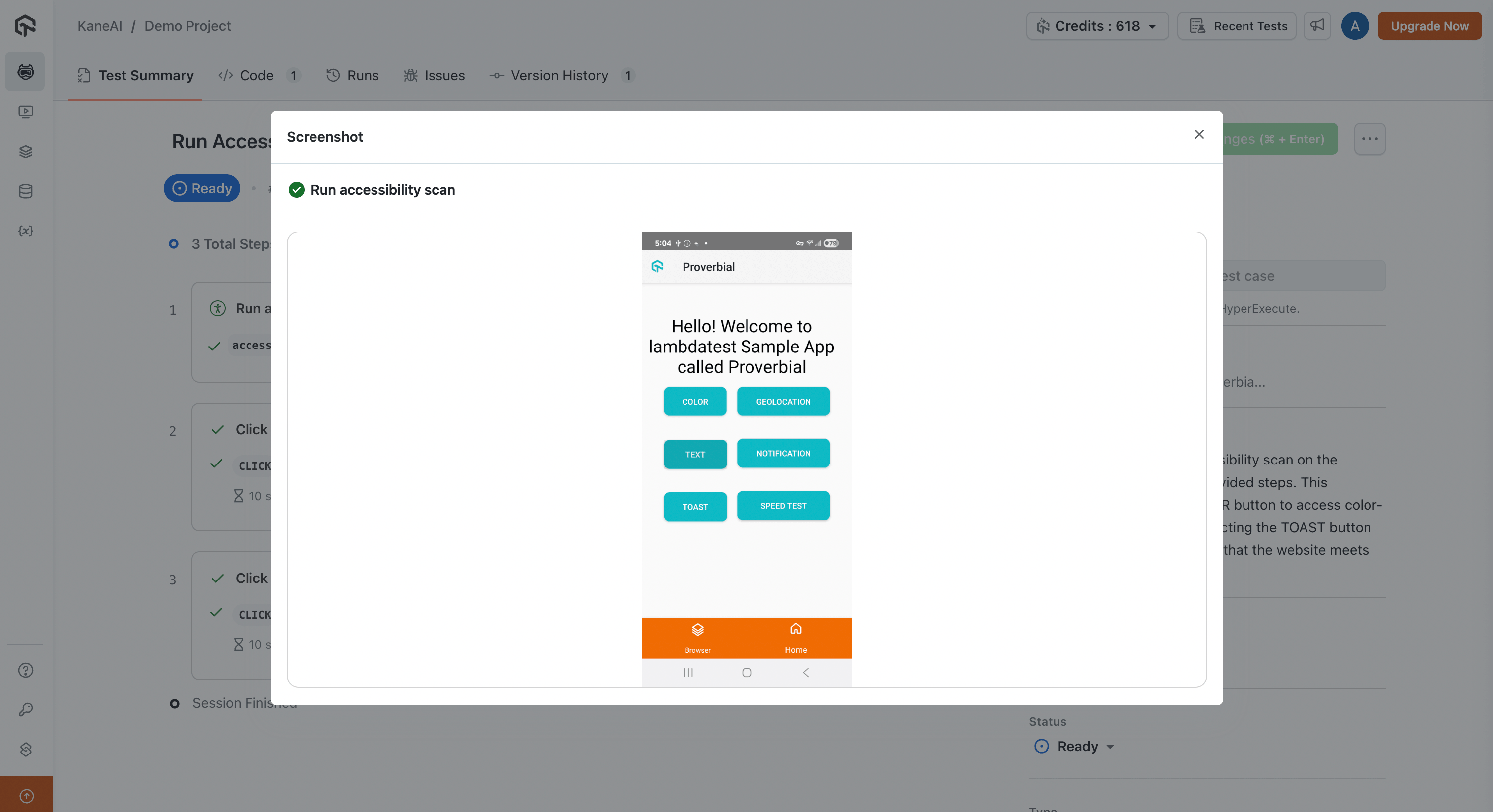
Step 4: Execution and Reporting
During automated test execution:
- The accessibility scan is performed at the corresponding screen
- Accessibility issues are detected and categorized
- The accessibility report is available in the test execution results on Automation dashboard
Key Features
| Feature | Description |
|---|---|
| Native App Scanning | Uses platform-native accessibility scan hooks |
| Automatic Tagging | Tests are automatically tagged with accessibility-scan for easy identification |
| Test Case Integration | Accessibility instructions are visible in test case summaries |
| Automated Reporting | Accessibility reports are generated during test execution |
| Cross-Platform Support | Works on iOS 17+ and all Android versions |
Troubleshooting
No Accessibility Report Generated
Possible Cause:
- iOS version is below 17.0 (tests will execute but no report is generated)
Accessibility Scan Instruction Not Recorded
Possible Causes:
- Instruction not properly added during authoring
- Test not saved after adding the instruction
Solutions:
- Verify the instruction was added correctly during authoring
- Ensure the test is saved after adding the accessibility instruction
- Check the test case summary for accessibility instruction visibility

 Chat with Us
 Ask the Community