Using Environment Variables for Authentication Credentials
To provide a secure cross-browser testing environment on-cloud, we recommend integrating TestMu AI Authentication Credentials in your test scripts. This allows our cloud servers to establish a secure connection between your local system and our cloud-based Selenium Grid. This document shows you how to set up your TestMu AI authentication credentials as environment variables for your respective operating system. This setup also helps authenticate your colleague's test cases when executed against an individual account.
Where to Find Authentication Credentials
Get your Username and Access Key from the Automation Dashboard or your profile page.
TestMu AI Authentication Credentials consist of two fields:
- TestMu AI Username
- TestMu AI Access Key
You can find these authentication credentials by visiting the Automation Dashboard or your TestMu AI Profile.
Fetching Authentication Credentials from the Automation Tab
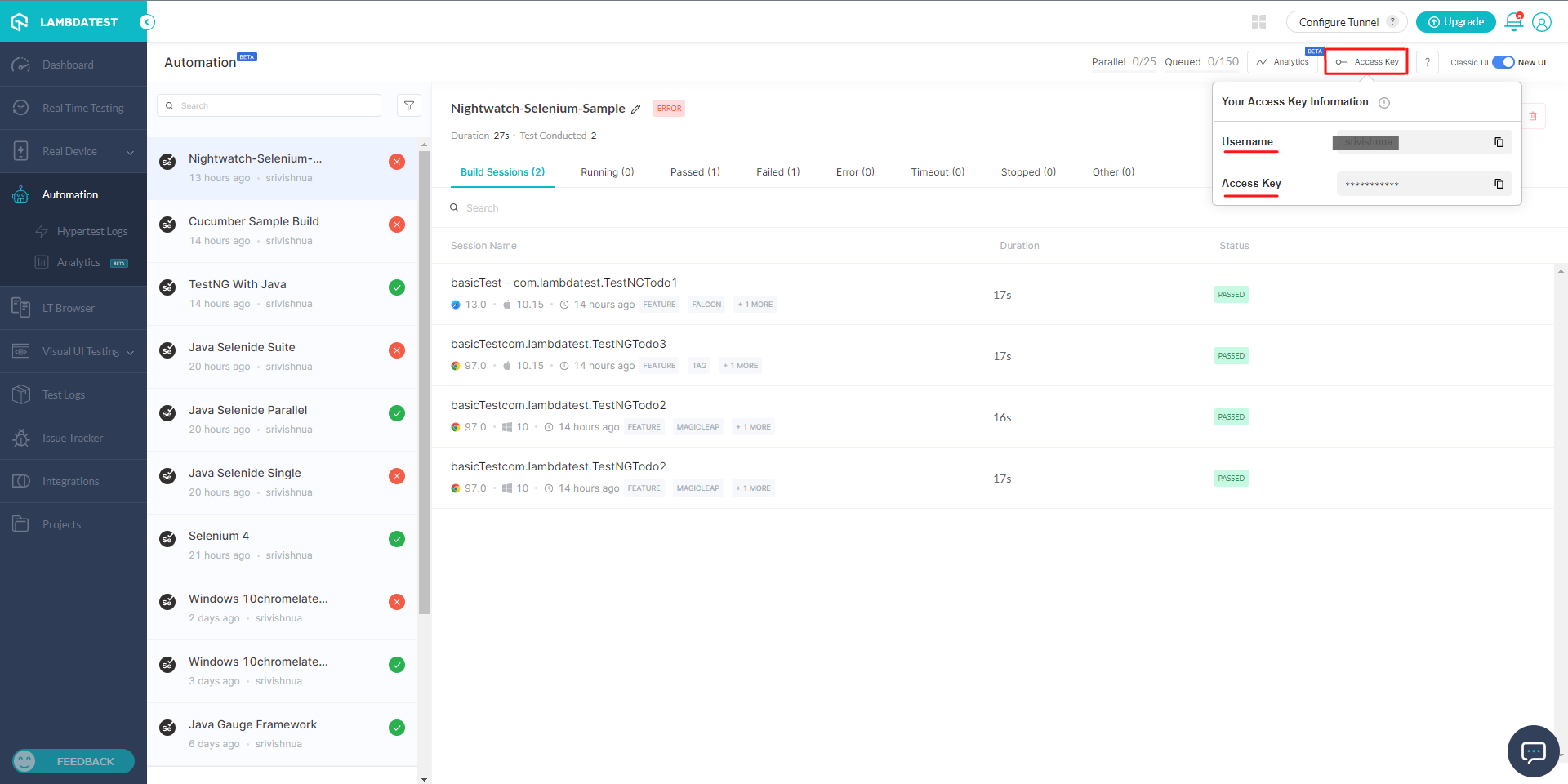
- Visit the Automation tab from the left navigation menu.
- Click on the key icon from the top-right corner of your screen and copy the Access Key and Username.
Fetching Authentication Credentials from Your Profile
- Visit your TestMu AI Profile by clicking on the user icon on the top-right followed by clicking on Profile.
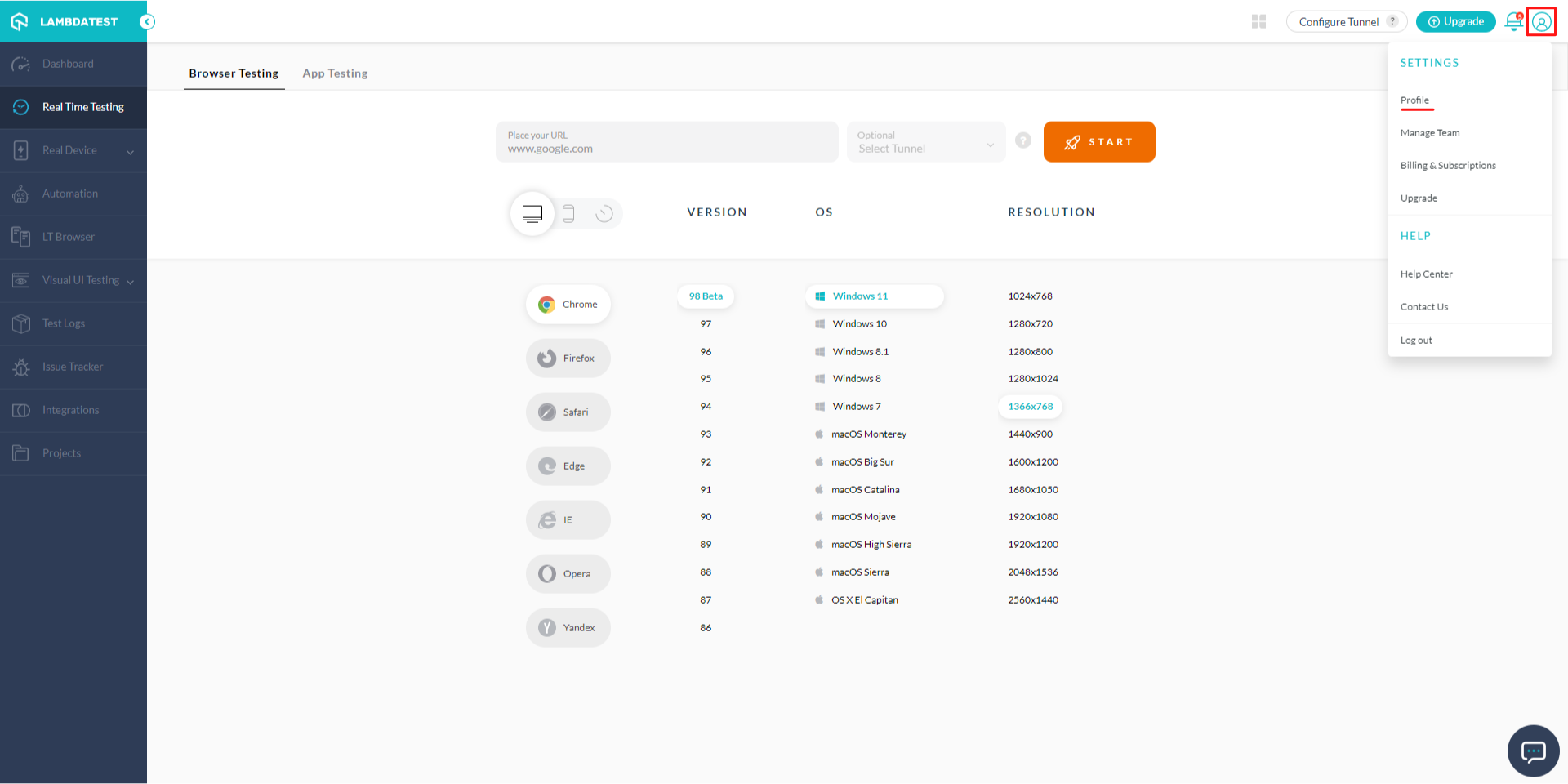
- You will find your Username & Access Key.

Configuring Environment Variables on Mac OSX/Linux Systems
Export your credentials in the bash profile to make them available across terminal sessions.
- Open your terminal mode, and provide the command
vi ~/.bash_profile& hit Enter. - Press the i button from your keyboard to perform text-insertion into your profile.
- Feed TestMu AI Authentication credentials using the code below:
$ export LT_USERNAME="undefined"
$ export LT_ACCESS_KEY="undefined"
- Hit Esc once you have entered the above lines into your Profile.
- Long-press the Shift button & hit Z twice (z z) to save your file and quit vi.
- Enter
source ~/.bash_profileinto the terminal.
Configuring Environment Variables on Windows Operating Systems
Add your credentials as System variables through the Windows Environment Variables dialog.
- Right-click on the Computer icon to access your Computer Properties. You can also follow the path
(Control Panel\All Control Panel Items\System)into your computer address bar. - Go to Advanced system settings & click on Environment Variables.
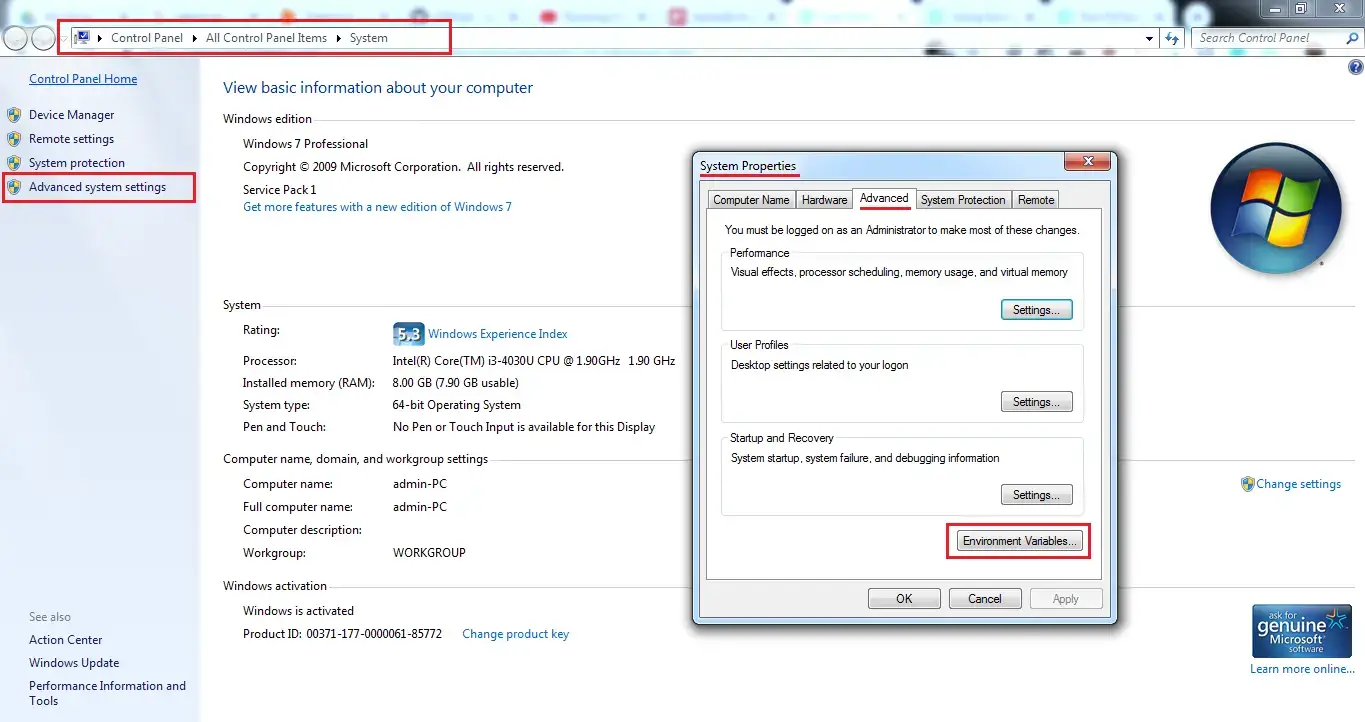
- You will see a dialog prompt for Environment Variables. Click on New under the System variables.
- Enter
LT_USERNAMEas the Variable name & provide yourTestMu AI Usernameas the Variable value. - Hit Ok & repeat the steps to add
TestMu AI Access Keyas another System Environment Variable.
Incorporating Environment Variables in Selenium Automation Scripts
Reference your environment variables in test scripts for each programming language.
Now that we have set up our TestMu AI Authentication Credentials as System Environment Variables, we need to incorporate them in our Selenium automation scripts for invoking your automation test suites on TestMu AI Selenium Grid. This section shows you how to reference environment variables for different programming languages.
Java
- For JUnit & TestNG:
  lambdatestUserName = System.getenv("LT_USERNAME");
  lambdatestAccessKey = System.getenv("LT_ACCESS_KEY");
Python
- For PyTest & unittest:
lambdatest_username = os.environ["LT_USERNAME"]
lambdatest_access_key = os.environ["LT_ACCESS_KEY"]
NodeJS
- For Mocha-Chai & Jasmine-Chai:
let username = process.env.LT_USERNAME,
accessKey = process.env.LT_ACCESS_KEY,
- For Protractor-Jasmine:
exports.config = {
          lambdatestUser: process.env.LT_USERNAME,
          lambdatestKey: process.env.LT_ACCESS_KEY
        }
Ruby
- For RSpec:
        username: ENV['LT_USERNAME'],
        accessKey: ENV['LT_ACCESS_KEY']
C#
- For NUnit:
var lambdatestUserName =
    Environment.GetEnvironmentVariable("LT_USERNAME", EnvironmentVariableTarget.User);
var lambdatestAccessKey =
    Environment.GetEnvironmentVariable("LT_ACCESS_KEY", EnvironmentVariableTarget.User);
PHP
- For Behat:
$user = getenv('LT_USERNAME')
$accesskey = getenv('LT_ACCESS_KEY')
If you come across any issues during the setup, let us know. Our Support team is available 24x7. You can also mail us at [email protected].

 Chat with Us
 Ask the Community