Espresso Testing On TestMu AI
Espresso is a widely-used testing framework for Android, designed to simplify the process of writing reliable and efficient UI tests. It allows developers to create automated tests that simulate user interactions within an app, ensuring that the app's UI behaves as expected. With its straightforward API and synchronization capabilities, Espresso provides a robust solution for validating the functionality and performance of Android applications.
In this documentation, you will learn how to trigger a automation script of Java for application testing with Appium on TestMu AI, set the desired capabilities for appium testing, and other advanced features of TestMu AI.
Prerequisites
- Your TestMu AI Username and Access key.
- Access to an Android app (.apk) and an Espresso Test app (.apk file).
If you do not have any Android app (.apk) and an Espresso Test app (.apk) file, you can run your sample tests on TestMu AI by using our sample 🔗 Android app and a sample 🔗 Espresso Test.
Running Your First Test: A Step-by-Step Guide
Step 1: Upload Your Application
To begin testing, upload your Android application (.apk file) to TestMu AI's servers. You'll use our REST API for this process.
- Authentication : You'll need your TestMu AI Username and AccessKey. Combine them in the format
Username:AccessKey. - Uploading the App : Use cURL command to send a request to our API. The request should include the path to your application file (appFile).
- Linux / MacOS
- Windows
curl -u "undefined:undefined" --location --request POST 'https://manual-api.lambdatest.com/app/uploadFramework' --form 'appFile=@"<PATH_OF_YOUR_ANDROID_APP>"' --form 'type="espresso-android"'
curl -u "undefined:undefined" --location --request POST "https://manual-api.lambdatest.com/app/uploadFramework" --form "appFile=@"<PATH_OF_YOUR_ANDROID_APP>"" --form "type="espresso-android""
- Provide the path of your android application in the above URL in place of
<PATH_OF_YOUR_ANDROID_APP> - Response of above cURL will be a JSON object containing the
App URLof the format -lt://APP123456789123456789and will be used in the last step.
Step 2: Upload Your Test Suite
Upload your Espresso test suite (.apk) file to TestMu AI servers using our REST API.
The following sample cURL command shows how to upload a test suite:
- Linux / MacOS
- Windows
curl -u "undefined:undefined" --location --request POST 'https://manual-api.lambdatest.com/app/uploadFramework' --form 'appFile=@"<PATH_OF_YOUR_TEST_SUITE_APP>"' --form 'type="espresso-android"'
curl -u "undefined:undefined" --location --request POST "https://manual-api.lambdatest.com/app/uploadFramework" --form "appFile=@"<PATH_OF_YOUR_TEST_SUITE_APP>"" --form "type="espresso-android""
- Provide the path of your android application in the above URL in place of
<PATH_OF_YOUR_TEST_SUITE_APP> - Response of above cURL will be a JSON object containing the
App URLof the format -lt://APP123456789123456789and will be used in the last step.
Step 3: Executing The Test
- You will need base64 encoded authentication in order to execute your Espresso automation test suite. Enter your
username:accesskeyin Basic Authentication Header Generator to generate your auth token.
Take note of the base64 encoded authentication which needs to be added in the next step.
undefined:undefined
- Once you have uploaded your app and test suite, you can execute your test by running the following command:
Enter your BASIC_AUTH_TOKEN, APP_ID (generated in the first step) and TEST_SUITE_ID (generated in the second step) in the below command.
- Linux / MacOS
- Windows
curl --location --request POST 'https://mobile-api.lambdatest.com/framework/v1/espresso/build' \
--header 'Authorization: Basic BASIC_AUTH_TOKEN' \
--header 'Content-Type: application/json' \
--data-raw '{
    "app" : "APP_ID",
    "testSuite": "TEST_SUITE_ID",
    "device" :  ["Galaxy S21 5G-12"],
    "queueTimeout": 10800,
    "IdleTimeout": 150,
    "deviceLog": true,
    "network": false,
    "build" : "Proverbial-Espresso"
}'
curl --location --request POST "https://mobile-api.lambdatest.com/framework/v1/espresso/build" \
--header "Authorization: Basic BASIC_AUTH_TOKEN" \
--header "Content-Type: application/json" \
--data-raw "{
  "app" : "APP_ID",
  "testSuite": "TEST_SUITE_ID",
  "device" :  ["Pixel 6-12"],
  "queueTimeout": 360,
  "IdleTimeout": 150,
  "deviceLog": true,
  "network": false,
  "build" : "Proverbial-Espresso",
  "geoLocation" : "FR"
}"
Step 4: View Test Execution
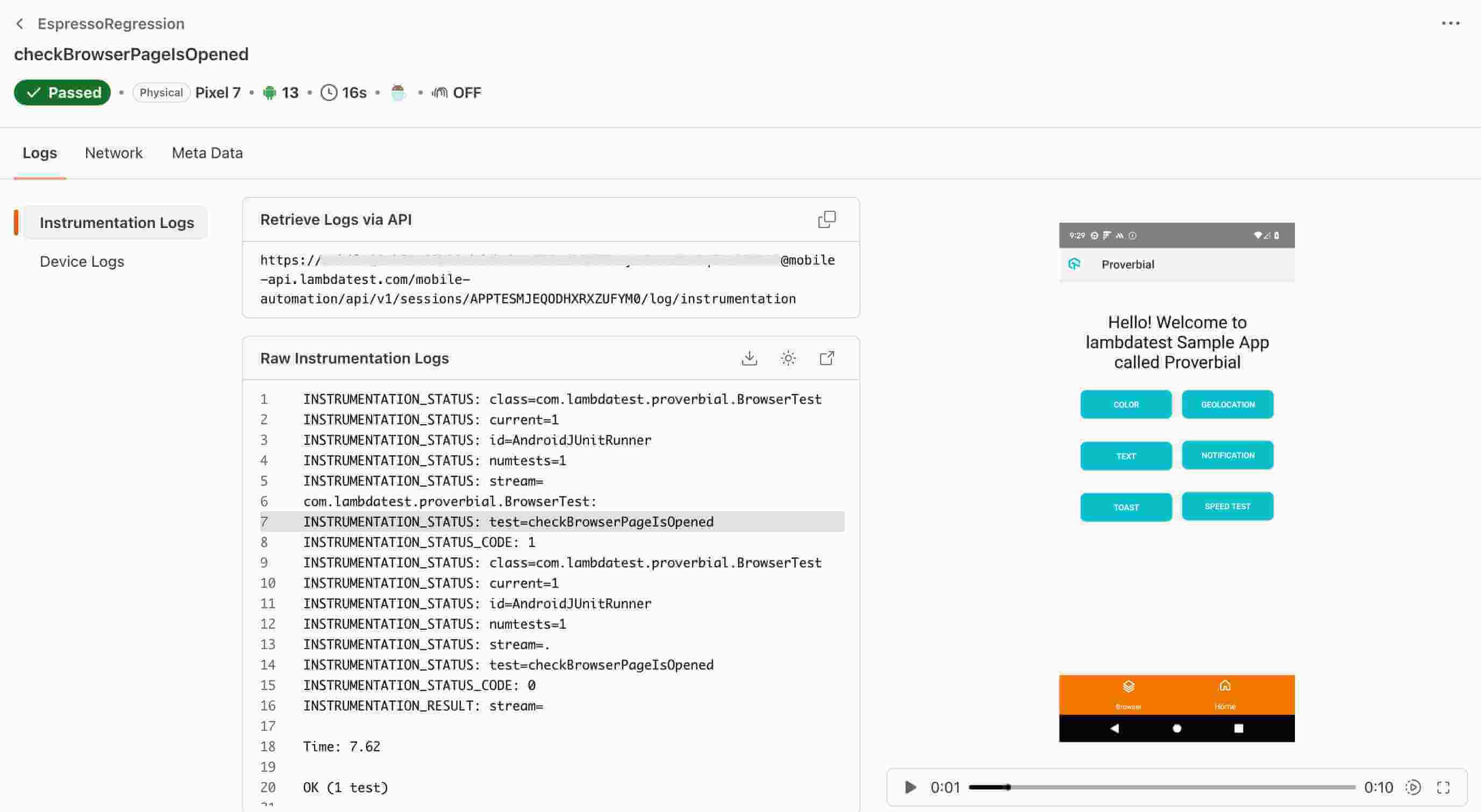
Once you have run your tests, you can view the test execution along with logs. You will be able to see the test cases passing or failing. You can view the same at TestMu AI Automation.
Running Tests in Parallel
You can run tests in parallel on multiple devices by passing the device name in comma separated format in the execute command as show below:
curl --location --request POST 'https://mobile-api.lambdatest.com/espresso/v1/build' \
--header 'Authorization: Basic BASIC_AUTH_TOKEN' \
--header 'Content-Type: application/json' \
--data-raw '{
  "app" : "APP_ID",
  "testSuite": "TEST_SUITE_ID",
  "device" :  ["Galaxy S20-10","Galaxy S20-10","Redmi Note 9-10","Galaxy S10+-10","Galaxy S7 edge-8","Galaxy S9+-8"],
  "queueTimeout": 10800,
  "IdleTimeout": 150,
  "deviceLog": true,
  "build" : "Proverbial-Espresso"
}'
Using the Espresso Agent Skill with TestMu AI
The espresso-skill is a part of TestMu AI Skills that guide AI coding assistants in generating production-ready test automation.
The espresso-skill package includes:
espresso-skill/
├── SKILL.md
└── reference/
    ├── playbook.md
    └── advanced-patterns.md
It provides structured guidance for:
- Project structure and setup
- Dependency configuration
- Local execution
- TestMu AI cloud execution
- Debugging patterns
- CI/CD integration
Installing Espresso Agent Skill
Install a Espresso Agent Skill using the command below:
# Clone the repo and copy the skill you need
git clone https://github.com/LambdaTest/agent-skills.git
cp -r agent-skills/espresso-skill .claude/skills/

# Or for Cursor / Copilot
cp -r agent-skills/espresso-skill .cursor/skills/
Note: If you prefer installing all available framework skills instead of only espresso-skill, clone the repository directly into your tool's skills directory (for example, .claude/skills/, .cursor/skills/, .gemini/skills/, or .agent/skills/).

 Chat with Us
 Ask the Community